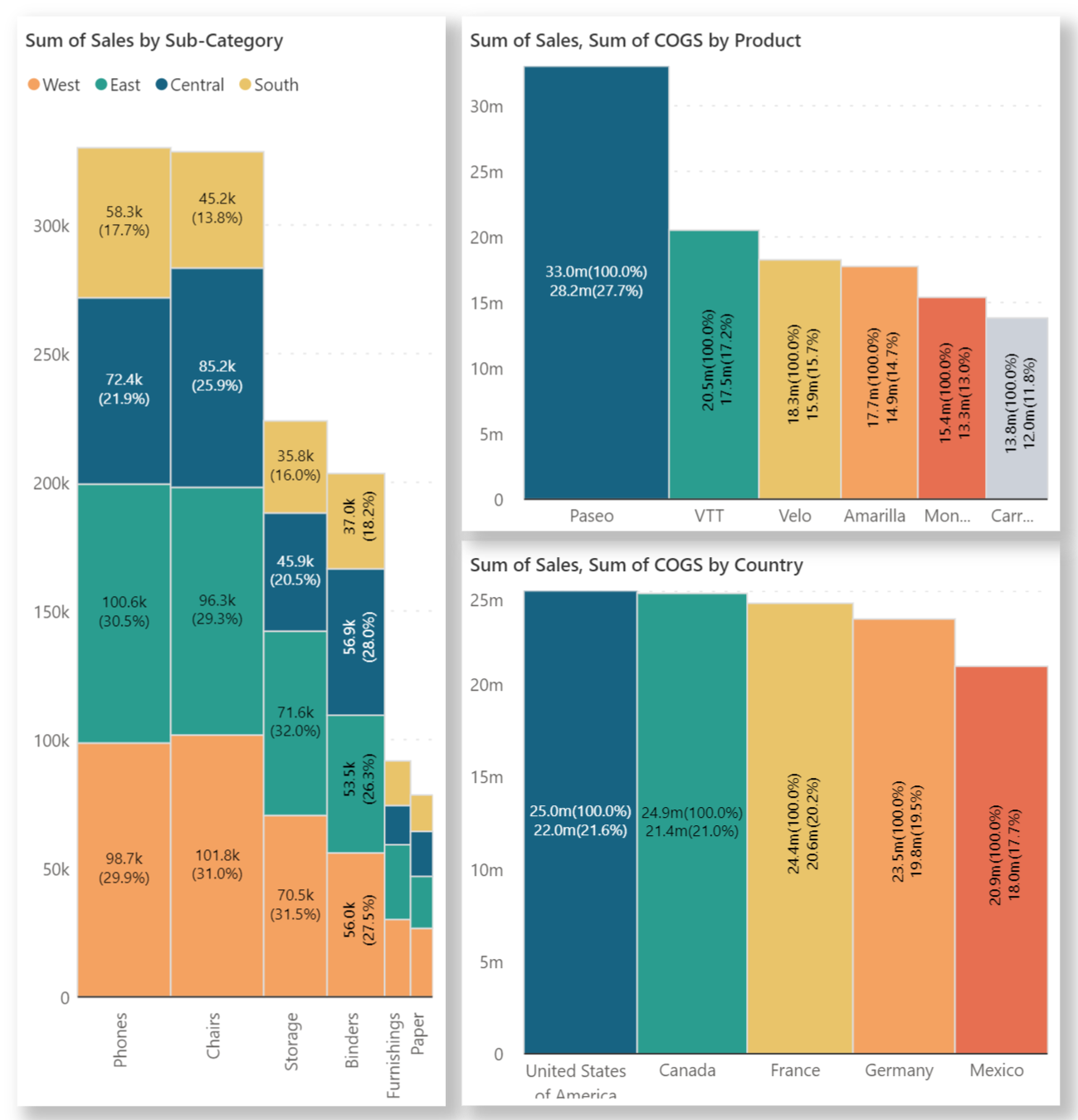
# Marimekko Charts

### 1. Percentage Marimekko

{% tabs %}
{% tab title="Vertical Percentage Marimekko" %}

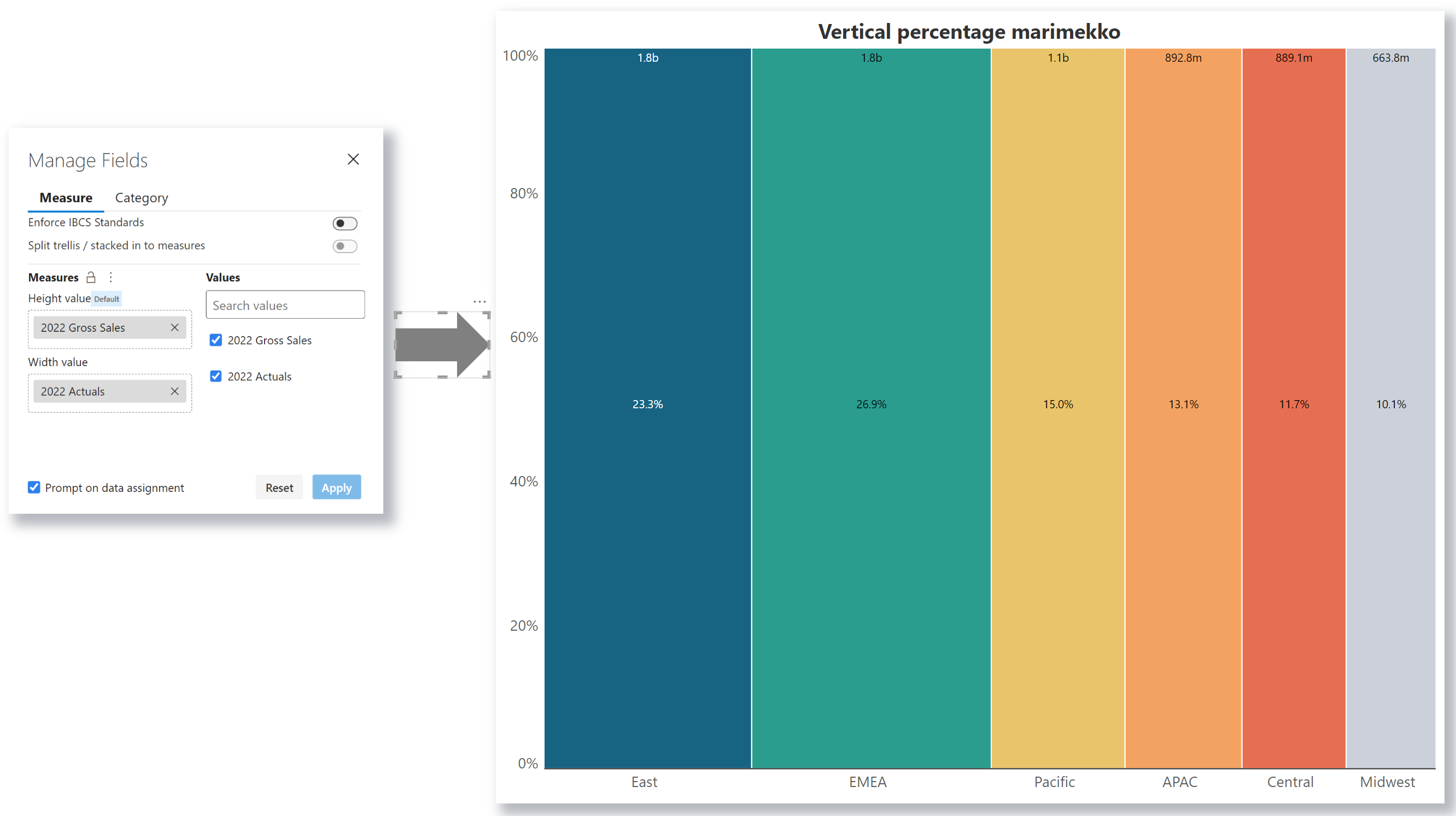
## &#x20;             <mark style="color:$success;">**Vertical percentage marimekko**</mark>

#### **Chart setup to build a vertical percentage marimekko:**

| Configuration option | Configuration value                                                                                  |
| -------------------- | ---------------------------------------------------------------------------------------------------- |
| **Axis**             | Drag the dimension to plot on the axis (e.g.,Sub Region).                                            |
| **Values parameter** | Drag multiple measures to compare (e.g., 2022 Gross Sales, 2022 Actuals).                            |
| **Chart type**       | Select **Vertical percentage Marimekko** from the Marimekko section of the Chart Type dropdown menu. |

> This Marimekko represents the relative proportion of the Gross Sales to the Actuals value for each region.

<figure><img src="https://3132984990-files.gitbook.io/~/files/v0/b/gitbook-x-prod.appspot.com/o/spaces%2FbOoZhPvC57Z0CNgep4Ib%2Fuploads%2FRbQ6AcoZfJGJIeZva3q3%2Fimage.png?alt=media&#x26;token=ba434936-e6c3-49ee-ba70-e5652086d5c1" alt=""><figcaption><p>Vertical precentage marimekko</p></figcaption></figure>
{% endtab %}

{% tab title="Vertical percentage stacked marimekko" %}

## &#x20;       <mark style="color:$success;">**Vertical percentage stacked marimekko**</mark>

#### **Chart setup to build a vertical percentage stacked marimekko:**

| Configuration option          | Configuration value                                                                                          |
| ----------------------------- | ------------------------------------------------------------------------------------------------------------ |
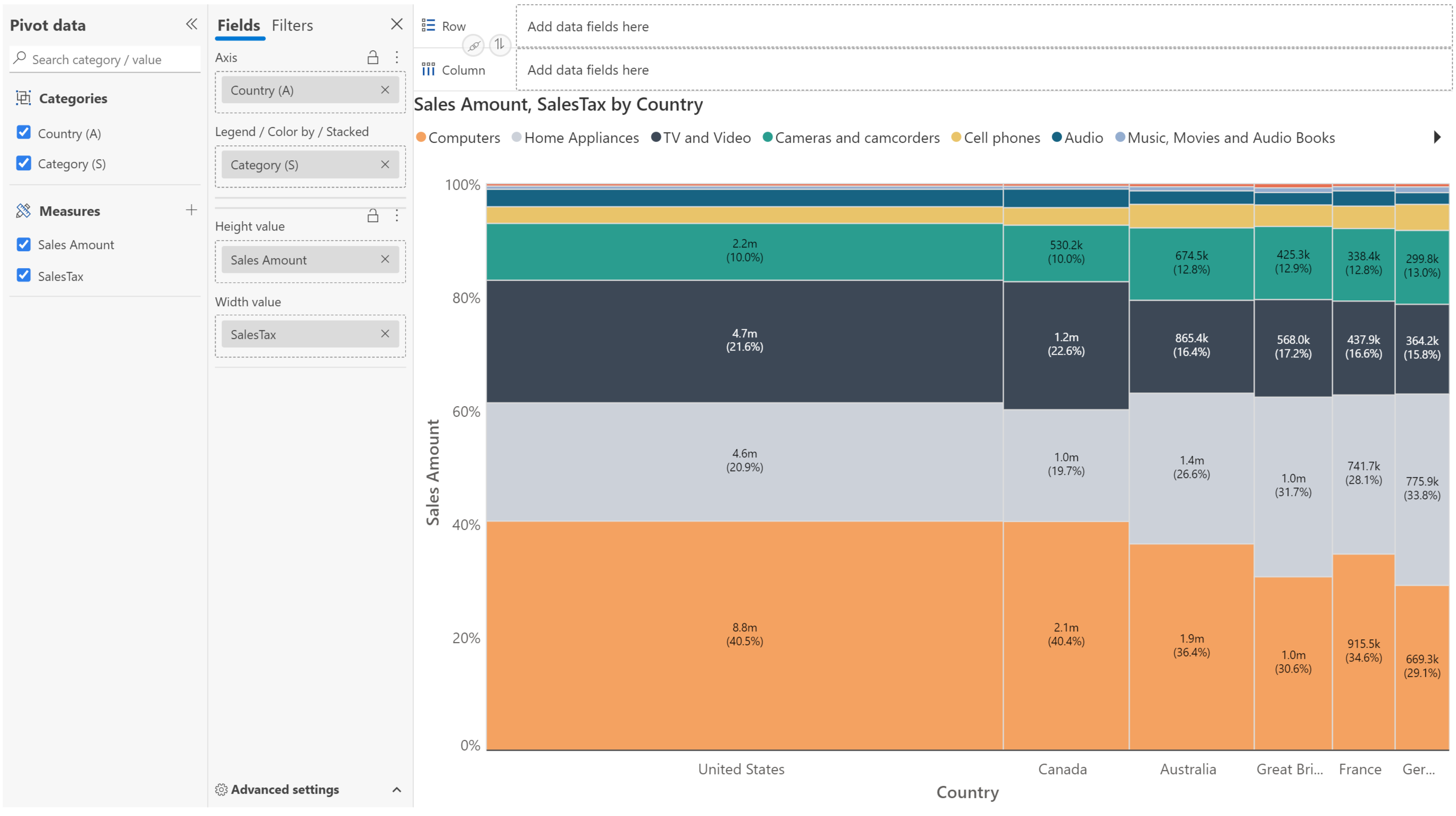
| **Axis**                      | Drag the dimension to plot on the axis (e.g., Country).                                                      |
| **Values parameter**          | Drag multiple measures to compare (e.g., Sales Amount, Sales Tax).                                           |
| **Small multiples parameter** | Drag the dimension to plot the stacks (e.g., Category).                                                      |
| **Chart type**                | Select **Vertical percentage stacked Marimekko** from the Marimekko section of the Chart Type dropdown menu. |

> This Marimekko represents the relative proportion of the Sales Tax to the Sales Amount for each country. The stacks represent the contribution of each product category.

<figure><img src="https://3132984990-files.gitbook.io/~/files/v0/b/gitbook-x-prod.appspot.com/o/spaces%2FbOoZhPvC57Z0CNgep4Ib%2Fuploads%2FBHijRfDDkQqNoFc2MFLp%2Fimage.png?alt=media&#x26;token=17c89615-9a4b-4c63-a6d1-270d81fb39c5" alt=""><figcaption><p>Percentage stacked marimekko</p></figcaption></figure>
{% endtab %}
{% endtabs %}

### 2. Absolute Marimekko

{% tabs %}
{% tab title="Vertical marimekko" %}

## &#x20;                     <mark style="color:$success;">**Vertical marimekko**</mark>

#### **Chart setup to build a vertical marimekko:**

| Configuration option | Configuration value                                                                       |
| -------------------- | ----------------------------------------------------------------------------------------- |
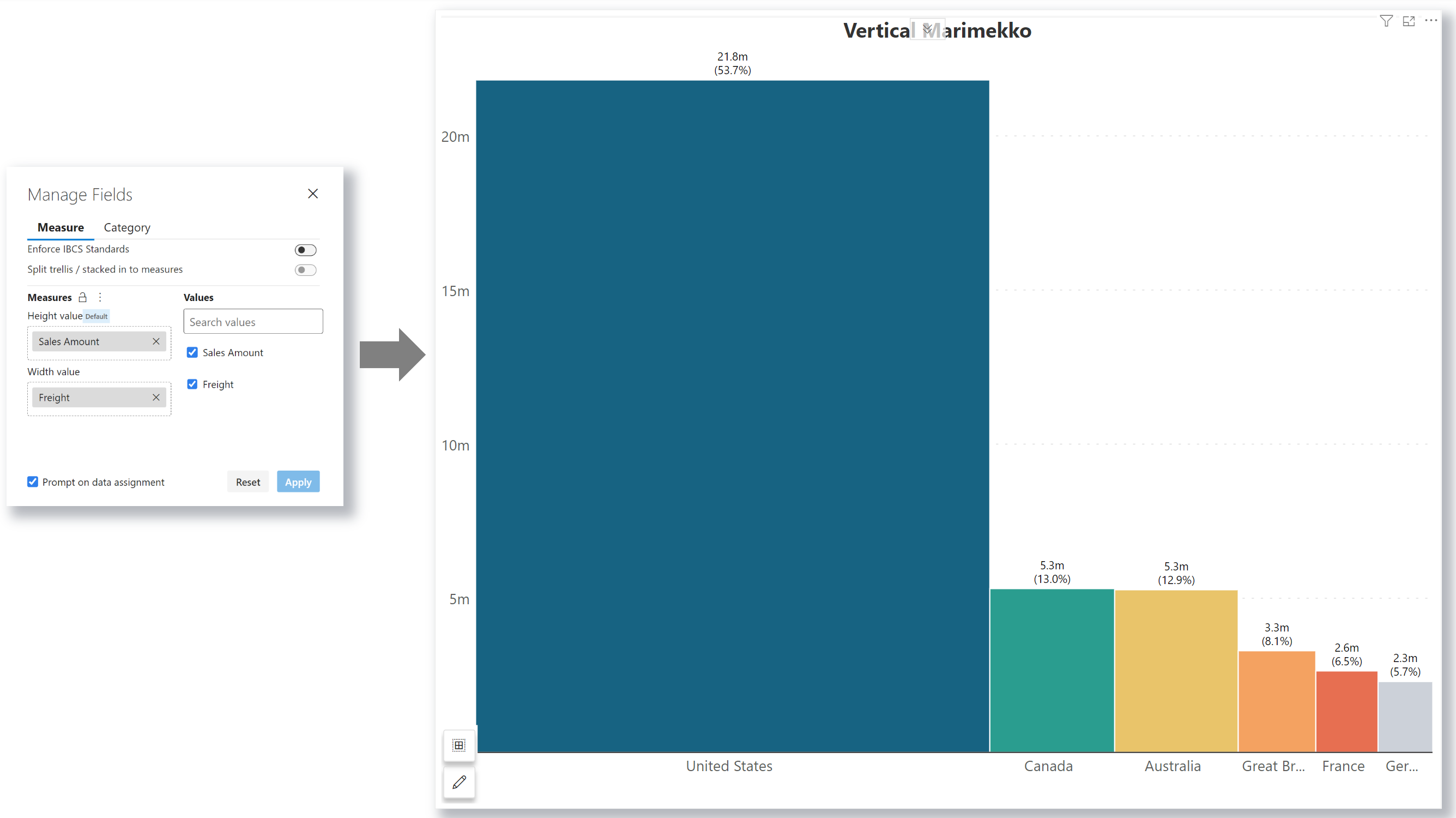
| **Axis**             | Drag the dimension to plot on the axis (e.g., Country).                                   |
| **Values parameter** | Drag multiple measures to compare (e.g., Sales Amount, Freight).                          |
| **Chart type**       | Select **Vertical marimekko** from the Marimekko section of the Chart Type dropdown menu. |

This Marimekko represents the actual proportion of the Freight charges to the Sales Amount for each country.&#x20;

<figure><img src="https://3132984990-files.gitbook.io/~/files/v0/b/gitbook-x-prod.appspot.com/o/spaces%2FbOoZhPvC57Z0CNgep4Ib%2Fuploads%2FTiAOqODRVTtr60WG7y7u%2Fimage.png?alt=media&#x26;token=c1043e4e-a19a-4852-ba0e-dbe0ca0485e5" alt=""><figcaption><p>Vertical marimekko</p></figcaption></figure>
{% endtab %}

{% tab title="Vertical stacked marimekko" %}

## &#x20;                   <mark style="color:$success;">**Vertical stacked marimekko**</mark>

#### **Chart setup to build a vertical stacked marimekko:**

| Configuration option          | Configuration value                                                                                   |
| ----------------------------- | ----------------------------------------------------------------------------------------------------- |
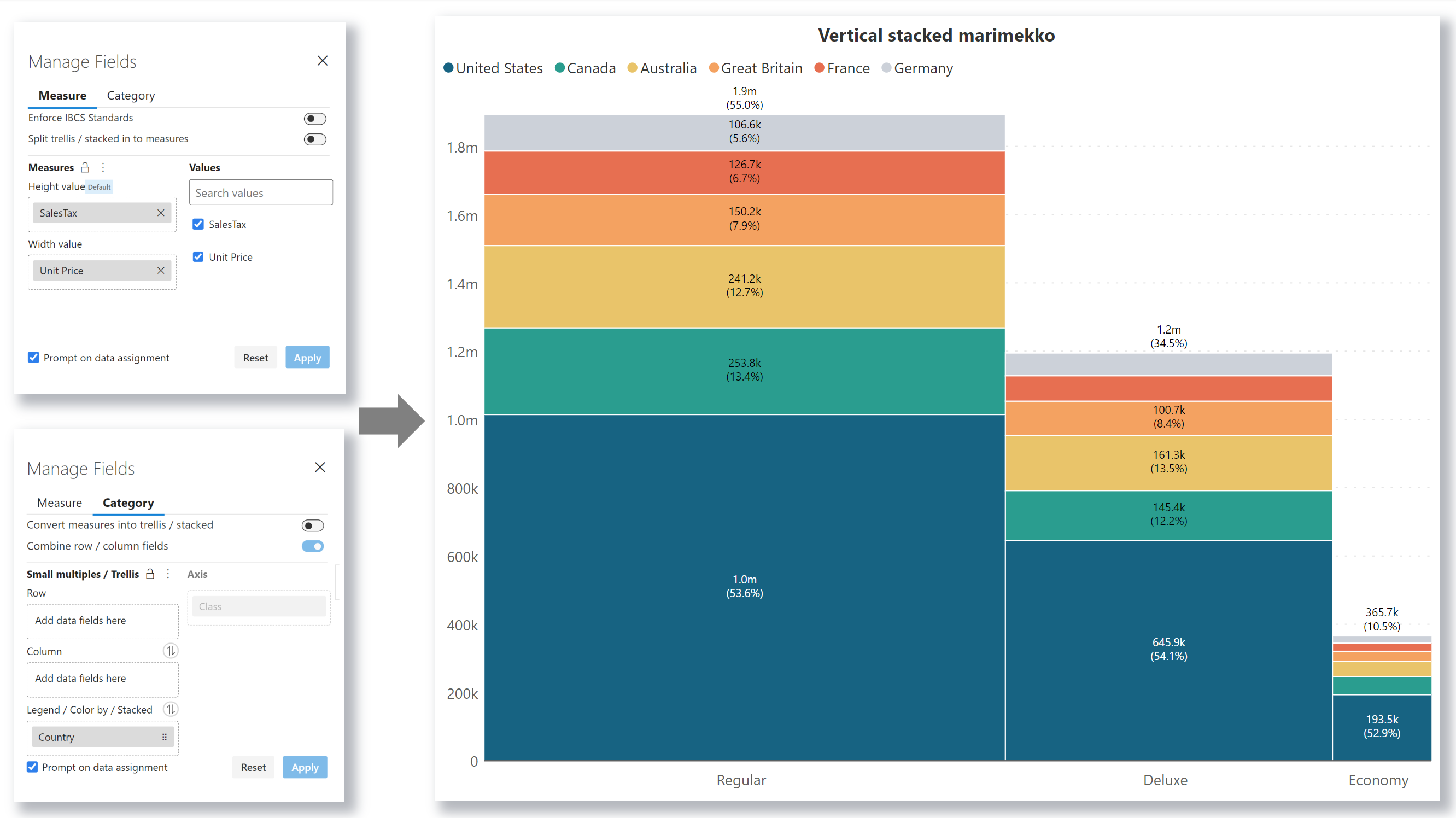
| **Axis**                      | Drag the dimension to plot on the axis (e.g., Class).                                                 |
| **Values parameter**          | Drag multiple measures to compare (e.g., Sales Tax, Unit Price).                                      |
| **Small multiples parameter** | Drag the dimension to plot the stacks  (e.g., Country).                                               |
| **Chart type**                | Select the **Vertical stacked marimekko** from the Marimekko section of the Chart Type dropdown menu. |

> This Marimekko represents the actual proportion of the Sales Tax to the Unit Price for each class. The stacks represent the contribution of each product country.

<figure><img src="https://3132984990-files.gitbook.io/~/files/v0/b/gitbook-x-prod.appspot.com/o/spaces%2FbOoZhPvC57Z0CNgep4Ib%2Fuploads%2FiY4qRfXXtYKQWxIHH7J3%2Fimage.png?alt=media&#x26;token=4c9f61b8-1f96-4019-9e3f-88652cbfa7d8" alt=""><figcaption><p>Vertical Stacked Marimekko</p></figcaption></figure>
{% endtab %}
{% endtabs %}

### 1. Customization & formatting under Canvas settings&#x20;

#### 1.1. Series label

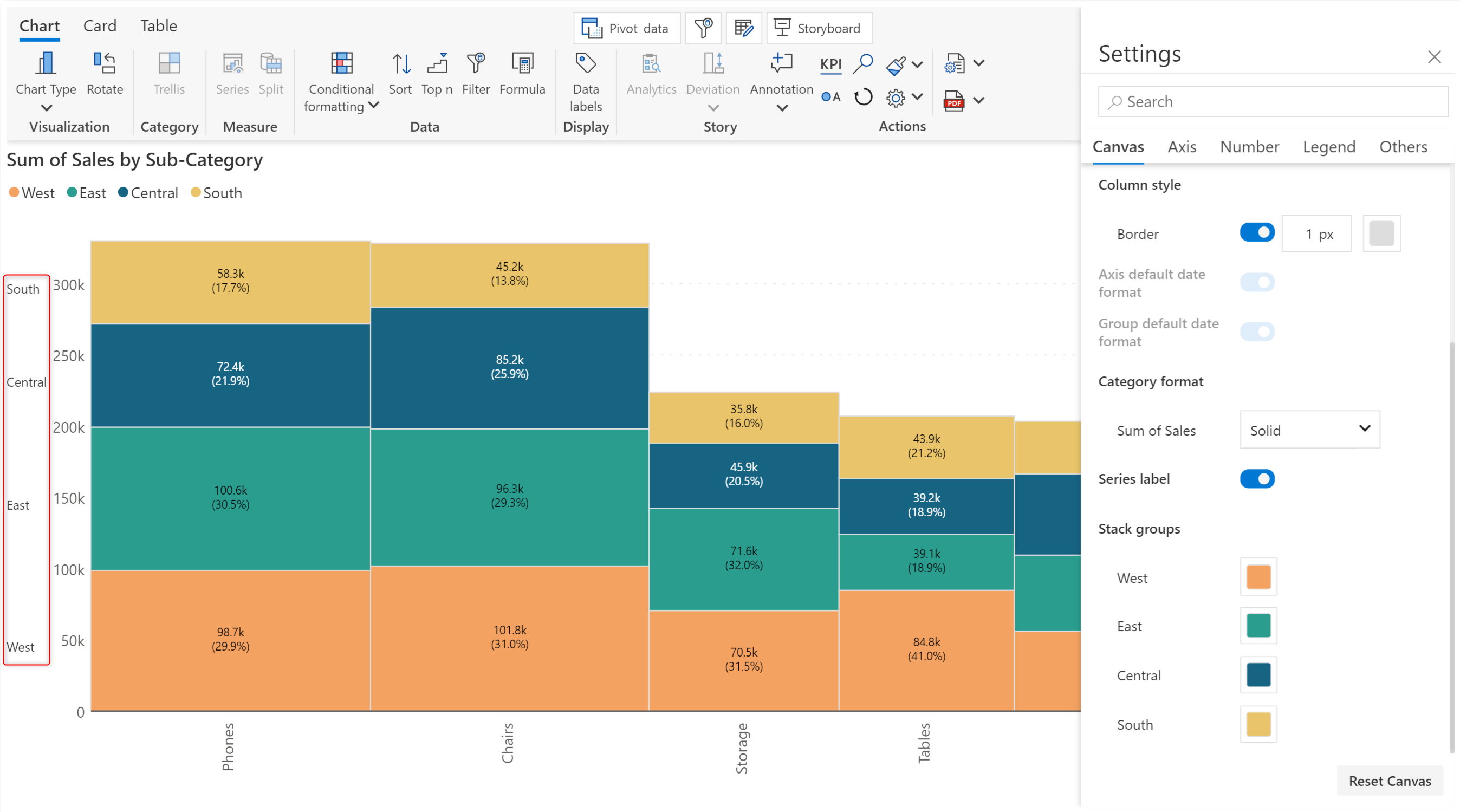
When you have a large number of categories, correlating the legend with the chart may prove to be challenging. Enable the toggle to list the stack dimension category labels against them, facilitating easy identification.

<figure><img src="https://3132984990-files.gitbook.io/~/files/v0/b/gitbook-x-prod.appspot.com/o/spaces%2FbOoZhPvC57Z0CNgep4Ib%2Fuploads%2FUttHXuwuK0Z1qpvMML7X%2Fimage.png?alt=media&#x26;token=831eac12-c40b-42a2-927f-3c1000f38c59" alt=""><figcaption><p>Series labels</p></figcaption></figure>

### 2. Data label settings for Marimekko

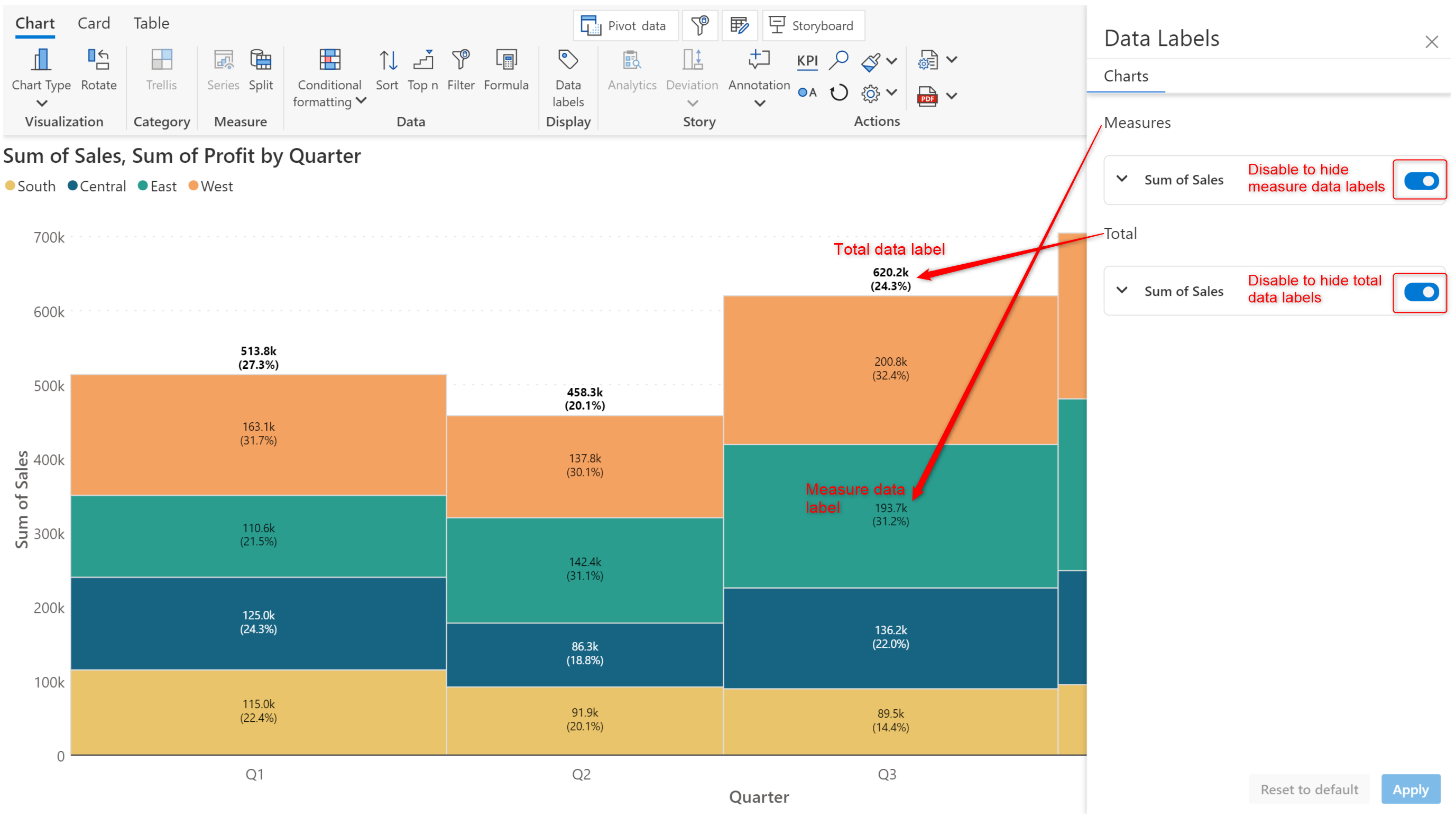
You can customize the data labels for the measures and totals in their respective sections. You can also turn off the data labels for the measures and totals using the respective toggles,&#x20;

<figure><img src="https://3132984990-files.gitbook.io/~/files/v0/b/gitbook-x-prod.appspot.com/o/spaces%2FbOoZhPvC57Z0CNgep4Ib%2Fuploads%2FiYv5finbr2EyAu10utwN%2Fimage.png?alt=media&#x26;token=ad78bc22-148d-4f87-845e-61d144efa81e" alt=""><figcaption><p>Measure and totals data label settings</p></figcaption></figure>

#### 2.1. Label display

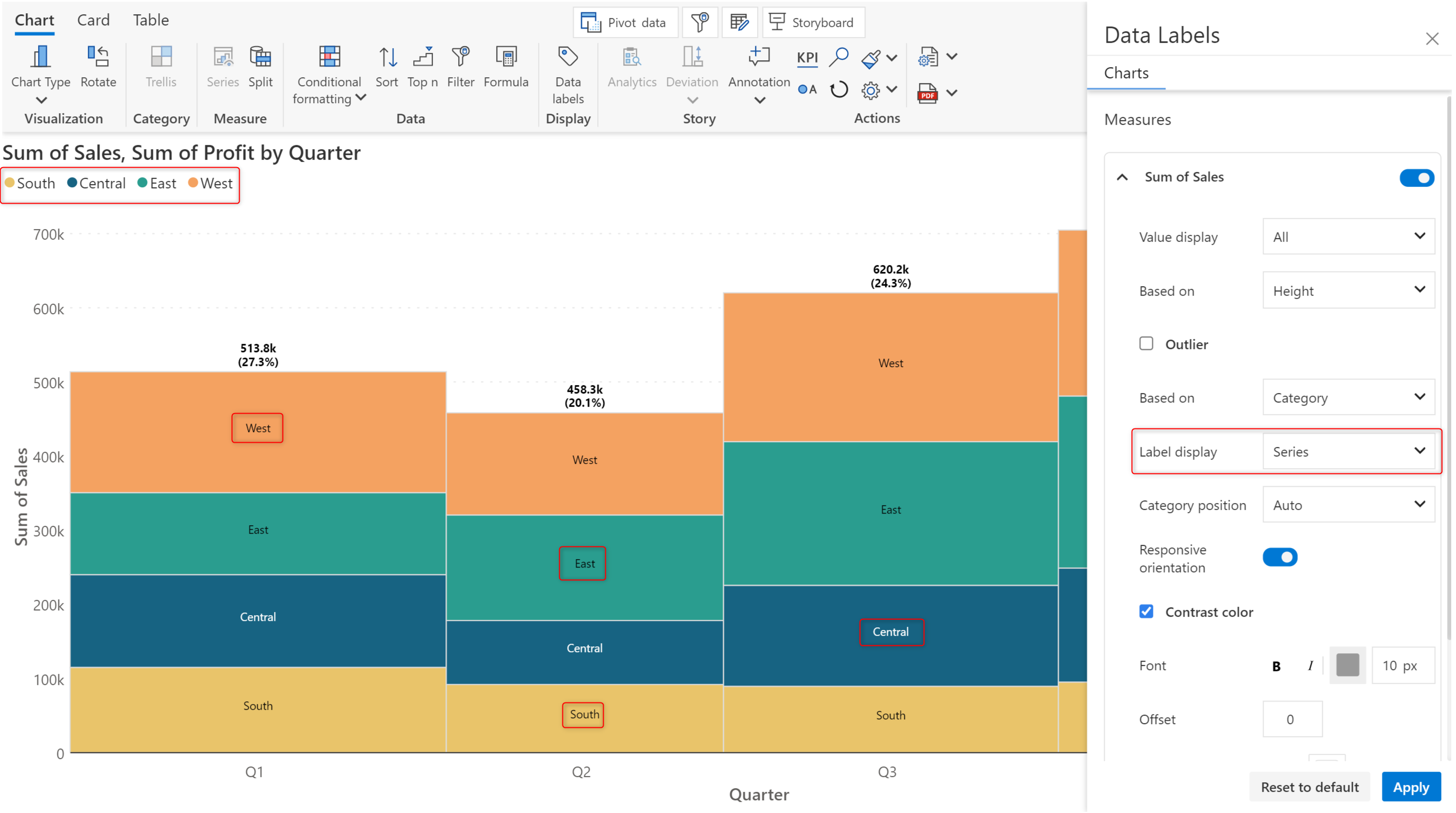
* **Series**: The data label displays the name of the stacked dimension category.

<figure><img src="https://3132984990-files.gitbook.io/~/files/v0/b/gitbook-x-prod.appspot.com/o/spaces%2FbOoZhPvC57Z0CNgep4Ib%2Fuploads%2F0ZvYFXPzj6DQHWIehSJ5%2Fimage.png?alt=media&#x26;token=336fd7b6-e75a-42ff-b812-5fd6dc9914e0" alt=""><figcaption><p>Series label display</p></figcaption></figure>

* **Height**: Displays the percentage or actual value of the measure used to plot the height, in this case, the Sales measure.

<figure><img src="https://3132984990-files.gitbook.io/~/files/v0/b/gitbook-x-prod.appspot.com/o/spaces%2FbOoZhPvC57Z0CNgep4Ib%2Fuploads%2Fl8CArFgLSMzbov2RHFZX%2Fimage.png?alt=media&#x26;token=1fb2aeb6-054a-4539-b0db-54789f5d4141" alt=""><figcaption><p>Label display - height</p></figcaption></figure>

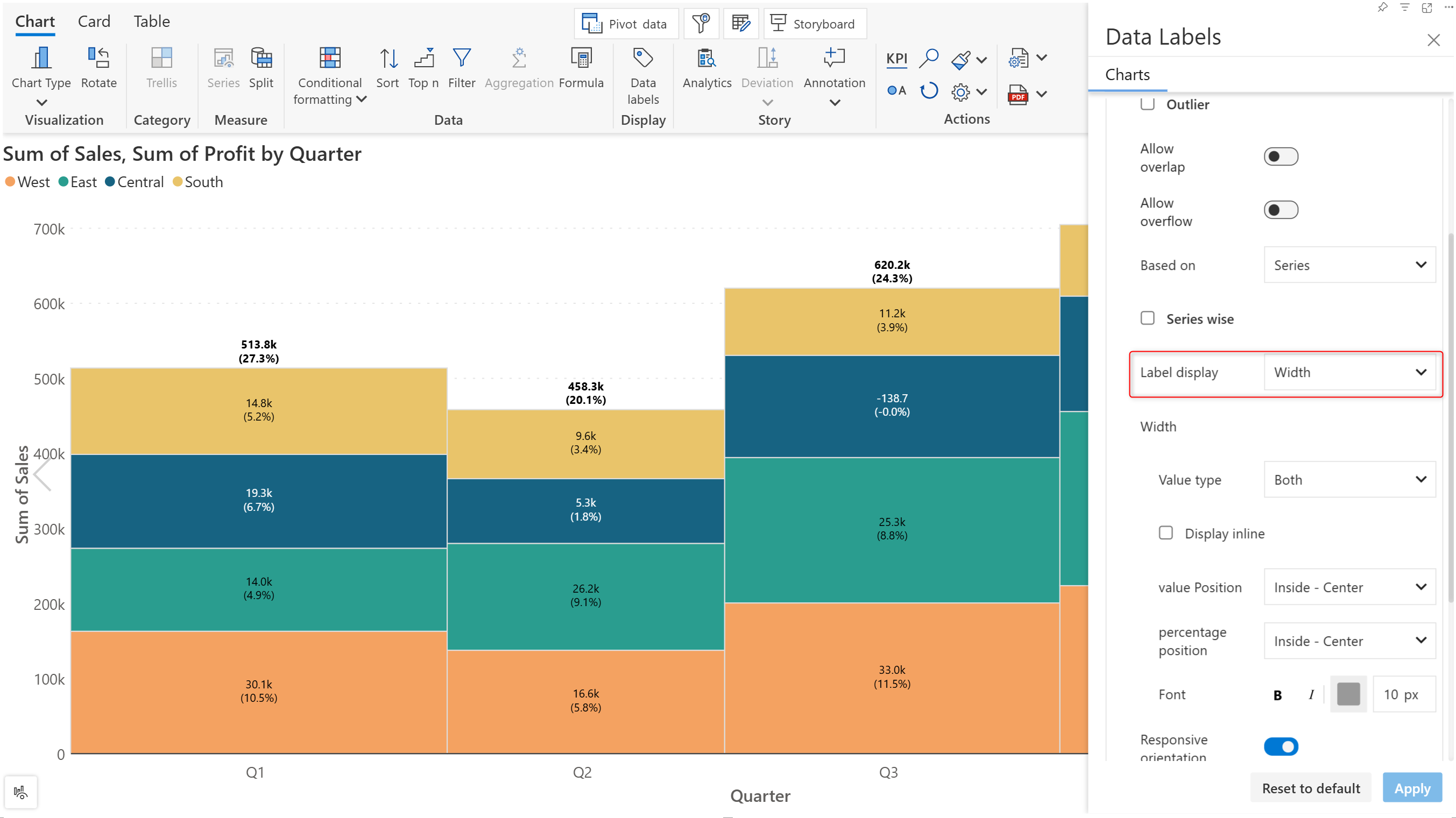
* **Width**: Displays the percentage or actual value of the measure used to plot the width, in this case, the Profit measure.

<figure><img src="https://3132984990-files.gitbook.io/~/files/v0/b/gitbook-x-prod.appspot.com/o/spaces%2FbOoZhPvC57Z0CNgep4Ib%2Fuploads%2FnM2cu9nH08EQIBAAh6MG%2Fimage.png?alt=media&#x26;token=e6ebc923-89e2-4f75-919e-2d6d41acdb7b" alt=""><figcaption><p>Label display - width</p></figcaption></figure>

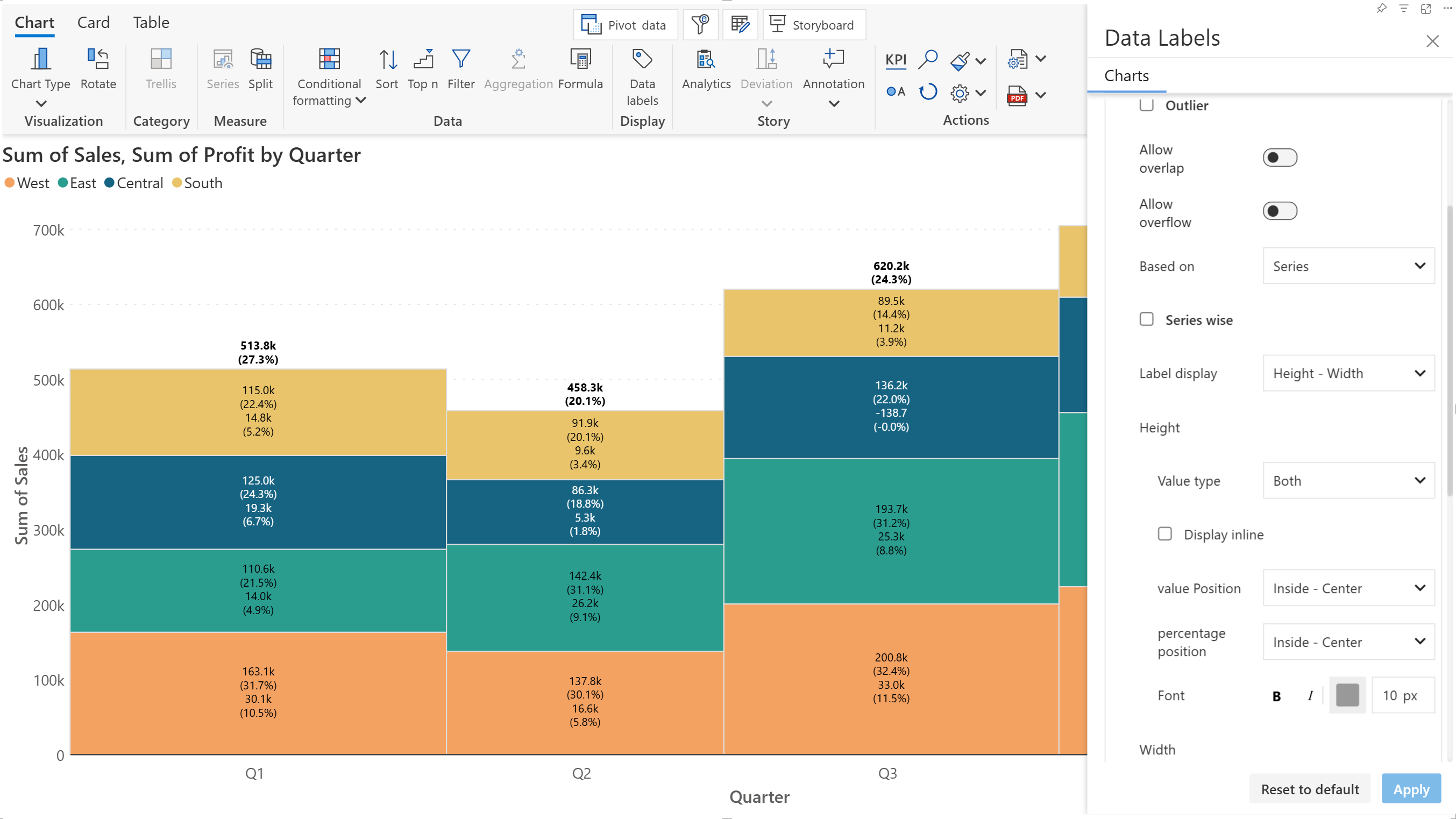
* **Height - Width**: Displays the percentage/value of the measures used to plot the width and height.

<figure><img src="https://3132984990-files.gitbook.io/~/files/v0/b/gitbook-x-prod.appspot.com/o/spaces%2FbOoZhPvC57Z0CNgep4Ib%2Fuploads%2Fq2C4pM8unEoQjg6R14cg%2Fimage.png?alt=media&#x26;token=5bdc85b0-fecb-424d-82f3-46e233838bf6" alt=""><figcaption><p>Label display - height + width</p></figcaption></figure>

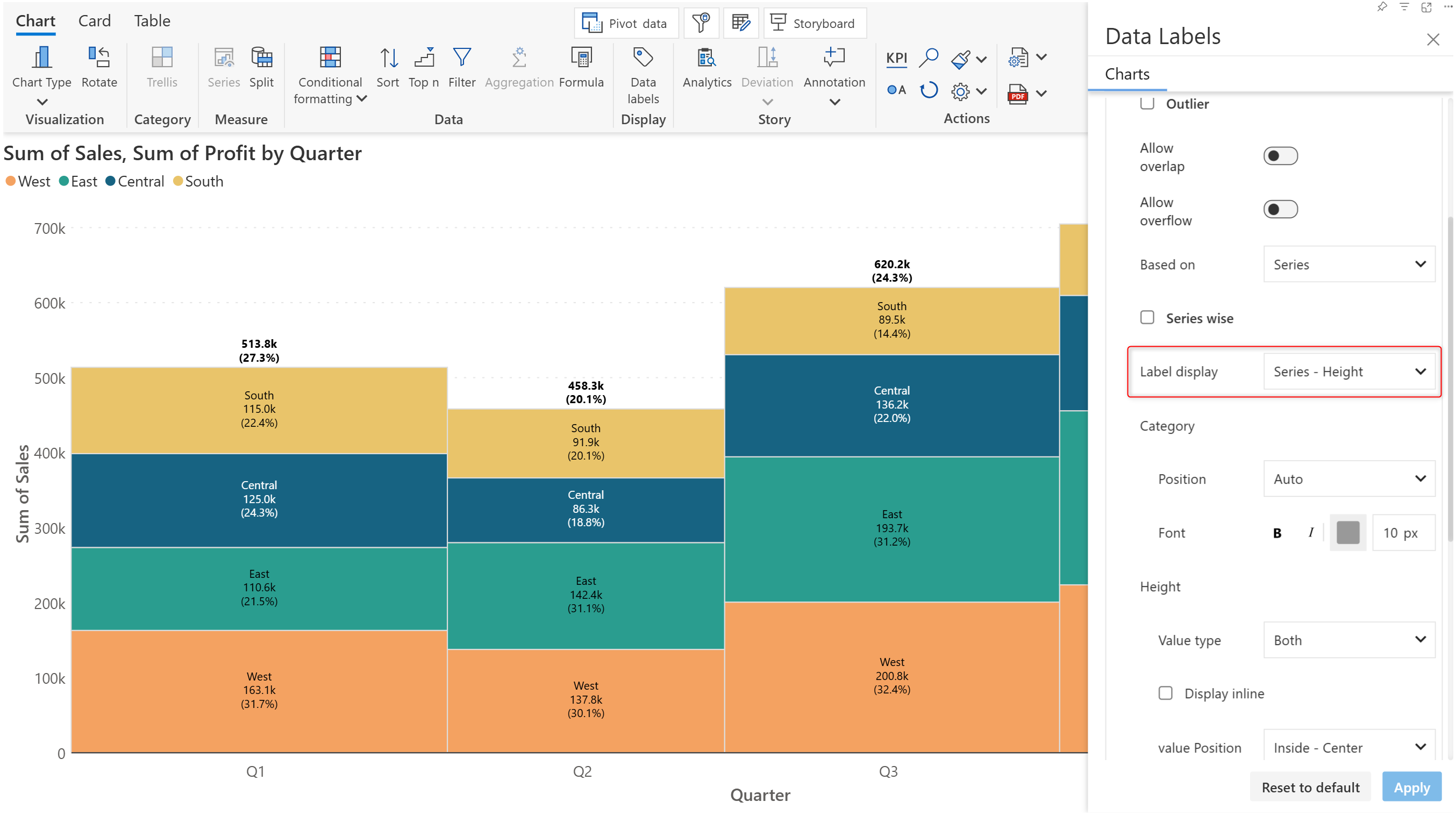
* **Series - Height**: Displays the stacked dimension category name and the percentage/value of the measure used to plot the height.

<figure><img src="https://3132984990-files.gitbook.io/~/files/v0/b/gitbook-x-prod.appspot.com/o/spaces%2FbOoZhPvC57Z0CNgep4Ib%2Fuploads%2F6HPyg12GVE9gPyJ9fBsM%2Fimage.png?alt=media&#x26;token=c45c9f7b-1952-459b-b872-ab9ee04d382d" alt=""><figcaption><p>Label display - series + height</p></figcaption></figure>

#### 2.2. Height

This option is enabled when the label display shows the height i.e. the **Label display** option is set to 'Height',  'Height - Width', or 'Series - Height'.

<figure><img src="https://3132984990-files.gitbook.io/~/files/v0/b/gitbook-x-prod.appspot.com/o/spaces%2FbOoZhPvC57Z0CNgep4Ib%2Fuploads%2FRmEWKWLxHaNBRHabrxt5%2Fimage.png?alt=media&#x26;token=13410c08-adc5-46f8-bc08-f23e0f9a45f7" alt=""><figcaption><p>Height options</p></figcaption></figure>

#### 2.3. Width

This option is enabled when the label display shows the width i.e. the **Label display** option is set to 'Width' or 'Height - Width'.

<figure><img src="https://3132984990-files.gitbook.io/~/files/v0/b/gitbook-x-prod.appspot.com/o/spaces%2FbOoZhPvC57Z0CNgep4Ib%2Fuploads%2FFO7XYvxFhtlmcRPYbVtc%2Fimage.png?alt=media&#x26;token=62795b12-2d22-4081-a59f-2e7ea8f7ba14" alt=""><figcaption><p>Width options</p></figcaption></figure>

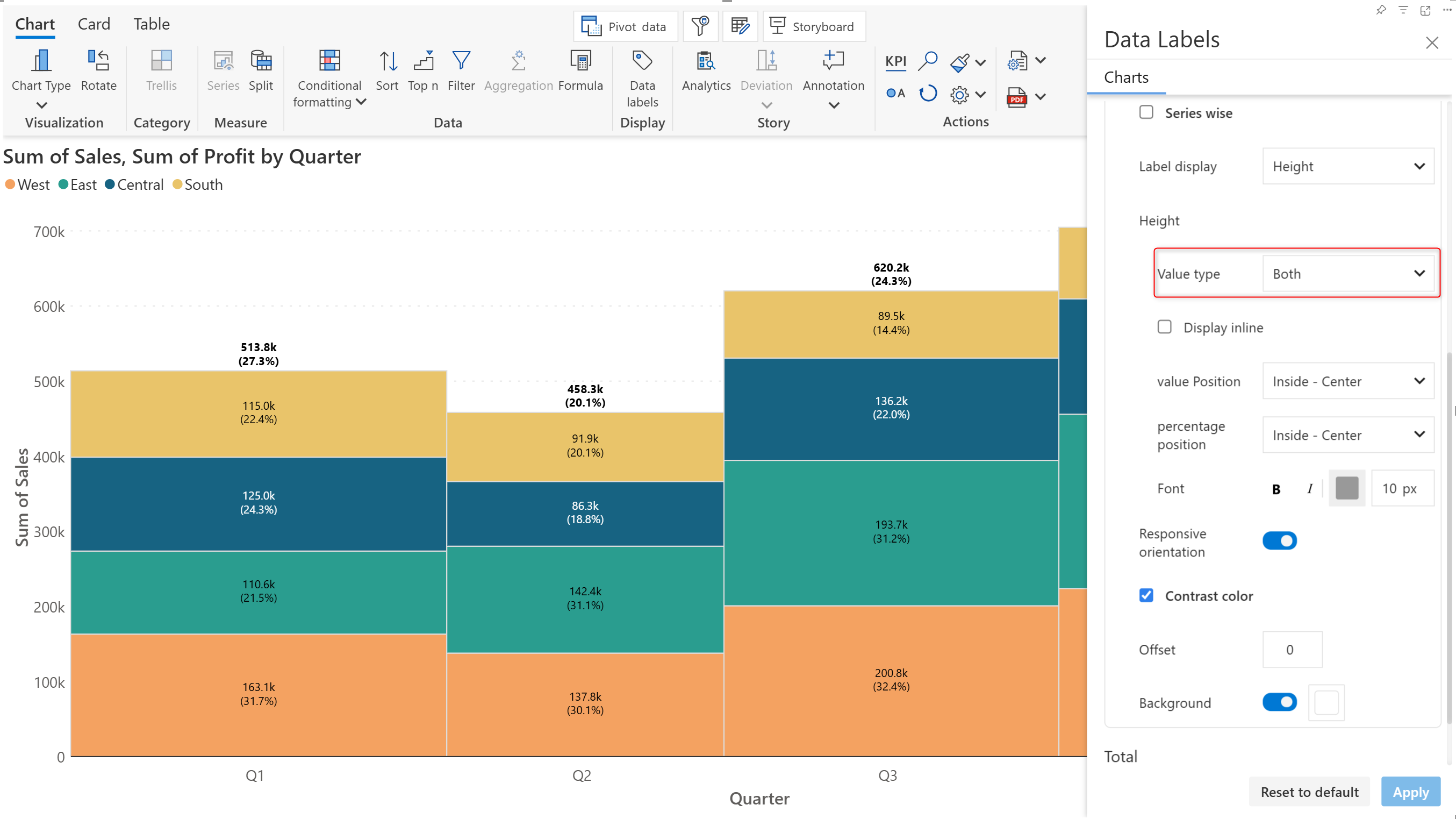
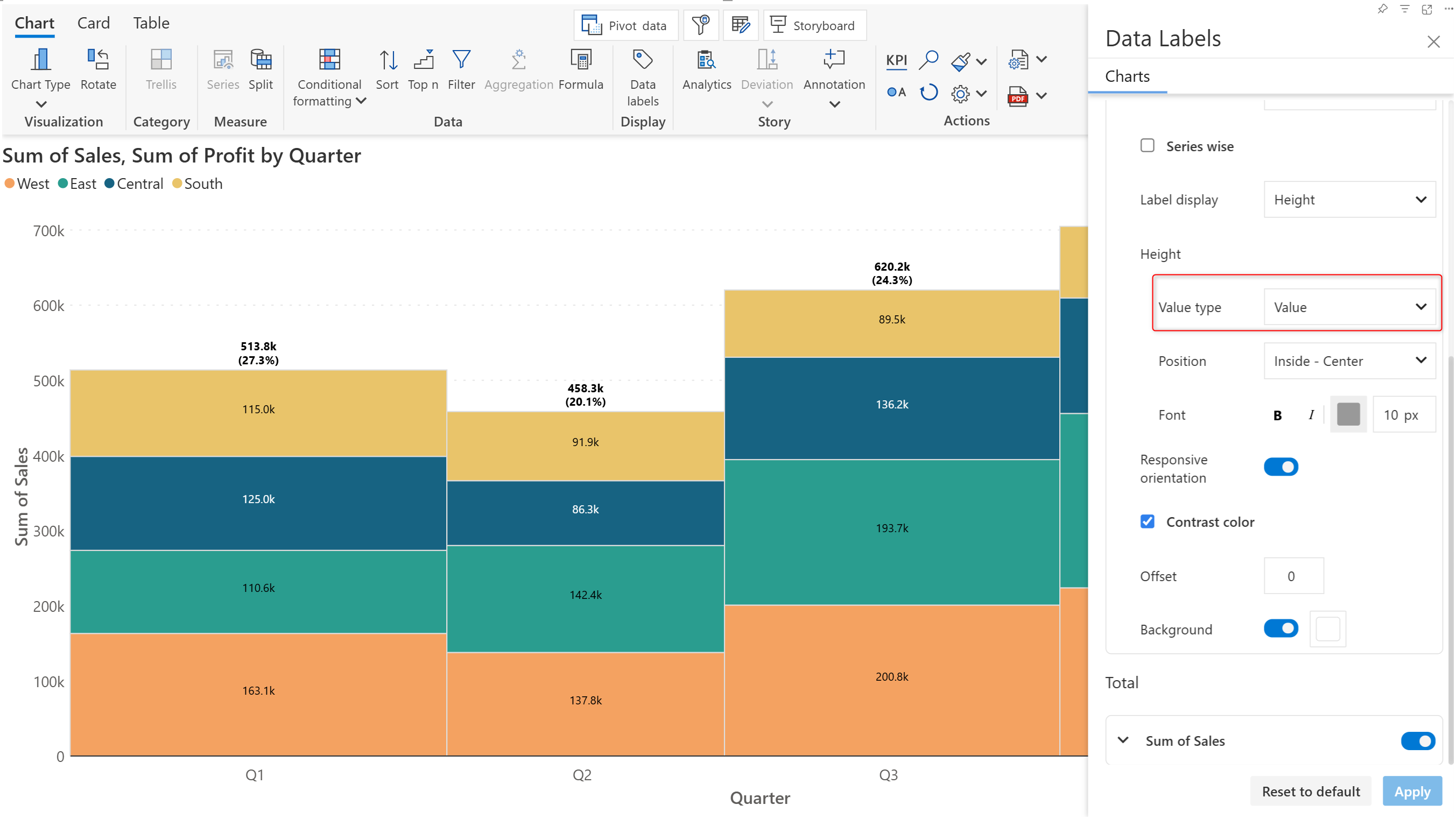
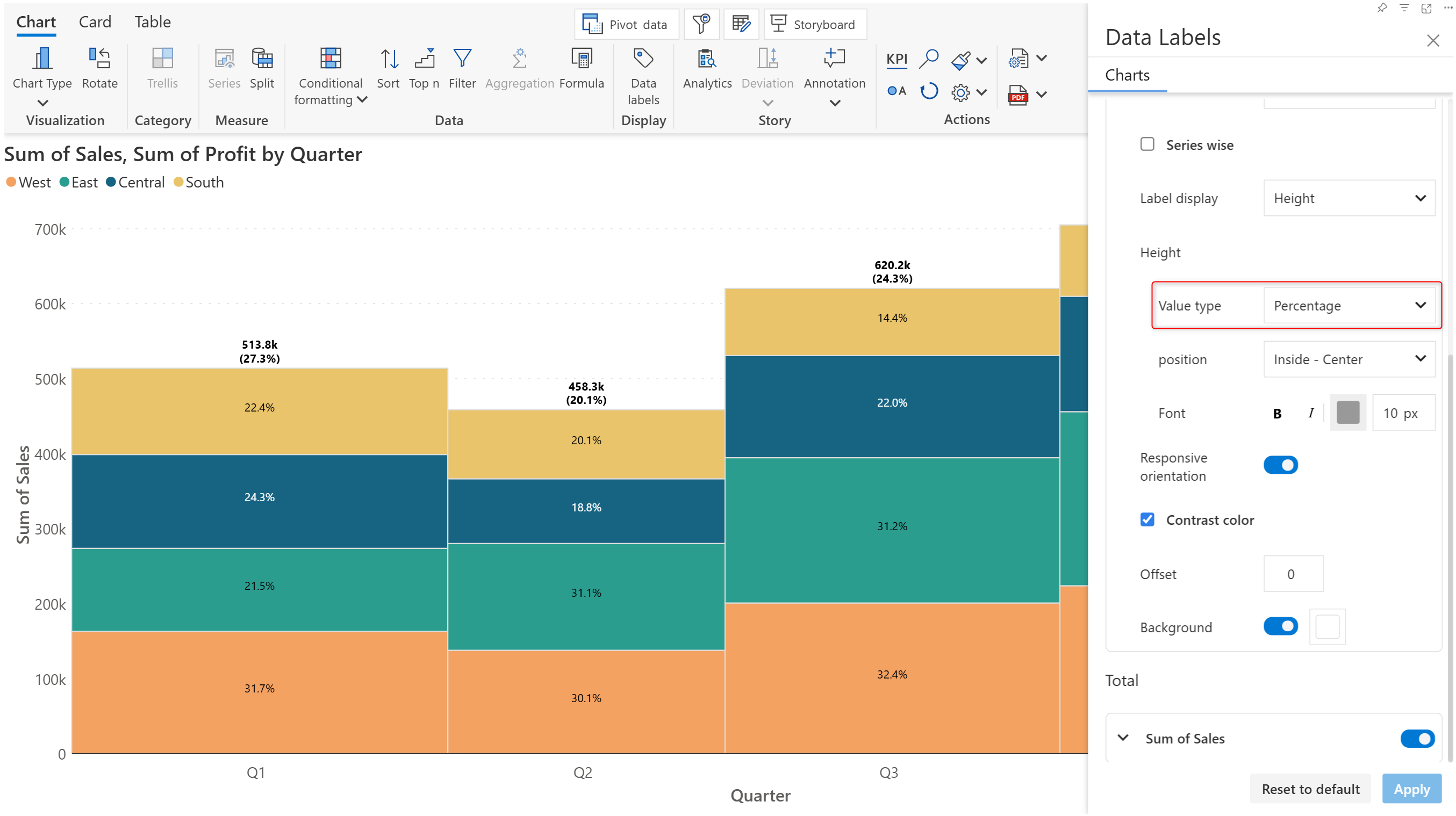
#### 2.3. Value type

Choose to display the measure value, percentage contribution, or both.

<div><figure><img src="https://3132984990-files.gitbook.io/~/files/v0/b/gitbook-x-prod.appspot.com/o/spaces%2FbOoZhPvC57Z0CNgep4Ib%2Fuploads%2FHsCC7Vw7oXIW3IRfU4zR%2Fimage.png?alt=media&#x26;token=618488b7-4160-44a2-beea-de1e126d0328" alt=""><figcaption><p>Both - display value and percentage</p></figcaption></figure> <figure><img src="https://3132984990-files.gitbook.io/~/files/v0/b/gitbook-x-prod.appspot.com/o/spaces%2FbOoZhPvC57Z0CNgep4Ib%2Fuploads%2FzACogMCyEjkagpmH8os4%2FValue%20type%20value.png?alt=media&#x26;token=b5c0e7c5-4c86-468b-baba-f20a77f5d977" alt=""><figcaption><p>Value only</p></figcaption></figure> <figure><img src="https://3132984990-files.gitbook.io/~/files/v0/b/gitbook-x-prod.appspot.com/o/spaces%2FbOoZhPvC57Z0CNgep4Ib%2Fuploads%2F72FWcCxXQWdI9ENNchTD%2FValue%20type%20percentage.png?alt=media&#x26;token=b02abaea-cbda-4d3b-9a5c-3f36e0363b63" alt=""><figcaption><p>Percentage only</p></figcaption></figure></div>

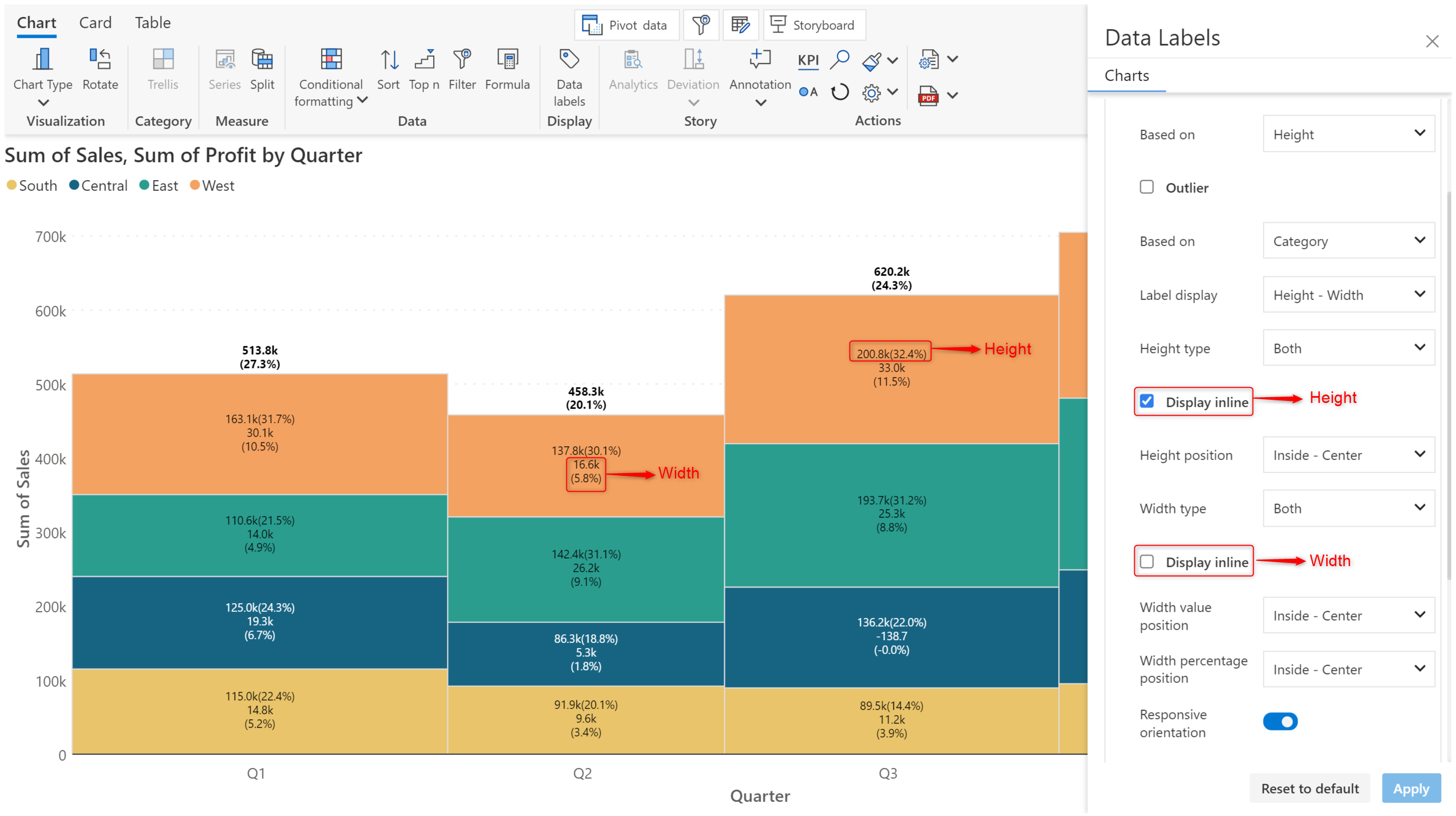
#### 2.4. Display inline

This option is enabled when you choose the 'Both' option for [Value type](#id-2.3.-value-type). The value and percentage contribution are displayed in a single line with the percentage in parentheses. They are shown in different lines when this option is unchecked.

Notice how the Height value and percentage are displayed inline but the Width components are on different lines.

<figure><img src="https://3132984990-files.gitbook.io/~/files/v0/b/gitbook-x-prod.appspot.com/o/spaces%2FbOoZhPvC57Z0CNgep4Ib%2Fuploads%2FaCJ9tZMba1Y6Z58cL3AO%2Fimage.png?alt=media&#x26;token=39d8367b-37d4-4025-8f85-08dac7a0c3e9" alt=""><figcaption><p>Display value and percentage inline</p></figcaption></figure>

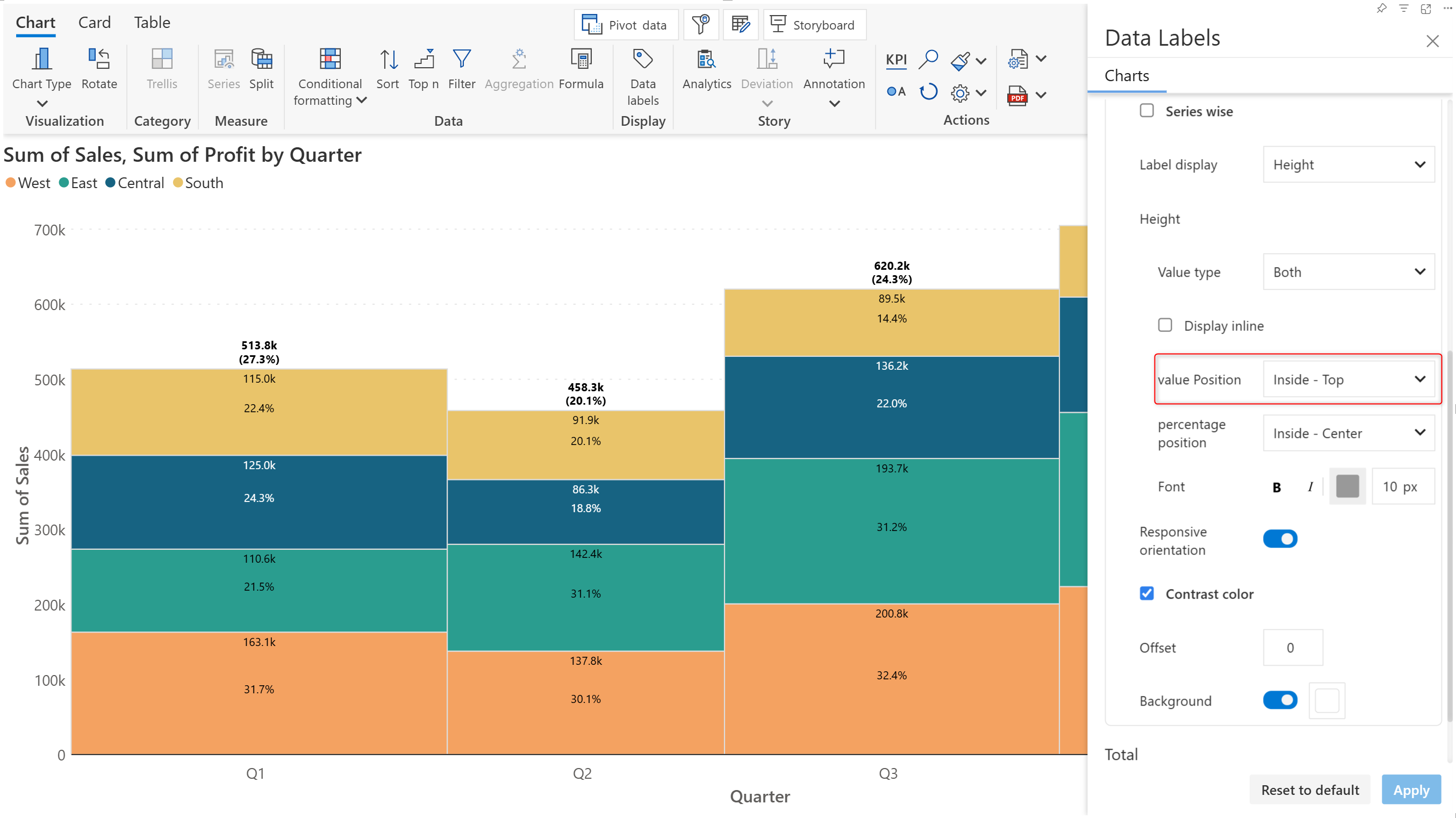
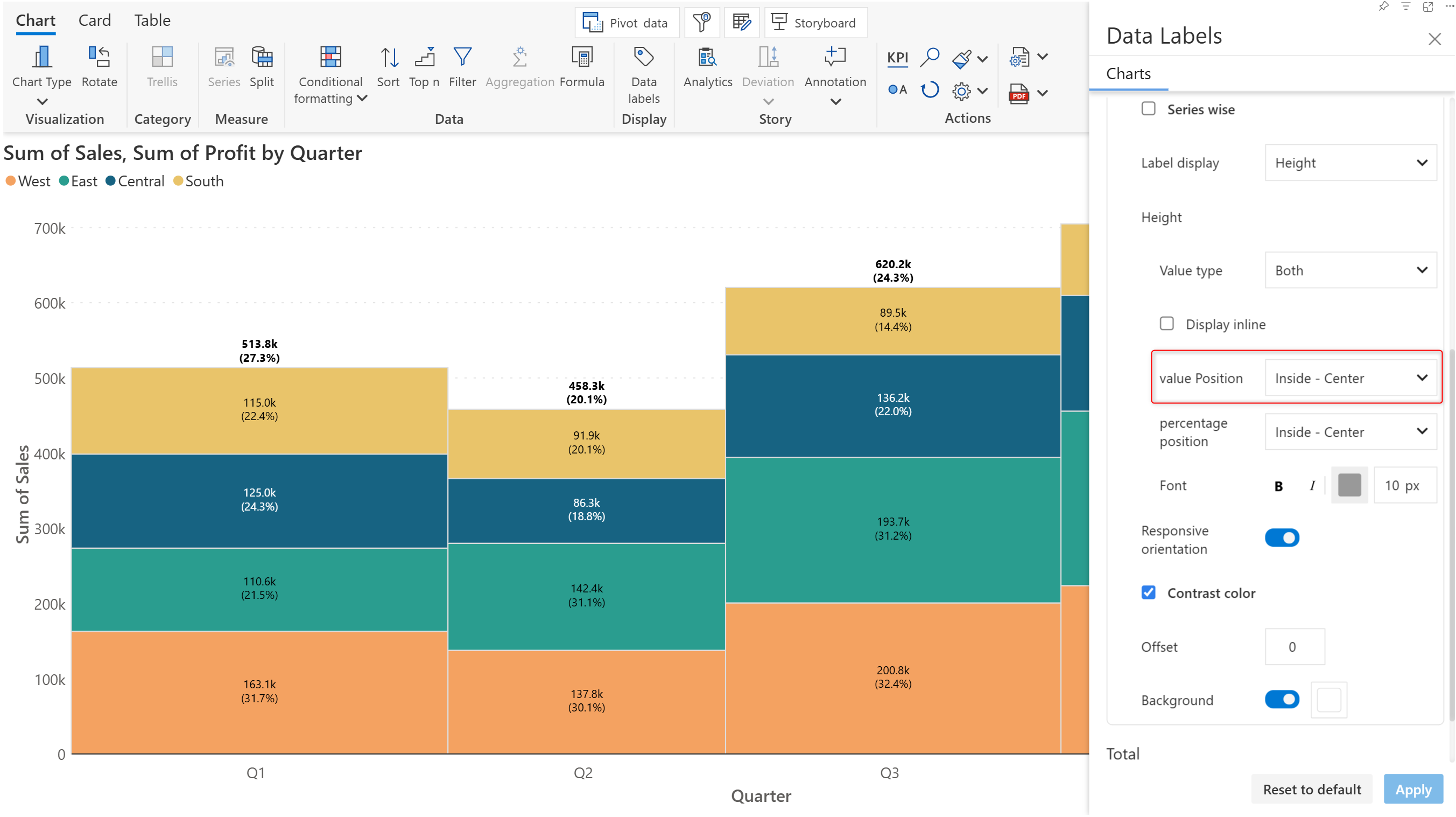
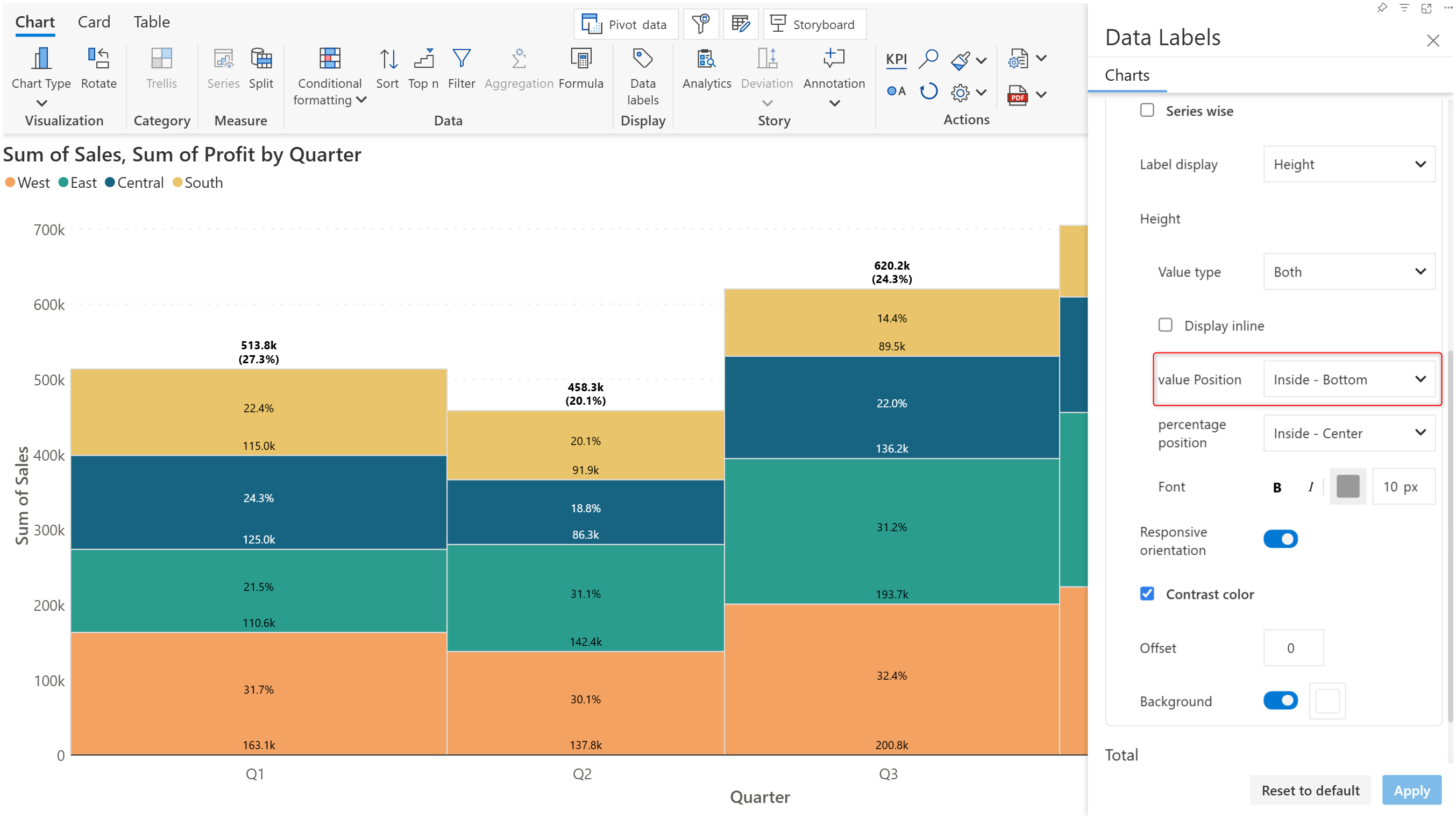
#### 2.5. Value position

The positioning of the value data label within each bar segment can be set using this option. The various positions are shown below.

<div><figure><img src="https://3132984990-files.gitbook.io/~/files/v0/b/gitbook-x-prod.appspot.com/o/spaces%2FbOoZhPvC57Z0CNgep4Ib%2Fuploads%2FjtpondwTNdeVfyMQmW3I%2Fimage.png?alt=media&#x26;token=fee6e4e6-d163-40bf-80e3-e26473e7a85f" alt=""><figcaption><p>Value position - Top</p></figcaption></figure> <figure><img src="https://3132984990-files.gitbook.io/~/files/v0/b/gitbook-x-prod.appspot.com/o/spaces%2FbOoZhPvC57Z0CNgep4Ib%2Fuploads%2FedatQSzL9eFVCnIXcWmJ%2FValue%20position%20center.png?alt=media&#x26;token=41bbbfd6-472c-4944-964b-864b597d505d" alt=""><figcaption><p>Value position - Center</p></figcaption></figure> <figure><img src="https://3132984990-files.gitbook.io/~/files/v0/b/gitbook-x-prod.appspot.com/o/spaces%2FbOoZhPvC57Z0CNgep4Ib%2Fuploads%2FMzPoxreDd2ZVzb18MWFW%2FValue%20position%20bottom.png?alt=media&#x26;token=77758d3a-6e65-4e98-91c8-d6151c714039" alt=""><figcaption><p>Value position - Bottom</p></figcaption></figure></div>

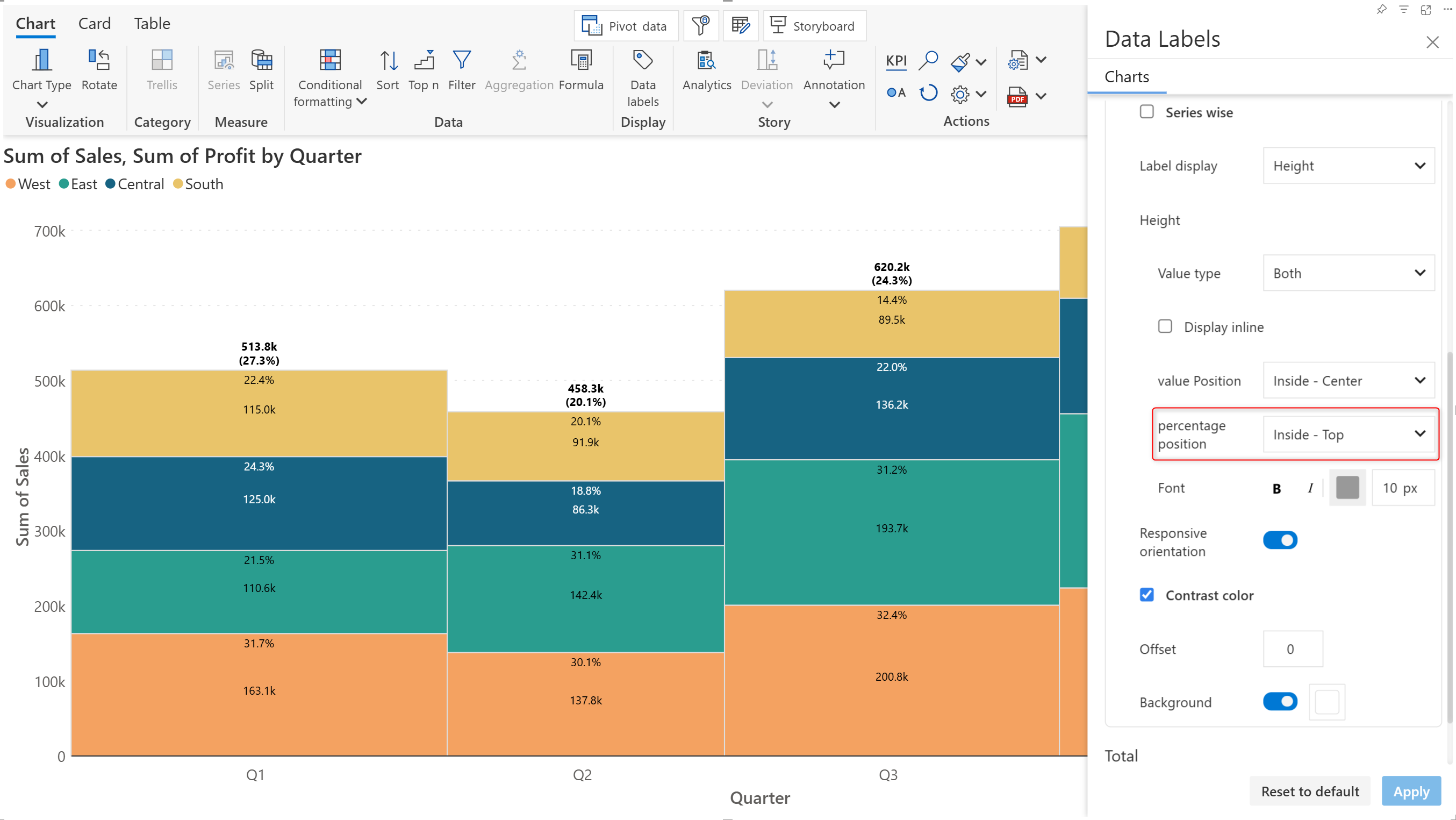
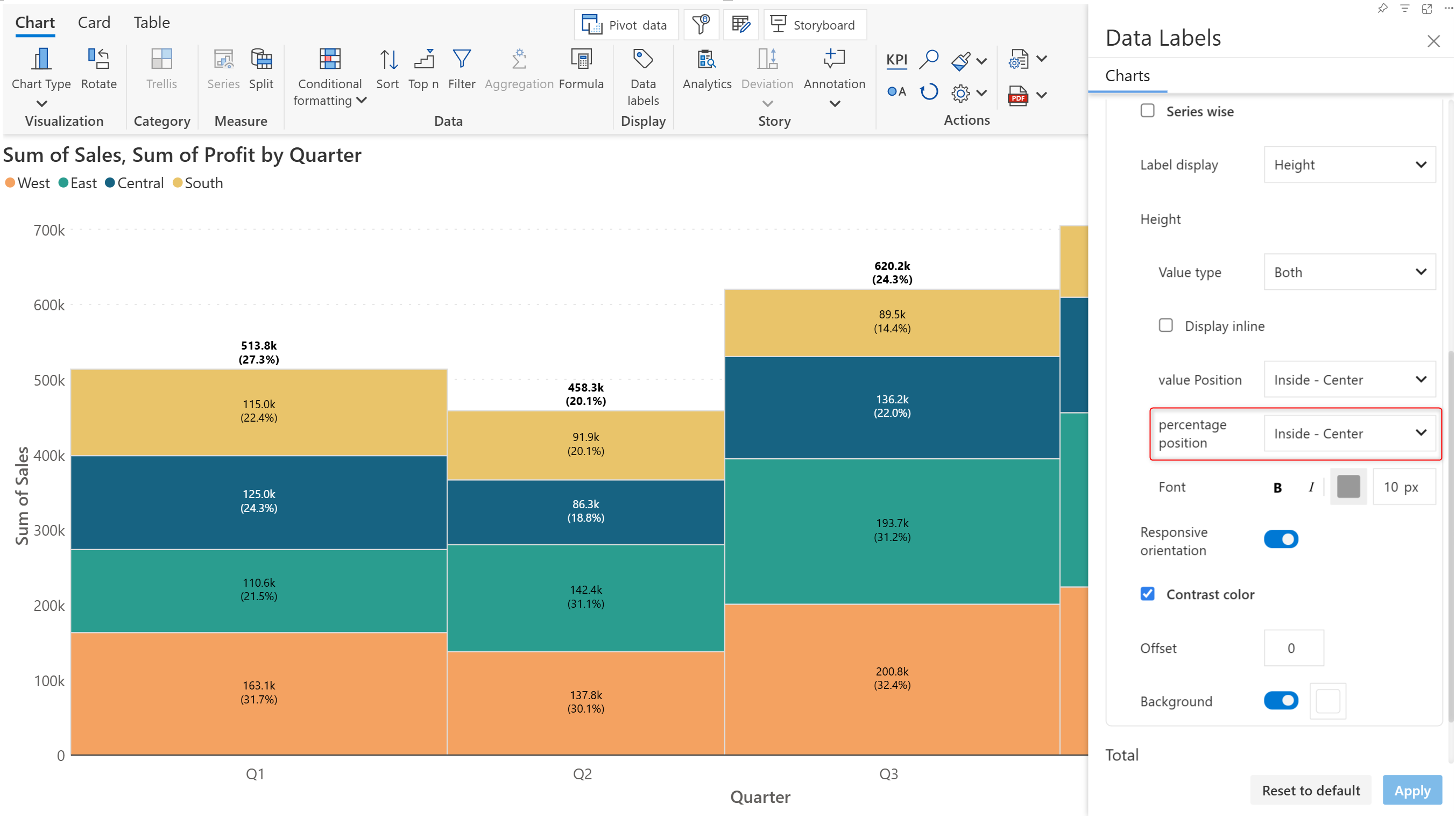
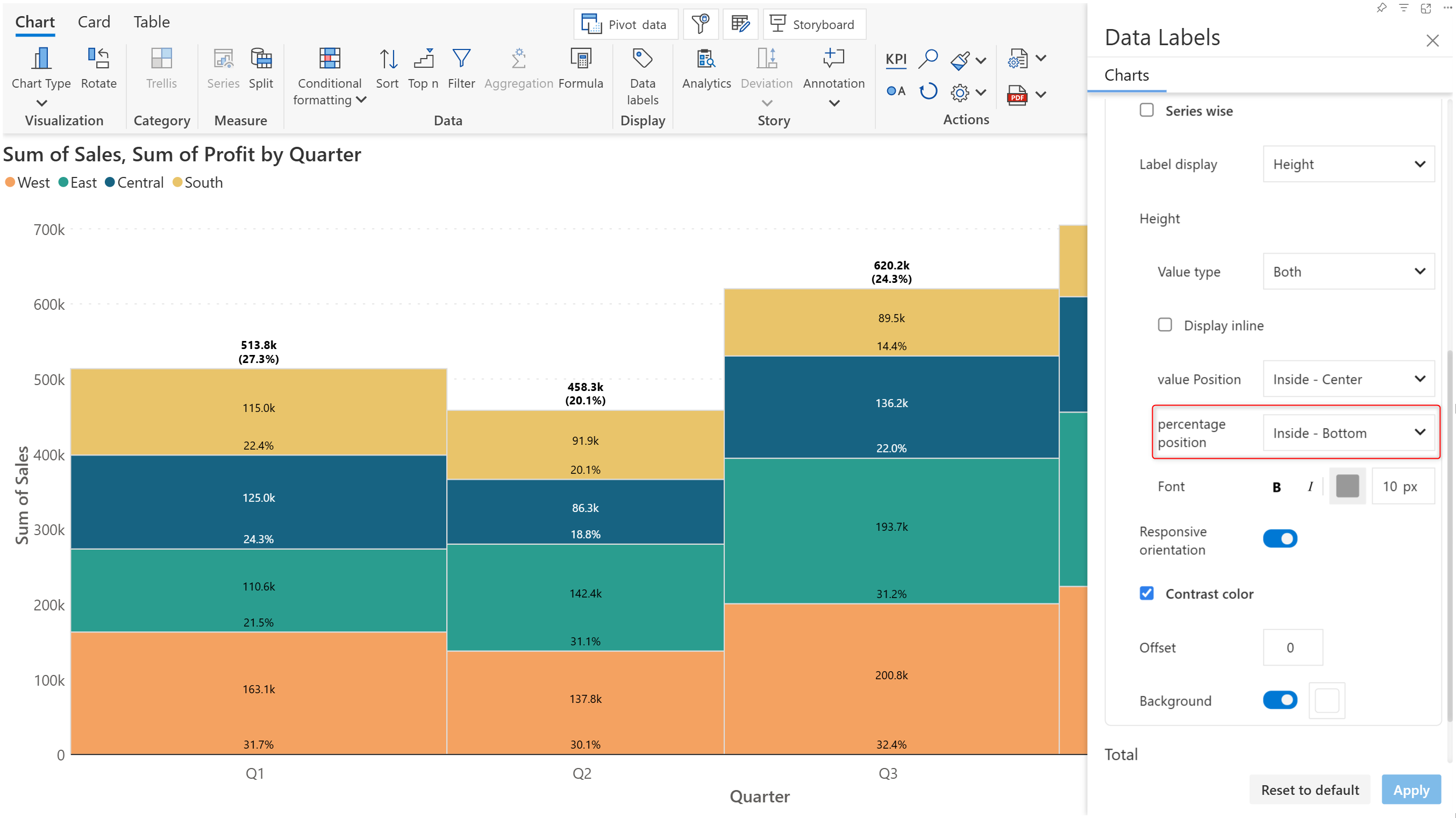
#### 2.6. Percentage position

Place the percentage component at the top, center, or bottom of the Marimekko bars.

<div><figure><img src="https://3132984990-files.gitbook.io/~/files/v0/b/gitbook-x-prod.appspot.com/o/spaces%2FbOoZhPvC57Z0CNgep4Ib%2Fuploads%2Fv5w26ZdG1eU6WkDnqj1U%2Fimage.png?alt=media&#x26;token=0c3fff41-b17e-46d1-8ccb-454d71c58a4c" alt=""><figcaption><p>Percentage position - Top</p></figcaption></figure> <figure><img src="https://3132984990-files.gitbook.io/~/files/v0/b/gitbook-x-prod.appspot.com/o/spaces%2FbOoZhPvC57Z0CNgep4Ib%2Fuploads%2FeZqgLuS0mpHlPdusrwvU%2FPErcentage%20position%20center.png?alt=media&#x26;token=e1e98106-2d5f-4888-b5e0-2d5e77e372c6" alt=""><figcaption><p>Percentage position - Center</p></figcaption></figure> <figure><img src="https://3132984990-files.gitbook.io/~/files/v0/b/gitbook-x-prod.appspot.com/o/spaces%2FbOoZhPvC57Z0CNgep4Ib%2Fuploads%2Fe4MwGL8U6jQLkjGqU8rf%2FPercentage%20position%20bottom.png?alt=media&#x26;token=2d1675c7-92f6-4030-971c-2343f5925a20" alt=""><figcaption><p>Percentage position - Bottom</p></figcaption></figure></div>

**2.7. Responsive orientation**

The orientation of the data labels will be changed automatically when the visual is resized, ensuring that the entire label is displayed without truncation. When the canvas space is limited, the labels are displayed vertically. If you do not want the orientation to change, disable the **Responsive orientation** option in the Data Labels pane. &#x20;

<figure><img src="https://3132984990-files.gitbook.io/~/files/v0/b/gitbook-x-prod.appspot.com/o/spaces%2FbOoZhPvC57Z0CNgep4Ib%2Fuploads%2Fdb8fkXtQZLBD1eDN5OKn%2Fimage.png?alt=media&#x26;token=3b5d41b8-0691-4001-8374-14745306e6af" alt=""><figcaption><p>Data labels rotated based on the available space</p></figcaption></figure>

## Additional formatting options

Here are the other settings that help you refine your Marimekko chart.

<table><thead><tr><th width="143.5">Feature</th><th>Description</th><th data-type="content-ref">Link</th></tr></thead><tbody><tr><td>Number</td><td>Configure number formatting (decimals, units)</td><td><a href="../working-with-analytics+/3.-charts/3.8.-display-settings-for-charts/charts-number-settings">charts-number-settings</a></td></tr><tr><td>Legend</td><td>Show/hide and customize the legends</td><td><a href="../working-with-analytics+/3.-charts/3.8.-display-settings-for-charts/charts-legend-settings">charts-legend-settings</a></td></tr><tr><td>Data Label</td><td>Show exact values for each data point</td><td><a href="../working-with-analytics+/3.-charts/3.6.-data-label-customizations">3.6.-data-label-customizations</a></td></tr><tr><td>Trellis</td><td>Create small multiples using category split</td><td><a href="../working-with-analytics+/6.-trellis-customizations">6.-trellis-customizations</a></td></tr><tr><td>Conditional Formatting</td><td>Apply color rules to highlight values</td><td><a href="../working-with-analytics+/9.-conditional-formatting">9.-conditional-formatting</a></td></tr><tr><td>Sorting</td><td>Sort axis order</td><td><a href="../working-with-analytics+/10.-sort-and-reorder-data/sorting-data">sorting-data</a></td></tr><tr><td>Ranking</td><td>Limit to top/bottom N categories</td><td><a href="../working-with-analytics+/11.-ranking-data-topn/ranking-for-charts">ranking-for-charts</a></td></tr></tbody></table>

## Migrating from xViz Marimekko charts to Analytics+

{% hint style="success" %}
**Download Guide and Demo**

Access the detailed guide, which includes step-by-step settings paths and a PBIX demo report, for comprehensive configuration examples between xViz and Analytics+.
{% endhint %}

**Download ↓**

{% file src="<https://3132984990-files.gitbook.io/~/files/v0/b/gitbook-x-prod.appspot.com/o/spaces%2FbOoZhPvC57Z0CNgep4Ib%2Fuploads%2FC2ZxDM4jKZqSQl9QKALy%2FxViz%20Marimekko%20Chart%20to%20Inforiver%20Analytics%2B.zip?alt=media&token=9cd76458-76e0-4913-a48e-a6d6e9f6b694>" %}
Download the zip file to access the migration guide and PBIX demo file
{% endfile %}