# Ranking for charts

Let's look at the different options to rank the data in your charts.

### 1. Axis-level ranking for charts

Let's look at the TopN configurations required to display the months with the least and most revenue in 2024. After applying the TopN rule, only the  3 top-performing and bottom-performing months are rendered. You can rank the axis categories based on the measures or variances.

<figure><img src="https://3132984990-files.gitbook.io/~/files/v0/b/gitbook-x-prod.appspot.com/o/spaces%2FbOoZhPvC57Z0CNgep4Ib%2Fuploads%2Fs6z6hWko5qdPYF0u0euf%2Fimage.png?alt=media&#x26;token=9c2e4e91-35ad-491d-ac4b-1fd4d6d5c560" alt=""><figcaption><p>Top N ranking at axis level for charts</p></figcaption></figure>

### 2. Row/column level

In trellis mode, you can rank the data in the rows and columns. Let's create a trellis depicting the sales actuals for product sub-categories across sub-regions and display panels based on their rank. To display the 3 sub-categories and sub-regions with the least sales, we can assign Top N rules at row x column level.

<figure><img src="https://3132984990-files.gitbook.io/~/files/v0/b/gitbook-x-prod.appspot.com/o/spaces%2FbOoZhPvC57Z0CNgep4Ib%2Fuploads%2FOQBjMZrvwfex2akLenHL%2Fimage.png?alt=media&#x26;token=8325b044-10be-4e9b-b509-0167ab836d0f" alt=""><figcaption><p>Applying TopN rules for row and column dimensions</p></figcaption></figure>

After ranking has been applied, only the bottom-performing regions and product subcategories are rendered.

<figure><img src="https://3132984990-files.gitbook.io/~/files/v0/b/gitbook-x-prod.appspot.com/o/spaces%2FbOoZhPvC57Z0CNgep4Ib%2Fuploads%2F6ovEBXvzXXwvOq4PHKq5%2Fimage.png?alt=media&#x26;token=dc6db74d-2241-4e5c-af06-1c47e299bf88" alt=""><figcaption><p>TopN rules applied for rows and columns</p></figcaption></figure>

### 3. Trellis level

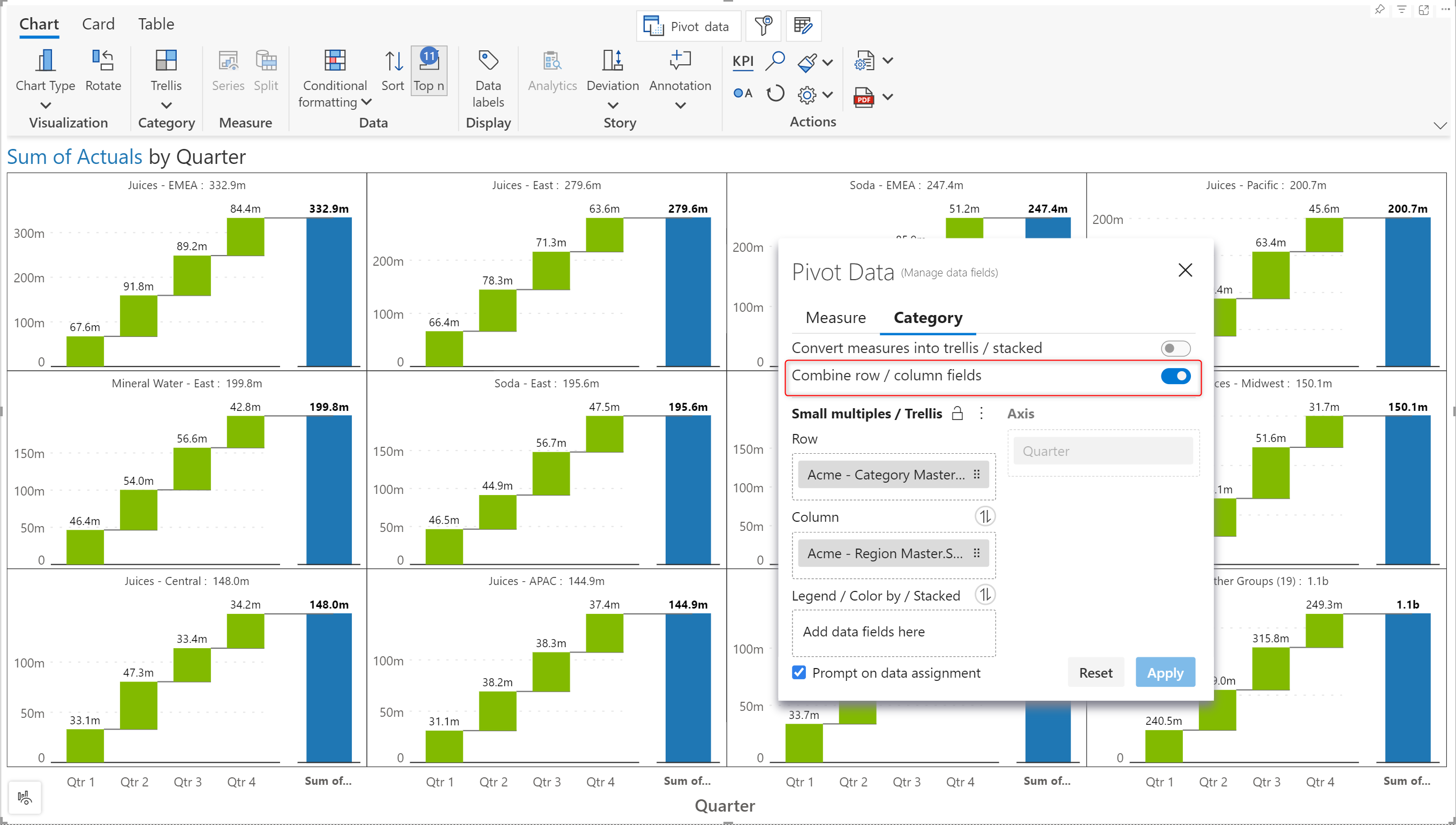
You can apply ranking for linear trellises, where the row and column categories have been combined. In this case, the TopN rules would display an overall ranking across row and column dimensions. You can rank the data based on measures or variances.

<figure><img src="https://3132984990-files.gitbook.io/~/files/v0/b/gitbook-x-prod.appspot.com/o/spaces%2FbOoZhPvC57Z0CNgep4Ib%2Fuploads%2FWOTGy5BQmTP4Lm3ShtLf%2Fimage.png?alt=media&#x26;token=cffdd839-24e6-442b-98c8-46e7fe75fb2c" alt=""><figcaption><p>Linear trellis settings</p></figcaption></figure>

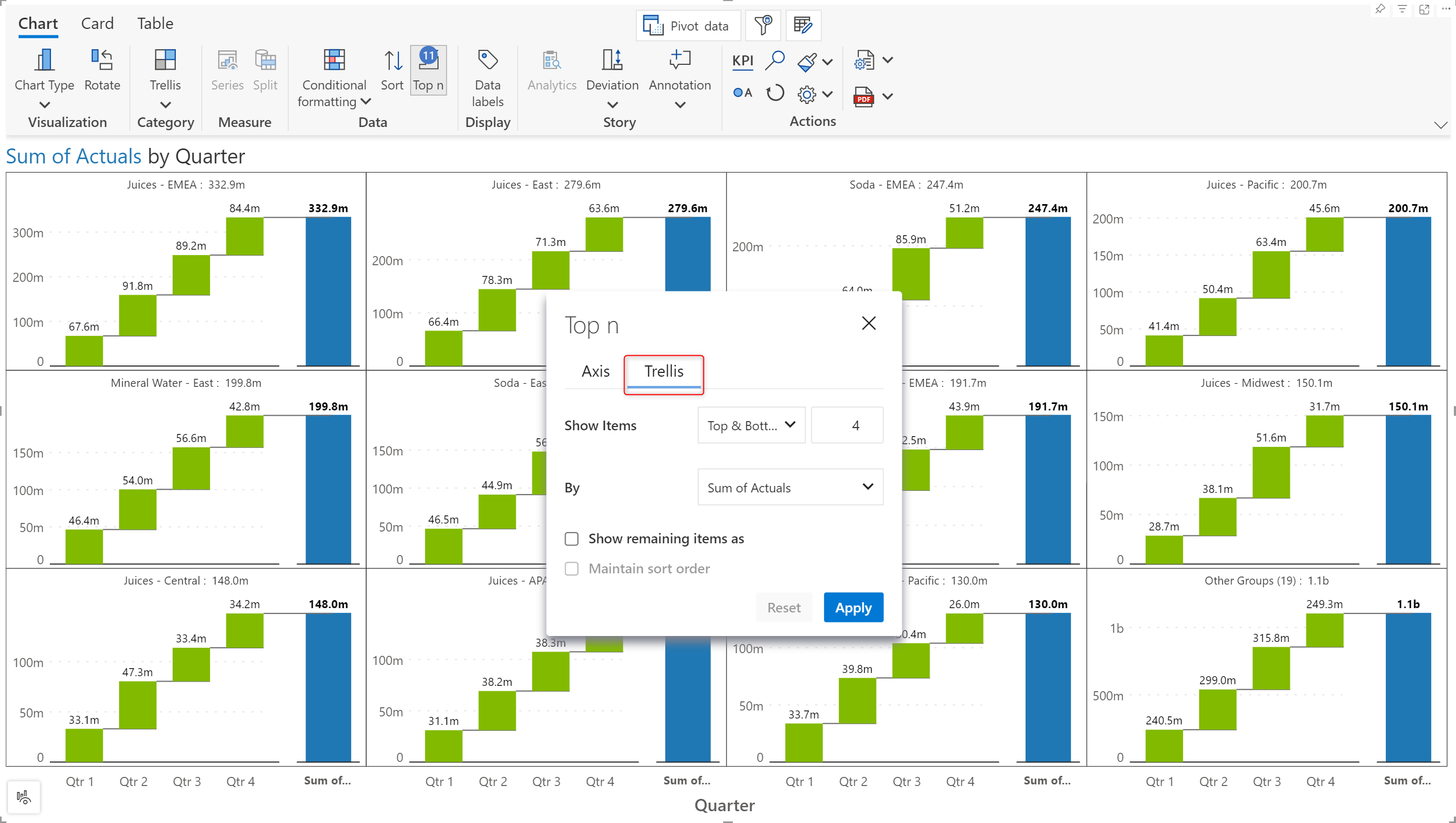
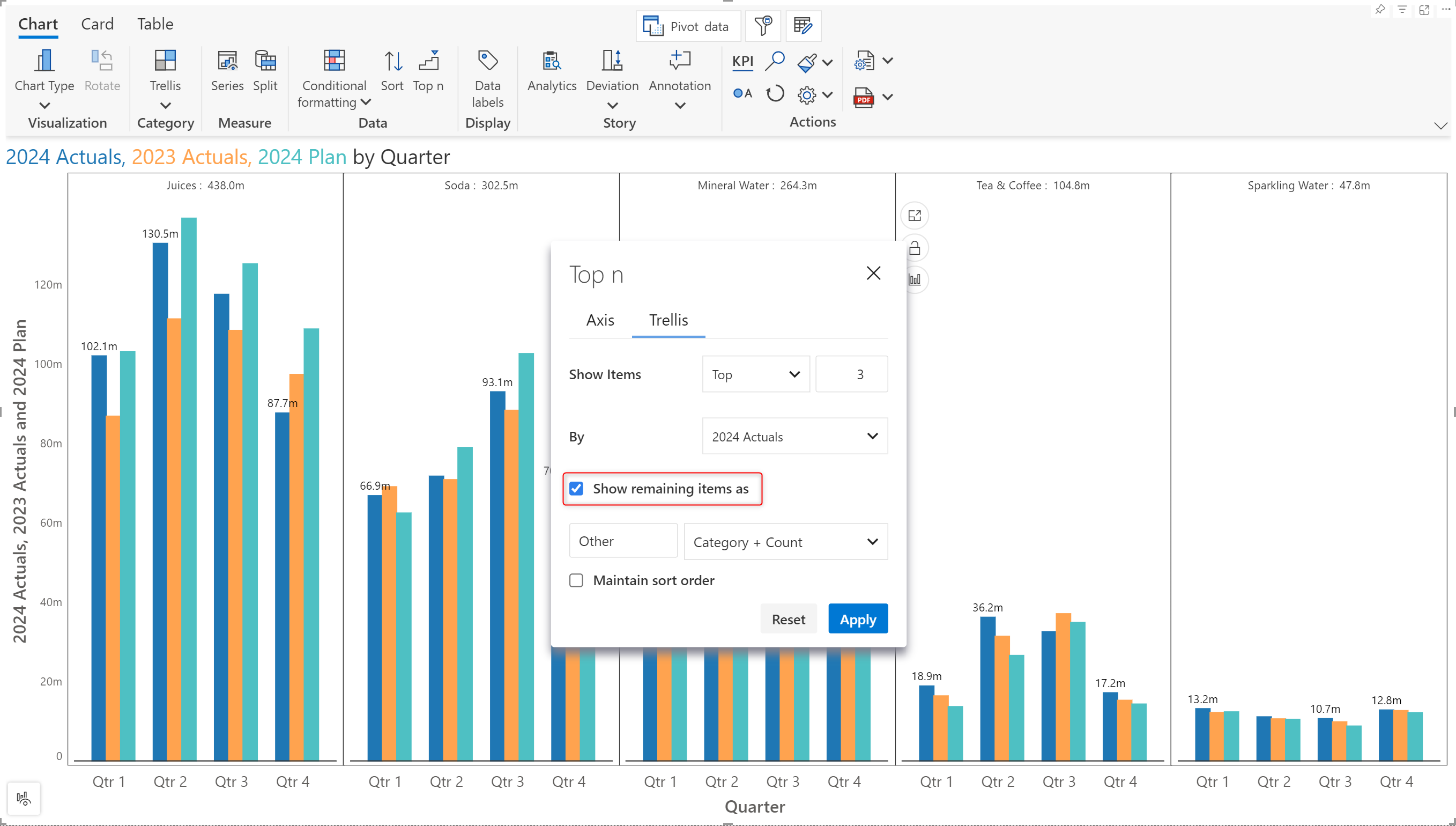
The TopN interface will have a Trellis tab from where you can set ranking rules.

<figure><img src="https://3132984990-files.gitbook.io/~/files/v0/b/gitbook-x-prod.appspot.com/o/spaces%2FbOoZhPvC57Z0CNgep4Ib%2Fuploads%2FsBTigD5veHMFv5GOvHK7%2Fimage.png?alt=media&#x26;token=46d2455f-1e79-4b87-9835-6650bccc9104" alt=""><figcaption><p>Trellis ranking interface</p></figcaption></figure>

The top-performing and bottom-performing panels are displayed after the ranking is applied.

<figure><img src="https://3132984990-files.gitbook.io/~/files/v0/b/gitbook-x-prod.appspot.com/o/spaces%2FbOoZhPvC57Z0CNgep4Ib%2Fuploads%2Fs3MaC53XndAmYQRC2I92%2Fimage.png?alt=media&#x26;token=39ac2cbd-3092-46fb-b5ef-d15b68951370" alt=""><figcaption><p>TopN ranking applied at trellis level showing overall ranking</p></figcaption></figure>

### 4. Stack level

You can rank the measures from the 'Stacked' tab when you have stacked measures.

<figure><img src="https://3132984990-files.gitbook.io/~/files/v0/b/gitbook-x-prod.appspot.com/o/spaces%2FbOoZhPvC57Z0CNgep4Ib%2Fuploads%2FWgURlCmSLHoM0GmbXR6L%2Fimage.png?alt=media&#x26;token=de0a06ff-d54f-4448-9b5b-f9cf16df4297" alt=""><figcaption><p>Applying ranking on stacked charts</p></figcaption></figure>

Measures are displayed based on the TopN rules as shown below.

<figure><img src="https://3132984990-files.gitbook.io/~/files/v0/b/gitbook-x-prod.appspot.com/o/spaces%2FbOoZhPvC57Z0CNgep4Ib%2Fuploads%2Fj8gY3uGcKMUPcP0FePmj%2Fimage.png?alt=media&#x26;token=5da70ace-9eaa-40ce-b5f0-164ba400928f" alt=""><figcaption><p>Ranking applied for stacked charts</p></figcaption></figure>

### 5. Nested rules

When the dataset is hierarchical, we can apply nested rules to identify the top-performing or least-performing categories. Consider that we have a product and region hierarchy. Let’s explore the rules that need to be configured to identify the following trends:&#x20;

* Region and Category having the highest sales.&#x20;
* Top 2 Subregions that have the highest allocated budget.&#x20;
* Top 3 Subcategories that have the highest variance percentage.&#x20;

{% hint style="info" %}
Only one rule can be created per level of the hierarchy.
{% endhint %}

**STEP 1:** Create a row-level rule to identify the region with the highest sales.

<figure><img src="https://3132984990-files.gitbook.io/~/files/v0/b/gitbook-x-prod.appspot.com/o/spaces%2FbOoZhPvC57Z0CNgep4Ib%2Fuploads%2F0WSh0SyWzBOefiKzZOAI%2Fimage.png?alt=media&#x26;token=dccbf939-8785-4473-be8e-8bf55d3f8f59" alt=""><figcaption><p>Rule to display region with highest sales</p></figcaption></figure>

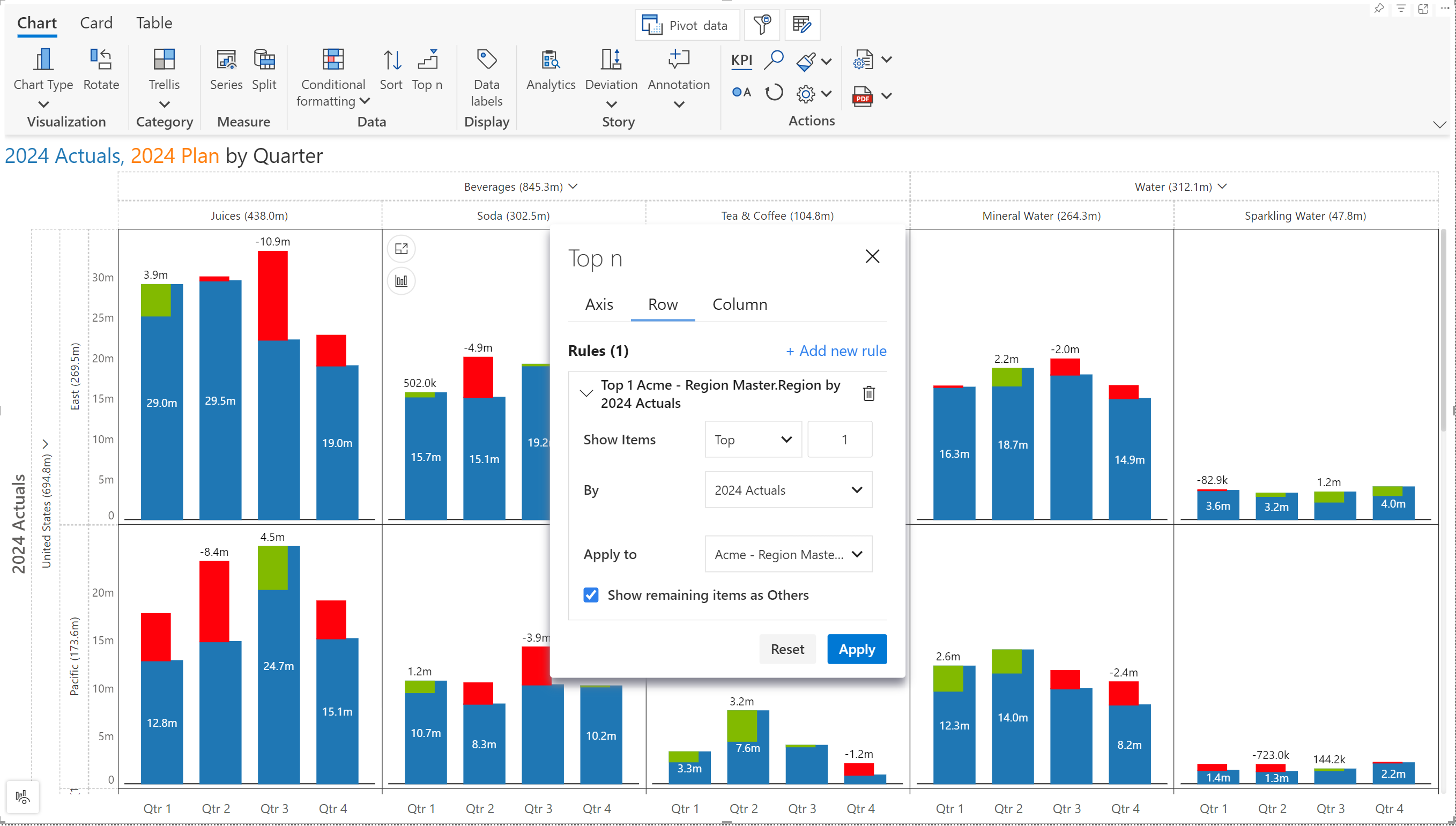
**STEP 2:** Create and apply another row-level rule to identify the Subregions with the highest budget. As Subregion is at the lowest level of the region hierarchy, notice that the ‘Add new rule’ link is disabled.

<figure><img src="https://3132984990-files.gitbook.io/~/files/v0/b/gitbook-x-prod.appspot.com/o/spaces%2FbOoZhPvC57Z0CNgep4Ib%2Fuploads%2Fy8xNmxSEkb4RJWzoTxtt%2Fimage.png?alt=media&#x26;token=d7ab1967-06a9-41e9-b9a6-4f406b73a313" alt=""><figcaption><p>Row-level rule to find subregions with highest budget</p></figcaption></figure>

**STEP 3:** Add a column-level rule to identify the category with the highest sales.

<figure><img src="https://3132984990-files.gitbook.io/~/files/v0/b/gitbook-x-prod.appspot.com/o/spaces%2FbOoZhPvC57Z0CNgep4Ib%2Fuploads%2FBLUO8KmOkc9sil6SkeF2%2Fimage.png?alt=media&#x26;token=eb9a312b-7f9e-46d2-b1f8-515bf0ef559b" alt=""><figcaption><p>Rule to identify top performing category</p></figcaption></figure>

**STEP 4:** Add another column-level rule to identify the Subcategories with the highest variance percentage.

<figure><img src="https://3132984990-files.gitbook.io/~/files/v0/b/gitbook-x-prod.appspot.com/o/spaces%2FbOoZhPvC57Z0CNgep4Ib%2Fuploads%2FiqWenGra36fkKDPcaGzm%2Fimage.png?alt=media&#x26;token=dea53a34-c31b-4d3d-ab1e-2e551b698032" alt=""><figcaption><p>Column level rule for subcategories</p></figcaption></figure>

After applying the Top N rules discussed above, the chart is rendered as shown below.

<figure><img src="https://3132984990-files.gitbook.io/~/files/v0/b/gitbook-x-prod.appspot.com/o/spaces%2FbOoZhPvC57Z0CNgep4Ib%2Fuploads%2FNv05Zt7vgZSF2wmf44m7%2Fimage.png?alt=media&#x26;token=3e7436a7-d13c-40cb-990b-787604811fb6" alt=""><figcaption><p>Chart with TopN rules</p></figcaption></figure>

### 6. Others group configurations

You can group the remaining items that do not fall in the Top N buckets and display them in the report. To achieve this, check the ‘Show remaining items as’ box.&#x20;

<figure><img src="https://3132984990-files.gitbook.io/~/files/v0/b/gitbook-x-prod.appspot.com/o/spaces%2FbOoZhPvC57Z0CNgep4Ib%2Fuploads%2FTt6Y1XinS6davZ153UYM%2Fimage.png?alt=media&#x26;token=c7d6746b-880d-41a2-8274-afd0a2720aa8" alt=""><figcaption><p>Show remaining items as option for tellis-level ranking</p></figcaption></figure>

#### 6.1. Rename the ‘Others’ bucket

Let's assign a relevant name for the items grouped under ‘Others’. In this example, we are displaying the top product categories. We've renamed the Others bucket to "Subcategories".

<figure><img src="https://3132984990-files.gitbook.io/~/files/v0/b/gitbook-x-prod.appspot.com/o/spaces%2FbOoZhPvC57Z0CNgep4Ib%2Fuploads%2F7bVUd4i556laIgqHzlaa%2Fimage.png?alt=media&#x26;token=314c180e-8e6b-4866-b5e3-ff918aa36ef0" alt=""><figcaption><p>Renaming the others bucket</p></figcaption></figure>

#### 6.2. Add suffixes – Field name and count&#x20;

You can suffix the name of the dimension category and the count of items grouped under the Others bucket by checking the relevant option:

* Other + Category Suffix
* Others + Item count

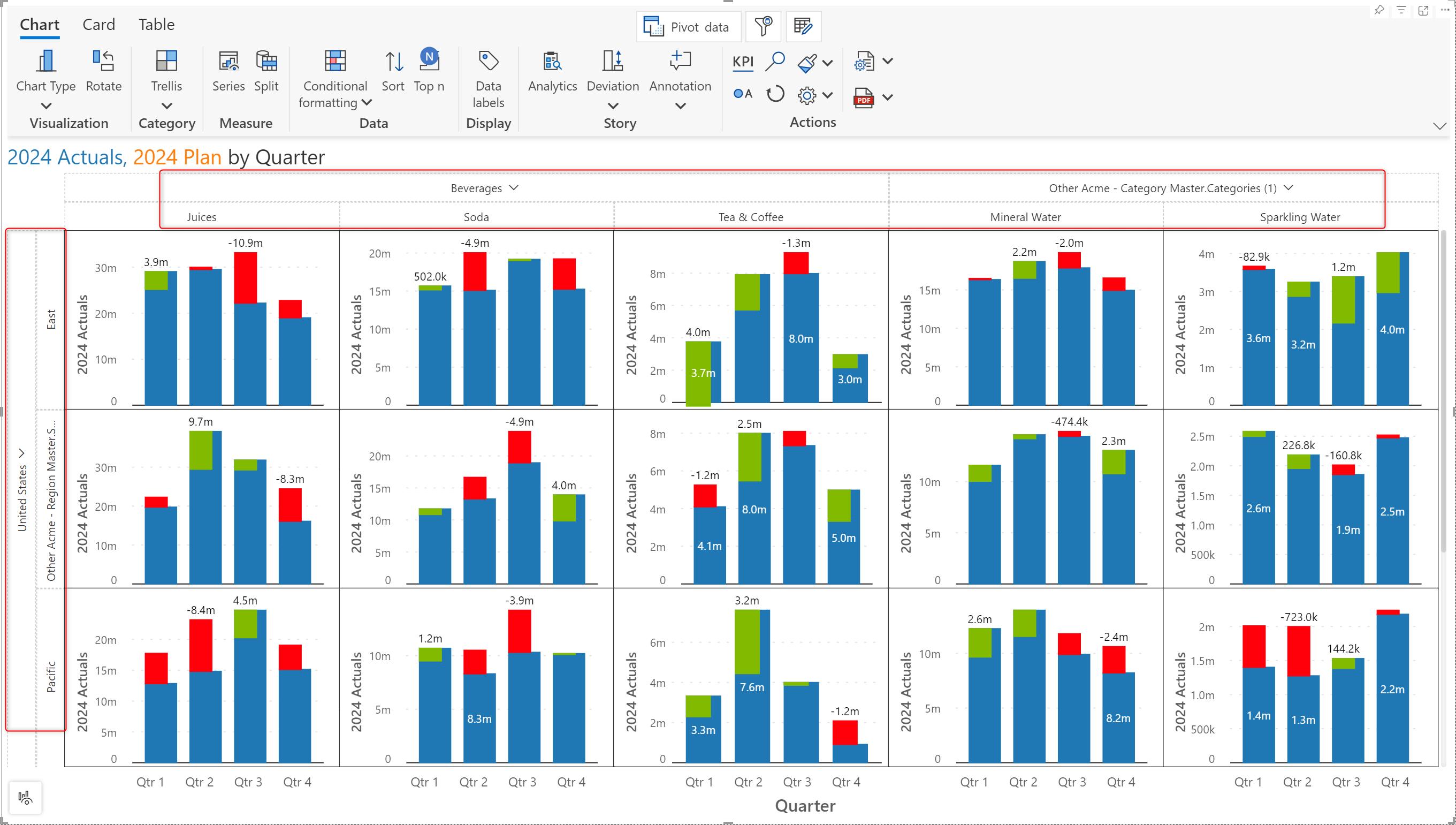
For trellis panels, the field name and number of items grouped under the ‘Others’ bracket are displayed by default. We'll display just the count by unchecking the "Other + Category Suffix" option.

<figure><img src="https://3132984990-files.gitbook.io/~/files/v0/b/gitbook-x-prod.appspot.com/o/spaces%2FbOoZhPvC57Z0CNgep4Ib%2Fuploads%2FzVDjxSYe9rjo2Nlczn3s%2Fimage.png?alt=media&#x26;token=4adf77c7-8c78-410c-afc9-9fd7580a9602" alt=""><figcaption><p>Using the count of items as suffix</p></figcaption></figure>

#### 6.3. Maintain sort order

Generally, the Others group is not considered for sorting and is placed at the end of the section (the last bar or last panel in a trellis), after all the items that qualify for the Top N rule. Enable this option to include the Others group while sorting.

Notice how the *Other Months* bar is included in the sort when the **Maintain sort order** option is enabled.

<figure><img src="https://3132984990-files.gitbook.io/~/files/v0/b/gitbook-x-prod.appspot.com/o/spaces%2FbOoZhPvC57Z0CNgep4Ib%2Fuploads%2FISsZDwUbaLscJVx1w42p%2FUntitled%20Project.gif?alt=media&#x26;token=779a6277-edcf-4fa5-9a0b-92978cb93f8d" alt=""><figcaption><p>Sorting data points - maintain sort order</p></figcaption></figure>

In trellis mode, the Others panel value will also be considered for sorting when the **Maintain sort order** option is enabled. Note, we have set the ranking to 2 to demonstrate this feature.

<figure><img src="https://3132984990-files.gitbook.io/~/files/v0/b/gitbook-x-prod.appspot.com/o/spaces%2FbOoZhPvC57Z0CNgep4Ib%2Fuploads%2Ff1dfcafGtOR99dJOIQbc%2Fimage.png?alt=media&#x26;token=a5569a11-23a5-4871-ad36-80eaef288d46" alt=""><figcaption><p>Maintain sort order for trellis panels</p></figcaption></figure>

#### 6.4. Individual drill down

You can click the<img src="https://3132984990-files.gitbook.io/~/files/v0/b/gitbook-x-prod.appspot.com/o/spaces%2FbOoZhPvC57Z0CNgep4Ib%2Fuploads%2F4oyvh36CBw87L2AuGyGg%2Fimage.png?alt=media&#x26;token=e62fc8fb-75b3-401c-b8eb-82496f8ee88d" alt="" data-size="line"> icon in the Others bucket to render the chart for the categories grouped under Others.
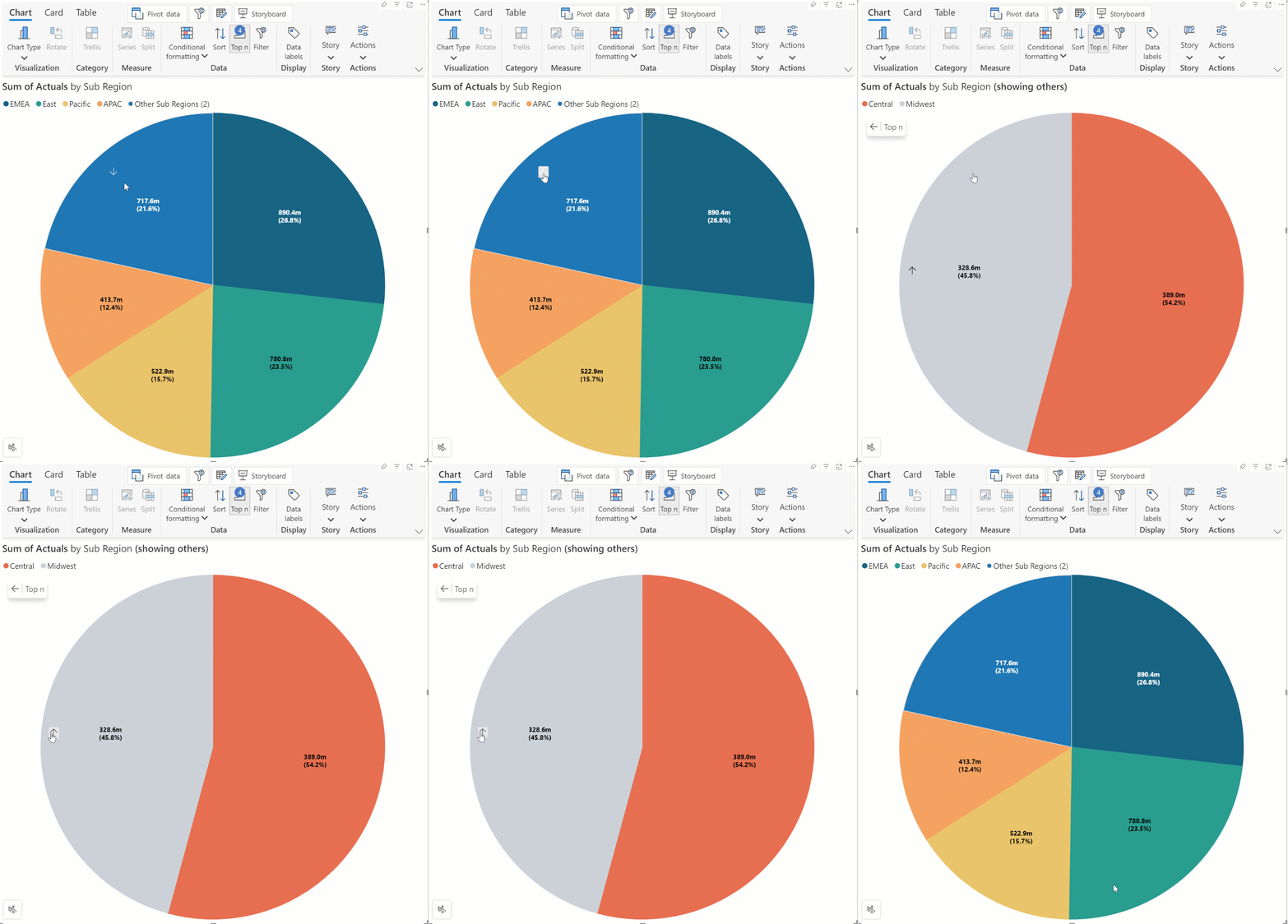
<figure><img src="https://3132984990-files.gitbook.io/~/files/v0/b/gitbook-x-prod.appspot.com/o/spaces%2FbOoZhPvC57Z0CNgep4Ib%2Fuploads%2F0dEvROuyvT6zDc44JfyJ%2FIndividual%20drill%20down.gif?alt=media&#x26;token=599cc2a8-e3ef-46df-ab99-30997bf70c94" alt=""><figcaption><p>Individual drill down on Others bucket</p></figcaption></figure>

#### 6.5. Remaining item color

In IBCS mode, set a specific color for the 'Others' bar.

<figure><img src="https://3132984990-files.gitbook.io/~/files/v0/b/gitbook-x-prod.appspot.com/o/spaces%2FbOoZhPvC57Z0CNgep4Ib%2Fuploads%2Fi1DGTPvuh9AYIuIx9TkY%2Fimage.png?alt=media&#x26;token=381fe21e-6dc7-4f39-babd-acbbb4177b44" alt=""><figcaption><p>Remaining item color</p></figcaption></figure>