# 17. Context awareness

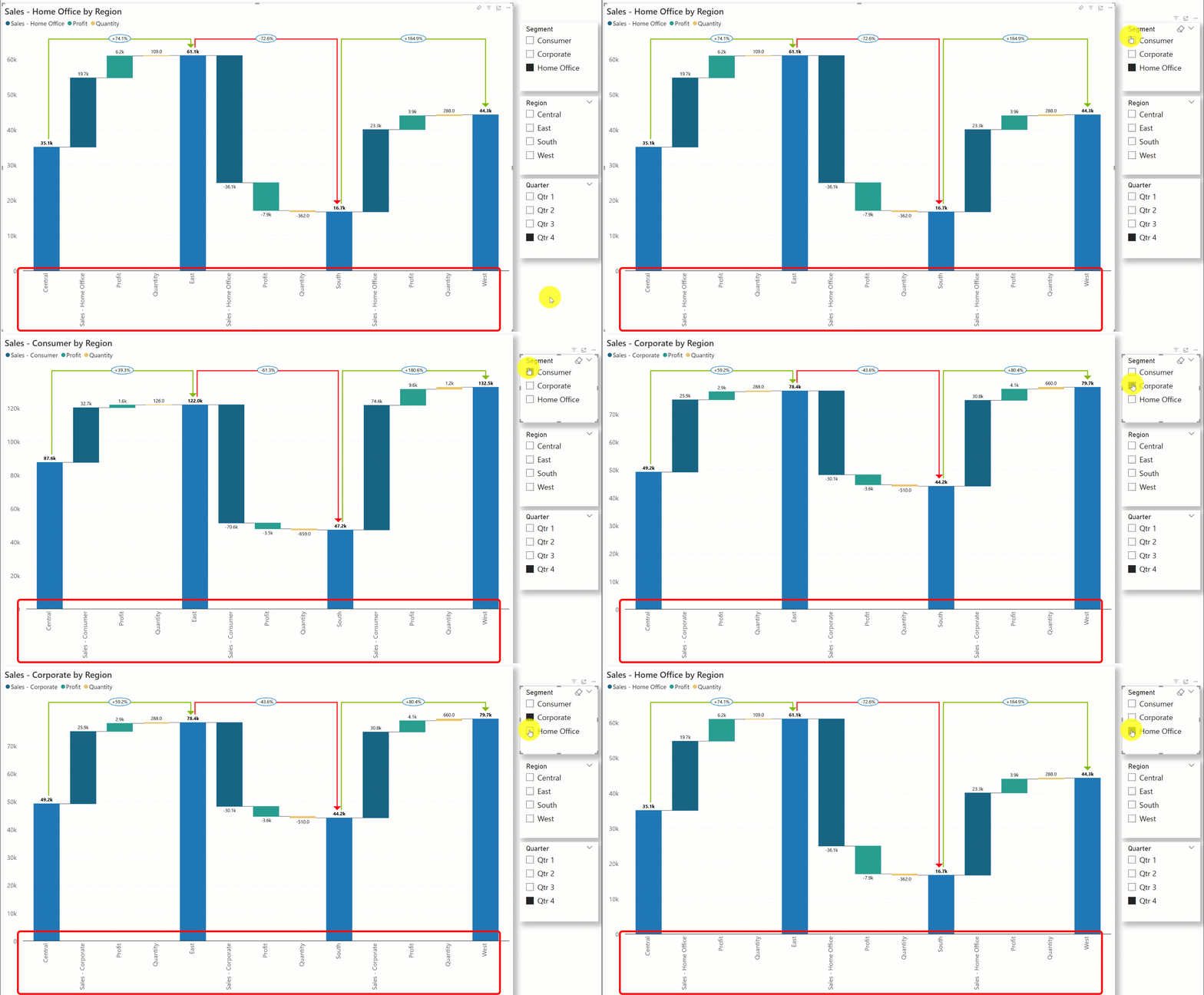
Analytics+ allows you to add additional information to your reports with its commenting feature. When you enter comments, the visual is unaware of the context - which can be set by a filter or a slicer in the report. In the image below, notice how the comment for the ‘Consumer’ segment is still visible even after the segment has been changed to ‘Corporate’.

<figure><img src="https://3132984990-files.gitbook.io/~/files/v0/b/gitbook-x-prod.appspot.com/o/spaces%2FbOoZhPvC57Z0CNgep4Ib%2Fuploads%2FBkI7adCMmfSnQr6YW24N%2Fimage.png?alt=media&#x26;token=d72d1b83-2403-4b1a-aa79-22b9068287ae" alt=""><figcaption><p>Incorrect comments are diplayed when the slicer option is changed</p></figcaption></figure>

With the Inforiver Analytics+, you can implement **context-aware commenting** in your Power BI reports in just a few clicks. As you apply filters, the comments will change dynamically. Follow the steps below to configure filter-context measures in Inforiver. &#x20;

{% hint style="info" %}
The steps to configure filter context are the same for charts, cards and tables.
{% endhint %}

**Step 1: Create a Filter-context measure**&#x20;

There are two ways to do this. One is to write the DAX measure yourself. The second way is to let Analytics+ automatically generate the DAX script for you to use. The steps below outline how to leverage Analytics+ to create the DAX measure.

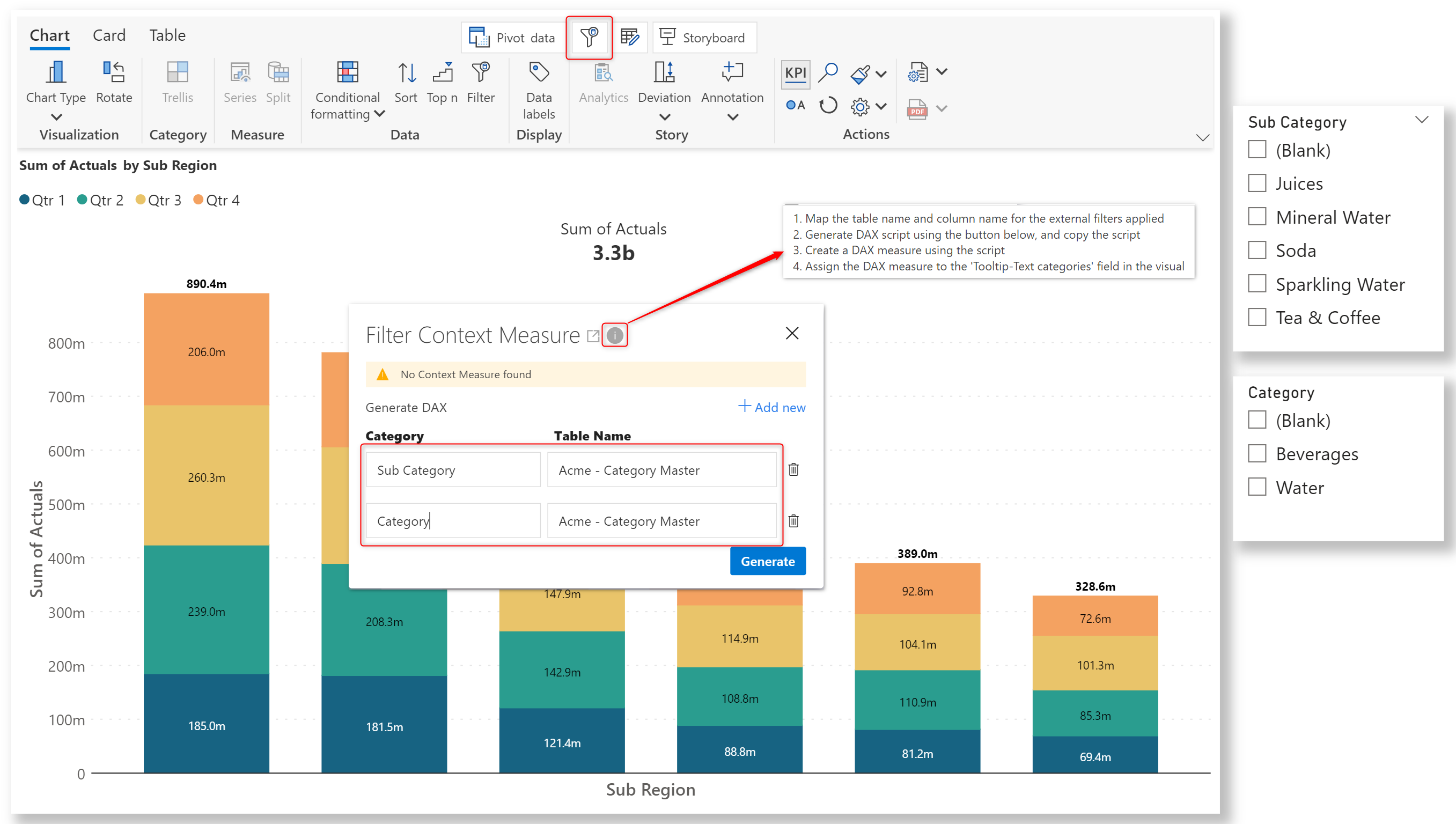
1.1. After creating your chart, click the filter context button at the top of the toolbar.

<figure><img src="https://3132984990-files.gitbook.io/~/files/v0/b/gitbook-x-prod.appspot.com/o/spaces%2FbOoZhPvC57Z0CNgep4Ib%2Fuploads%2FQTV0o2YD9IczbmZzm1Yf%2Fimage.png?alt=media&#x26;token=a783bc84-78f2-4f0e-83ac-234d2877a432" alt=""><figcaption><p>Filter context button</p></figcaption></figure>

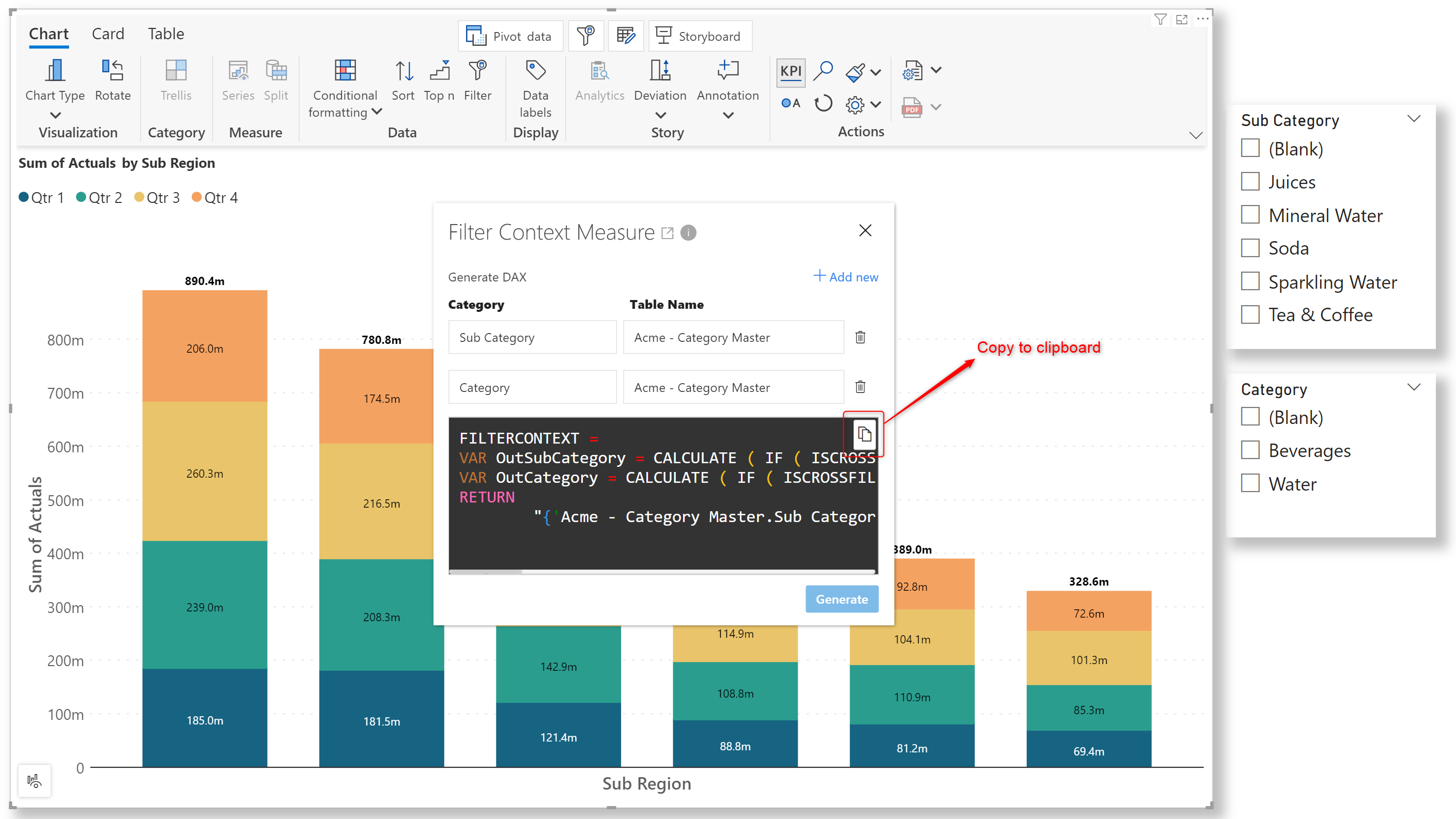
1.2. Enter the filter categories for which you want to capture the context. You need to provide both the category name and the corresponding table name from the data model. Click on the **Generate** button.&#x20;

{% hint style="info" %}
Click on the info icon to view the steps involved in setting up filter context.
{% endhint %}

<figure><img src="https://3132984990-files.gitbook.io/~/files/v0/b/gitbook-x-prod.appspot.com/o/spaces%2FbOoZhPvC57Z0CNgep4Ib%2Fuploads%2FdSHOxMVtjPxVQbhvP7ey%2Fimage.png?alt=media&#x26;token=5c0c040b-dcbd-41bd-af29-5086df3127e7" alt=""><figcaption><p>Enter the categories used for filtering</p></figcaption></figure>

1.3. Analytics+ will generate the DAX based on the categories you entered in the previous step.  You can copy the DAX to the clipboard using the copy icon.

<figure><img src="https://3132984990-files.gitbook.io/~/files/v0/b/gitbook-x-prod.appspot.com/o/spaces%2FbOoZhPvC57Z0CNgep4Ib%2Fuploads%2F4E0QjDmGBr13KUyFvWYW%2Fimage.png?alt=media&#x26;token=f4dcdb47-9db6-4d9f-a4c6-0bd3438e41b8" alt=""><figcaption><p>Copy DAX to clipboard</p></figcaption></figure>

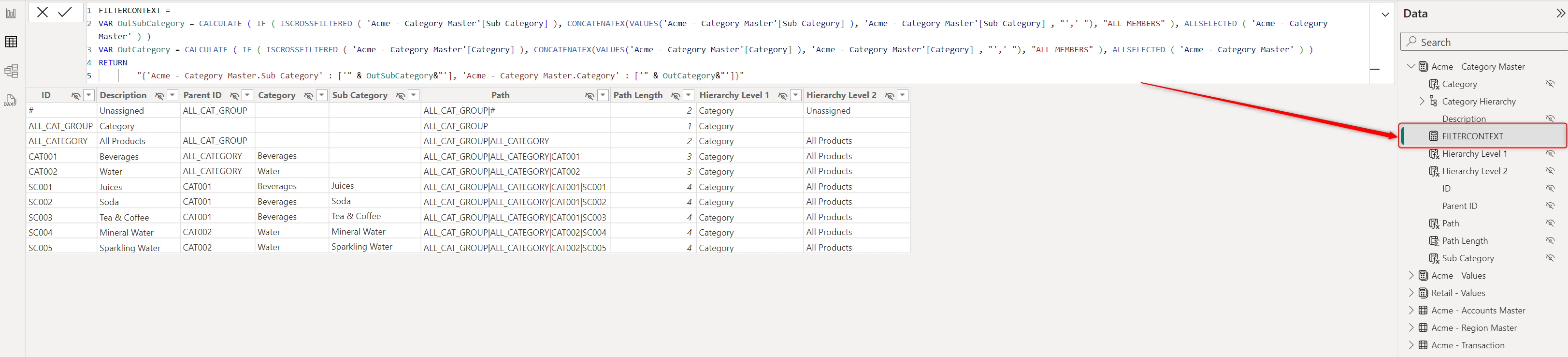
1.4. Use the DAX to create the filter context measure in a relevant table.

<figure><img src="https://3132984990-files.gitbook.io/~/files/v0/b/gitbook-x-prod.appspot.com/o/spaces%2FbOoZhPvC57Z0CNgep4Ib%2Fuploads%2FUtuxjN9zzEIVmMKHtipe%2Fimage.png?alt=media&#x26;token=14c9287e-f008-4b6e-837e-49885f387589" alt=""><figcaption><p>New filter context measure created </p></figcaption></figure>

**Step 2: Assign the filter context measure to the Analytics+ visual**

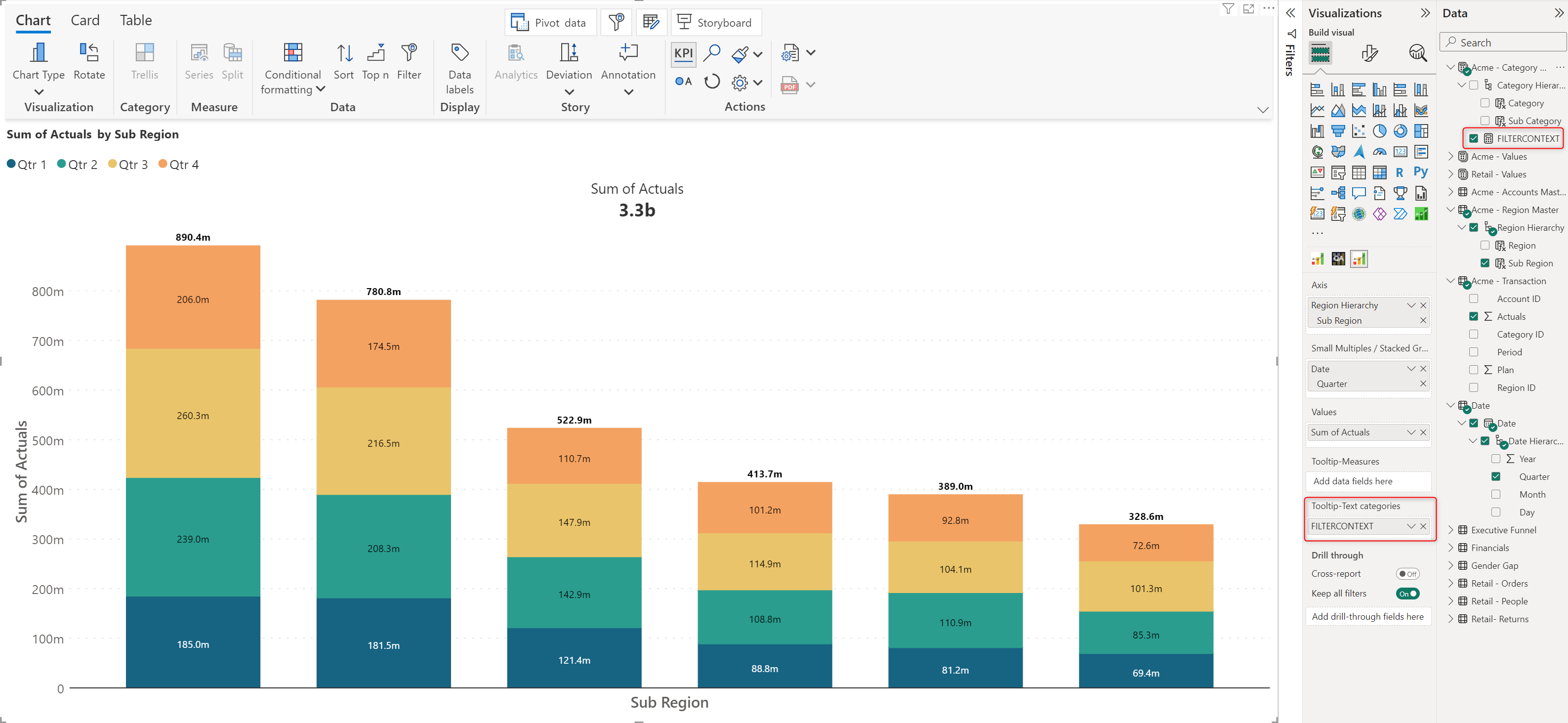
2.1. Assign the measure we created in Step 1 to the ‘Tooltip - Text Categories’ visual parameter.

<figure><img src="https://3132984990-files.gitbook.io/~/files/v0/b/gitbook-x-prod.appspot.com/o/spaces%2FbOoZhPvC57Z0CNgep4Ib%2Fuploads%2FzGm1S3TXFS6BXZOs7wdk%2Fimage.png?alt=media&#x26;token=5774d4d5-8cb1-45e8-bbff-30defa74fc4d" alt=""><figcaption><p>Add the filter context parameter</p></figcaption></figure>

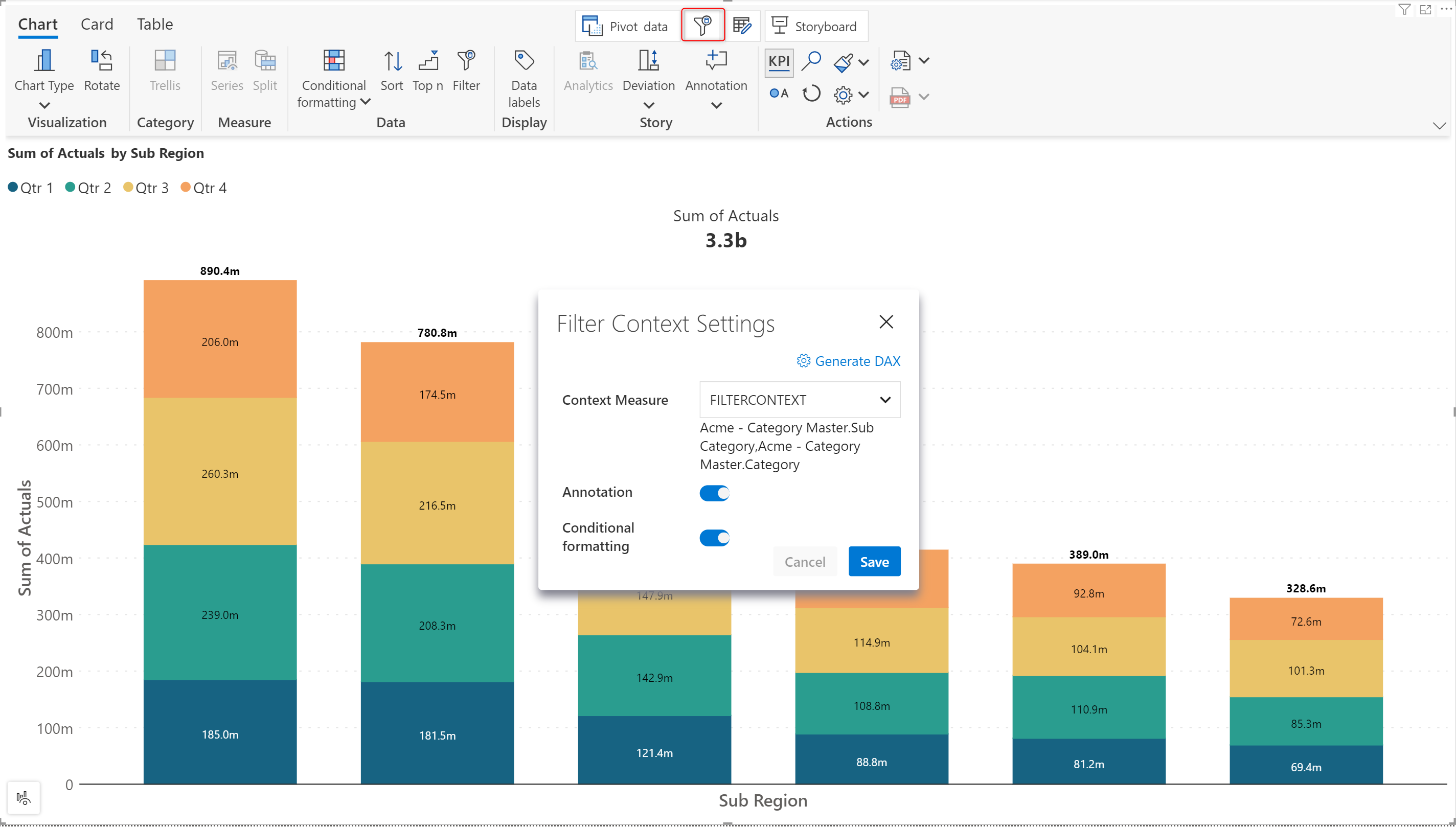
&#x20;2.2. Click the filter context button. Notice how the interface has changed after assigning the filter context measure in the previous step (2.1.)&#x20;

Select the filter context measure from the Context Measure dropdown. Using the toggle controls, you can enable/disable context awareness for comments (Annotation) and conditional formatting.

<figure><img src="https://3132984990-files.gitbook.io/~/files/v0/b/gitbook-x-prod.appspot.com/o/spaces%2FbOoZhPvC57Z0CNgep4Ib%2Fuploads%2FWiYAm4zwfDMoGThEtLW7%2Fimage.png?alt=media&#x26;token=c2bfb855-8ad4-4cab-ba85-73f002087916" alt=""><figcaption><p>Enable filter context for annotations and conditional formatting</p></figcaption></figure>

With the above steps, Analytics+ will be aware of the filter context. All your annotations and conditional formatting rules will now be tied to this context and updated in response to context changes. 
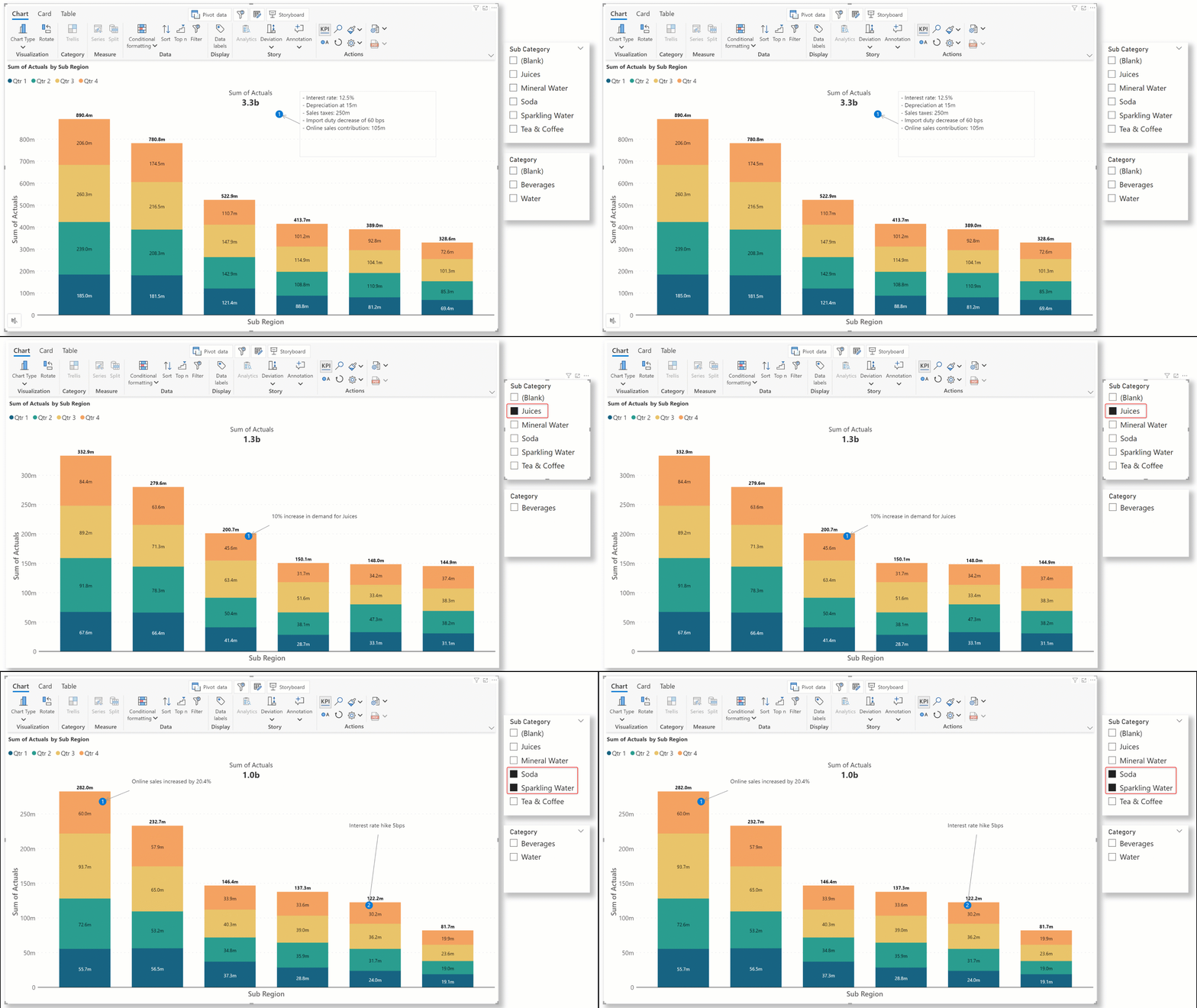
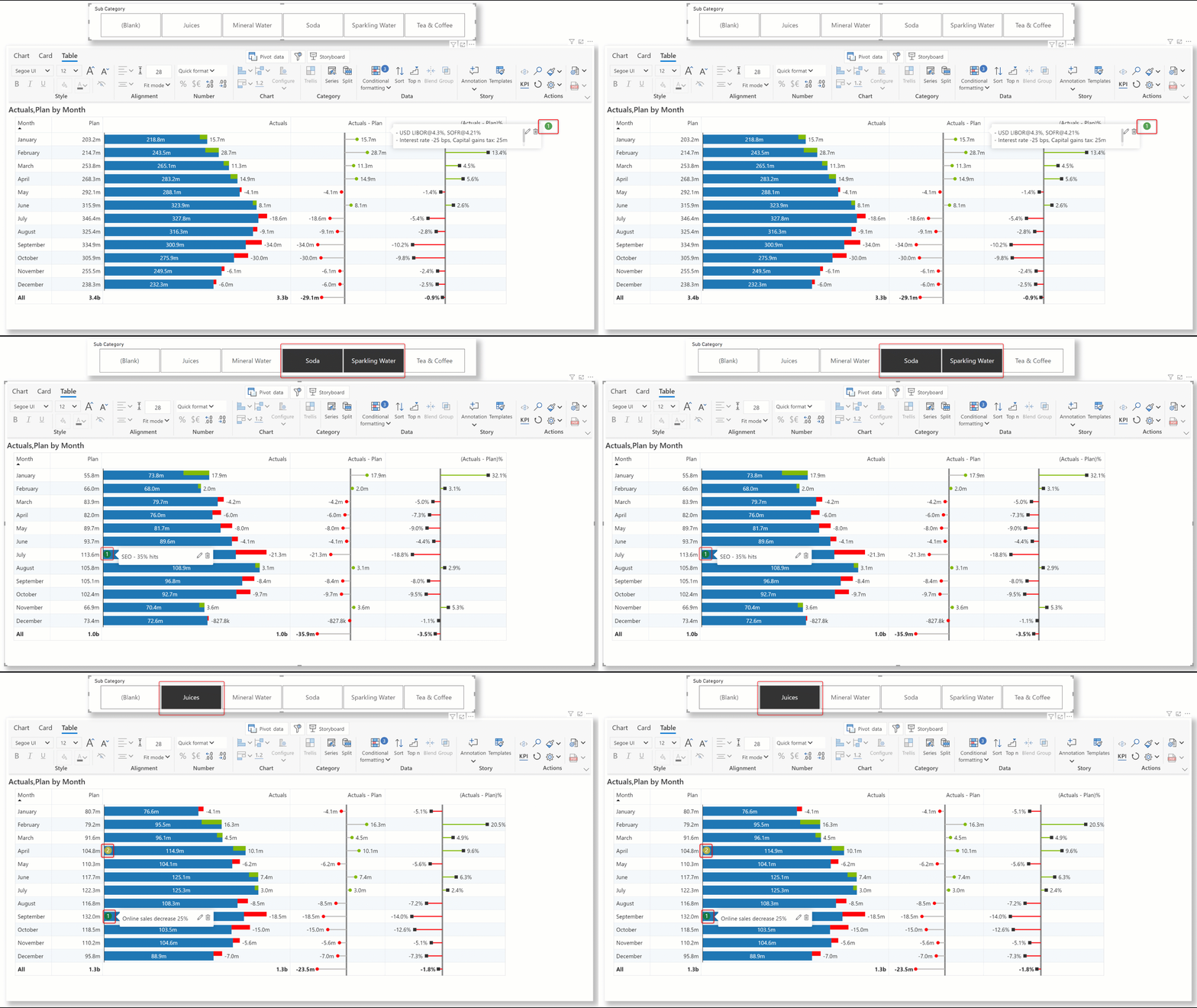
&#x20;In the gif below, notice how the comments change dynamically based on the slicer selection.

{% tabs %}
{% tab title="Charts" %}

<figure><img src="https://3132984990-files.gitbook.io/~/files/v0/b/gitbook-x-prod.appspot.com/o/spaces%2FbOoZhPvC57Z0CNgep4Ib%2Fuploads%2FU2fRXQPzfmIIiPeUWWrI%2FUntitled%20Project.gif?alt=media&#x26;token=797854a5-c6a7-455f-8bbe-53d9ec849b5e" alt=""><figcaption><p>Context aware commenting</p></figcaption></figure>
{% endtab %}

{% tab title="Tables" %}

<figure><img src="https://3132984990-files.gitbook.io/~/files/v0/b/gitbook-x-prod.appspot.com/o/spaces%2FbOoZhPvC57Z0CNgep4Ib%2Fuploads%2FVGtgE0IFJnaJRCIIqWtV%2FUntitled%20Project.gif?alt=media&#x26;token=8c6f1ddc-1084-45be-b9cb-ae27860b02fd" alt=""><figcaption><p>Context aware comments for tables</p></figcaption></figure>
{% endtab %}
{% endtabs %}

## 1. Context-aware conditional formatting

You can use filter/slicer selections to drive conditional formatting. After setting up context awareness, you will be able to select the dimensions used in the slicers/filters from the conditional formatting interface.

We have not added the Category and SubCategory as visual parameters in the example. However, as we have set up filter context, both dimensions can be selected from the dropdown.

<figure><img src="https://3132984990-files.gitbook.io/~/files/v0/b/gitbook-x-prod.appspot.com/o/spaces%2FbOoZhPvC57Z0CNgep4Ib%2Fuploads%2FA9Z6mr6uKWNpQ4aXYm8B%2Fimage.png?alt=media&#x26;token=e1040053-7eea-4ff1-b75e-89ec4f60ac9f" alt=""><figcaption><p>Filter context dimensions for conditional formatting rules</p></figcaption></figure>

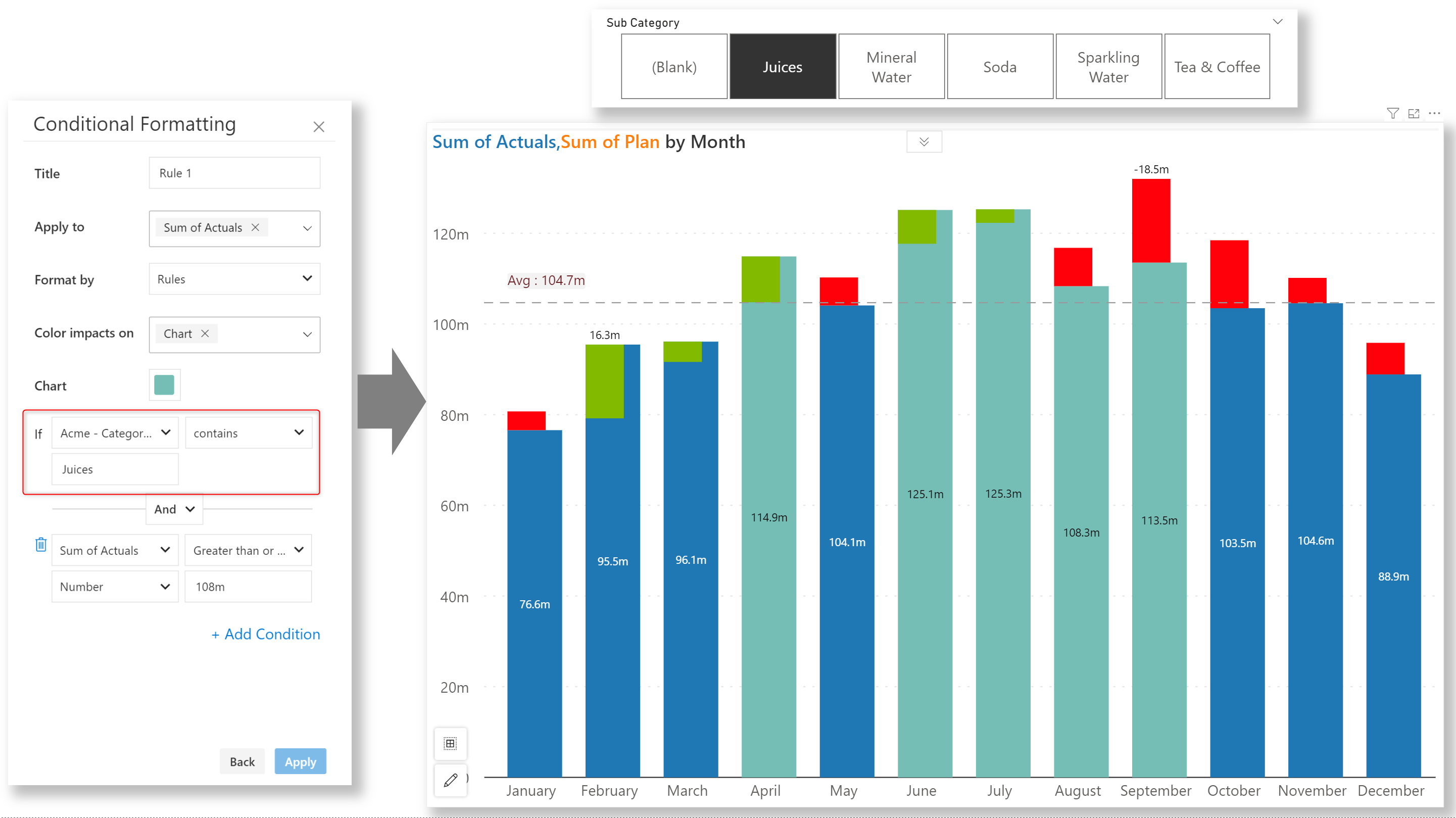
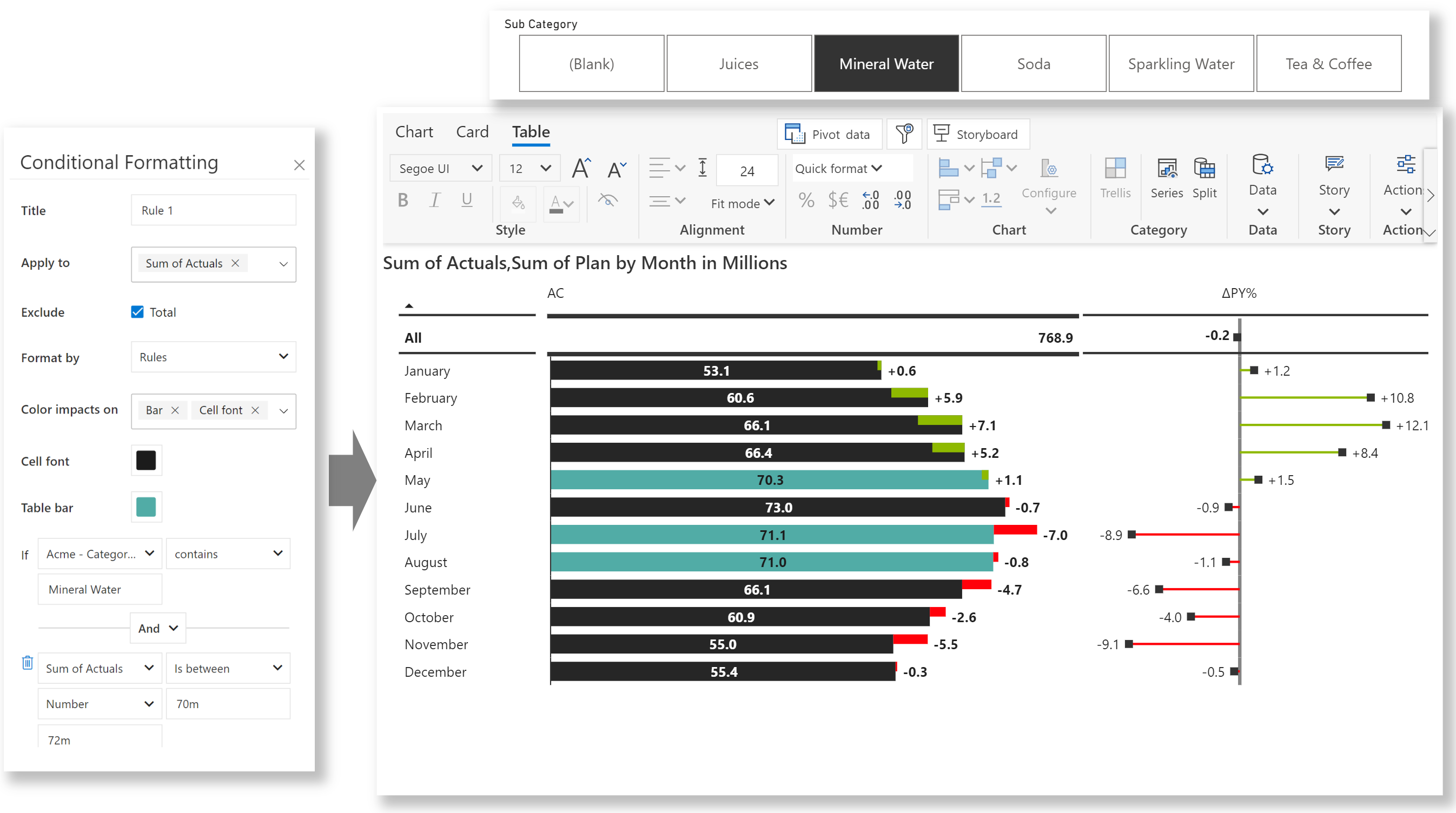
Conditional formatting rules are applied based on the filter/slicer selection.

{% tabs %}
{% tab title="Charts" %}

<figure><img src="https://3132984990-files.gitbook.io/~/files/v0/b/gitbook-x-prod.appspot.com/o/spaces%2FbOoZhPvC57Z0CNgep4Ib%2Fuploads%2Fw8wjArDdTEsoAdLoL6yW%2Fimage.png?alt=media&#x26;token=375ec42a-5d86-4572-9ec9-ff38bccc3c7f" alt=""><figcaption><p>Context aware conditional formatting</p></figcaption></figure>
{% endtab %}

{% tab title="Tables" %}

<figure><img src="https://3132984990-files.gitbook.io/~/files/v0/b/gitbook-x-prod.appspot.com/o/spaces%2FbOoZhPvC57Z0CNgep4Ib%2Fuploads%2FhcTP2Nyc5yJDx1c2rjbY%2Fimage.png?alt=media&#x26;token=a7866119-ccfc-4a44-9b38-2e8ebc2cf2ea" alt=""><figcaption><p>Conditional formatting with context awareness</p></figcaption></figure>
{% endtab %}
{% endtabs %}

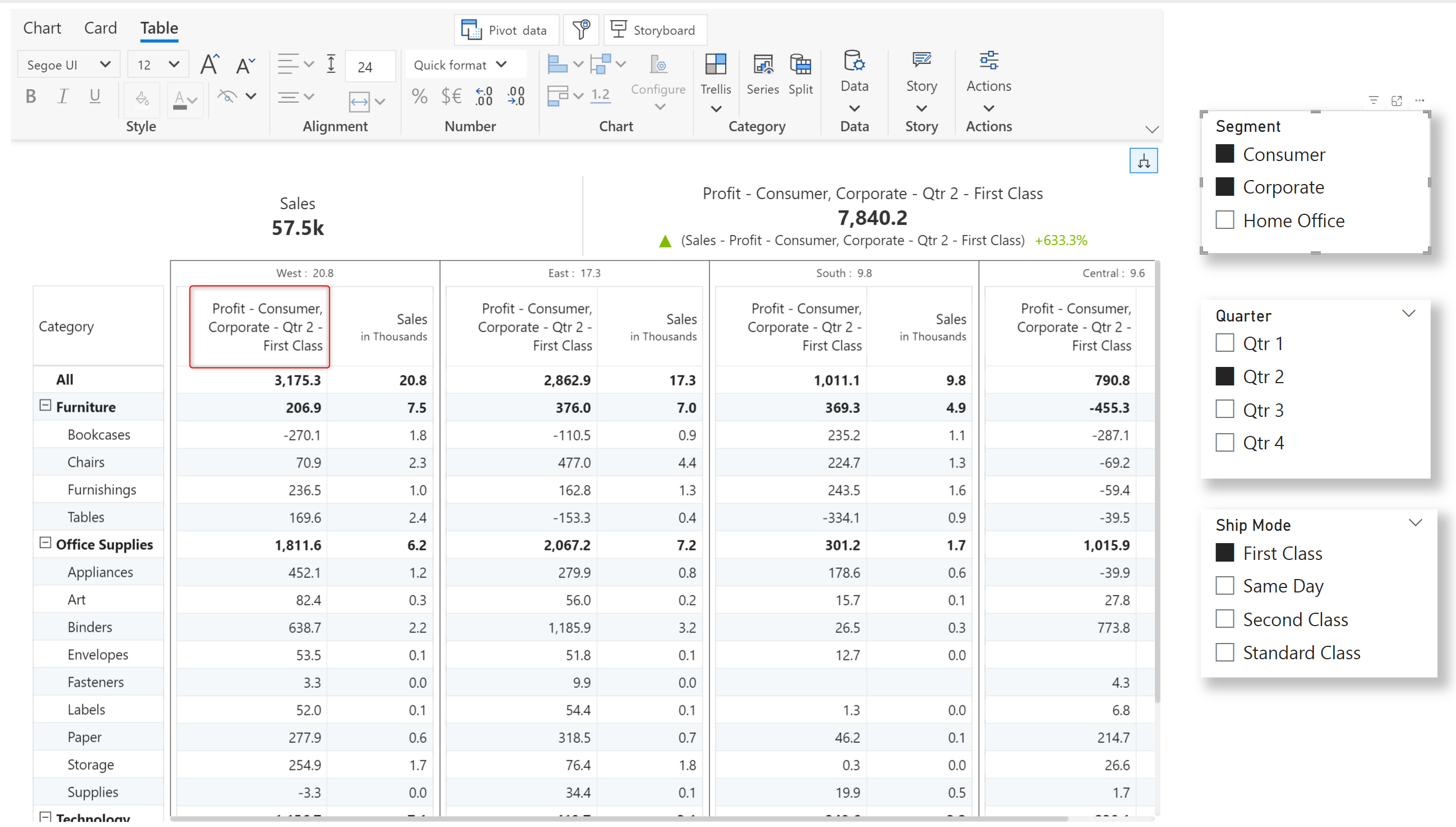
## 2. Context-awareness for measure headers

After setting up context awareness, when you double-click a measure header, Analytics+ will display the list of filters. Let's see this in action.

<figure><img src="https://3132984990-files.gitbook.io/~/files/v0/b/gitbook-x-prod.appspot.com/o/spaces%2FbOoZhPvC57Z0CNgep4Ib%2Fuploads%2FsJGPt5UPQGS3u6jXeeqk%2Fimage.png?alt=media&#x26;token=b93652bb-169e-4373-bf77-0d07f071c610" alt=""><figcaption><p>Filter context for measure headers</p></figcaption></figure>

You can append a filter name to the measure header - the filter selection will then be dynamically displayed in the measure header. To view suggestions, press ctrl + space.&#x20;

<figure><img src="https://3132984990-files.gitbook.io/~/files/v0/b/gitbook-x-prod.appspot.com/o/spaces%2FbOoZhPvC57Z0CNgep4Ib%2Fuploads%2FRfFpZkOapukMxeRObEx4%2Fimage.png?alt=media&#x26;token=ae3b710e-0d3b-43fb-b13a-4b084b91b8b1" alt=""><figcaption><p>Context awareness in the measure header</p></figcaption></figure>

## 3. Context-awareness for axis categories

Slicer selections can also be reflected in your axis categories. If you need context-aware axis categories, remember to enable the **Axis label** toggle when you set up context awareness:

<figure><img src="https://3132984990-files.gitbook.io/~/files/v0/b/gitbook-x-prod.appspot.com/o/spaces%2FbOoZhPvC57Z0CNgep4Ib%2Fuploads%2FS0AbzQZKObUnjdCLHT1A%2Fimage.png?alt=media&#x26;token=0880a65a-84a4-4eee-b4f3-4d309ff0a9bc" alt=""><figcaption><p>Setting up context aware axis labels</p></figcaption></figure>

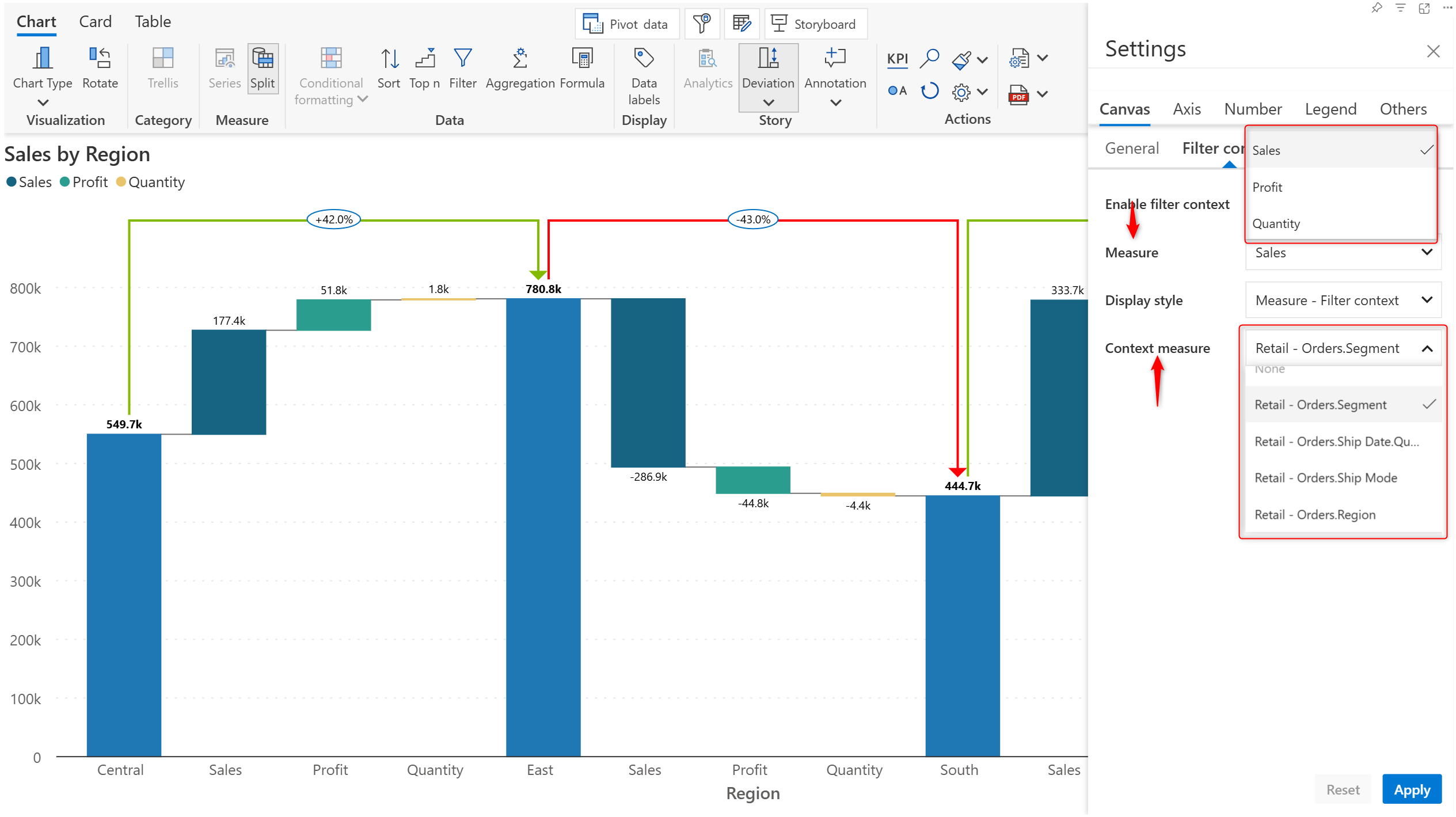
You'll notice a **Filter context** tab under Canvas settings after you configure context awareness.

<figure><img src="https://3132984990-files.gitbook.io/~/files/v0/b/gitbook-x-prod.appspot.com/o/spaces%2FbOoZhPvC57Z0CNgep4Ib%2Fuploads%2FCX5MJwBwlrUTWKfJGQgX%2Fimage.png?alt=media&#x26;token=d405805b-d9a5-45b5-802d-d3d50edcd5aa" alt=""><figcaption><p>Filter context settings tab </p></figcaption></figure>

You can select a measure and tag it to a filter context dimension. Please be mindful that the measure-dimension mapping is 1:1, i.e. you can map one measure to one slicer dimension.&#x20;

<figure><img src="https://3132984990-files.gitbook.io/~/files/v0/b/gitbook-x-prod.appspot.com/o/spaces%2FbOoZhPvC57Z0CNgep4Ib%2Fuploads%2FMOXML4IcpM09Oiq0H7bM%2Fimage.png?alt=media&#x26;token=8a065f81-8843-4ea4-abfb-2f6e7e627d96" alt=""><figcaption><p>Tagging a measure to a filter context dimension</p></figcaption></figure>

In this example, we've mapped the Sales measure to the Segment dimension. Watch how the axis categories change based on the slicer selection.

<figure><img src="https://3132984990-files.gitbook.io/~/files/v0/b/gitbook-x-prod.appspot.com/o/spaces%2FbOoZhPvC57Z0CNgep4Ib%2Fuploads%2F5s4sqAxruU6FxQEV2AGf%2FUntitled%20Project.gif?alt=media&#x26;token=7c58b6f9-73b1-4987-b824-fc1966571369" alt=""><figcaption><p>Context awareness for axis categories</p></figcaption></figure>

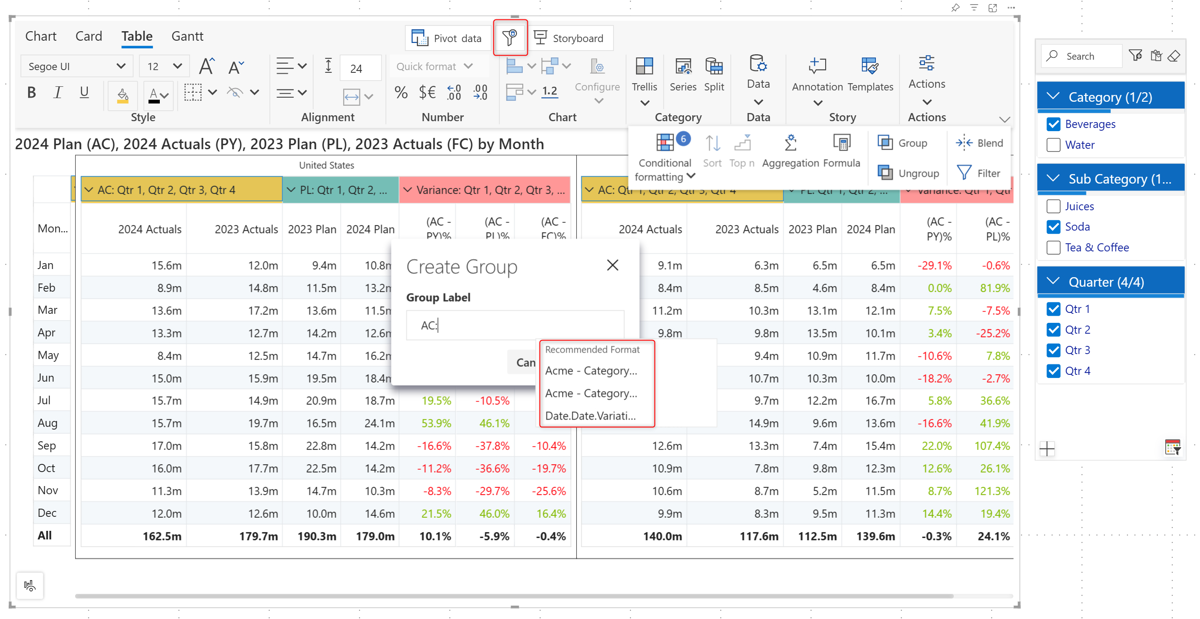
## 4. Context-awareness for measure group headers

Display the slicer selection in measure group headers. Select the slicer category to display in the header from the dropdown when you create the group.&#x20;

<figure><img src="https://3132984990-files.gitbook.io/~/files/v0/b/gitbook-x-prod.appspot.com/o/spaces%2FbOoZhPvC57Z0CNgep4Ib%2Fuploads%2F80Cr2TTRlTPoOkt6WJ7E%2Fimage.png?alt=media&#x26;token=c114dbaa-9e86-4f54-9caf-901a1f43fbc9" alt=""><figcaption><p>Appending the category to the group header</p></figcaption></figure>

Notice how the group header changes in response to slicer selections.

<figure><img src="https://3132984990-files.gitbook.io/~/files/v0/b/gitbook-x-prod.appspot.com/o/spaces%2FbOoZhPvC57Z0CNgep4Ib%2Fuploads%2Fz6IocqGZeuQh3SSjXvHw%2FFilterContextGroupMeasureHeaders.gif?alt=media&#x26;token=140afe9b-e805-4c86-8d3f-00b9a0cfbf59" alt=""><figcaption><p>Context awareness in group headers</p></figcaption></figure>

## 5. **Context awareness for storyboard textboxes**

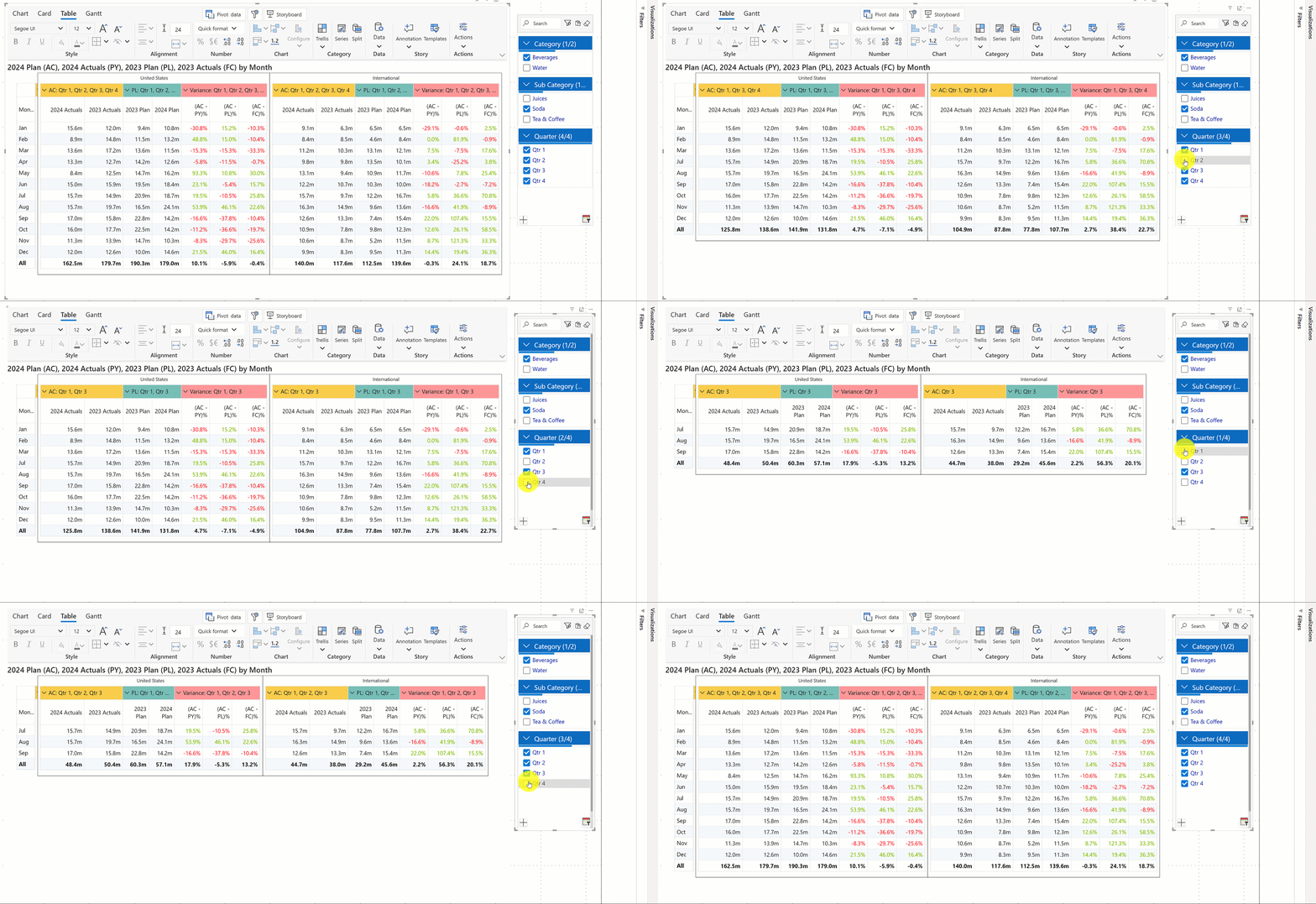
Storyboard textboxes are context-aware! The content in the text boxes will respond to changes in [Inforiver SuperFilter](https://inforiver.com/super-filter/) selections. In this example, notice how the summary and the KPI metrics change in response to region selections.

<figure><img src="https://3132984990-files.gitbook.io/~/files/v0/b/gitbook-x-prod.appspot.com/o/spaces%2FbOoZhPvC57Z0CNgep4Ib%2Fuploads%2FTyVkJEXTGm7mxwvG0rq7%2FStoryboardFilterContext.gif?alt=media&#x26;token=8e8cb44d-45dc-443a-ae73-213843dbd6f5" alt=""><figcaption><p>Context awareness for textboxes in storyboard</p></figcaption></figure>