# 5.2. Quick options - tables

The Analytics+ visual provides almost all functionalities even when the size of the visual is reduced i.e. it does not fill the entire canvas. The toolbar is disabled when the size of the visual is decreased beyond a threshold but you can still perform all the basic customizations via the context menus and by using the on-object interaction menus - without having to switch to focus mode.&#x20;

### 1. Using the context menu

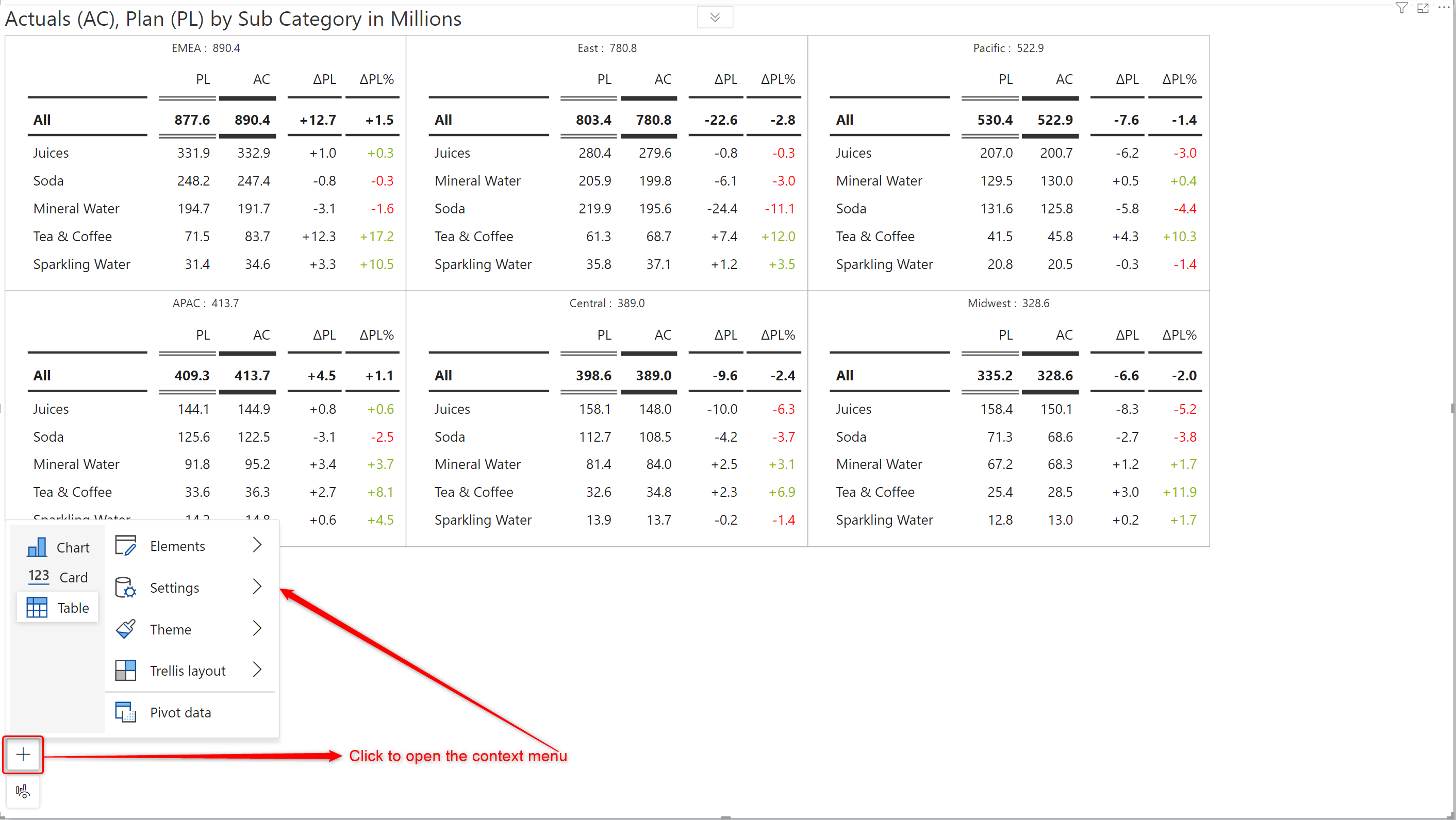
When the toolbar is unpinned, clicking on the **+** icon at the bottom left will open the context menu.

<figure><img src="https://3132984990-files.gitbook.io/~/files/v0/b/gitbook-x-prod.appspot.com/o/spaces%2FbOoZhPvC57Z0CNgep4Ib%2Fuploads%2FIIWraeMNk7bMgMBNKUJM%2Fimage.png?alt=media&#x26;token=61327acd-2a94-414c-8ce0-5748e9a9b302" alt=""><figcaption><p>Context menu</p></figcaption></figure>

#### i) Elements

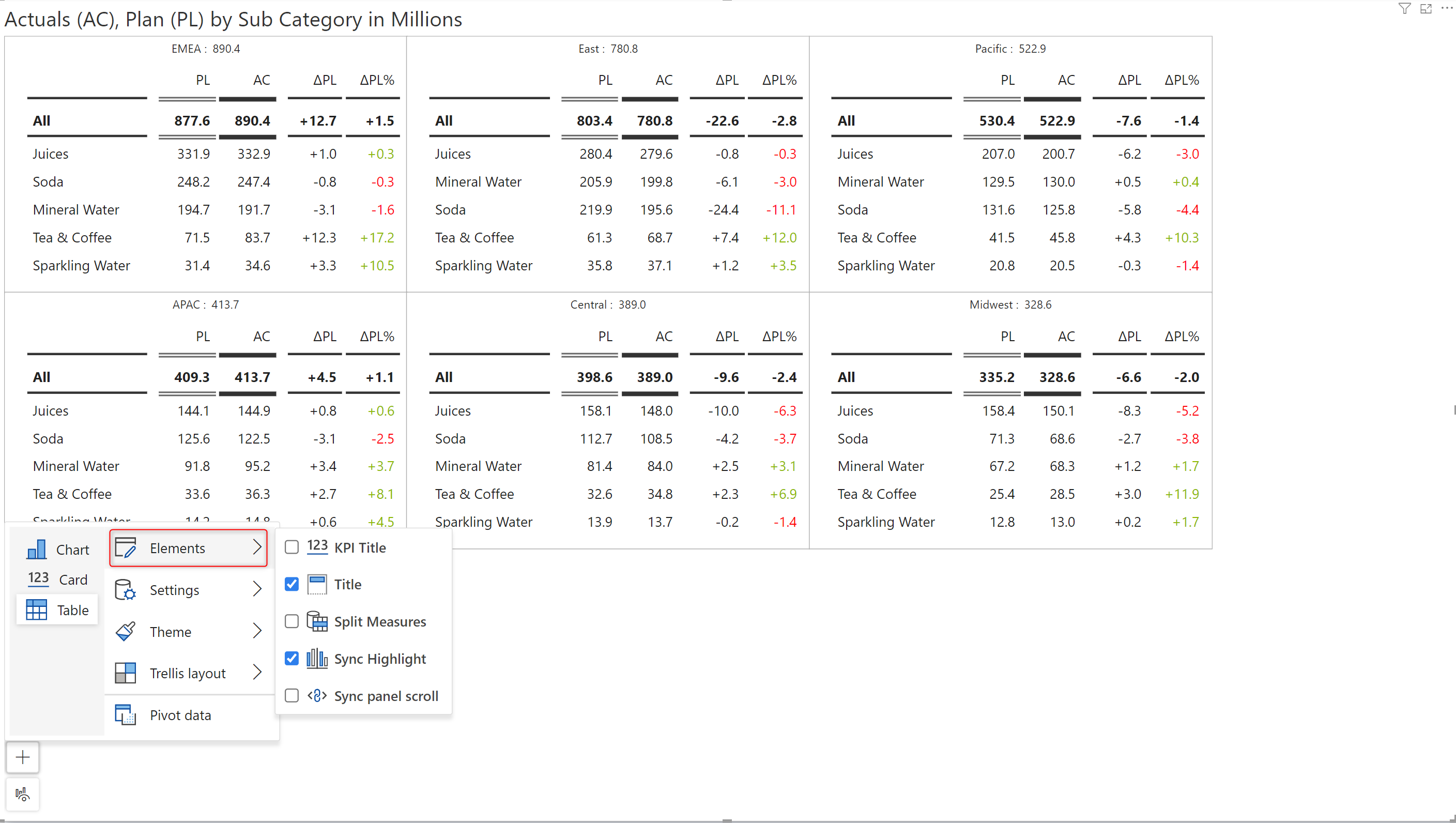
The elements section has options to:

* Add or remove KPIs
* Add or remove the report header(Title)
* Split measures. [Learn more about splitting measures.](https://docs.inforiver.com/analytics+/working-with-analytics+/8.-splitting-and-grouping-measures)
* Sync highlight. [Learn more about data selection](https://docs.inforiver.com/analytics+/working-with-analytics+/13.-data-selection).
* Sync panel scroll. [Learn more about synchronized scrolling](https://docs.inforiver.com/analytics+/working-with-analytics+/5.-tables/broken-reference).

<figure><img src="https://3132984990-files.gitbook.io/~/files/v0/b/gitbook-x-prod.appspot.com/o/spaces%2FbOoZhPvC57Z0CNgep4Ib%2Fuploads%2FqxyoXVfYkXfO1X66mRcg%2Fimage.png?alt=media&#x26;token=5dd66041-67aa-4868-9b65-78dd12538395" alt=""><figcaption><p>Elements section</p></figcaption></figure>

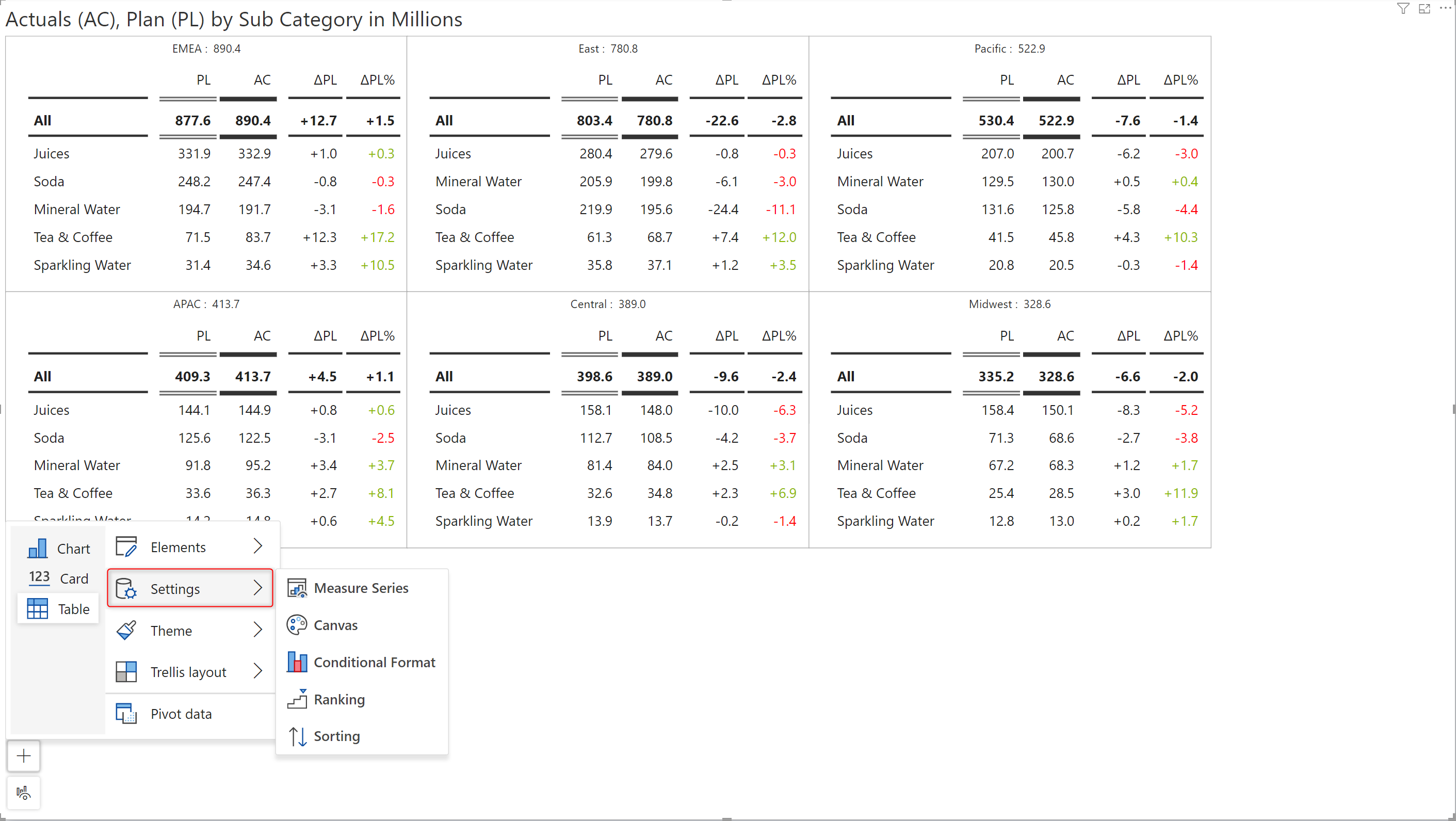
#### ii) Settings

You can directly navigate to the configuration settings for measures, canvas, conditional formatting, TopN, and sorting from this section.

<figure><img src="https://3132984990-files.gitbook.io/~/files/v0/b/gitbook-x-prod.appspot.com/o/spaces%2FbOoZhPvC57Z0CNgep4Ib%2Fuploads%2FLjE7UNKRpVlCo20LFUXc%2Fimage.png?alt=media&#x26;token=260f9403-bc8c-4656-87b6-6fda3b1135e0" alt=""><figcaption><p>Settings section</p></figcaption></figure>

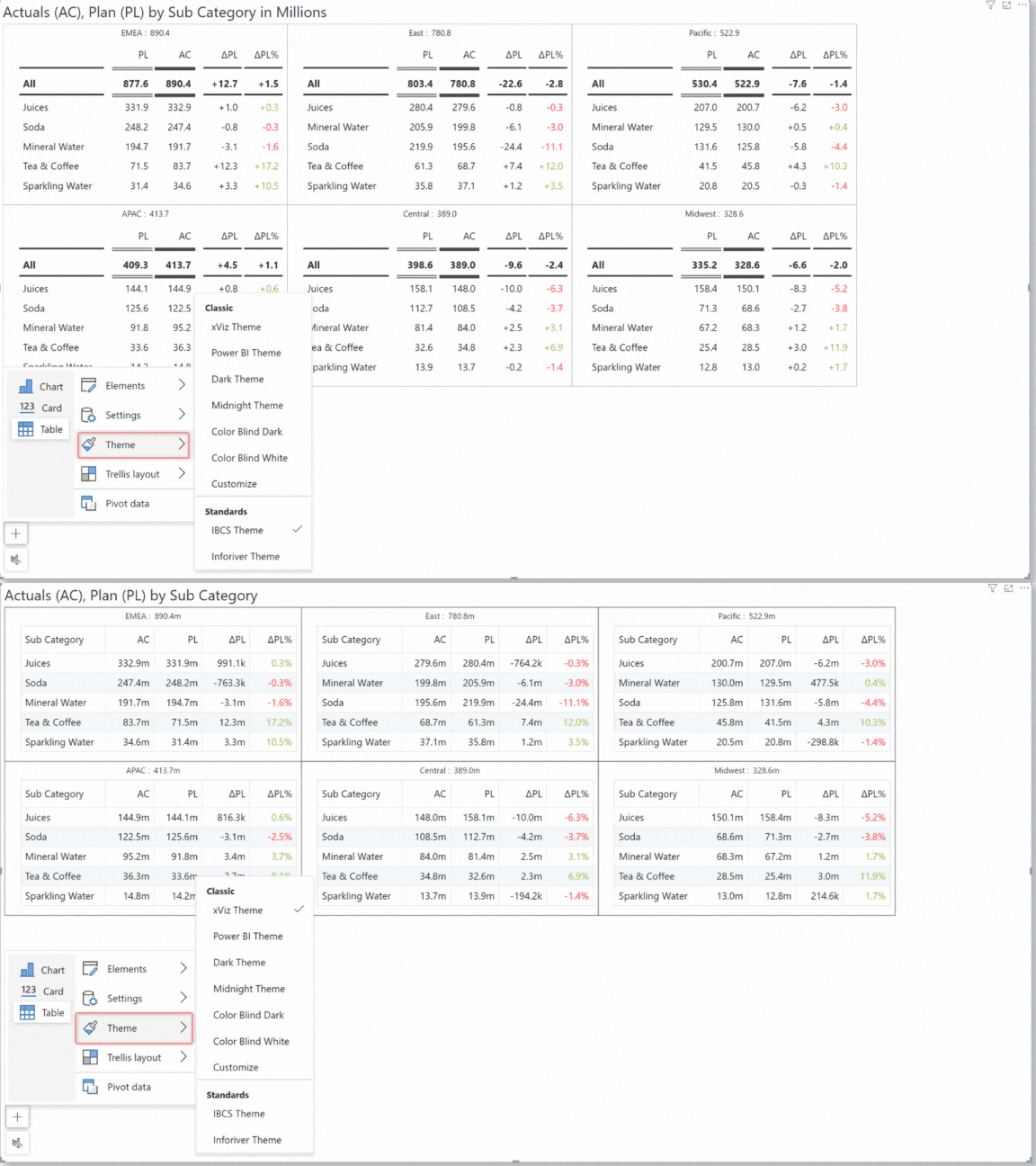
#### iii) Theme

You can also change the theme from the context menu. Learn more about themes.

<figure><img src="https://3132984990-files.gitbook.io/~/files/v0/b/gitbook-x-prod.appspot.com/o/spaces%2FbOoZhPvC57Z0CNgep4Ib%2Fuploads%2FzFTsQbkUVNa6DDwDDsdY%2FThemegif.gif?alt=media&#x26;token=5805446a-fec1-4bb4-9c0a-53a346548895" alt=""><figcaption><p>Changing the theme</p></figcaption></figure>

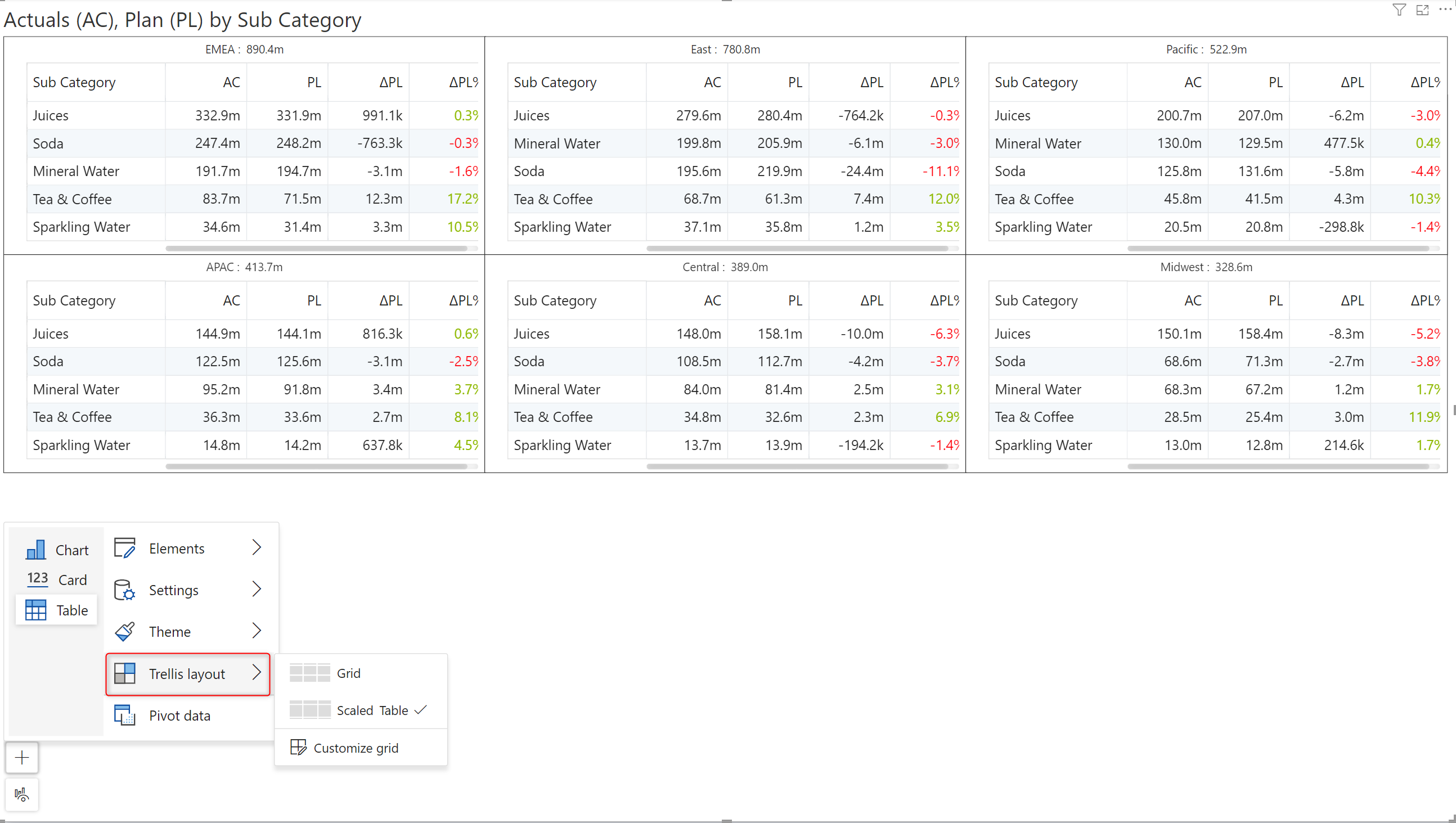
#### iv) Trellis layout

You can change the layout from this section or navigate directly to layout settings to design a custom layout. Learn more about setting the layout.

<figure><img src="https://3132984990-files.gitbook.io/~/files/v0/b/gitbook-x-prod.appspot.com/o/spaces%2FbOoZhPvC57Z0CNgep4Ib%2Fuploads%2FwMVwMxmTGkTQExgHR8Q5%2Fimage.png?alt=media&#x26;token=361ed30b-4618-4ff4-8a09-060a36382d32" alt=""><figcaption><p>Changing the trellis layout</p></figcaption></figure>

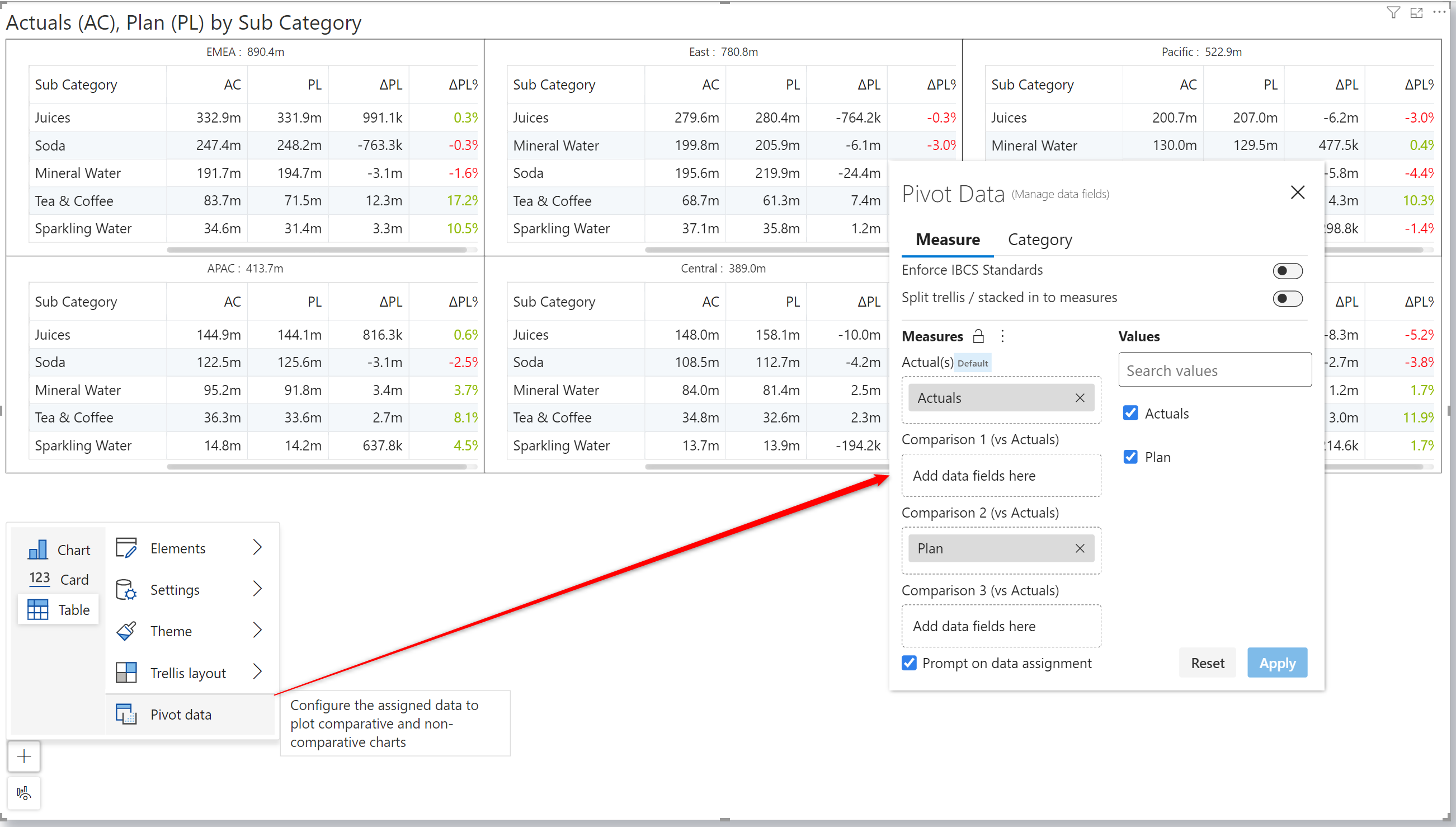
#### v) Pivot data

You can navigate to the data management configuration window from this section. [Learn more about data management.](https://docs.inforiver.com/analytics+/working-with-analytics+/2.-data-management)

<figure><img src="https://3132984990-files.gitbook.io/~/files/v0/b/gitbook-x-prod.appspot.com/o/spaces%2FbOoZhPvC57Z0CNgep4Ib%2Fuploads%2FiCMT6FQJvwC24PSXzXmm%2Fimage.png?alt=media&#x26;token=87dc6915-e7c1-43a0-a7e4-219326490d02" alt=""><figcaption><p>Pivot data option</p></figcaption></figure>

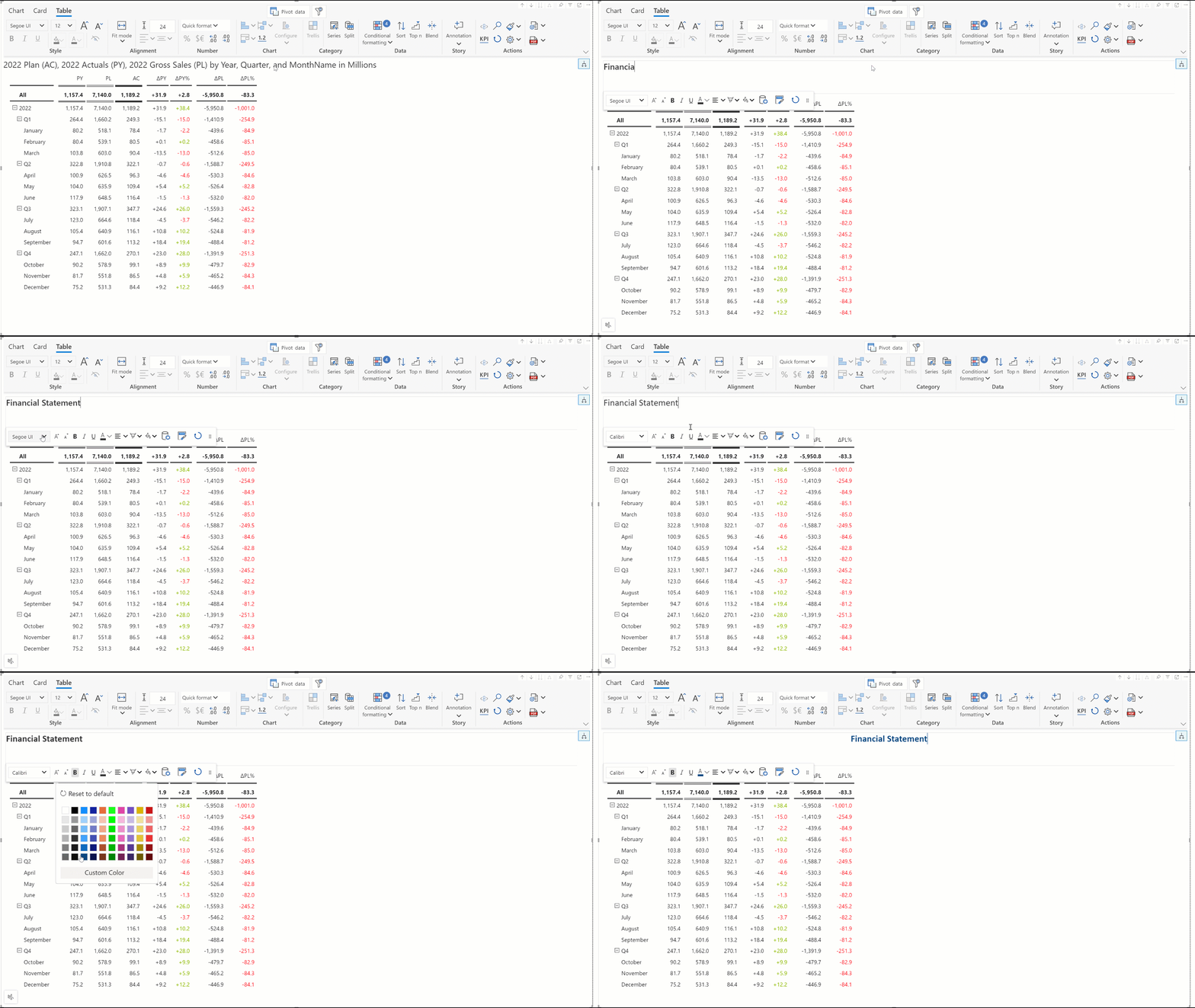
### 2. Editing the header

The header name is automatically set using the dimension and measure names. Simply double-click on the header to enable the on-object interaction menu. You can change the font, size, style, color, alignment, background color, etc, and modify the content as well.

<figure><img src="https://3132984990-files.gitbook.io/~/files/v0/b/gitbook-x-prod.appspot.com/o/spaces%2FbOoZhPvC57Z0CNgep4Ib%2Fuploads%2FOHMppvoxODARMyDbKz5L%2FUntitled%20Project.gif?alt=media&#x26;token=3ccc0f01-f5d9-44db-9a68-11caeb26adf7" alt=""><figcaption><p>Editing the header</p></figcaption></figure>

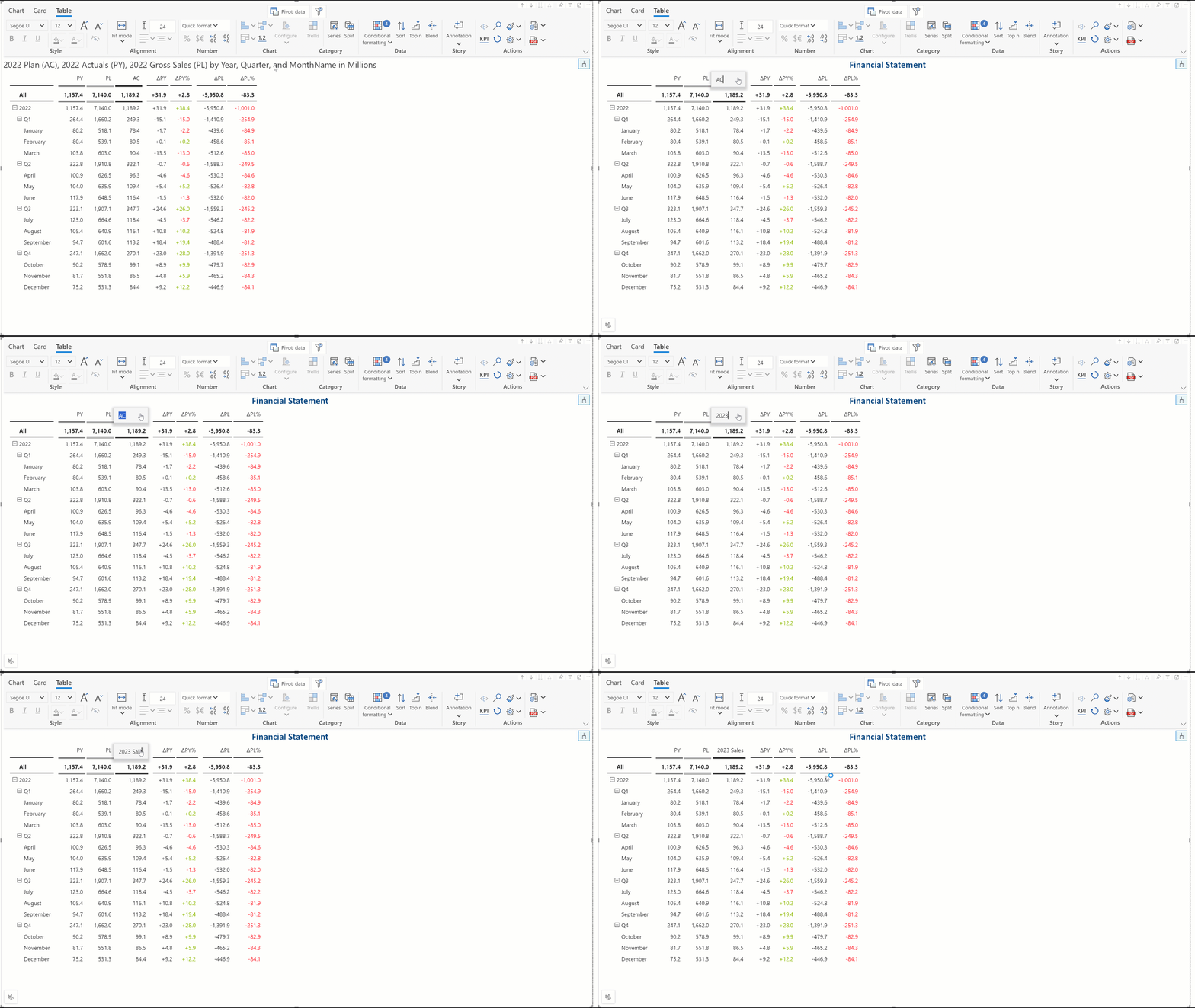
### 3. Editing measure names

By default, Analytics+ assigns the IBCS notations for measure names. You can easily modify them by double clicking on the measure header which you want to update.&#x20;

<figure><img src="https://3132984990-files.gitbook.io/~/files/v0/b/gitbook-x-prod.appspot.com/o/spaces%2FbOoZhPvC57Z0CNgep4Ib%2Fuploads%2FK9gwIb9li9CGSu1G3K8g%2FEditMeasureHeader.gif?alt=media&#x26;token=becdc067-ba6e-4f2d-bb3a-de818a7b9caf" alt=""><figcaption><p>Editing the measure header</p></figcaption></figure>

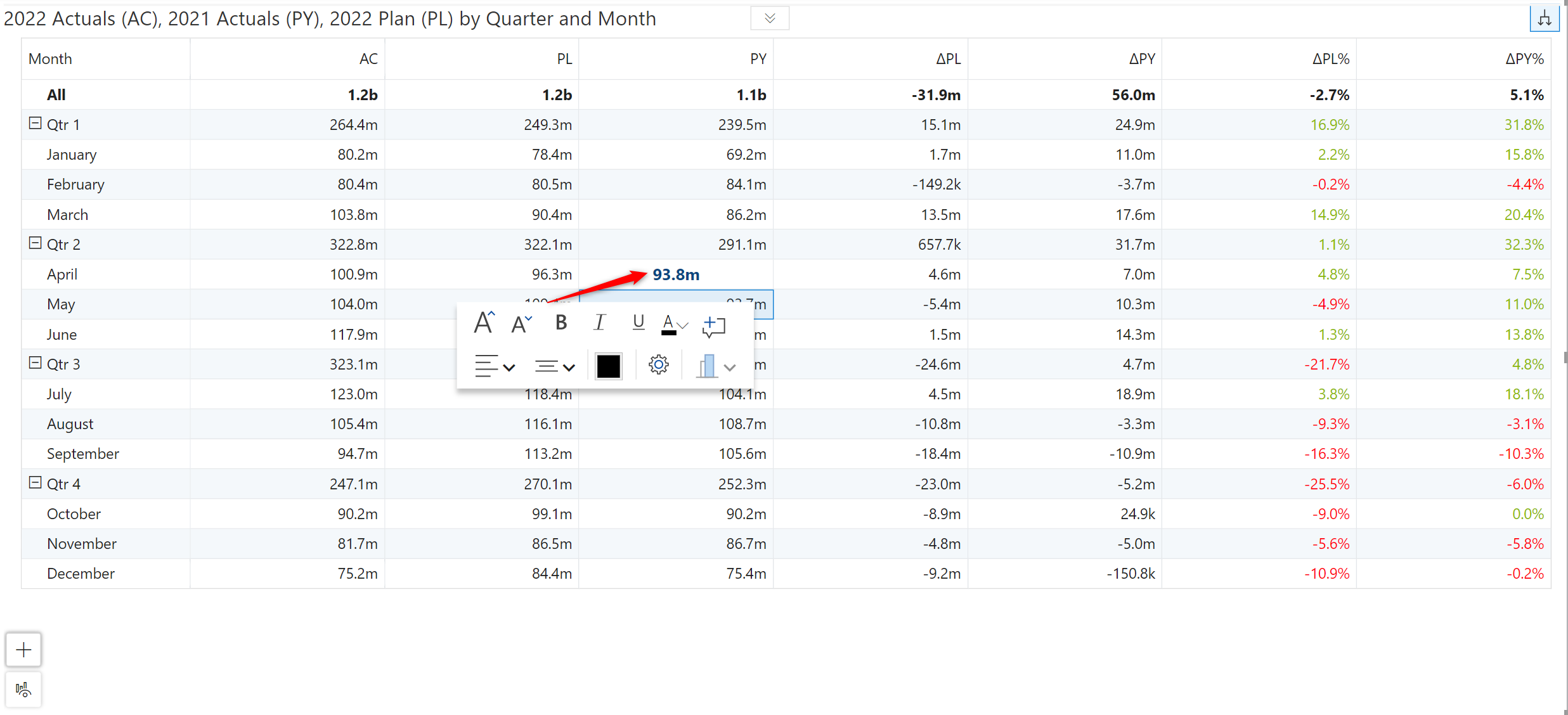
### 4. Editing cells and adding annotations

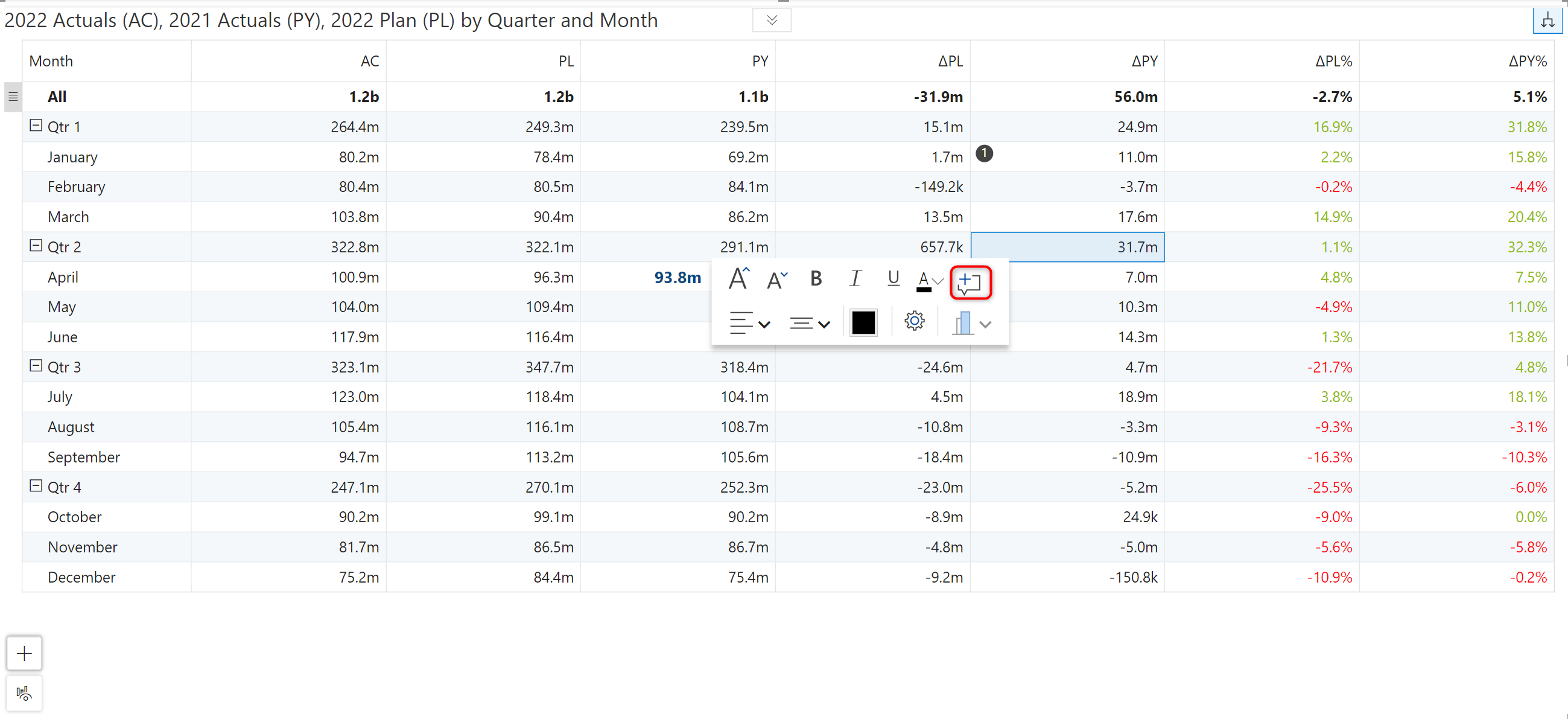
To format individual cells, click on the cell to enable the on-object interaction menu. Similar to the measure headers, you can change the font size, color, alignment, and styling of the cell. Click on the settings icon to open the font style properties pane.

<figure><img src="https://3132984990-files.gitbook.io/~/files/v0/b/gitbook-x-prod.appspot.com/o/spaces%2FbOoZhPvC57Z0CNgep4Ib%2Fuploads%2FXFy0KvCfG2OzcSuv9RUy%2Fimage.png?alt=media&#x26;token=635e3677-d628-421d-aaeb-1baae0065e04" alt=""><figcaption><p>Editing cells</p></figcaption></figure>

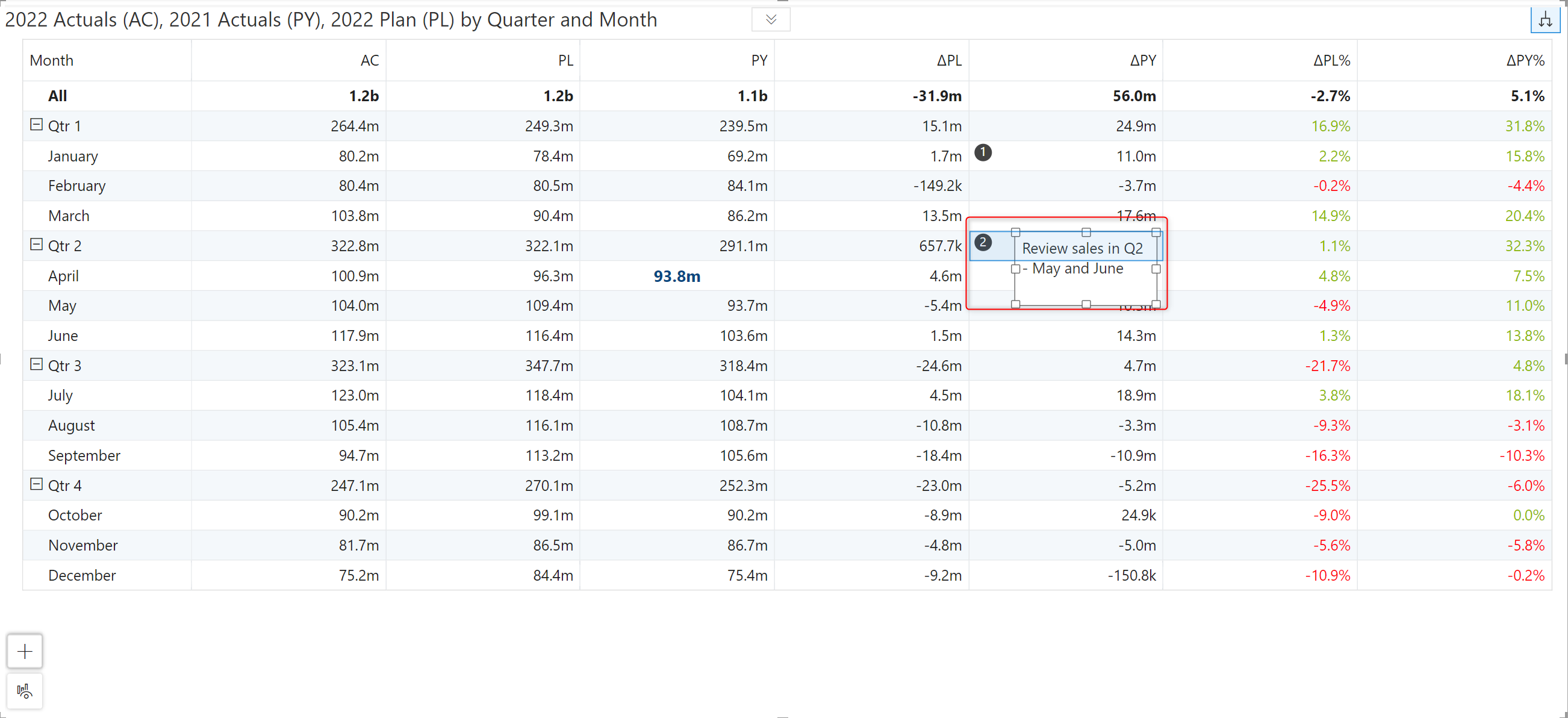
To add cell-level comments, click on the comment icon - a text box is enabled to capture annotations. &#x20;

<figure><img src="https://3132984990-files.gitbook.io/~/files/v0/b/gitbook-x-prod.appspot.com/o/spaces%2FbOoZhPvC57Z0CNgep4Ib%2Fuploads%2FNHNvQsEqmBT0yzX3oVS5%2Fimage.png?alt=media&#x26;token=9cd726d3-bc41-4fe9-8c0b-15bace351371" alt=""><figcaption><p>Adding comments</p></figcaption></figure>

Enter comments and click anywhere in the grid to attach the comment to the cell. Learn more about annotations in Analytics+.

<figure><img src="https://3132984990-files.gitbook.io/~/files/v0/b/gitbook-x-prod.appspot.com/o/spaces%2FbOoZhPvC57Z0CNgep4Ib%2Fuploads%2FGaYovRTAUKQQQRHqb8h7%2Fimage.png?alt=media&#x26;token=048fd4e9-fc37-440d-94e9-94f0da193e4c" alt=""><figcaption><p>Entering a comment</p></figcaption></figure>

### 5. Resizing and re-ordering measures

**Resizing**: The resize icon appears when you hover over the edge of a measure. Click and drag to resize.

**Reordering:** Click on the measure header and drag to the desired position to re-order measures.

### 6. Inverting panels

With Inforiver reports, you can indicate poor performance in a particular segment or region with the invert panel option. Hover over the panel and click on the <img src="https://3132984990-files.gitbook.io/~/files/v0/b/gitbook-x-prod.appspot.com/o/spaces%2FbOoZhPvC57Z0CNgep4Ib%2Fuploads%2FNtn3r7zJcG56ONsngqa8%2Fimage.png?alt=media&#x26;token=2992f267-944f-4ae2-84ce-4b73f86ab50f" alt="" data-size="line">button. We’ve inverted the *Juices* panel with this option.
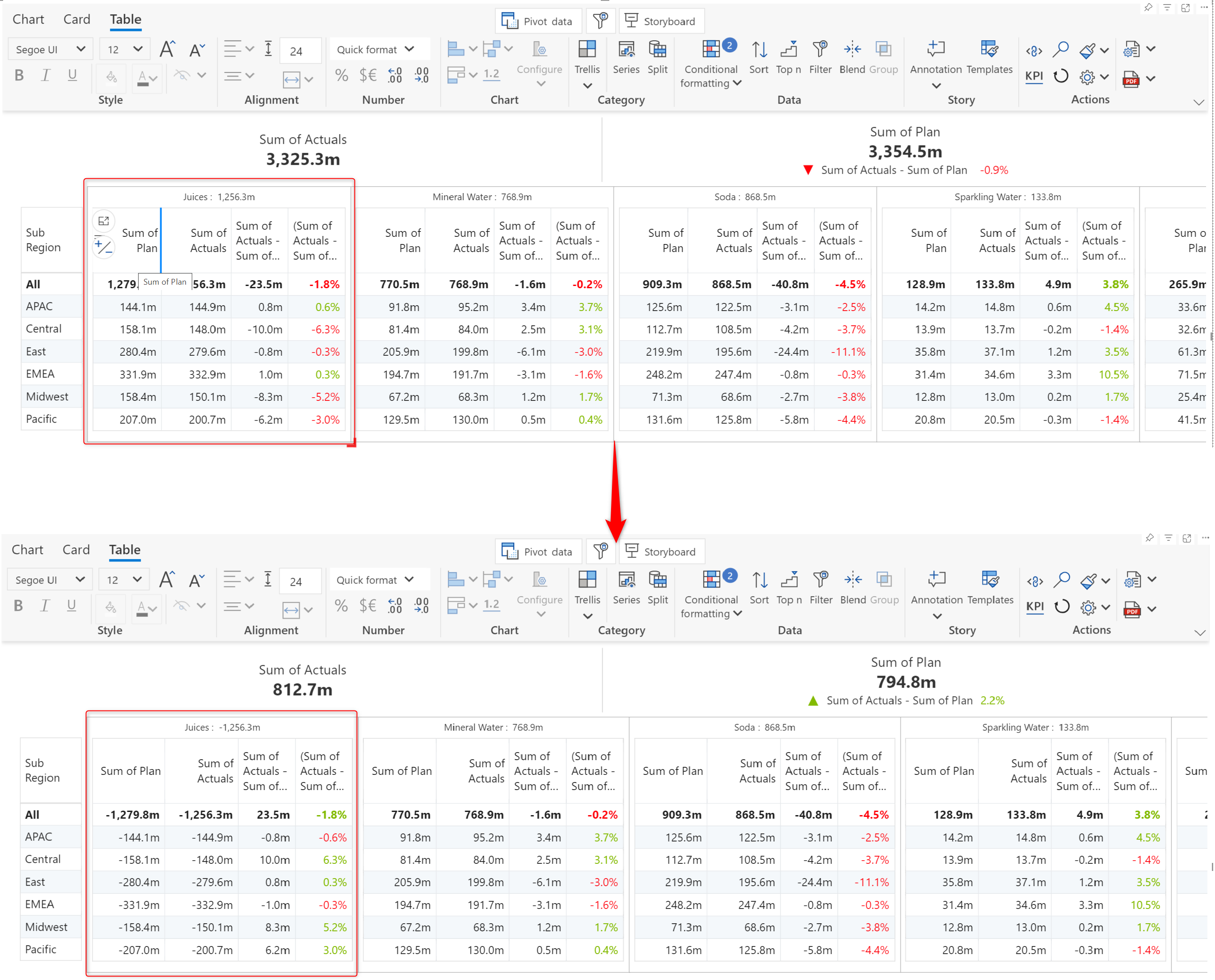
<figure><img src="https://3132984990-files.gitbook.io/~/files/v0/b/gitbook-x-prod.appspot.com/o/spaces%2FbOoZhPvC57Z0CNgep4Ib%2Fuploads%2FNwgOz6eKbaFe0iE821d6%2Fimage.png?alt=media&#x26;token=0fb5e169-db82-4c87-b576-8829a32b44b6" alt=""><figcaption><p>Inverting panels</p></figcaption></figure>

### 7. Date formats for axis dimensions

You can set custom formats for axis date dimensions in just 2 clicks. You can double-click on a date dimension like year/quarter/month and select a custom format from the list of suggestions.

<figure><img src="https://3132984990-files.gitbook.io/~/files/v0/b/gitbook-x-prod.appspot.com/o/spaces%2FbOoZhPvC57Z0CNgep4Ib%2Fuploads%2F0SME72B7jtXtWdUCync2%2FUntitled%20Project.gif?alt=media&#x26;token=1b4e02cf-057a-4d8e-9822-f8e6f7f6ee7d" alt=""><figcaption><p>Custom date formats</p></figcaption></figure>