> For the complete documentation index, see [llms.txt](https://docs.inforiver.com/llms.txt). Markdown versions of documentation pages are available by appending `.md` to page URLs; this page is available as [Markdown](https://docs.inforiver.com/analytics+/working-with-analytics+/9.-conditional-formatting/configuring-rules/configuring-rules-for-cards.md).
# Configuring rules for cards
## 1. Configuring conditional formatting rules
Inforiver provides the options outlined below to configure conditional formatting rules.
**i) Title:** Custom name to uniquely identify the rule.
**ii) Format by**: To drive conditional formatting based on rules or color scales, select the respective option.
**v) Color impacts on:** You can choose the element (like chart/data label/background/ KPI value/ KPI title) to which the formatting will be applied.
**vi) Condition:** Define conditions to drive the conditional formatting.
**vii) Add condition:** Use this link to add additional And/Or conditions.
#### Conditional formatting for charts
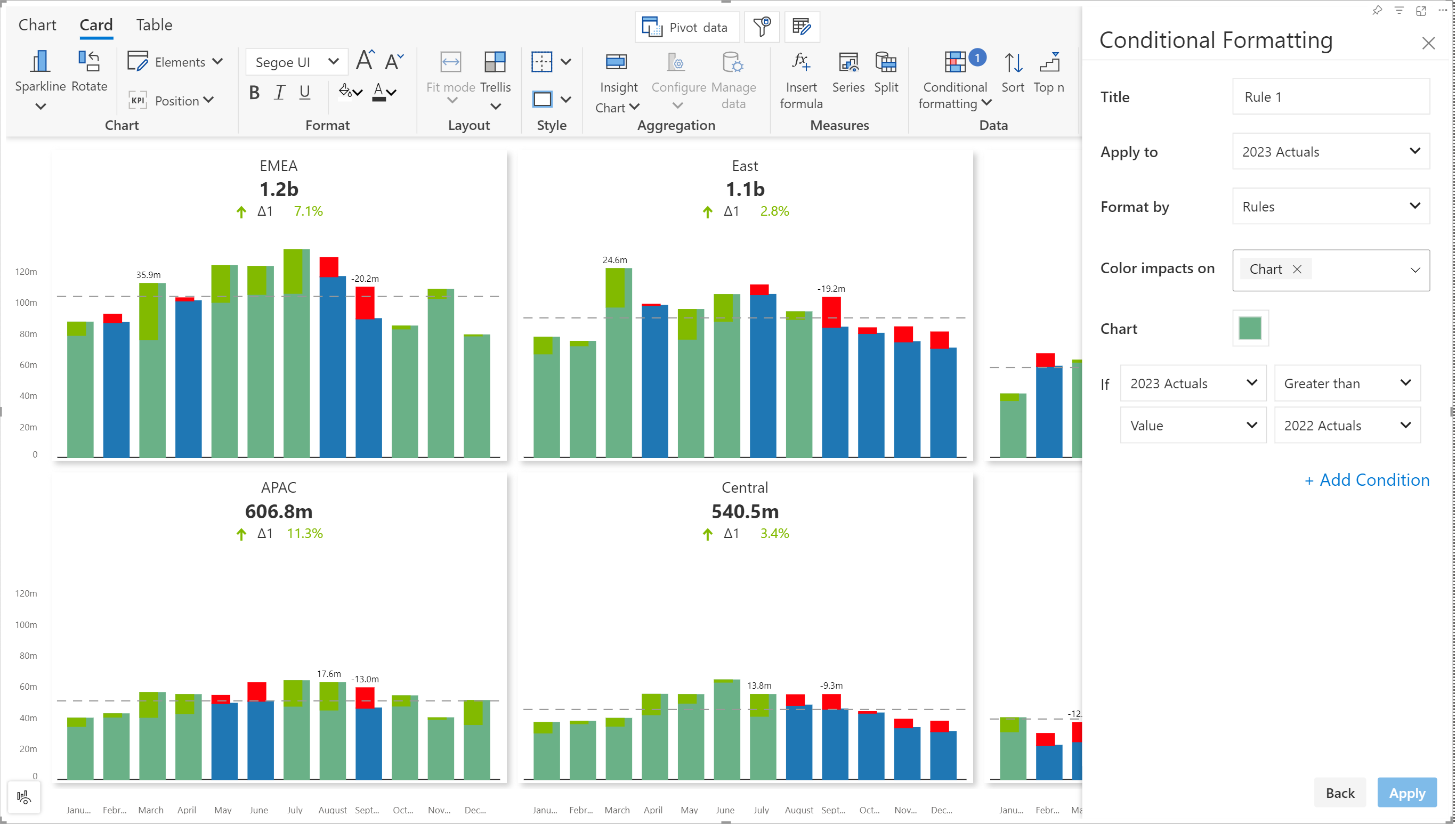
In this example, we have used a conditional formatting rule to highlight the bars where 2023 Actuals > 2022 Actuals.
Conditional formatting rule for cards
When you choose Color impacts on > Chart, you can set a color and fill style (solid, outline, hatched).
Conditional formatting with chart fill styles
#### Setting a custom background color for panels that satisfy the conditional formatting rule
In this example, when the total sales for a particular region is less than 400m, the background color is changed.
Background color applied based on CF rule
#### Conditional formatting for KPI titles
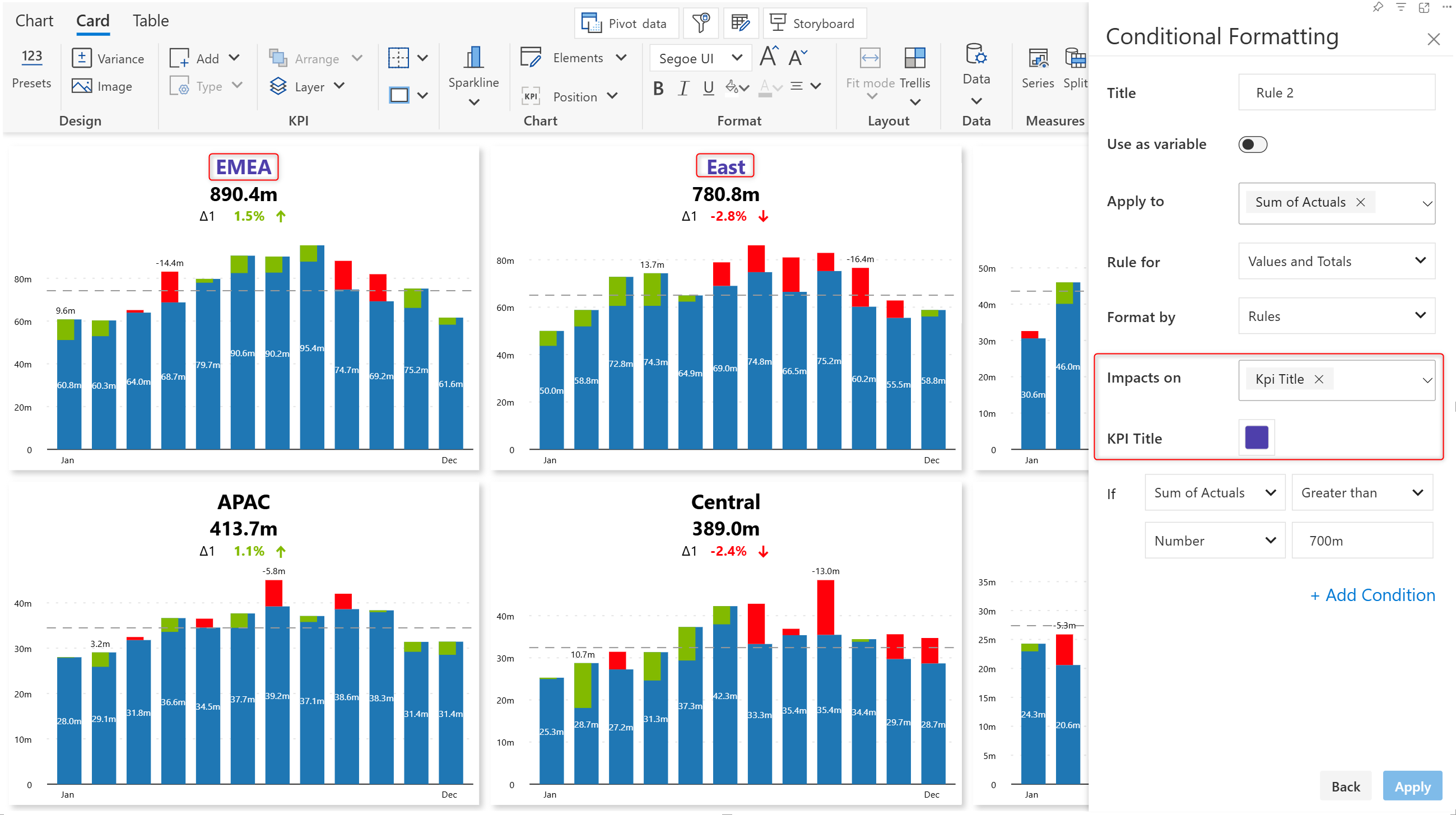
You can apply a custom color to the KPI title for panels that satisfy the CF rule. Notice how the EMEA and East regions have a different color in the report below.
Conditional formatting for titles
#### **Conditional formatting for insight charts**
Highlight trends by applying conditional formatting rules to insight charts. Choose the"Kpi Insight Chart" for the **Impacts on** option to apply formatting to the insight chart.
Conditional formatting for insight charts
---
# Agent Instructions
This documentation is published with GitBook. GitBook is the documentation platform designed so that both humans and AI agents can read, navigate, and reason over technical content effectively. Learn more at gitbook.com.
## Querying This Documentation
If you need additional information that is not directly available in this page, you can query the documentation dynamically by asking a question.
Perform an HTTP GET request on the current page URL with the `ask` query parameter, and the optional `goal` query parameter:
```
GET https://docs.inforiver.com/analytics+/working-with-analytics+/9.-conditional-formatting/configuring-rules/configuring-rules-for-cards.md?ask=&goal=
```
`ask` is the immediate question: it should be specific, self-contained, and written in natural language.
`goal` is optional and describes the broader end goal you are ultimately trying to accomplish on behalf of the user. GitBook uses it to tailor the answer towards what is most useful for that goal.
The response will contain a direct answer to the question and relevant excerpts and sources from the documentation.
Use this mechanism when the answer is not explicitly present in the current page, you need clarification or additional context, or you want to retrieve related documentation sections.