> For the complete documentation index, see [llms.txt](https://docs.inforiver.com/llms.txt). Markdown versions of documentation pages are available by appending `.md` to page URLs; this page is available as [Markdown](https://docs.inforiver.com/analytics+/working-with-analytics+/9.-conditional-formatting/configuring-rules/configuring-rules-for-tables.md).
# Configuring rules for tables
## 1. Configuring conditional formatting rules
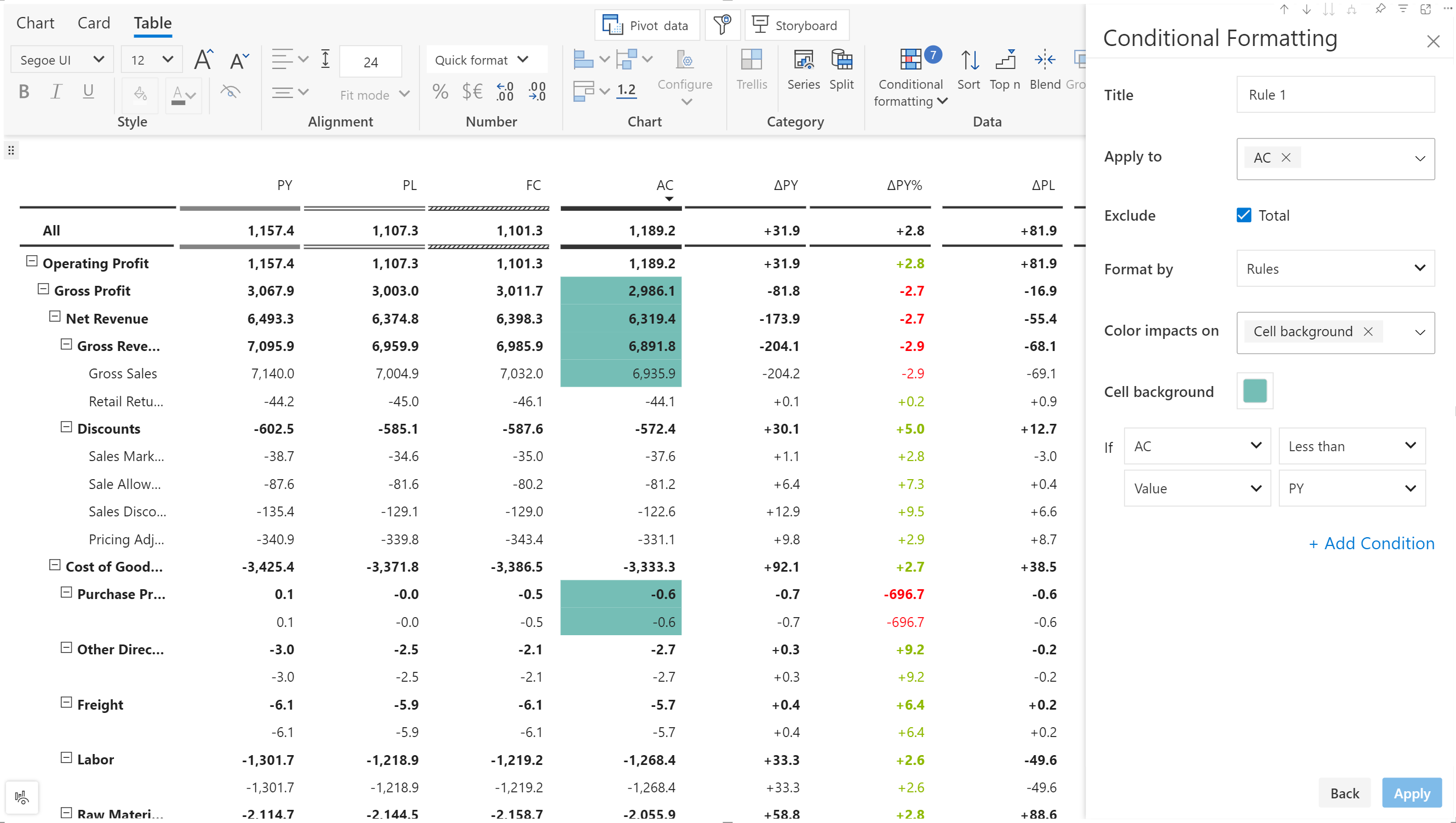
Inforiver provides the options outlined below to configure conditional formatting rules.
**i) Title:** Custom name to uniquely identify the rule.
**ii) Apply to:** The column on which conditional formatting is to be applied.
**iii) Exclude:** Uncheck the 'Total' checkbox if you do not want to apply conditional formatting on the totals row.
**iv) Format by**: To drive conditional formatting based on rules, classification, or color scales, select the respective option.
**v) Color impacts on:** You can choose the element (like font or background) to which the formatting will be applied.
**vi) Condition:** Define conditions to drive the conditional formatting.
**vii) Add condition:** Use this link to add additional And/or conditions.
Let's look at some applications of conditional formatting in tables.
In the example, we've highlighted the **cell background** in green where the AC is less than PY.
Configuring rules for tables
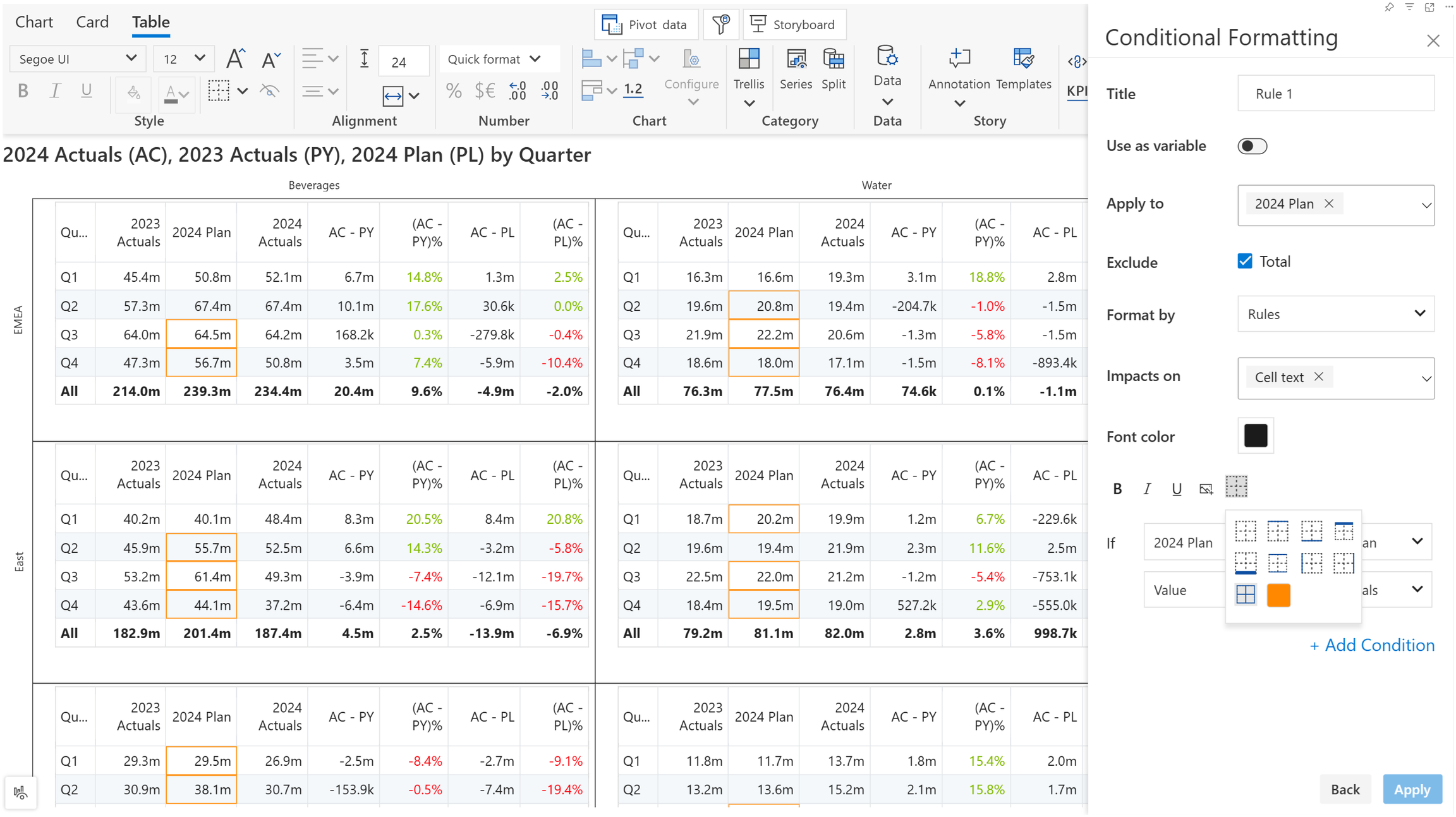
You can emphasize your tabular data with borders and colors. In this scenario, we've applied a **border** when the plan exceeds actuals.
Applying borders
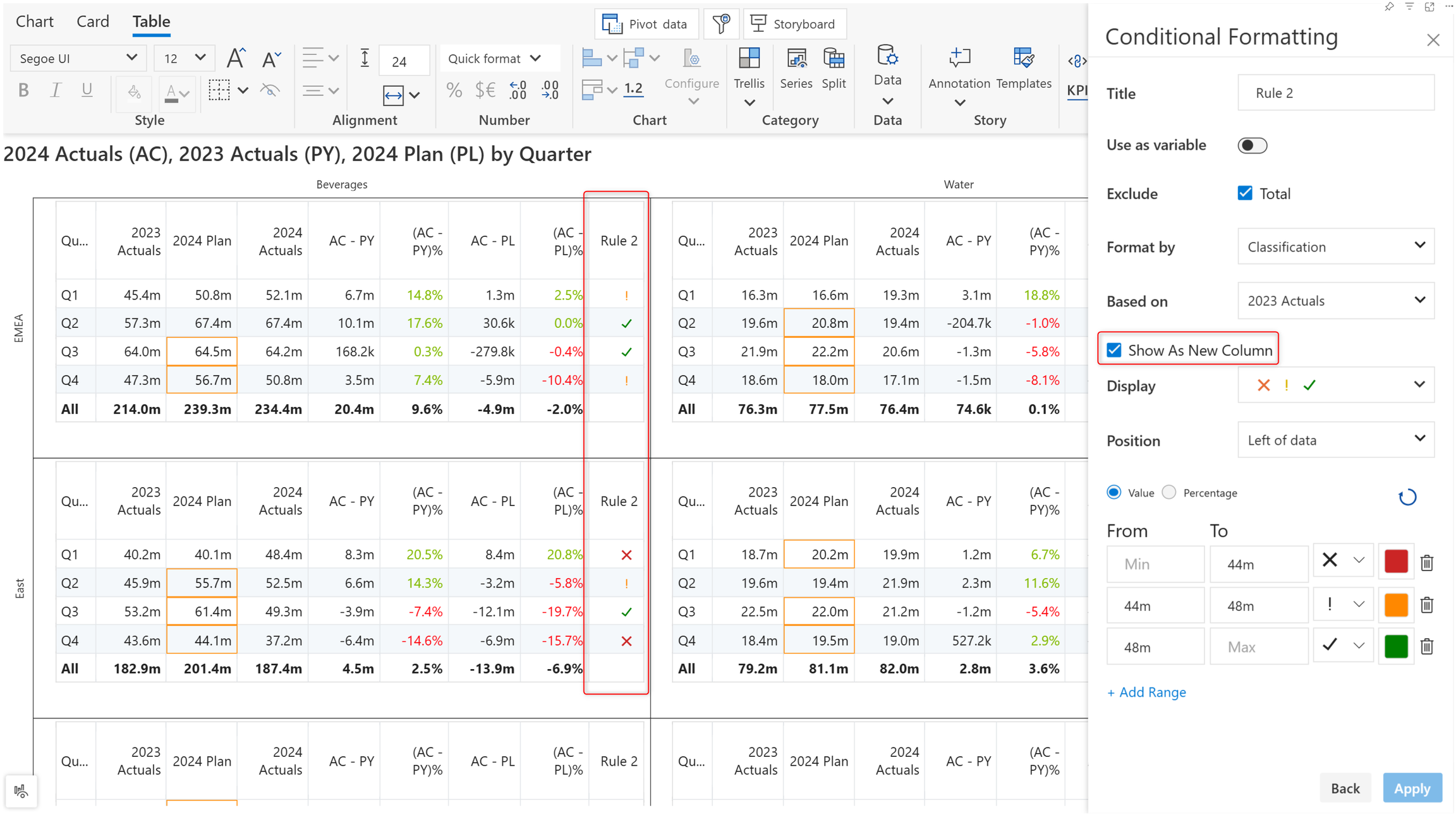
You can categorize your data with the **Format by - Classification** option. Classification allows you to group data into distinct categories (e.g., high, medium, low) and apply different formats to each group. This makes it easier to spot trends, patterns, or outliers at a glance, improving the overall readability of your data.
Format by classification
You can also display classifications as a separate column.
Classifications as a separate column
**Action dots** help users quickly gauge the magnitude of the measure and spot deviations. Choose the Format by > Classification option to use action dots in your tables.
Action dots in tables
---
# Agent Instructions
This documentation is published with GitBook. GitBook is the documentation platform designed so that both humans and AI agents can read, navigate, and reason over technical content effectively. Learn more at gitbook.com.
## Querying This Documentation
If you need additional information that is not directly available in this page, you can query the documentation dynamically by asking a question.
Perform an HTTP GET request on the current page URL with the `ask` query parameter, and the optional `goal` query parameter:
```
GET https://docs.inforiver.com/analytics+/working-with-analytics+/9.-conditional-formatting/configuring-rules/configuring-rules-for-tables.md?ask=&goal=
```
`ask` is the immediate question: it should be specific, self-contained, and written in natural language.
`goal` is optional and describes the broader end goal you are ultimately trying to accomplish on behalf of the user. GitBook uses it to tailor the answer towards what is most useful for that goal.
The response will contain a direct answer to the question and relevant excerpts and sources from the documentation.
Use this mechanism when the answer is not explicitly present in the current page, you need clarification or additional context, or you want to retrieve related documentation sections.