# 2. Add source to bridge

InfoBridge offers powerful data integration. It allows you to import and consolidate data from a variety of sources, including Inforiver, ValQ\*, CSV, Excel, JSON, and Parquet files, as well as online services such as Power BI\*, OneDrive, and files via HTTPS.

<figure><img src="https://3062809325-files.gitbook.io/~/files/v0/b/gitbook-x-prod.appspot.com/o/spaces%2FEbkCXCUXmtUq5tcnUtZE%2Fuploads%2FGFYcp7k5bwtf90whM5ke%2Fimage.png?alt=media&#x26;token=8ec4f3cf-f8a5-42c7-a010-78498813f5a9" alt=""><figcaption><p>Adding heterogeneous source to Infobridge</p></figcaption></figure>

## 1. Add Inforiver Report to the Bridge

You can add an Inforiver report to the bridge in two ways: from the report or the console.

### 1.1. From the report

When you are working on a report and want to add it to a bridge for integration or transformation, you can follow these steps.

**STEP 1:** Click **Add Source to Bridge** in the **InfoBridge** tab.

<figure><img src="https://3062809325-files.gitbook.io/~/files/v0/b/gitbook-x-prod.appspot.com/o/spaces%2FEbkCXCUXmtUq5tcnUtZE%2Fuploads%2FsSTZLjoMnszUveeZP7mL%2Fimage.png?alt=media&#x26;token=10627182-342b-49d8-8f76-85e6e8a4f777" alt=""><figcaption><p>Add Source to Bridge</p></figcaption></figure>

**STEP 2:** From the pop-up, use the lookup folder or type in the bridge ID to select the bridge to which you want to add the report.

**a) Using the lookup folder/search box**

You can search for the required bridge using the lookup folder or search box.

<figure><img src="https://3062809325-files.gitbook.io/~/files/v0/b/gitbook-x-prod.appspot.com/o/spaces%2FEbkCXCUXmtUq5tcnUtZE%2Fuploads%2FwKDpRwM1z107nqruAjUr%2Fimage.png?alt=media&#x26;token=ade17f53-515c-4d3d-aa2c-5c10afdd6a58" alt=""><figcaption><p>Find the bridge in the lookup folder</p></figcaption></figure>

Select the required bridge in the lookup folder, view the bridge details, and then click **Add** to import the report into the bridge.

<figure><img src="https://3062809325-files.gitbook.io/~/files/v0/b/gitbook-x-prod.appspot.com/o/spaces%2FEbkCXCUXmtUq5tcnUtZE%2Fuploads%2FGPBq1M0oBcNF3tkvF783%2Fimage.png?alt=media&#x26;token=78825554-224f-4329-8b4e-105d7864c32e" alt=""><figcaption><p>Add to bridge</p></figcaption></figure>

The source is added to the bridge as *Query 2* since the bridge already has a query from Source 1. Click **Apply** to save changes.

<figure><img src="https://3062809325-files.gitbook.io/~/files/v0/b/gitbook-x-prod.appspot.com/o/spaces%2FEbkCXCUXmtUq5tcnUtZE%2Fuploads%2Fy2ZxXKNrva6xeKgIKMen%2Fimage.png?alt=media&#x26;token=855a12ad-5f26-40c4-91f5-8aff292e014d" alt=""><figcaption><p>Second source added to bridge</p></figcaption></figure>

**b) Using Bridge ID**

If you know the bridge ID, you can directly enter it in the Bridge ID text box.

<figure><img src="https://3062809325-files.gitbook.io/~/files/v0/b/gitbook-x-prod.appspot.com/o/spaces%2FEbkCXCUXmtUq5tcnUtZE%2Fuploads%2FsWSbpFcF1Jm40YKMHfED%2Fimage.png?alt=media&#x26;token=c97636e6-e523-41a9-b1f2-c085118a96ec" alt=""><figcaption><p>Using Bridge ID</p></figcaption></figure>

Copy the bridge ID here.

<figure><img src="https://3062809325-files.gitbook.io/~/files/v0/b/gitbook-x-prod.appspot.com/o/spaces%2FEbkCXCUXmtUq5tcnUtZE%2Fuploads%2F4g0oLAnnqjXSqUXEWRpq%2Fimage.png?alt=media&#x26;token=6ef9caca-428d-4798-ab79-4d641ed5c292" alt=""><figcaption><p>Copy Bridge ID</p></figcaption></figure>

Paste the bridge ID in the text box below. Verify the bridge details and click **Add.**

<figure><img src="https://3062809325-files.gitbook.io/~/files/v0/b/gitbook-x-prod.appspot.com/o/spaces%2FEbkCXCUXmtUq5tcnUtZE%2Fuploads%2F8KxwwucYMtINVEJ8Oe0v%2Fimage.png?alt=media&#x26;token=4f16ea2d-b105-44ea-bc99-90756648c158" alt=""><figcaption><p>Add source to bridge</p></figcaption></figure>

The source is added to the bridge.

<figure><img src="https://3062809325-files.gitbook.io/~/files/v0/b/gitbook-x-prod.appspot.com/o/spaces%2FEbkCXCUXmtUq5tcnUtZE%2Fuploads%2F3YoLGItX86hFV0EtMz9T%2Fimage.png?alt=media&#x26;token=f636f372-e6e8-4b72-a677-ef548856d2da" alt=""><figcaption><p>Source added to bridge</p></figcaption></figure>

### 1.2. From the console

You can also add a source from the console.

**STEP 1:** In the **InfoBridge** console, select the bridge where you wish to add the source.&#x20;

<figure><img src="https://3062809325-files.gitbook.io/~/files/v0/b/gitbook-x-prod.appspot.com/o/spaces%2FEbkCXCUXmtUq5tcnUtZE%2Fuploads%2Fo2XSOWx9ycUFHOXS5Zx5%2Fimage.png?alt=media&#x26;token=af964a96-38f1-4a29-be01-fc73d67a3919" alt=""><figcaption><p>Select bridge</p></figcaption></figure>

**STEP 2:** Click **Add Source** from the toolbar or the working area (in case you are adding the first source).

<figure><img src="https://3062809325-files.gitbook.io/~/files/v0/b/gitbook-x-prod.appspot.com/o/spaces%2FEbkCXCUXmtUq5tcnUtZE%2Fuploads%2FiNYoG1V2DJHTndLc0pcw%2Fimage.png?alt=media&#x26;token=5377ed45-380d-44f7-85ff-8d07527da02a" alt=""><figcaption><p>Add Source</p></figcaption></figure>

**STEP 3:** In the pop-up window, choose the type of source file that you want to add. We will choose 'Inforiver'. Click **Next.**

<figure><img src="https://3062809325-files.gitbook.io/~/files/v0/b/gitbook-x-prod.appspot.com/o/spaces%2FEbkCXCUXmtUq5tcnUtZE%2Fuploads%2Ft6pUY5ExWC1BvYyhuYlc%2Fimage.png?alt=media&#x26;token=3524d568-4916-4653-bdb8-ad83b950dd52" alt=""><figcaption><p>Select 'Inforiver'</p></figcaption></figure>

**STEP 4:** Copy-paste the visual identifier of the source in the next window.

<figure><img src="https://3062809325-files.gitbook.io/~/files/v0/b/gitbook-x-prod.appspot.com/o/spaces%2FEbkCXCUXmtUq5tcnUtZE%2Fuploads%2FNFSLaocSJd8MYy6azdIM%2Fimage.png?alt=media&#x26;token=760c50b4-07c6-44e9-8b61-58e61e1f5c97" alt=""><figcaption><p>Copy and paste the visual ID </p></figcaption></figure>

**STEP 5:** The details of the visual are displayed. Select the scenarios and measures to import and click **Add.**

<figure><img src="https://3062809325-files.gitbook.io/~/files/v0/b/gitbook-x-prod.appspot.com/o/spaces%2FEbkCXCUXmtUq5tcnUtZE%2Fuploads%2F4TnMOMBSBekBz6GdNWz6%2Fimage.png?alt=media&#x26;token=4a3c0e3e-eef7-4fc9-b3e2-80d3df13216d" alt=""><figcaption><p>Select scenarios and measures</p></figcaption></figure>

The source is added to the bridge as below.

<figure><img src="https://3062809325-files.gitbook.io/~/files/v0/b/gitbook-x-prod.appspot.com/o/spaces%2FEbkCXCUXmtUq5tcnUtZE%2Fuploads%2FzPIL6o7VFVSLvDEvt9nR%2Fimage.png?alt=media&#x26;token=c93f69e9-6bfa-458e-a9e8-d0000558f9ad" alt=""><figcaption><p>Source added to the bridge</p></figcaption></figure>

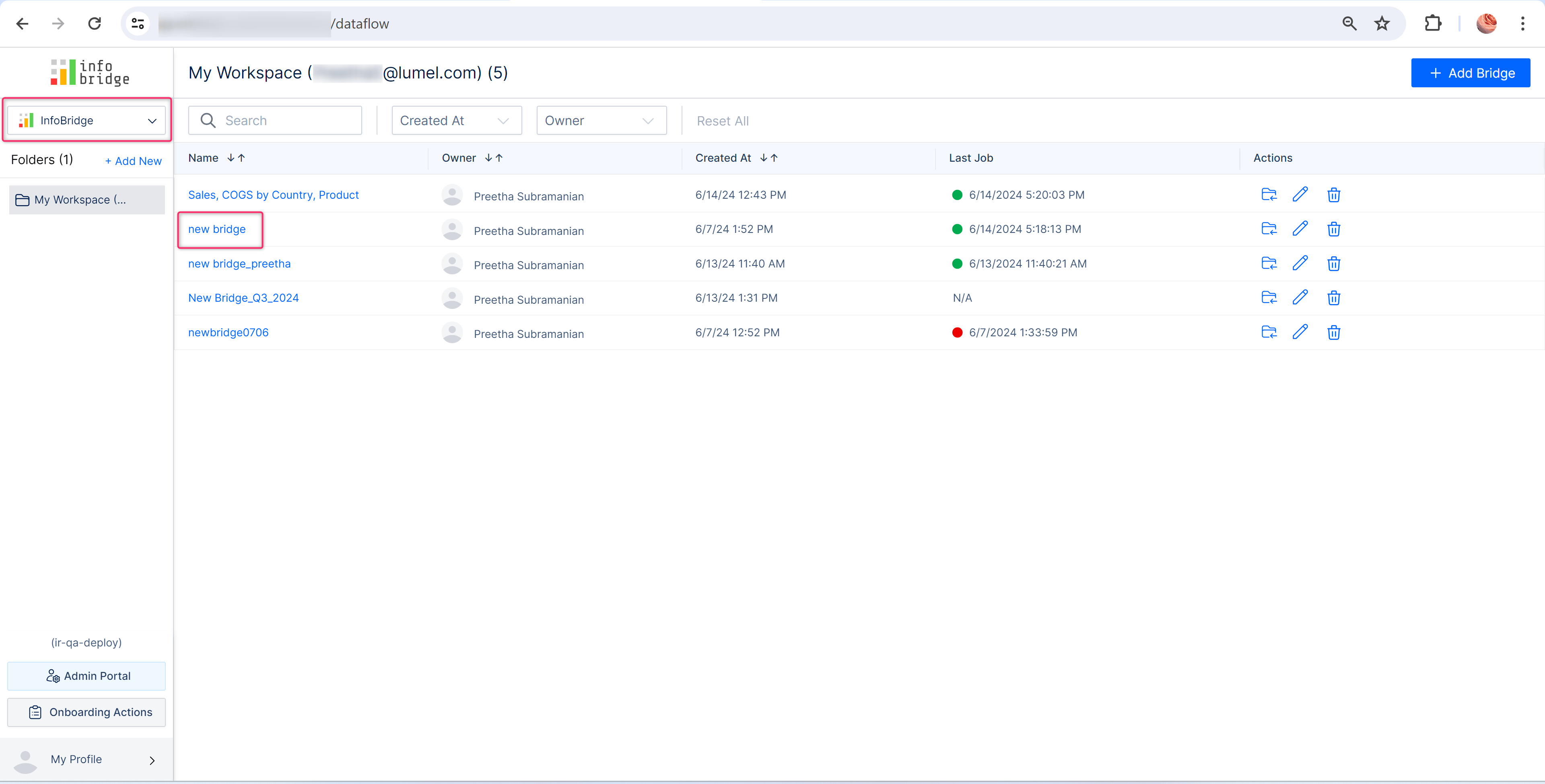
## 2. Add other sources to the bridge <a href="#adding-different-sources-to-the-bridge" id="adding-different-sources-to-the-bridge"></a>

You can also import Excel, CSV, JSON, Parquet, and OneDrive/SharePoint files to the bridge from the console.&#x20;

**STEP 1:** In the **InfoBridge** console, select the bridge where you wish to add the source.

<figure><img src="https://3062809325-files.gitbook.io/~/files/v0/b/gitbook-x-prod.appspot.com/o/spaces%2FEbkCXCUXmtUq5tcnUtZE%2Fuploads%2FcR3hWXdkDzK3Av0AeBgX%2Fimage.png?alt=media&#x26;token=f8c7f943-1855-441e-9128-e09cbcae64b1" alt=""><figcaption><p>Select bridge from the Infobridge console</p></figcaption></figure>

**STEP 2:** Click **Add Source** from the toolbar or the working area (in case you are adding the first source).

<figure><img src="https://3062809325-files.gitbook.io/~/files/v0/b/gitbook-x-prod.appspot.com/o/spaces%2FEbkCXCUXmtUq5tcnUtZE%2Fuploads%2FpTR1X6HxTRTq7JJkzOIV%2Fimage.png?alt=media&#x26;token=17917cb4-3b8c-47c8-b3e0-fec20208e1bc" alt=""><figcaption><p>Add Source</p></figcaption></figure>

**STEP 3:** In the pop-up window, choose the type of source file that you want to add.&#x20;

<figure><img src="https://3062809325-files.gitbook.io/~/files/v0/b/gitbook-x-prod.appspot.com/o/spaces%2FEbkCXCUXmtUq5tcnUtZE%2Fuploads%2Fplja1efzaZjBt6hwJQkr%2Fimage.png?alt=media&#x26;token=fd8b6656-ad9b-4292-9591-d9a48c7f17b0" alt="" width="375"><figcaption><p>File sources</p></figcaption></figure>

### **2.1. File sources**

They are listed under 'File' section.

<figure><img src="https://3062809325-files.gitbook.io/~/files/v0/b/gitbook-x-prod.appspot.com/o/spaces%2FEbkCXCUXmtUq5tcnUtZE%2Fuploads%2F43M9bJCq0u1UC1eACOHW%2Fimage.png?alt=media&#x26;token=aebdc2aa-54dd-4a3c-865c-ea80839362dd" alt="" width="563"><figcaption><p>File sources supported</p></figcaption></figure>

**STEP 1:** Choose the type of file and click **Next**.&#x20;

<figure><img src="https://3062809325-files.gitbook.io/~/files/v0/b/gitbook-x-prod.appspot.com/o/spaces%2FEbkCXCUXmtUq5tcnUtZE%2Fuploads%2FlEgEtwr9BviZdk7Dm1Oj%2Fimage.png?alt=media&#x26;token=a37175d0-c644-48f5-9e17-d9c428eb1144" alt=""><figcaption><p>Select file</p></figcaption></figure>

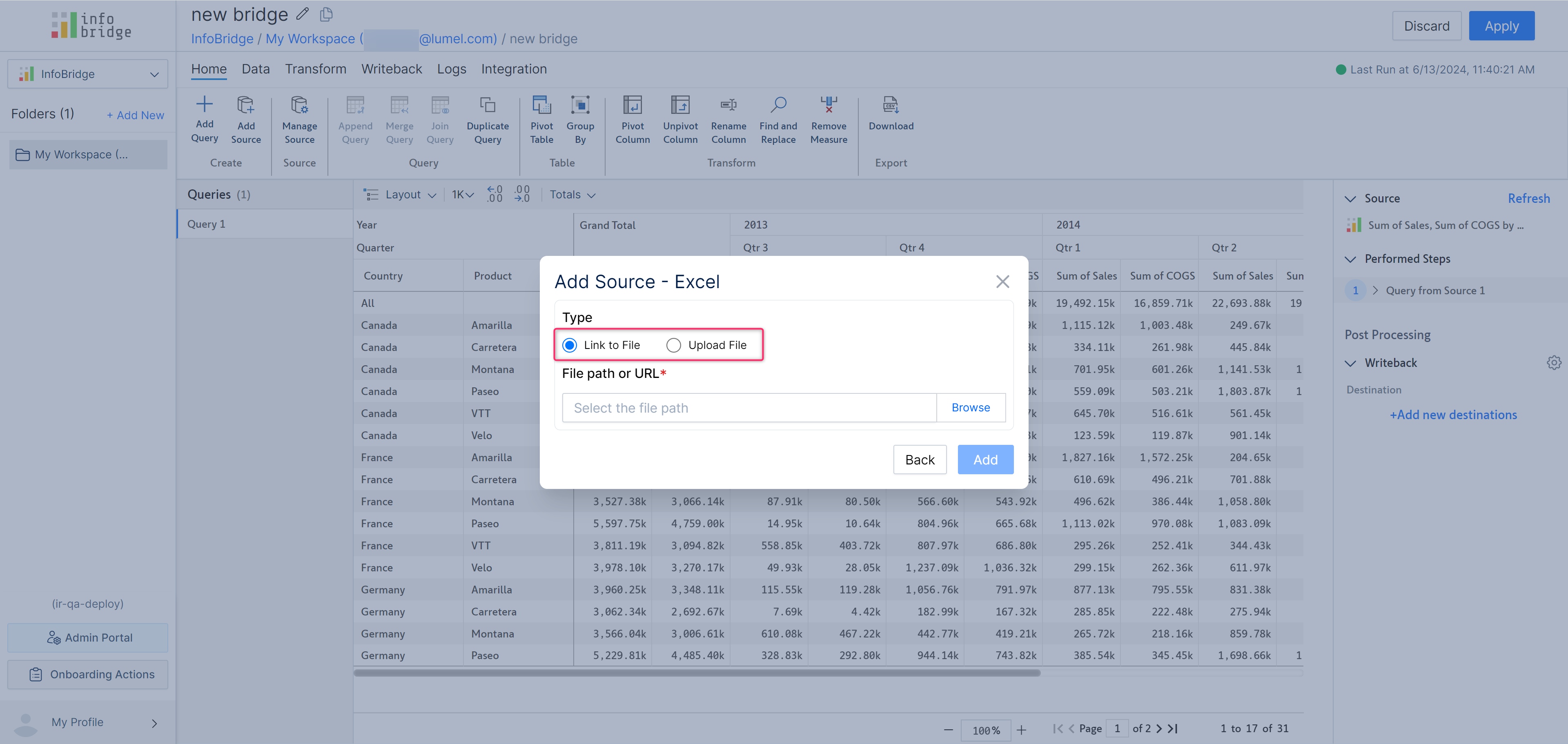
**STEP 2:** You can either link the file using the file path/URL or upload it using the drag-and-drop option.

<figure><img src="https://3062809325-files.gitbook.io/~/files/v0/b/gitbook-x-prod.appspot.com/o/spaces%2FEbkCXCUXmtUq5tcnUtZE%2Fuploads%2FK5400h1fR0HWFGspU8vt%2Fimage.png?alt=media&#x26;token=c363a8eb-17b4-473e-9968-3d8524f39712" alt=""><figcaption><p>Link or upload the file</p></figcaption></figure>

**STEP 3:** After selecting the source file, click **Add** to import it.

<figure><img src="https://3062809325-files.gitbook.io/~/files/v0/b/gitbook-x-prod.appspot.com/o/spaces%2FEbkCXCUXmtUq5tcnUtZE%2Fuploads%2FwV4uewCYjIbGZ1CgPBGy%2Fimage.png?alt=media&#x26;token=ba84f1dd-5c97-4e82-a61f-9c8e8a523b91" alt=""><figcaption><p>Add source</p></figcaption></figure>

### **2.2. Online Services**

**STEP 1:** To add files from online services, select the type and click **Next.**

**STEP 2:** Enter the URL of the file and click **Add**.

<figure><img src="https://3062809325-files.gitbook.io/~/files/v0/b/gitbook-x-prod.appspot.com/o/spaces%2FEbkCXCUXmtUq5tcnUtZE%2Fuploads%2F4GVCHq6CHz2QtOVMadyi%2Fimage.png?alt=media&#x26;token=50709858-bf44-4ace-a2ea-db84e9a62aa1" alt=""><figcaption><p>Add source from online service</p></figcaption></figure>

***\*Adding ValQ and Power BI reports:** This feature is coming soon.*