# 5. Insert rows from bridge

In this section, we will demonstrate how to extract rows from the source visual and insert them into a target visual. For simplicity, we have used sample reports with a limited number of rows and columns.

Let us now combine data from two reports by inserting the rows from source visual to the target visual. The first report contains product sales and COGS data for the *France* region (source visual), while the second report contains the same information for *all* regions (target visual).

Here are the visuals:

<figure><img src="https://3062809325-files.gitbook.io/~/files/v0/b/gitbook-x-prod.appspot.com/o/spaces%2FEbkCXCUXmtUq5tcnUtZE%2Fuploads%2FKJ097KG6rpJDXWvp0Iz6%2Fimage.png?alt=media&#x26;token=b9cba07d-a6a5-48b0-9fb3-384fc6ff4824" alt=""><figcaption><p>Source Visual</p></figcaption></figure>

<figure><img src="https://3062809325-files.gitbook.io/~/files/v0/b/gitbook-x-prod.appspot.com/o/spaces%2FEbkCXCUXmtUq5tcnUtZE%2Fuploads%2FEsrFslkVY7EEqiFK36iK%2Fimage.png?alt=media&#x26;token=85269b93-f5f2-41c5-9cff-f0f421dd6b2f" alt=""><figcaption><p>Target visual</p></figcaption></figure>

**STEP 1:** Add the source visual to the bridge. This enables us to perform any data transformations on it if required and enables the first step for integration.&#x20;

**STEP 2:** Map the dimensions and measures between the source and destination visuals, ensuring a seamless integration.

**STEP 3:** Insert rows from the source to the target visual using the **Insert Rows** option.

{% hint style="info" %}
If the source visual is already available in a bridge in the required format, you can directly start with step 2, [mapping the dimensions](#mapping-dimensions-between-the-reports).
{% endhint %}

{% hint style="info" %}
Both the source and target visuals can be part of the same bridge.&#x20;

In this scenario, we can either utilize the 'Append Query' transformation option within the bridge to integrate them, or use the 'Insert Rows' feature from the Inforiver source visual while selecting the target visual from the necessary query in the bridge.
{% endhint %}

### 1. Adding source visual to the bridge

1. Create a new bridge with the source visual using **InfoBridge ->** **Create Bridge** option following the steps illustrated [here](https://docs.inforiver.com/1.-create-bridge#id-1.-through-inforiver-console).

<figure><img src="https://3062809325-files.gitbook.io/~/files/v0/b/gitbook-x-prod.appspot.com/o/spaces%2FEbkCXCUXmtUq5tcnUtZE%2Fuploads%2FCzbWua272UCZLxVNBQ65%2Fimage.png?alt=media&#x26;token=72b40f04-2c2c-4fab-9804-b8673628880f" alt=""><figcaption><p>Create bridge with source visual</p></figcaption></figure>

2. The bridge is created as below.

<figure><img src="https://3062809325-files.gitbook.io/~/files/v0/b/gitbook-x-prod.appspot.com/o/spaces%2FEbkCXCUXmtUq5tcnUtZE%2Fuploads%2Fyp4y975SnbMtkvxHsIEM%2Fimage.png?alt=media&#x26;token=4735213d-0d5a-4272-a479-8b385aaa7d15" alt=""><figcaption><p>Bridge source</p></figcaption></figure>

You can also transform the source data using the options in the bridge, before it is included in the target visual.&#x20;

### 2. Mapping dimensions between the visuals

Before combining the source and the target visuals, we must first map their respective dimensions and measures to establish their relationship, ensuring a seamless integration.

1. To map the dimensions, click **Manage Integration** in the target visual under the **InfoBridge** tab. In the side panel that opens, click **Add New.**

<figure><img src="https://3062809325-files.gitbook.io/~/files/v0/b/gitbook-x-prod.appspot.com/o/spaces%2FEbkCXCUXmtUq5tcnUtZE%2Fuploads%2FkYrJKsOcfn1Vaquwj0av%2Fimage.png?alt=media&#x26;token=69567a16-872d-4bdc-8527-59bc6f4f1ba4" alt=""><figcaption><p>Add New Integration</p></figcaption></figure>

2. In the pop-up window, select the bridge that contains the source.&#x20;

<figure><img src="https://3062809325-files.gitbook.io/~/files/v0/b/gitbook-x-prod.appspot.com/o/spaces%2FEbkCXCUXmtUq5tcnUtZE%2Fuploads%2FNAtd38tfolgxwvgrZJMo%2Fimage.png?alt=media&#x26;token=d2607d78-4e8f-46d2-8703-31d938ab4017" alt=""><figcaption><p>Select the bridge</p></figcaption></figure>

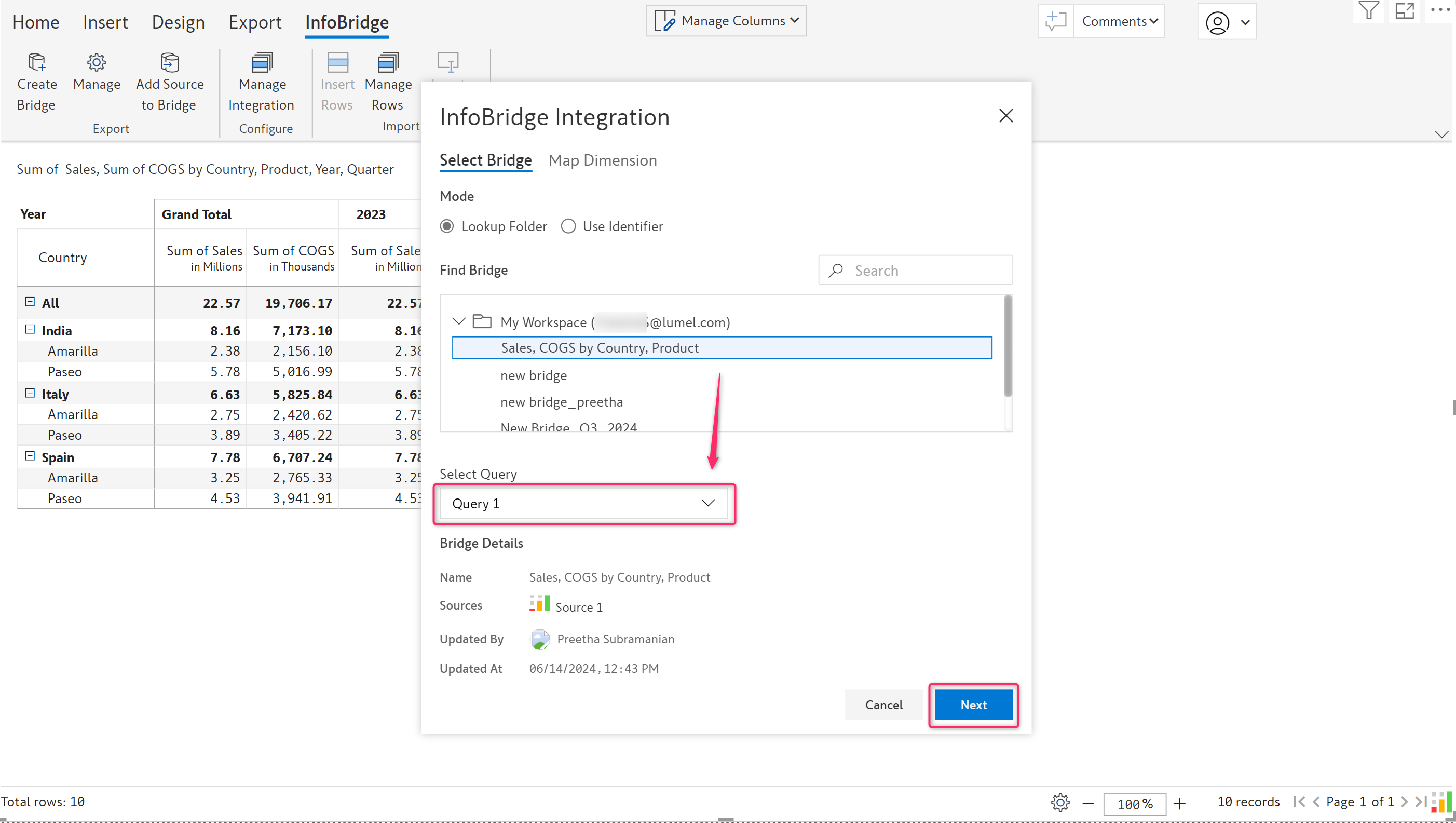
3. After selecting, the bridge details are displayed. Select the required source query within the bridge and click **Next.**

<figure><img src="https://3062809325-files.gitbook.io/~/files/v0/b/gitbook-x-prod.appspot.com/o/spaces%2FEbkCXCUXmtUq5tcnUtZE%2Fuploads%2FCon4lU4knyzwvvbHgUiw%2Fimage.png?alt=media&#x26;token=fd462a35-0152-48e9-8731-dc7c7d0625ac" alt=""><figcaption><p>Select the source query</p></figcaption></figure>

4. This navigates you to the 'Map Dimension' tab. Verify the mapping of rows, columns, and measures between the source and the destination visuals. Manually map them if required. Click **Add.**

<figure><img src="https://3062809325-files.gitbook.io/~/files/v0/b/gitbook-x-prod.appspot.com/o/spaces%2FEbkCXCUXmtUq5tcnUtZE%2Fuploads%2FwvuBONTGsQOduJuLihI5%2Fimage.png?alt=media&#x26;token=f5b99479-a8cf-40b7-900c-5ee3cd3ced3c" alt=""><figcaption><p>Map Dimensions</p></figcaption></figure>

The mapping is now done.

### 3. Insert rows from source to target

1. In the target visual, select any row and click **Insert Rows** from the **InfoBridge** tab.

<figure><img src="https://3062809325-files.gitbook.io/~/files/v0/b/gitbook-x-prod.appspot.com/o/spaces%2FEbkCXCUXmtUq5tcnUtZE%2Fuploads%2Fargh7vpNhMvRNum3ViWH%2Fimage.png?alt=media&#x26;token=b5732586-b21e-4b00-874b-0f388ed02a8a" alt=""><figcaption><p>Insert Rows</p></figcaption></figure>

2. Preview the source query and click **Save.** To add new query, click 'Add New Query'. You can add as many queries as required if you want to further add new sources.

<figure><img src="https://3062809325-files.gitbook.io/~/files/v0/b/gitbook-x-prod.appspot.com/o/spaces%2FEbkCXCUXmtUq5tcnUtZE%2Fuploads%2FoWMueHFLRK3LABVtXFkv%2Fimage.png?alt=media&#x26;token=9a98e8b4-095e-4d9d-aedf-9ce24ecbb801" alt=""><figcaption><p>Preview source query</p></figcaption></figure>

3. The rows are successfully inserted as below. Rows inserted from the bridge source are marked with a link icon beside them.

<figure><img src="https://3062809325-files.gitbook.io/~/files/v0/b/gitbook-x-prod.appspot.com/o/spaces%2FEbkCXCUXmtUq5tcnUtZE%2Fuploads%2FMZzn0kgFNRT0gcohbsEz%2Fimage.png?alt=media&#x26;token=9320d9e1-0032-445d-aa18-a9434815322c" alt=""><figcaption><p>Report with inserted rows from bridge source</p></figcaption></figure>

{% hint style="info" %}
Infobridge rows are read-only and cannot be directly edited. Values can be updated via the [adjustment workflow](https://docs.inforiver.com/infobridge-wb-matrix-only/11.-collaborative-adjustments).
{% endhint %}

### Viewing lineage

Click the ![](https://docs.inforiver.com/~gitbook/image?url=https%3A%2F%2F3062809325-files.gitbook.io%2F%7E%2Ffiles%2Fv0%2Fb%2Fgitbook-x-prod.appspot.com%2Fo%2Fspaces%252FEbkCXCUXmtUq5tcnUtZE%252Fuploads%252FlFuSoIL66UwZrtXTSBoO%252Fimage.png%3Falt%3Dmedia%26token%3D23fc9edb-fa72-4bfb-8560-7db0b62153e9\&width=45\&dpr=4\&quality=100\&sign=7dd4aa6a\&sv=2)icon to view and directly navigate to the source bridge and query. This enables you to trace and manage rows inserted from different bridges.

<figure><img src="https://3062809325-files.gitbook.io/~/files/v0/b/gitbook-x-prod.appspot.com/o/spaces%2FEbkCXCUXmtUq5tcnUtZE%2Fuploads%2F70NGgn11adU10j8r8o65%2Fimage.png?alt=media&#x26;token=eb48ccf2-e115-4538-9d80-cc49502f83f8" alt=""><figcaption><p>Lineage for inserted rows</p></figcaption></figure>

In the next section, we will look at inserting measures from one visual to another.