# 6. Insert measure from bridge

Just like we inserted rows, we can also insert data input measures from one visual into another visual. We will demonstrate this with an example.&#x20;

Consider two reports: one that has the employee salary details at the lowest hierarchical level (Org > Dept > Job Title > Employee > Salary) and another that has the aggregated salary data rolled up to the department level (Org > Dept).

<figure><img src="https://3062809325-files.gitbook.io/~/files/v0/b/gitbook-x-prod.appspot.com/o/spaces%2FEbkCXCUXmtUq5tcnUtZE%2Fuploads%2FVEwjgMPDZ9bnKDmAvGFO%2Fimage.png?alt=media&#x26;token=2983e363-40de-4672-917d-96447df9d480" alt=""><figcaption><p>Source visual</p></figcaption></figure>

<figure><img src="https://3062809325-files.gitbook.io/~/files/v0/b/gitbook-x-prod.appspot.com/o/spaces%2FEbkCXCUXmtUq5tcnUtZE%2Fuploads%2F9EChd36lRsn1VgLUpuh7%2Fimage.png?alt=media&#x26;token=c33c2bad-f80f-4a22-b29d-173d50f525bc" alt=""><figcaption><p>Target visual</p></figcaption></figure>

Let us assume we want to include the data input measure 'Additional Bonus', from the first visual to the second visual. Here are the steps involved:

**STEP 1:** Create a bridge with the source visual using the steps illustrated [here.](https://docs.inforiver.com/1.-create-bridge#id-1.-through-inforiver-console) The bridge is created as below:

<figure><img src="https://3062809325-files.gitbook.io/~/files/v0/b/gitbook-x-prod.appspot.com/o/spaces%2FEbkCXCUXmtUq5tcnUtZE%2Fuploads%2FbSkD1gvxSvFeAymupjV3%2Fimage.png?alt=media&#x26;token=eb4def95-88ef-4563-83c2-1cd26293bb9d" alt=""><figcaption><p>Bridge with source visual</p></figcaption></figure>

**STEP 2:** Perform the required transformations on the bridge source, if necessary.&#x20;

In this example, we need to remove the row categories from the source that are not present in the target visual. Click on **Pivot Table**, remove the categories and click **Apply**.

<figure><img src="https://3062809325-files.gitbook.io/~/files/v0/b/gitbook-x-prod.appspot.com/o/spaces%2FEbkCXCUXmtUq5tcnUtZE%2Fuploads%2FNFXdmEakN80KlVvzZwX1%2Fimage.png?alt=media&#x26;token=760e3695-0b1d-473a-a404-95c6ffce6bd2" alt=""><figcaption><p>Remove row categories</p></figcaption></figure>

The result is shown below. Note that we need to insert the highlighted data input measures into the target visual.

<figure><img src="https://3062809325-files.gitbook.io/~/files/v0/b/gitbook-x-prod.appspot.com/o/spaces%2FEbkCXCUXmtUq5tcnUtZE%2Fuploads%2FtOOzLyEfmRiz0wsvAP9V%2Fimage.png?alt=media&#x26;token=4cb2fc49-c9f3-4571-a2fd-5eb4e1164b05" alt=""><figcaption><p>Source visual - transformed</p></figcaption></figure>

**STEP 3:** Map the dimensions between the source and the target visuals for integration. The steps are illustrated [here.](https://docs.inforiver.com/5.-insert-rows-from-bridge#id-2.-mapping-dimensions-between-the-reports)&#x20;

<figure><img src="https://3062809325-files.gitbook.io/~/files/v0/b/gitbook-x-prod.appspot.com/o/spaces%2FEbkCXCUXmtUq5tcnUtZE%2Fuploads%2FmfaH7NSDwyGaZqLBjP4h%2FMapping%20infob.gif?alt=media&#x26;token=1c1934bd-0032-4e90-af7a-0da56fca0957" alt=""><figcaption><p>New integration and mapping</p></figcaption></figure>

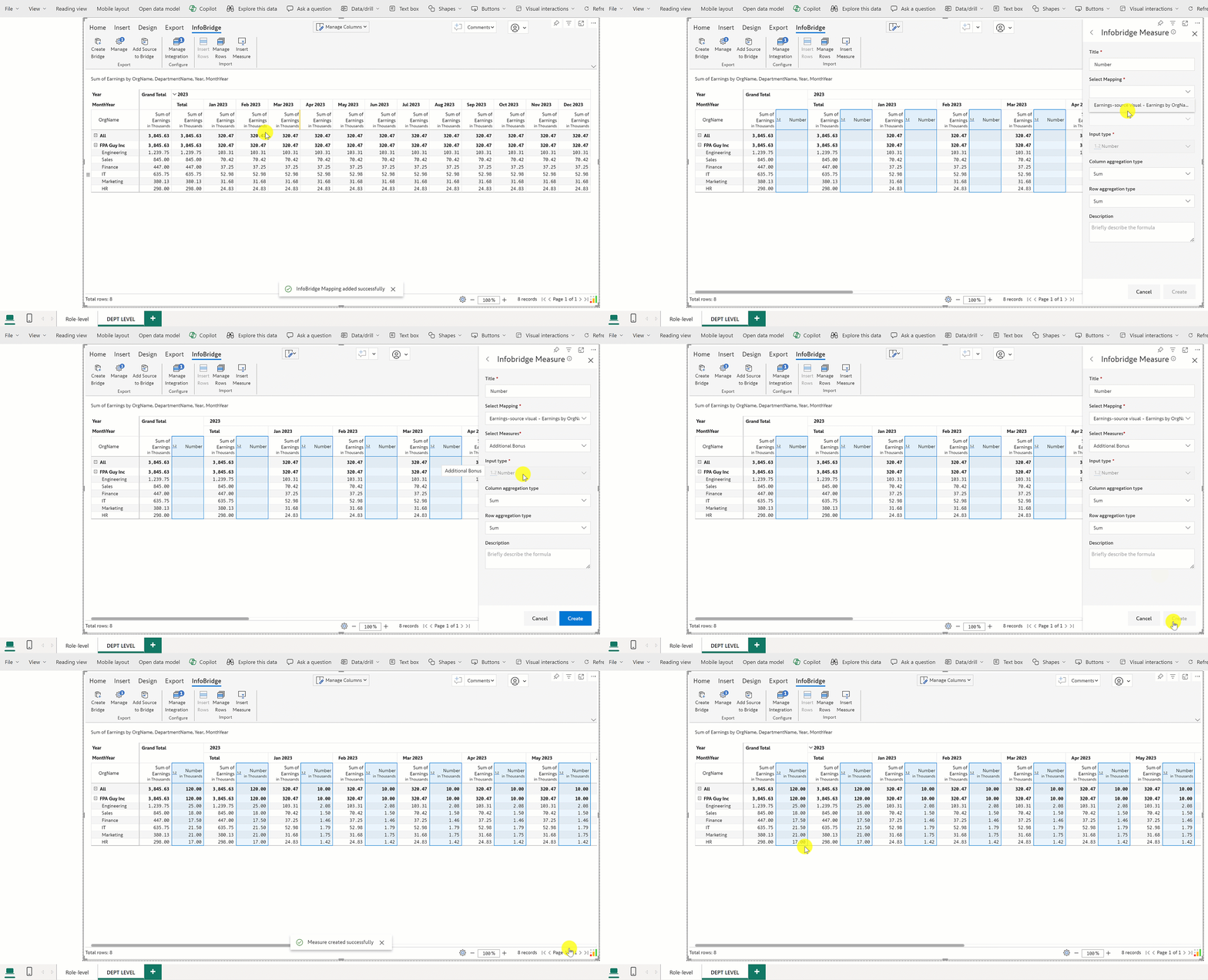
**STEP 4:** Using **Insert Measure** option, insert the measures into the target visual.

1. Click on **InfoBridge ->** **Insert Measure** In the target visual. You can also use **Data Input -> Import from Infobridge** to insert an Infobridge measure.

<figure><img src="https://3062809325-files.gitbook.io/~/files/v0/b/gitbook-x-prod.appspot.com/o/spaces%2FEbkCXCUXmtUq5tcnUtZE%2Fuploads%2F5kn4LtZymphQxP8m7s56%2Fimage.png?alt=media&#x26;token=012409ab-e0eb-4de0-91ed-866c48263878" alt=""><figcaption><p>Import from Infobridge</p></figcaption></figure>

2. In the side panel, select the required mapping from the dropdown, the measure to be included, and click **Create.**&#x20;

<figure><img src="https://3062809325-files.gitbook.io/~/files/v0/b/gitbook-x-prod.appspot.com/o/spaces%2FEbkCXCUXmtUq5tcnUtZE%2Fuploads%2FiKTYVGetJPv17YFia7re%2Finsert%20measure%20infob.gif?alt=media&#x26;token=1af93187-9d3b-4982-a2fc-95df4e8c7f2f" alt=""><figcaption><p>Measure inserted</p></figcaption></figure>

3. The measure is now inserted. It can be managed similar to Inforiver data input measure.

<figure><img src="https://3062809325-files.gitbook.io/~/files/v0/b/gitbook-x-prod.appspot.com/o/spaces%2FEbkCXCUXmtUq5tcnUtZE%2Fuploads%2FJtLkZJfQD6fVBcsIa1TW%2Fimage.png?alt=media&#x26;token=34ae9802-79b9-468c-96a1-380c55851395" alt=""><figcaption><p>Manage Infobridge measure</p></figcaption></figure>

{% hint style="info" %}
Measures sourced from a bridge are read-only and cannot be directly edited. Values can be updated via the [adjustment workflow](https://docs.inforiver.com/infobridge-wb-matrix-only/11.-collaborative-adjustments).
{% endhint %}

### Viewing lineage

Navigate to Manage Columns and click the <img src="https://3062809325-files.gitbook.io/~/files/v0/b/gitbook-x-prod.appspot.com/o/spaces%2FEbkCXCUXmtUq5tcnUtZE%2Fuploads%2FlFuSoIL66UwZrtXTSBoO%2Fimage.png?alt=media&#x26;token=23fc9edb-fa72-4bfb-8560-7db0b62153e9" alt="" data-size="line">icon to view and directly navigate to the source bridge and query. This enables you to trace and manage rows inserted from different bridges.

<figure><img src="https://3062809325-files.gitbook.io/~/files/v0/b/gitbook-x-prod.appspot.com/o/spaces%2FEbkCXCUXmtUq5tcnUtZE%2Fuploads%2FCXTBbWWfgaHxscSV0sgN%2Fimage.png?alt=media&#x26;token=9ebb24d2-5b84-4171-afe1-73e20b53fbbe" alt=""><figcaption><p>Measure lineage</p></figcaption></figure>