# Add Column

You can create calculated measures, dimensions, and conditional columns right within Infobridge and cascade them to target reports. The source report will remain unchanged; you can enhance it with the required dimensions and measures created in Infobridge. Let's explore the different options to create measures, dimensions, and columns within a bridge.&#x20;

<figure><img src="https://3062809325-files.gitbook.io/~/files/v0/b/gitbook-x-prod.appspot.com/o/spaces%2FEbkCXCUXmtUq5tcnUtZE%2Fuploads%2FMf5hgP4qm6HxDn3JphvV%2Fimage.png?alt=media&#x26;token=d32ebe01-55ee-48b0-9630-64552d209388" alt=""><figcaption><p>Add measure/dimension</p></figcaption></figure>

## 1. Add Measure

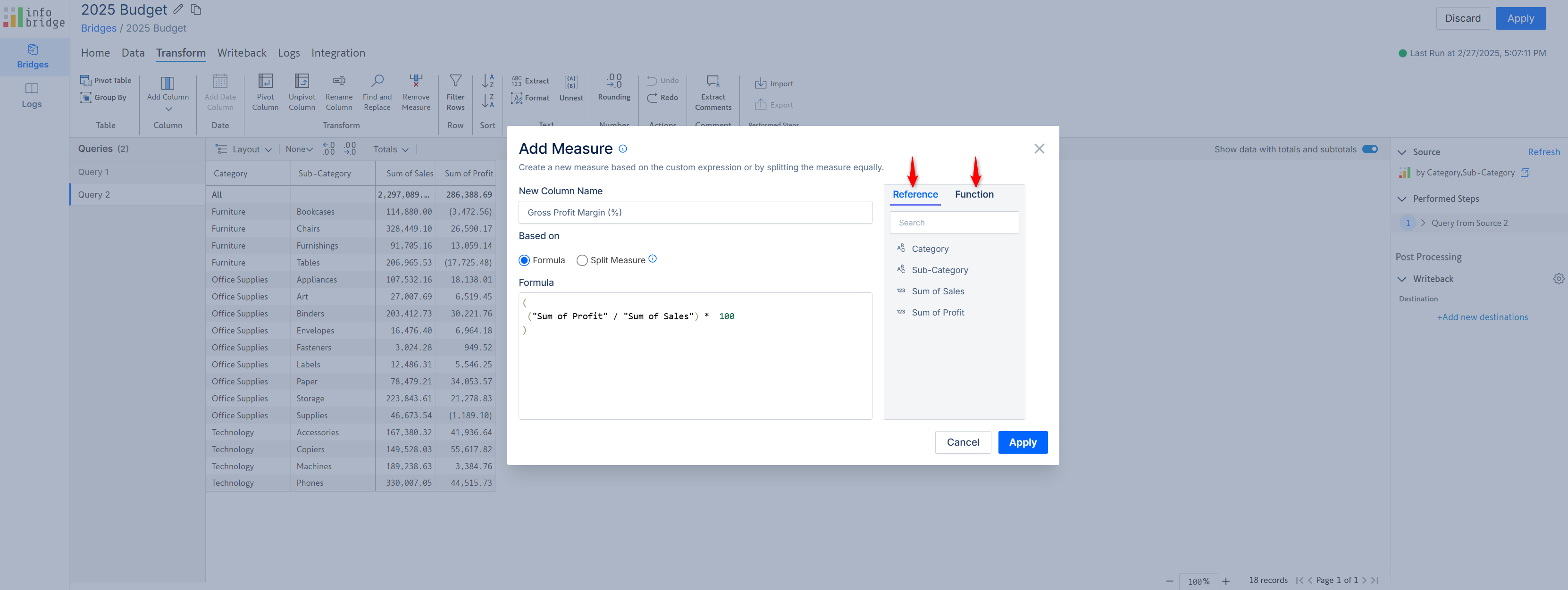
Write a custom calculation or leverage built-in Infobridge formulas to create a measure. The formula editor opens when you click the **Add Measure** option. Add references to dimensions and measures from the Reference tab. Access built-in functions from the Function tab.

<figure><img src="https://3062809325-files.gitbook.io/~/files/v0/b/gitbook-x-prod.appspot.com/o/spaces%2FEbkCXCUXmtUq5tcnUtZE%2Fuploads%2Fi71ZzdsbSjFrTErwtdxN%2Fimage.png?alt=media&#x26;token=35b1c54b-b7da-4a79-a6b8-510b366f0889" alt=""><figcaption><p>Adding a new calculated measure</p></figcaption></figure>

Notice how a custom measure has been added to the bridge:

<figure><img src="https://3062809325-files.gitbook.io/~/files/v0/b/gitbook-x-prod.appspot.com/o/spaces%2FEbkCXCUXmtUq5tcnUtZE%2Fuploads%2FQ60fCT4HpJWV1d4hVkqu%2Fimage.png?alt=media&#x26;token=44f71eb2-e89f-46ec-b74c-b9bea087f33e" alt=""><figcaption><p>New measure added from Infobridge</p></figcaption></figure>

## 2. Add Dimension

You can add dimensions directly in a bridge by writing an expression based on specific conditions, or applying calculations. Enter the expression in the formula editor.

<figure><img src="https://3062809325-files.gitbook.io/~/files/v0/b/gitbook-x-prod.appspot.com/o/spaces%2FEbkCXCUXmtUq5tcnUtZE%2Fuploads%2FKEfIaW7cMXRSFVZORRcC%2Fimage.png?alt=media&#x26;token=481ecd69-7a59-408a-855a-7bab6293b616" alt=""><figcaption><p>Creating a dimension in Infobridge</p></figcaption></figure>

ingA custom dimension is created in the bridge:

<figure><img src="https://3062809325-files.gitbook.io/~/files/v0/b/gitbook-x-prod.appspot.com/o/spaces%2FEbkCXCUXmtUq5tcnUtZE%2Fuploads%2F2JZLI5L0EIMSv0KlsY2p%2Fimage.png?alt=media&#x26;token=2630c2a1-2836-4b3b-9a68-a264ad823b33" alt=""><figcaption><p>New dimension added from Infobridge</p></figcaption></figure>

## 3. Split Column

Split a dimension column into multiple dimensions based on a delimiter or position.&#x20;

<figure><img src="https://3062809325-files.gitbook.io/~/files/v0/b/gitbook-x-prod.appspot.com/o/spaces%2FEbkCXCUXmtUq5tcnUtZE%2Fuploads%2F0DUOy6HppyXB9WUDNAq4%2Fimage.png?alt=media&#x26;token=f18b216b-47c5-4137-bc2e-1ae4e5fea59d" alt=""><figcaption><p>Split option in Infobridge</p></figcaption></figure>

In this example, the Benchmark dimension is a comma-separated field. We've used the delimiter option to split this field into 2 dimensions: Benchmark 1 and Benchmark 2.&#x20;

<figure><img src="https://3062809325-files.gitbook.io/~/files/v0/b/gitbook-x-prod.appspot.com/o/spaces%2FEbkCXCUXmtUq5tcnUtZE%2Fuploads%2Fdwl08nIYvF0zagLwFCO3%2Fimage.png?alt=media&#x26;token=310e1e42-fa41-4ff8-9df5-ed35ad2132d5" alt=""><figcaption><p>Splitting dimensions in Infobridge</p></figcaption></figure>

## 4. Conditional Column

Conditional columns are computed columns where the value is determined based on specific conditions or rules applied to other columns. It helps categorize data based on predefined criteria.

For instance, you can calculate the debt-risk level based on the Debt-to-Equity Ratio.

<figure><img src="https://3062809325-files.gitbook.io/~/files/v0/b/gitbook-x-prod.appspot.com/o/spaces%2FEbkCXCUXmtUq5tcnUtZE%2Fuploads%2Frm0BUc3CHlmaQLRyIM7b%2Fimage.png?alt=media&#x26;token=e52ca04d-4e06-4f8c-b6aa-17a69bf9eebf" alt=""><figcaption><p>Sample conditional column</p></figcaption></figure>

Similarly, you can assign a tax rate or shipping rate based on the region.

<figure><img src="https://3062809325-files.gitbook.io/~/files/v0/b/gitbook-x-prod.appspot.com/o/spaces%2FEbkCXCUXmtUq5tcnUtZE%2Fuploads%2FTsSQlsU5uPBSJGLQvunH%2Fimage.png?alt=media&#x26;token=2b8d9b62-c2c6-48d6-a664-f6b48fd44a71" alt=""><figcaption><p>Sample conditional column for tax and shipping rates</p></figcaption></figure>

Infobridge provides a no-code, intuitive interface to quickly create conditional columns. Let's add a new dimension to categorize regional markets.

<figure><img src="https://3062809325-files.gitbook.io/~/files/v0/b/gitbook-x-prod.appspot.com/o/spaces%2FEbkCXCUXmtUq5tcnUtZE%2Fuploads%2FkpqysakKOQZ0WZCBg6tZ%2Fimage.png?alt=media&#x26;token=4210509e-88b6-44bd-b0d6-1f22d5e3aab2" alt=""><figcaption><p>Creating a conditional column in Infobridge</p></figcaption></figure>

We've created the "Global Market" dimension using the conditional column option.

<figure><img src="https://3062809325-files.gitbook.io/~/files/v0/b/gitbook-x-prod.appspot.com/o/spaces%2FEbkCXCUXmtUq5tcnUtZE%2Fuploads%2F3Fiqc1osjCZRSwIka721%2Fimage.png?alt=media&#x26;token=d9e77e1b-6fdb-4f2c-b537-1f074f225365" alt=""><figcaption><p>Dimension added in Infobridge using the conditional column option</p></figcaption></figure>