# Group by

## Using the Group by transformation to aggregate your data

We often need to summarize our data to identify metrics like the 'Total number of customers by region' or the 'Average sales per quarter'. You can use the Group by transformation to aggregate measures and summarize your data based on selected dimensions.

Let's look at a classic Employee table to demonstrate how the Group by function works.&#x20;

<figure><img src="https://3062809325-files.gitbook.io/~/files/v0/b/gitbook-x-prod.appspot.com/o/spaces%2FEbkCXCUXmtUq5tcnUtZE%2Fuploads%2FHlDVfrMpdqPBjYncxSE6%2Fimage.png?alt=media&#x26;token=70af6fa1-e7b6-42e8-8609-ee97e55bea0a" alt=""><figcaption><p>Sample employee table</p></figcaption></figure>

Management would want to focus on metrics like the average salary by region or the minimum experience in each department. To capture insights like these, we need to group and aggregate the employee data, as shown.

<figure><img src="https://3062809325-files.gitbook.io/~/files/v0/b/gitbook-x-prod.appspot.com/o/spaces%2FEbkCXCUXmtUq5tcnUtZE%2Fuploads%2Fxk0PNeuGjxafnCdMD4Mk%2Fimage.png?alt=media&#x26;token=84c49a03-f487-482e-8023-d9d5b27e899b" alt=""><figcaption><p>Summarized and aggregated data</p></figcaption></figure>

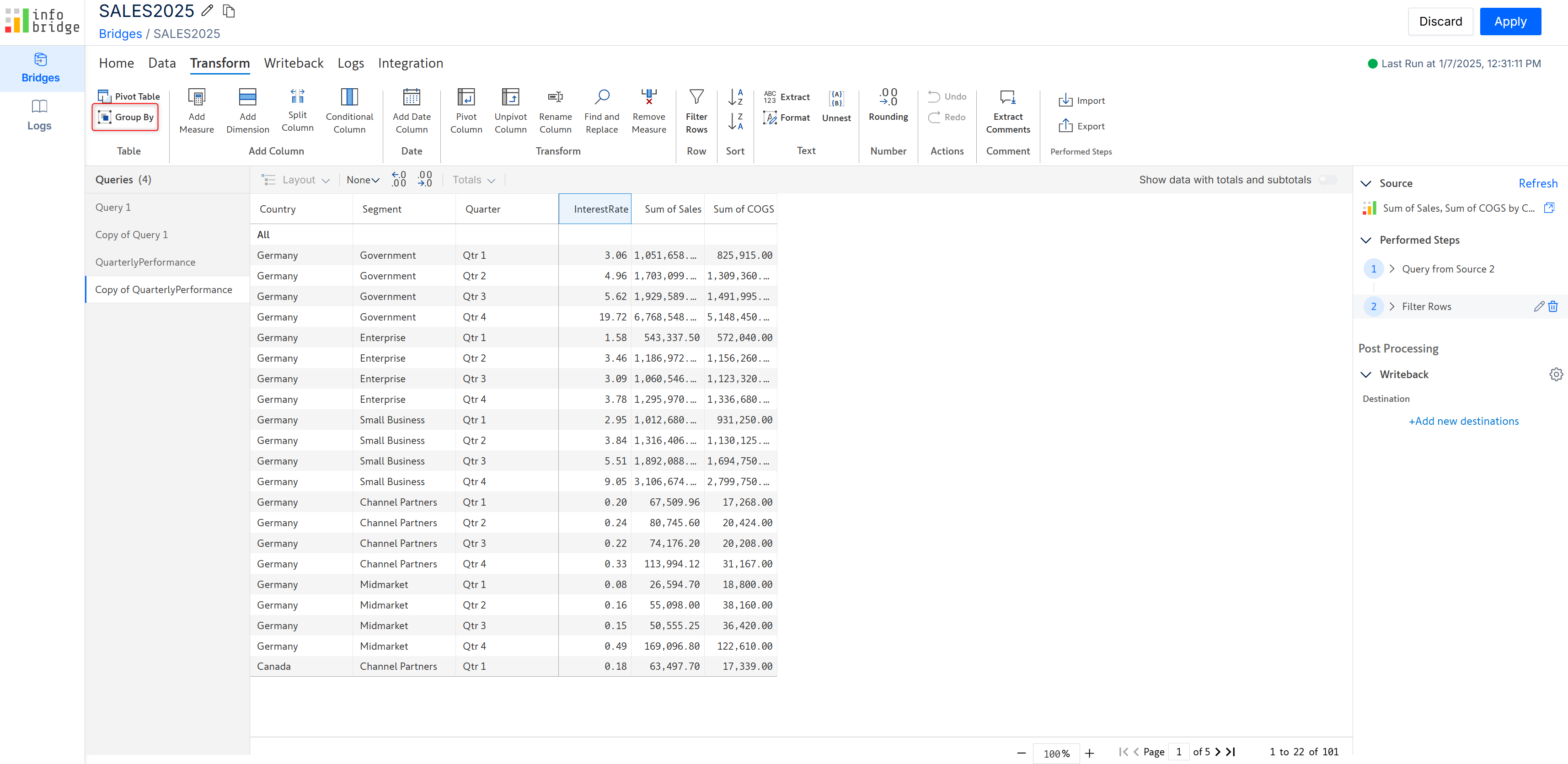
Let's look at how we can aggregate your planning data with Infobridge.

<figure><img src="https://3062809325-files.gitbook.io/~/files/v0/b/gitbook-x-prod.appspot.com/o/spaces%2FEbkCXCUXmtUq5tcnUtZE%2Fuploads%2FnjW2dPL6iO0DpRcBMpGL%2Fimage.png?alt=media&#x26;token=1decbd28-24cb-4173-9acc-c71476b2c4aa" alt=""><figcaption><p>Group by in Infobridge</p></figcaption></figure>

### Group by with a single measure

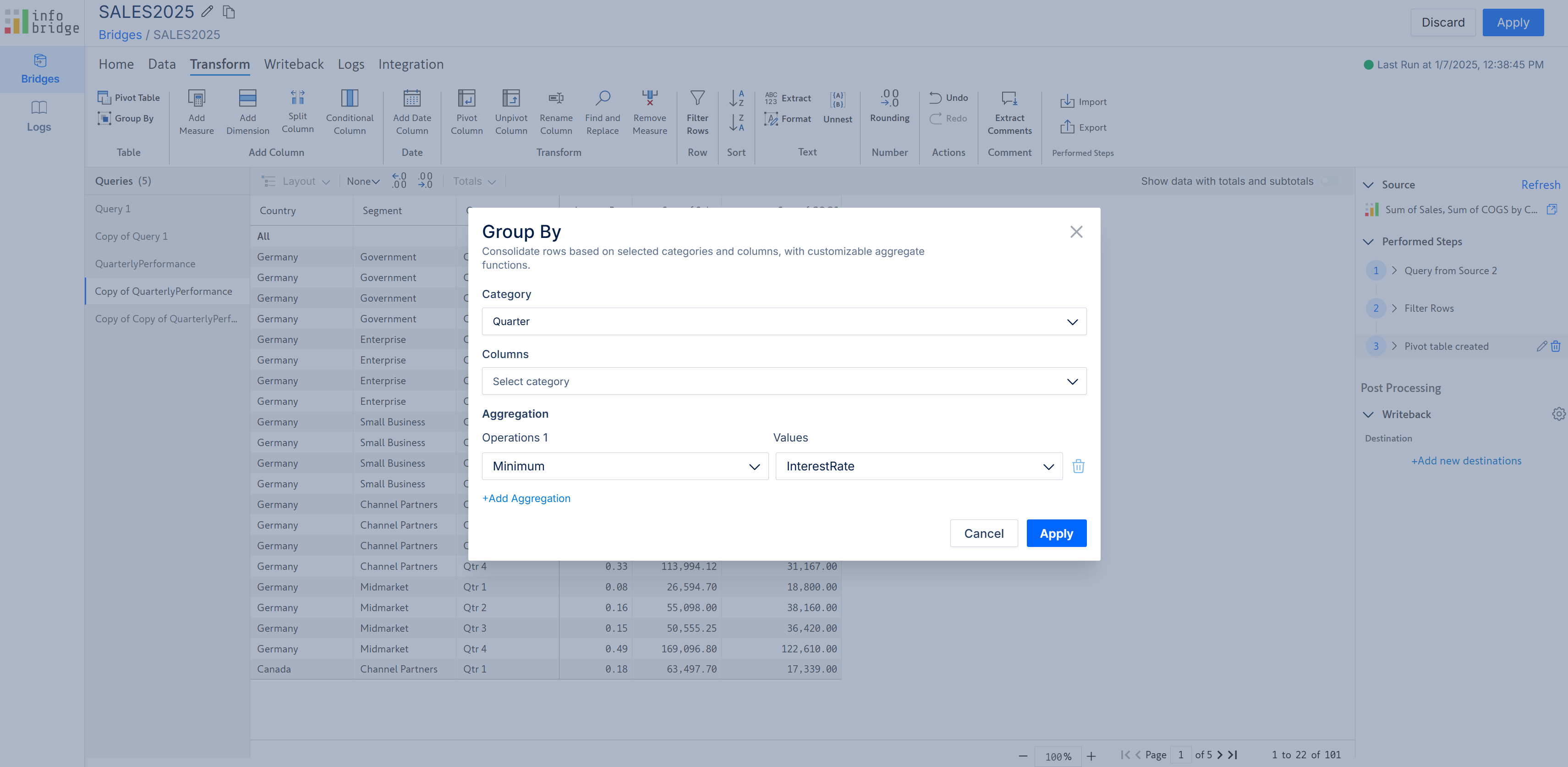
Let's find the minimum interest rate for each quarter. We need to choose *Quarter* from the **Category** dropdown, *Minimum* from **Operations 1** dropdown, and *InterestRate* from the **Values** dropdown.

<figure><img src="https://3062809325-files.gitbook.io/~/files/v0/b/gitbook-x-prod.appspot.com/o/spaces%2FEbkCXCUXmtUq5tcnUtZE%2Fuploads%2Fhivgv5eZMQ8cN3KMGom8%2Fimage.png?alt=media&#x26;token=7d84e65f-9284-45fe-a22d-2438ae59528a" alt=""><figcaption><p>Group by configuration</p></figcaption></figure>

&#x20;When you click Apply, Infobridge displays the minimum interest rate for each quarter:

<figure><img src="https://3062809325-files.gitbook.io/~/files/v0/b/gitbook-x-prod.appspot.com/o/spaces%2FEbkCXCUXmtUq5tcnUtZE%2Fuploads%2Fr0xlQOb9TNDEHt6nTTVP%2Fimage.png?alt=media&#x26;token=0e7173da-103a-47d0-bfed-77927e1c975b" alt=""><figcaption><p>Grouped data for a single measure and dimension</p></figcaption></figure>

### Group by for multiple measures

Let's also calculate the average COGS and total sales for each quarter. Click the **Add Aggregation** link to summarize your data for additional measures.&#x20;

<figure><img src="https://3062809325-files.gitbook.io/~/files/v0/b/gitbook-x-prod.appspot.com/o/spaces%2FEbkCXCUXmtUq5tcnUtZE%2Fuploads%2FSq0vcRdUweWFdGX33lbQ%2Fimage.png?alt=media&#x26;token=4146c9aa-479c-4493-8717-e1501da8daa1" alt=""><figcaption><p>Group by configuration for multiple measures</p></figcaption></figure>

The summarized data after applying the group by transformation is shown below.

<figure><img src="https://3062809325-files.gitbook.io/~/files/v0/b/gitbook-x-prod.appspot.com/o/spaces%2FEbkCXCUXmtUq5tcnUtZE%2Fuploads%2F3U12PqxXHLzmBNvNOEQj%2Fimage.png?alt=media&#x26;token=2d6e6930-7dd9-4434-a8ec-5d6ef7cf4ba8" alt=""><figcaption><p>Grouping multiple measures</p></figcaption></figure>

### Group by for multiple dimensions

Let's capture more insights by aggregating the same measures for each quarter and country. When you want to summarize your data based on multiple dimension categories, you can select them from the **Category** dropdown.

<figure><img src="https://3062809325-files.gitbook.io/~/files/v0/b/gitbook-x-prod.appspot.com/o/spaces%2FEbkCXCUXmtUq5tcnUtZE%2Fuploads%2FvYRUvsIVDwLZmDBrUXAq%2Fimage.png?alt=media&#x26;token=f81d931b-cb75-46e6-adc2-14e66610fe01" alt=""><figcaption><p>Grouping data based on multiple dimensions</p></figcaption></figure>

The summarized query after applying the group by transformation is shown below.

<figure><img src="https://3062809325-files.gitbook.io/~/files/v0/b/gitbook-x-prod.appspot.com/o/spaces%2FEbkCXCUXmtUq5tcnUtZE%2Fuploads%2FCwXmN6mf7WNTskBlB9pF%2Fimage.png?alt=media&#x26;token=2334b411-5628-4ebb-9e13-12490a010413" alt=""><figcaption><p>Summarized data</p></figcaption></figure>