# Audit log

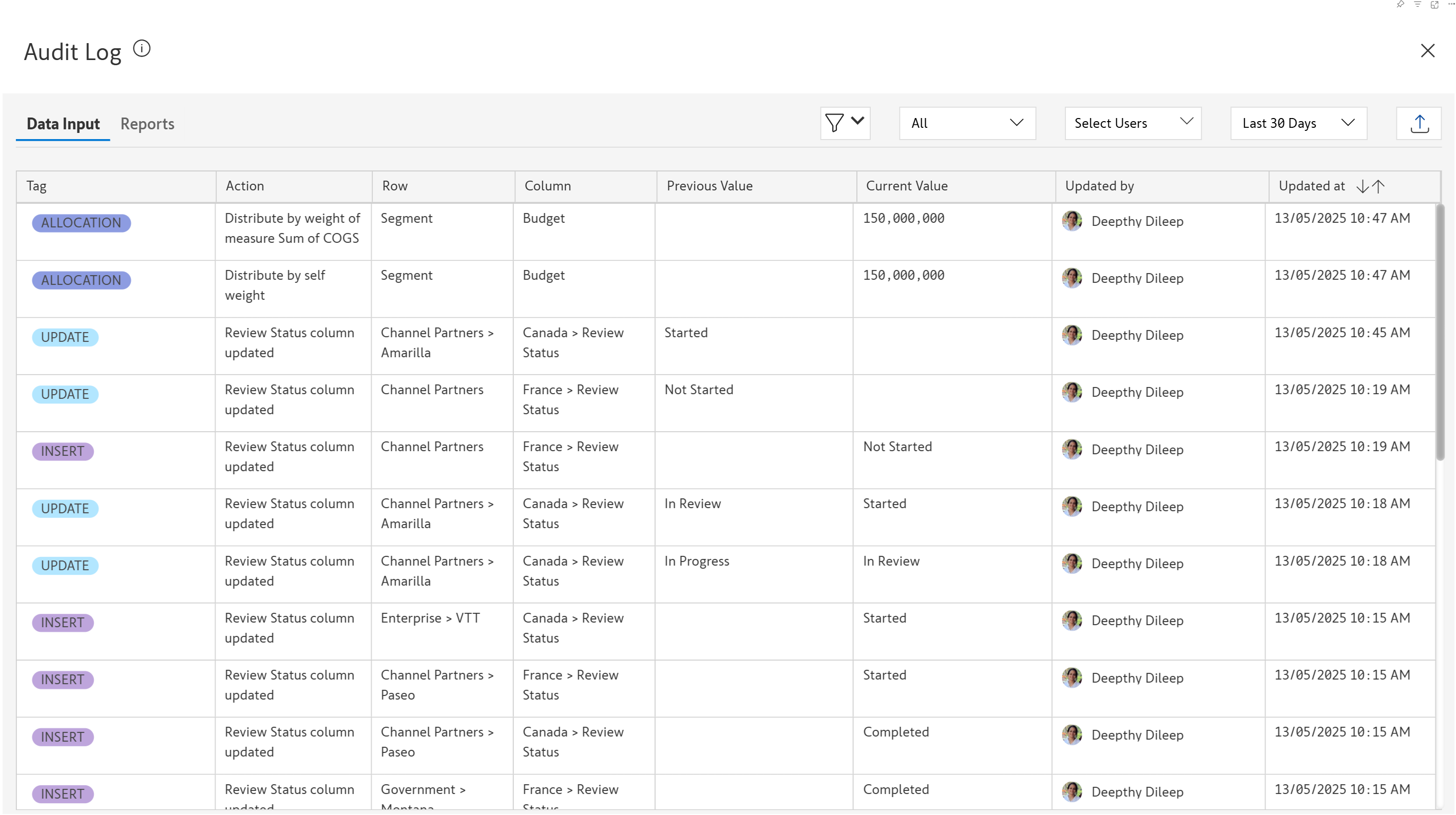
Inforiver provides an interactive, filterable, exportable, and comment-enabled audit log to track changes to your report.

In the **Insert** tab, click on the **Audit** option. The audit log is a full-page, spreadsheet-style window - complete with filters and dropdowns - making it easier to track and manage audits. The **Data Input** tab, as the name implies, captures all the changes made to data input fields. The **Reports** tab captures the dimensions and measures added to or modified in the report.

<figure><img src="https://content.gitbook.com/content/sB9HAei8v4FfKkH9M4gw/blobs/4DUMKp58MnqkwrMKJDRv/image.png" alt=""><figcaption></figcaption></figure>

### 1. Data input audit trail

Let's look at some of the data input field changes that are captured in the audit log.

#### **1.1. Data entry**

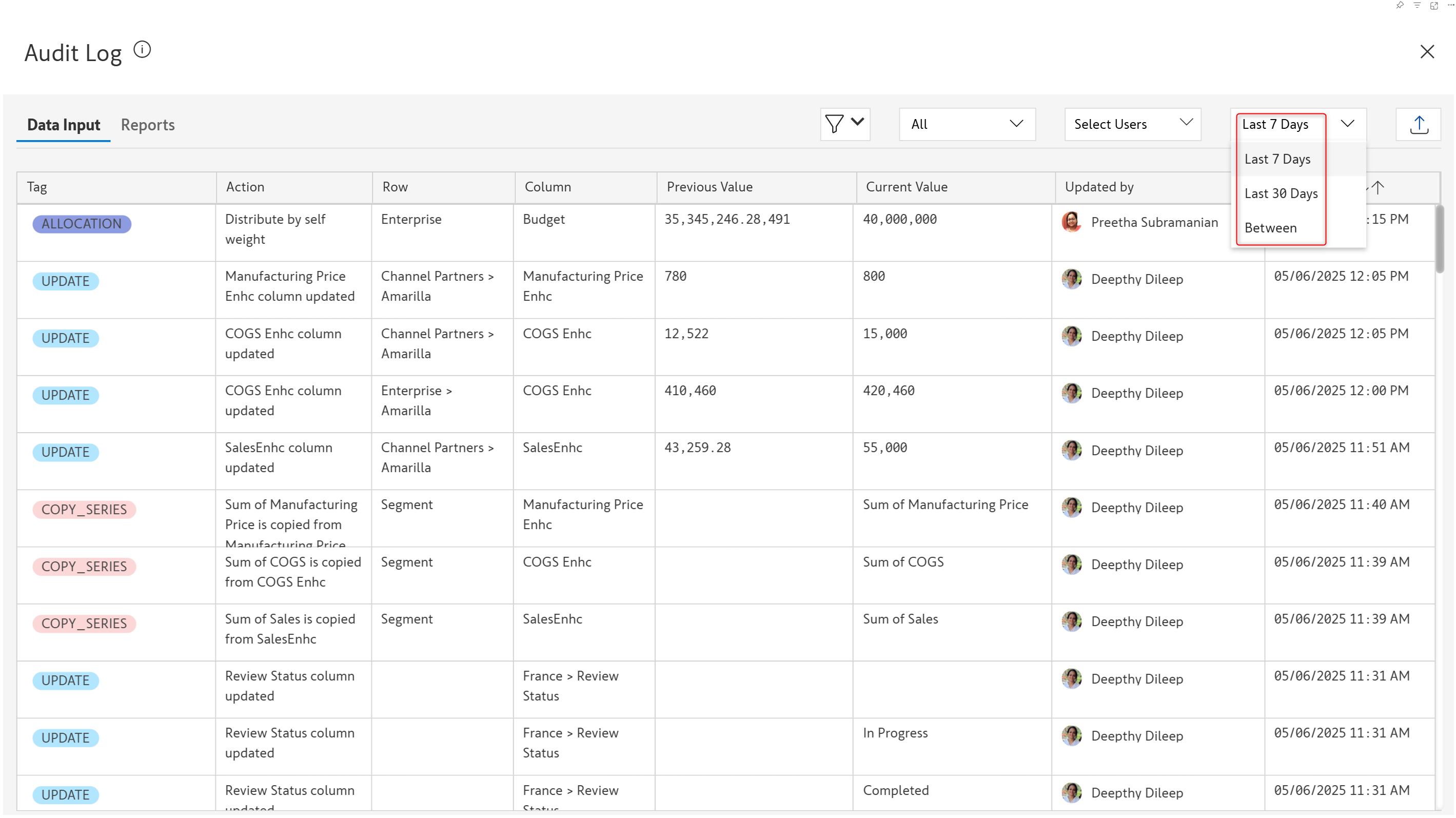
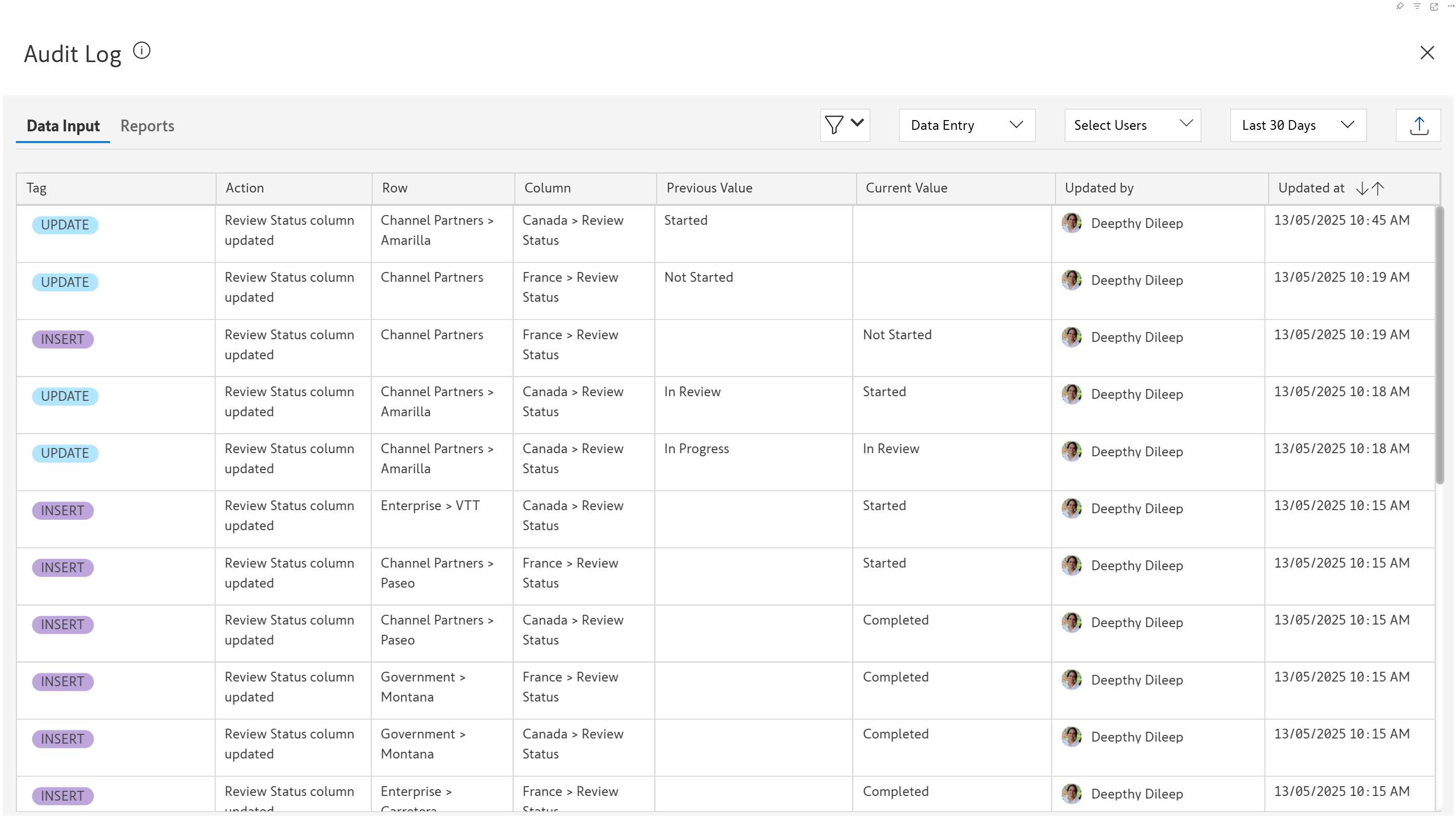
Select 'Data Entry' from the dropdown. You'll be able to see the data input values that were added or updated. When a value is updated, the audit log also captures the earlier value.

<figure><img src="https://content.gitbook.com/content/sB9HAei8v4FfKkH9M4gw/blobs/OTfbM5QQnWZe56mfqbxk/image.png" alt=""><figcaption><p>Data entry audit log</p></figcaption></figure>

#### **1.2. Allocation**

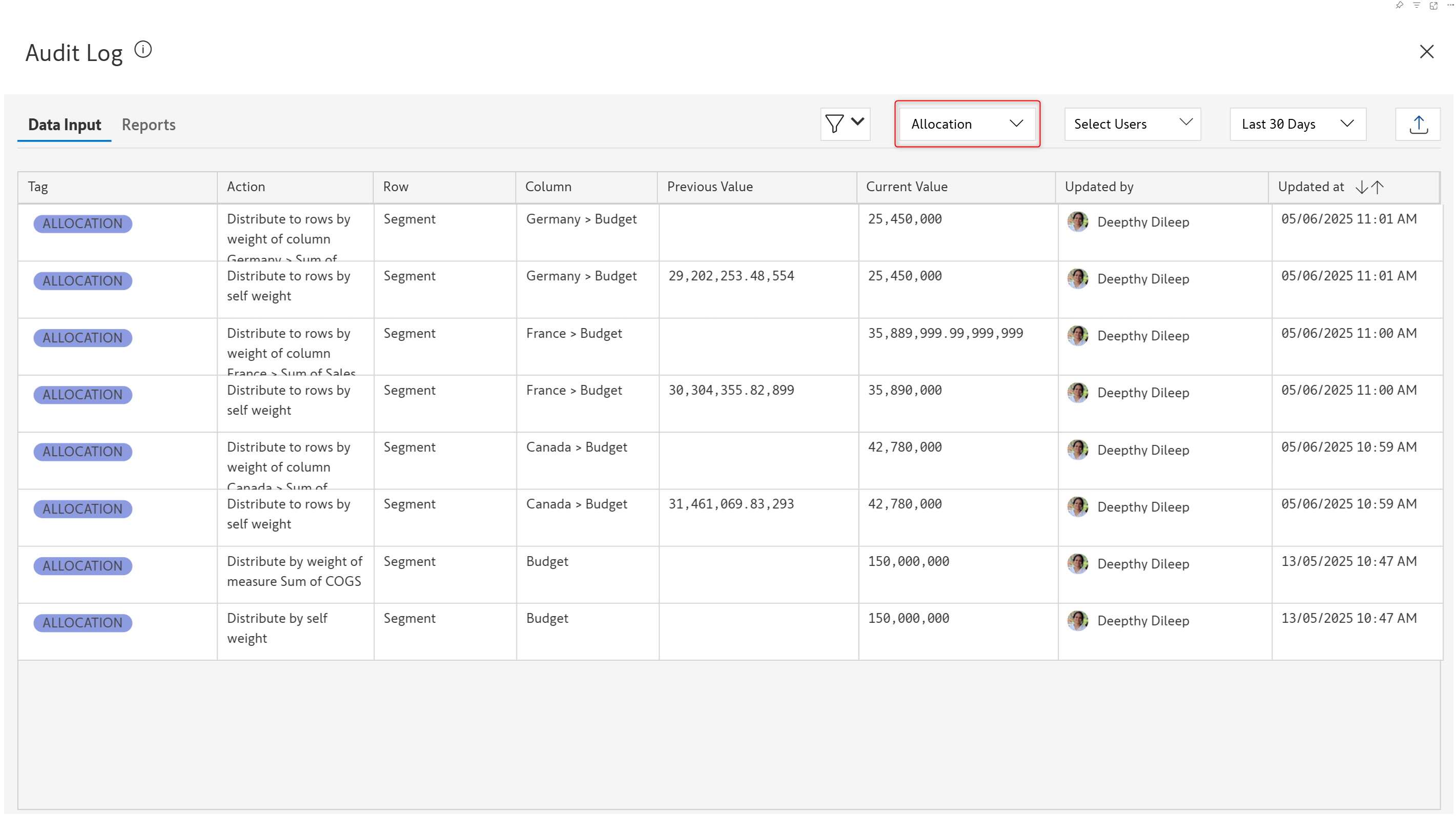
Select 'Allocation' from the dropdown. Captures how a value entered in a parent cell is distributed to its descendants.

<figure><img src="https://content.gitbook.com/content/sB9HAei8v4FfKkH9M4gw/blobs/gNkf5HuSbtesFld0c5OV/image.png" alt=""><figcaption><p>Allocation</p></figcaption></figure>

#### **1.3. Copy to base**

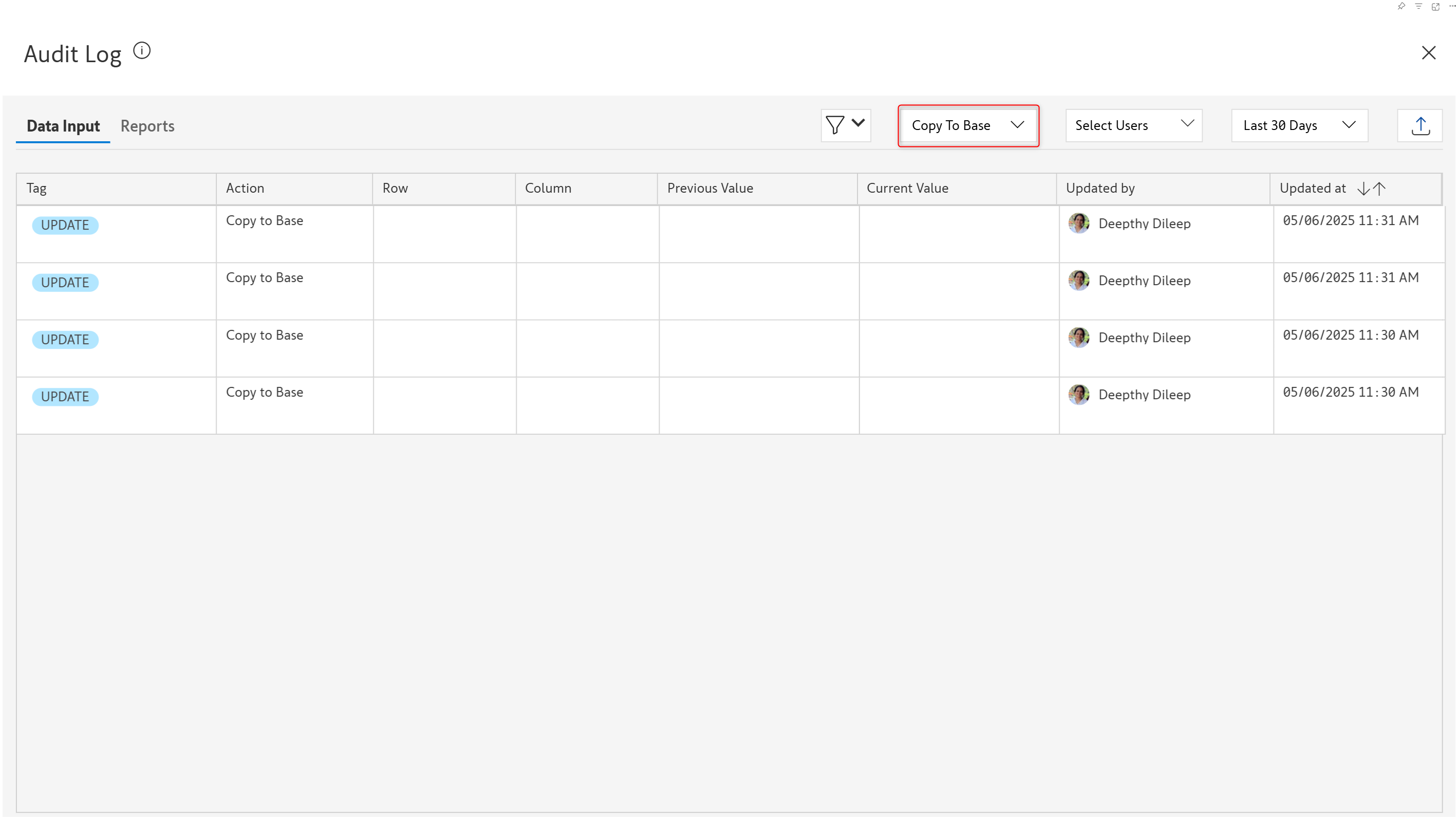
Captures the user and maintains a record of when simulations run in a scenario are copied to base.

<figure><img src="https://content.gitbook.com/content/sB9HAei8v4FfKkH9M4gw/blobs/MKyQV91ksmte2htWyOId/image.png" alt=""><figcaption><p>Copy to base</p></figcaption></figure>

#### **1.4. Copy series**

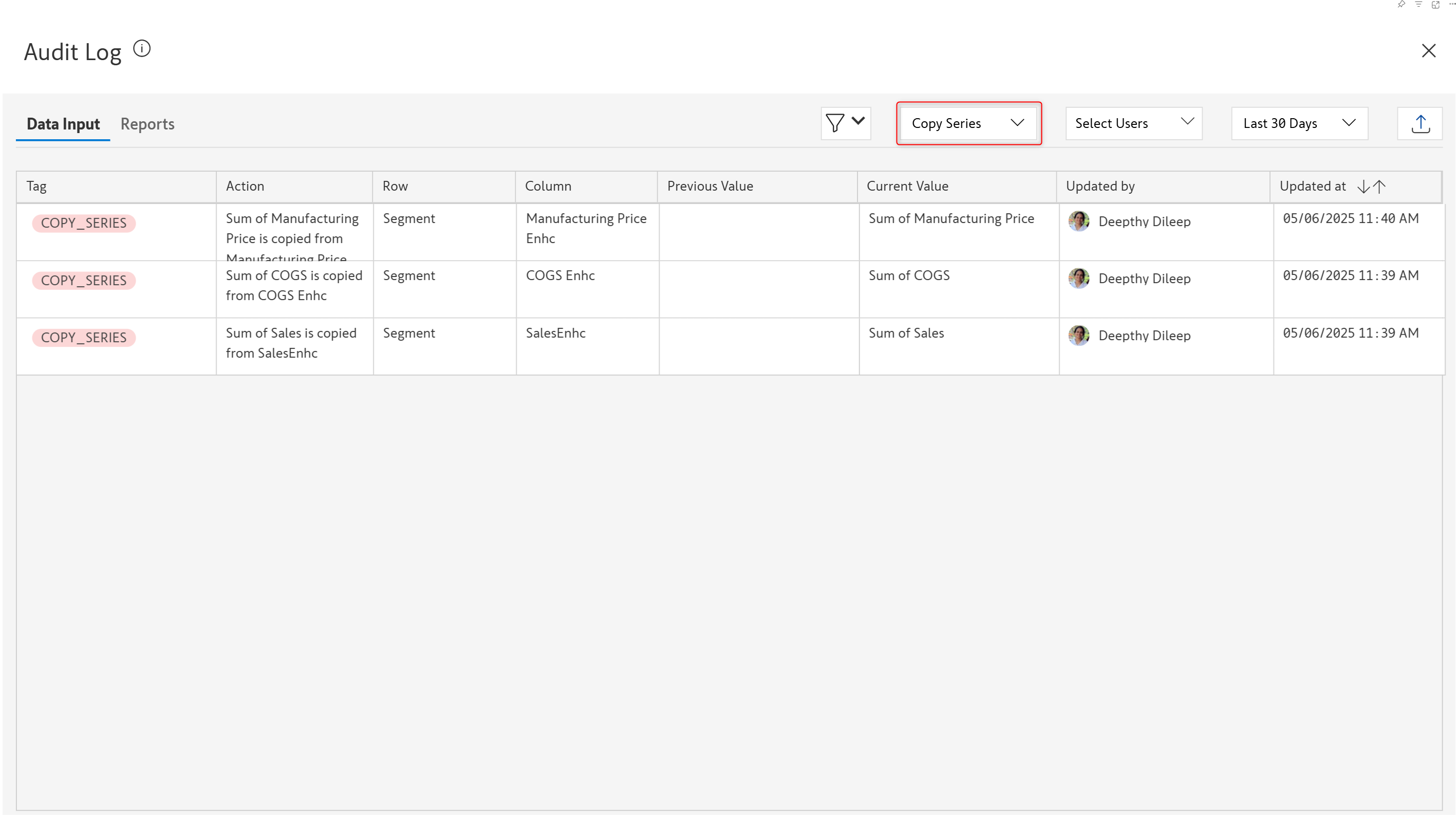
Captures numeric data inputs that are sourced from existing fields using the **Copy from another series** option.

<figure><img src="https://content.gitbook.com/content/sB9HAei8v4FfKkH9M4gw/blobs/eiXpjJo6miDfpUn7oyV3/image.png" alt=""><figcaption><p>Copy series</p></figcaption></figure>

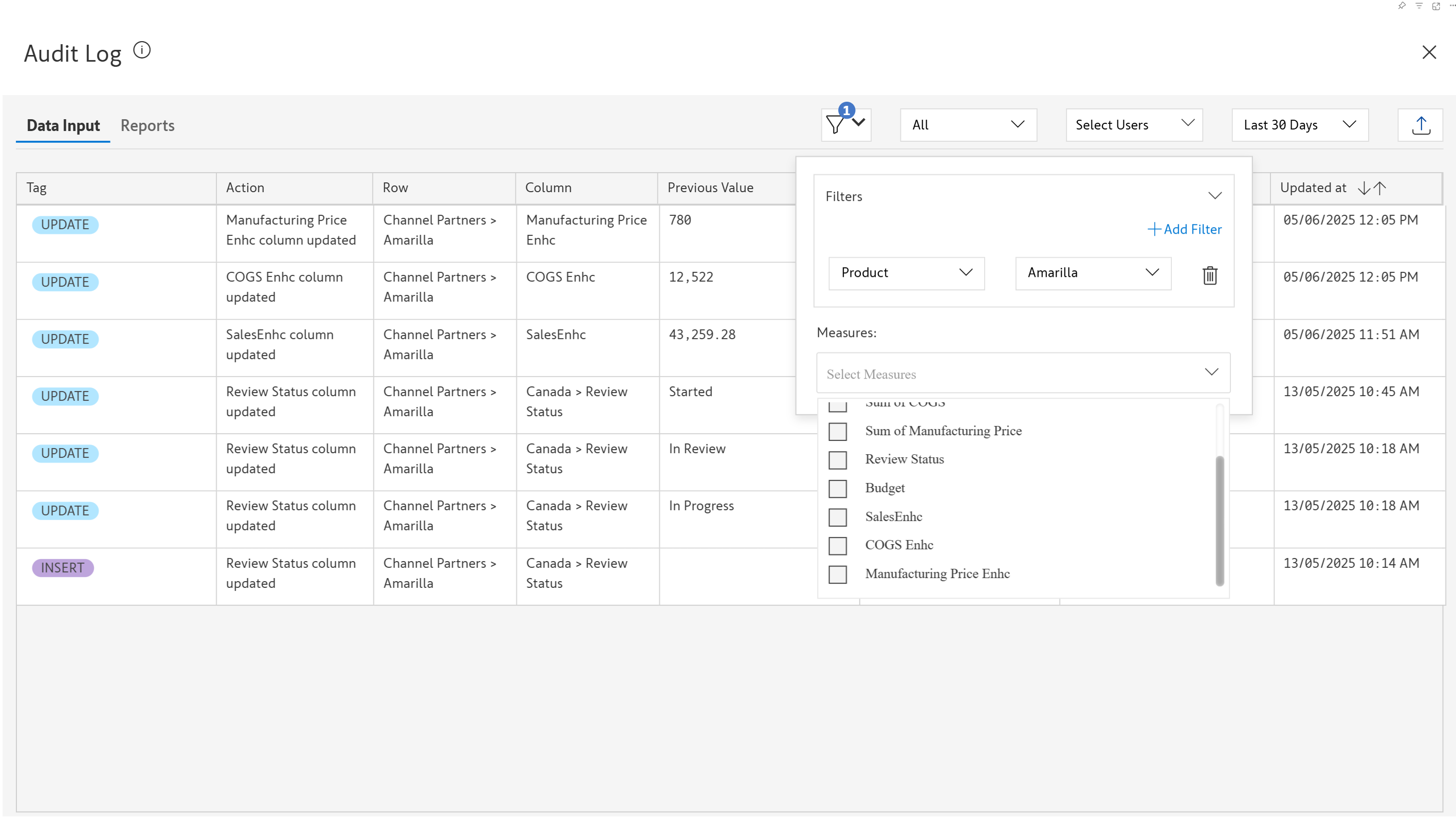
#### **1.5. Filtering audit logs based on dimension categories and measures**

Click the <img src="https://content.gitbook.com/content/sB9HAei8v4FfKkH9M4gw/blobs/83W5DDJaYdqfaIjJwfCF/image.png" alt="" data-size="line">icon to filter the audit log based on row dimension categories or measures.
<figure><img src="https://content.gitbook.com/content/sB9HAei8v4FfKkH9M4gw/blobs/jcpGk7KJZNmvAvfe9ScT/image.png" alt=""><figcaption><p>Filtering audit logs</p></figcaption></figure>

#### **1.6. Filtering audit logs based on user**

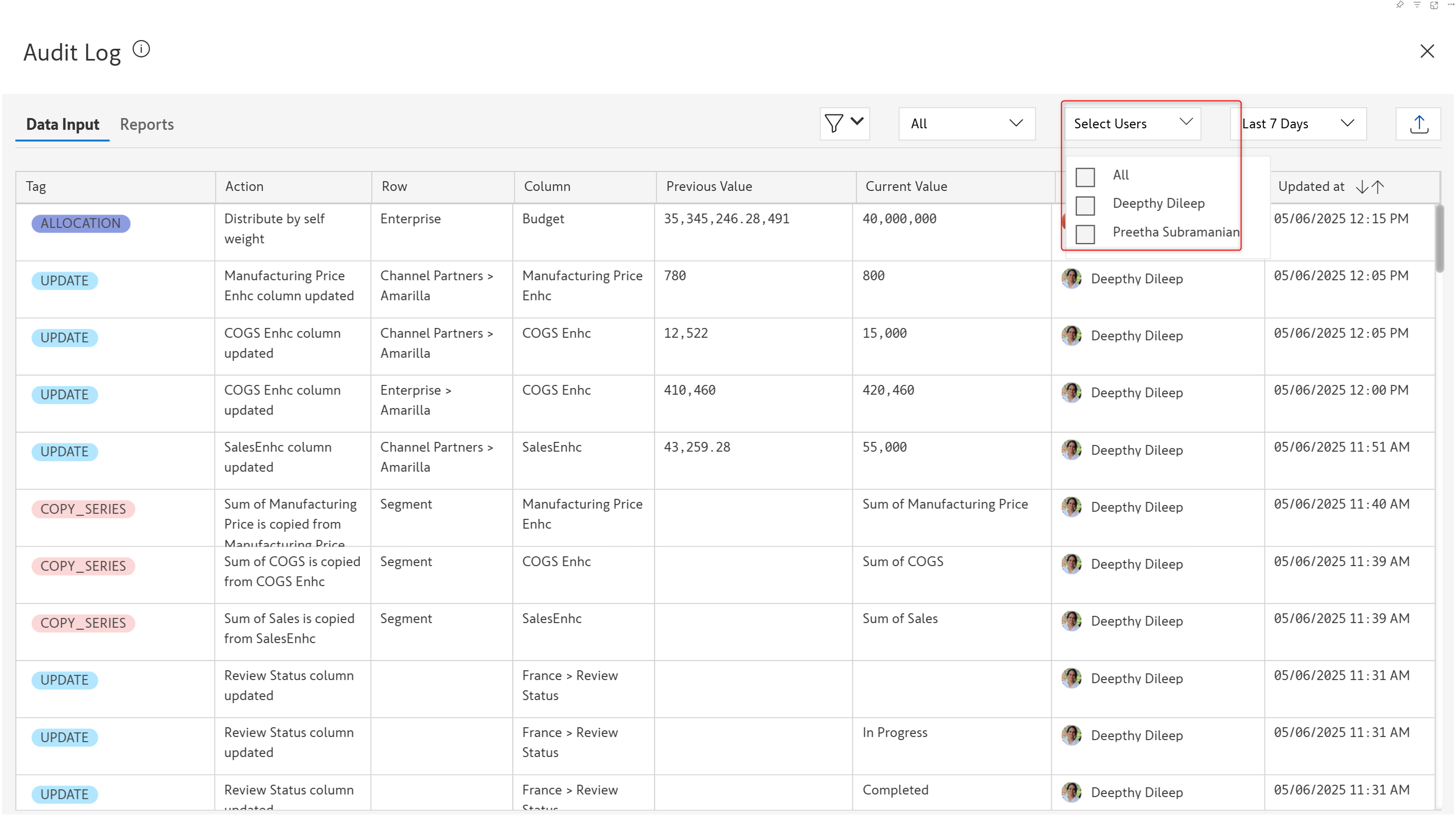
When you have multiple users entering and updating values in a data input field, you would need to track the changes made by each user. You can filter the data entry audit log based on the username. View the changes made by specific users by selecting them from the dropdown.

<figure><img src="https://content.gitbook.com/content/sB9HAei8v4FfKkH9M4gw/blobs/hLHEWDJZlVJ8fCZFwhtv/image.png" alt=""><figcaption><p>Filtering audit logs based on user</p></figcaption></figure>

**1.7. Sorting and filtering audit logs based on date**

View audit trail for the past week, past month, or a specified time range.

<figure><img src="https://content.gitbook.com/content/sB9HAei8v4FfKkH9M4gw/blobs/7pxaDUGmgv4b5W0D8DO6/image.png" alt=""><figcaption><p>Filtering based on date</p></figcaption></figure>

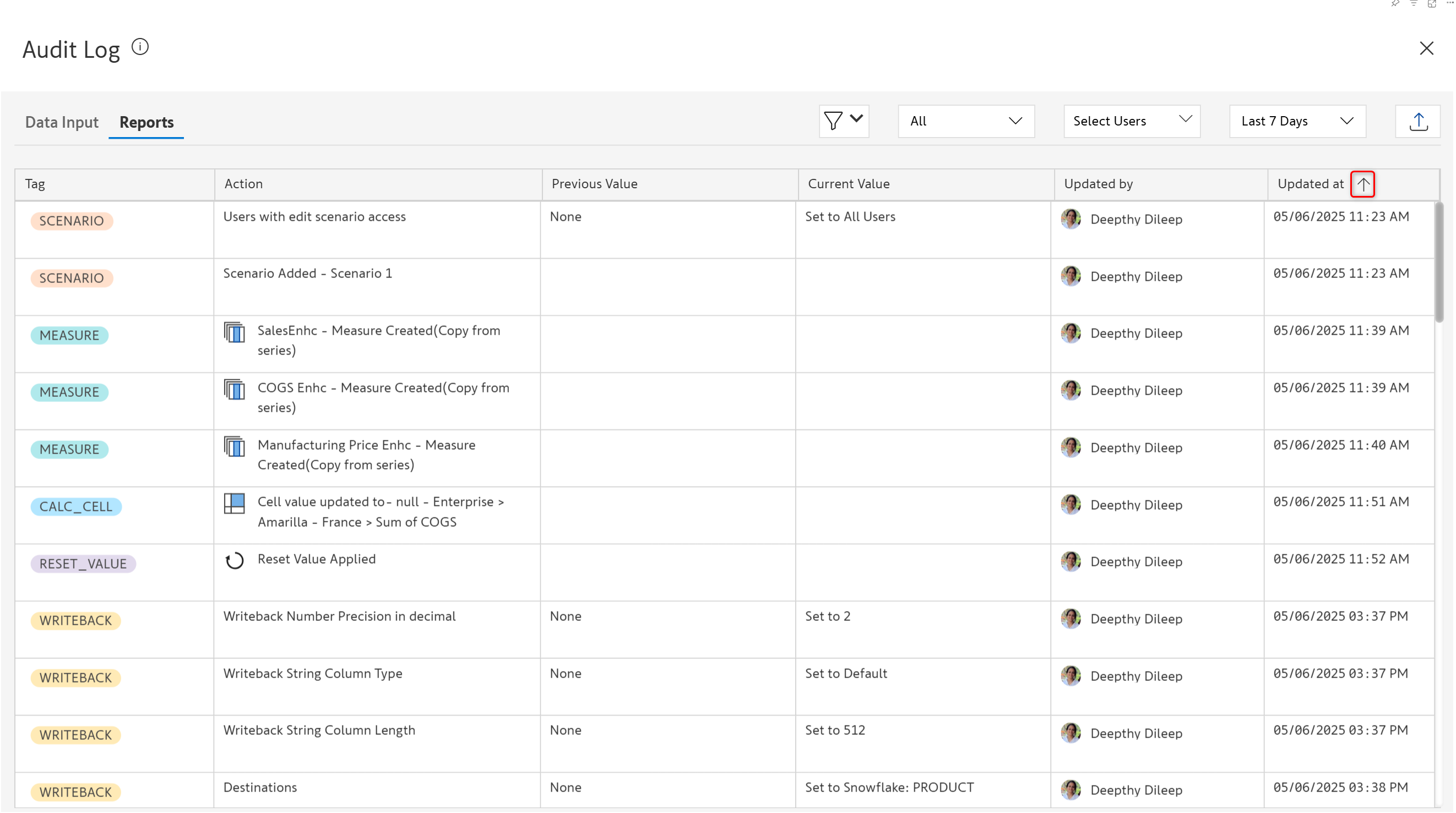
You can sort the **Updated at field** in ascending or descending order by clicking the<img src="https://content.gitbook.com/content/sB9HAei8v4FfKkH9M4gw/blobs/ey8KaspfsQNz24YGMJlx/image.png" alt="" data-size="line"> icon.

<figure><img src="https://content.gitbook.com/content/sB9HAei8v4FfKkH9M4gw/blobs/Z5nUNy0YRVKMh3U3GfKU/image.png" alt=""><figcaption><p>Sorting based operation timestamp</p></figcaption></figure>

### 2. Reports tab

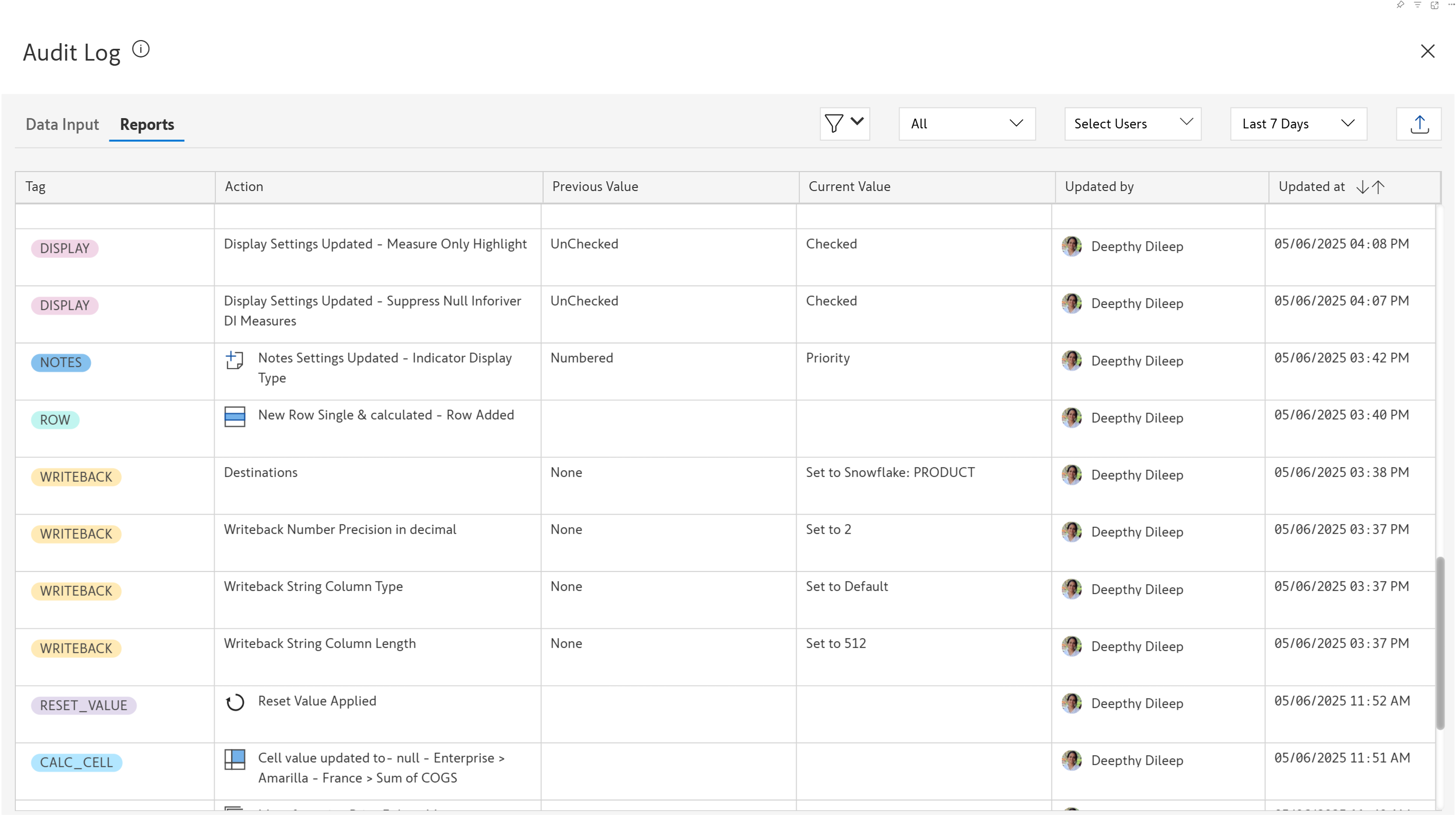
This tab captures actions such as changes to writeback settings, manage row/measure settings, display settings, or scenario settings.

<figure><img src="https://content.gitbook.com/content/sB9HAei8v4FfKkH9M4gw/blobs/awM034rgjiU5nbXkMFYX/image.png" alt=""><figcaption><p>Report tab</p></figcaption></figure>

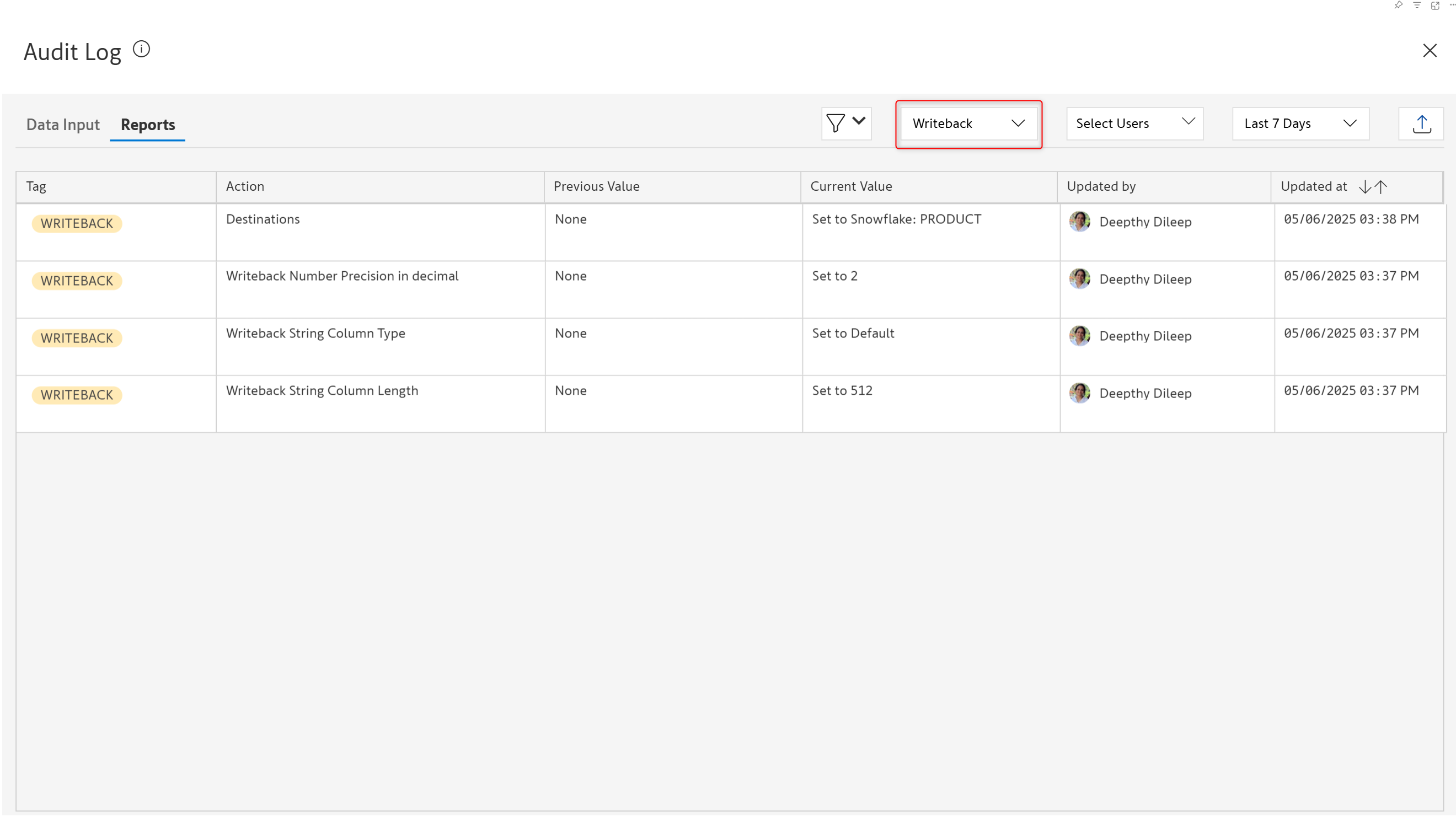
Just like we did for the Data Input tab, we can apply filters based on the type of change. Some examples are shown below.

**Writeback settings**

<figure><img src="https://content.gitbook.com/content/sB9HAei8v4FfKkH9M4gw/blobs/Btg6NZxr3IebWZwp6t9X/image.png" alt=""><figcaption><p>Writeback settings</p></figcaption></figure>

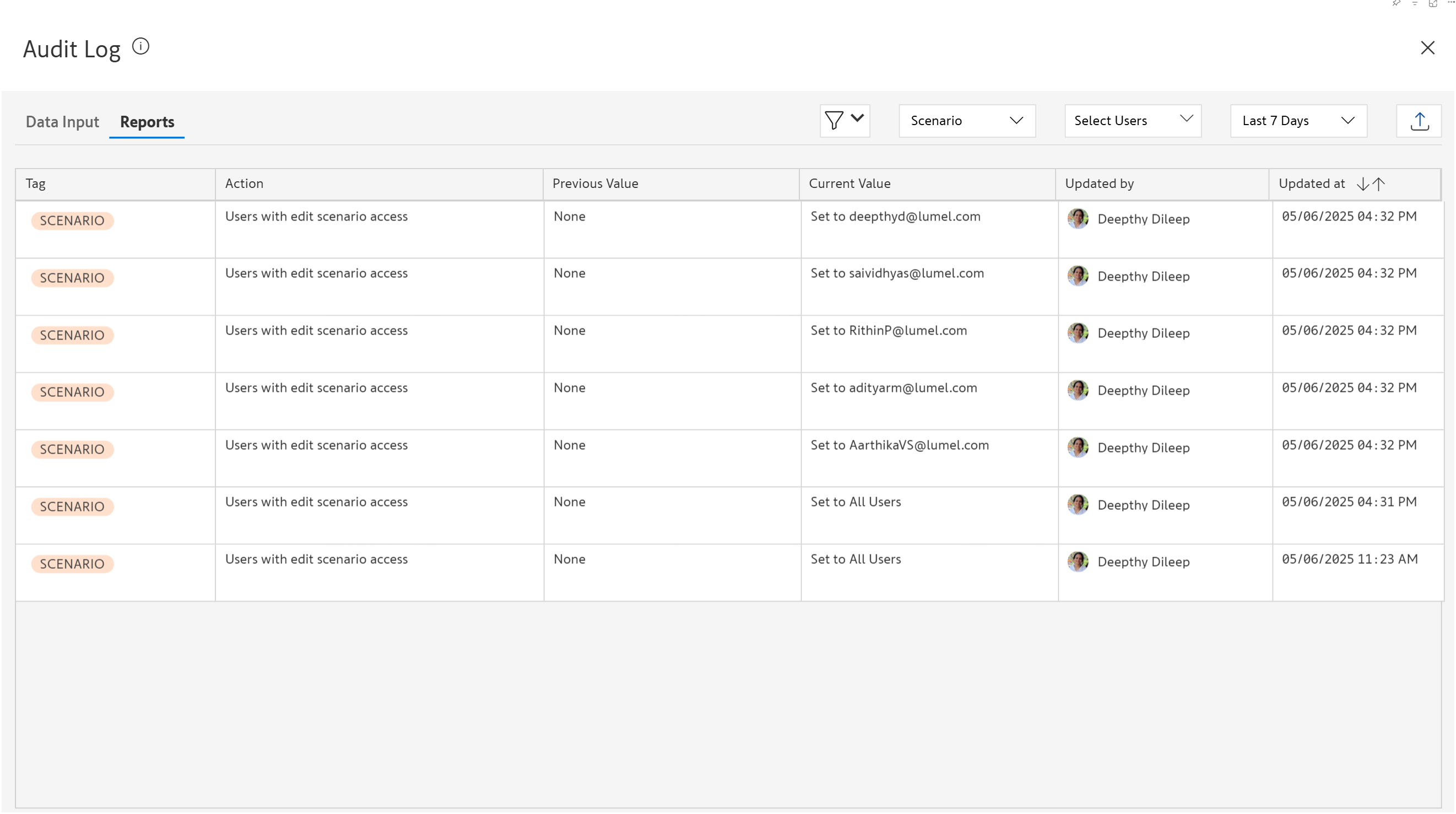
**Scenario settings**

<figure><img src="https://content.gitbook.com/content/sB9HAei8v4FfKkH9M4gw/blobs/D2PwgGe6yEyDr6INdT83/image.png" alt=""><figcaption><p>Scenario settings</p></figcaption></figure>

\
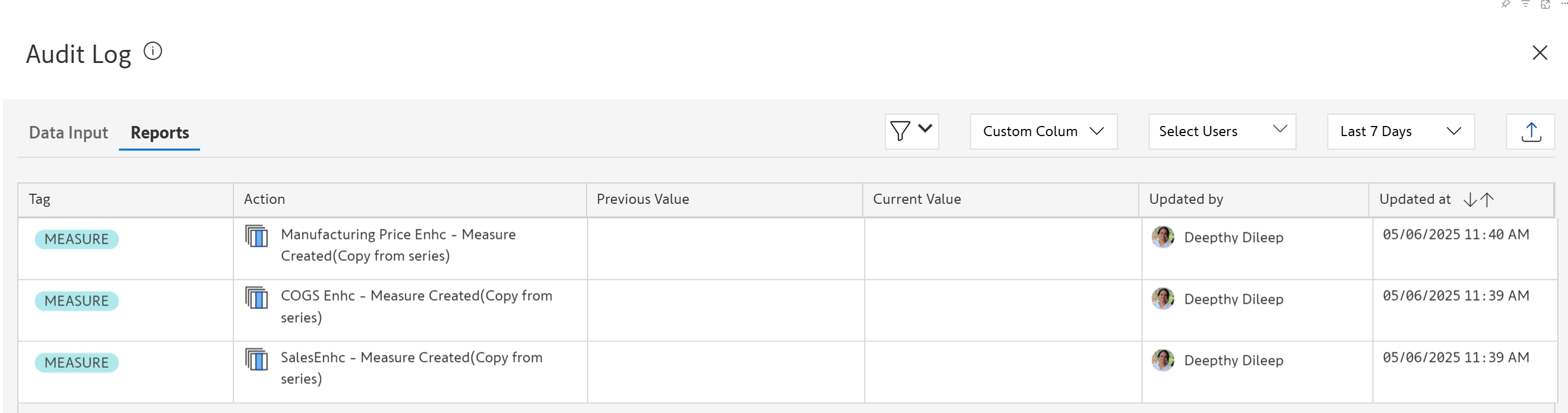
**Custom column**

<figure><img src="https://content.gitbook.com/content/sB9HAei8v4FfKkH9M4gw/blobs/7n8nSbxbl6MmhX7h3w49/image.png" alt=""><figcaption><p><strong>Custom column</strong></p></figcaption></figure>

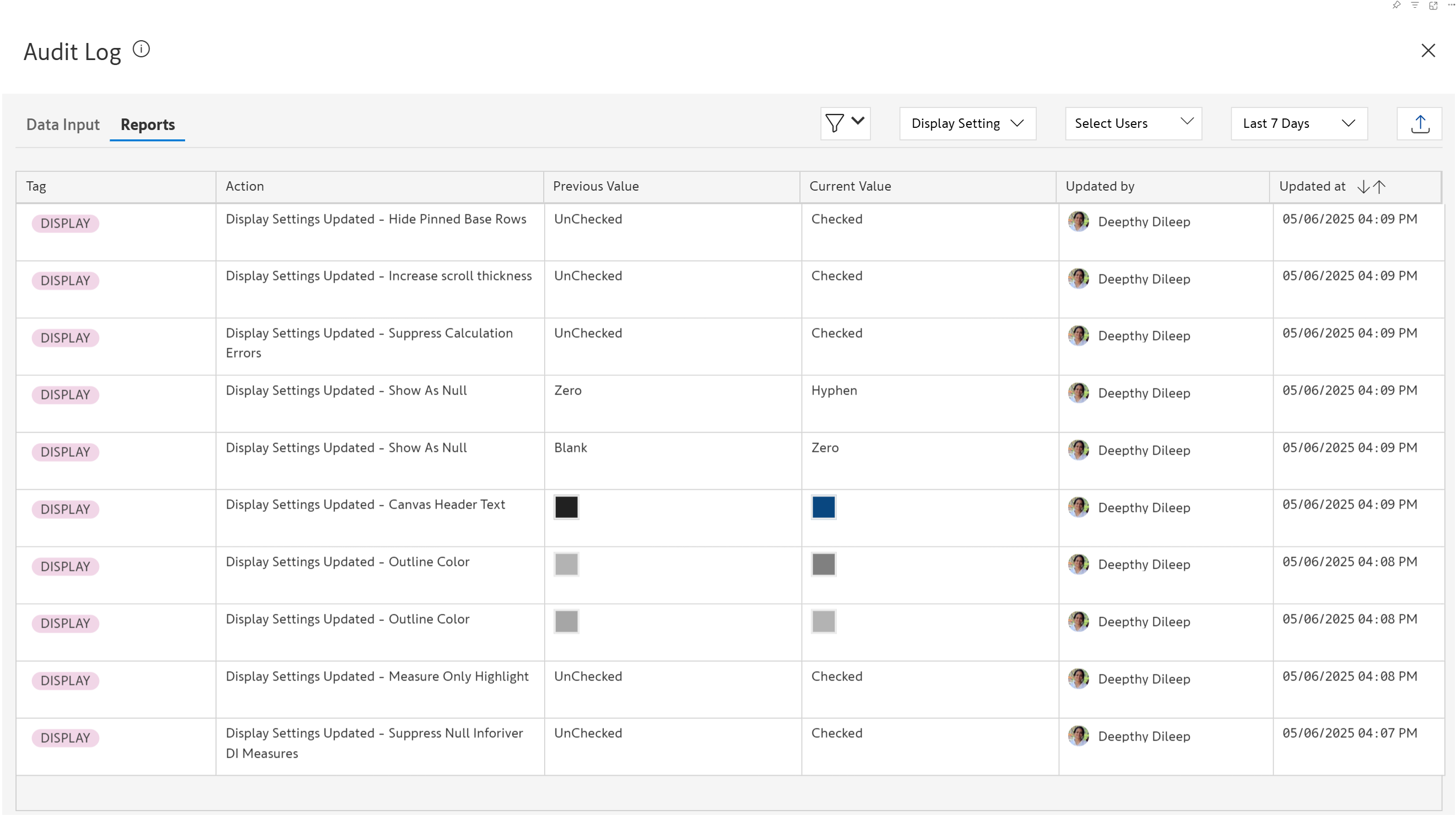
**Display settings**

<figure><img src="https://content.gitbook.com/content/sB9HAei8v4FfKkH9M4gw/blobs/IIzGbh58VLma5WuYOXnA/image.png" alt=""><figcaption><p>Display settings</p></figcaption></figure>

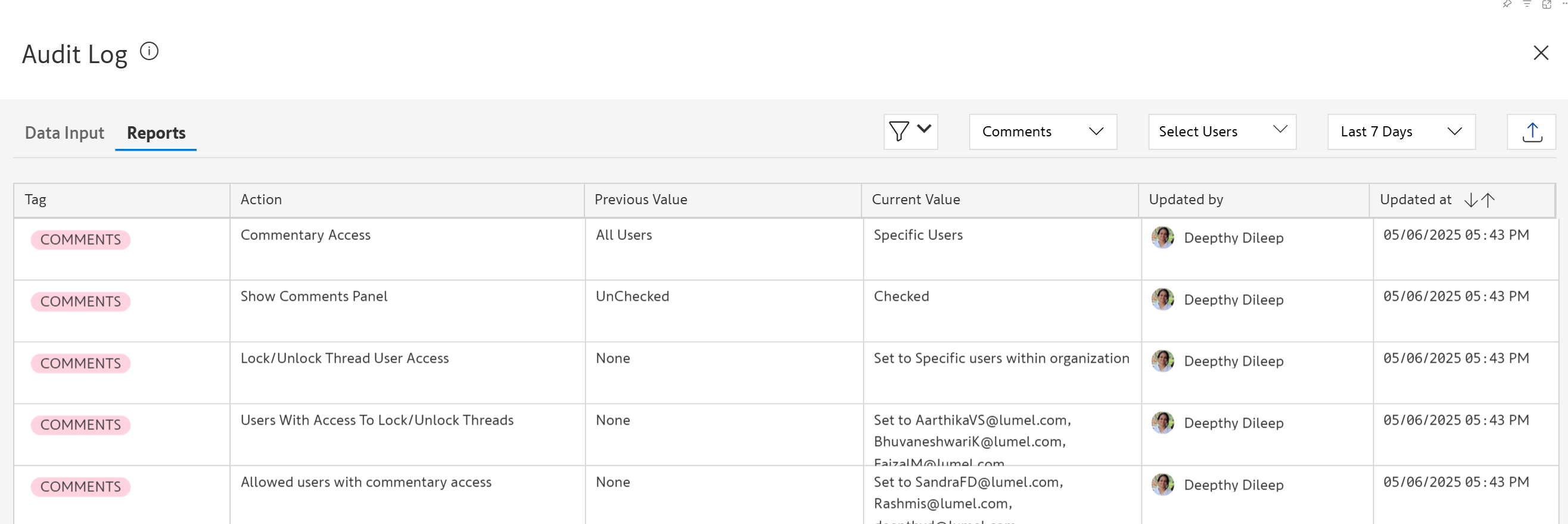
**Comments settings**

<figure><img src="https://content.gitbook.com/content/sB9HAei8v4FfKkH9M4gw/blobs/8l0xOrrJToIelv5Gw6ax/image.png" alt=""><figcaption><p>Comments settings audit log</p></figcaption></figure>

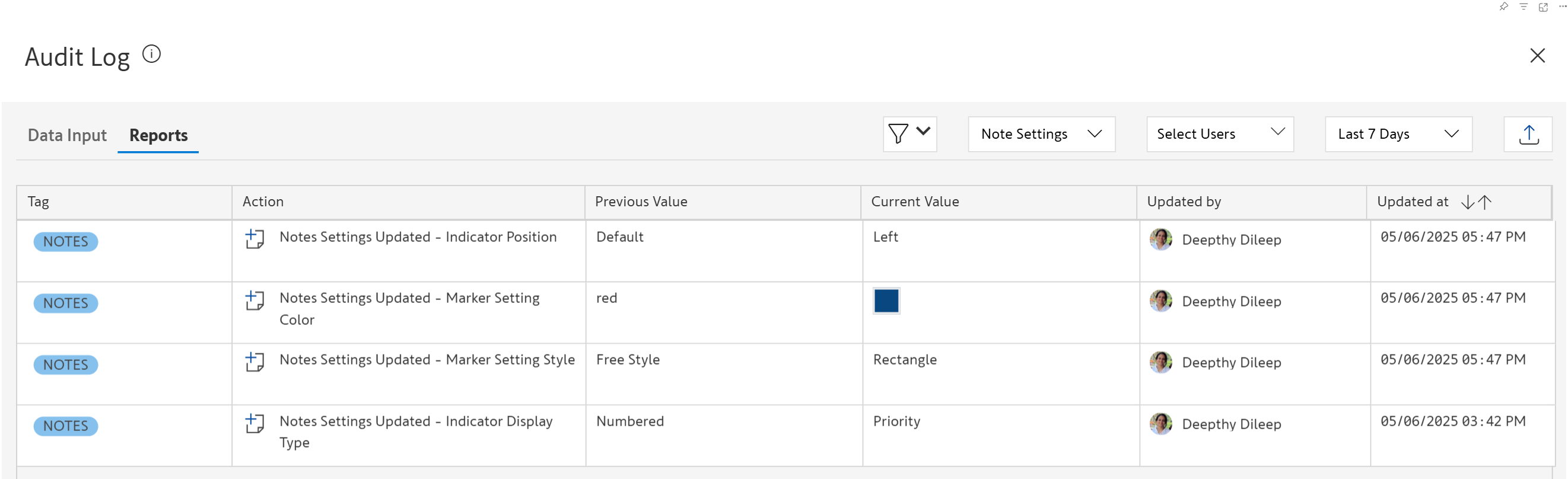
**Notes settings**

<figure><img src="https://content.gitbook.com/content/sB9HAei8v4FfKkH9M4gw/blobs/KTQNmmmkzy4MyX2sHgFB/image.png" alt=""><figcaption><p>Notes settings sudit log</p></figcaption></figure>

### 3. Export

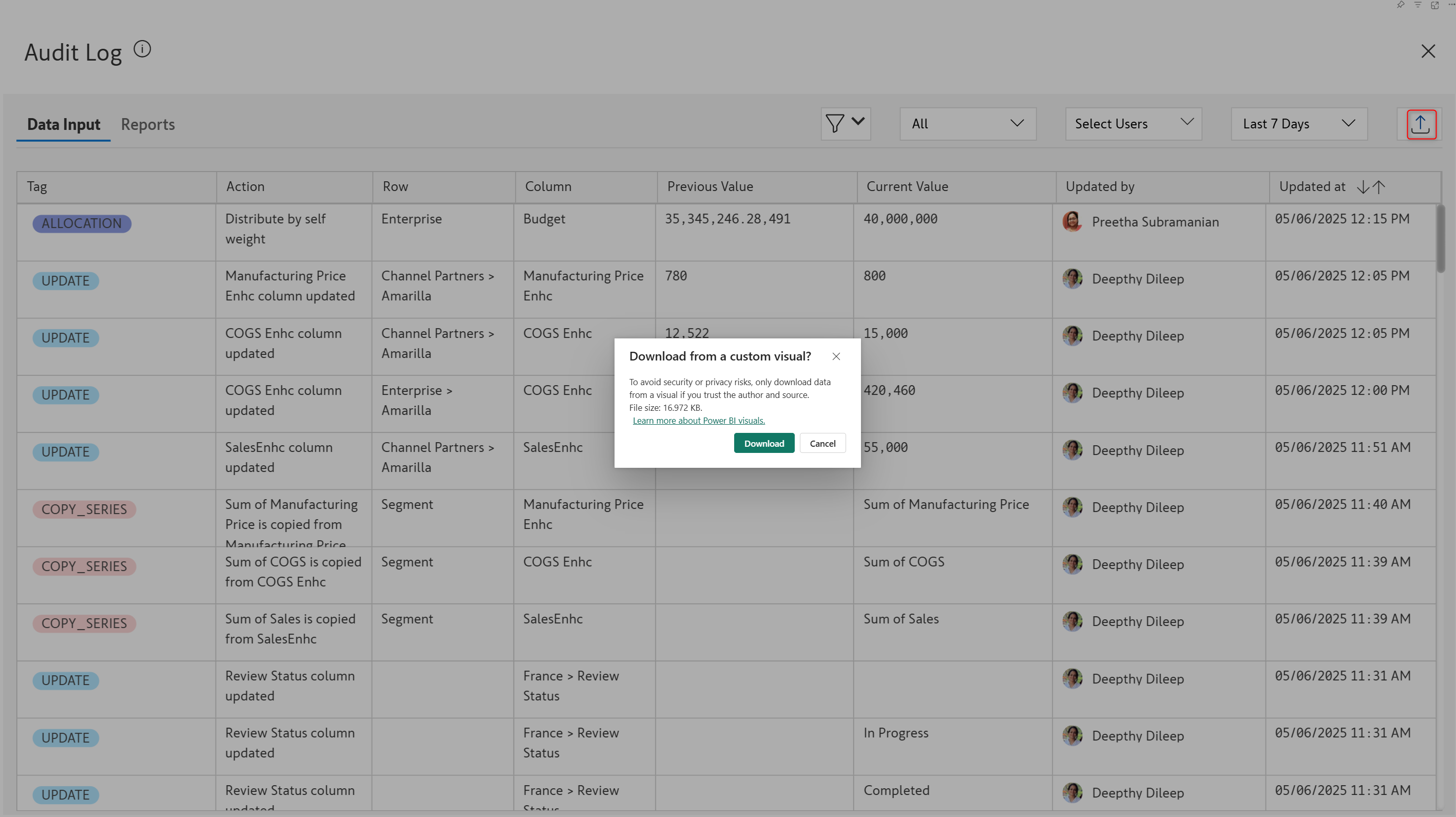
Click the<img src="https://content.gitbook.com/content/sB9HAei8v4FfKkH9M4gw/blobs/Sdlk2AVQxRObe39F8vif/image.png" alt="" data-size="line">icon to export the audit log as an Excel file for any further analysis.&#x20;

{% hint style="info" %}
Export is supported only in Power BI service.
{% endhint %}
<figure><img src="https://content.gitbook.com/content/sB9HAei8v4FfKkH9M4gw/blobs/q9amY7G1g68SIQIZHuyN/image.png" alt=""><figcaption><p>Exporting audit logs</p></figcaption></figure>

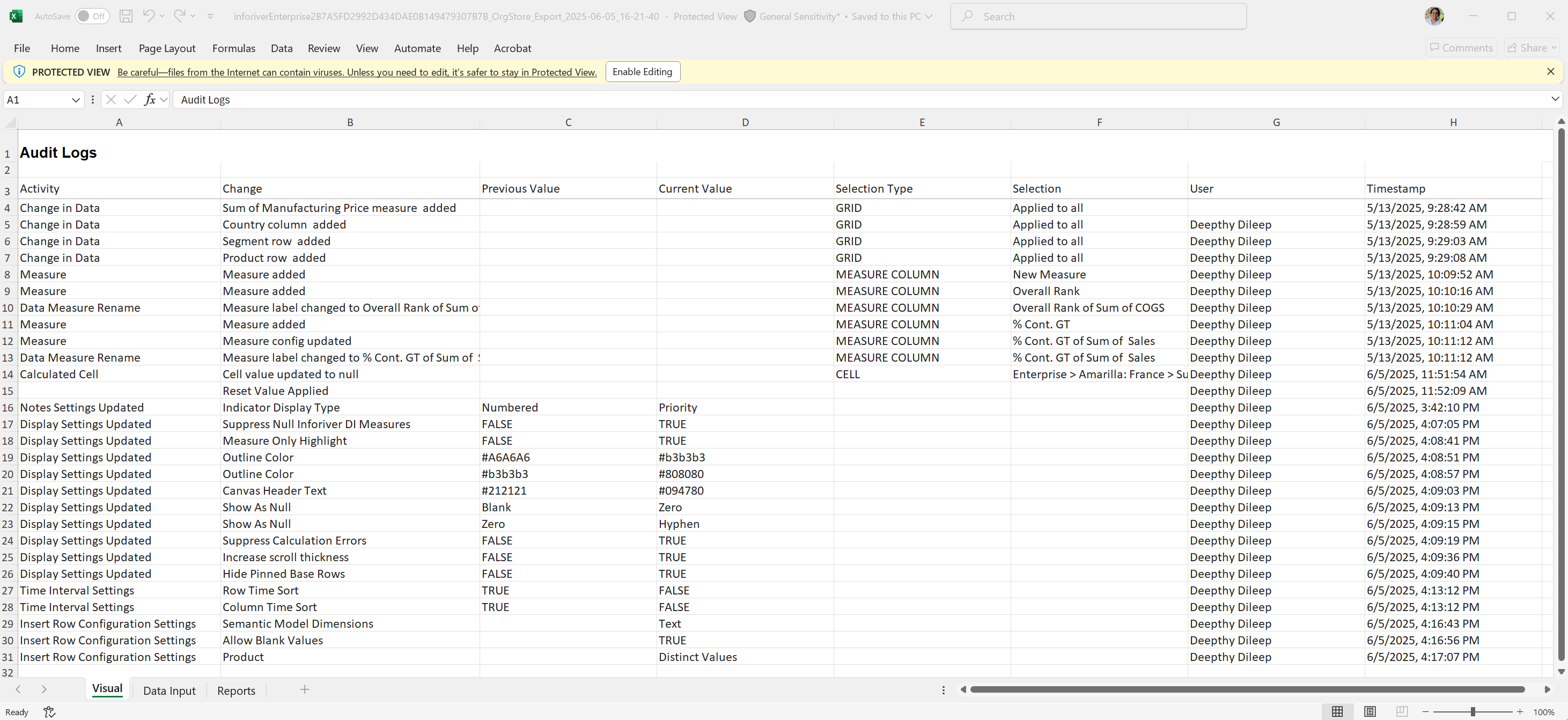
The downloaded audit log contains 3 tabs:

**Visual:** Captures visual-level changes like assigning native measures/dimensions, changing measure labels, updating cells, or changing settings.

* Activity: View the type of change, such as a change in data, row reorder, data measure rename, settings update, etc.&#x20;
* Change - Description for the change, such as the name of the field that was added/removed, label change, specific setting that was updated etc.
* Selection type - Indicates whether the change affected the entire table/matrix or a specific row/column/cell.
* Selection - In case the change was applicable to a row/column/cell, the particular selection is mentioned.
* User - The User who made the change
* Timestamp - Captures when the change was made

<figure><img src="https://content.gitbook.com/content/sB9HAei8v4FfKkH9M4gw/blobs/cFZeqn7iBmrG8WGhqGGv/image.png" alt=""><figcaption><p>Visual tab</p></figcaption></figure>

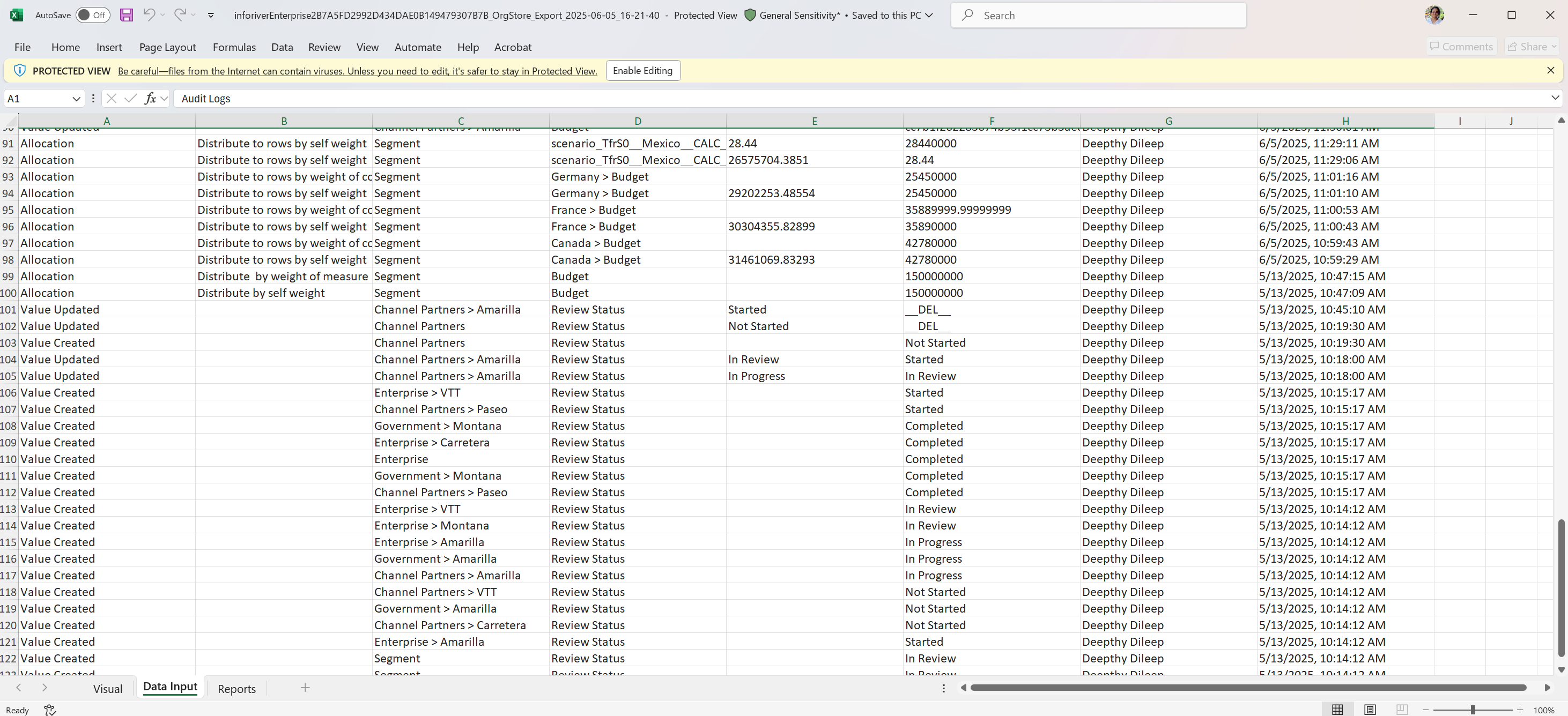
**Data input:** Captures updates made to data input fields, like value updates and allocations.

* Action type: The type of change, such as value updates and allocations, etc.
* Activity: Details such as which measure was used for distribution or the trend applied.
* Row name: Impacted row dimension category
* Column name: Impacted measure or column name
* Previous value: The earlier value before updation
* Current value: The latest updated value
* User: User who made the change
* Timestamp: Time of modification

<figure><img src="https://content.gitbook.com/content/sB9HAei8v4FfKkH9M4gw/blobs/JrZM1t4zFRQxj5PQ4ERy/image.png" alt=""><figcaption><p>Data input tab</p></figcaption></figure>

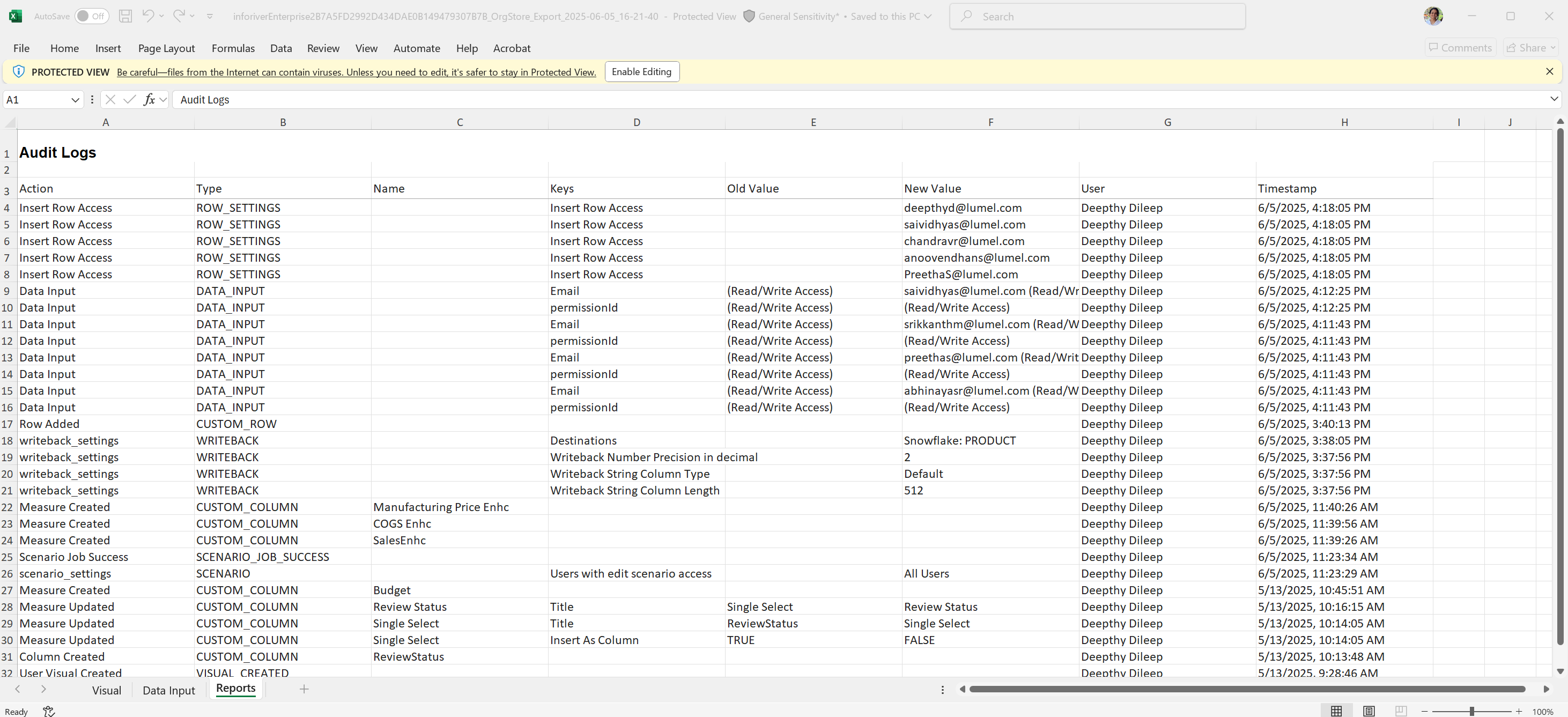
**Reports:** Captures changes such as the creation of measures or scenarios within Inforiver. It also captures changes to read/write access settings.

* Action: The type of change, such as measure, column, or scenario creation, or changing permissions.
* Type: Can be CUSTOM\_COLUMN/SCENARIO/ROW\_SETTINGS, etc
* Name: The name of the measure created in the visual
* Old value: Previous measure label or&#x20;
* New Value: Updated label&#x20;
* User: User who made the change
* Timestamp: Time of modification

<figure><img src="https://content.gitbook.com/content/sB9HAei8v4FfKkH9M4gw/blobs/ODupDY3JdkUiyO1UnvbR/image.png" alt=""><figcaption><p>Reports tab</p></figcaption></figure>