> For the complete documentation index, see [llms.txt](https://docs.inforiver.com/llms.txt). Markdown versions of documentation pages are available by appending `.md` to page URLs; this page is available as [Markdown](https://docs.inforiver.com/premium-table/display-settings/on-load-scripting.md).
# On-load scripting
Inforiver’s on-load scripting feature enables you to list a set of actions to be performed on loading the visual. You can display messages, set the layout, hide columns, or apply filters as the visual is loaded. The scripts will be executed when you open the report, switch to the tab containing the visual, or refresh the visual.
Inforiver offers an array of built-in functions that you can use to set up scripts effortlessly. [Learn more about scripting functions.](/premium-table/formula-syntax/scripting-functions.md)
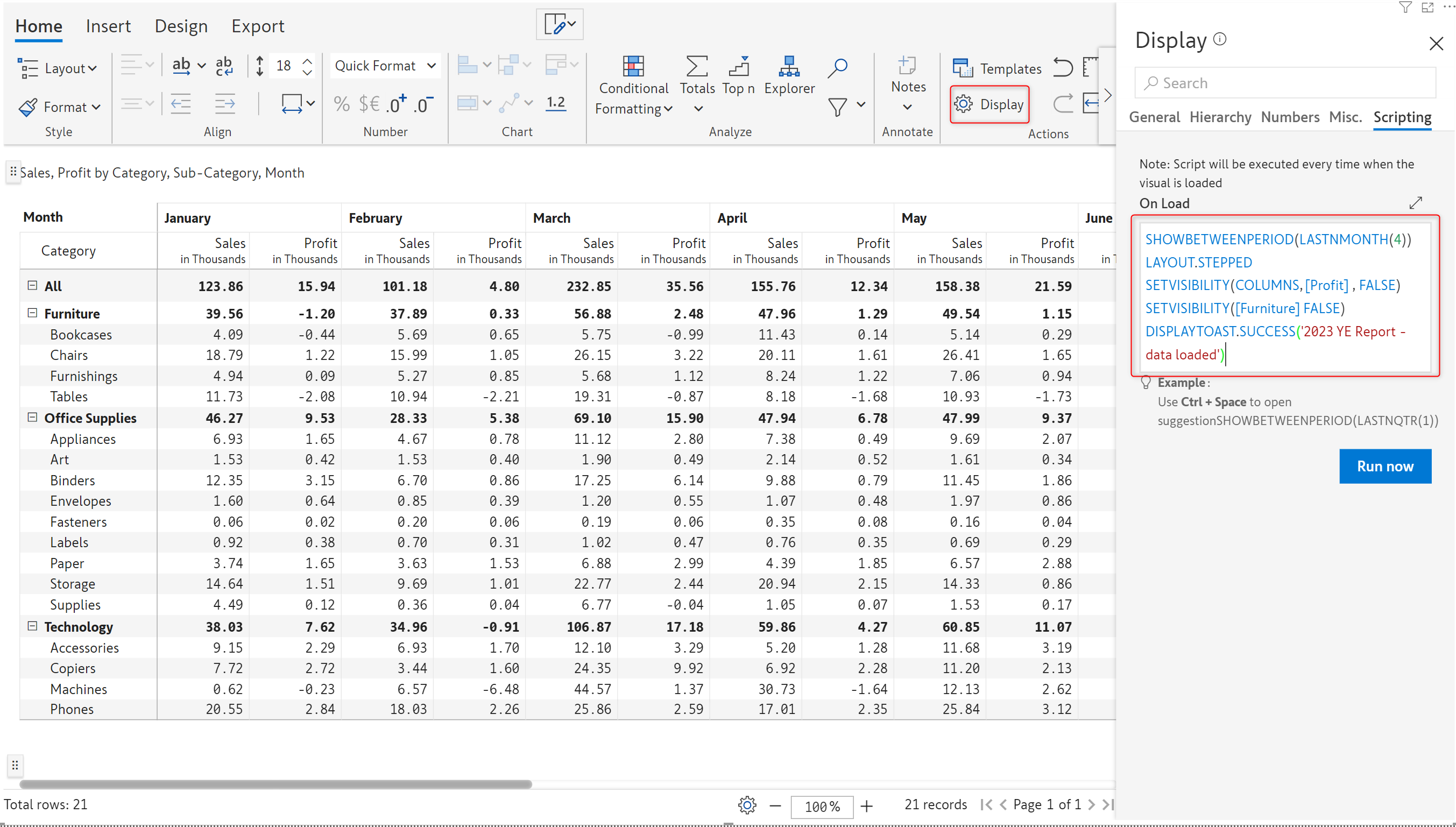
On load scripts
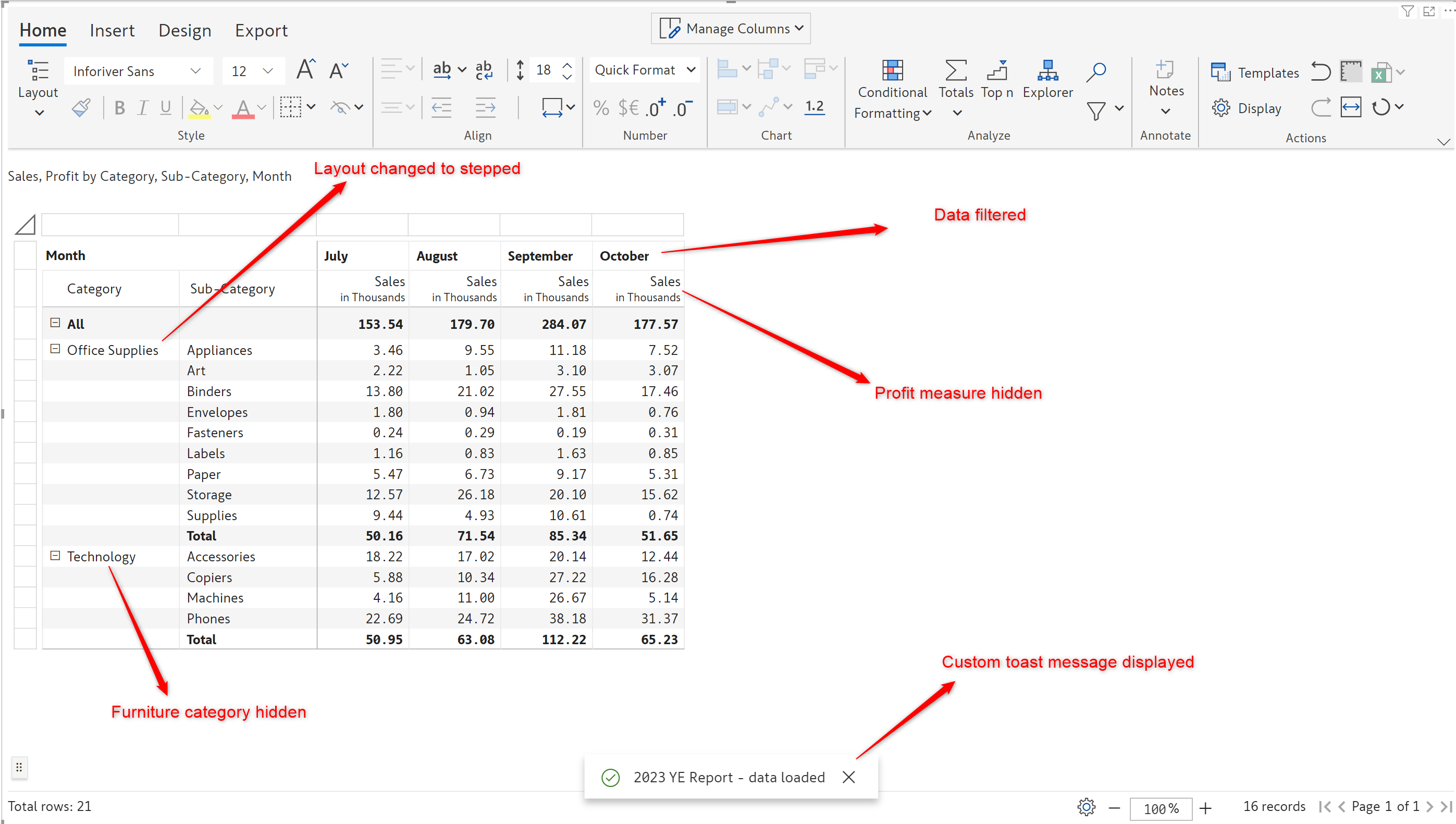
Notice how all the scripts have been executed when the visual is loaded.
{% hint style="info" %}
To see the scripts in action, click the Run now button
{% endhint %}
Executing on-load scripts
Let's look at some applications of on-load scripts.
#### 1. Displaying messages
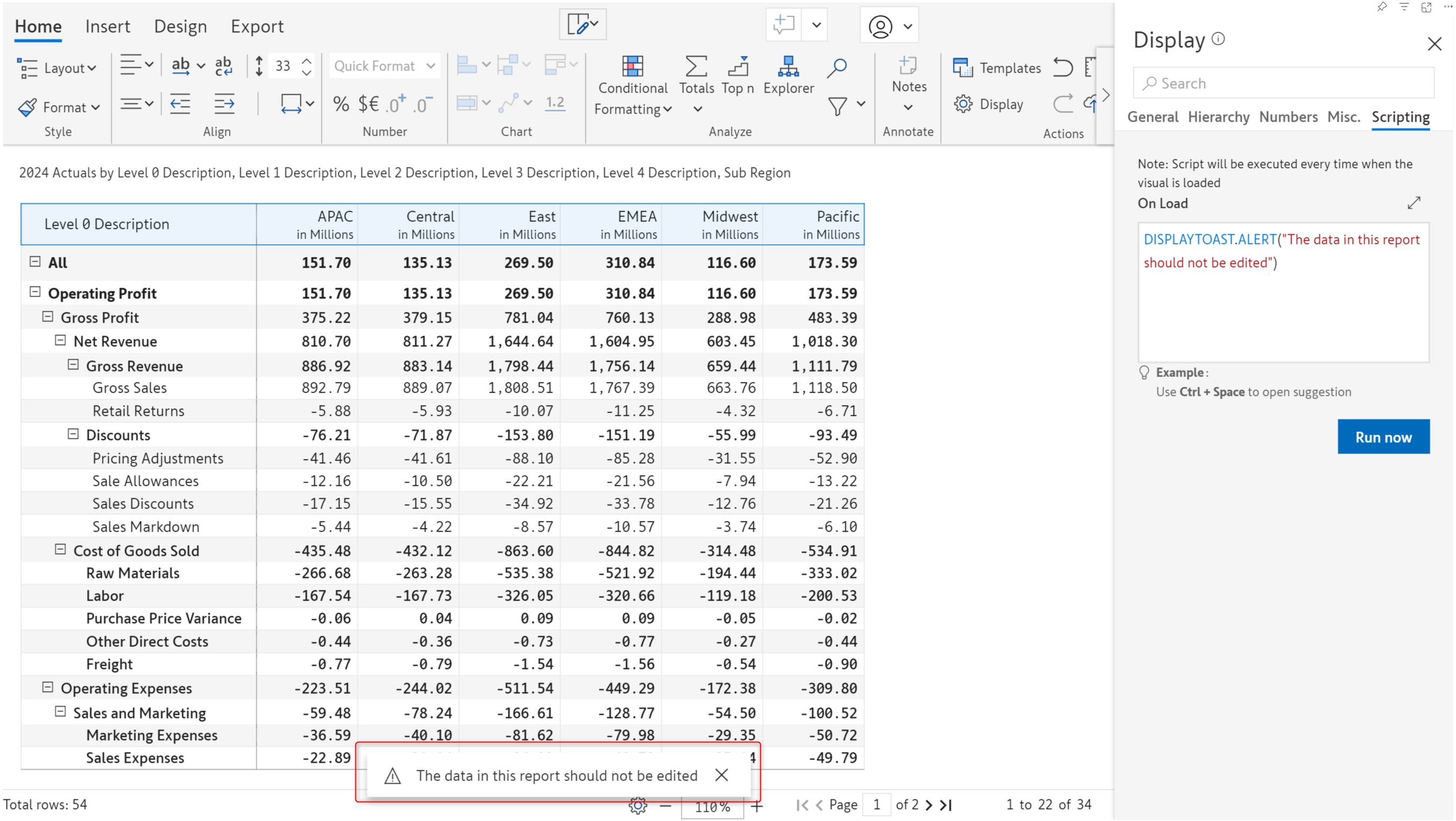
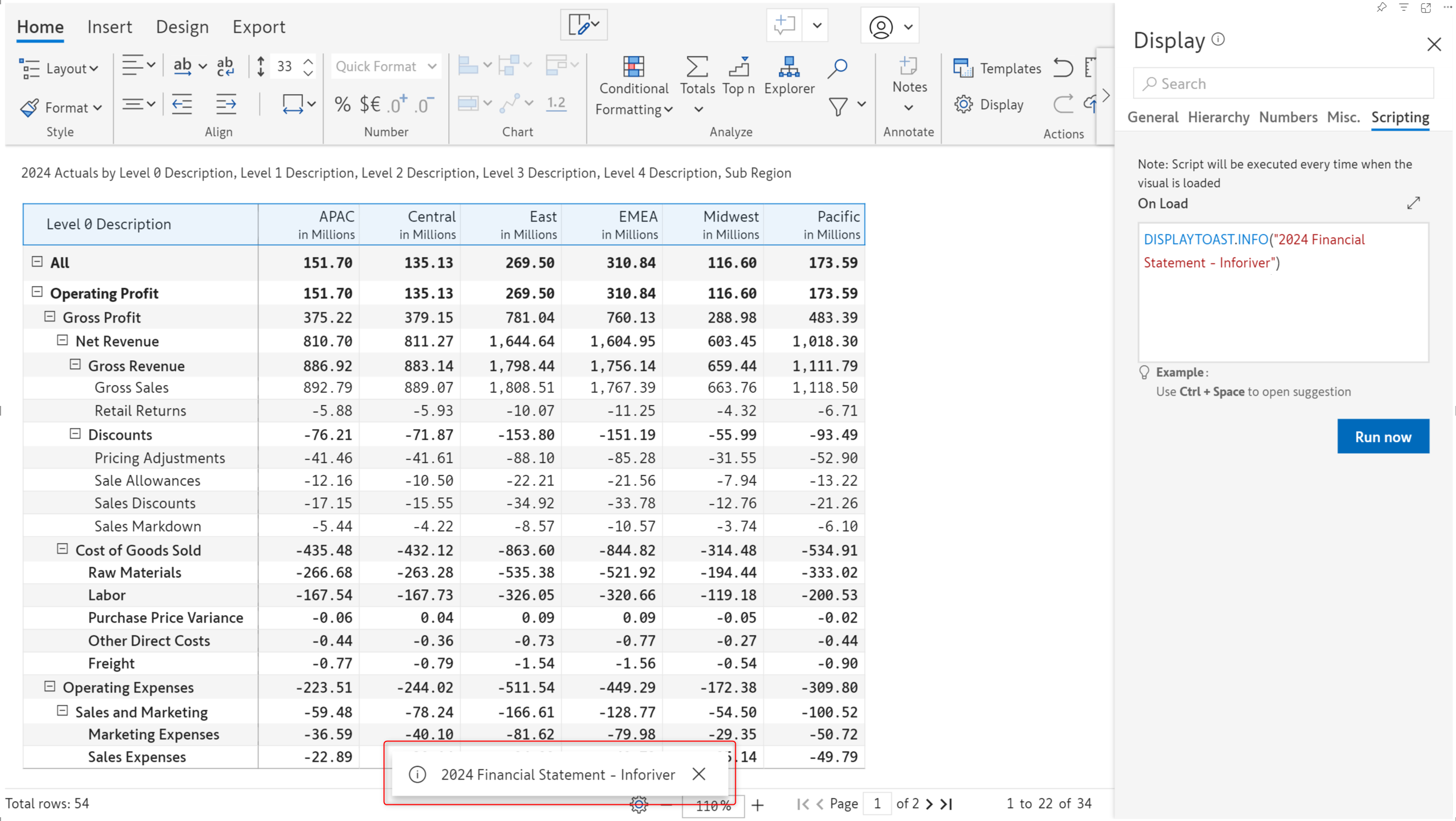
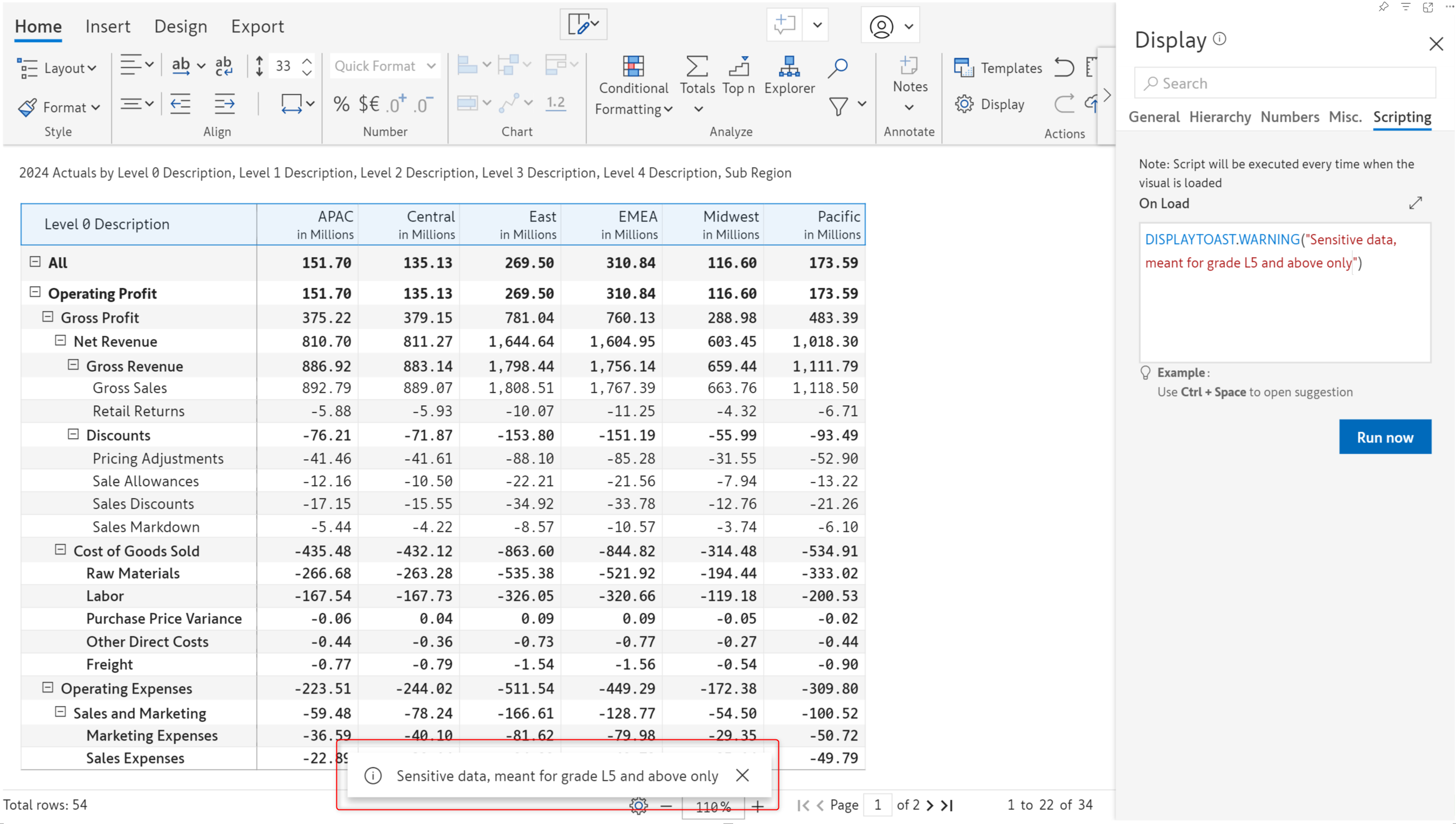
You can display custom text as a toast message notification. The supported types include alerts, information, warnings, and success messages among others. [Learn more about the DISPLAYTOAST function.](/premium-table/formula-syntax/scripting-functions/displaytoast.md)
Alert message
Info message
Warning message
#### 2. Setting the layout
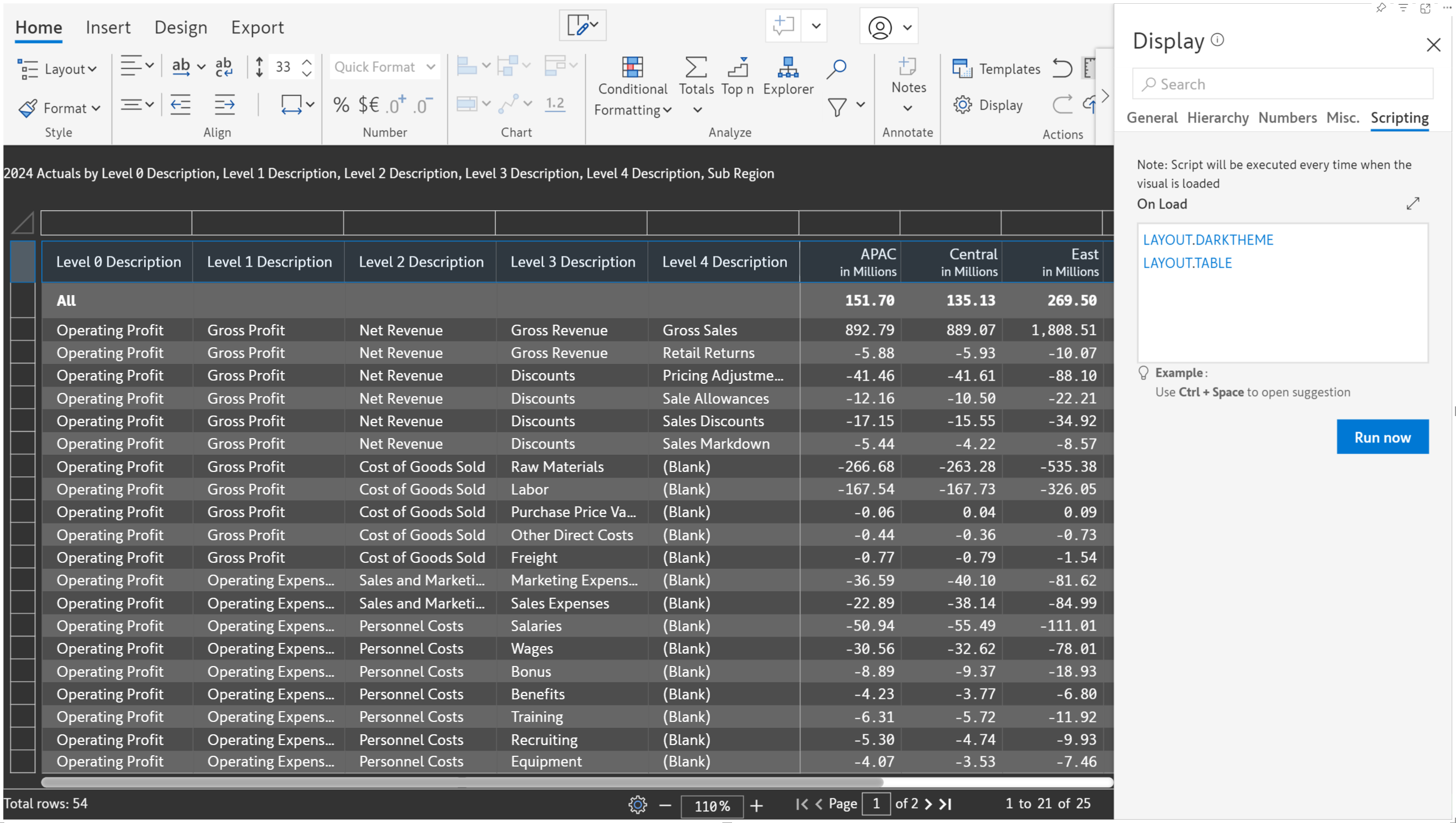
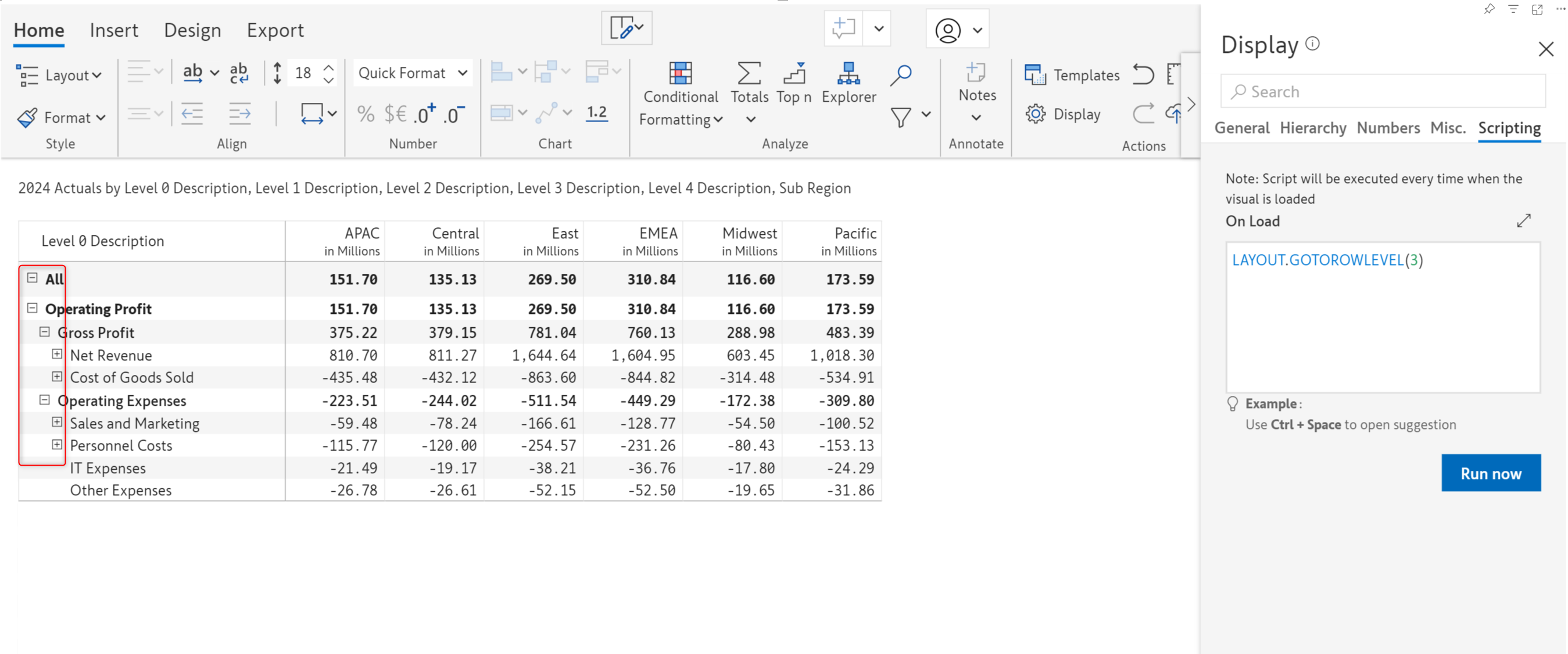
You can set a particular theme or expand hierarchical data to a specific level. [Learn more about the LAYOUT function](/premium-table/formula-syntax/scripting-functions/layout.md).
Setting the theme and layout
Navigating to a particular hierarchy level
#### 3. Filtering periodic data
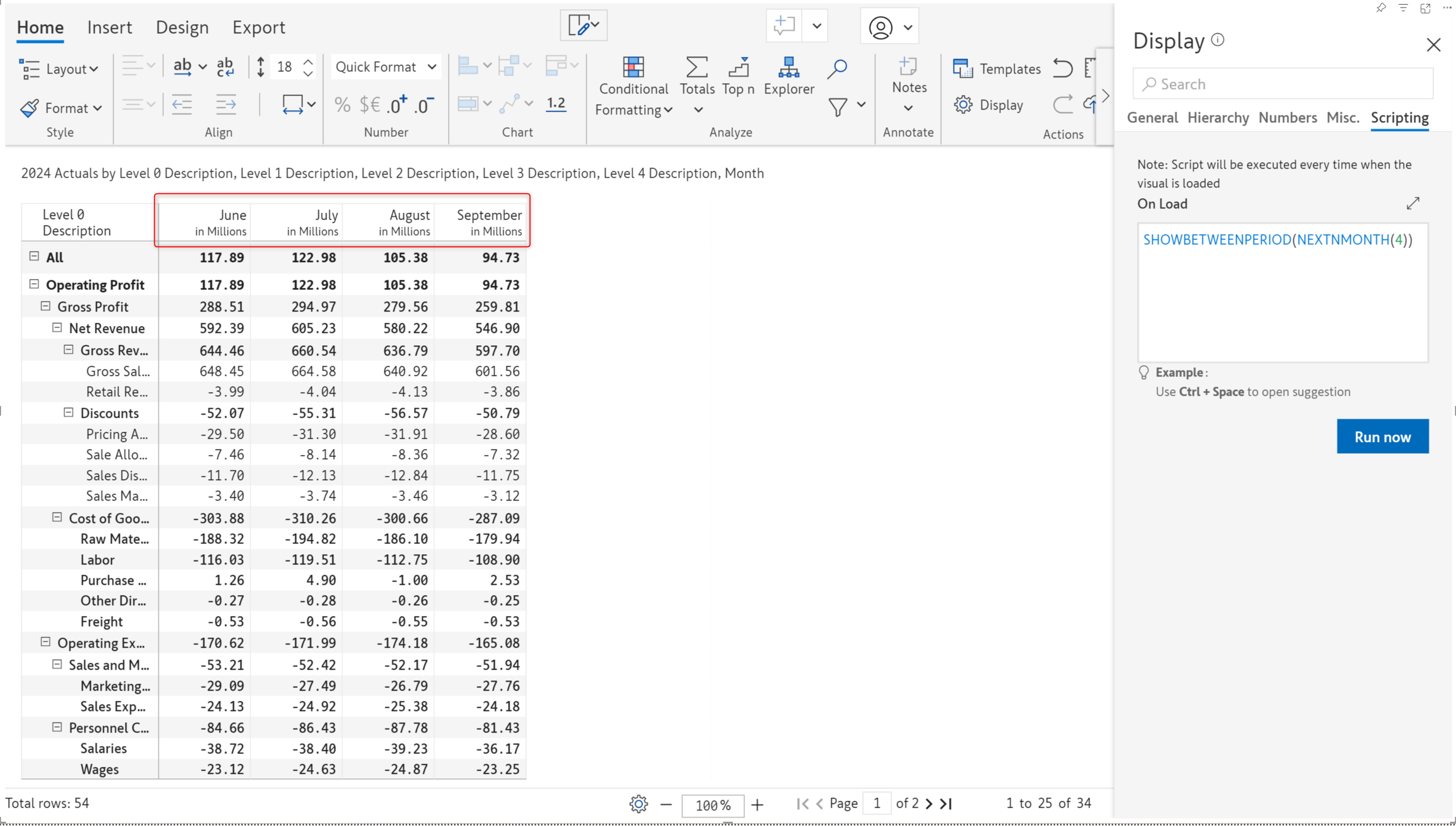
You can filter the data to show only a specific time period, for instance, the last 4 months or the last 2 years. [Learn more about filtering time series data](/premium-table/formula-syntax/scripting-functions/showbetweenperiod.md).
Displaying next 4 months when current month is May
---
# Agent Instructions
This documentation is published with GitBook. GitBook is the documentation platform designed so that both humans and AI agents can read, navigate, and reason over technical content effectively. Learn more at gitbook.com.
## Querying This Documentation
If you need additional information that is not directly available in this page, you can query the documentation dynamically by asking a question.
Perform an HTTP GET request on the current page URL with the `ask` query parameter, and the optional `goal` query parameter:
```
GET https://docs.inforiver.com/premium-table/display-settings/on-load-scripting.md?ask=&goal=
```
`ask` is the immediate question: it should be specific, self-contained, and written in natural language.
`goal` is optional and describes the broader end goal you are ultimately trying to accomplish on behalf of the user. GitBook uses it to tailor the answer towards what is most useful for that goal.
The response will contain a direct answer to the question and relevant excerpts and sources from the documentation.
Use this mechanism when the answer is not explicitly present in the current page, you need clarification or additional context, or you want to retrieve related documentation sections.