> For the complete documentation index, see [llms.txt](https://docs.inforiver.com/llms.txt). Markdown versions of documentation pages are available by appending `.md` to page URLs; this page is available as [Markdown](https://docs.inforiver.com/premium-table/introduction-to-inforiver-table/get-started/licensing/license-renewal.md). Agents can also search and read this documentation through its [MCP server](https://docs.inforiver.com/~gitbook/mcp).
# License renewal
This section is intended for Premium Table customers who use a licensed, Microsoft-certified version of the visual from AppSource.
The Inforiver support team will share a license key file in JSON format with you. The license needs to be applied to every Inforiver Premium Table visual and has a validity of 1 year. At the end of the validity period, follow the steps outlined to apply the renewed license for all Premium Table visuals in your Power BI reports (pbix files).
### 1. Power BI reports which do not have a theme applied
**STEP 1:** Navigate to the View ribbon in the Power BI toolbar > click the **Browse for themes** option from the dropdown menu.
**STEP 2:** Select the license theme file shared by the Inforiver support team.
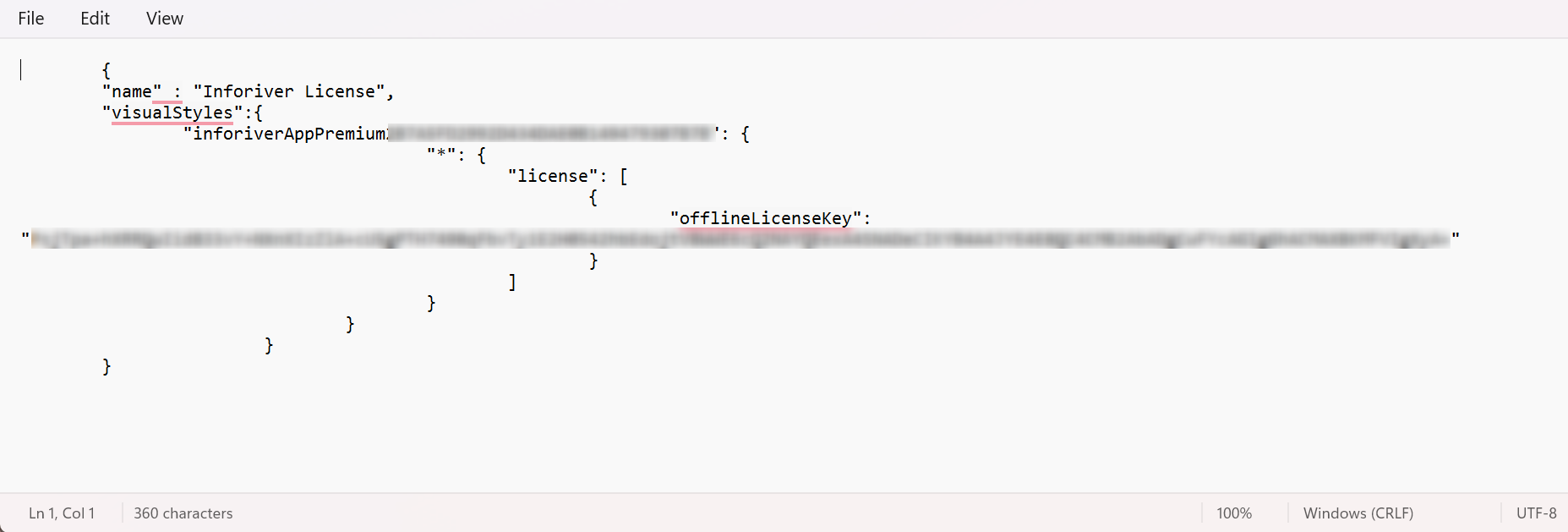
Sample license theme file:
Sample license key file
**STEP 3:** You'll get a pop-up notification once the theme file is added:
After importing the theme file, the license key will automatically be updated in all the Inforiver Premium Table visuals in that particular pbix file. The license will also be applied to any new Premium Table visuals added to the Power BI report. You can verify if the license key has been updated from the Format Visual pane.
### 2. Power BI reports which already have a theme applied
**STEP 1:** If your report already has a Power BI theme applied, you will need to export the theme by clicking the **Save current theme** option from the ribbon menu.
**STEP 2:** Open the saved Power BI JSON theme file. Append the contents of the license key shared by the Inforiver team to the theme file.
Follow the steps listed in the [previous section](#id-1.-power-bi-reports-which-do-not-have-a-theme-applied) to import the theme file and apply the license key.
---
# Agent Instructions
This documentation is published with GitBook. GitBook is the documentation platform designed so that both humans and AI agents can read, navigate, and reason over technical content effectively. Learn more at gitbook.com.
## Querying This Documentation
If you need additional information that is not directly available in this page, you can query the documentation by asking a question.
Perform an HTTP GET request on the following URL with the `ask` and `goal` query parameters:
```
GET https://docs.inforiver.com/premium-table/introduction-to-inforiver-table/get-started/licensing/license-renewal.md?ask=&goal=
```
`ask` is the immediate question: it should be specific, self-contained, and written in natural language.
`goal` is what the user is ultimately trying to achieve, the reason they need the answer. Sharing it helps GitBook give you a better, more relevant answer. A goal is most helpful when it describes the outcome the user wants rather than restating the question. For example, with `ask=how do I create an API token`, a goal like `automate deployments from our CI pipeline` lets GitBook tailor the answer to that use case.
The response will contain a direct answer to the question and relevant excerpts and sources from the documentation.
Use this mechanism when the answer is not explicitly present in the current page, you need clarification or additional context, or you want to retrieve related documentation sections.