# 10. Variables

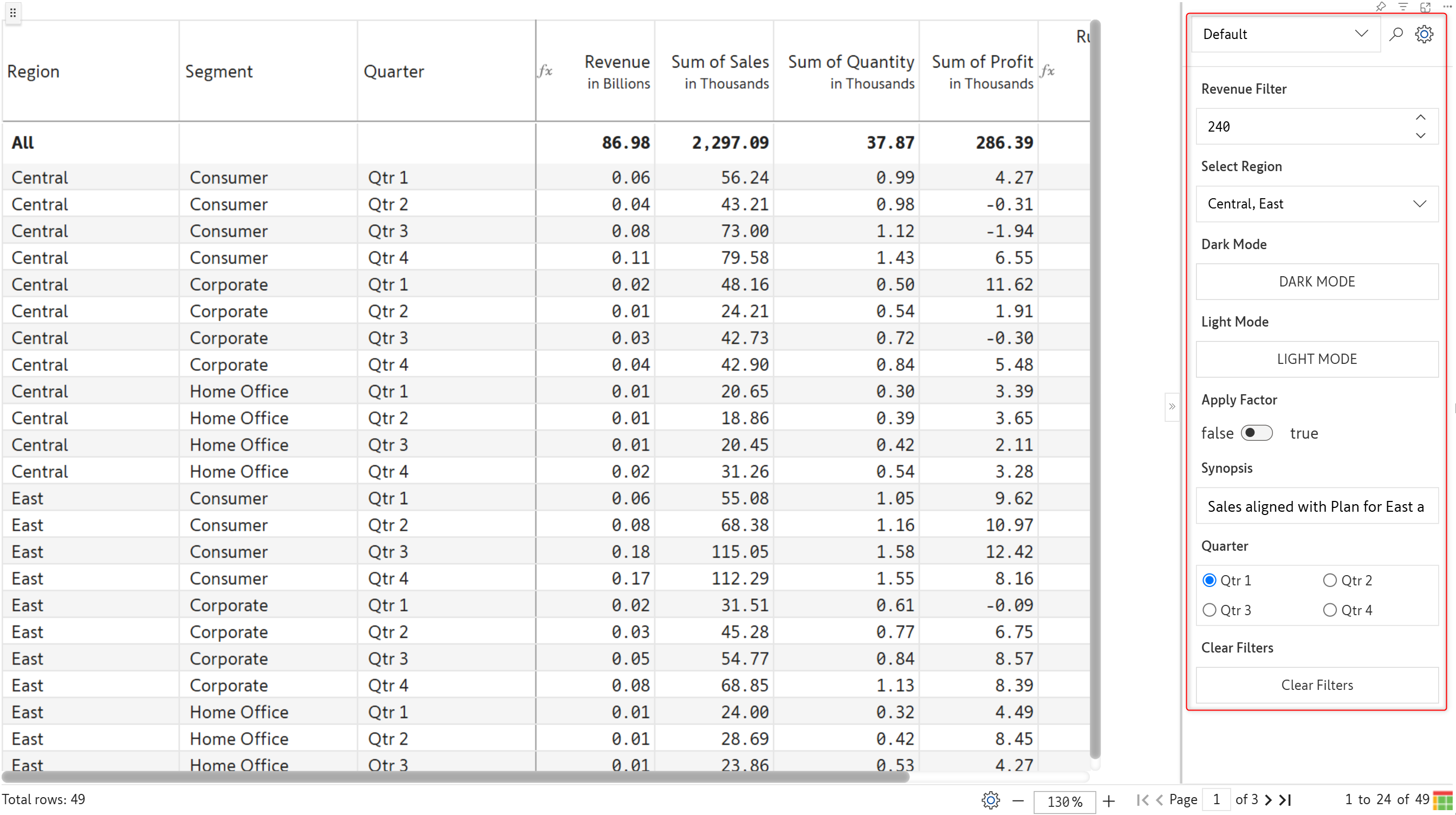
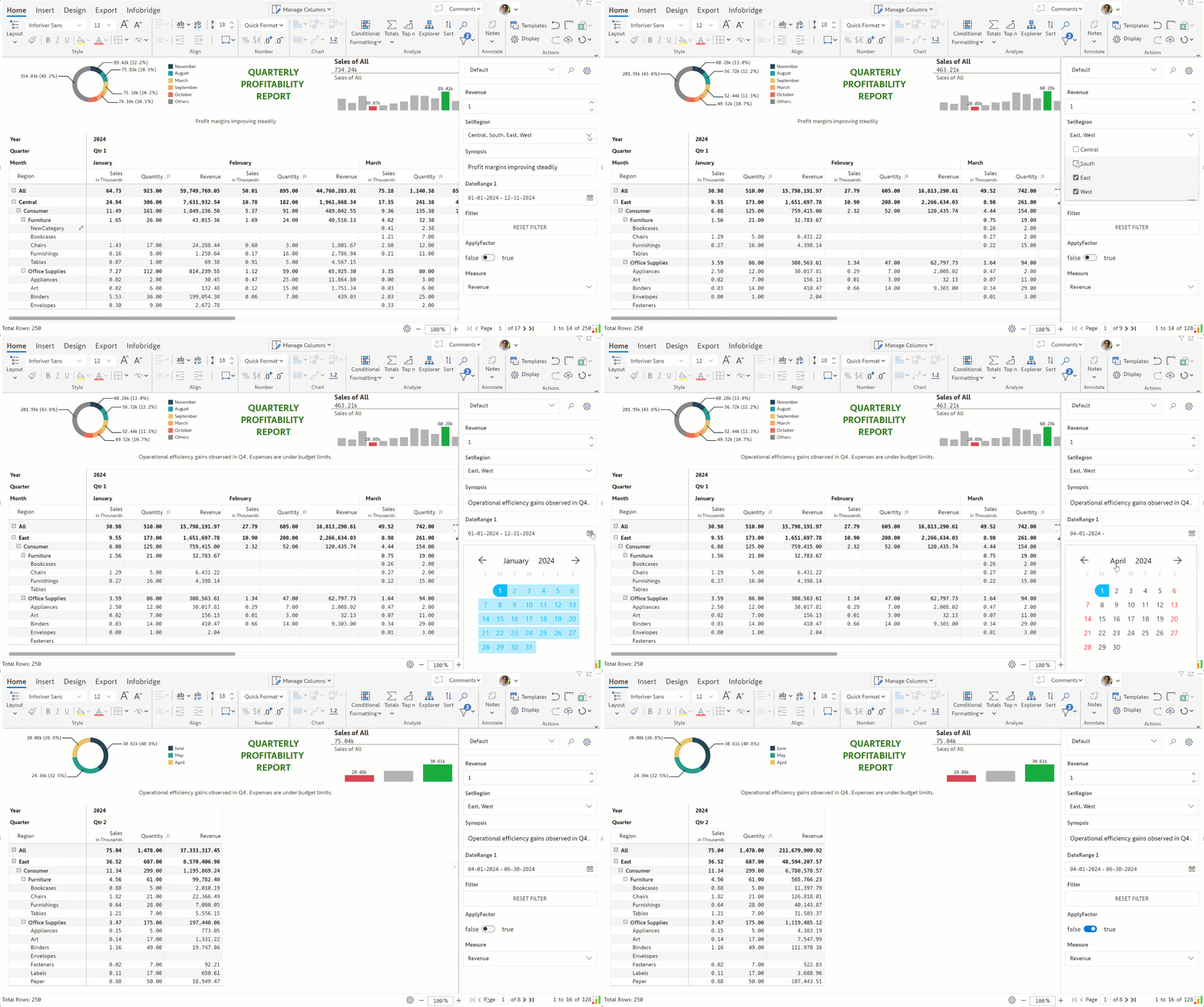
Analysts are often faced with the challenging task of navigating large datasets that span multiple dimension categories and time frames - this is where Inforiver variables can save the day. Variables offer a range of options to efficiently traverse your datasets, apply filters, and even run ad-hoc scripts. Variables are graphical controls like buttons, checkboxes, or steppers that can accept user input to perform actions like setting a filter or changing the layout.&#x20;

See how variables can make report navigation and editing easier without creating Inforiver filters or manually editing the header or visual measures.

<figure><img src="/files/Wfxg9UTY28yJFMyHhFlJ" alt=""><figcaption><p>Variable controls in Inforiver</p></figcaption></figure>

Let's take a deep dive into Inforiver variables.

## 1. Creating variables

**STEP 1:** You can create variable controls in your reports by clicking the **Variables** button in the **Insert** ribbon.

<figure><img src="/files/CakEZP0lEgq9UOhOQSkY" alt=""><figcaption><p>Creating variables</p></figcaption></figure>

**STEP 2:** Click the **Add Variable** button in the **Define Variables** window. You'll need to specify the&#x20;

* **Label**: Set a name to identify the variable.
* **Type**: Choose the type of variable: numeric, options, text, button, boolean, date range, etc.
* **Value**: Set a default value for the variable.

<figure><img src="/files/8j4ApjaPBhNT2O8CvgZK" alt=""><figcaption><p>Adding variables</p></figcaption></figure>

**STEP 3:** Click the edit<img src="/files/ay6xbRgD3okCurZA8IMR" alt="" data-size="line"> icon to customize the variable. We'll cover the various options in detail in subsequent sections.
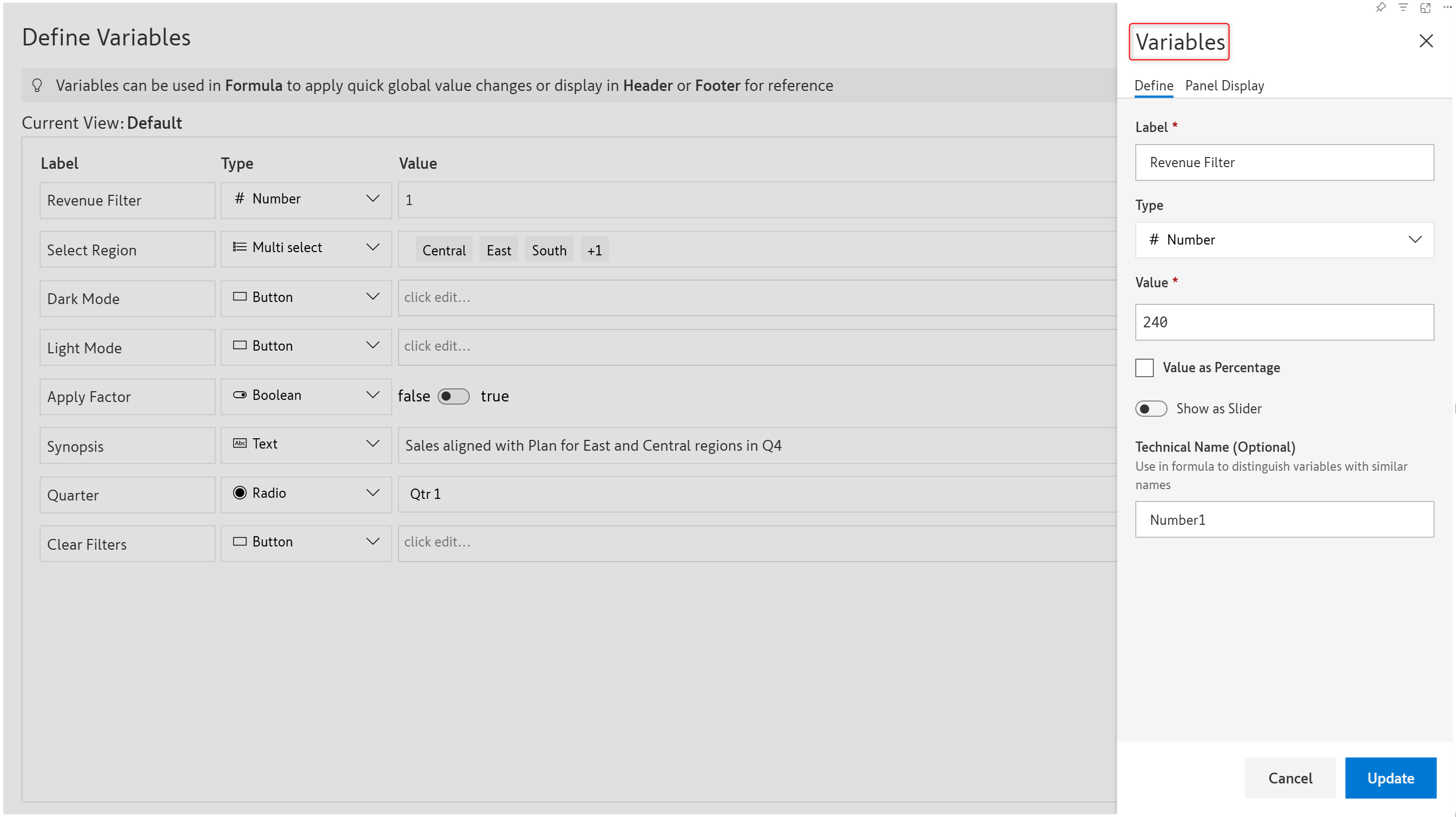
<figure><img src="/files/5fc1PSEBAzABl54YCDpn" alt=""><figcaption><p>Variable properties</p></figcaption></figure>

**STEP 4:** You can display variables in a side panel. Check the **Include in Variables Panel** option if you want to expose the variable in the Variables panel. You can also provide a description of the variable's function.

<figure><img src="/files/INuFKNrhzL074uyni5Iy" alt=""><figcaption><p>Display the variable in the side pane</p></figcaption></figure>

After you create variables, the variables side pane is displayed. Users can input values for calculations, apply filters, and trigger scripts with variable controls from this side pane.

<figure><img src="/files/CLIwehDtmeGSm8nsRdUw" alt=""><figcaption><p>Use variables from the side pane</p></figcaption></figure>

## 2. Referencing variables in functions

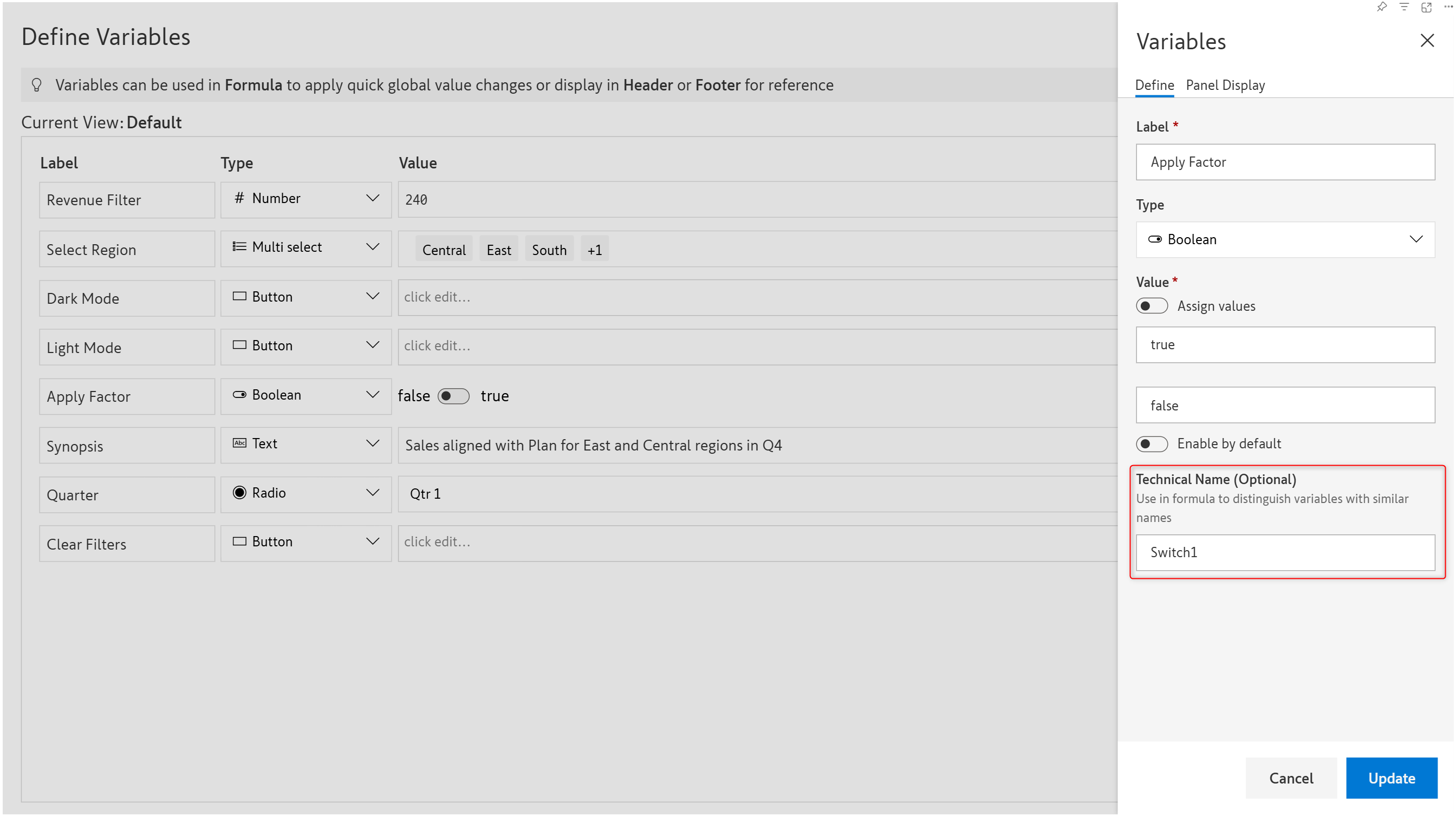
You can create a calculated measure that references the value set in a variable. Each variable has a **Technical Name** that can be referenced in formulas.

<figure><img src="/files/P8eC582hlVbCe3oapHD0" alt=""><figcaption><p>Technical name of variable</p></figcaption></figure>

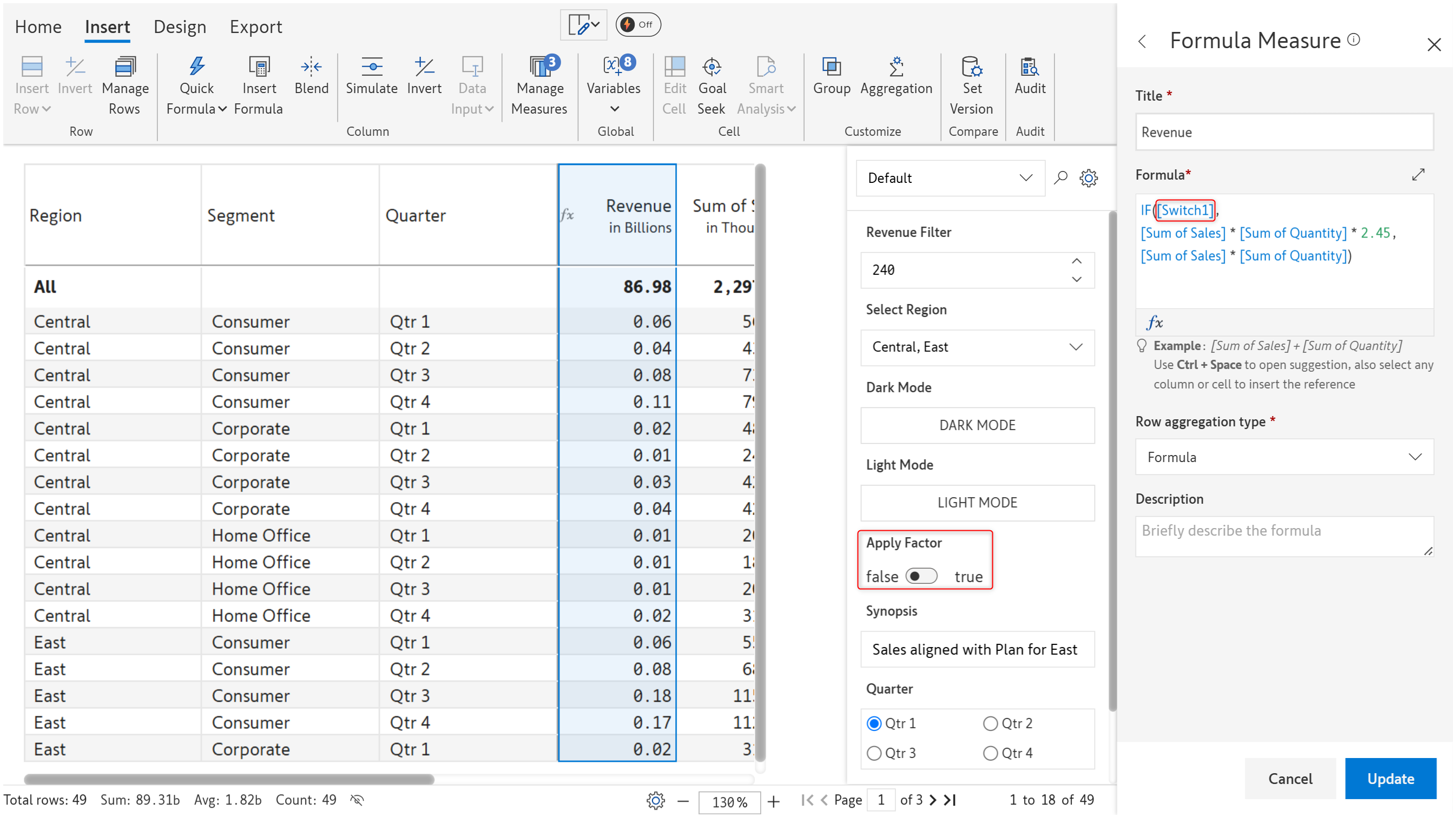
In this example, the calculated measure, Revenue, will change based on the boolean variable.

<figure><img src="/files/kTMz3DOUCy3zthr9Ctvp" alt=""><figcaption><p>Using variables in calculations</p></figcaption></figure>


---

# Agent Instructions: Querying This Documentation

If you need additional information that is not directly available in this page, you can query the documentation dynamically by asking a question.

Perform an HTTP GET request on the current page URL with the `ask` query parameter:

```
GET https://docs.inforiver.com/premium-table/working-with-premium-table/10.-variables.md?ask=<question>
```

The question should be specific, self-contained, and written in natural language.
The response will contain a direct answer to the question and relevant excerpts and sources from the documentation.

Use this mechanism when the answer is not explicitly present in the current page, you need clarification or additional context, or you want to retrieve related documentation sections.