# Number

Create number variables when you need to pass a numeric or percentage value to a script or a filter.

### 1. Configuration <a href="#id-1.-configuration" id="id-1.-configuration"></a>

This section outlines configurations specific to number variables.

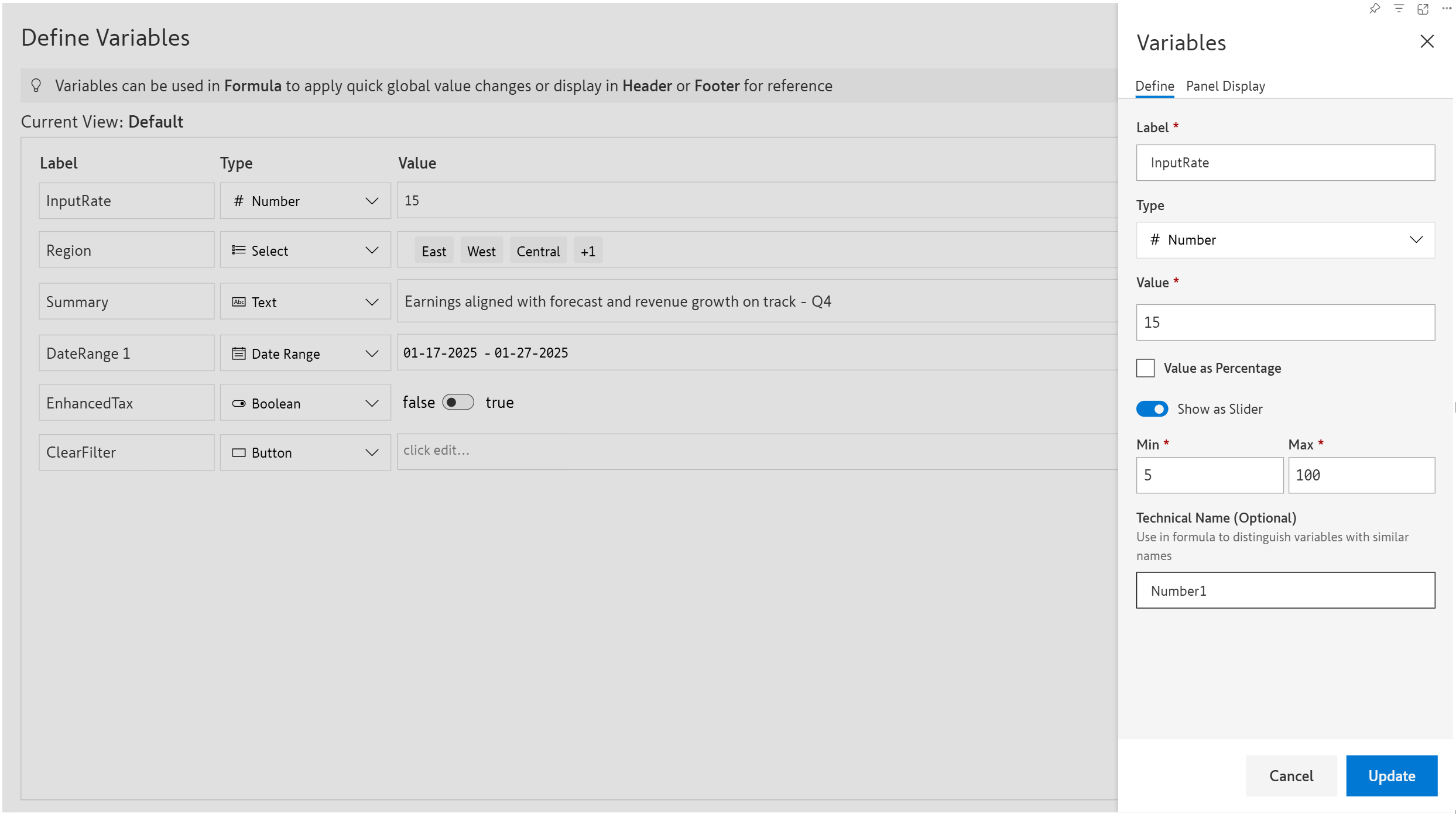
**1.1. Value:** Assign a default value for the number variable.&#x20;

**1.2. Value as percentage:** Enable this option if the variable will be used in calculations involving percentages E.g., calculate a percentage of profits.

**1.3. Show as slider:** A numeric slider will be displayed instead of a textbox.

**1.4. Min and Max:** Set the minimum and maximum values that can be set in the slider - the user will be able to select values that fall within the specified range.

<figure><img src="https://content.gitbook.com/content/sB9HAei8v4FfKkH9M4gw/blobs/ltvYYm8axO5MIkijqUpM/image.png" alt=""><figcaption><p>Number variable configurations</p></figcaption></figure>

### 2. Examples <a href="#id-2.-examples" id="id-2.-examples"></a>

#### **2.1. Pass values dynamically to formulae**

**STEP 1:** Create a numeric variable with the configuration shown below.

<figure><img src="https://2428652681-files.gitbook.io/~/files/v0/b/gitbook-x-prod.appspot.com/o/spaces%2FsB9HAei8v4FfKkH9M4gw%2Fuploads%2FA5zQzoeHzXGavcdlY8CC%2Fimage.png?alt=media&#x26;token=559d35e2-c121-45c8-b2cc-a3471cb09ecd" alt=""><figcaption><p>Create a numeric variable</p></figcaption></figure>

**STEP 2:** Create a calculated measure and reference the technical name of the slider variable in the formula.

<figure><img src="https://2428652681-files.gitbook.io/~/files/v0/b/gitbook-x-prod.appspot.com/o/spaces%2FsB9HAei8v4FfKkH9M4gw%2Fuploads%2F8b8eEwEqRa8XCNeKIxbO%2Fimage.png?alt=media&#x26;token=5c6640a8-3682-4c0b-9b60-a5a7d2c77e1a" alt=""><figcaption><p>Create calculated measure</p></figcaption></figure>

**STEP 3:** Calibrate the slider to view the interest paid at varying interest rates.

<figure><img src="https://2428652681-files.gitbook.io/~/files/v0/b/gitbook-x-prod.appspot.com/o/spaces%2FsB9HAei8v4FfKkH9M4gw%2Fuploads%2FjyCJdbDKyQ6EY6XPIEdj%2FUntitled%20Project.gif?alt=media&#x26;token=5c553922-095a-40a9-93c4-26d7a9c4fdf3" alt=""><figcaption><p>Calculated measure changes based on the variable value</p></figcaption></figure>

#### **2.2. Dynamically filter data**&#x20;

**STEP 1:** Create a numeric variable with the configuration shown below.

<figure><img src="https://2428652681-files.gitbook.io/~/files/v0/b/gitbook-x-prod.appspot.com/o/spaces%2FsB9HAei8v4FfKkH9M4gw%2Fuploads%2FgWub3zRkHVxH8DfhqTUx%2Fimage.png?alt=media&#x26;token=b46a11b3-222c-46cd-8900-a76726ef9308" alt=""><figcaption><p>Create a numberic variable</p></figcaption></figure>

**STEP 2:** Create an Inforiver filter that references the technical name of the numeric variable.

<figure><img src="https://2428652681-files.gitbook.io/~/files/v0/b/gitbook-x-prod.appspot.com/o/spaces%2FsB9HAei8v4FfKkH9M4gw%2Fuploads%2FAMbRbf2PSOkM3ec4bdkz%2Fimage.png?alt=media&#x26;token=91ae2f75-0832-4c2c-8708-38a7cab55af0" alt=""><figcaption><p>Create a filter that references the variable</p></figcaption></figure>

**STEP 3:** Enter values in the variable and notice how the data gets filtered on the fly without having to update the Inforiver filter each time.

<figure><img src="https://2428652681-files.gitbook.io/~/files/v0/b/gitbook-x-prod.appspot.com/o/spaces%2FsB9HAei8v4FfKkH9M4gw%2Fuploads%2FM7WFhWydADT4sOmreQR0%2FUntitled%20Project.gif?alt=media&#x26;token=43253769-3137-4371-af5c-e85cebc4d371" alt=""><figcaption><p>Using numeric filters with variables</p></figcaption></figure>
