# Number formatting

Premium Table for Power BI comes pre-equipped with intelligent number formatting and automatic scaling detection, ensuring your data is presented clearly and intuitively in tabular reports.

## 1. Number scaling

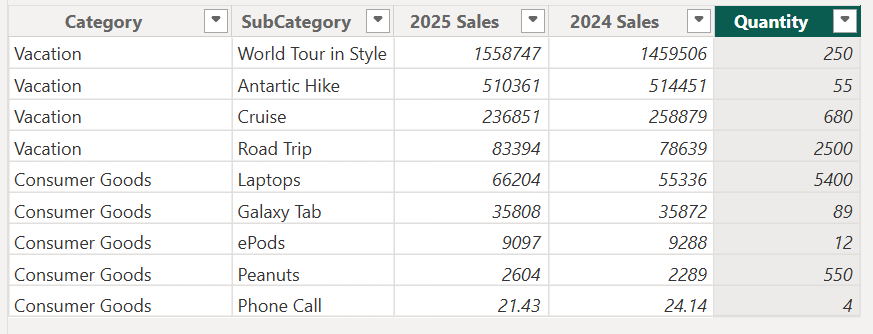
Let's take a sample dataset. You can immediately spot data of mixed granularity – with values in millions, thousands, and even just a few dollars worth.

<figure><img src="https://content.gitbook.com/content/sB9HAei8v4FfKkH9M4gw/blobs/iv5VkhCPpninKyqPhrw3/image.png" alt=""><figcaption><p>Sample dataset with mixed granularities</p></figcaption></figure>

Let's see how we can handle a dataset of varying granularities & formats using Inforiver Table.&#x20;

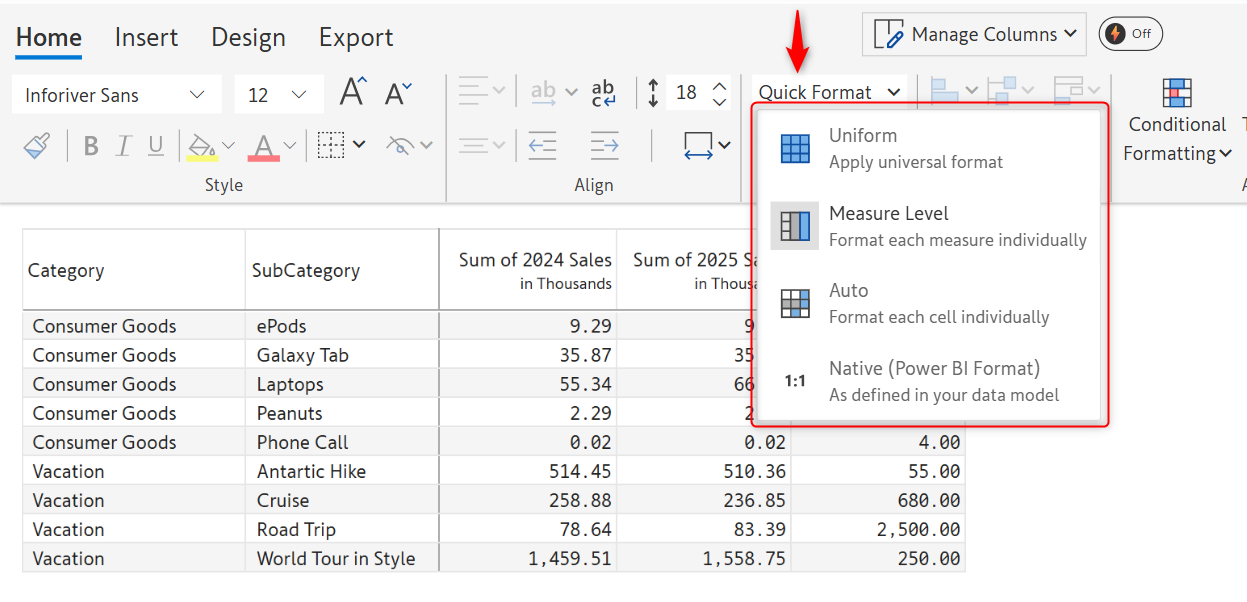
In the Home tab, click on the **Quick format** dropdown. There are several options; we'll explore each of them in detail.

<figure><img src="https://content.gitbook.com/content/sB9HAei8v4FfKkH9M4gw/blobs/djE18dIfyOdmhVtd1QW0/image.png" alt=""><figcaption></figcaption></figure>

### 1.1. Measure level scaling

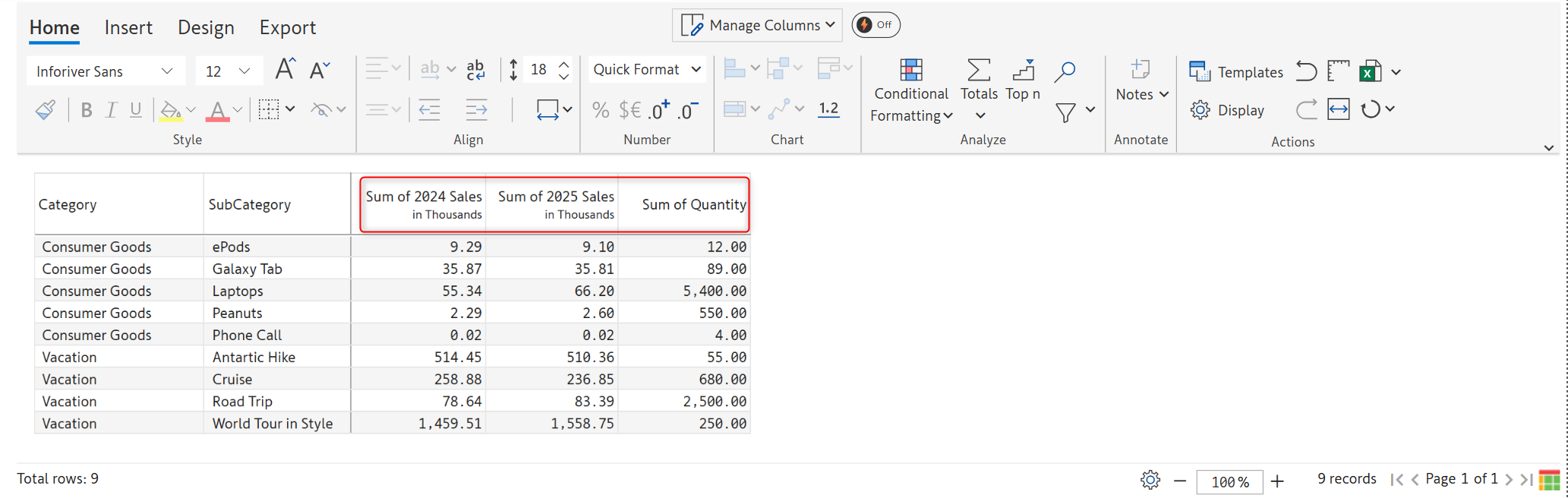
By default, when you assign this dataset to Premium Table, each measure is formatted using an individual scale. The scaling for each measure is shown in the column header. This is useful to show measures of varying granularities (e.g., Revenue & Quantity) in the same table.

<figure><img src="https://content.gitbook.com/content/sB9HAei8v4FfKkH9M4gw/blobs/nnBnykVZmwjki7xtK3Ep/image.png" alt=""><figcaption><p>Measure level scaling</p></figcaption></figure>

### 1.2. Uniform scaling

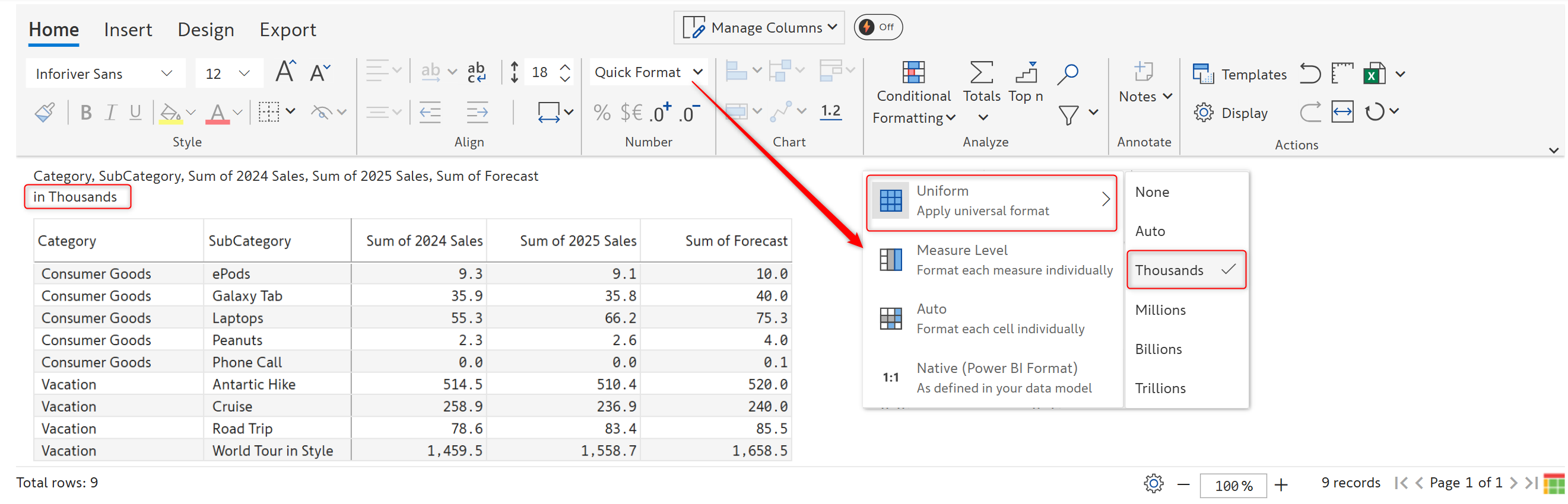
The '**Uniform**' option applies a single fixed scale to the entire table and moves the scaling unit display to the header. This is useful when all the measures are of comparable magnitude (e.g., Sales vs Forecast) in the same table.

<figure><img src="https://content.gitbook.com/content/sB9HAei8v4FfKkH9M4gw/blobs/DebfLVX3GpGM4zGRZf0W/image.png" alt=""><figcaption><p>Uniform scaling in thousands</p></figcaption></figure>

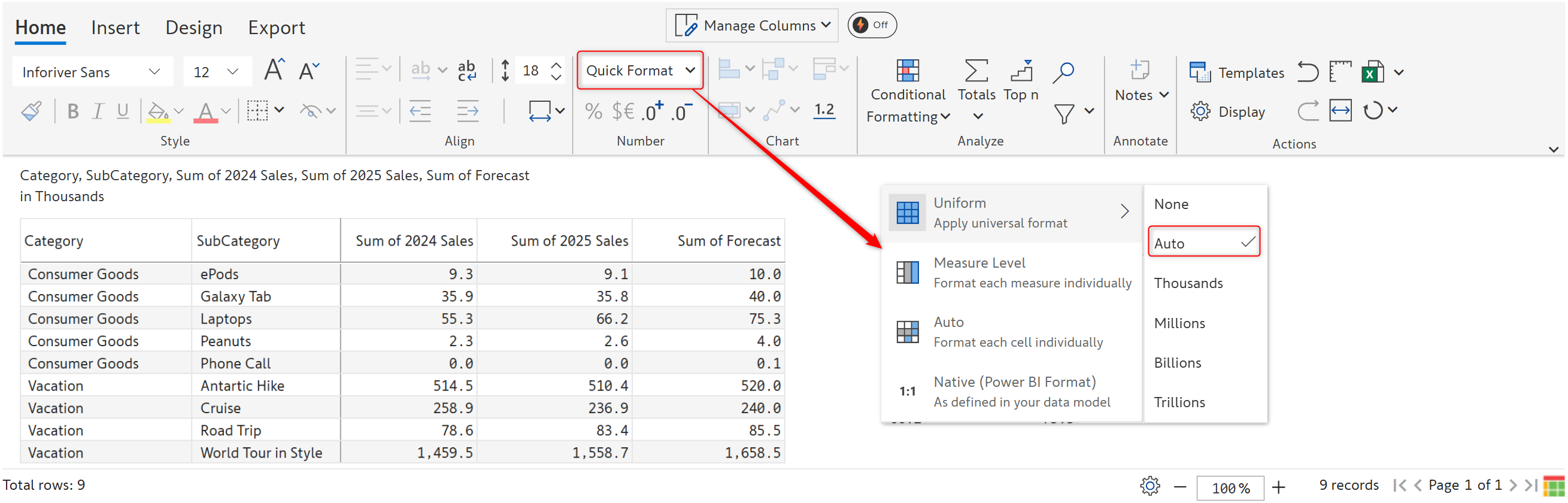
Premium Table automatically chooses the scaling based on the values. But you can change it if needed. When you expand the dropdown again, you can see more options. You can select millions, billions, etc., as needed.

<figure><img src="https://content.gitbook.com/content/sB9HAei8v4FfKkH9M4gw/blobs/E0fZ4OjA9fiAnaELPGvO/image.png" alt=""><figcaption><p>Uniform - Auto scaling</p></figcaption></figure>

### 1.3 Auto scaling

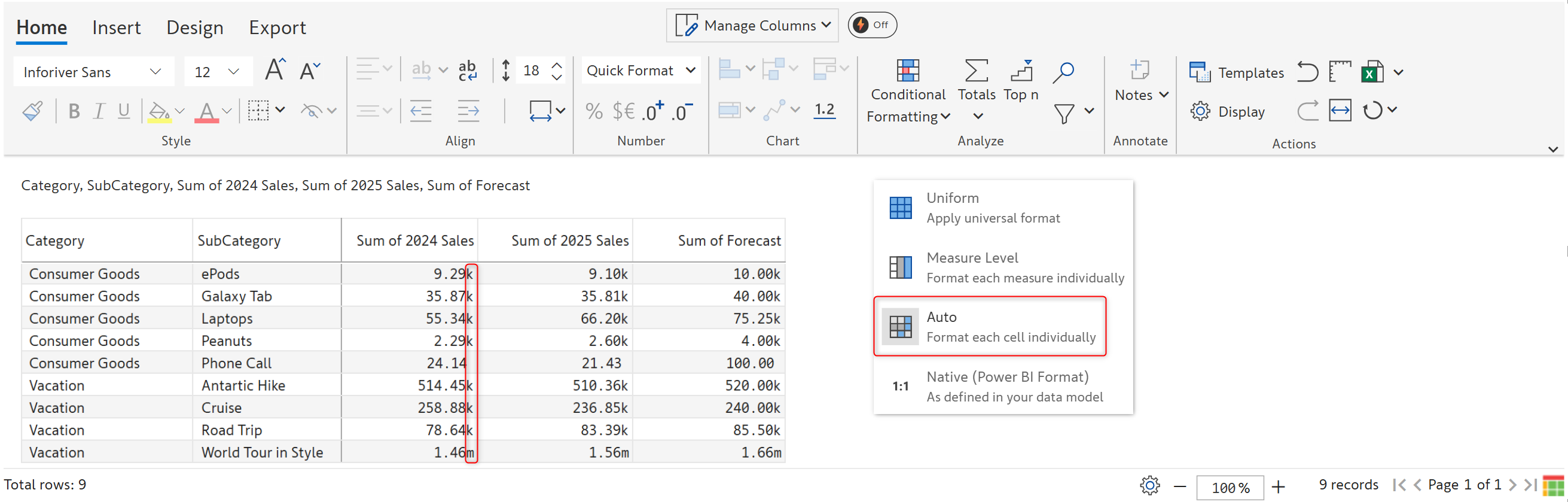
When using the '**Auto**' option, each cell is formatted individually. In the image below, you can see the suffixes - m and k to denote millions and thousands.

<figure><img src="https://content.gitbook.com/content/sB9HAei8v4FfKkH9M4gw/blobs/9VFX7WrwPampT6jtBQCD/image.png" alt=""><figcaption><p>Auto scaling</p></figcaption></figure>

### 1.4. Native scaling

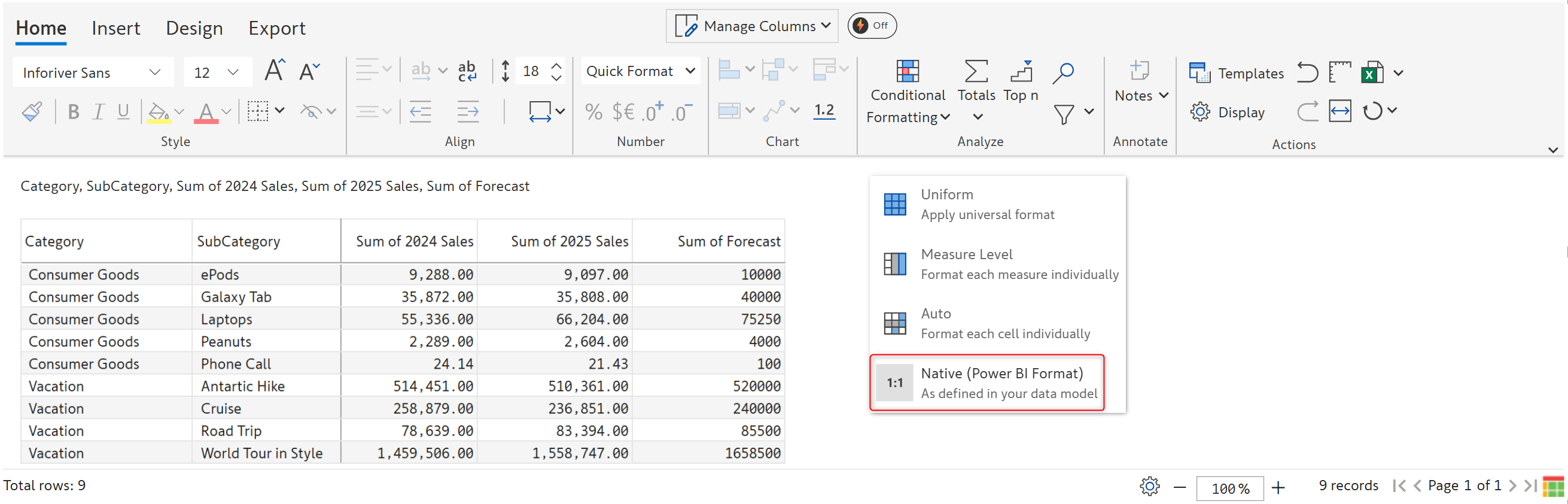
If you do not want any fancy formatting and need the numbers just as they are in the source data, select the ‘**Native**’ option.&#x20;

<figure><img src="https://content.gitbook.com/content/sB9HAei8v4FfKkH9M4gw/blobs/nj15z1w3NHREmc3z4CgC/image.png" alt=""><figcaption><p>Native scaling</p></figcaption></figure>

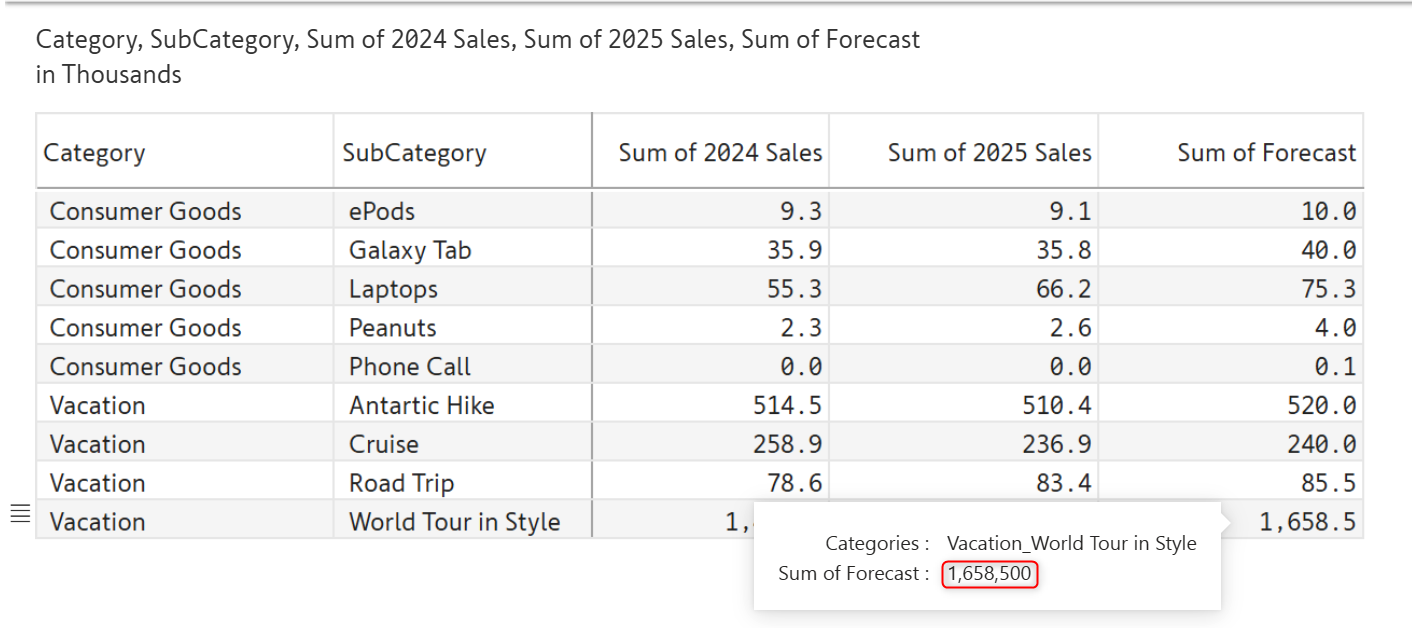
Premium Table also shows the unscaled values in the tooltip (available upon publishing to service). This helps you scale values without losing the ability to look up the unscaled value whenever required.

<figure><img src="https://content.gitbook.com/content/sB9HAei8v4FfKkH9M4gw/blobs/85edoxwPk1K92cC5EUfV/image.png" alt=""><figcaption><p>Unscaled tooltip in reading view</p></figcaption></figure>

## 2. Percentage, prefix/suffix, and decimals

Inforiver provides options to fine-tune the format at a row, column/measure, or cell level using the icons just below the 'Quick format' dropdown. These options include conversion to % format, attaching a prefix/suffix, and increasing/decreasing decimal spaces.&#x20;

<figure><img src="https://2428652681-files.gitbook.io/~/files/v0/b/gitbook-x-prod.appspot.com/o/spaces%2FsB9HAei8v4FfKkH9M4gw%2Fuploads%2F1GFqhIdhPB3F7T6AVg3o%2Fimage.png?alt=media&#x26;token=f6b78c78-1bc2-4d81-9970-7c9776c4ec7c" alt=""><figcaption></figcaption></figure>

### 2.1.  Percentage

The YoY Sales measure is actually YoY Sales% and needs to be converted to a percentage.

To do this, let's select the column. Notice how the % icon gets enabled. Once you click on the icon, the values get converted to percentages.

<div><figure><img src="https://2428652681-files.gitbook.io/~/files/v0/b/gitbook-x-prod.appspot.com/o/spaces%2FsB9HAei8v4FfKkH9M4gw%2Fuploads%2FFXJWtKEY9YXNebuAW2Cv%2Fimage.png?alt=media&#x26;token=d8b6ff5c-b13f-4bfd-92b0-baf1571e54b9" alt=""><figcaption><p>YoY Sales before converting to percentage</p></figcaption></figure> <figure><img src="https://2428652681-files.gitbook.io/~/files/v0/b/gitbook-x-prod.appspot.com/o/spaces%2FsB9HAei8v4FfKkH9M4gw%2Fuploads%2FjBW6k9fmK6ha7F1obB9T%2F2025-06-13_16h33_06.png?alt=media&#x26;token=e7f878a6-abae-4ab1-9e65-fc379f8037c5" alt=""><figcaption><p>YoY Sales after converting to percentage</p></figcaption></figure></div>

### 2.2. Prefix/suffix

With Premium Table, you can insert prefixes such as currency or suffixes like units.&#x20;

In the example, the price is $ per unit. Select the column and click on the highlighted icon. Enter the prefix and suffix as shown.&#x20;

<figure><img src="https://2428652681-files.gitbook.io/~/files/v0/b/gitbook-x-prod.appspot.com/o/spaces%2FsB9HAei8v4FfKkH9M4gw%2Fuploads%2Fw4LDpOQPBdjKS0GqWnCp%2Fimage.png?alt=media&#x26;token=a7f8f265-d058-4fda-ab31-adc1bec6c6a6" alt=""><figcaption><p>Adding a prefix and suffix</p></figcaption></figure>

Click Apply to add a prefix and suffix.

<figure><img src="https://2428652681-files.gitbook.io/~/files/v0/b/gitbook-x-prod.appspot.com/o/spaces%2FsB9HAei8v4FfKkH9M4gw%2Fuploads%2FW4SYrGOf5K4696Rw8CyB%2Fimage.png?alt=media&#x26;token=f824a5a3-6bb3-420d-93ac-35ad54527459" alt=""><figcaption><p>Prefix and suffix added</p></figcaption></figure>

### 4.3 Decimals

You can increase or decrease decimal places at a cell/row/column level.&#x20;

Let's remove the decimals for the Sales and Price columns. Use Shift+Select to select the two columns and click the <img src="https://2428652681-files.gitbook.io/~/files/v0/b/gitbook-x-prod.appspot.com/o/spaces%2FsB9HAei8v4FfKkH9M4gw%2Fuploads%2FDfbClnrPbFYzzWjgxdTl%2Fimage.png?alt=media&#x26;token=1a9c62ca-2f5a-4fa3-80a4-e7367e4c25d5" alt="" data-size="line"> icon twice. The decimals are removed. The <img src="https://2428652681-files.gitbook.io/~/files/v0/b/gitbook-x-prod.appspot.com/o/spaces%2FsB9HAei8v4FfKkH9M4gw%2Fuploads%2FtFLoqDrTNXD3qPR6bqdU%2Fimage.png?alt=media&#x26;token=ec01464b-9e58-4fc1-9a87-4335b0e6ecbd" alt="" data-size="line">option can be used similarly to increase decimal places. &#x20;

<div><figure><img src="https://2428652681-files.gitbook.io/~/files/v0/b/gitbook-x-prod.appspot.com/o/spaces%2FsB9HAei8v4FfKkH9M4gw%2Fuploads%2FP33MuGUOYha4DHZViQ3i%2Fimage.png?alt=media&#x26;token=46f3edb1-3c72-444d-a33b-72757a9d3b92" alt=""><figcaption><p>Select measures and click the decrease decimal icon</p></figcaption></figure> <figure><img src="https://2428652681-files.gitbook.io/~/files/v0/b/gitbook-x-prod.appspot.com/o/spaces%2FsB9HAei8v4FfKkH9M4gw%2Fuploads%2FUpVsvbE905LmOKb3R4O3%2F2025-06-13_16h46_50.png?alt=media&#x26;token=87ec1a67-6443-4038-9e77-6b371ade06a3" alt=""><figcaption><p>Decimal places removed</p></figcaption></figure></div>

## 3. Semantic formatting

Premium Table brings a range of options to customize numbers.

Click **Display Settings** in the Home Ribbon. In the **Numbers** tab, you'll find options like Semantic formatting, Value display, Sign, and more. In this section, we'll talk about semantic formatting.&#x20;

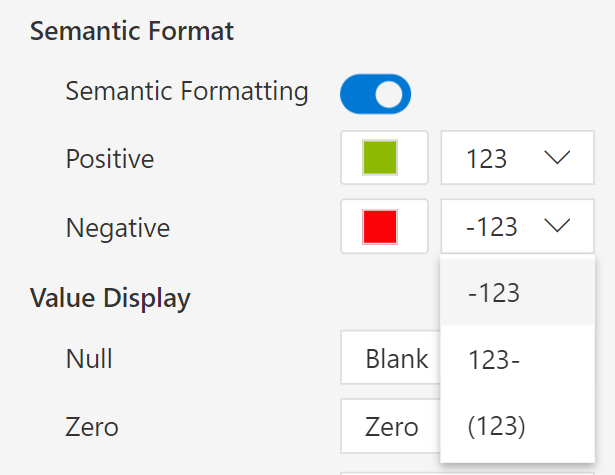
You can see the positive and negative options on enabling the toggle, as shown below. By default, they are shown in green and red, but they can be customized using the color picker.&#x20;

<figure><img src="https://2428652681-files.gitbook.io/~/files/v0/b/gitbook-x-prod.appspot.com/o/spaces%2FsB9HAei8v4FfKkH9M4gw%2Fuploads%2FFwHtTueYJCPH0YhpufvC%2Fimage.png?alt=media&#x26;token=d2b558a0-b79b-43c8-8153-991b3b389f3a" alt=""><figcaption><p>Semantic formatting enabled</p></figcaption></figure>

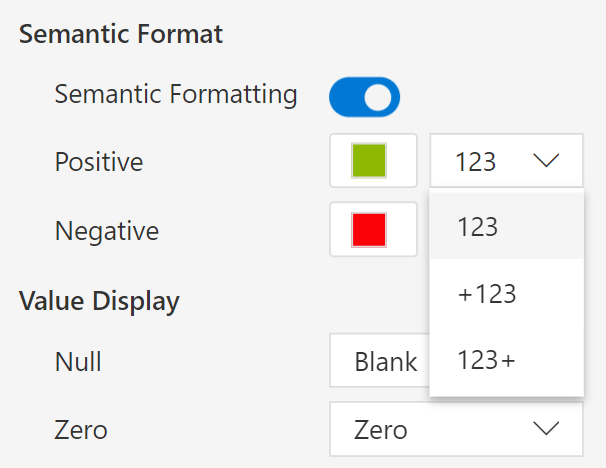
You can also display positive and negative numbers in the formats shown below.

<div><figure><img src="https://content.gitbook.com/content/sB9HAei8v4FfKkH9M4gw/blobs/QQ5sYzIYI5VRtXmWGEtX/2.4.1.17%20Semantic%20formatting.png" alt=""><figcaption><p>Positive numbers formatting</p></figcaption></figure> <figure><img src="https://content.gitbook.com/content/sB9HAei8v4FfKkH9M4gw/blobs/ZQkN8P5NymRRTlCXXt03/2.4.1.16%20Semantic%20formatting.png" alt=""><figcaption><p>Negative numbers formatting</p></figcaption></figure></div>

In the next section, we'll be covering [Cell & value formatting](https://docs.inforiver.com/premium-table/working-with-premium-table/2.-displaying-information/basic-formatting/cell-header-and-value-formatting).

#### Resources

[Intelligent number formatting & scaling in Power BI](https://inforiver.com/blog/general/intelligent-automated-number-formatting-for-tables/)