# Toolbar options

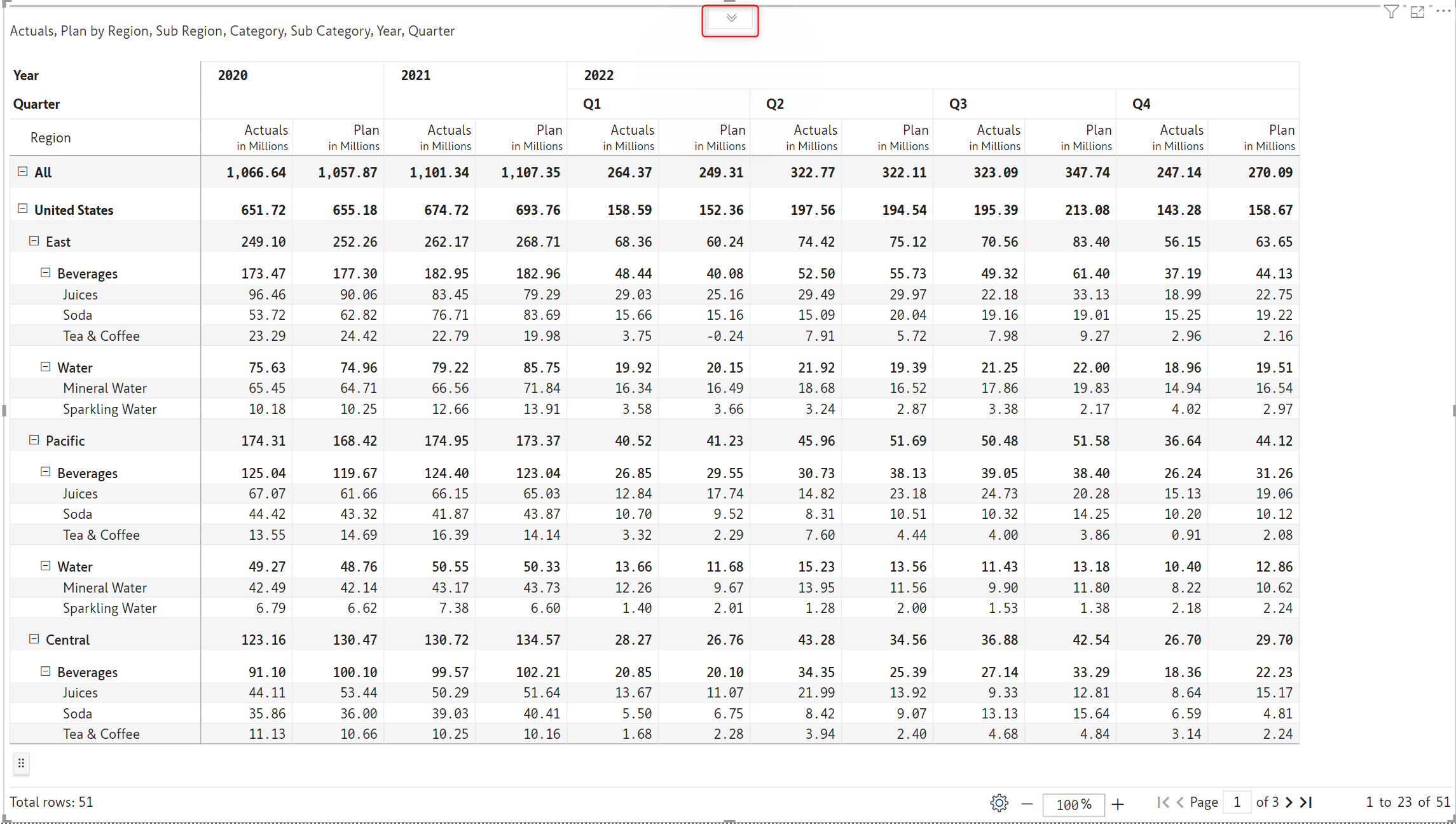
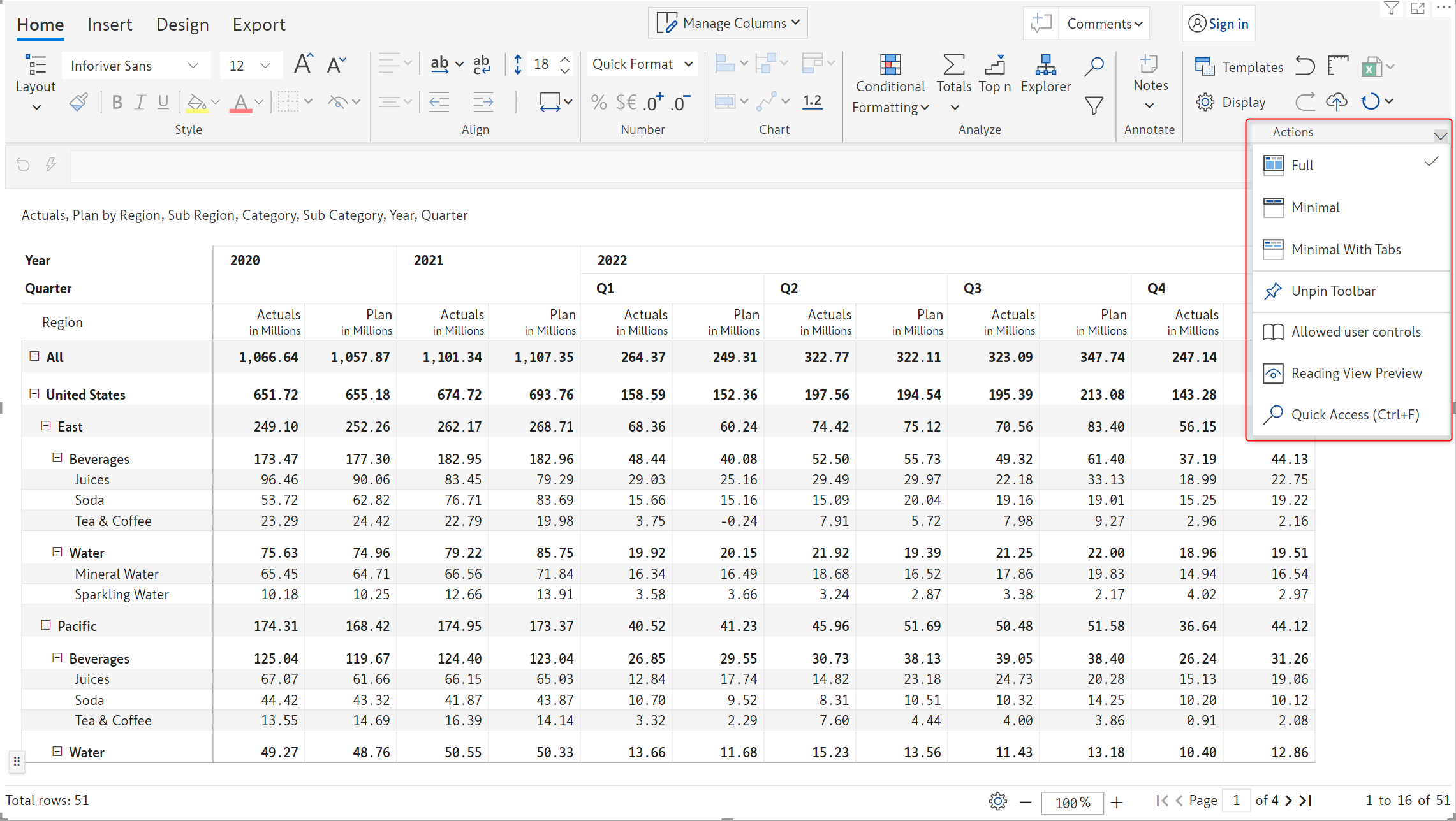
Inforiver supports minimal toolbar options for a better user experience in the small screen mode. You can also allow/restrict toolbar options to report viewers and a preview of the reading mode toolbar can be seen right from the edit mode. The available options are shown in the below image.

<figure><img src="https://content.gitbook.com/content/sB9HAei8v4FfKkH9M4gw/blobs/1Zgx7pjT2U1LCf8Ecqkr/image.png" alt=""><figcaption><p>Toolbar options</p></figcaption></figure>

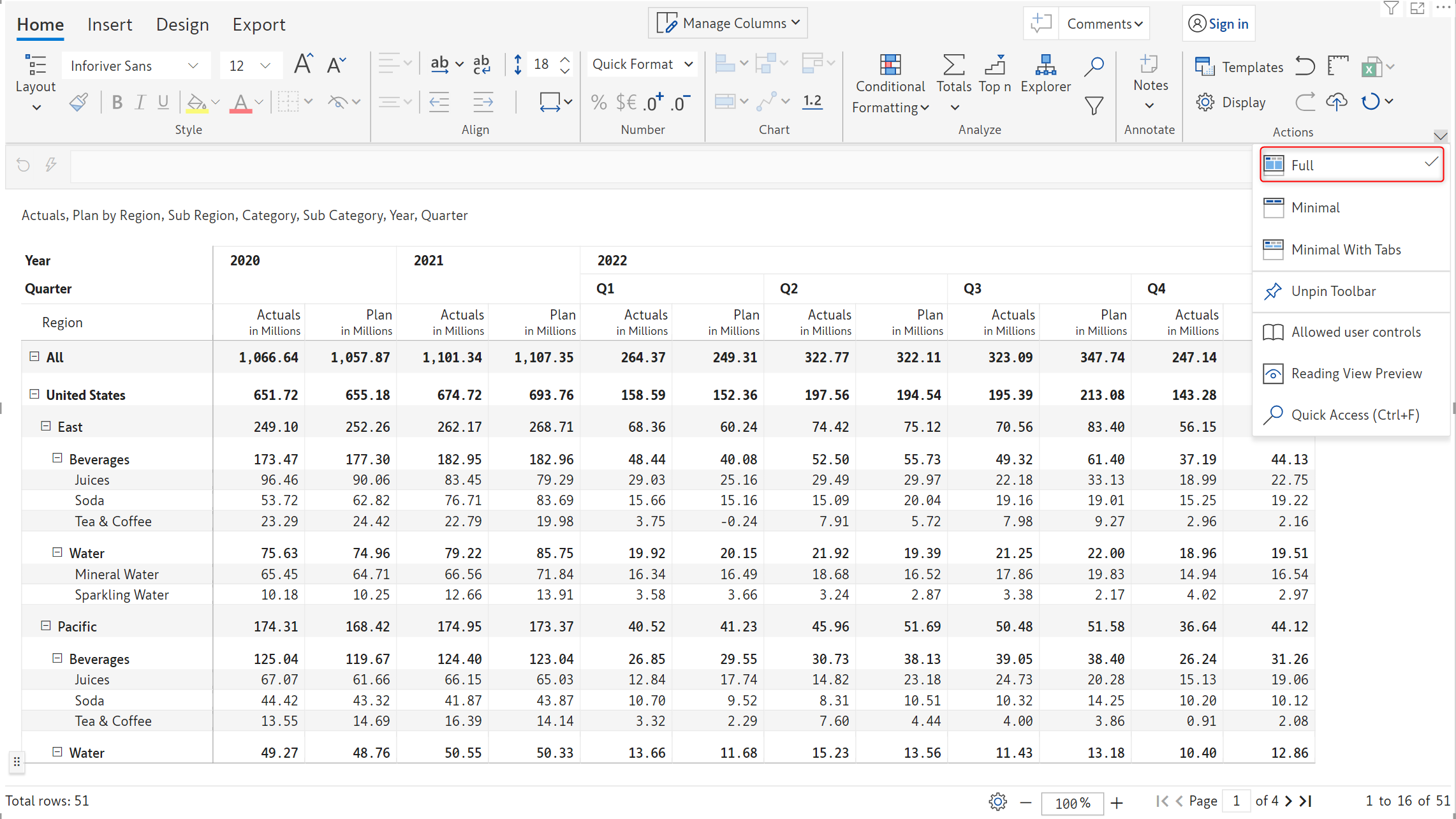
## 1. Full

The 'Full' option shows the full view of the toolbar covering all the features under the 'Home', 'Insert', 'Design' and 'Export' tabs.

By default, all reports display the full view of the toolbar as shown below.

<figure><img src="https://content.gitbook.com/content/sB9HAei8v4FfKkH9M4gw/blobs/7X9iKmnD6ADhFZqkvVwr/image.png" alt=""><figcaption><p>Full view of tollbar</p></figcaption></figure>

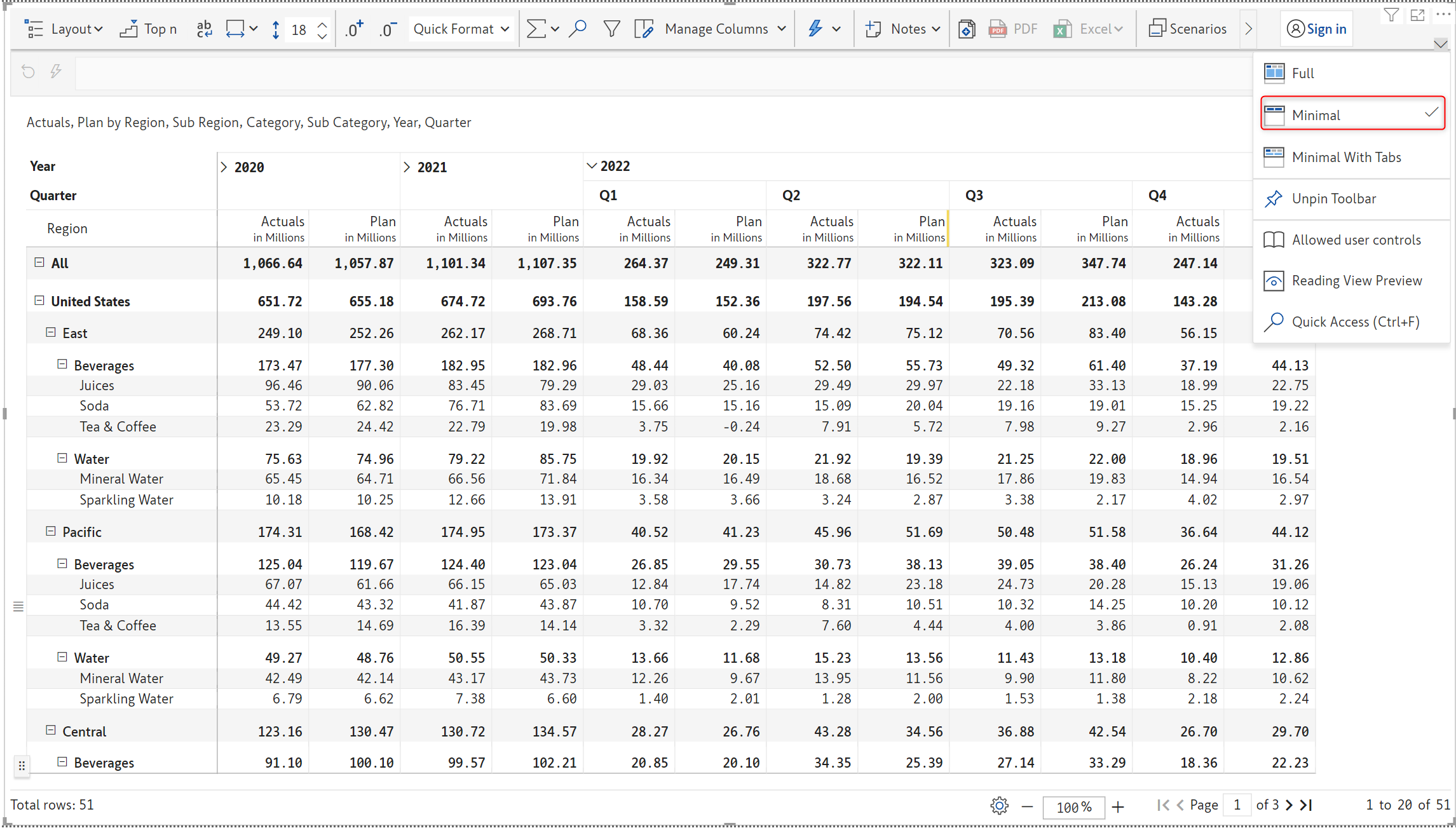
## 2. Minimal

The 'Minimal' option shows the minimal view of the toolbar with options such as Layout, Top N, Auto fit, Row height, Notes, Export and many more as shown in the below image.&#x20;

<figure><img src="https://content.gitbook.com/content/sB9HAei8v4FfKkH9M4gw/blobs/LODv9mzHtxtynS7TZUzm/image.png" alt=""><figcaption><p>Minimal toolbar</p></figcaption></figure>

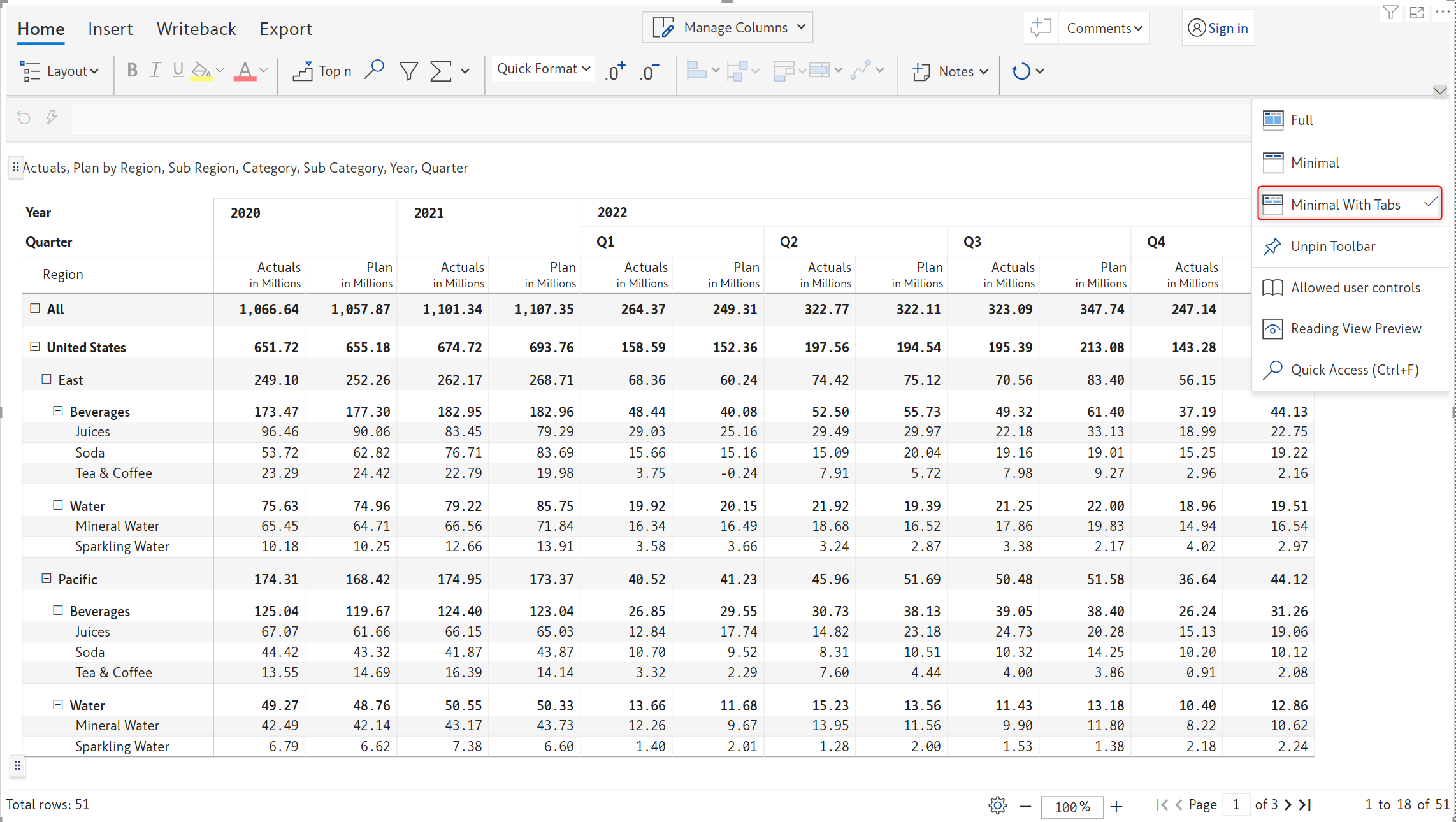
## 3. Minimal with tabs

The 'Minimal with tabs' option shows the tabs and the minimal toolbar as shown in the below image.

<figure><img src="https://content.gitbook.com/content/sB9HAei8v4FfKkH9M4gw/blobs/ggj1XAJVdTc6J6eiKNbE/image.png" alt=""><figcaption><p>Minimal with tabs</p></figcaption></figure>

## 4. Reading view preview

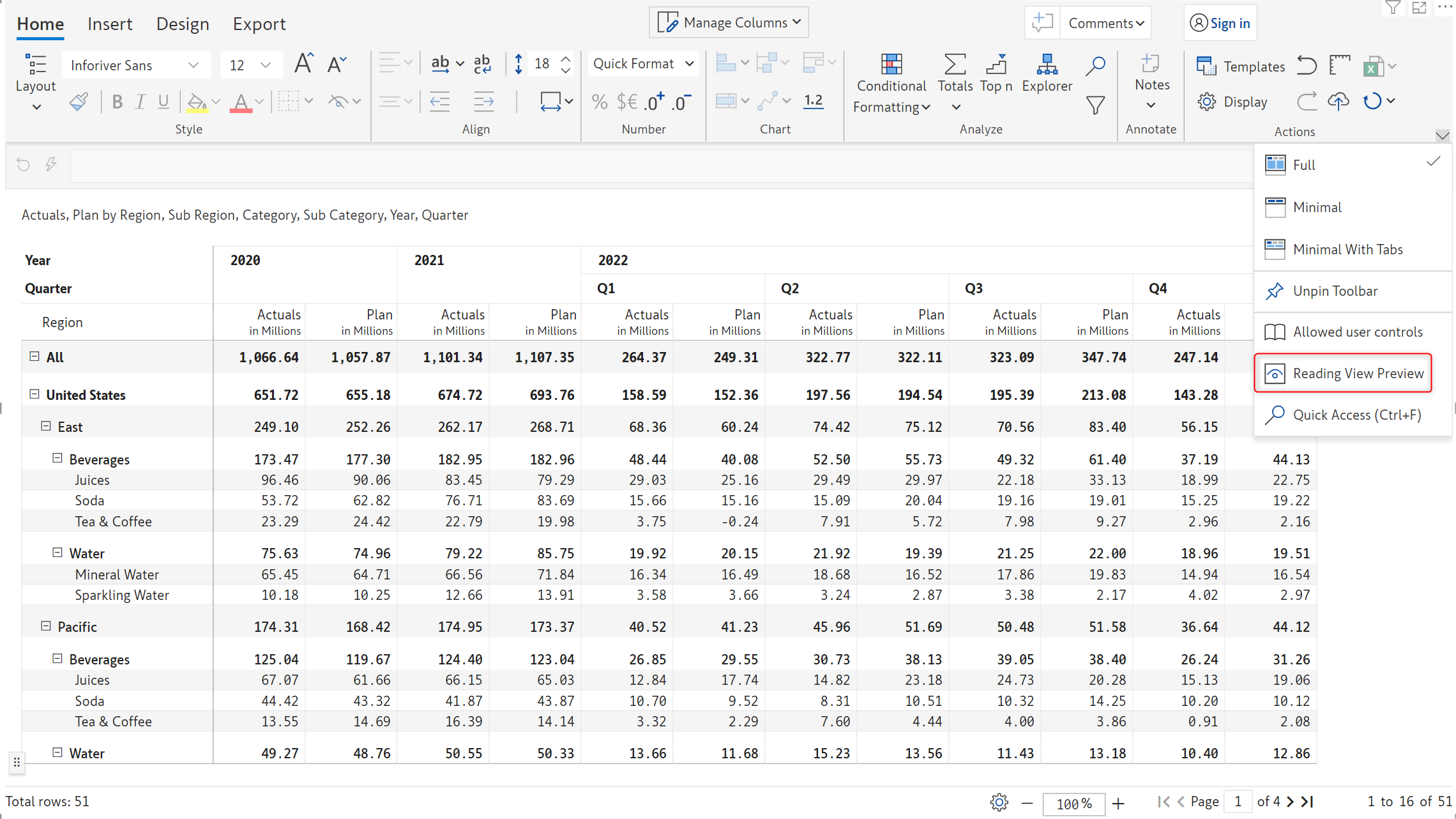
If you have [restricted access](#6.-set-reading-view-access) to certain toolbar options for your report consumers, you can preview the reading view toolbar right from Power BI Desktop.&#x20;

Click on the 'Reading view preview' option as shown.

<figure><img src="https://content.gitbook.com/content/sB9HAei8v4FfKkH9M4gw/blobs/3sV2f5umjDTLz30iWfKx/image.png" alt=""><figcaption><p>Reading view preview option</p></figcaption></figure>

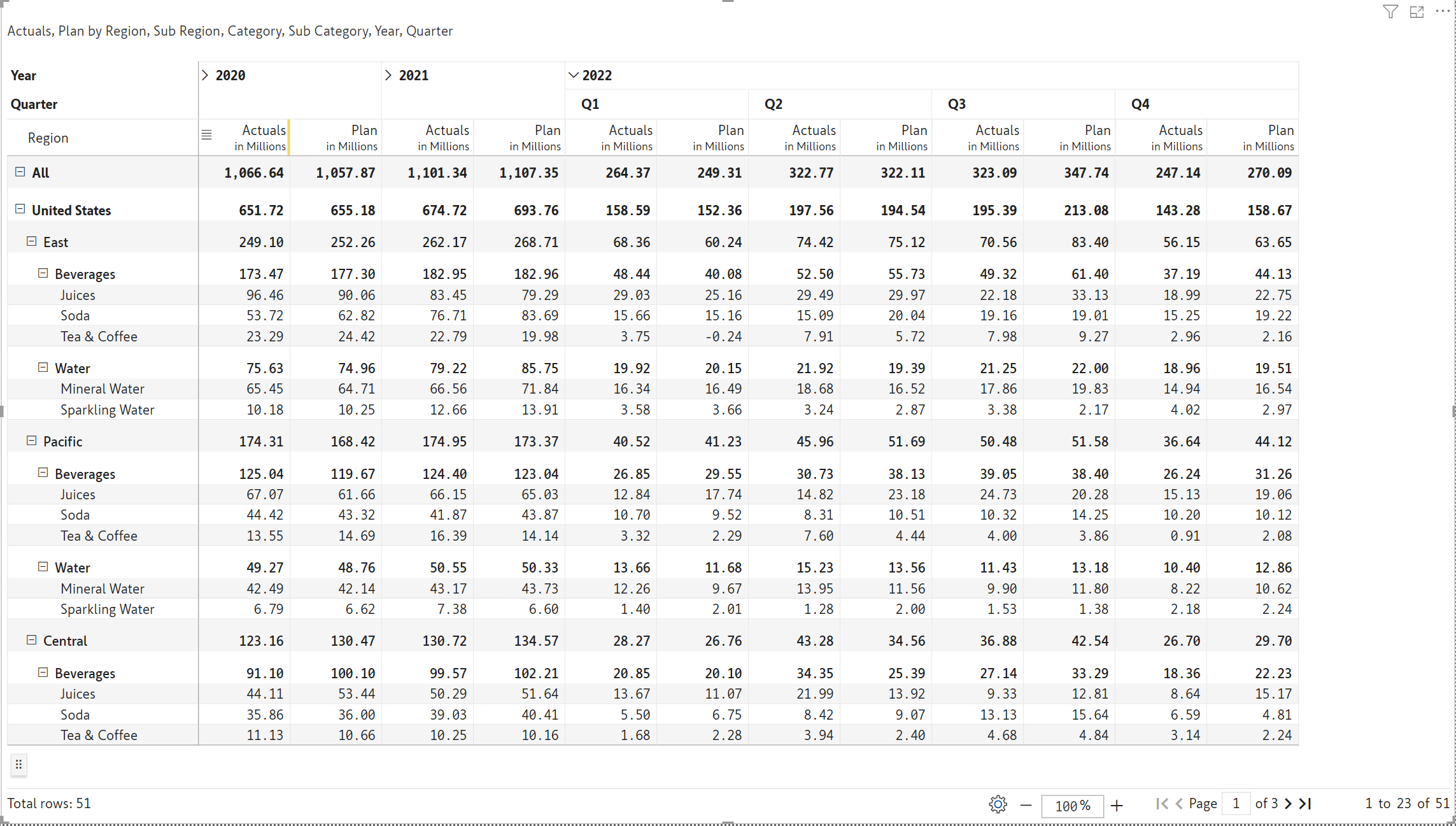
This will give you a preview of how the report will look in the reading view.

<figure><img src="https://content.gitbook.com/content/sB9HAei8v4FfKkH9M4gw/blobs/LAenSKjojob58AAFjd96/image.png" alt=""><figcaption><p>Reading view mode</p></figcaption></figure>

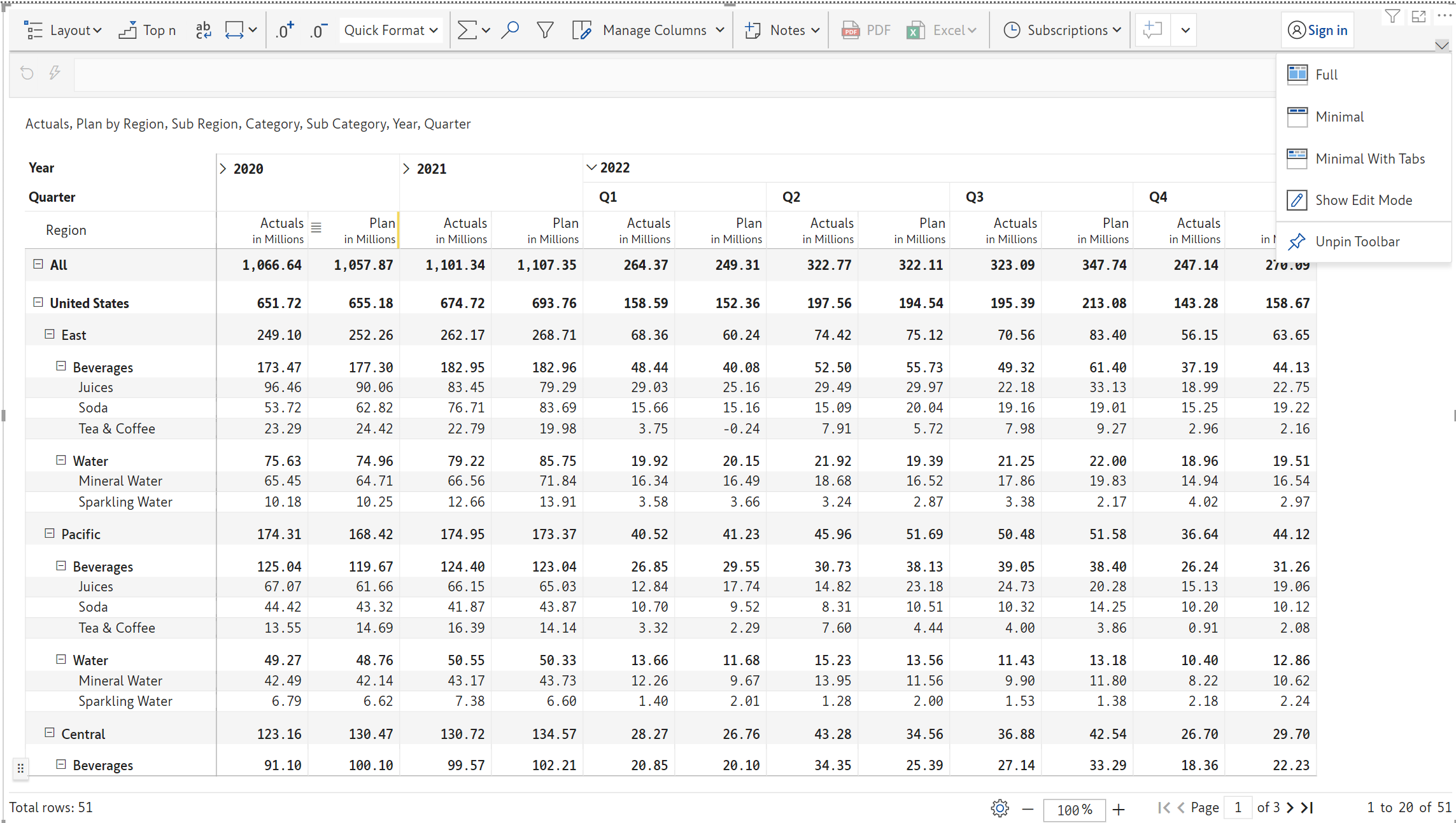
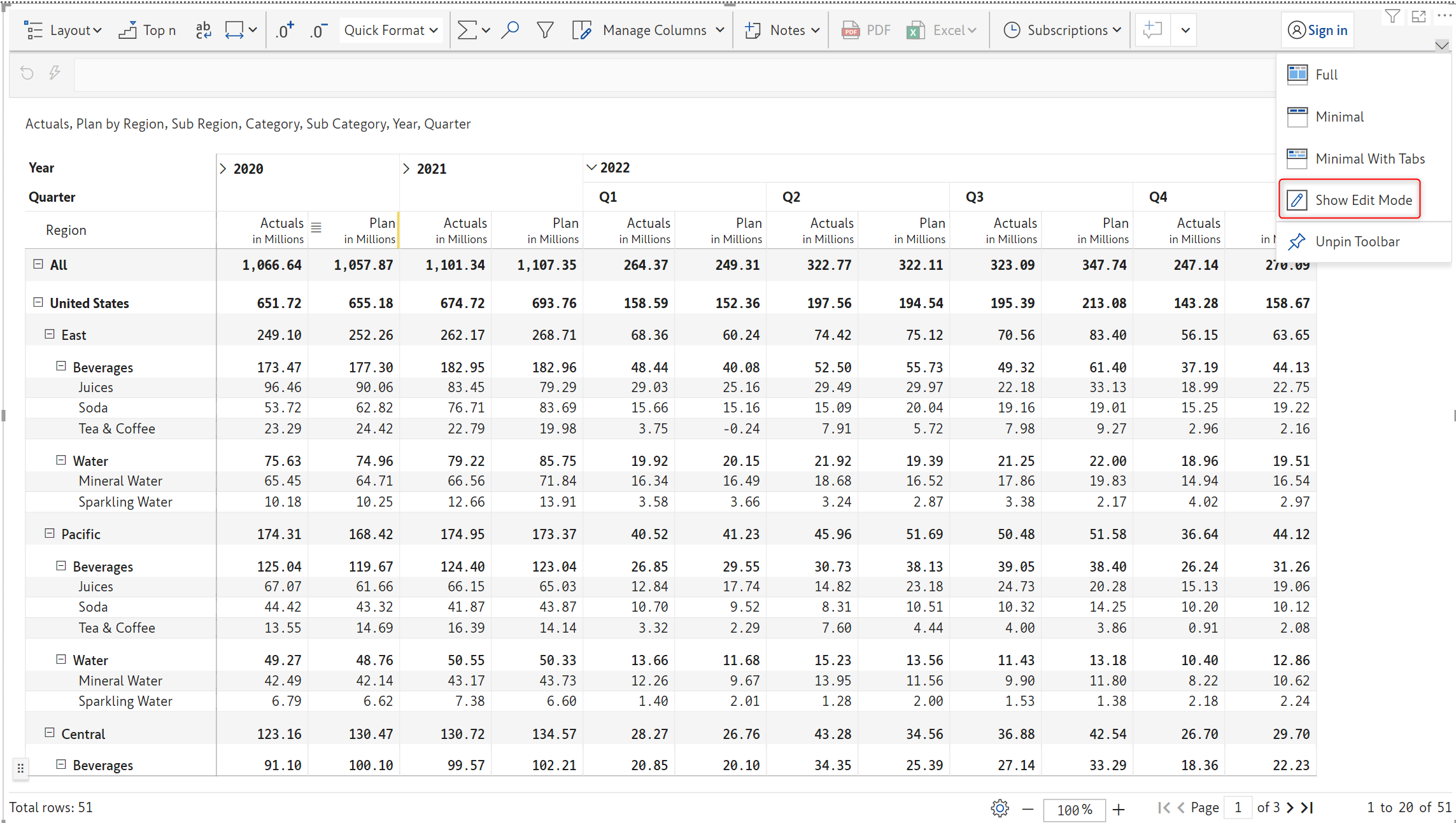
To switch back to the editing mode, click on the 'Show edit mode' option from the toolbar options.

<figure><img src="https://content.gitbook.com/content/sB9HAei8v4FfKkH9M4gw/blobs/s0hZTGD9mE3h60bQkL58/image.png" alt=""><figcaption></figcaption></figure>

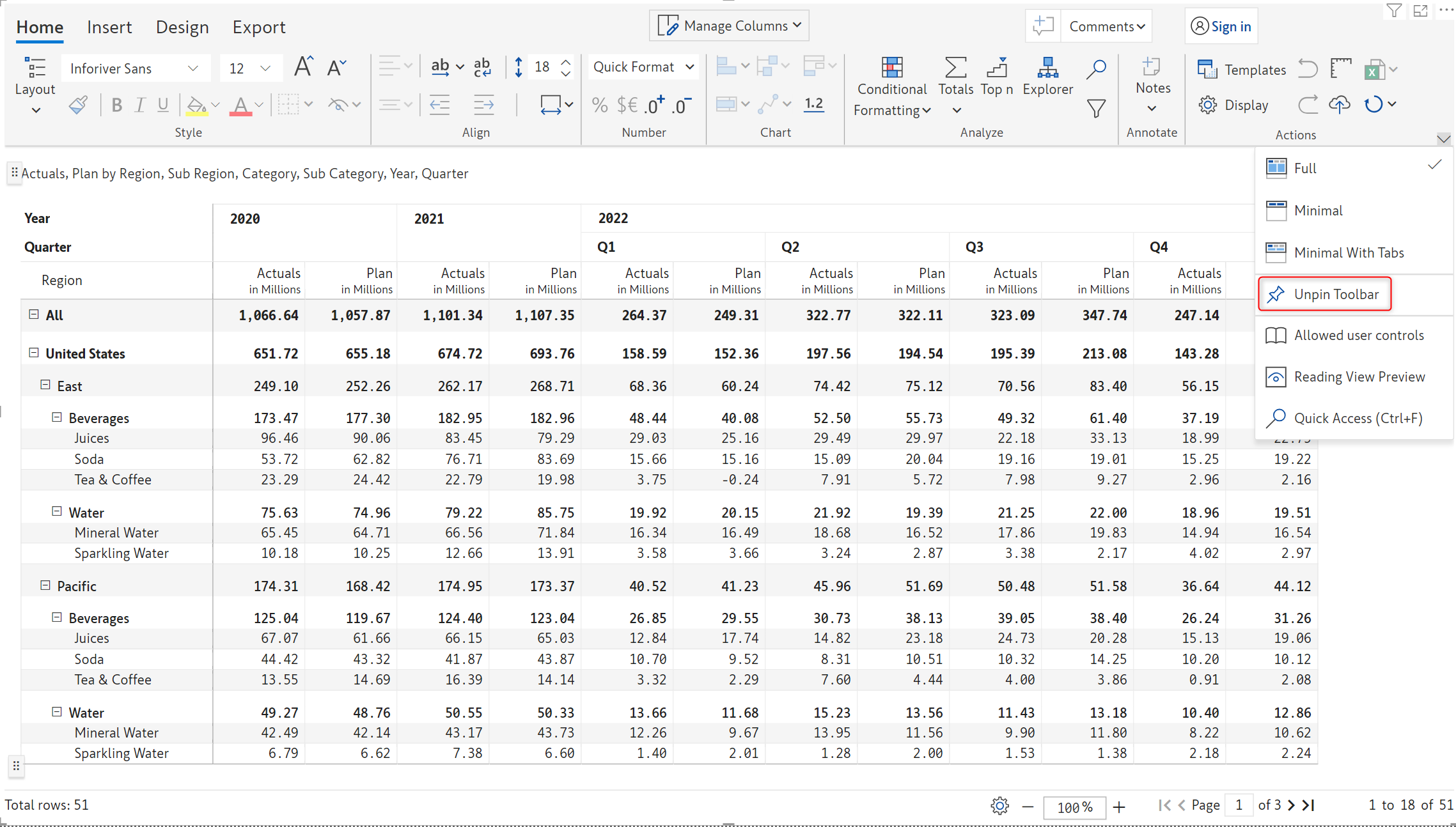
## 5. Unpin toolbar

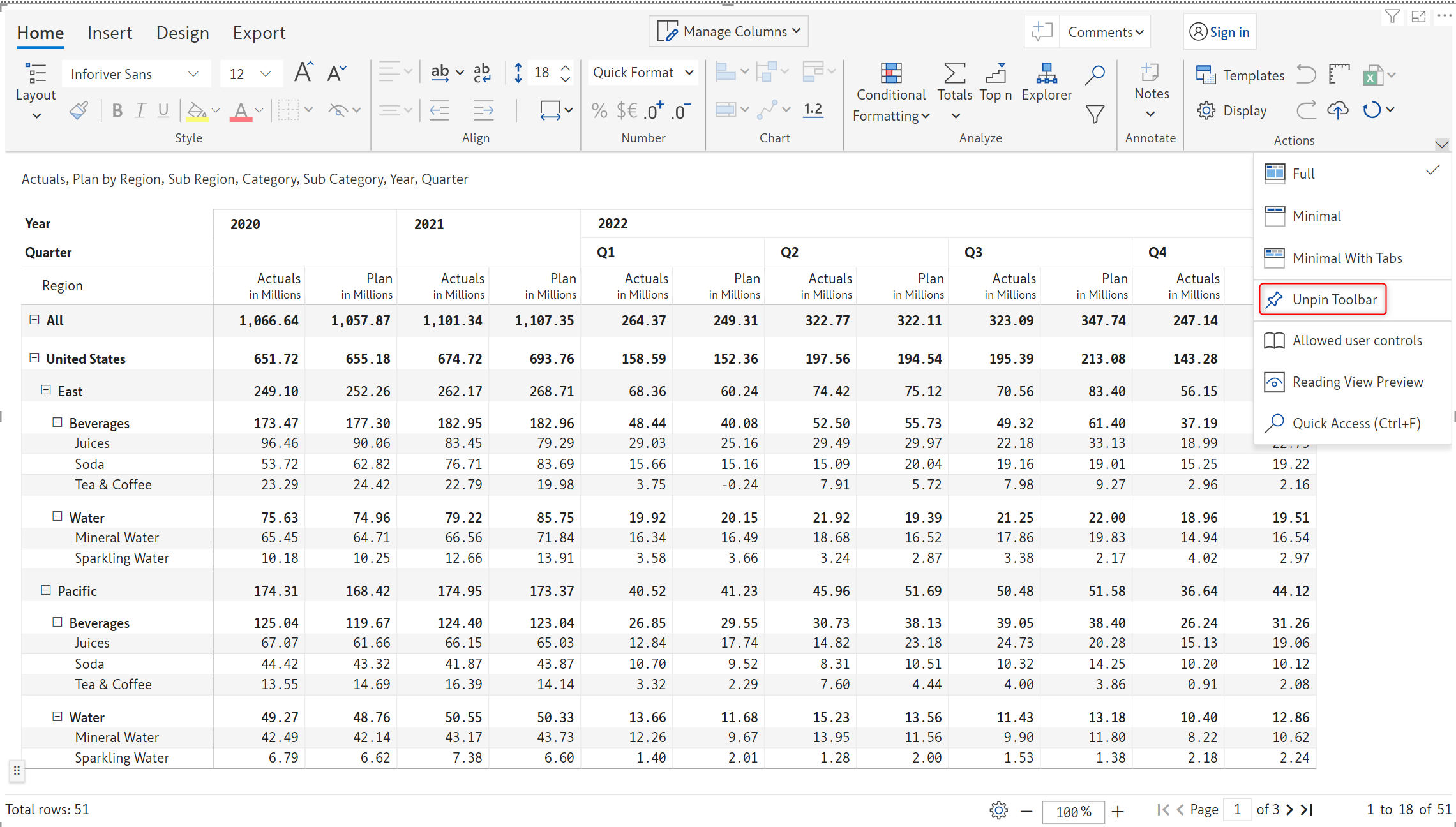
You can detach the toolbar and view the report in full screen using the 'Unpin toolbar' option.

<figure><img src="https://content.gitbook.com/content/sB9HAei8v4FfKkH9M4gw/blobs/04vTLAxbZgWsa3qT7Bse/image.png" alt=""><figcaption><p>Unpin toolbar</p></figcaption></figure>

The unpinned toolbar is shown below.

<figure><img src="https://content.gitbook.com/content/sB9HAei8v4FfKkH9M4gw/blobs/AQJc887R0WfmKz5jNLSb/image.png" alt=""><figcaption><p>Unpinned toolbar</p></figcaption></figure>

You can pin it back by clicking the icon highlighted in the below image.

<figure><img src="https://content.gitbook.com/content/sB9HAei8v4FfKkH9M4gw/blobs/F8Tmv3IUIl1JkXI8bKqU/image.png" alt=""><figcaption></figcaption></figure>

## 6. Allowed user controls

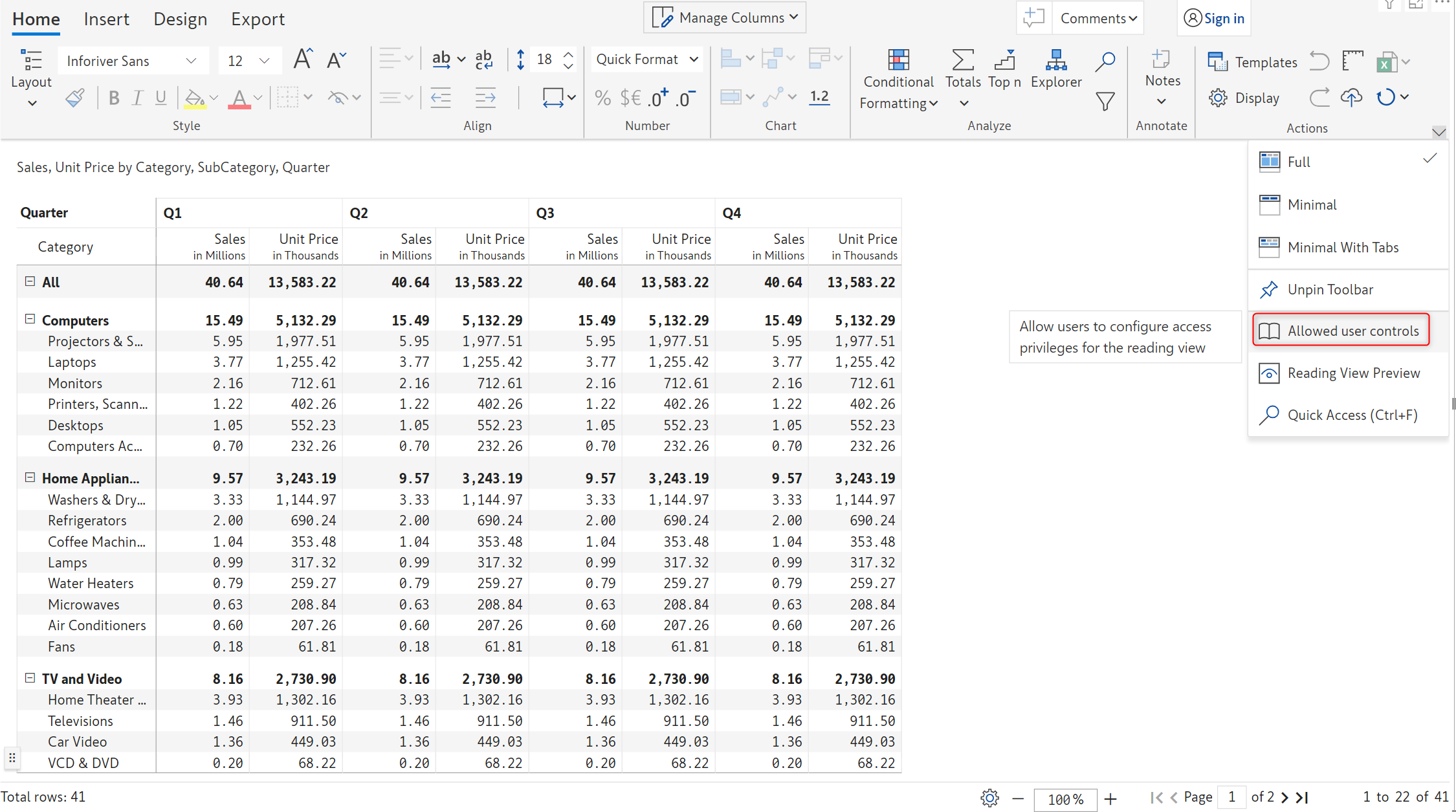
You can customize the toolbar options that are available for the report consumers in reading mode of Power BI service.

Click on the 'Allowed user controls' option from the drop-down.

<figure><img src="https://content.gitbook.com/content/sB9HAei8v4FfKkH9M4gw/blobs/gkKjNpMPTUGB1JJPKnvz/image.png" alt=""><figcaption><p>Allowed user controls options</p></figcaption></figure>

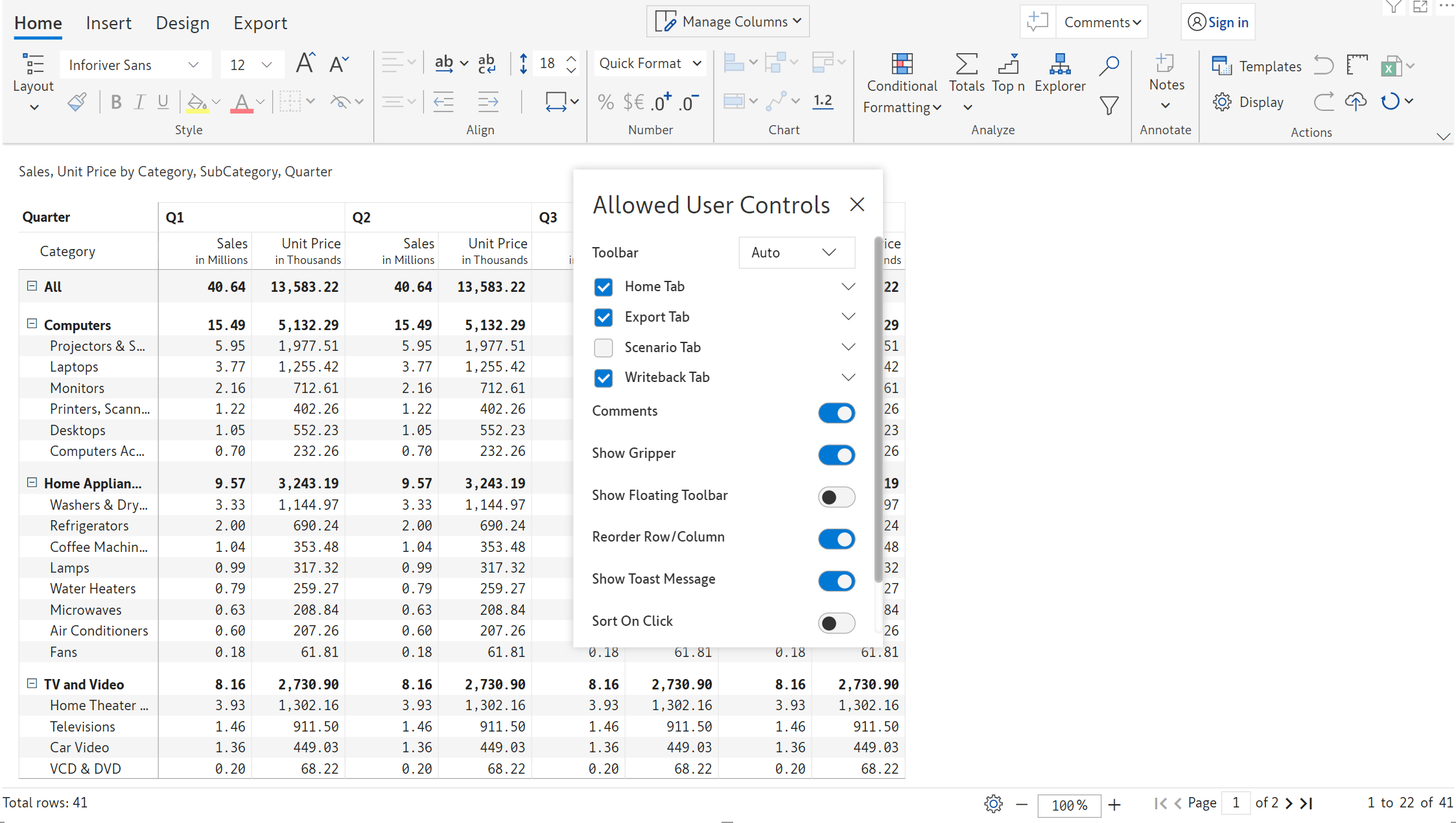
You can see the 'Allowed user controls' modal.

<figure><img src="https://content.gitbook.com/content/sB9HAei8v4FfKkH9M4gw/blobs/4goE5AWOeC7AzA3t2exG/image.png" alt=""><figcaption><p>Allowed user controls modal</p></figcaption></figure>

In this modal you can enable/disable the following options:

#### 1. Toolbar

Using this option you can specify how you want the toolbar to be displayed in reading view mode.

* **Auto -** This option displays your current toolbar in the reading view mode
* **Full -** This option displays the [full toolbar](#1.-full)
* **Minimal -** This option displays the [minimal toolbar](#2.-minimal)
* **Minimal with tabs -** This option displays the [minimal toolbar with tabs](#3.-minimal-with-tabs)
* **Off -** This option [unpins the toolbar](#5.-unpin-toolbar)

#### 2. Home tab

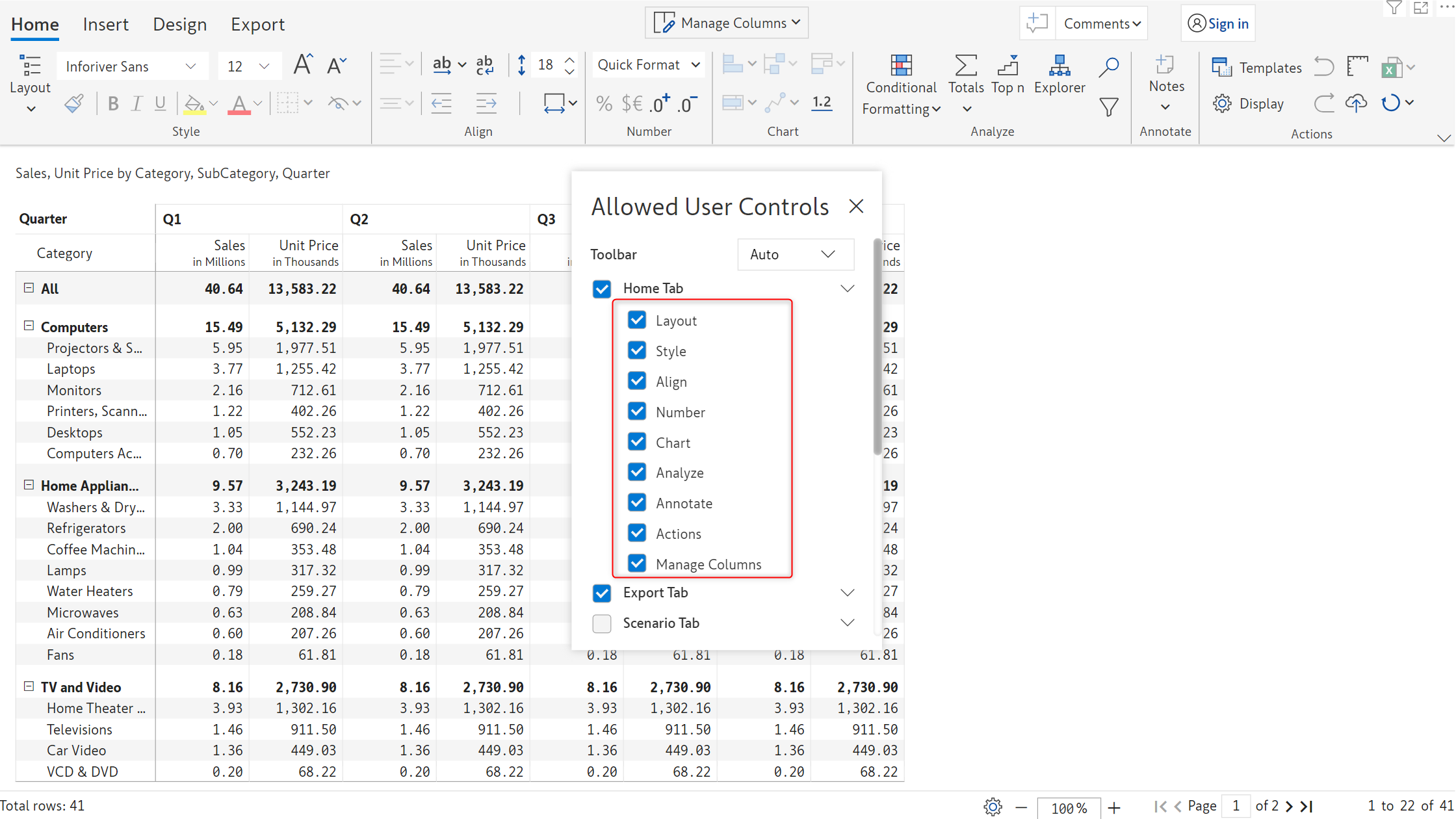
Enabling this option will display the 'Home' tab in the toolbar if the report is in reading view mode. Click on the caret icon to the right of the 'Home' tab to expand it. This will display additional sub-options.&#x20;

You can enable/disable the following options to show/hide in the toolbar under the 'Home' tab.

<figure><img src="https://content.gitbook.com/content/sB9HAei8v4FfKkH9M4gw/blobs/9tpejrp5IFZdzD1pGOsJ/image.png" alt=""><figcaption><p>Home tab options</p></figcaption></figure>

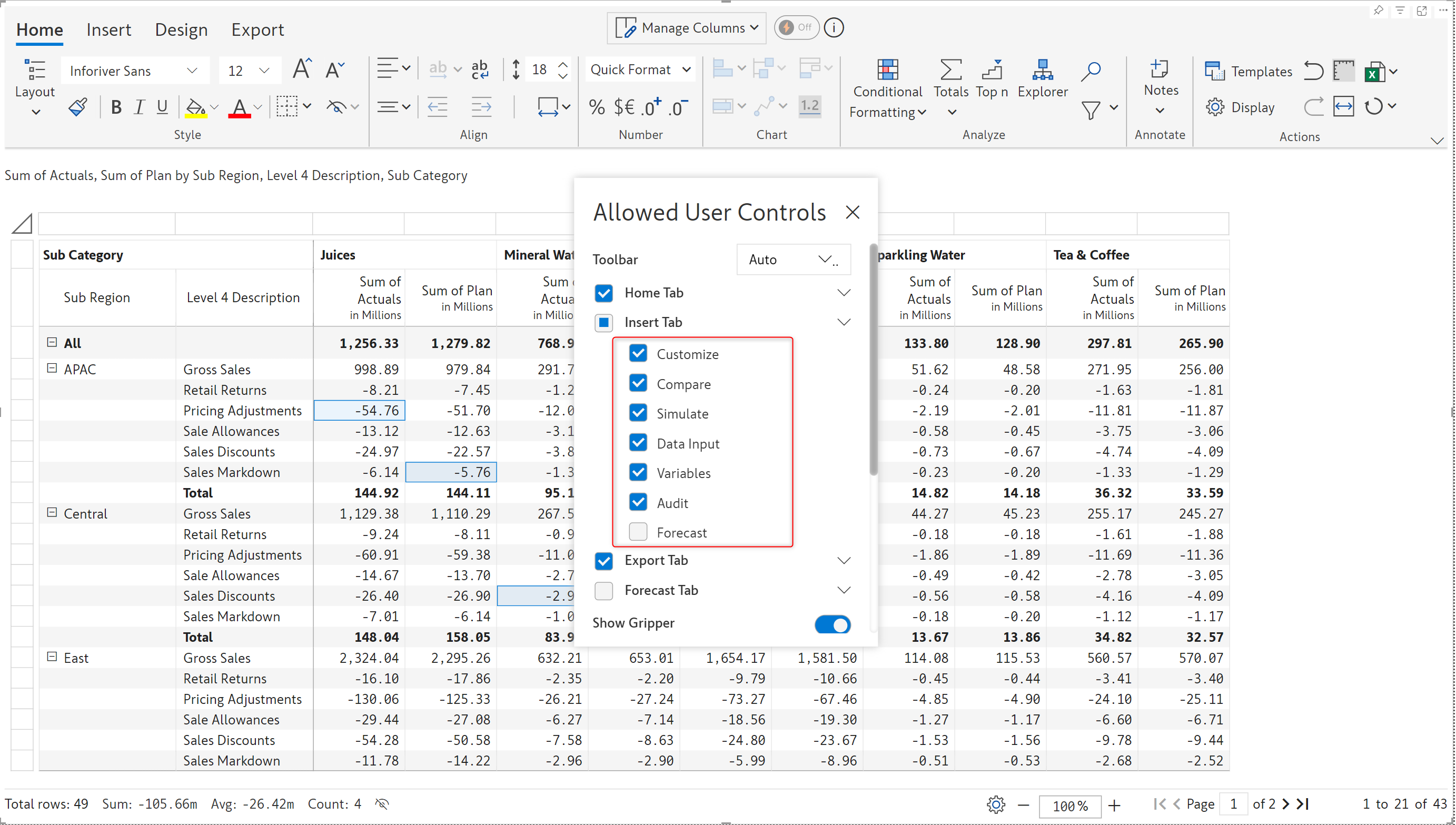
#### 3. Insert tab

Toolbar items in the *Insert* tab, such as Data input, Simulations, Aggregations, Forecasts, Scenarios, etc, can be leveraged in reading mode. You can control the features that will be available in the reading view from the *Allowed User Controls* window.

<figure><img src="https://content.gitbook.com/content/sB9HAei8v4FfKkH9M4gw/blobs/DmMx6T39XsWPsWuQeMy6/image.png" alt=""><figcaption><p>Insert tab</p></figcaption></figure>

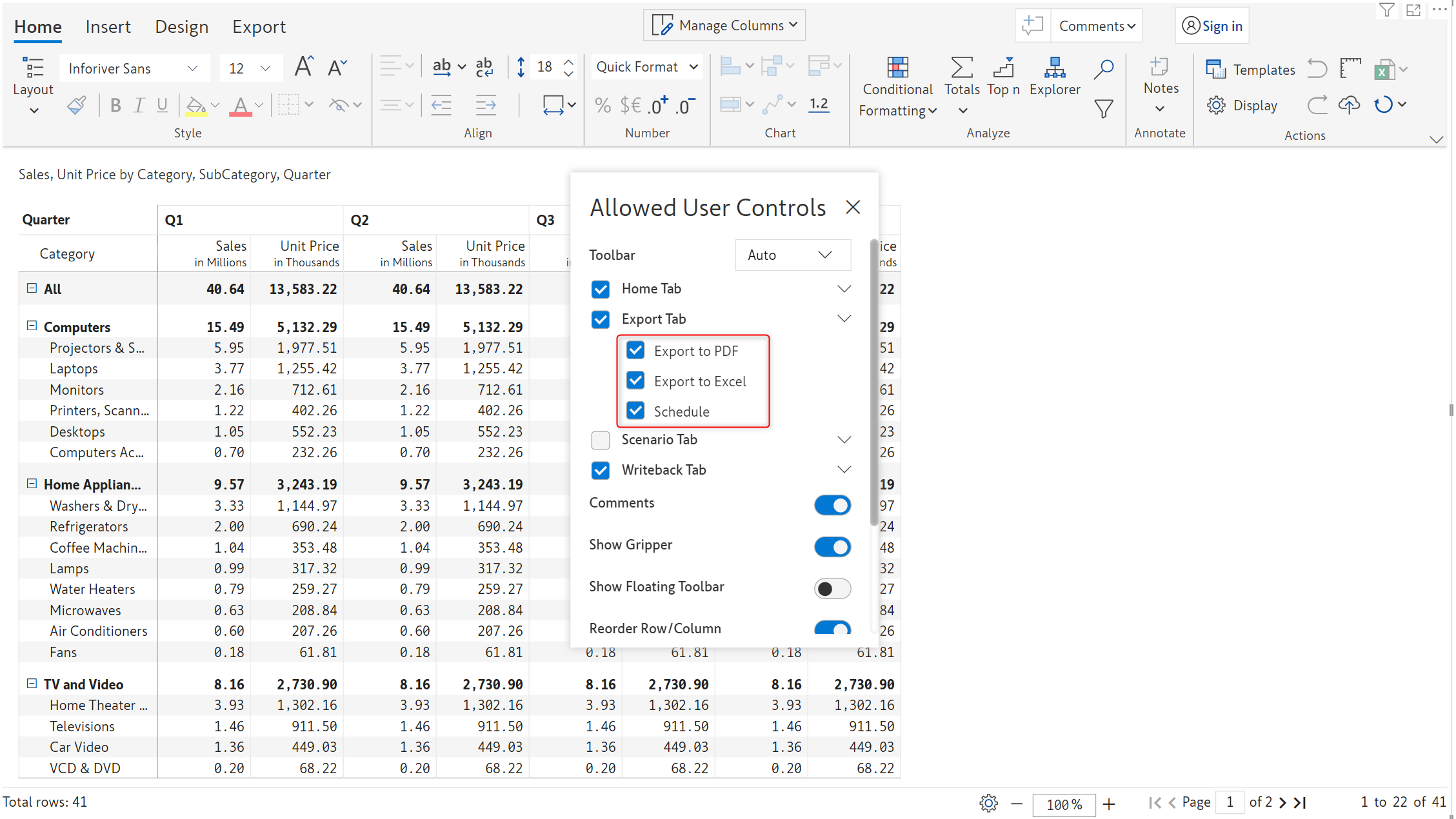
#### 4. Export tab

Enabling this option will display the 'Export' tab in the toolbar if the report is in reading view mode. Click on the caret icon to the right of the 'Export' tab to expand it. This will display additional sub-options.&#x20;

You can enable/disable the following options to show/hide in the toolbar under the 'Export' tab.&#x20;

<figure><img src="https://content.gitbook.com/content/sB9HAei8v4FfKkH9M4gw/blobs/FkZE9RTWSGC3de3nizKN/image.png" alt=""><figcaption><p>Export tab options</p></figcaption></figure>

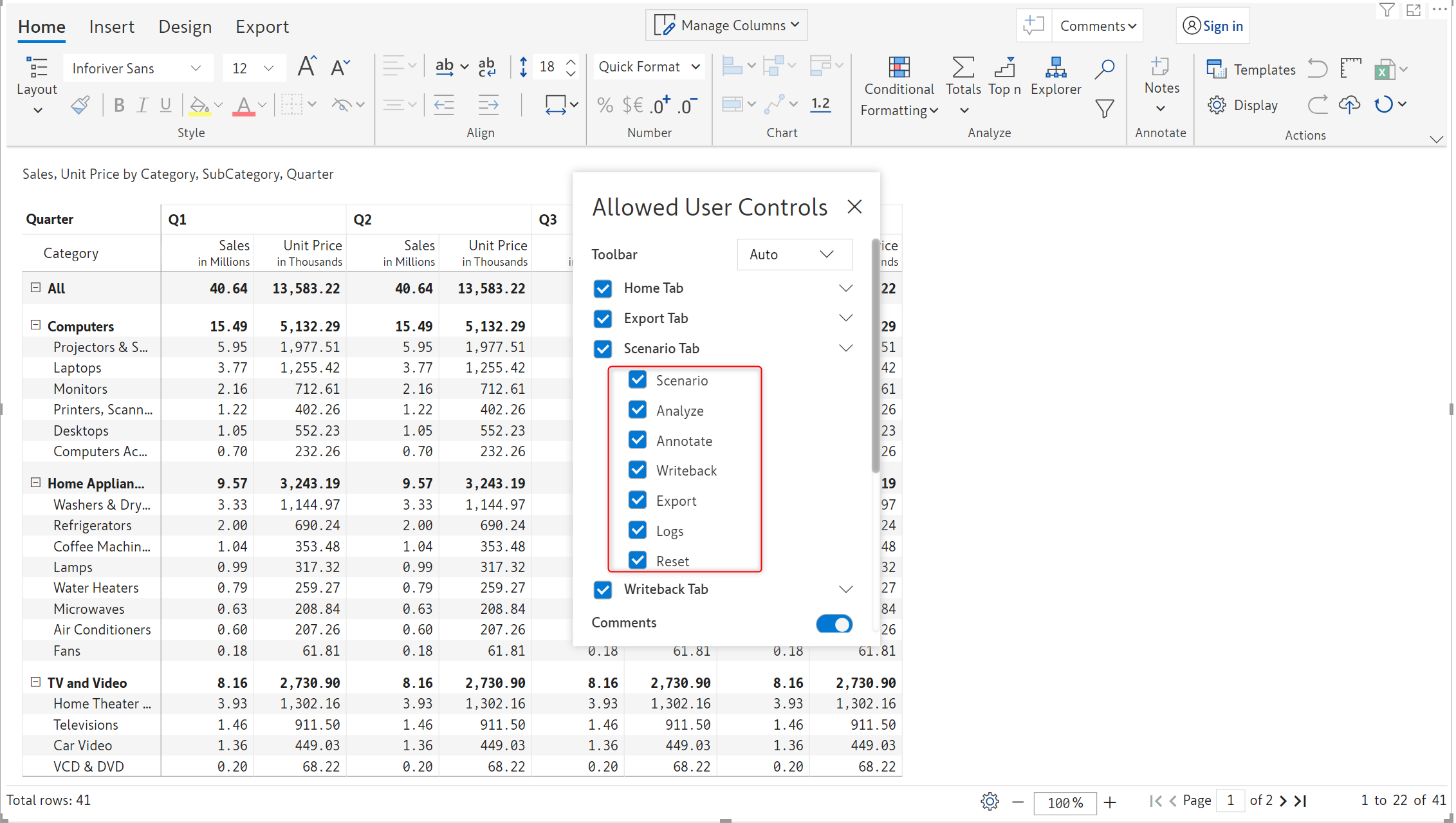
#### 5. Scenario tab

Enabling this option will display the 'Scenario' tab in the toolbar if the report is in reading view mode. Click on the caret icon to the right of the 'Scenario' tab to expand it. This will display additional sub-options. To learn more about scenarios click [here](https://docs.inforiver.com/premium-table/working-with-premium-table/3.-basic-interactions/actions/broken-reference).

You can enable/disable the following options to show/hide in the toolbar under the 'Scenario' tab.&#x20;

<figure><img src="https://content.gitbook.com/content/sB9HAei8v4FfKkH9M4gw/blobs/9W1fbvM67FsO1h4HCNq4/image.png" alt=""><figcaption><p>Scenario tab options</p></figcaption></figure>

#### 6. Writeback tab

Enabling this option will display the 'Writeback' tab in the toolbar if the report is in reading view mode. Click on the caret icon to the right of the 'Writeback' tab to expand it. This will display additional sub-options. To learn more about writeback click [here.](https://docs.inforiver.com/premium-table/working-with-premium-table/12.-data-writeback)

You can enable/disable the following options to show/hide in the toolbar under the 'Writeback' tab.&#x20;

<figure><img src="https://content.gitbook.com/content/sB9HAei8v4FfKkH9M4gw/blobs/NfBTYcjZvJvPd0u8iTAc/image.png" alt=""><figcaption><p>Writeback tab</p></figcaption></figure>

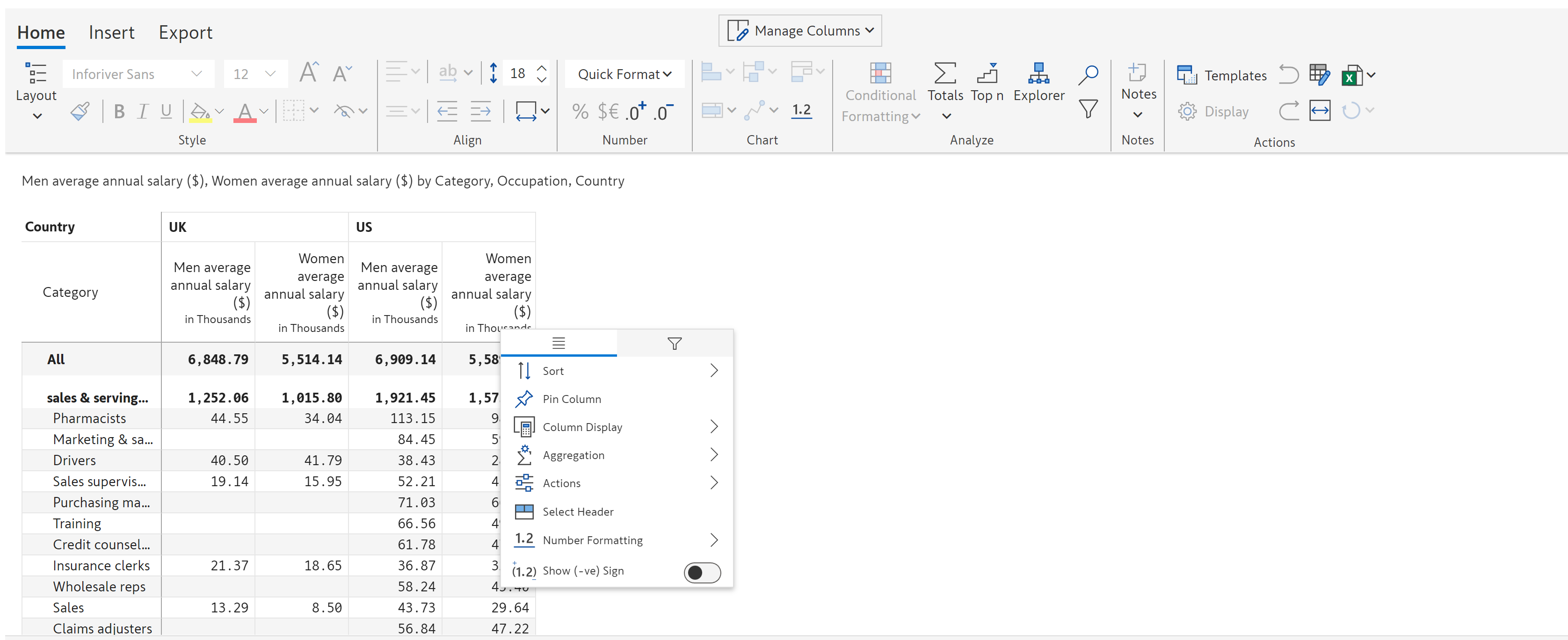
#### 7. Show gripper

Enabling this option will show a gripper and context menu (the menu that displays on the right-click of the mouse) for rows and columns.&#x20;

In this image, the context menu appears on right-click when the report is in the reading view mode.

<figure><img src="https://content.gitbook.com/content/sB9HAei8v4FfKkH9M4gw/blobs/PuStAa6MRRFbtYLBSIJX/image.png" alt=""><figcaption><p>Context menu on reading view mode</p></figcaption></figure>

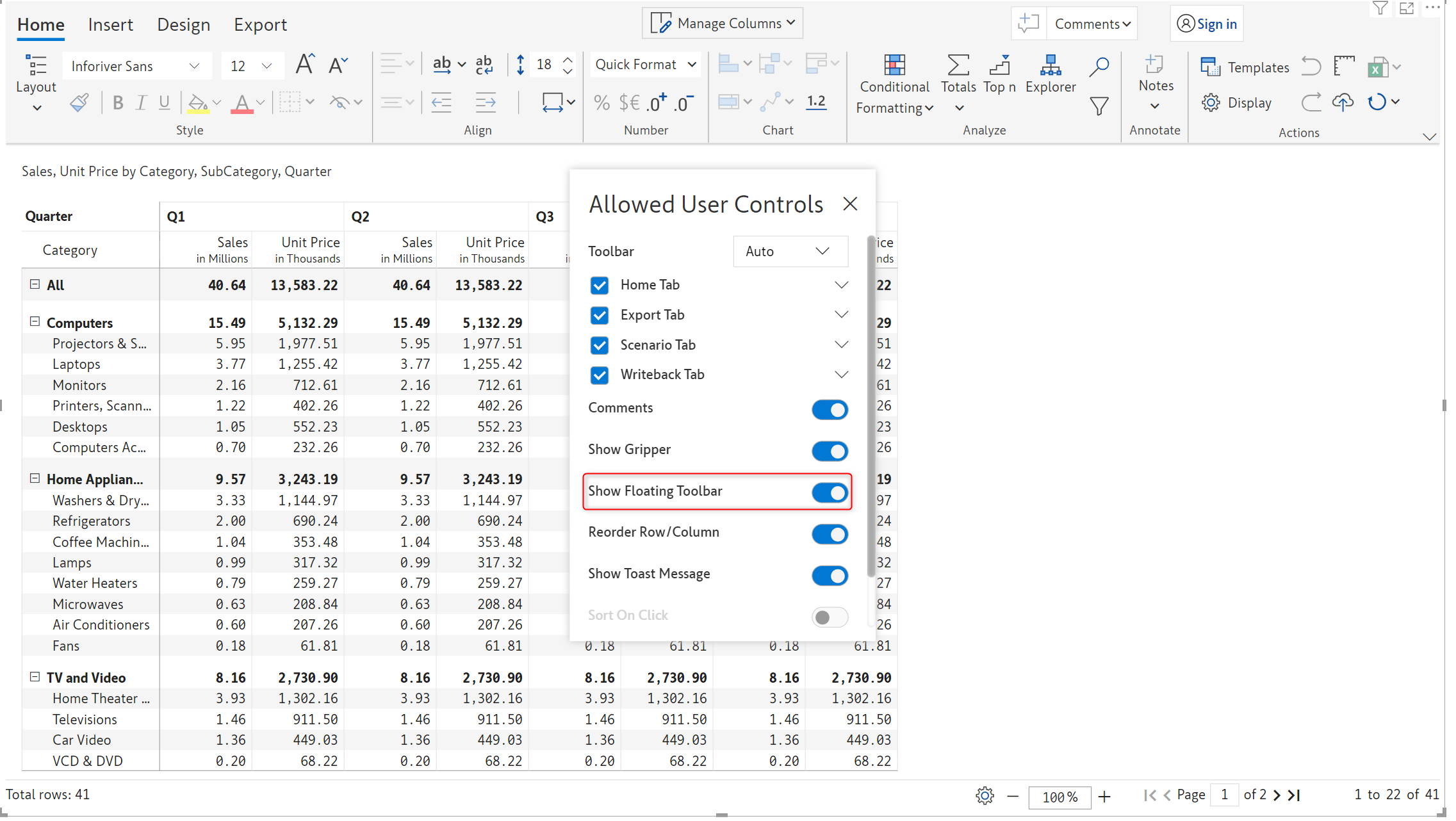
#### 8. Show floating toolbar

Inforiver now offers Excel-like floating toolbar in the reading view mode on the selected report elements (row, column, or cell) for improved discoverability of features and improved user experience.

<figure><img src="https://content.gitbook.com/content/sB9HAei8v4FfKkH9M4gw/blobs/ItP3x2hdOsnLh5gvPGpx/image.png" alt=""><figcaption><p>Show floating toolbar</p></figcaption></figure>

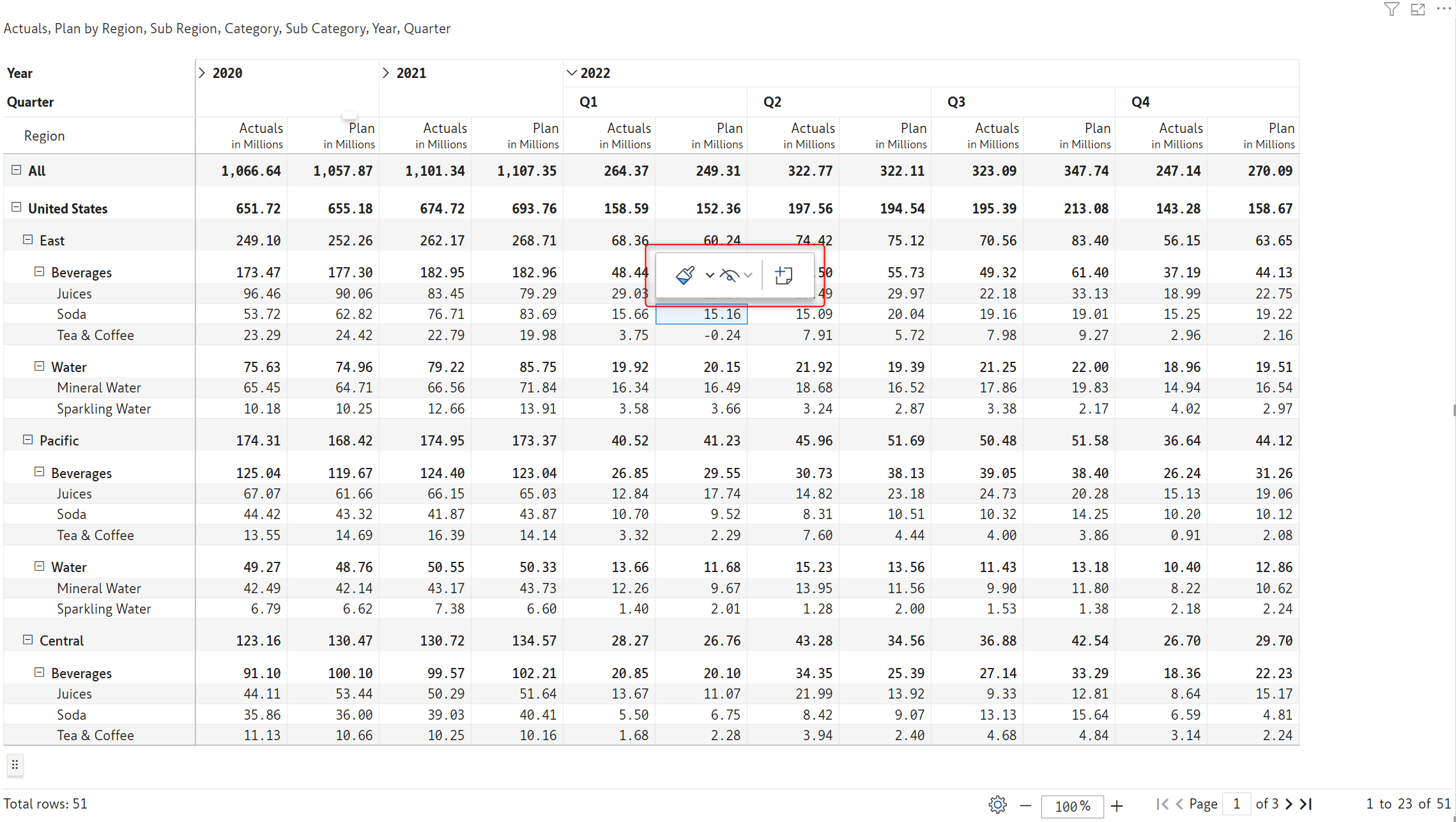
If you enable this option, then on unpinning the toolbar you will get a floating toolbar when the report is in the reading view mode.

<figure><img src="https://content.gitbook.com/content/sB9HAei8v4FfKkH9M4gw/blobs/UZjWJLkZyIlQcY1iAa0q/image.png" alt=""><figcaption></figcaption></figure>

When this option is enabled, then on selecting any report element you will find the possible actions and configurations you can perform on that element in the floating toolbar.

<figure><img src="https://content.gitbook.com/content/sB9HAei8v4FfKkH9M4gw/blobs/TgOqyygTVWOFGeguM9Nk/image.png" alt=""><figcaption></figcaption></figure>

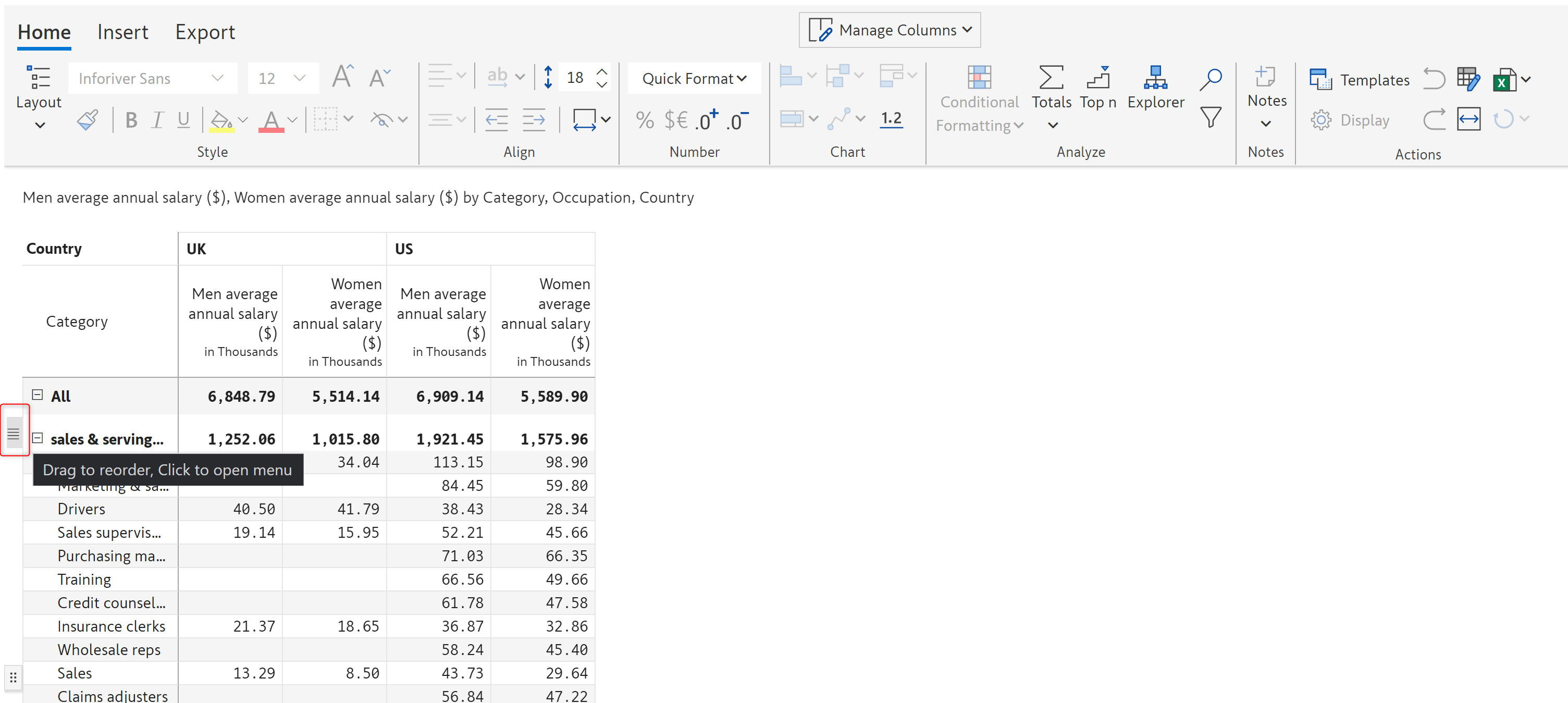
#### 9. Reorder row/column

If you enable this option, you can easily drag and drop the rows and columns for easy reordering in reading view mode.

<figure><img src="https://content.gitbook.com/content/sB9HAei8v4FfKkH9M4gw/blobs/36nAtQr9X1v63Y26zNeT/image.png" alt=""><figcaption><p>Reorder row/column option</p></figcaption></figure>

#### 10. Show toast message

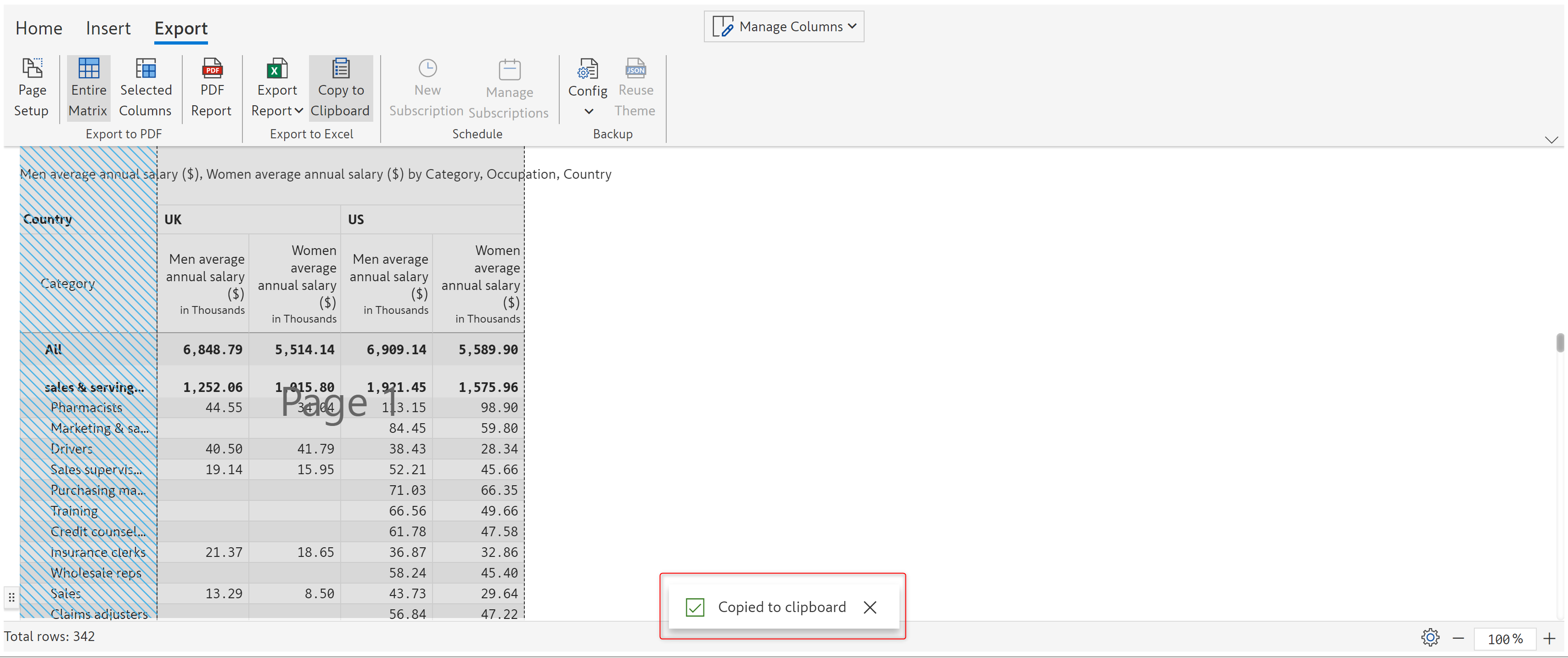
Enabling this option will display the toast message in the reading view mode. In the image below, a 'Copied to clipboard' toast message is displayed in the reading mode when the 'Copy to clipboard' option is clicked.

<figure><img src="https://content.gitbook.com/content/sB9HAei8v4FfKkH9M4gw/blobs/xXMYCRbevArvY3XfutsT/image.png" alt=""><figcaption><p>Show toast message option</p></figcaption></figure>

#### 11. Sort on click

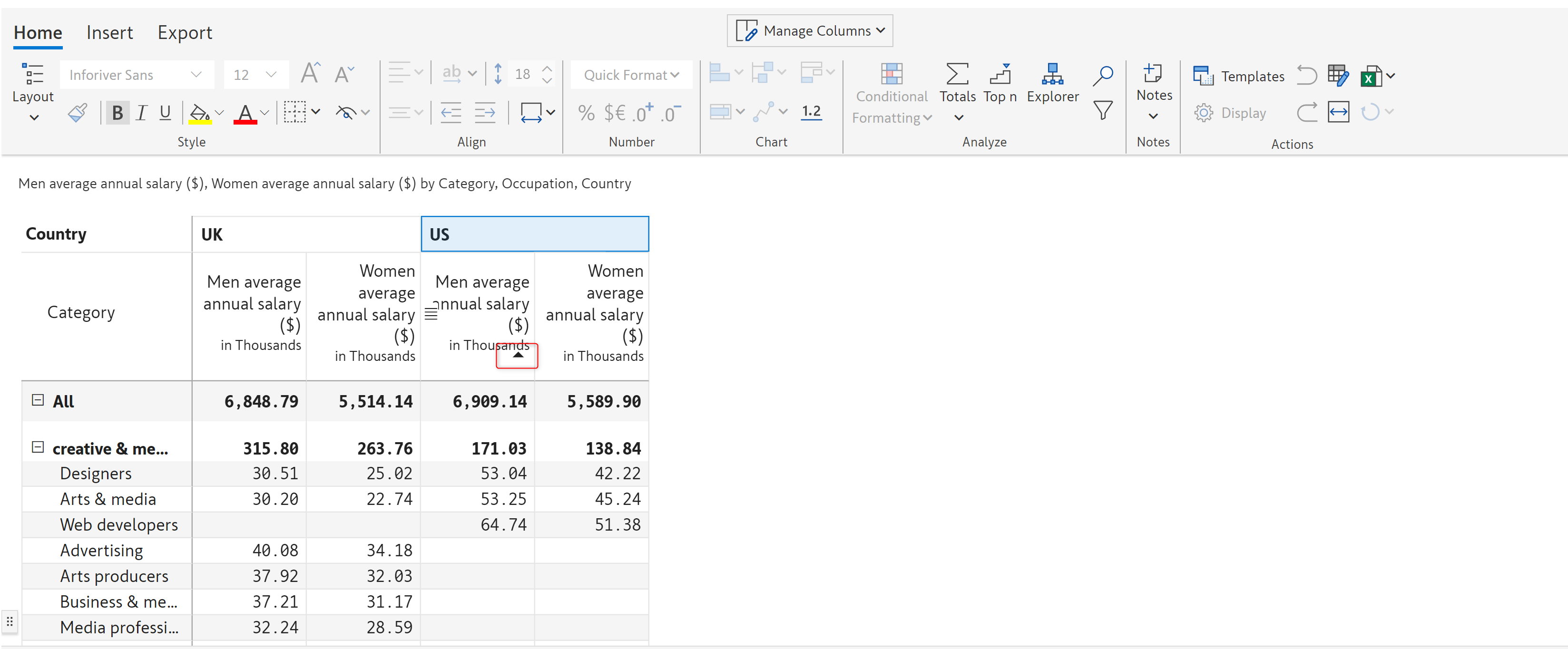
If this option is enabled, then clicking on the column header will sort the data in the column in ascending/descending order in the reading view mode.

In the below image, the up arrow on the column header is highlighted indicating that the column is sorted in descending order.

<figure><img src="https://content.gitbook.com/content/sB9HAei8v4FfKkH9M4gw/blobs/wFkpEwXVcg9swLAoz2pr/image.png" alt=""><figcaption><p>Sort on click option</p></figcaption></figure>

#### 12. Show search

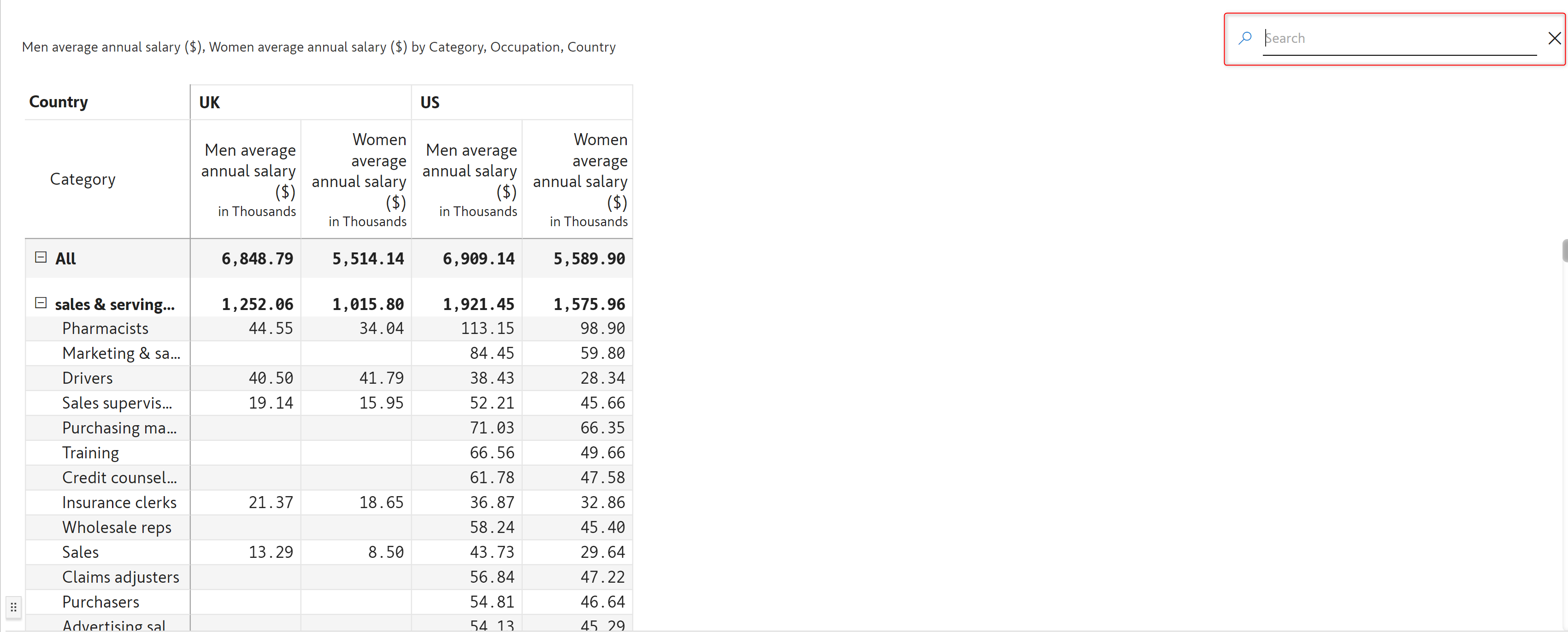
Enabling this option will display the search icon and search bar at the top of the report in the reading view mode.

{% hint style="info" %}
The 'Show search' option is available only if the 'Toolbar' option is set to 'Off' in the 'Reading view access' modal
{% endhint %}

<figure><img src="https://content.gitbook.com/content/sB9HAei8v4FfKkH9M4gw/blobs/dl5y23oRvQMElVFLqtuB/image.png" alt=""><figcaption><p>Show search icon option</p></figcaption></figure>

#### 13. Visual Zoom

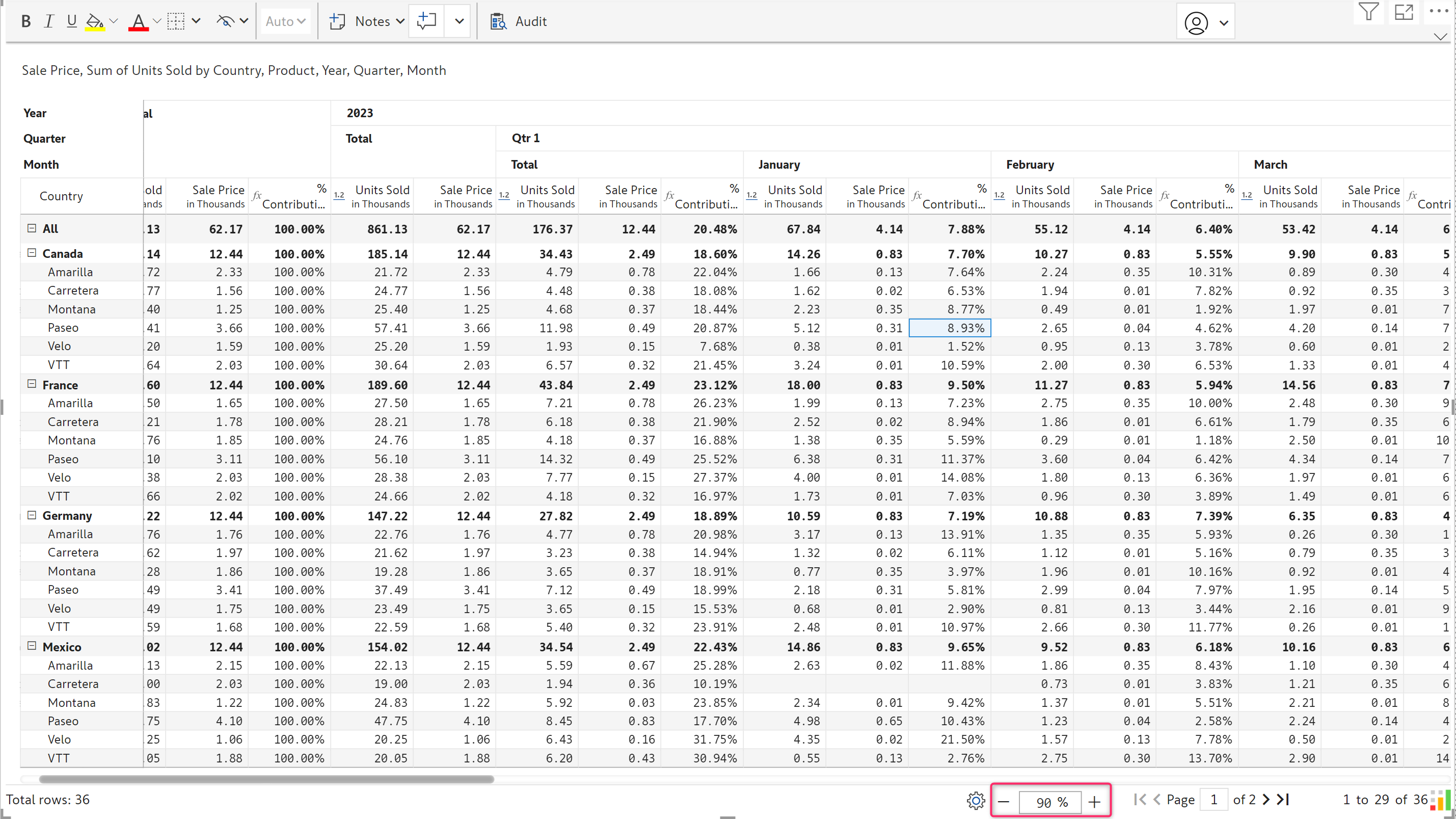
Enabling this option displays the zoom icon in the Reading view, allowing users to zoom in and out of the report for visibility.

<figure><img src="https://content.gitbook.com/content/sB9HAei8v4FfKkH9M4gw/blobs/o2M5dGqd1ApDIcyvqfAk/image.png" alt=""><figcaption><p>Visual Zoom</p></figcaption></figure>

#### 14. View All Notes

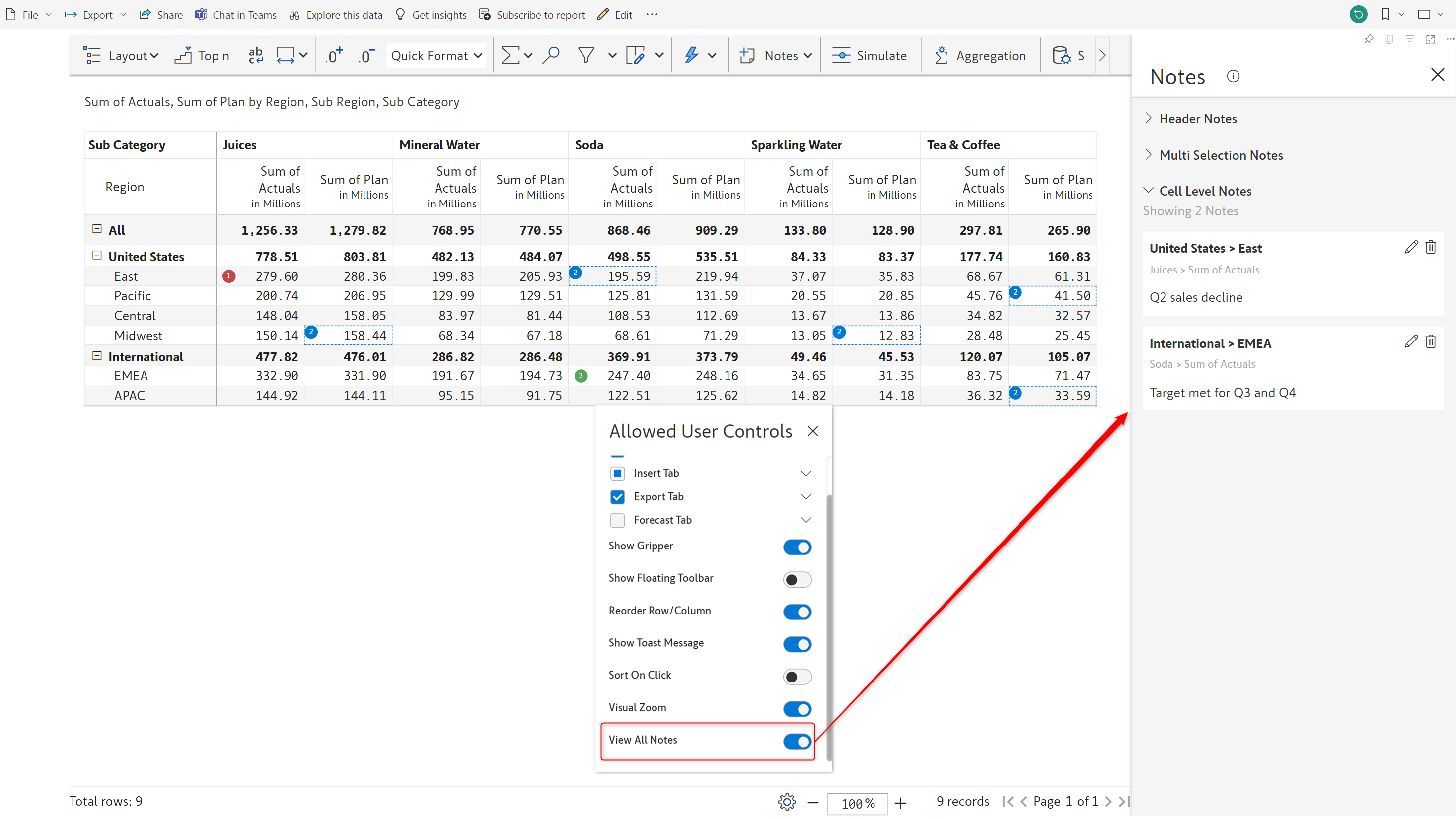
Report users can view all the notes added to a report in a single, consolidated window. The *View All Notes* option in the Allowed user controls setting displays the notes side pane by default in the reading view.

<figure><img src="https://content.gitbook.com/content/sB9HAei8v4FfKkH9M4gw/blobs/1UX4zURHu4KiIMZCTKbG/3.2.%20View%20all%20notes%20in%20reading%20view.png" alt=""><figcaption><p>View all notes option</p></figcaption></figure>

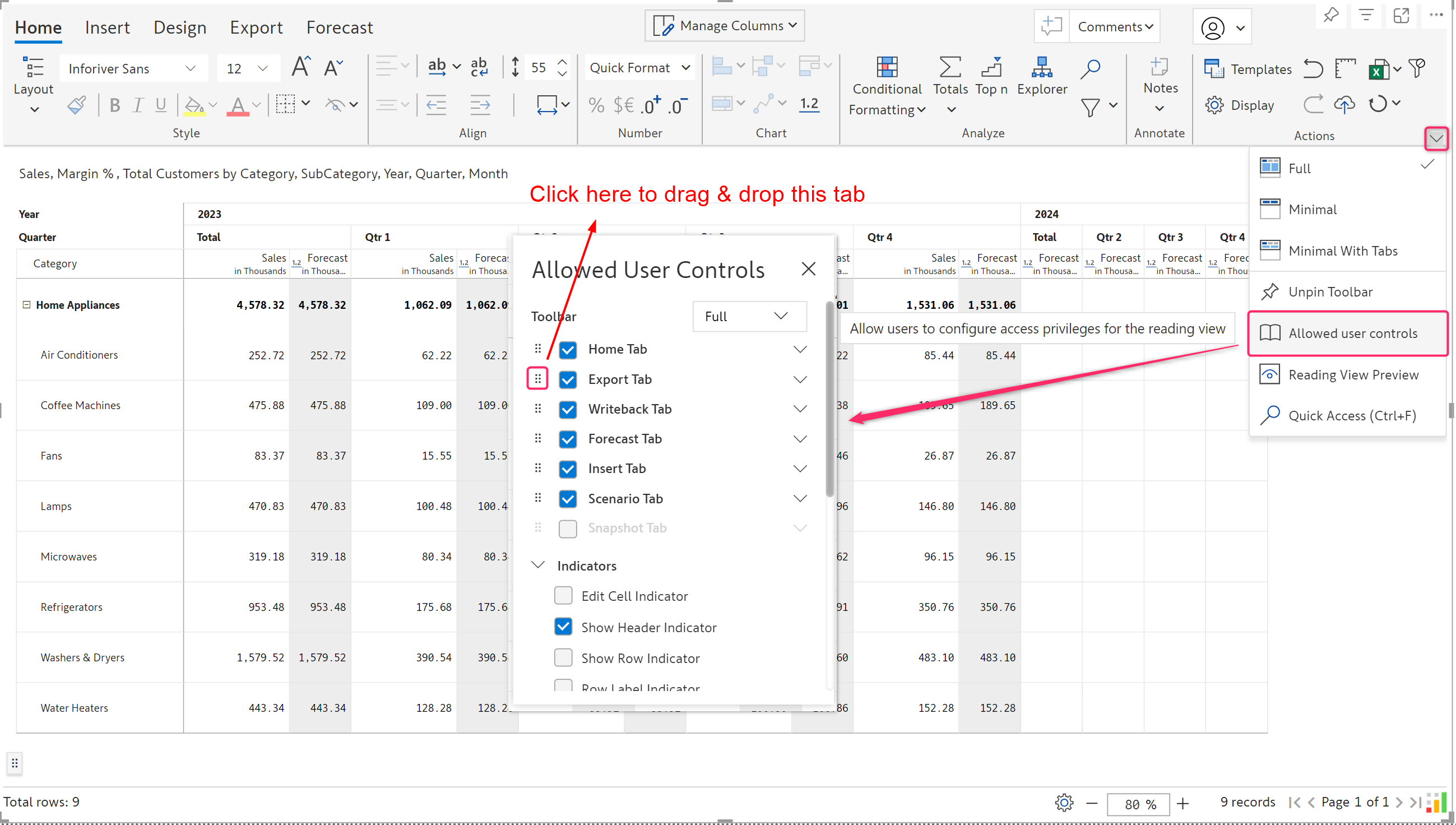
You can change the order of the tabs (Home, Insert, Design, Export, Forecast, etc.) in the Reading view. This applies only to the "Full" and "Minimal with Tabs" views because, in other view types, the tabs are not visible. To rearrange the tabs, click the six-dot icon beside the tab you wish to move.

<figure><img src="https://content.gitbook.com/content/sB9HAei8v4FfKkH9M4gw/blobs/bmbe94eY7fwEYykbp8DI/6.1.1.%20swap%20tabs.png" alt=""><figcaption><p>Re-arrange the tabs in Reading view</p></figcaption></figure>

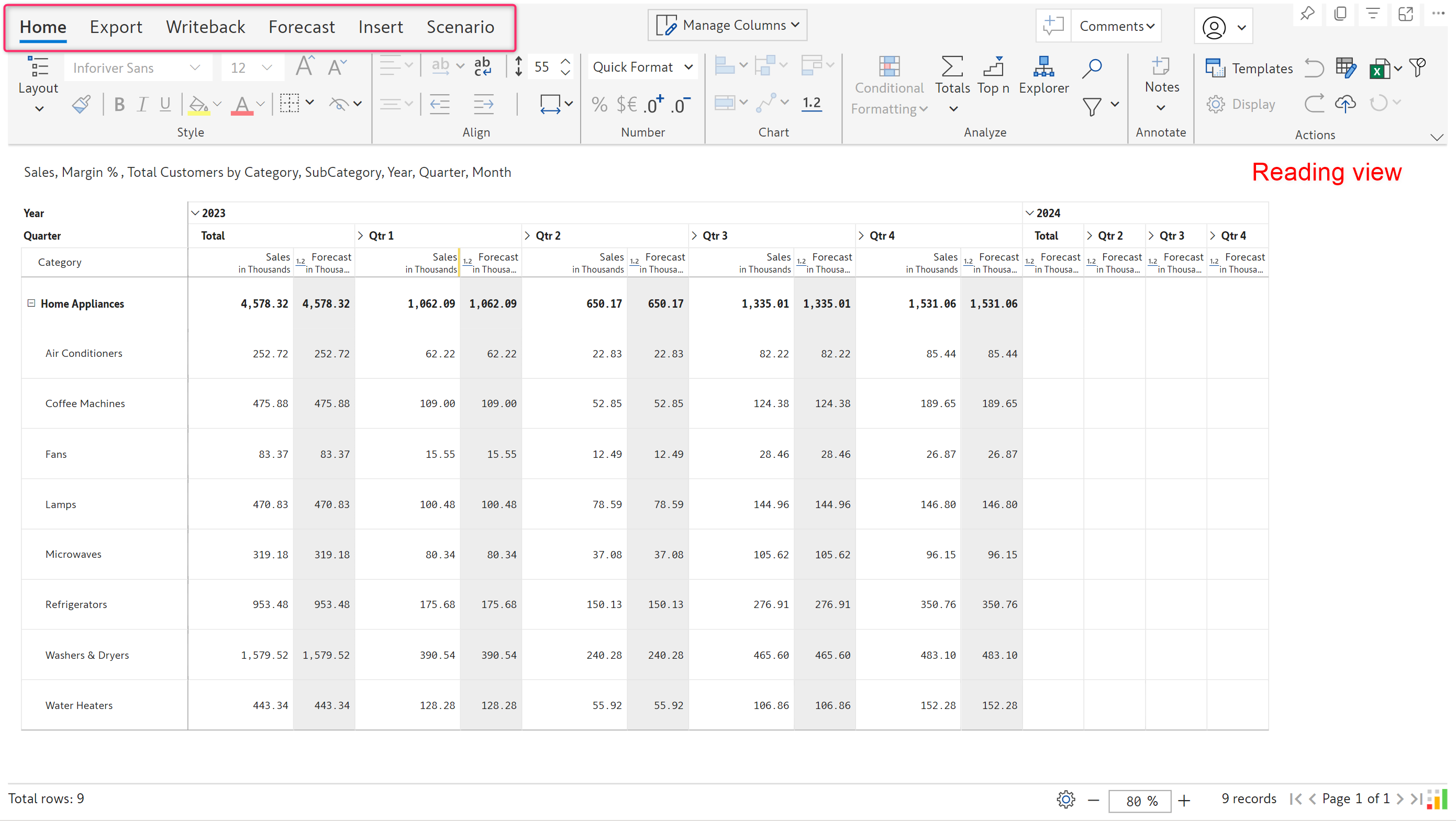
With the above configuration, the Reading view looks as shown below:

<figure><img src="https://content.gitbook.com/content/sB9HAei8v4FfKkH9M4gw/blobs/rNtqDgQpOgpNkhmMTcKP/6.1.2.%20swap%20tabs%20-%20Reading%20view.png" alt=""><figcaption><p>Reading view with swapped tabs</p></figcaption></figure>

#### 15. Show Read View Bookmark

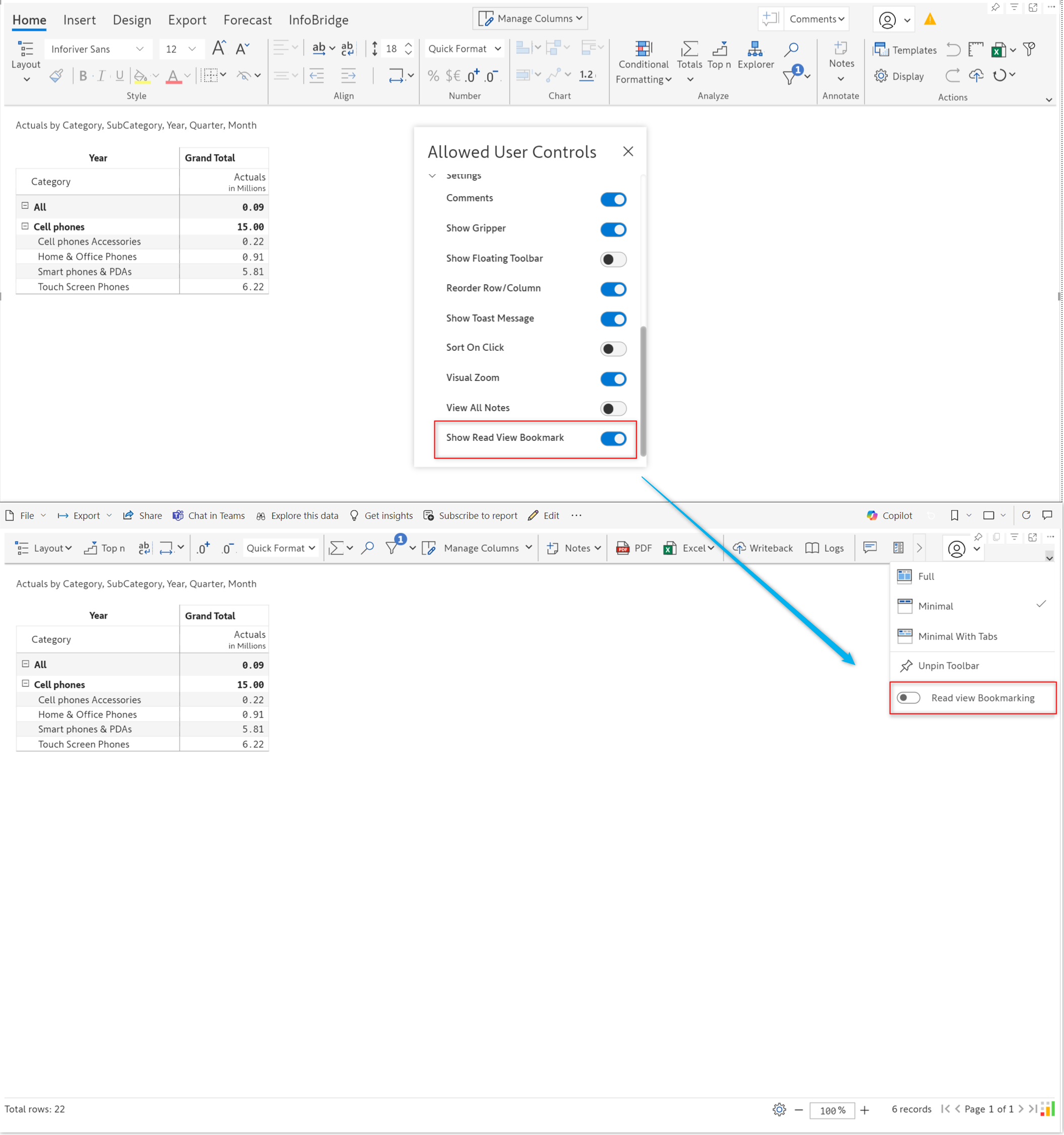
Report viewers may apply formatting/Inforiver filters for data analysis and save their changes using the Power BI bookmarking feature. When the **Show read View Bookmark** option is enabled in Allowed user controls, in reading view, you will notice a **Read view bookmarking** toggle.&#x20;

<figure><img src="https://content.gitbook.com/content/sB9HAei8v4FfKkH9M4gw/blobs/qEH8fAX2e1lcEIoD511J/image.png" alt=""><figcaption><p>Show Read- view bookmark </p></figcaption></figure>

With this toggle, users can choose whether to retain bookmarks in Reading view. When the toggle is disabled, users can create bookmarks, but changes will not be persisted.

[Learn more about using Power BI bookmarks to save your report analysis](https://docs.inforiver.com/premium-table/working-with-premium-table/3.-basic-interactions/actions/broken-reference).

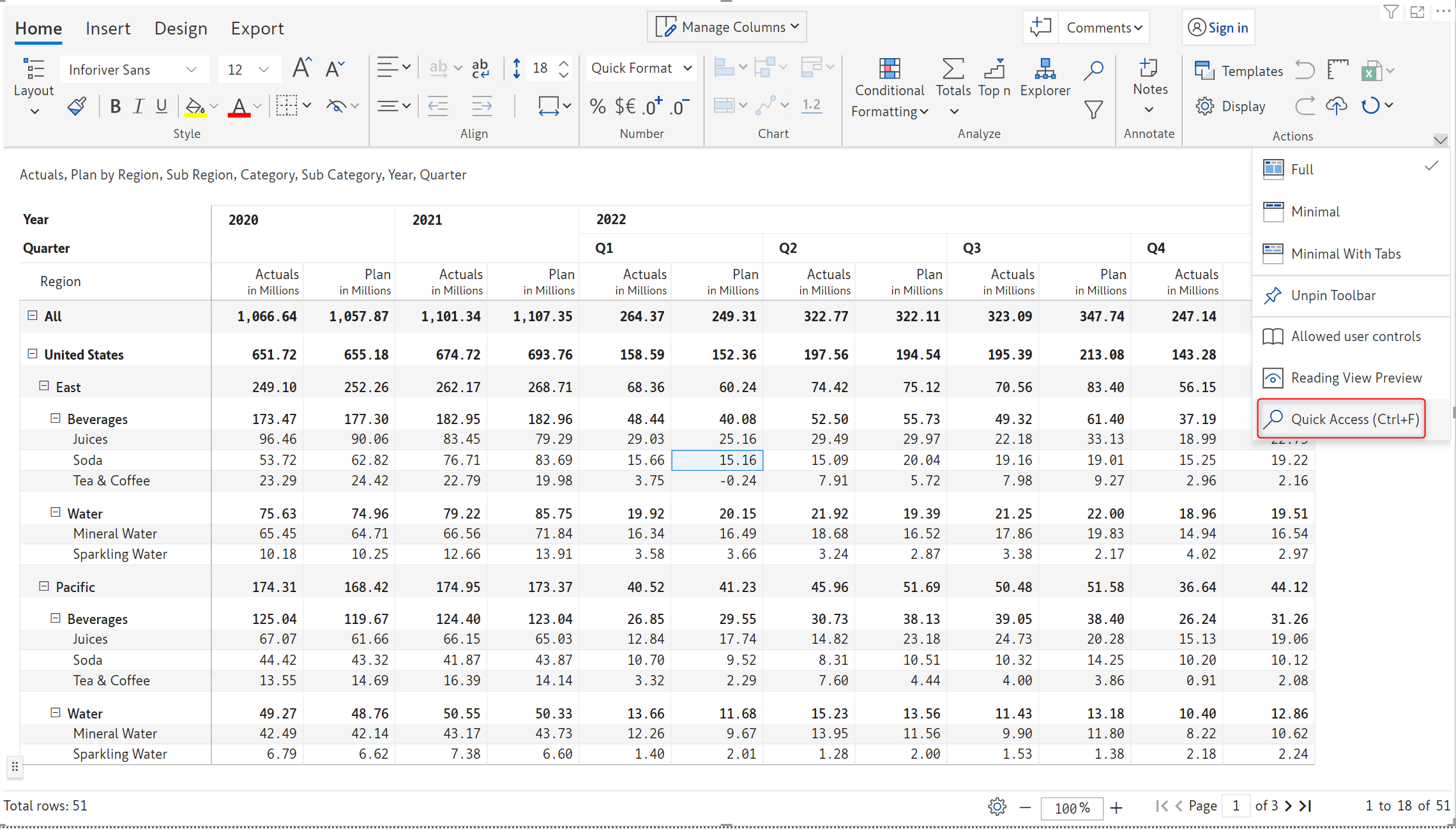
## 7. Quick access

Using the 'Quick access' option, you can quickly search for specific features and find the shortcut or directly navigate to it.&#x20;

Select the 'Quick access' option.&#x20;

<figure><img src="https://content.gitbook.com/content/sB9HAei8v4FfKkH9M4gw/blobs/j8O6i16MsDdpNJMjGpqT/image.png" alt=""><figcaption></figcaption></figure>

{% hint style="info" %}
The keyboard shortcut for the Quick access option is **'Ctrl+F'**
{% endhint %}

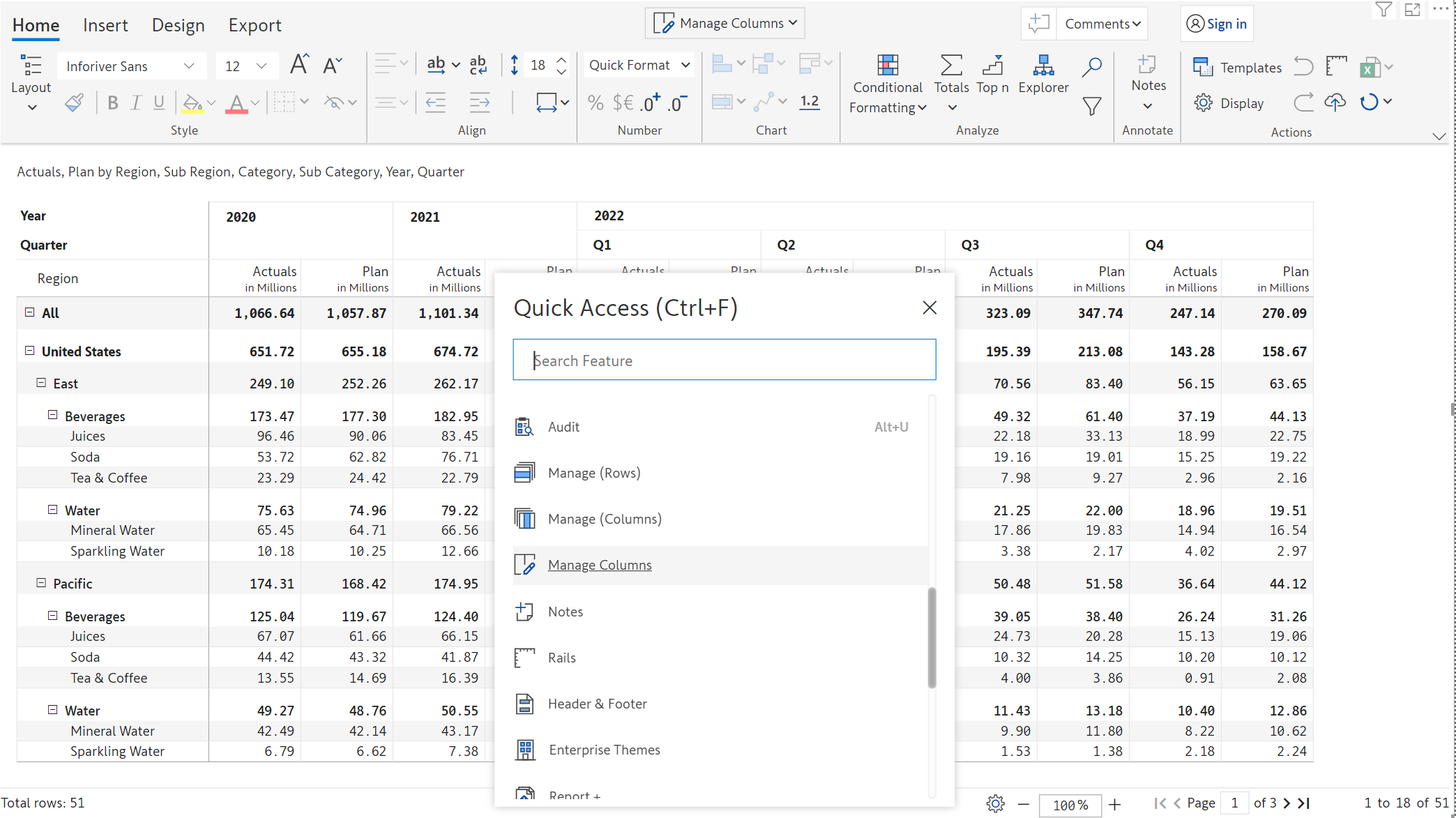
A pop-up opens as shown below. The options are hyperlinked and help you navigate directly to the tool bar tab, side panel or dialog box. Let's click on 'Manage (Columns)'.

<figure><img src="https://content.gitbook.com/content/sB9HAei8v4FfKkH9M4gw/blobs/txrm6CZKpffWotO9TjQq/image.png" alt=""><figcaption><p>Quick access menu</p></figcaption></figure>

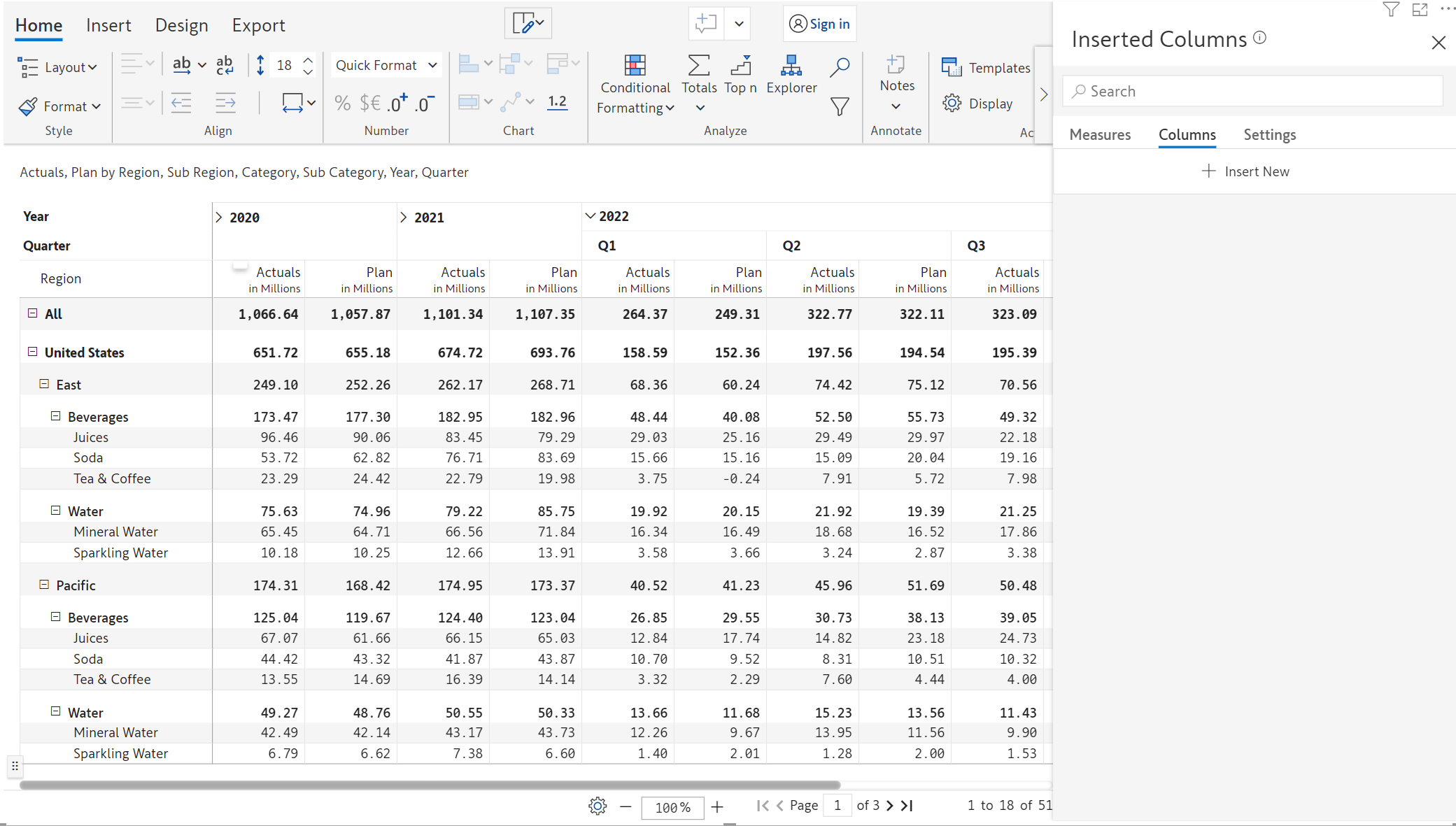
The 'Manage columns' side panel opens up as shown in the below image.

<figure><img src="https://content.gitbook.com/content/sB9HAei8v4FfKkH9M4gw/blobs/Dxw5EWbwYOqiCLZfi568/image.png" alt=""><figcaption><p>Manage column via quick access menu</p></figcaption></figure>

In the next section, we'll be covering [Keyboard shortcuts](https://docs.inforiver.com/premium-table/working-with-premium-table/3.-basic-interactions/actions/keyboard-shortcuts).