> For the complete documentation index, see [llms.txt](https://docs.inforiver.com/llms.txt). Markdown versions of documentation pages are available by appending `.md` to page URLs; this page is available as [Markdown](https://docs.inforiver.com/premium-table/working-with-premium-table/3.-basic-interactions/context-menus/row-gripper.md).
# Row gripper
In this section, let's explore the various options in Inforiver to customize rows in your reports.
### 1. Insert
You can easily insert rows from the row gripper menu. Let's explore the different types of rows that can be inserted using this option.
Insert rows option
#### 1.1. Add calculated row
Calculated rows allow you to create dynamic values based on formulas using other rows or measures in the report. They automatically recalculate when data changes. [Learn more about calculated rows.](/premium-table/working-with-premium-table/4.-adding-business-logic-and-formulae/insert-calculated-rows.md)
#### 1.2. Add static row
Static rows are used to display fixed values or labels that do not change based on the underlying data. [Learn more about static rows.](/premium-table/working-with-premium-table/4.-adding-business-logic-and-formulae/insert-manual-input-rows.md)
#### 1.3. Add Break Row
Insert break rows to demarcate row categories. You can also apply formatting, such as setting the color for break rows.
#### 1.4. Empty row
Financial statements and reports often require options to add white spaces for formatting. Inforiver provides the insert empty row option to achieve this in a single click. [Learn more about empty rows](/premium-table/working-with-premium-table/2.-displaying-information/basic-formatting/insert-blank-rows.md).
### 2. Actions
The actions section has various formatting and customization options for rows. Let's take a detailed look.
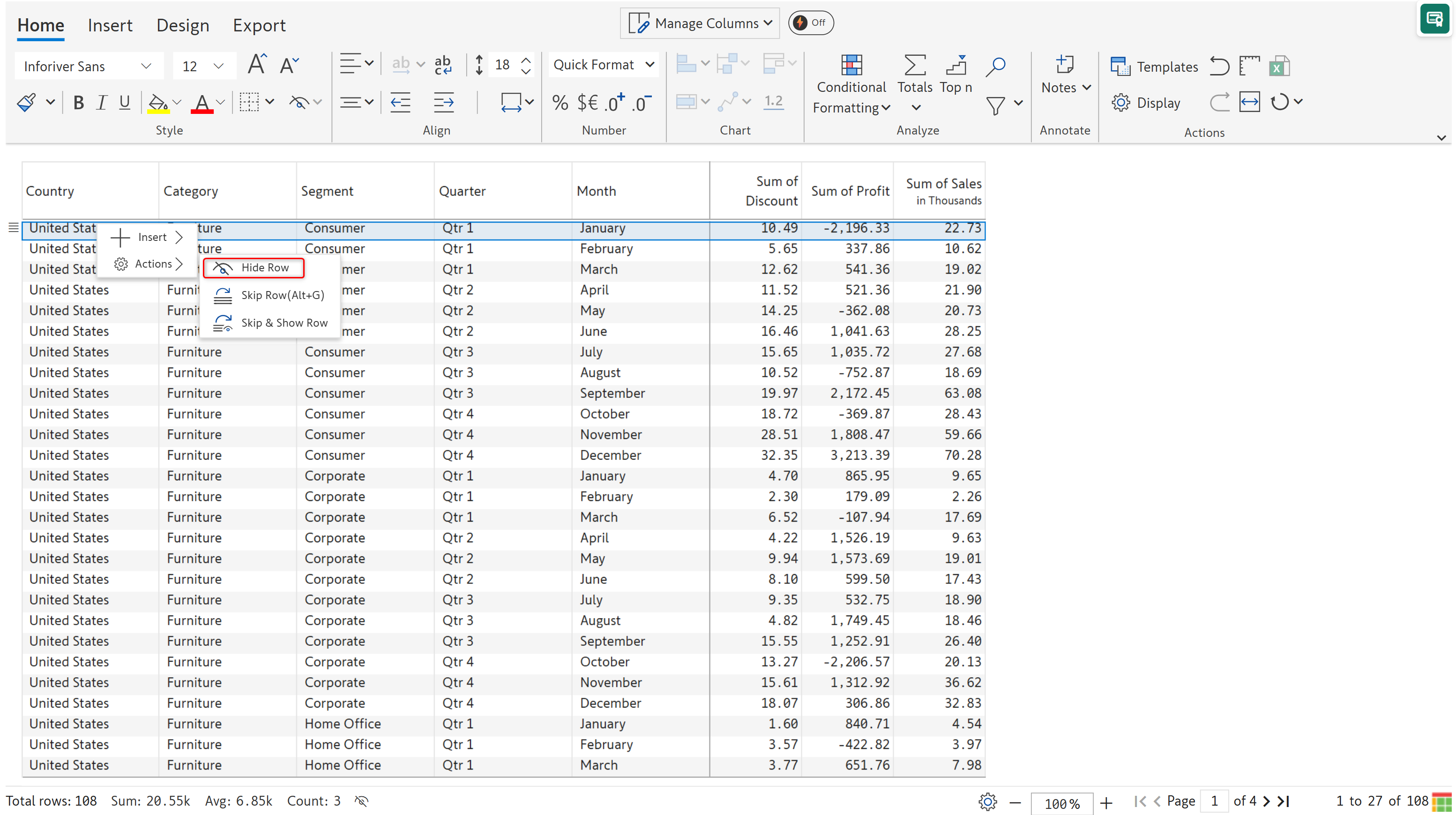
Actions
#### 2.1. Hide row
This option can be used to mask rows in the report. Note that hidden rows will still be included in total and sub-total calculations.
The **Furniture** category for the **Consumer** segment in the month of **January** has been masked using this option. Use the **Show All Rows** option from the row gripper to display the hidden rows.
#### 2.2. Skip row
The skip rows option can be used when you need to effectively perform a soft delete on a row - the row will be excluded from totals and exports.
The **Furniture** category for the **Consumer** segment in the month of **April** (Quarter 2) has been removed using the **Skip Row** option, and the totals and sub-totals have been adjusted accordingly. This option can also be used to skip individual rows.
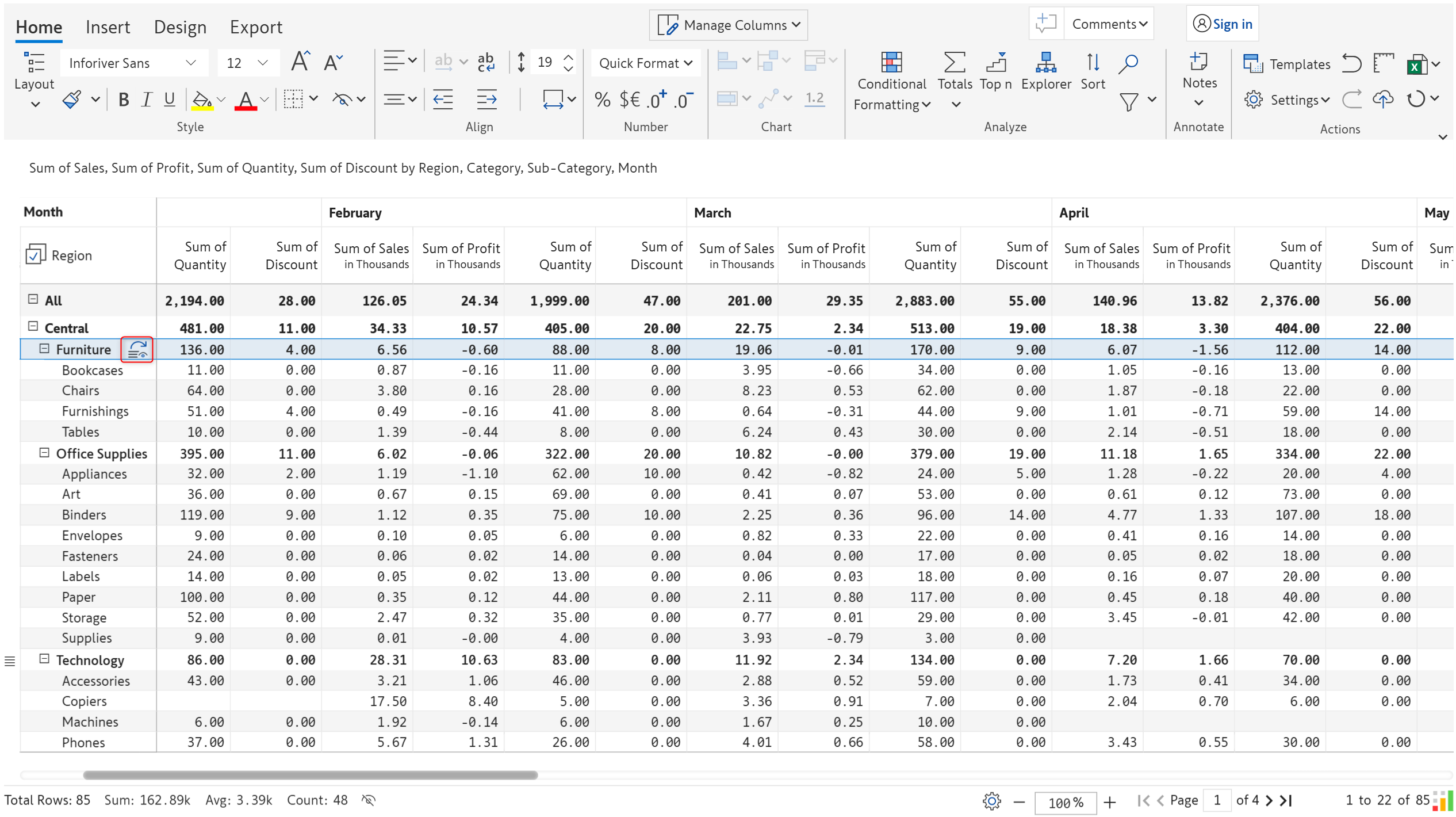
#### 2.3. Skip and show row
This option will exclude the selected row category from totals and subtotals, but the row will still be displayed. The icon indicates that the row has been skipped.
Skip and show row
---
# Agent Instructions
This documentation is published with GitBook. GitBook is the documentation platform designed so that both humans and AI agents can read, navigate, and reason over technical content effectively. Learn more at gitbook.com.
## Querying This Documentation
If you need additional information that is not directly available in this page, you can query the documentation dynamically by asking a question.
Perform an HTTP GET request on the current page URL with the `ask` query parameter, and the optional `goal` query parameter:
```
GET https://docs.inforiver.com/premium-table/working-with-premium-table/3.-basic-interactions/context-menus/row-gripper.md?ask=&goal=
```
`ask` is the immediate question: it should be specific, self-contained, and written in natural language.
`goal` is optional and describes the broader end goal you are ultimately trying to accomplish on behalf of the user. GitBook uses it to tailor the answer towards what is most useful for that goal.
The response will contain a direct answer to the question and relevant excerpts and sources from the documentation.
Use this mechanism when the answer is not explicitly present in the current page, you need clarification or additional context, or you want to retrieve related documentation sections.




 icon indicates that the row has been skipped.