# Create visual hierarchies

With Inforiver, visual hierarchies in rows & columns can be created by selecting multiple items and grouping them. In the case of row grouping, the subtotal values are calculated automatically.

You can also create row groups automatically based on Conditional formatting - Classification.&#x20;

## 1. Group columns

In the below example, the columns are to be grouped and named Revenue, Profitability, and Customers respectively.

{% hint style="info" %}
The group icon is greyed out until a row or column is selected.
{% endhint %}

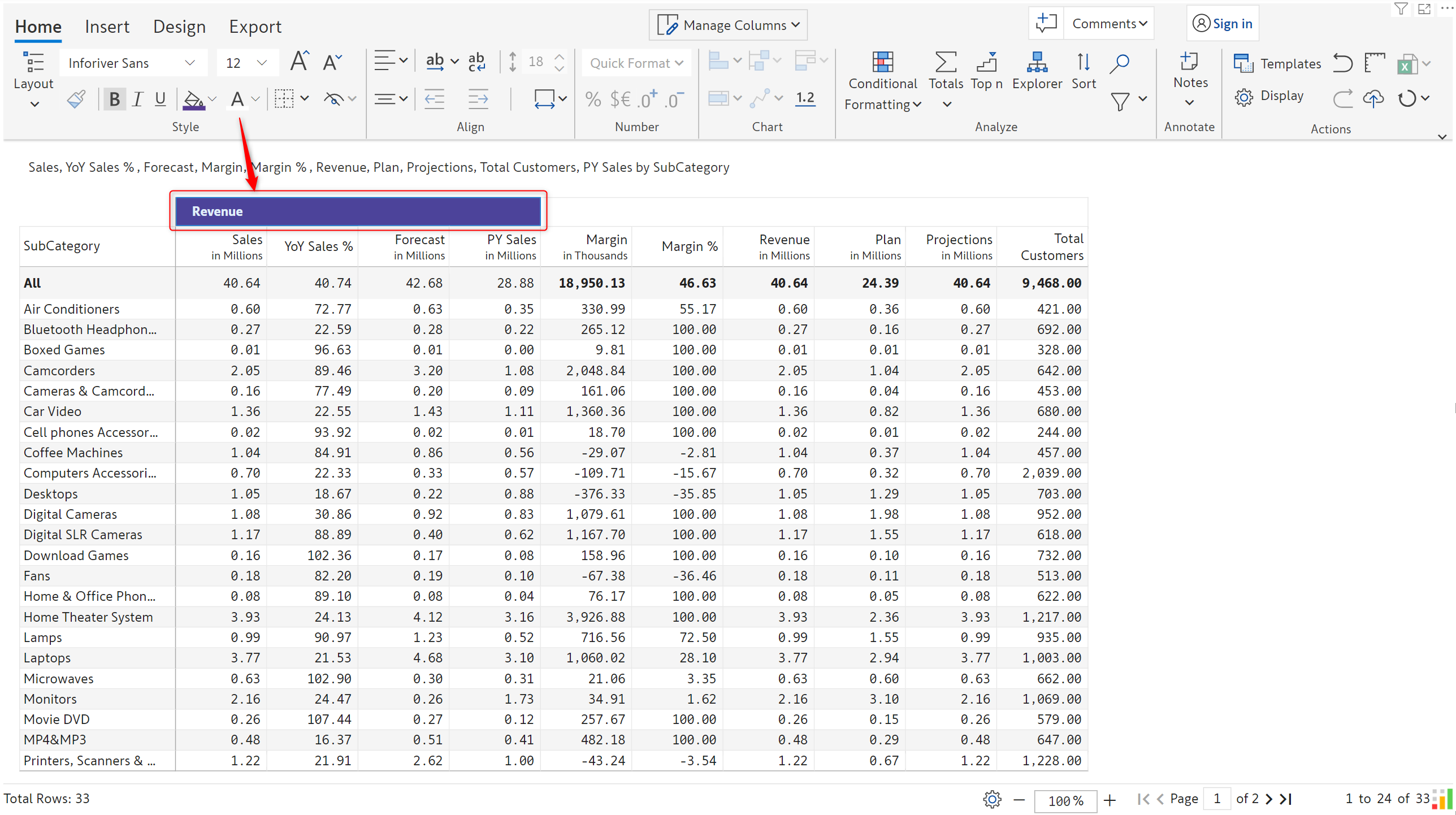
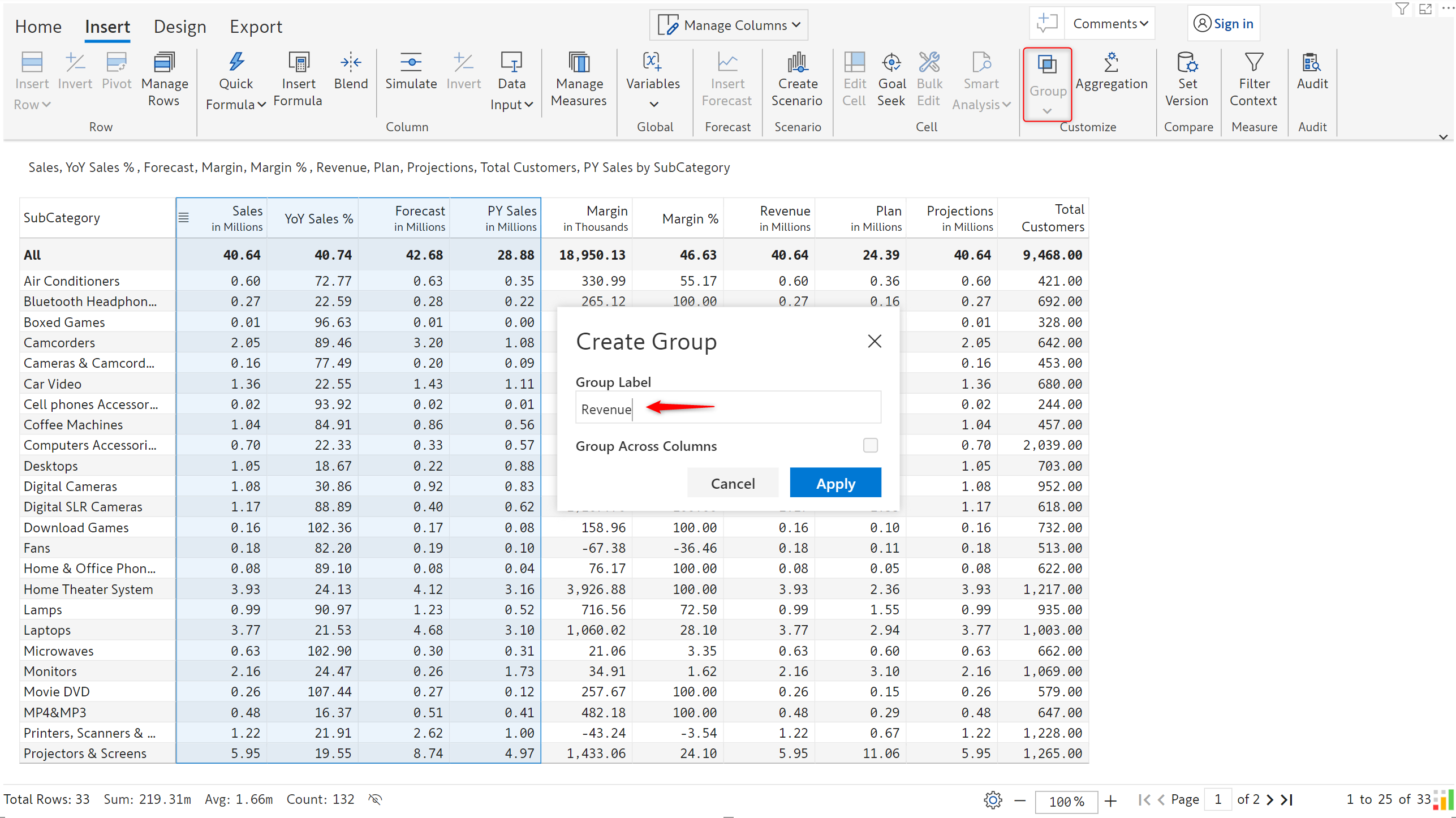
**STEP 1:** Select the columns to be grouped as Revenue. In the 'Insert' tab, click on **Group** and enter a label.  Click 'Apply'.

<figure><img src="https://content.gitbook.com/content/sB9HAei8v4FfKkH9M4gw/blobs/zWitpZZiOnAut7BP56FJ/image.png" alt=""><figcaption><p>Creating a custom measure group</p></figcaption></figure>

**STEP 2:** The column group gets created and it can be formatted using the 'Style' and 'Alignment' options as shown below.

<figure><img src="https://content.gitbook.com/content/sB9HAei8v4FfKkH9M4gw/blobs/zmkzZVy93jWKkimFXxnC/image.png" alt=""><figcaption></figcaption></figure>

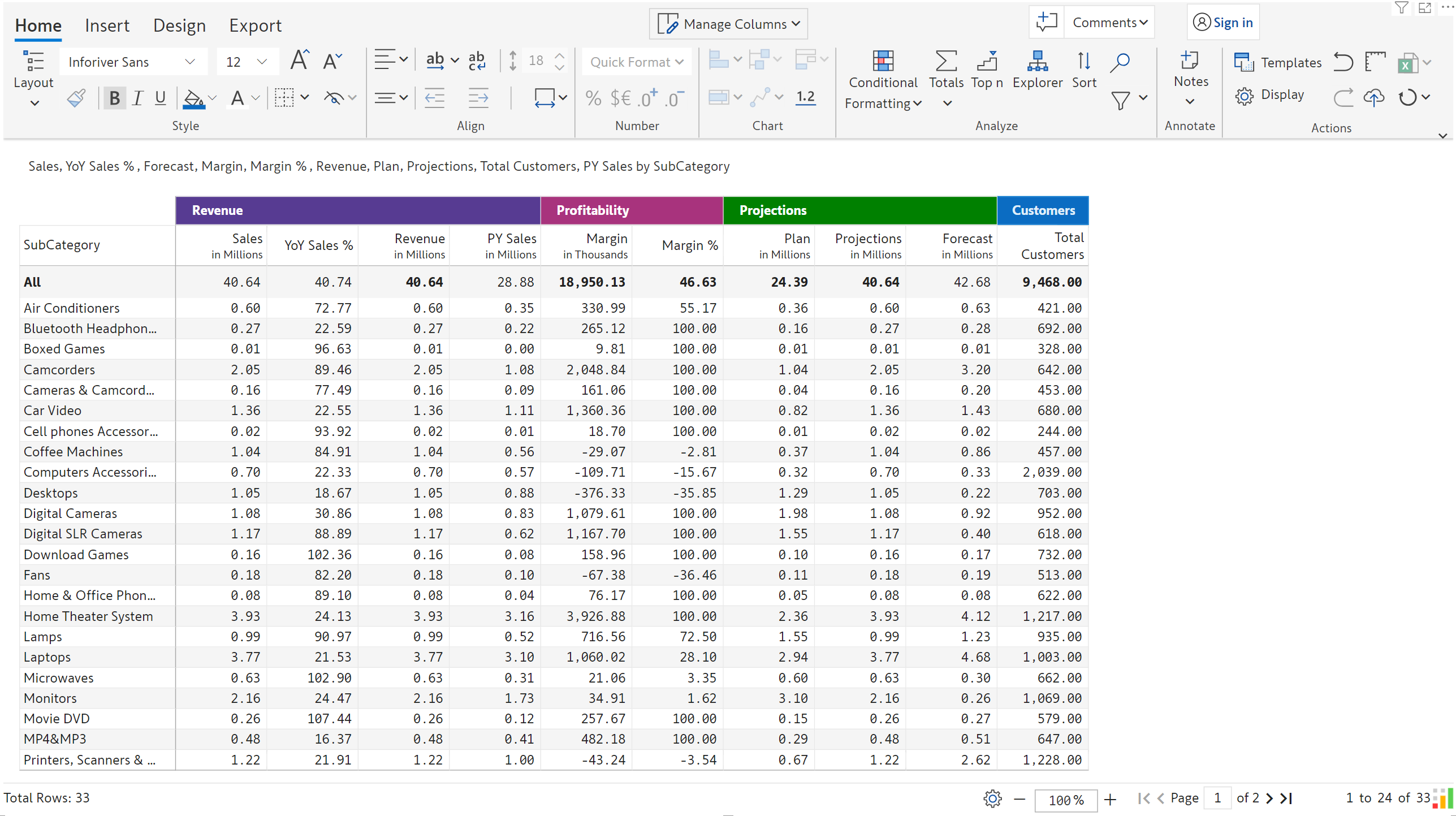
**STEP 3:** The other groups can be created and formatted as shown.

<figure><img src="https://content.gitbook.com/content/sB9HAei8v4FfKkH9M4gw/blobs/8fUvC6fJyiBWZ996rVzQ/image.png" alt=""><figcaption></figcaption></figure>

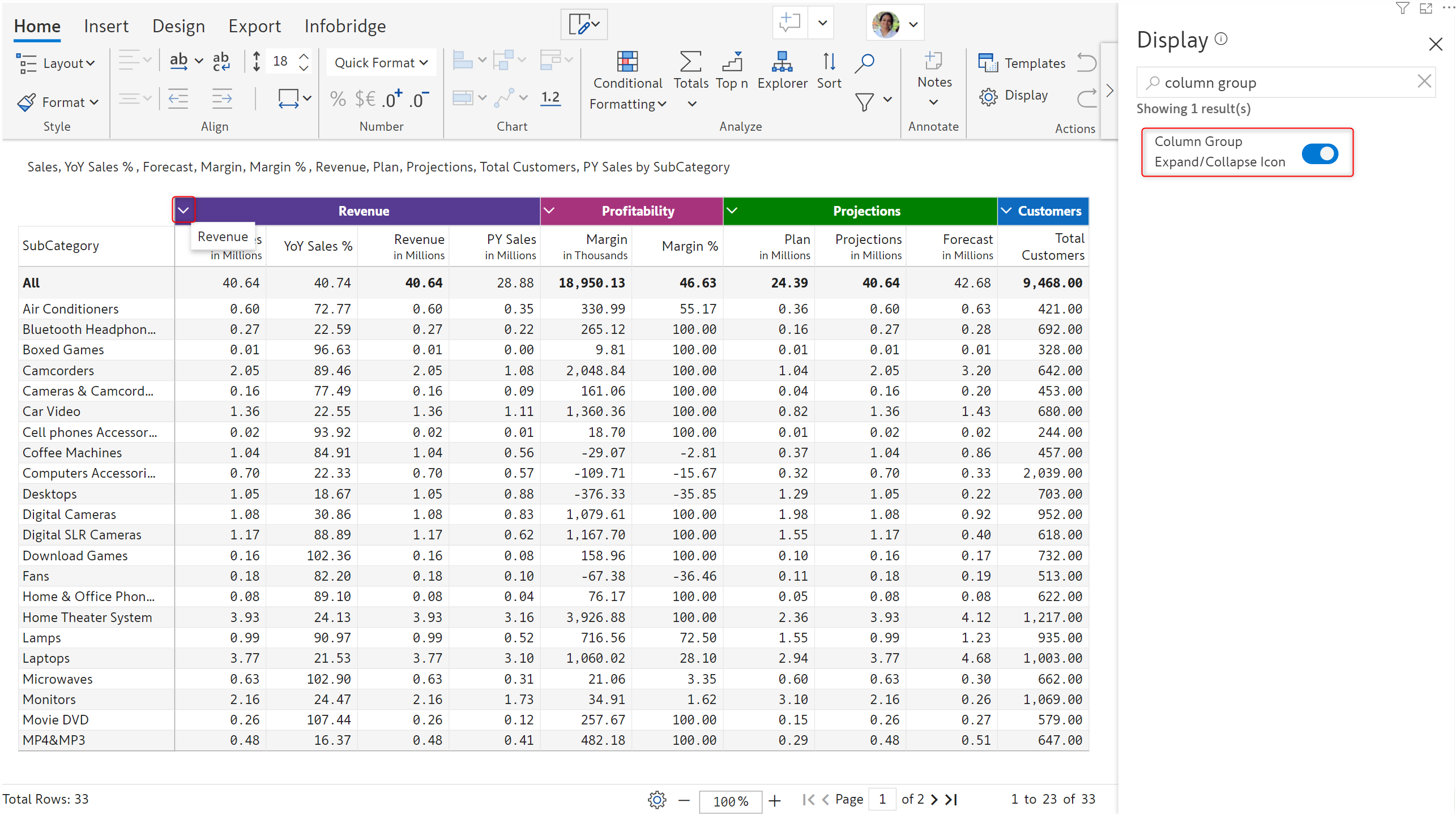
**STEP 4:** Enable the **Column Group Expand/Collapse Icon** option from Display settings. You can expand and collapse column groups by clicking the <img src="https://content.gitbook.com/content/sB9HAei8v4FfKkH9M4gw/blobs/Tl8xKc9NvswCLC5aisgU/image.png" alt="" data-size="line">icon.

<figure><img src="https://content.gitbook.com/content/sB9HAei8v4FfKkH9M4gw/blobs/6AC47jPQzCYb8CZcz9gC/image.png" alt=""><figcaption><p>Expand/collapse column groups</p></figcaption></figure>

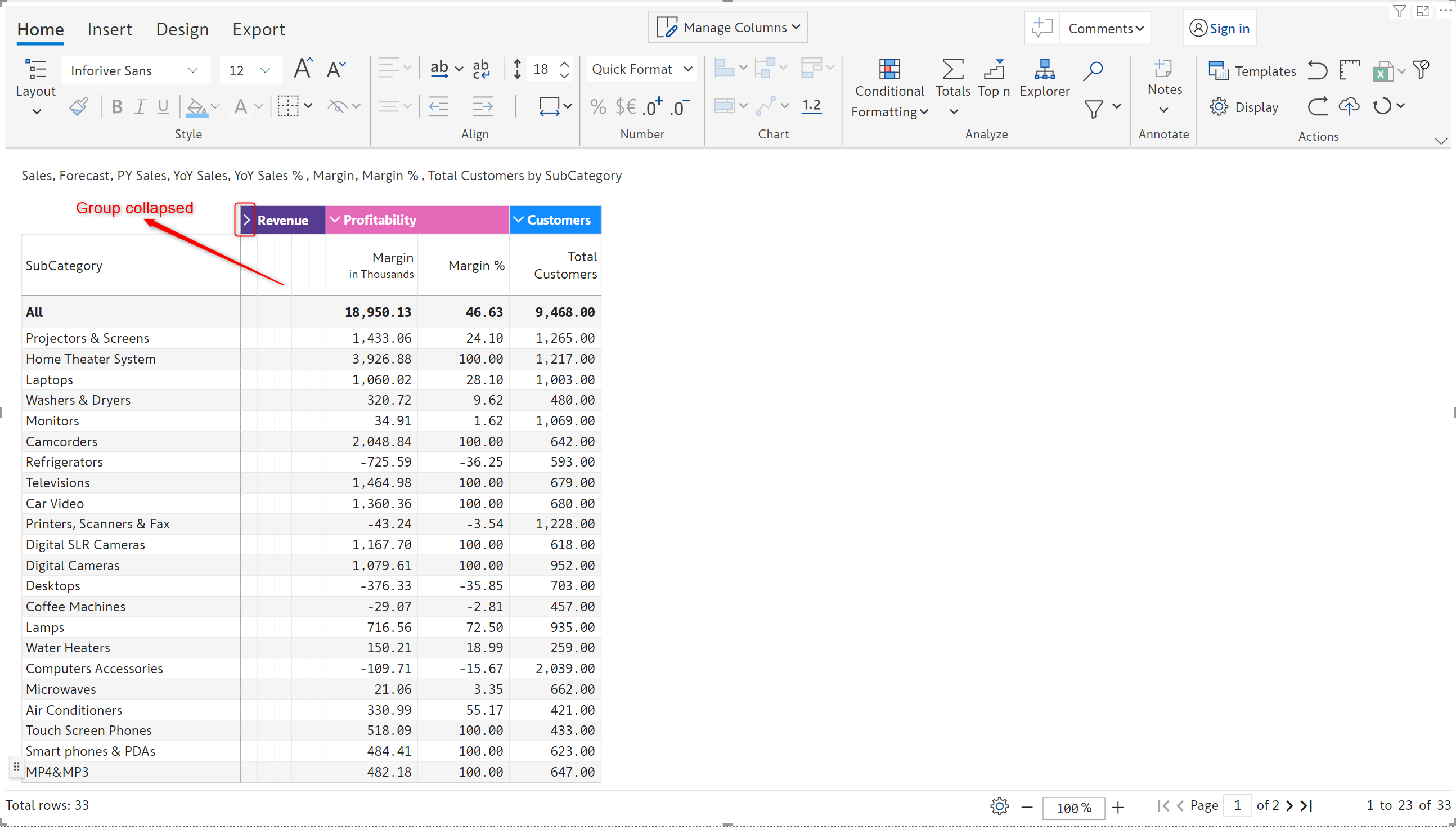
The values in the grouped measures will not be displayed when a group is collapsed.

<figure><img src="https://content.gitbook.com/content/sB9HAei8v4FfKkH9M4gw/blobs/qFpt6Y7H3ndjxyhzmOZT/image.png" alt=""><figcaption><p>Collapsed column group</p></figcaption></figure>

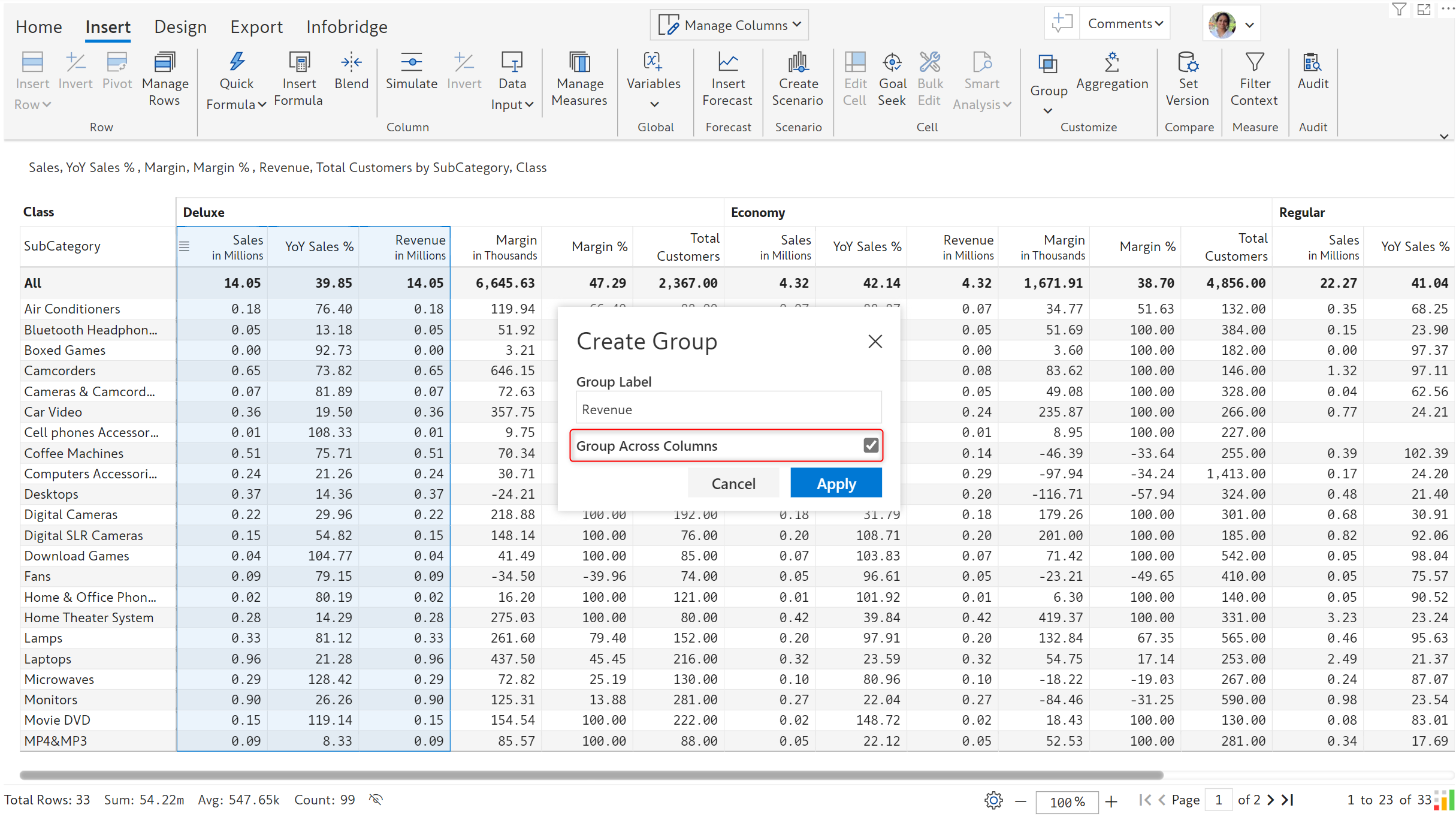
**STEP 5:** When you have column dimensions assigned and you want the group to be created across all dimensions, check the **Group Across Columns** option.

<figure><img src="https://content.gitbook.com/content/sB9HAei8v4FfKkH9M4gw/blobs/JyTR06uf30g4IExr0S7b/image.png" alt=""><figcaption><p>Group across columns option</p></figcaption></figure>

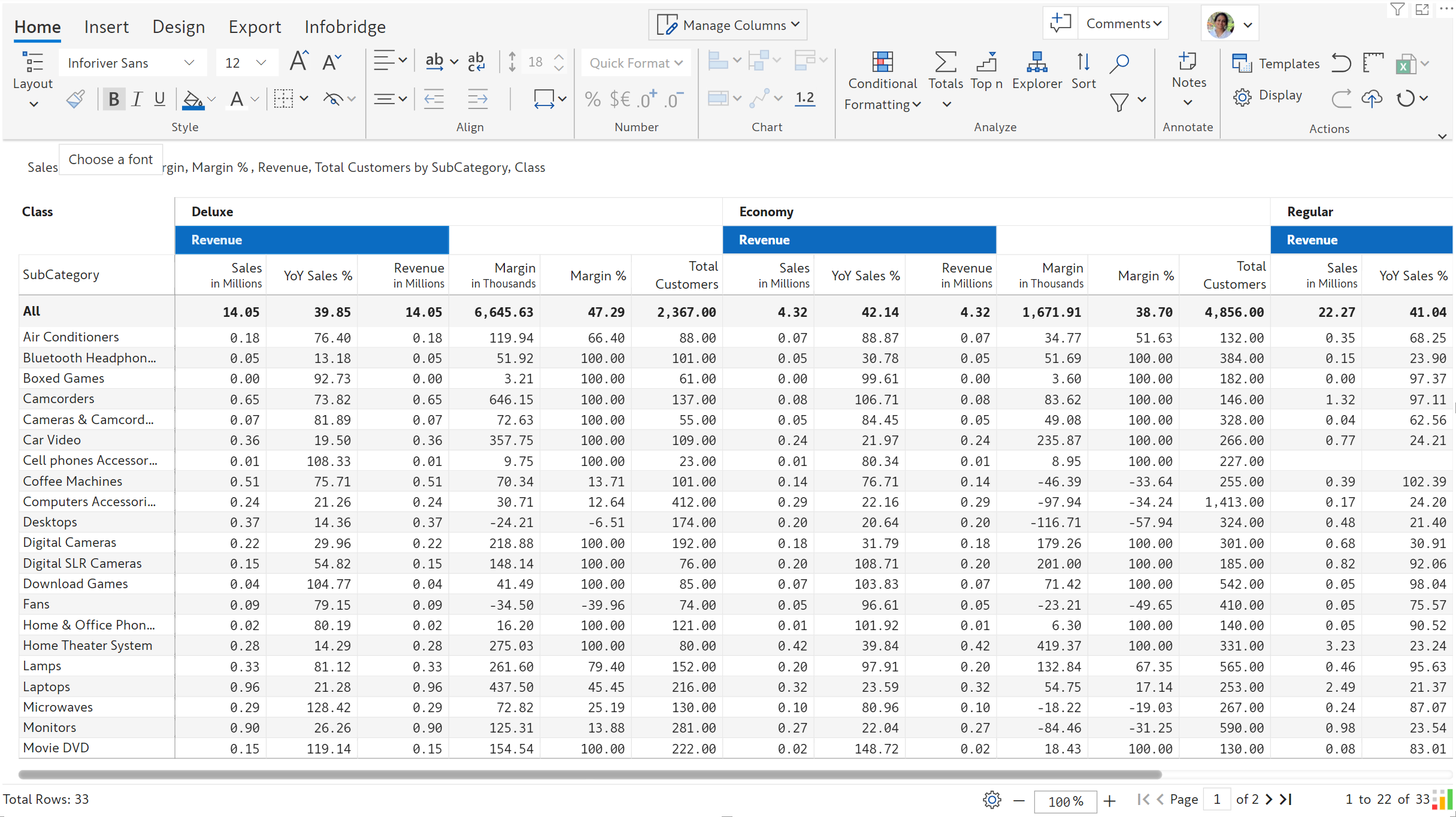
Notice how the Revenue group is created across all the column dimension categories.

<figure><img src="https://content.gitbook.com/content/sB9HAei8v4FfKkH9M4gw/blobs/qPjdyyk1JK4ooxFipe3a/image.png" alt=""><figcaption><p>Creating groups across column dimensions</p></figcaption></figure>

## 2. Group rows

### 2.1. Manual grouping

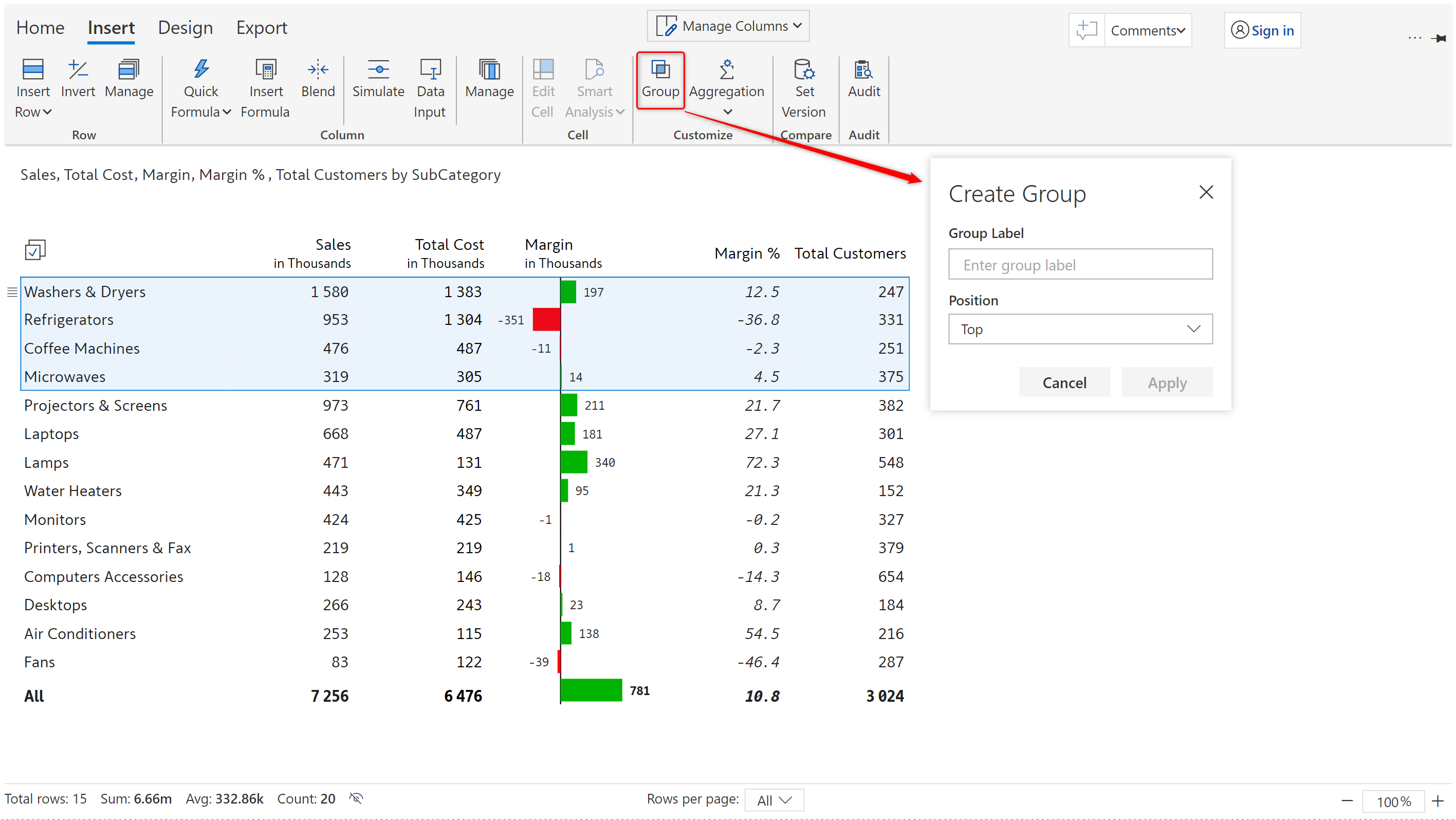
a) On selecting a column or multiple columns, the 'Group' icon gets enabled. Select the rows to be grouped and click on '**Group**' in the 'Insert' tab. A popup opens.

<figure><img src="https://content.gitbook.com/content/sB9HAei8v4FfKkH9M4gw/blobs/XEwviaZXifOqyhu9wd6N/3.7.7%20Row%20groups.png" alt=""><figcaption><p>Row grouping - label and total position</p></figcaption></figure>

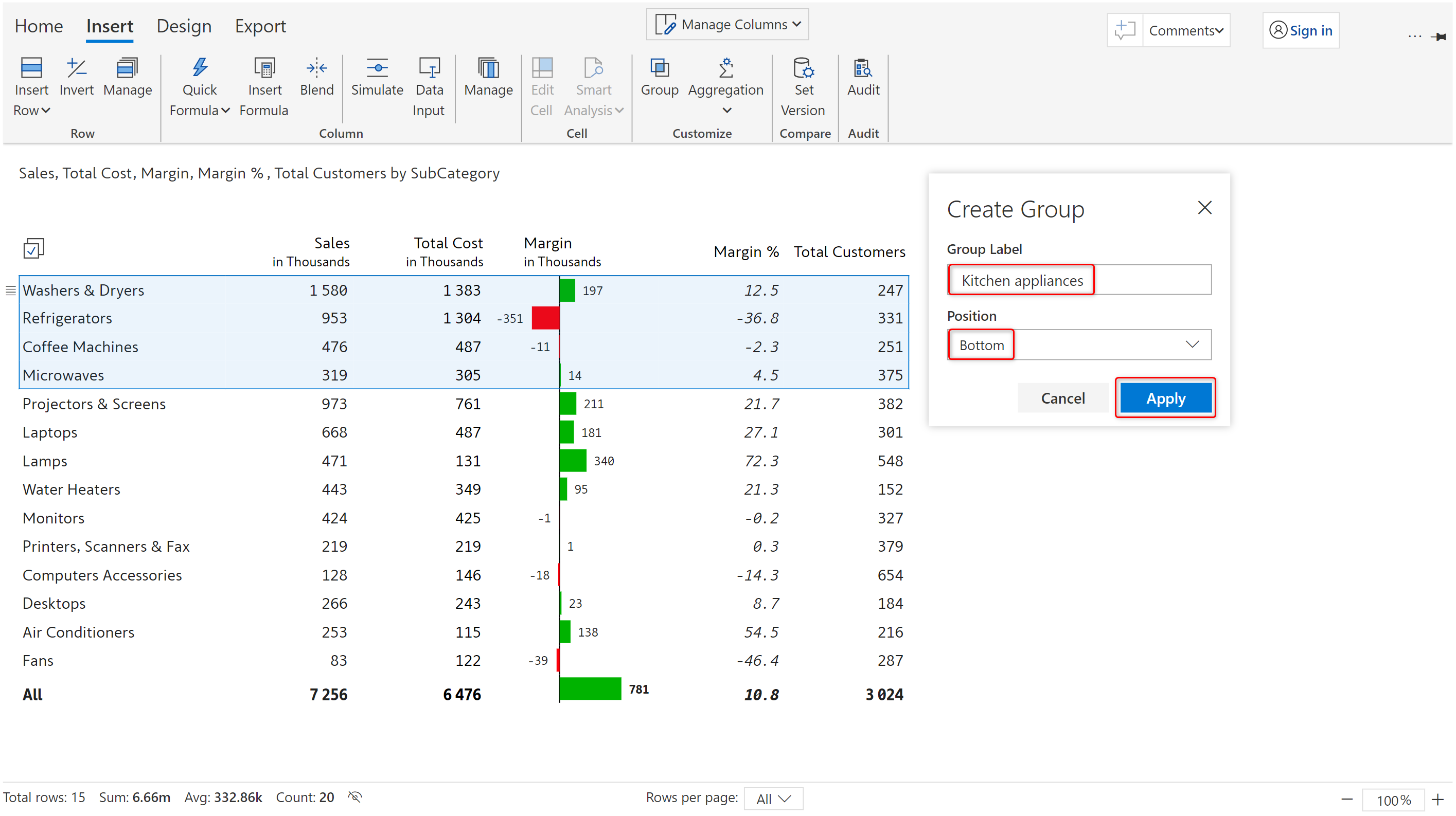
b) Enter the row group label and set the total position. Click 'Apply'.

<figure><img src="https://content.gitbook.com/content/sB9HAei8v4FfKkH9M4gw/blobs/hlWRf6o67VBtgCeSx6vV/3.7.8%20Row%20groups.png" alt=""><figcaption><p>Row grouping options configured</p></figcaption></figure>

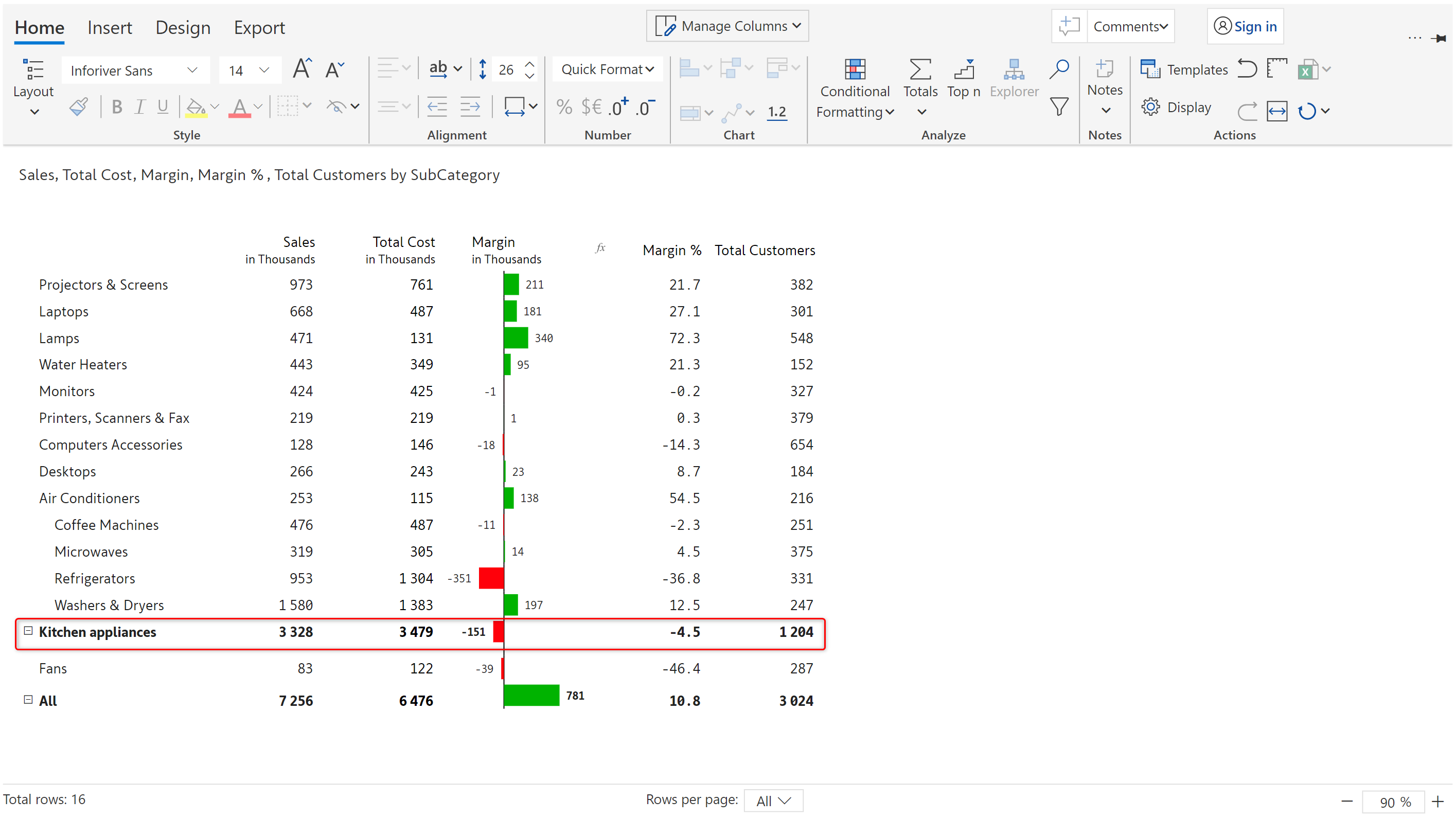
c) The rows are indented to indicate that they are a part of a child hierarchy. The measures are automatically aggregated. A bar chart is displayed for the Margin column.

<figure><img src="https://content.gitbook.com/content/sB9HAei8v4FfKkH9M4gw/blobs/X0K0oQekQ2lgUUXlpZDb/3.7.9%20Row%20groups.png" alt=""><figcaption><p>Row grouping created</p></figcaption></figure>

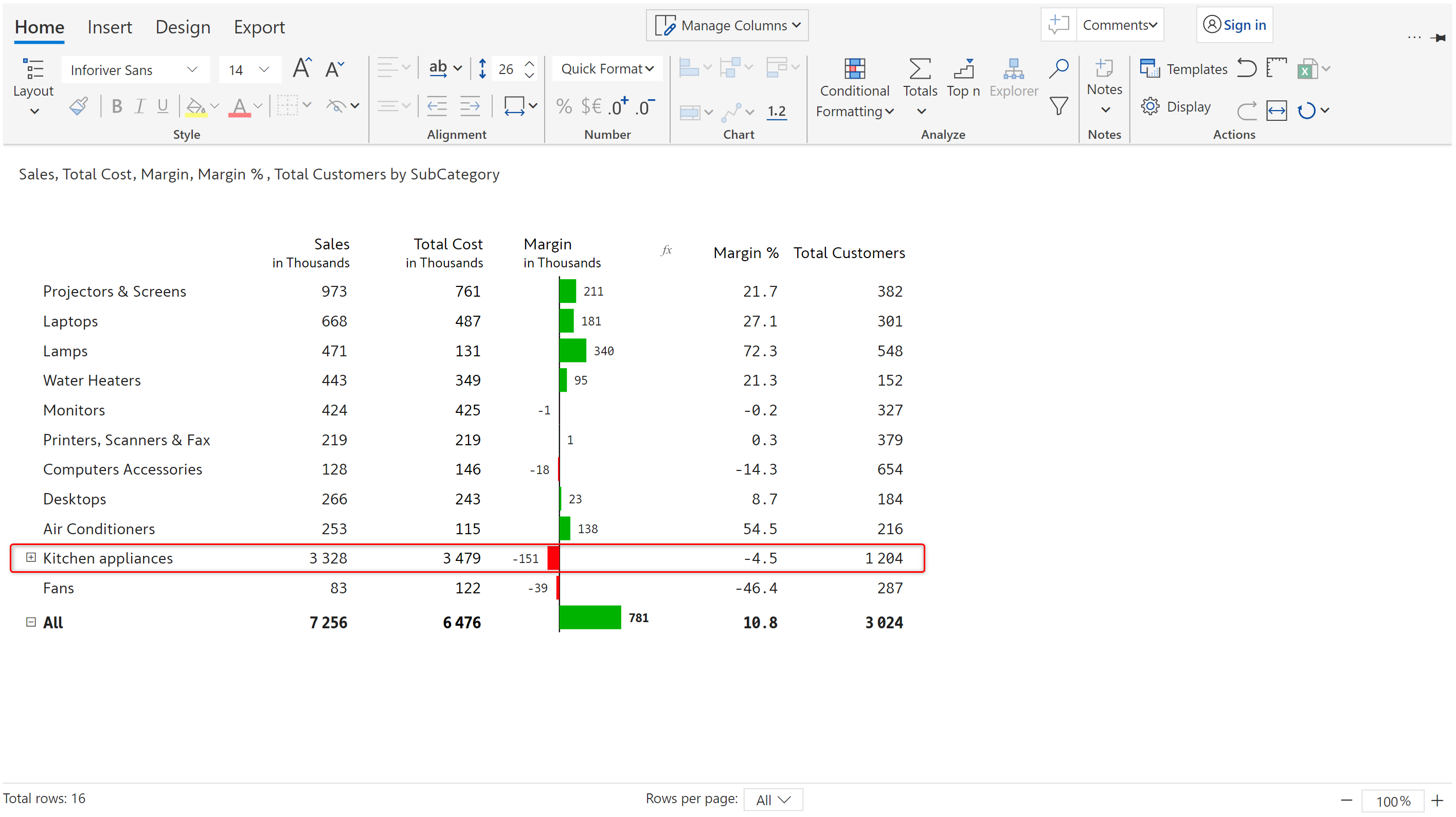
d) The row groups can be expanded/collapsed using the expand/collapse button.

<figure><img src="https://content.gitbook.com/content/sB9HAei8v4FfKkH9M4gw/blobs/6YPgpuWKfo6f0NYhTDp0/3.7.10%20Row%20groups.png" alt=""><figcaption><p>Expand/collapse enabled row grouping</p></figcaption></figure>

### 2.2. Auto grouping

Conditional formatting has been covered in detail in [section 5](https://docs.inforiver.com/premium-table/working-with-premium-table/5.-conditional-formatting). For the purposes of exploring auto grouping of rows based on classification, we'll just look at the settings in brief.

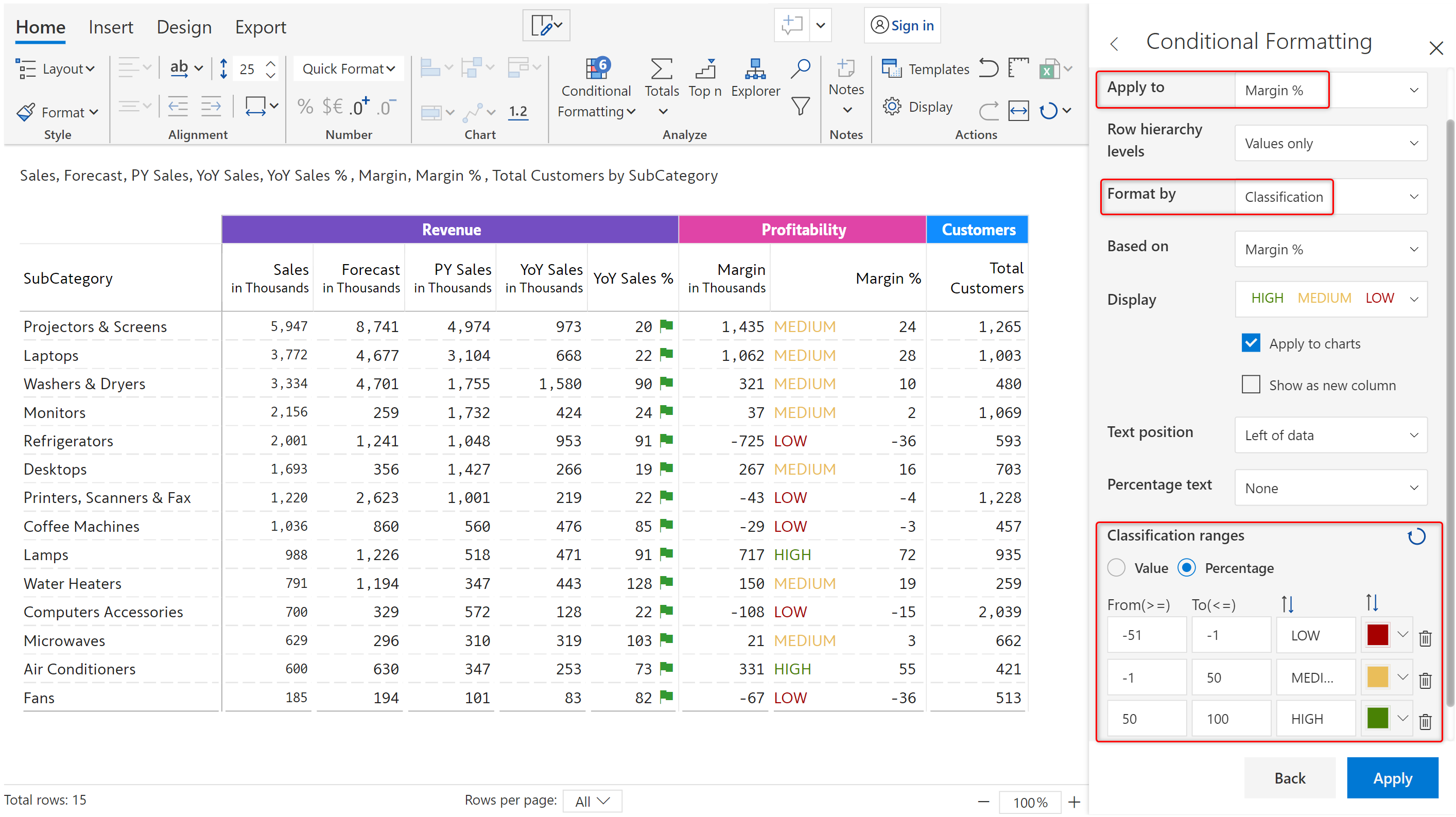
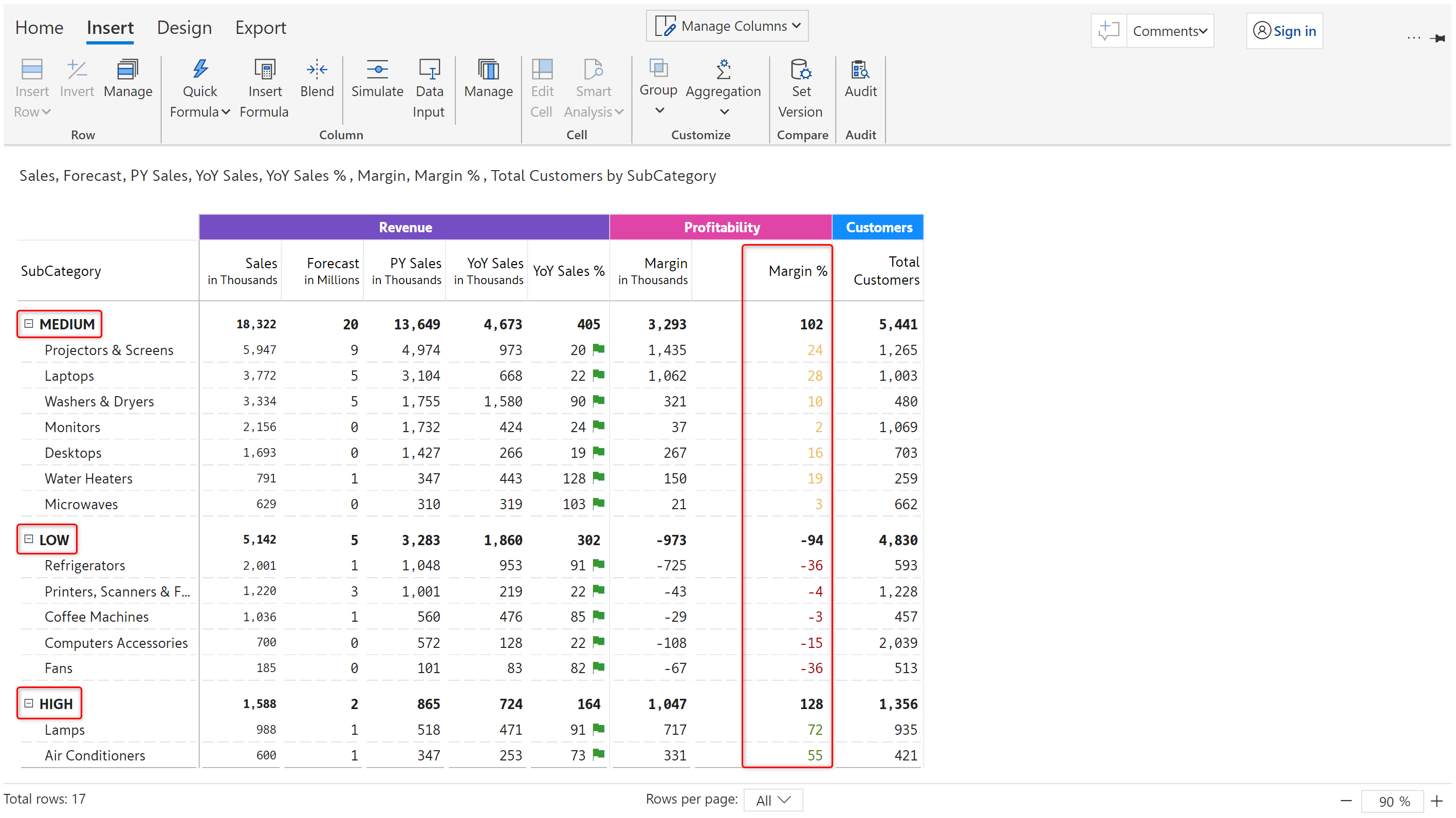
In this example, classification rules are applied to Margin %. High/Medium/Low is displayed next to the Margin % values based on the applied ranges.

<figure><img src="https://content.gitbook.com/content/sB9HAei8v4FfKkH9M4gw/blobs/2oRZaIhaDTcX8LGmAkyR/3.7.11%20Auto%20Row%20groups.png" alt=""><figcaption><p>Conditional formatting - Classification</p></figcaption></figure>

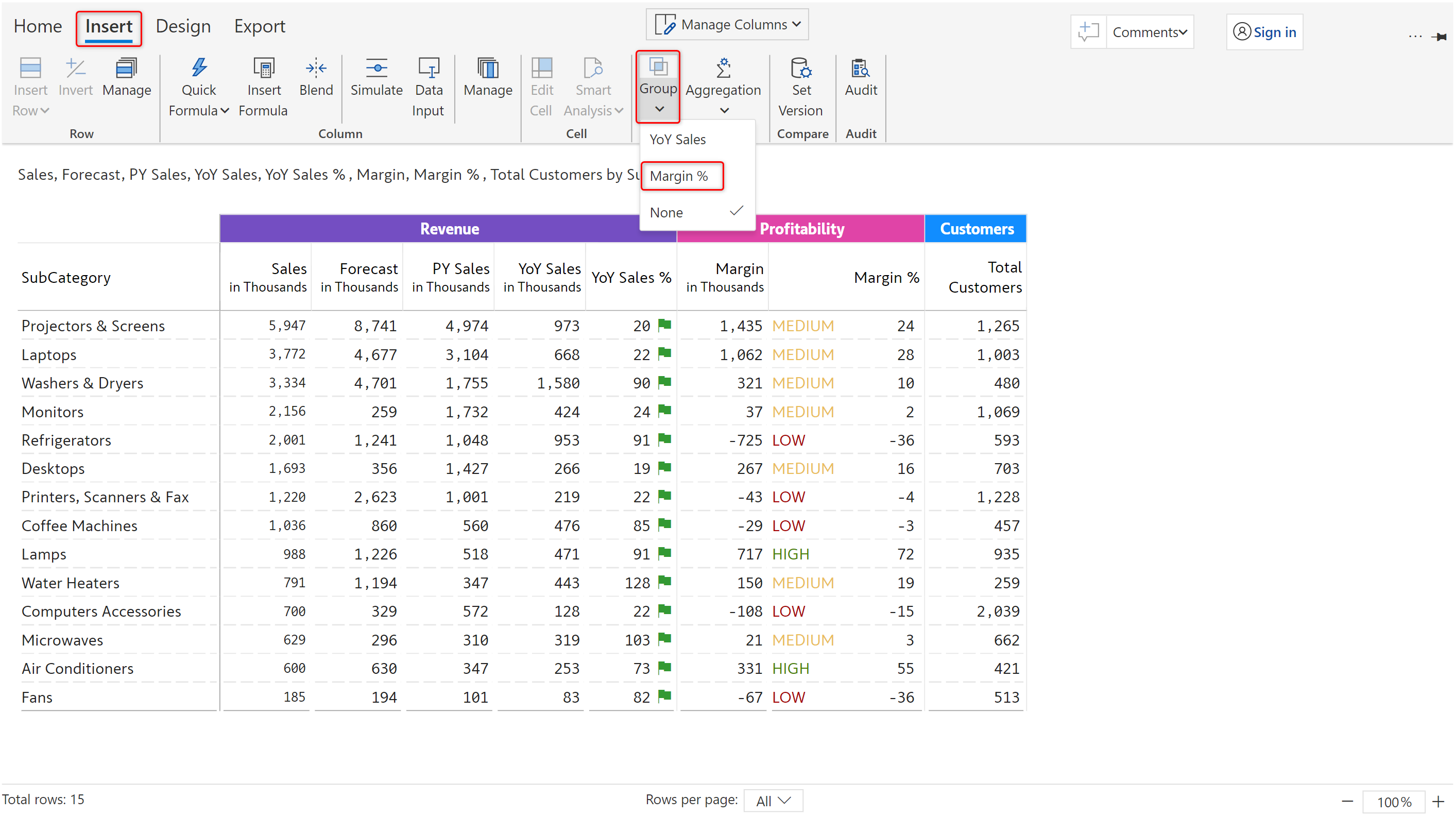
a) In the 'Insert' tab, click on 'Group' and select the 'Margin %' option.

<figure><img src="https://content.gitbook.com/content/sB9HAei8v4FfKkH9M4gw/blobs/S5Ade8mMKDzMy6LKw6Yl/3.7.12%20Auto%20Row%20groups.png" alt=""><figcaption><p>Auto grouping based on classification</p></figcaption></figure>

b) Rows are automatically grouped as shown below.

<figure><img src="https://content.gitbook.com/content/sB9HAei8v4FfKkH9M4gw/blobs/88OAXZBDb5vJ4UdBftjp/3.7.13%20Auto%20Row%20groups.png" alt=""><figcaption><p>Row groups created</p></figcaption></figure>

## 3. Ungroup&#x20;

### 3.1. Columns

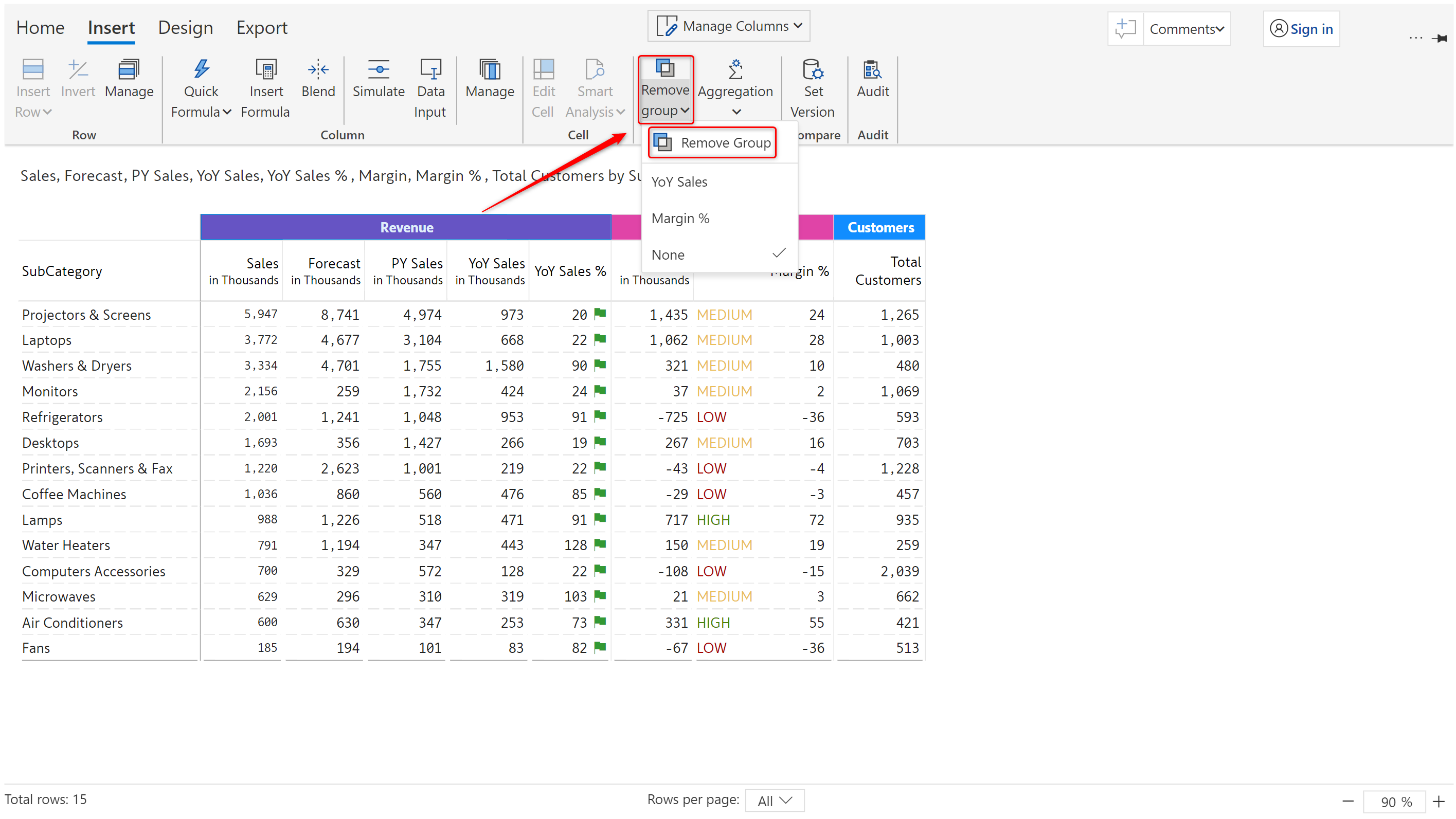
To remove a column group, click on the column group label, the '**Remove group**' icon, and the 'Remove group' option.

<figure><img src="https://content.gitbook.com/content/sB9HAei8v4FfKkH9M4gw/blobs/YlruivyFYK8cYCeNFFs2/3.7.16%20Remove%20column%20groups.png" alt=""><figcaption><p>Removing column group</p></figcaption></figure>

### 3.2. Rows&#x20;

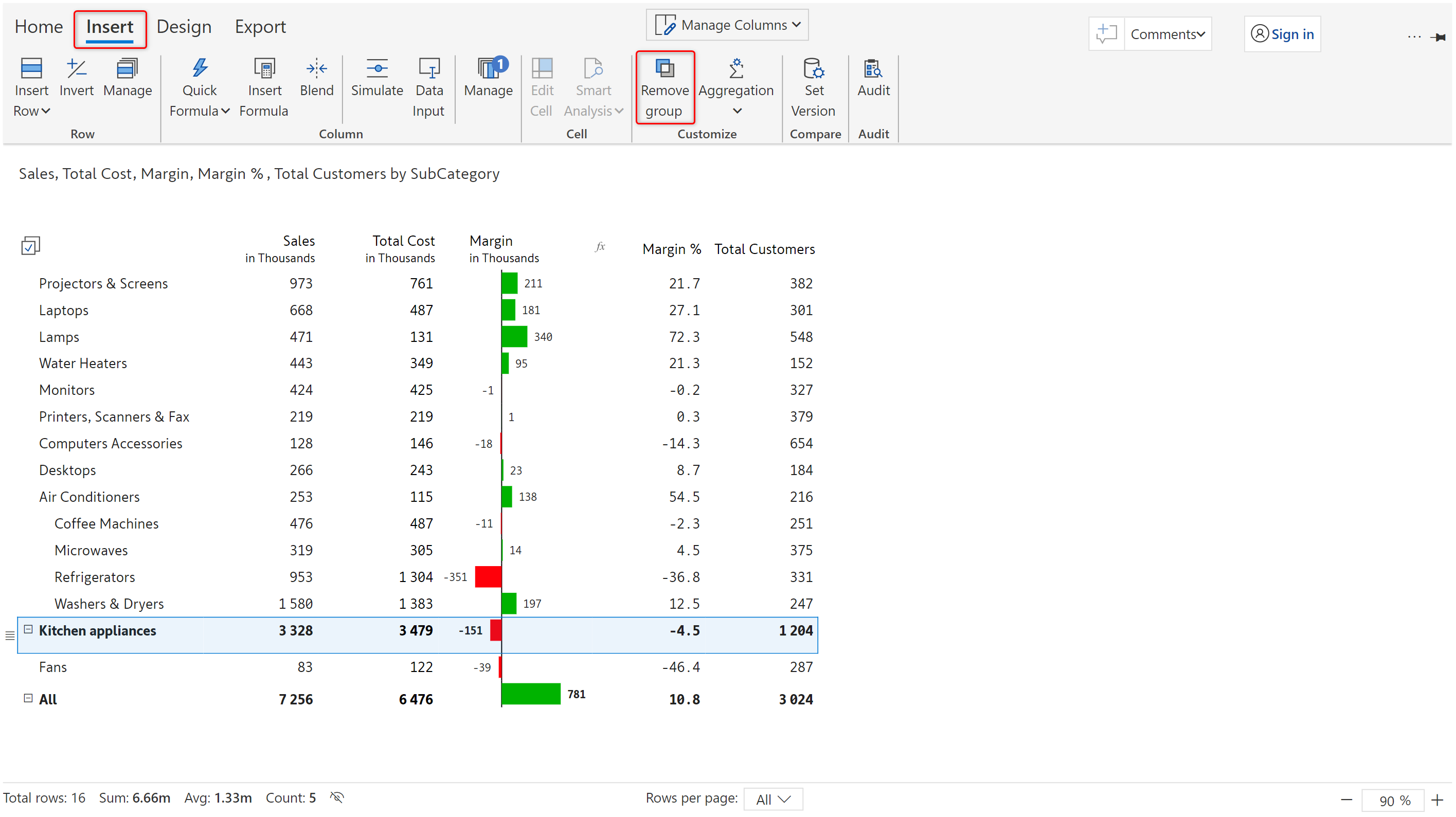
a) In case of manually grouped rows, select the group and click on the '**Remove group**' icon in the 'Insert' tab.&#x20;

<figure><img src="https://content.gitbook.com/content/sB9HAei8v4FfKkH9M4gw/blobs/WZLSmaLyDsIFmqUWMfg3/3.7.14%20Remove%20Row%20groups.png" alt=""><figcaption><p>Removing row group</p></figcaption></figure>

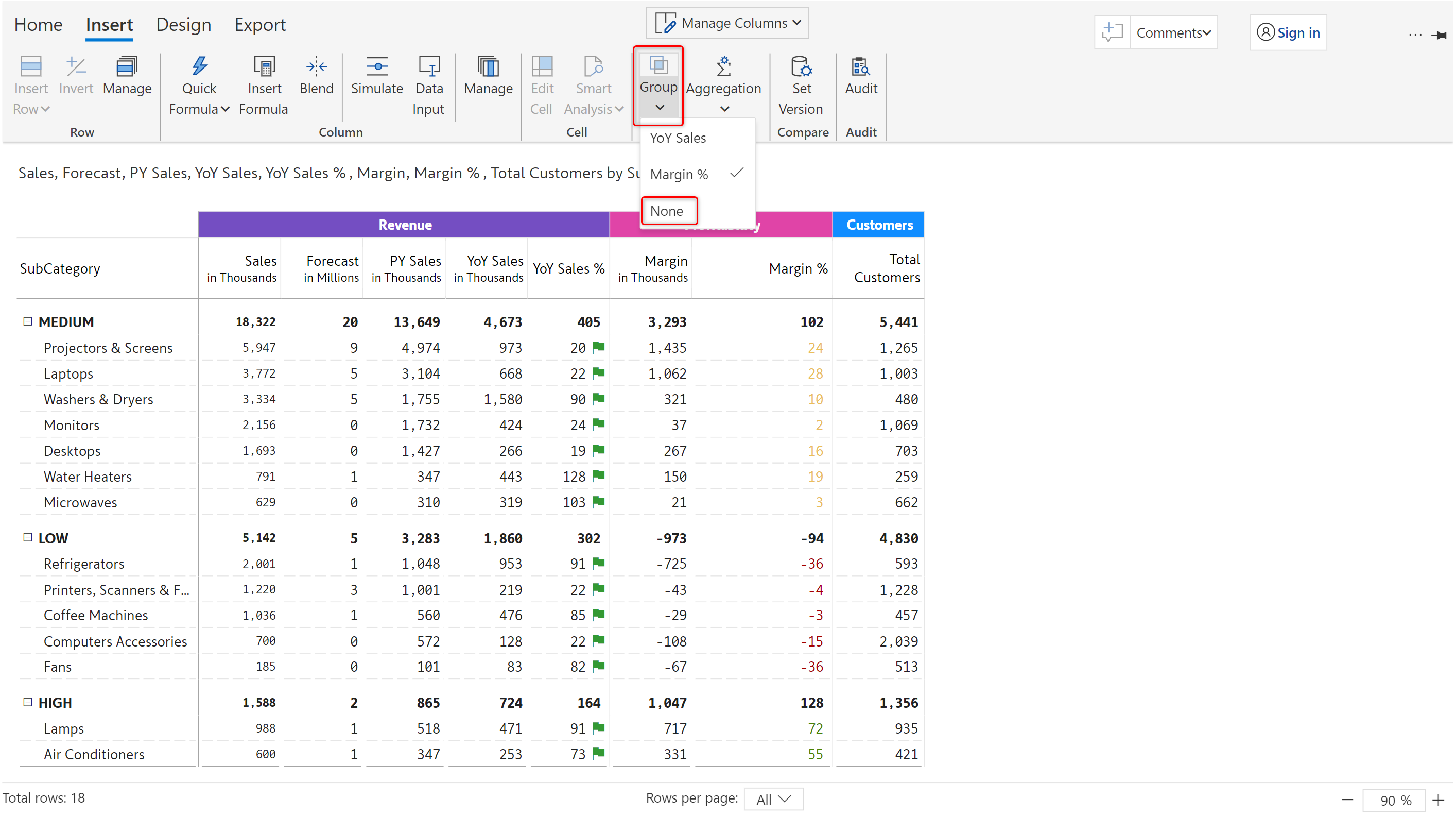
b) In case of auto-grouped rows, in the 'Insert' tab, '**Group**' dropdown, select '**None**'.

<figure><img src="https://content.gitbook.com/content/sB9HAei8v4FfKkH9M4gw/blobs/hBvx3RIvdzbWIZmPMCkw/3.7.15%20Remove%20auto%20row%20groups.png" alt=""><figcaption><p>Removing auto row group based on classification</p></figcaption></figure>

In the next section, we'll cover how to [pin rows and columns](https://docs.inforiver.com/premium-table/working-with-premium-table/3.-basic-interactions/pin-rows-and-columns).

#### Resources

[Group rows or columns in table/matrix reports](https://inforiver.com/blog/general/group-rows-columns-matrix-powerbi/)