> For the complete documentation index, see [llms.txt](https://docs.inforiver.com/llms.txt). Markdown versions of documentation pages are available by appending `.md` to page URLs; this page is available as [Markdown](https://docs.inforiver.com/premium-table/working-with-premium-table/6.-planning-budgeting-and-forecasting/set-version.md).
# Set version
The Set Version feature can be used to compare two or more measures in the report and calculate absolute and percentage variances automatically. One-click variance analysis of measures such as current year, plan, forecasts, or budgets using [IBCS](https://www.ibcs.com/) templates can also be achieved.
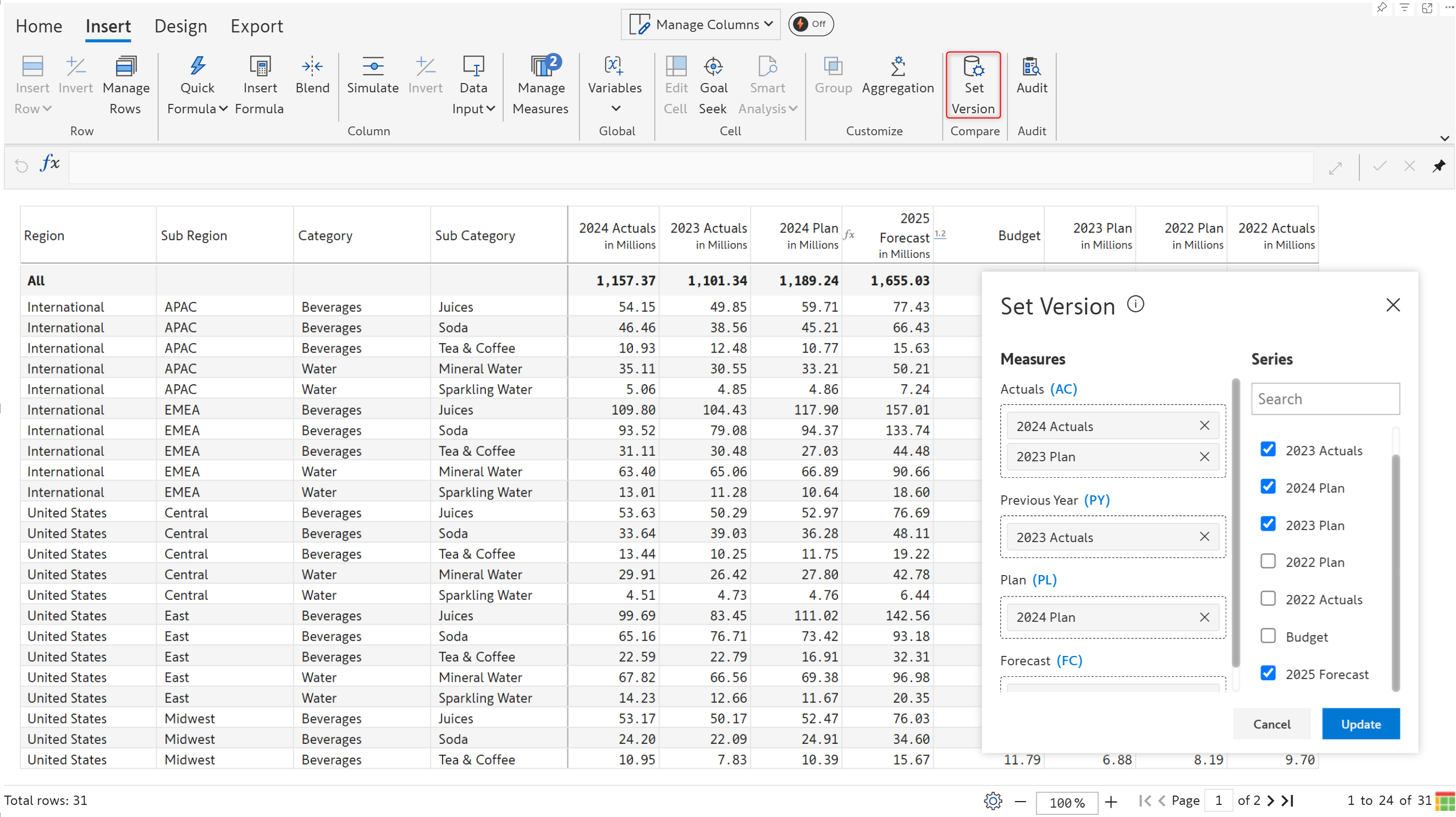
Click **Set version** in the Insert tab of the toolbar. The current AC, PY, PL, and FC mapping is shown along with other measures created in the visual - such as simulations and budgets.
Set version
{% hint style="info" %}
AC, PY, PL, and FC are IBCS terminologies for the business scenarios Actuals, Prior year, Plan, and Forecast, respectively. According to IBCS, scenarios with different meanings should be presented differently, and they recommend the solid, outlined, hatched notation where AC is in black, PY is in grey, PL is outlined, and FC is hatched.
{% endhint %}
### 1. Prerequisite
A minimum of two series is required to enable Set Version.
### 2. Search for a series
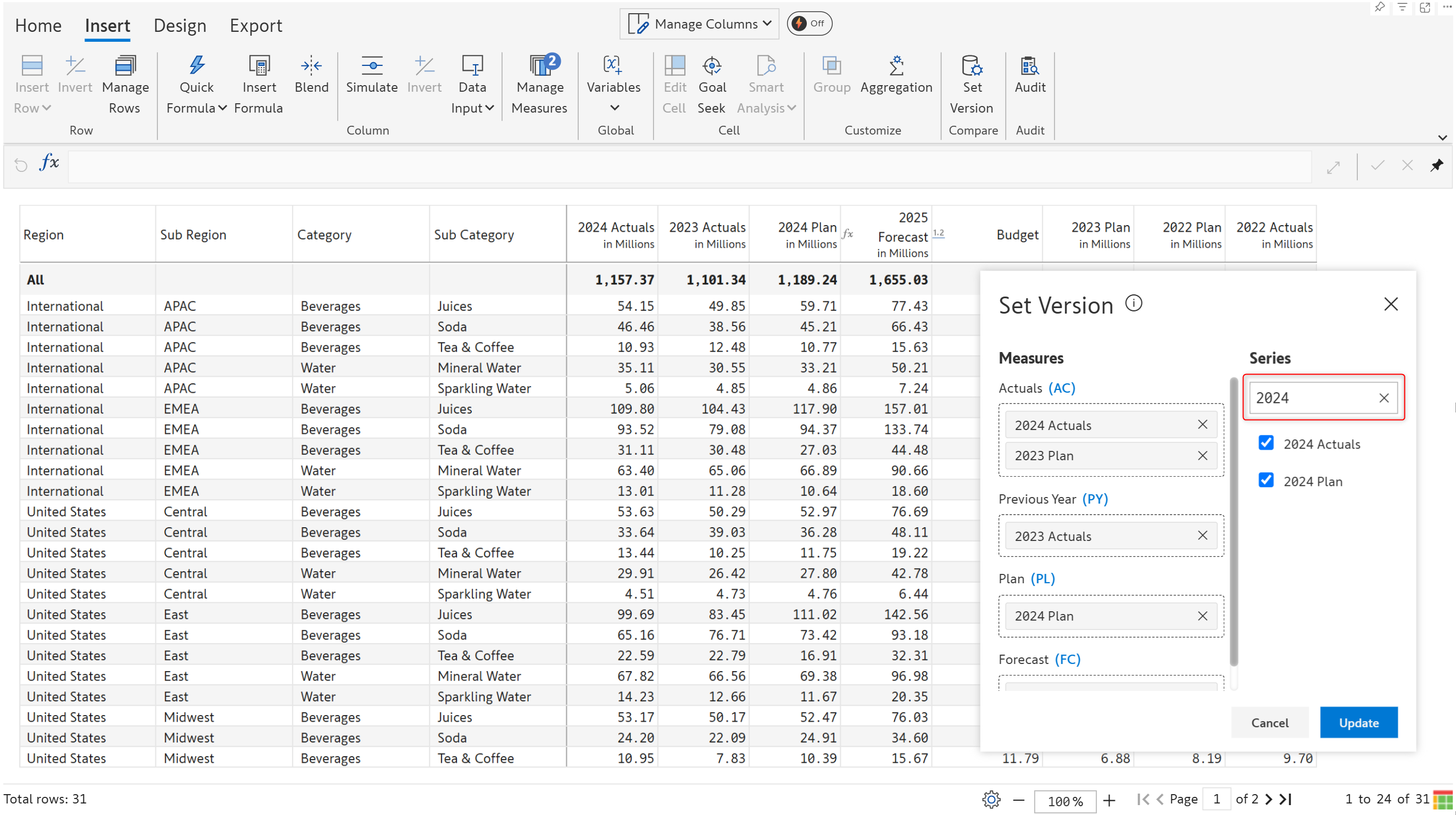
If there are a large number of series in the report, use the **Search** box to find a specific series as highlighted below.
Search for a measure
### 3. Map measures
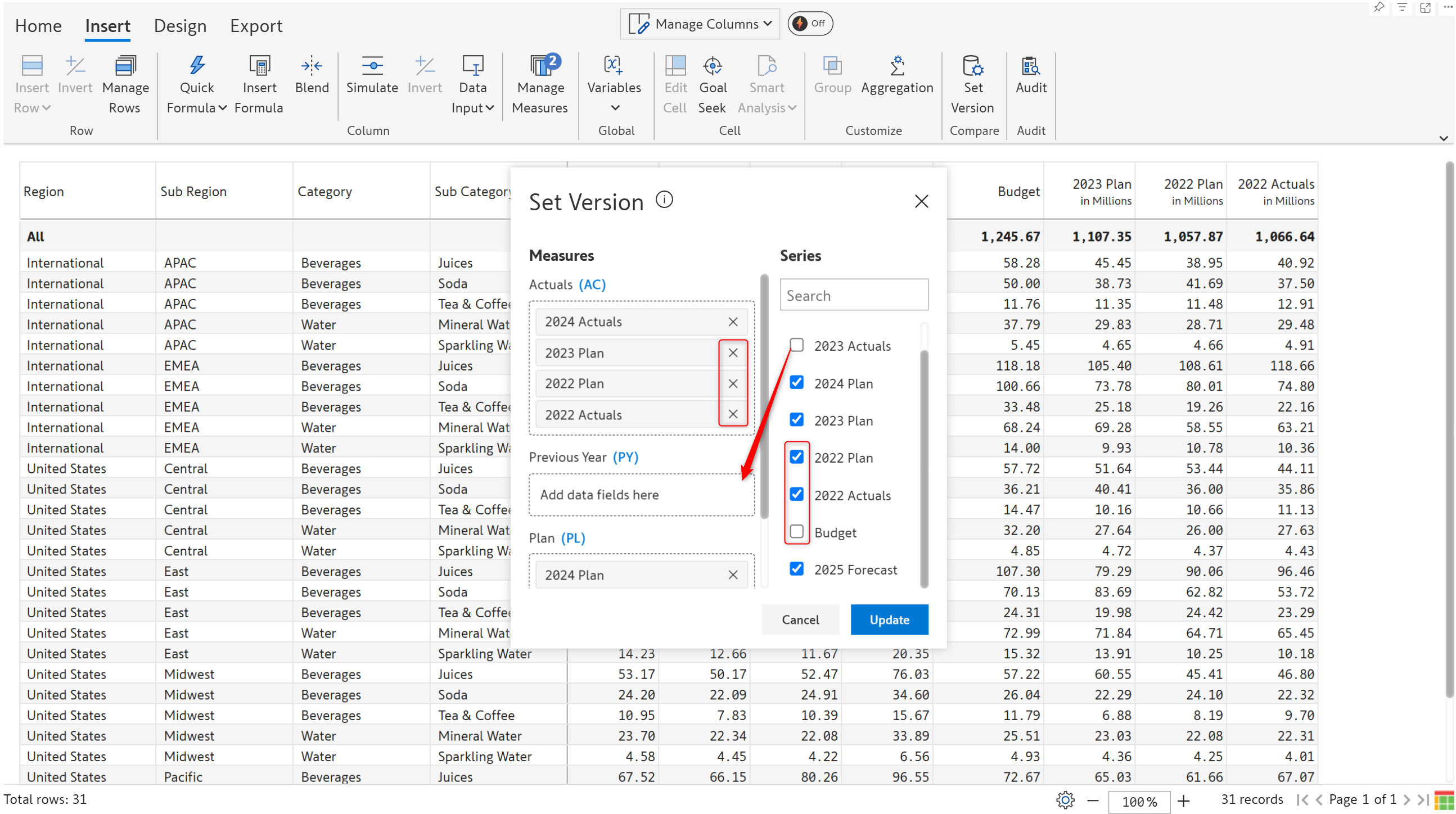
The default mapping can be modified by
* Unchecking the measures to be removed from the measures field or from the 'Series' section
* Dragging and dropping the series in the corresponding measure field
Mapping measures
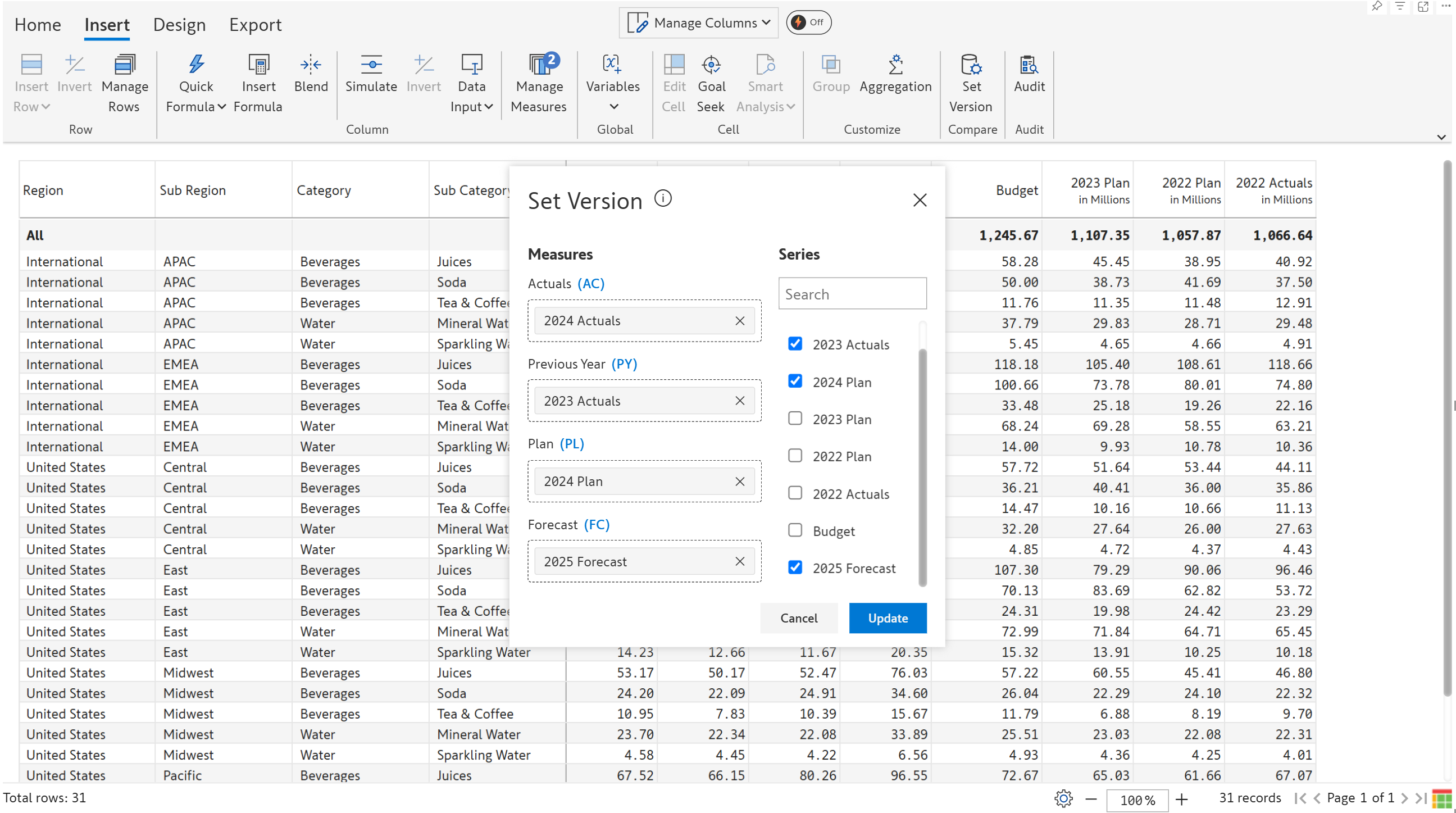
The measure mapping is modified as shown below. Click Update.
Updated measure mapping
### 4. Displaying variance fields
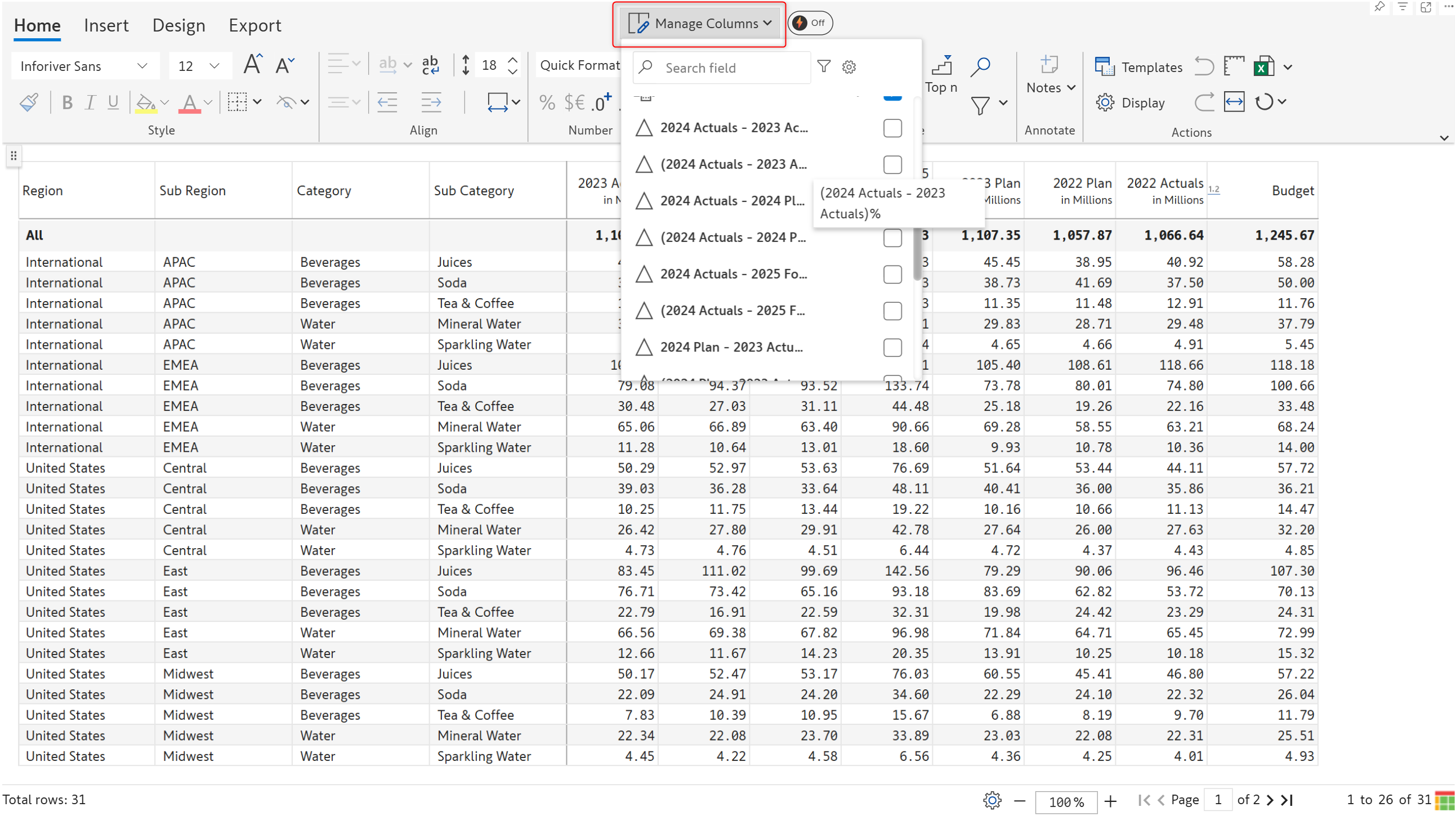
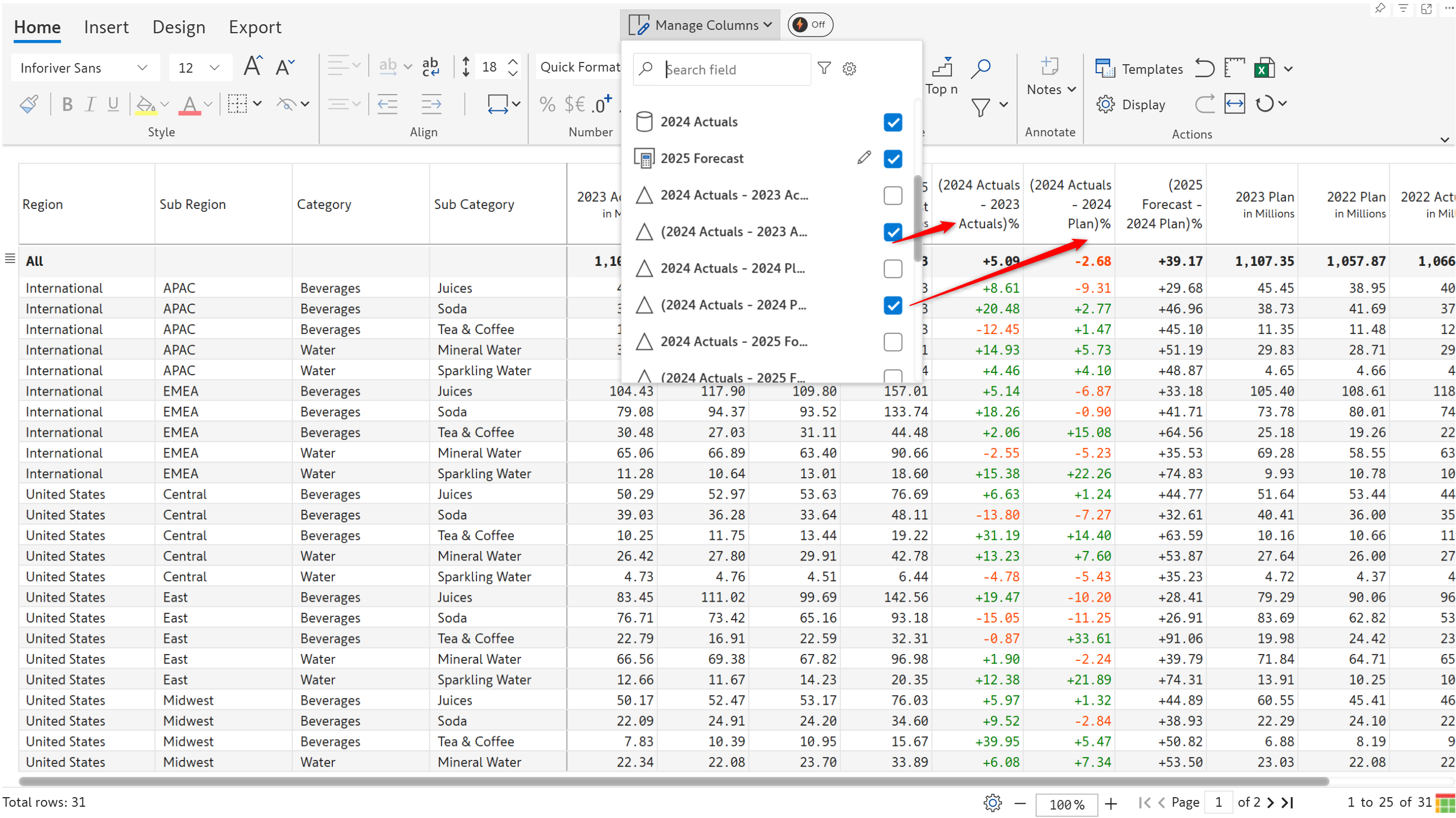
Based on the configurations in the Set Version window, Premium table will calculate the absolute and relative variance between the AC/PY/PL/FC measures. You can view the variance fields from the **Manage Columns** interface. Select the variance fields that are required for your report.
Variance fields generated based on Set Version config
Variance fields are displayed in the report.
Variance fields displayed in the report
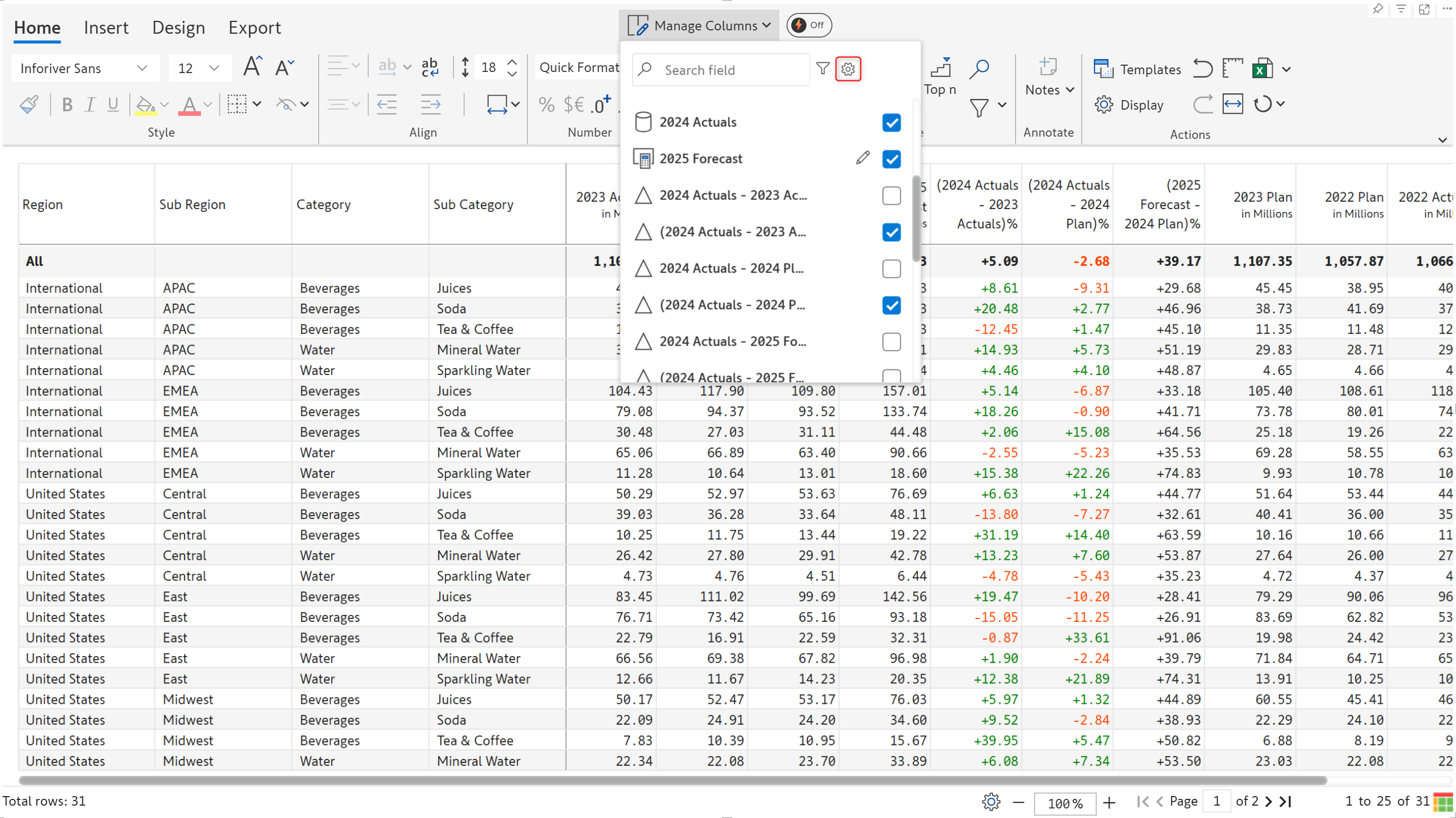
Another way to access the **Set Version** dialog box is by using **Manage Columns**. Click Manage columns and then the settings icon.
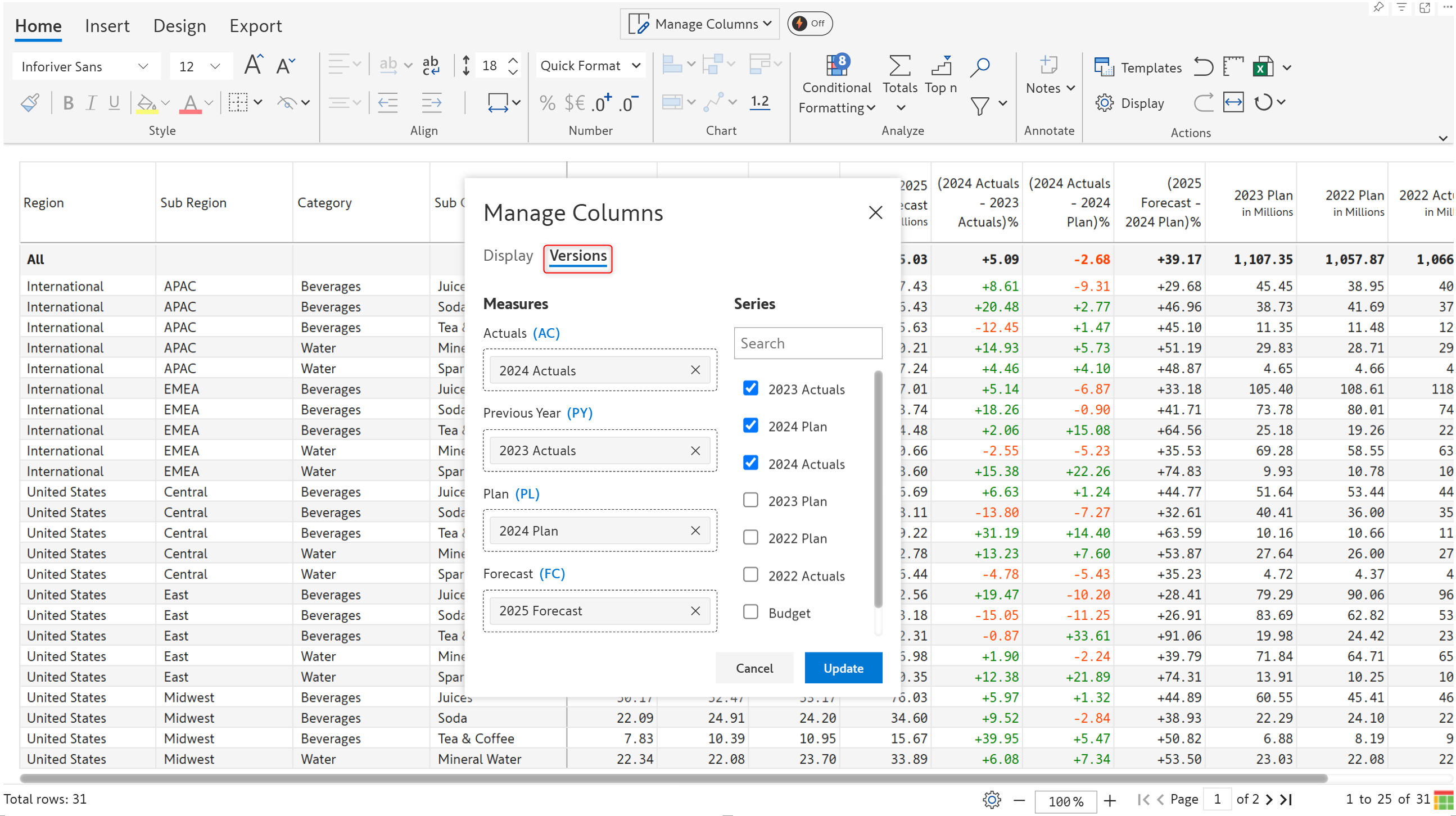
Select the **Versions** tab as shown in the image. You can assign measures and configure variances as we saw in earlier sections.
Accessing Set version from the Manage Columns window
In the next section, we'll look at [paginated reports](/premium-table/working-with-premium-table/7.-paginated-reporting.md).
---
# Agent Instructions
This documentation is published with GitBook. GitBook is the documentation platform designed so that both humans and AI agents can read, navigate, and reason over technical content effectively. Learn more at gitbook.com.
## Querying This Documentation
If you need additional information that is not directly available in this page, you can query the documentation by asking a question.
Perform an HTTP GET request on the following URL with the `ask` and `goal` query parameters:
```
GET https://docs.inforiver.com/premium-table/working-with-premium-table/6.-planning-budgeting-and-forecasting/set-version.md?ask=&goal=
```
`ask` is the immediate question: it should be specific, self-contained, and written in natural language.
`goal` is what the user is ultimately trying to achieve, the reason they need the answer. Sharing it helps GitBook give you a better, more relevant answer. A goal is most helpful when it describes the outcome the user wants rather than restating the question. For example, with `ask=how do I create an API token`, a goal like `automate deployments from our CI pipeline` lets GitBook tailor the answer to that use case.
The response will contain a direct answer to the question and relevant excerpts and sources from the documentation.
Use this mechanism when the answer is not explicitly present in the current page, you need clarification or additional context, or you want to retrieve related documentation sections.