# What-if analysis & simulations

Every day business decision-making involves stakeholders asking a lot of ‘what-if’ questions. However, typical business intelligence and reporting tools fail to provide this very capability that decision-makers and analysts need most. As a result, users end up exporting report data to Excel to create their own models for offline analyses.

Premium Table provides two ways to model & simulate outcomes for your ‘what-if’ questions. Let us look at them one by one.

## 1. Edit a cell directly&#x20;

This method involves overwriting existing data in your report directly.&#x20;

To simulate outcomes in Inforiver by editing data, you select a specific cell and start typing in a new value. Just as with Excel, a cell editor shows up just over the value.

<figure><img src="https://content.gitbook.com/content/sB9HAei8v4FfKkH9M4gw/blobs/q942SfuaeA3dNUtGzYyt/4.7.5%20Edit%20cell.png" alt=""><figcaption><p>Edit a cell directly</p></figcaption></figure>

Type in the new value and press Enter to update the value and table totals automatically. There is also an *edit* icon that appears next to the value, indicating that the cell has been edited.

<figure><img src="https://content.gitbook.com/content/sB9HAei8v4FfKkH9M4gw/blobs/4wD4vwj0X1OcYQXKw2dY/4.7.6%20Edit%20cells%20(1).png" alt=""><figcaption><p>Cell edited successfully</p></figcaption></figure>

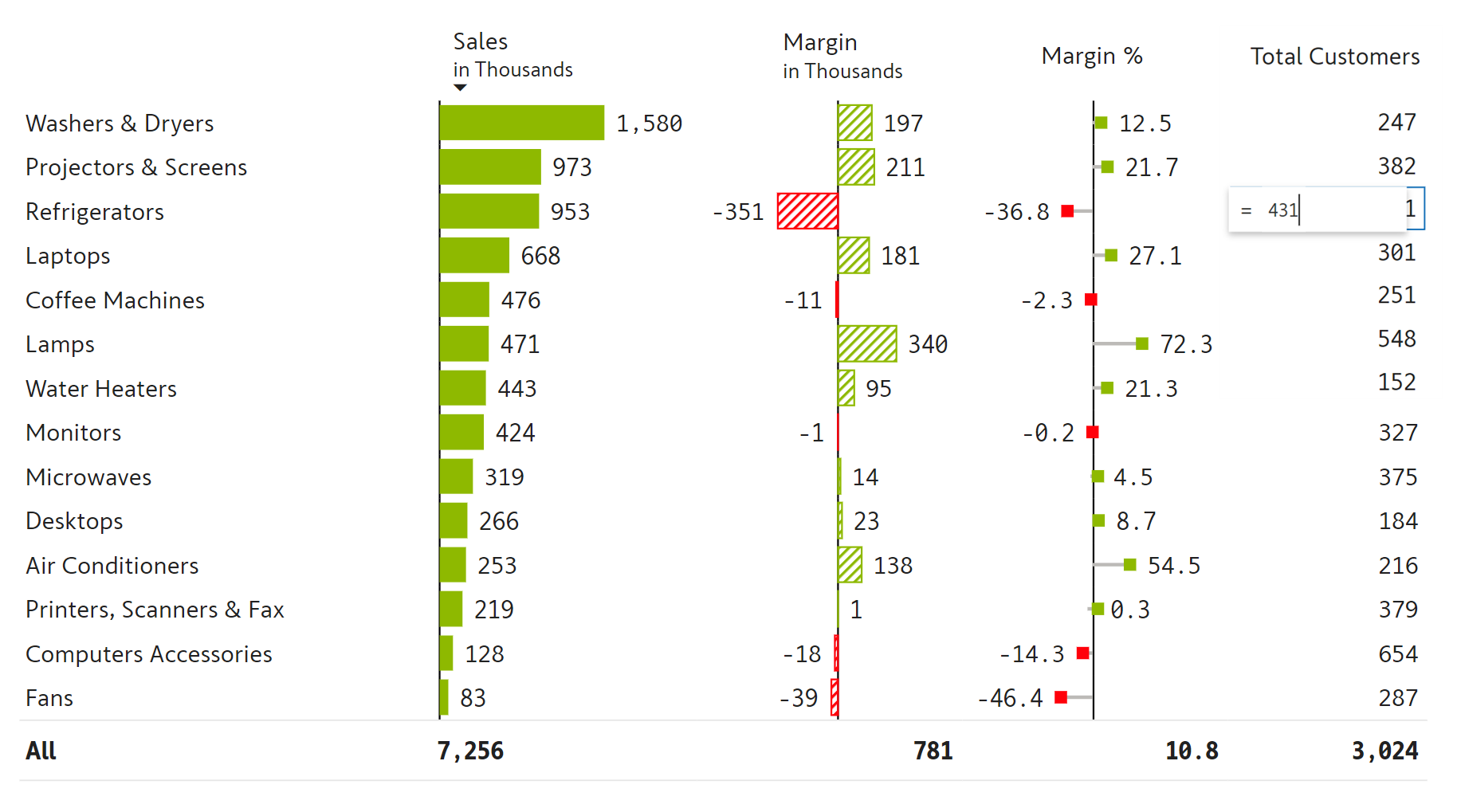
An alternate method to achieve the same outcome is to double-click a specific cell. This opens a formula bar at the top where you can make similar adjustments.

<figure><img src="https://2428652681-files.gitbook.io/~/files/v0/b/gitbook-x-prod.appspot.com/o/spaces%2FsB9HAei8v4FfKkH9M4gw%2Fuploads%2FNAhv6XDw7wkOJ8uRZzOC%2Fimage.png?alt=media&#x26;token=9a8b3f56-902f-4dcc-96d1-092ca9f2c2a6" alt=""><figcaption><p>Formula bar</p></figcaption></figure>

Premium Table also allows you to use expressions with scaled values (e.g., 11250 + 0.5k) and percentages (e.g., 11250 + 10%). You can use this in both the in-cell editor and the formula bar.

You can update even cells/columns that display charts/graphs using the above method. After the update, the charts or graphs render again based on the updated value.

## 2. Use a simulation slider

Another method to create projections in Power BI is to use the intuitive *simulation* capability offered by Premium Table. Compared to the previous method, this approach has the benefit of automatically tracking variances for each record.

#### STEP 1: Inserting a simulation column

Click the **Simulate** button in the Insert ribbon.&#x20;

<figure><img src="https://2428652681-files.gitbook.io/~/files/v0/b/gitbook-x-prod.appspot.com/o/spaces%2FsB9HAei8v4FfKkH9M4gw%2Fuploads%2FsLGdOBmoerOWRvK2ZUys%2Fimage.png?alt=media&#x26;token=a6a30bed-d242-4d38-84ed-f78ff6216ebe" alt=""><figcaption></figcaption></figure>

The side panel provides the following options:

* &#x20;**Simulation based on** - A measure based on which the simulation series is created. A simulation output field is created based on the selected input field.
* **Variance formatting style** - To define whether an increase is good or bad
* **Show slider** - To enable/disable the slider. If the slider is disabled, simulation can still be performed by cell editing
* **Value range** - By default, each cell can be simulated from -100% to +100% of its value
* **Simulation value** - The simulation percentage can be displayed to the left/right of the actual value.

#### STEP 2: Using the simulation slider

Once the field has been created, you can click on any cell in this new simulation-enabled field. This will display a small slider icon next to it. Hovering over this icon reveals a slider. Clicking and dragging the slider changes the value in the cell. It also displays a percentage change as you move the slider to the right or left. The value & totals get updated once you release the slider.

<figure><img src="https://2428652681-files.gitbook.io/~/files/v0/b/gitbook-x-prod.appspot.com/o/spaces%2FsB9HAei8v4FfKkH9M4gw%2Fuploads%2FnhpSlCow5g04VhH81t85%2Fimage.png?alt=media&#x26;token=4a85f3ab-1085-4fc6-b722-998886cb6e82" alt=""><figcaption><p>Simulation slider</p></figcaption></figure>

In the example above, we have increased the value for the category 'Projectors & Screens' by 9%. The Grand Total row reflects how individual simulations impact the overall target sales.

When the grand total row is simulated, the change is distributed to all the rows.&#x20;

<figure><img src="https://2428652681-files.gitbook.io/~/files/v0/b/gitbook-x-prod.appspot.com/o/spaces%2FsB9HAei8v4FfKkH9M4gw%2Fuploads%2F7VH0Lan2bz2ybGVLRMld%2Fimage.png?alt=media&#x26;token=798752b3-f539-408e-a018-ac48891a3d50" alt=""><figcaption></figcaption></figure>

Multiple cells can be simulated at once. Use Shift/Ctrl + click to select cells and use the slider on any one cell to simulate.

<figure><img src="https://2428652681-files.gitbook.io/~/files/v0/b/gitbook-x-prod.appspot.com/o/spaces%2FsB9HAei8v4FfKkH9M4gw%2Fuploads%2FaNvcetKkMDImHjWH3eNK%2Fimage.png?alt=media&#x26;token=3594bf83-9223-4e15-9821-f47db2970864" alt=""><figcaption><p>Simulating multiple cells</p></figcaption></figure>

On the simulation slider, you can see three options: lock, edit, and delete. Let's look at them one by one.

a) **Edit** - A simulation percentage can be defined by clicking on the pencil icon. In the dialog box that opens, type the desired percentage and click Apply.

<figure><img src="https://2428652681-files.gitbook.io/~/files/v0/b/gitbook-x-prod.appspot.com/o/spaces%2FsB9HAei8v4FfKkH9M4gw%2Fuploads%2FNmuXwfuDgI6yD0MiFGR6%2Fimage.png?alt=media&#x26;token=60c7b8f3-2664-4e94-a051-bf6cf9545146" alt=""><figcaption><p>Manually entering the percentage of increase/decrease</p></figcaption></figure>

b) **Lock** - Specific cells can be locked from simulations. Click the Lock icon.

<figure><img src="https://2428652681-files.gitbook.io/~/files/v0/b/gitbook-x-prod.appspot.com/o/spaces%2FsB9HAei8v4FfKkH9M4gw%2Fuploads%2Fz2SZbmNKHQpIm8kW09C3%2Fimage.png?alt=media&#x26;token=5f96bafe-9711-4ab4-9cef-fae1b49beb6e" alt=""><figcaption><p>Locking cells </p></figcaption></figure>

The cell is greyed out to indicate that it is locked from simulations. Click the lock icon to unlock the cell and open it for simulations.

<figure><img src="https://2428652681-files.gitbook.io/~/files/v0/b/gitbook-x-prod.appspot.com/o/spaces%2FsB9HAei8v4FfKkH9M4gw%2Fuploads%2FoQ7TBjMbu7aSfibyfioQ%2Fimage.png?alt=media&#x26;token=b18eff54-2c50-4fe9-9029-d074d2bb90c2" alt=""><figcaption><p>Locked cell</p></figcaption></figure>

c) **Delete** - Simulations can be cleared by clicking the trash icon.

<figure><img src="https://2428652681-files.gitbook.io/~/files/v0/b/gitbook-x-prod.appspot.com/o/spaces%2FsB9HAei8v4FfKkH9M4gw%2Fuploads%2Fkrh21bsa5WM8Z3N80XqE%2Fimage.png?alt=media&#x26;token=55081450-32f1-4a8d-80fb-04fc206fef6a" alt=""><figcaption><p>Deleting simulations</p></figcaption></figure>

{% hint style="info" %}
Multiple cells can be edited, locked, or deleted at the same time by using Shift/Ctrl + Click.
{% endhint %}

When the simulation slider is disabled, double-click on the cell and edit directly as shown below.&#x20;

<figure><img src="https://2428652681-files.gitbook.io/~/files/v0/b/gitbook-x-prod.appspot.com/o/spaces%2FsB9HAei8v4FfKkH9M4gw%2Fuploads%2FkVkxhcdyk948sYPTBneX%2Fimage.png?alt=media&#x26;token=b96a37e0-c1c8-4de6-8781-8d62e672666e" alt=""><figcaption><p>Directly updating the value when the slider is disabled</p></figcaption></figure>

{% hint style="info" %}
All the variances are in red because the negative variance formatting style has been applied.
{% endhint %}
