# KPI cards

In an earlier section, we covered steps to insert a [KPI card](https://docs.inforiver.com/premium-table/2.-displaying-information/add-basic-inline-charts#7.-kpi-cards) using the KPI presets.&#x20;

## 1. Adding a KPI card

The following KPI card was created earlier. Let's now create another KPI card from scratch.&#x20;

<figure><img src="https://content.gitbook.com/content/sB9HAei8v4FfKkH9M4gw/blobs/4QKhTKmPWxIZqN2vlI8L/8.5.1%20KPI%20card.png" alt=""><figcaption><p>KPI card inserted using preset</p></figcaption></figure>

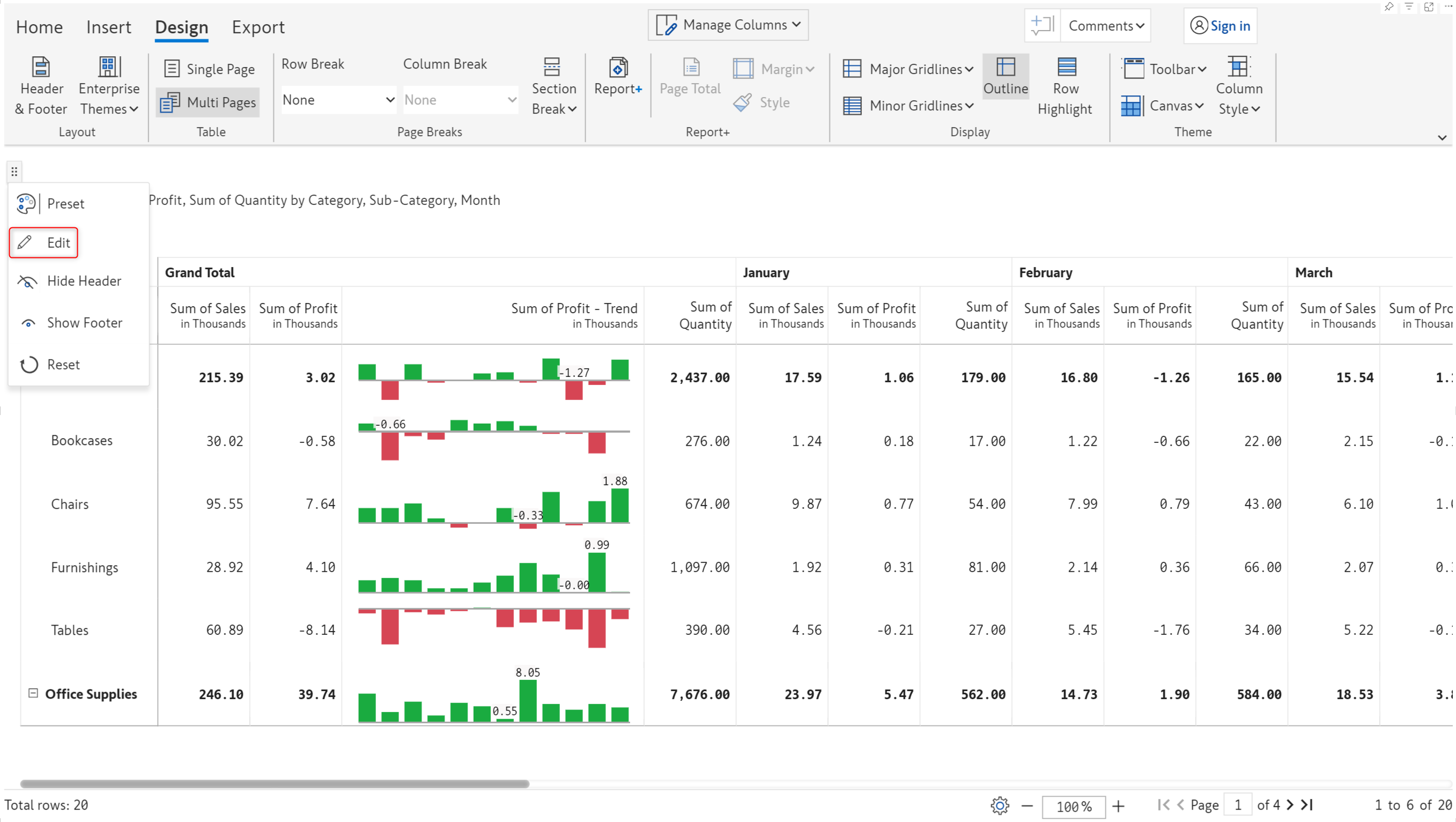
**STEP 1:** Hover over the header and go to edit mode by clicking the **Edit** option in the context menu.

<figure><img src="https://content.gitbook.com/content/sB9HAei8v4FfKkH9M4gw/blobs/hfFUpd8JTLxBy9Yphm5Z/image.png" alt=""><figcaption><p>Editing the header</p></figcaption></figure>

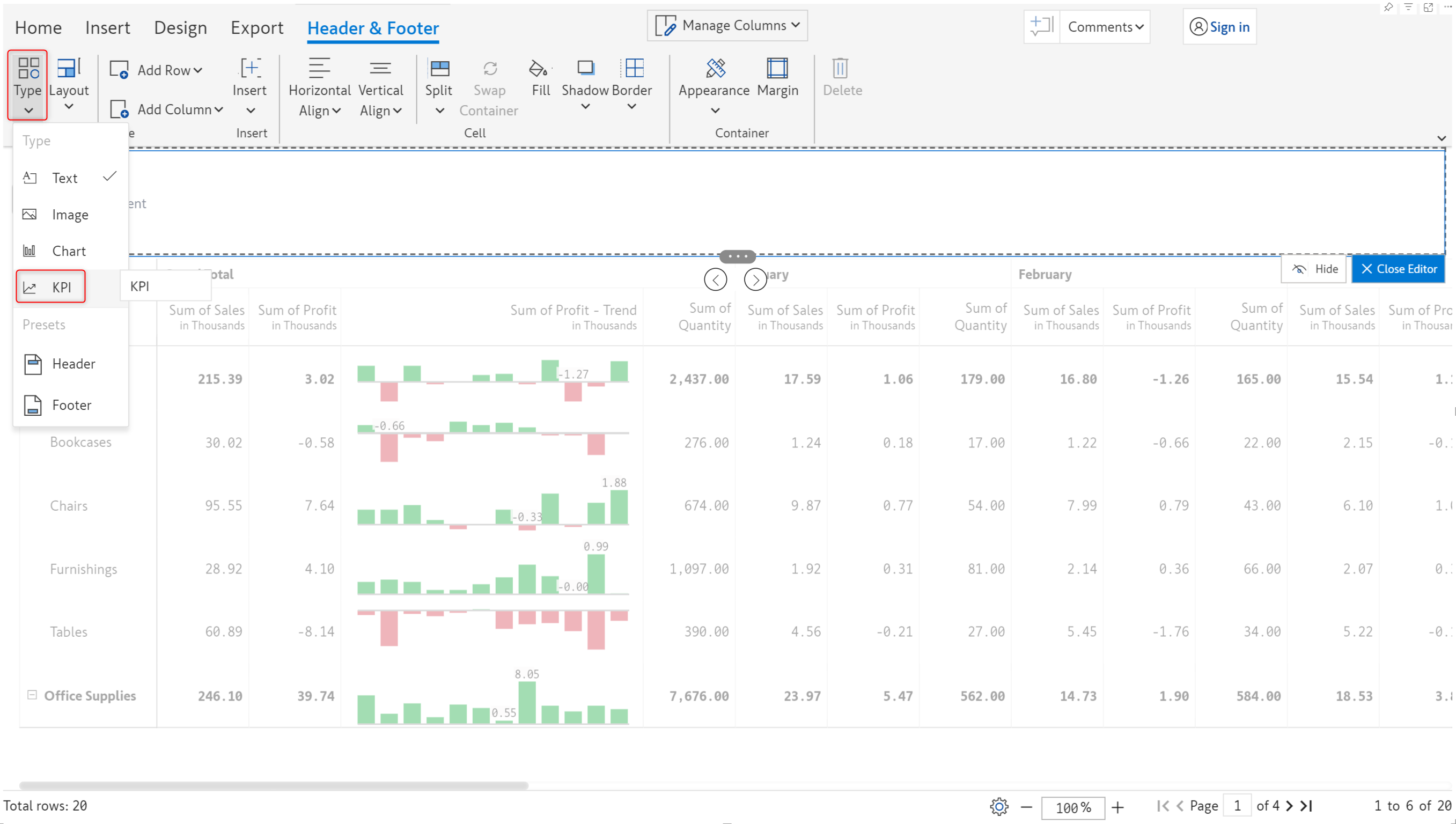
**STEP 2:** The **Header & Footer** tab is enabled. Let's remove the default header and choose KPI from the **Type** dropdown.

<figure><img src="https://content.gitbook.com/content/sB9HAei8v4FfKkH9M4gw/blobs/J7uxmAsinmwEn2XyUnjl/image.png" alt=""><figcaption><p>KPI header</p></figcaption></figure>

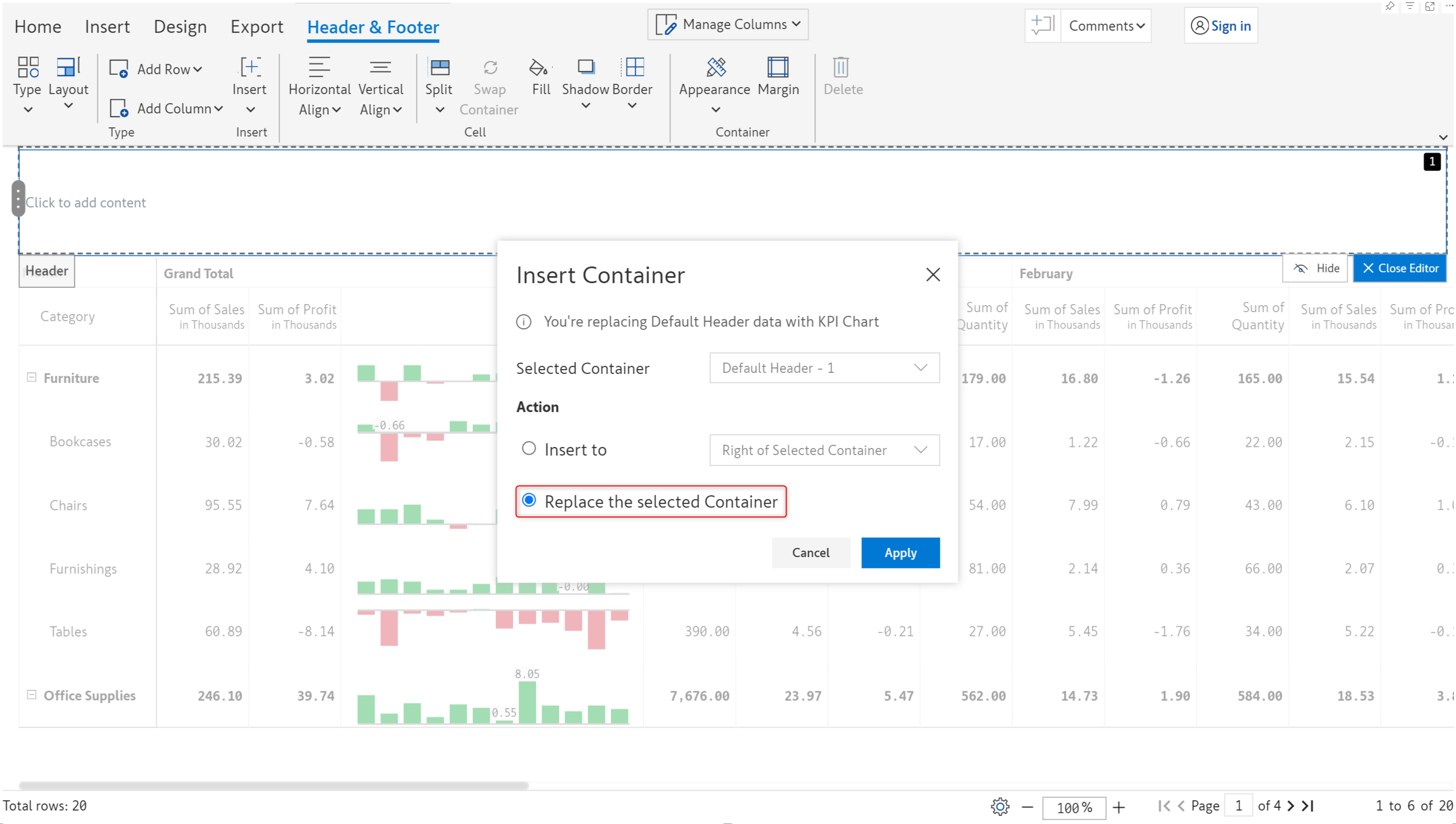
**STEP 3:** You will be prompted on whether to replace the container or insert another container. For now, let's replace the container.

<figure><img src="https://content.gitbook.com/content/sB9HAei8v4FfKkH9M4gw/blobs/WkJhyNnb6CuZft7ddgxa/image.png" alt=""><figcaption><p>Inserting a KPI container</p></figcaption></figure>

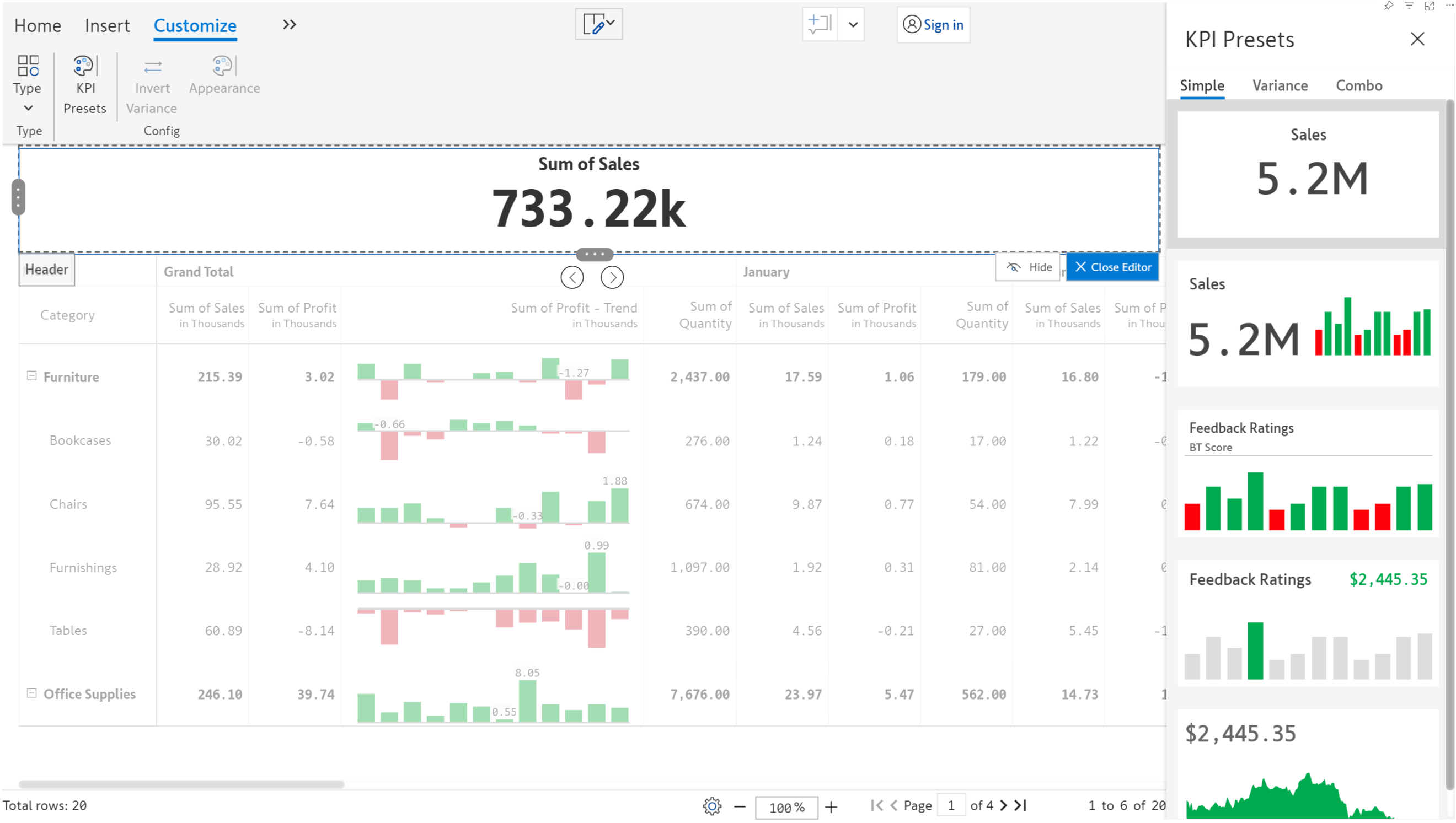
**STEP 4**: A simple KPI card gets inserted as shown below. You can also choose from a range of built-in KPI presets. Inforiver provides simple, variance, and combo KPI presets.

<figure><img src="https://content.gitbook.com/content/sB9HAei8v4FfKkH9M4gw/blobs/7ic7E3tdZ6LLBnveL9XQ/image.png" alt=""><figcaption><p>Inserting a KPI card and using presets</p></figcaption></figure>

## 2. Customization options

There are a number of customization options available in the toolbar once a KPI card is inserted.

### 2.1. KPI presets

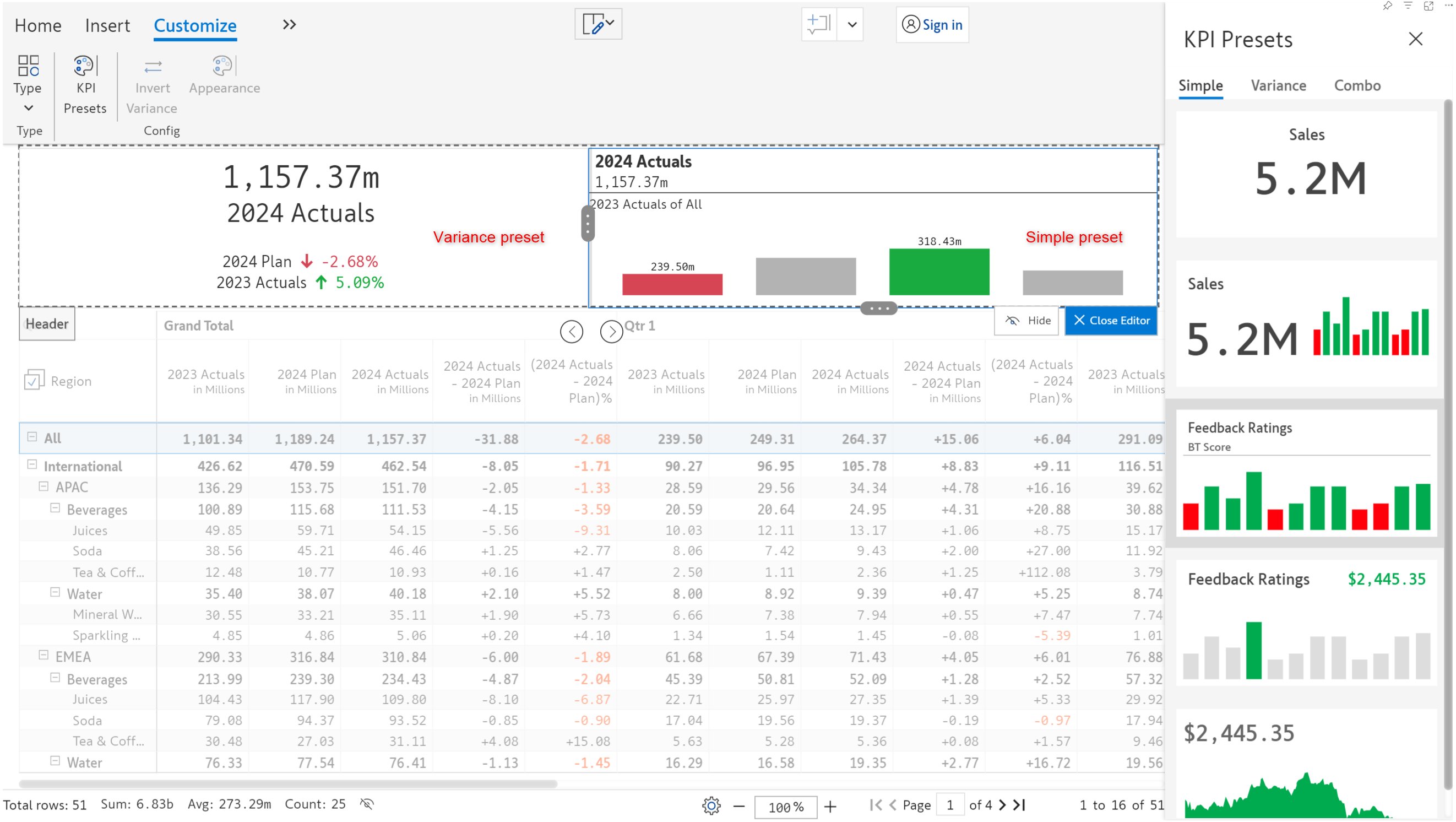
As discussed [earlier](https://docs.inforiver.com/premium-table/2.-displaying-information/add-basic-inline-charts#7.-kpi-cards), there are a number of KPI presets - Simple, Variance, and Combo that can be used to quickly create KPI cards. These KPI cards can be further customized using the below options.

<figure><img src="https://content.gitbook.com/content/sB9HAei8v4FfKkH9M4gw/blobs/yboL5UOifrRWulblV5vI/image.png" alt=""><figcaption><p>Variance presets</p></figcaption></figure>

### 2.2. Invert variance

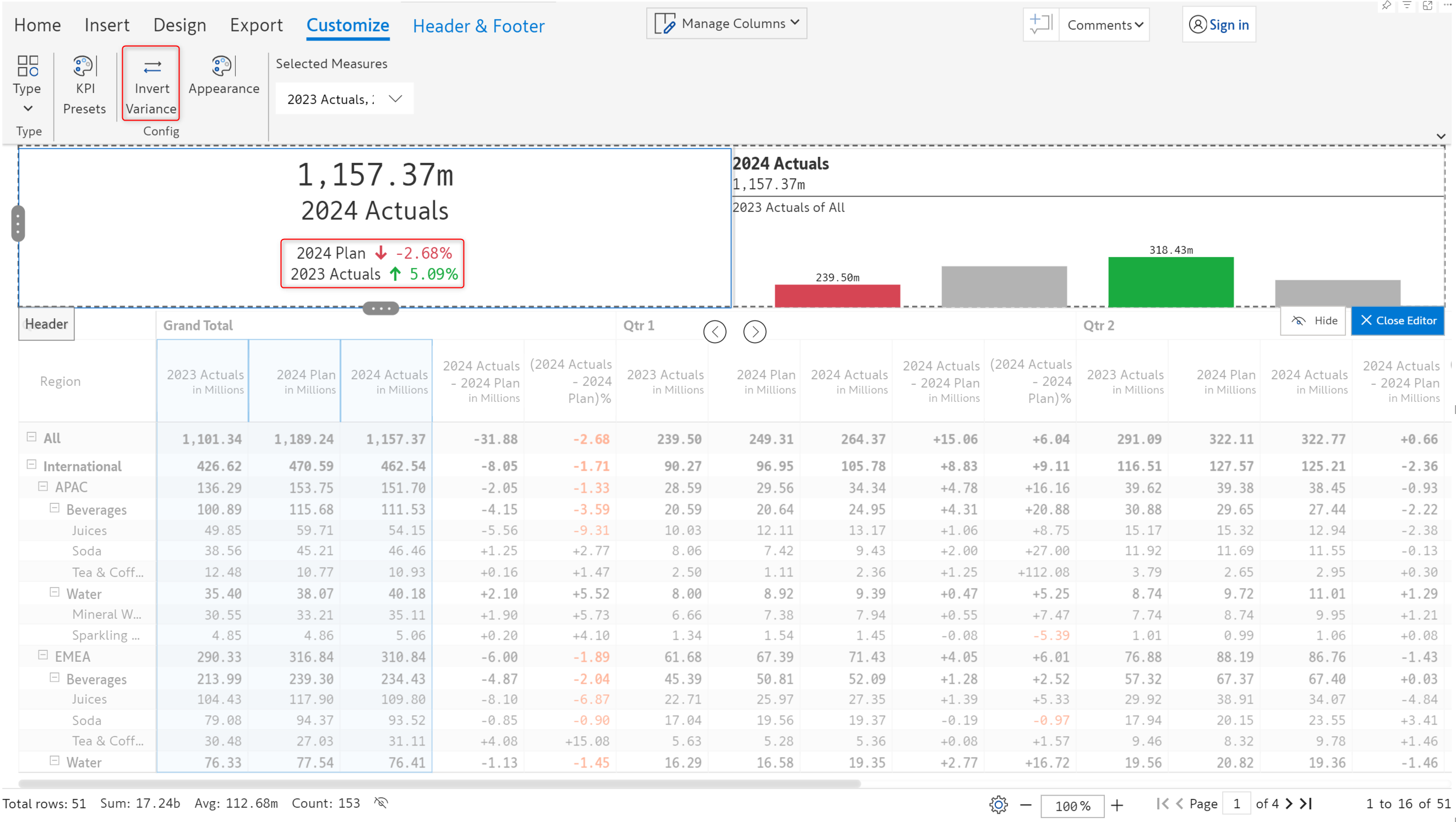
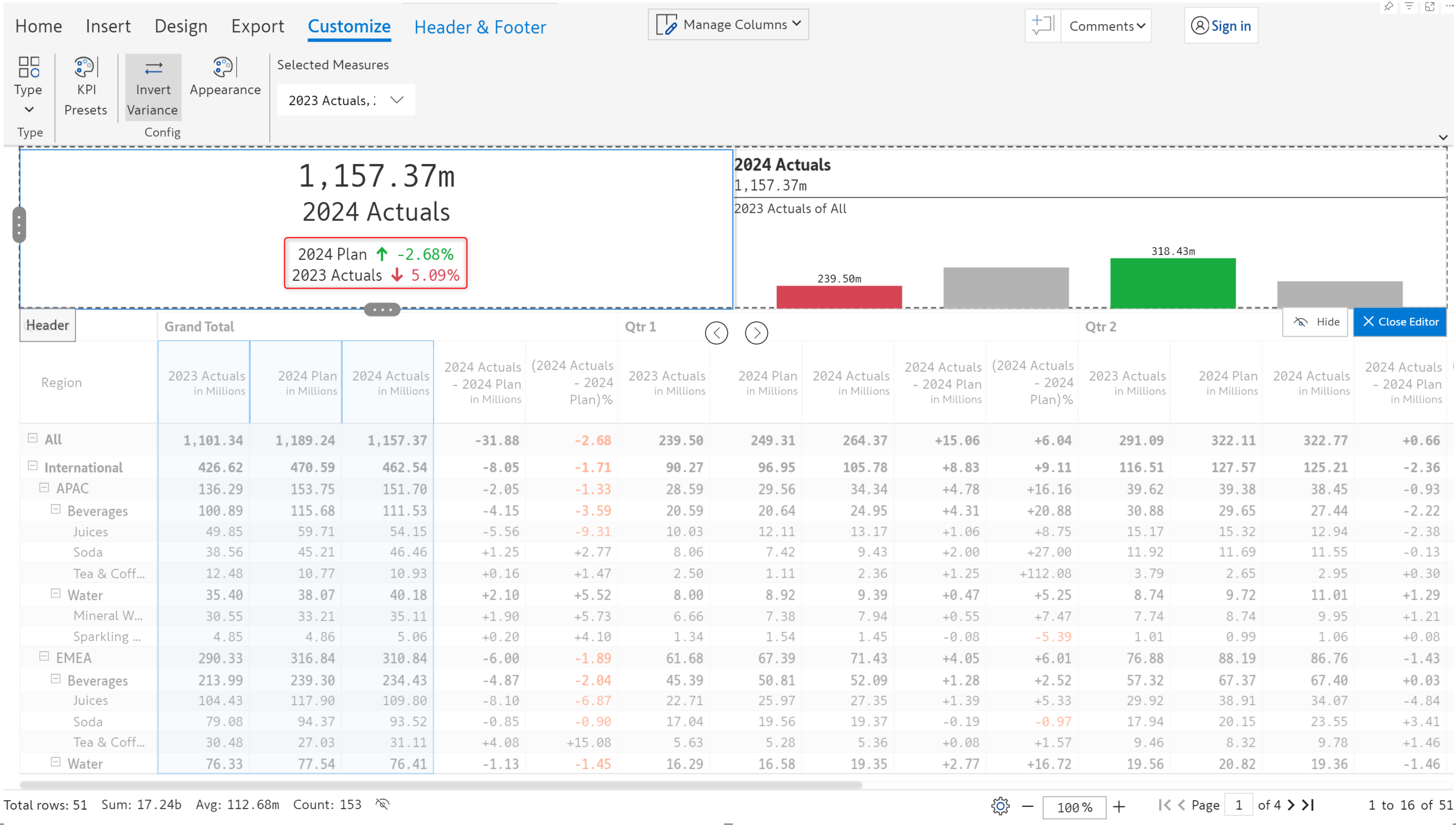
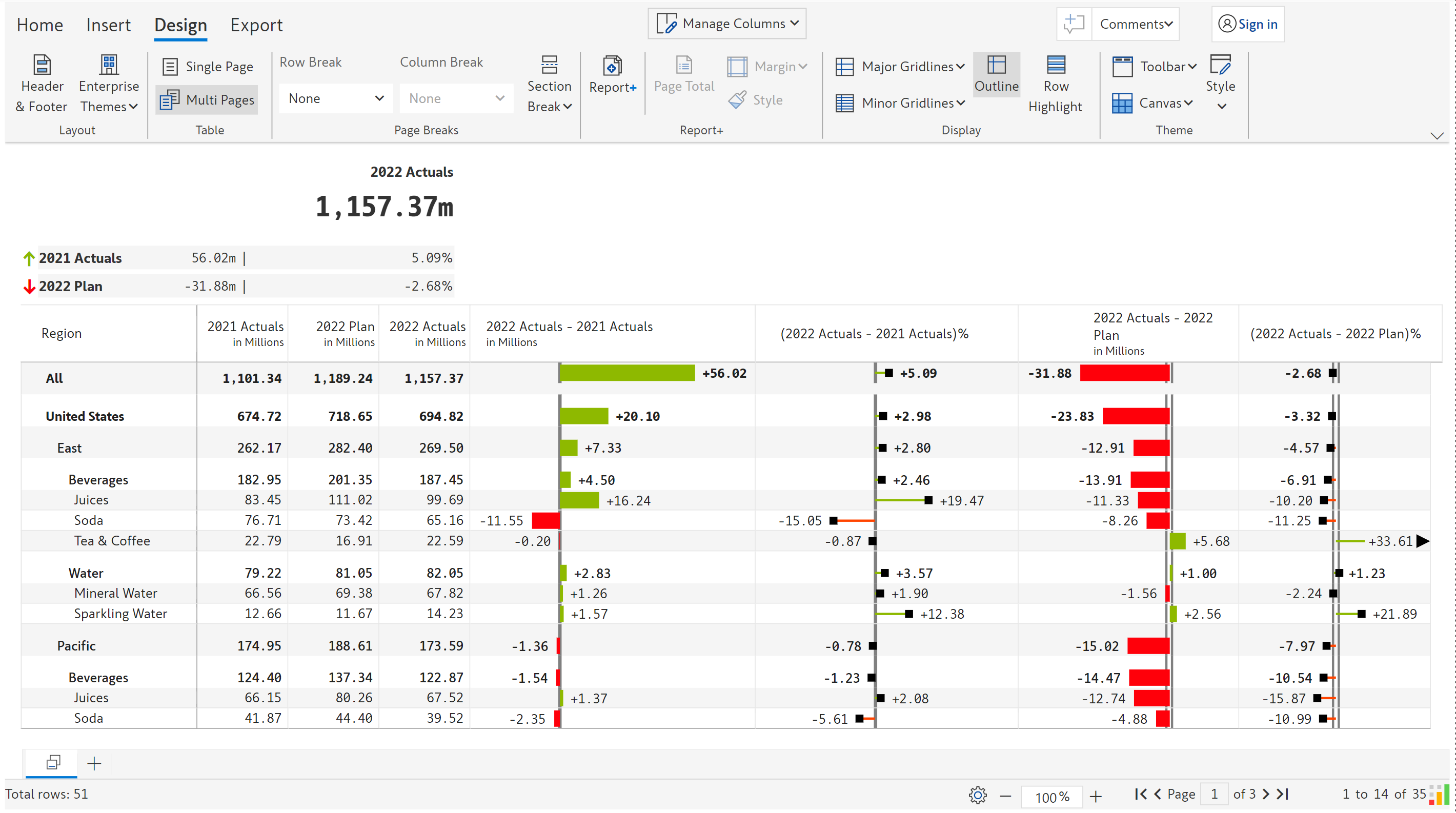
In cases where positive variance has a negative impact, you can invert the sign using the **Invert variance** option. In the below image, 2023 Actuals has a variance of 5.09% which is indicated by a green arrow. On clicking Invert variance, you can see that the arrow changes to red and the 2024 Plan variance turns green.

<div><figure><img src="https://content.gitbook.com/content/sB9HAei8v4FfKkH9M4gw/blobs/cQaDqcPeRNv8UUfccvgC/image.png" alt=""><figcaption><p>Invert variance option</p></figcaption></figure> <figure><img src="https://content.gitbook.com/content/sB9HAei8v4FfKkH9M4gw/blobs/1BD7MnglhZc4YmU0QS42/Variance.png" alt=""><figcaption><p>Variance inverted</p></figcaption></figure></div>

### 2.3. Appearance

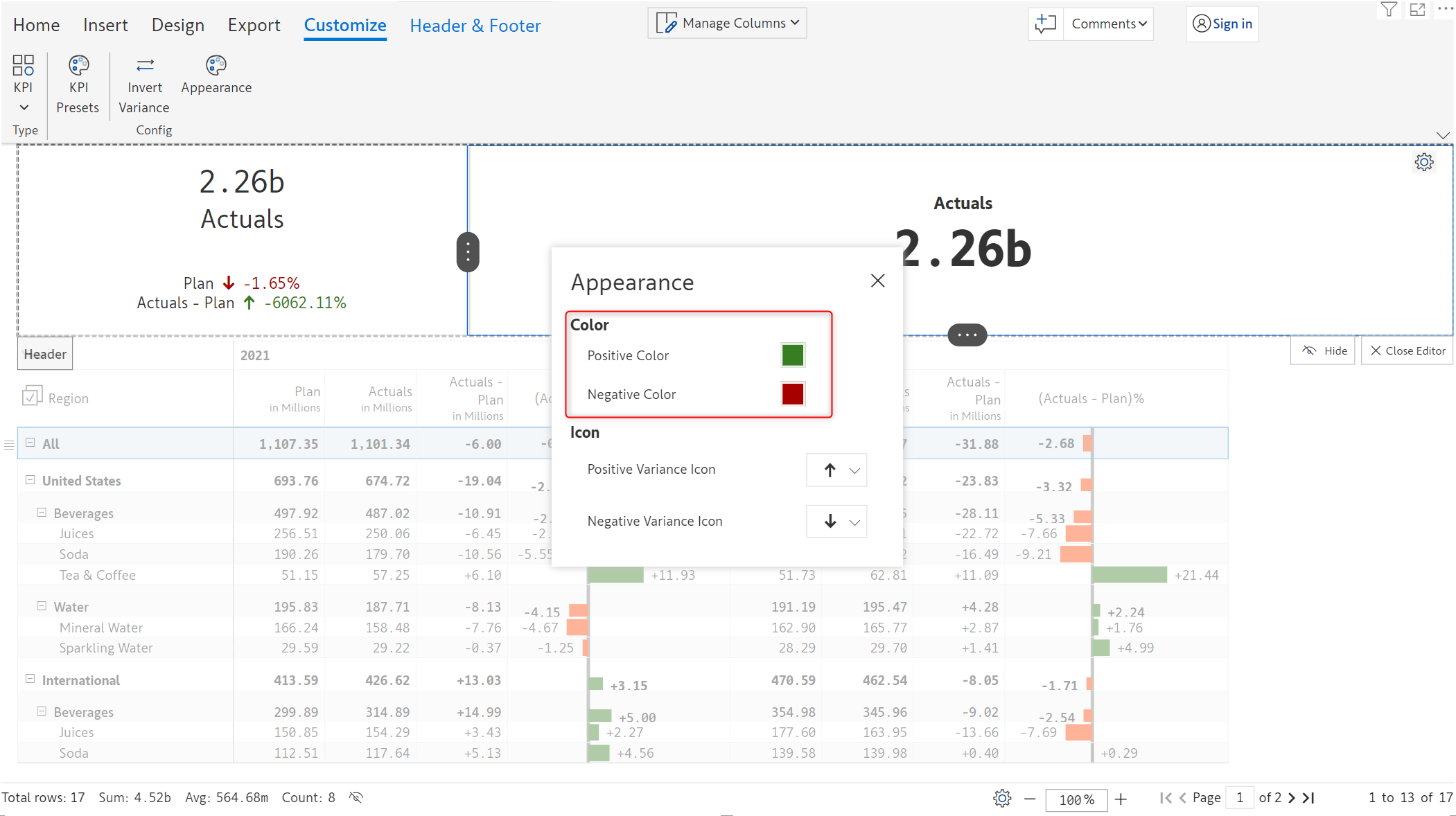
The appearance and styling of KPI cards can be customized by clicking on the Appearance button in the Customize ribbon.

a) Color - The colors for positive and negative values can be chosen using a color picker.

<figure><img src="https://content.gitbook.com/content/sB9HAei8v4FfKkH9M4gw/blobs/all7kdJ35mKvDf8zrVmb/image.png" alt=""><figcaption><p>Setting the color</p></figcaption></figure>

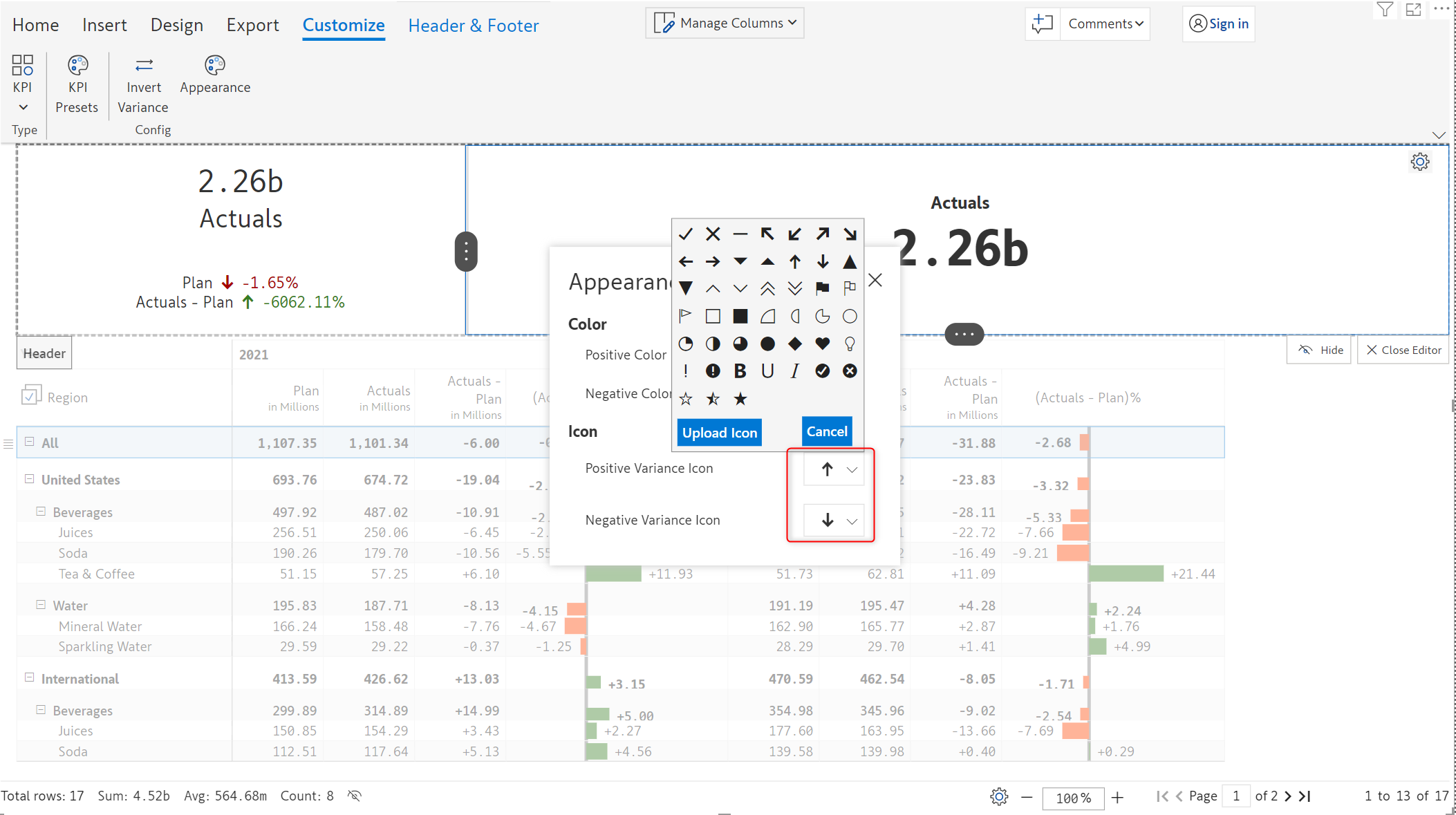
b) By default, the up/down arrows are used as variance icons . These can be customized as shown below. You can also upload custom icons if required.

<figure><img src="https://content.gitbook.com/content/sB9HAei8v4FfKkH9M4gw/blobs/ZV5WWXcFZTaBQZFjtNFU/image.png" alt=""><figcaption><p>Variance icons</p></figcaption></figure>

### 2.4. Data selection

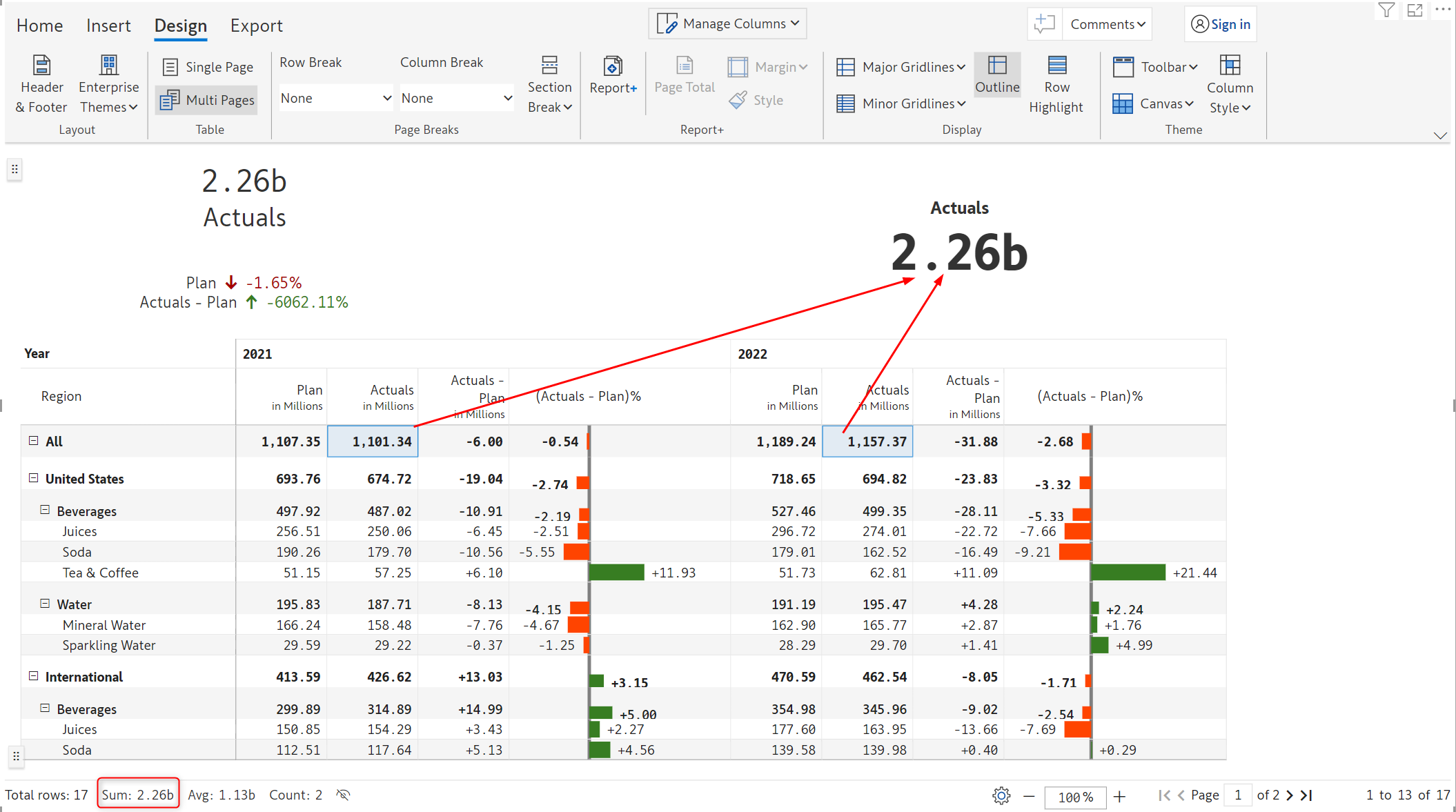
By default, the grand total value of the first measure is shown in the KPI card, this can be easily customized. Refer to the [data selection section](https://docs.inforiver.com/premium-table/working-with-premium-table/7.-paginated-reporting/charts#2.-data-selection) for more options.&#x20;

<figure><img src="https://content.gitbook.com/content/sB9HAei8v4FfKkH9M4gw/blobs/96pqAHUs7Q6WIgsPaQaq/image.png" alt=""><figcaption></figcaption></figure>

### 2.5. Ungroup KPI

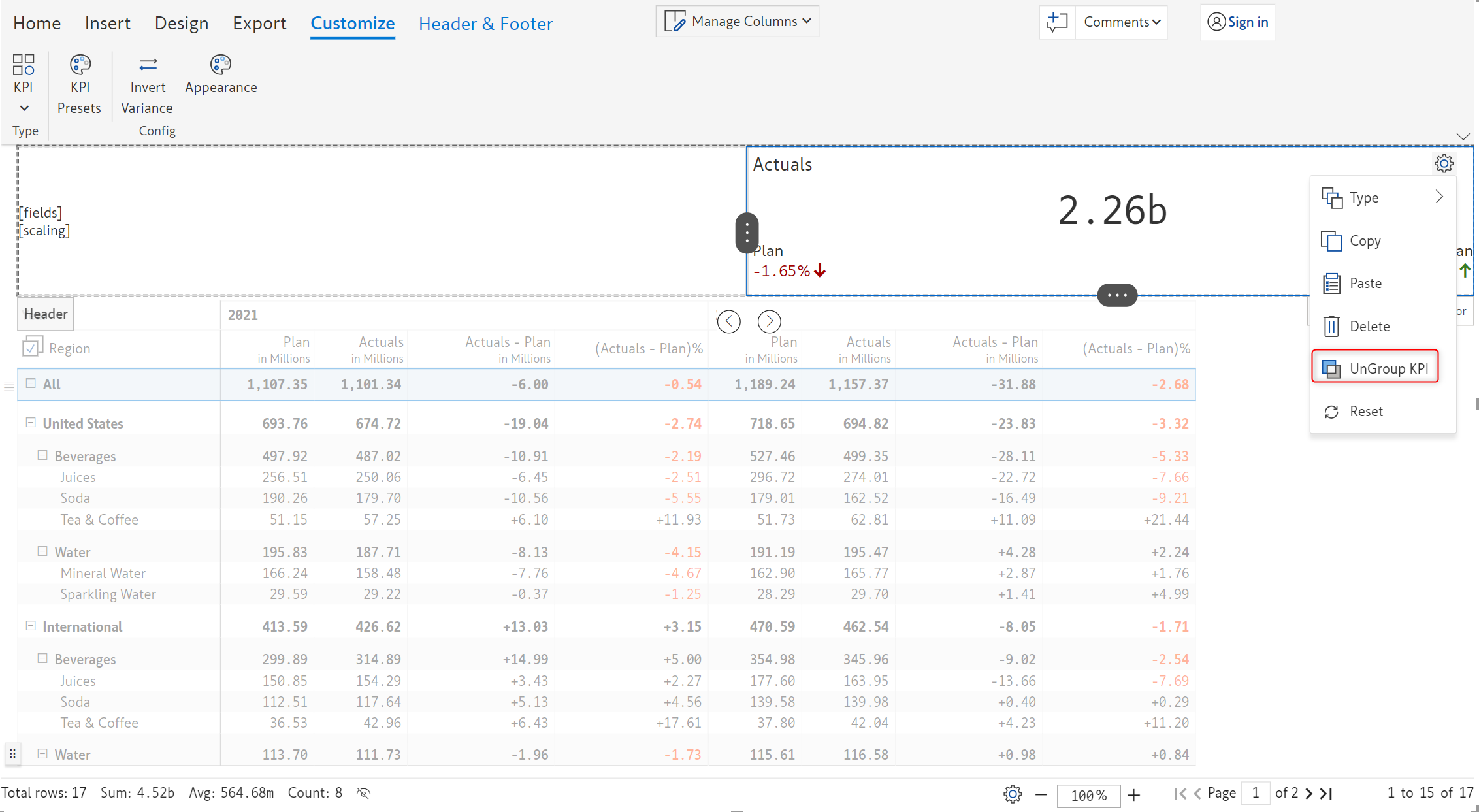
KPI presets can be further customized using this feature. From the header cell settings, select the ungroup KPI option.

{% hint style="warning" %}
Ungrouping cannot be undone, the KPI preset elements will remain separate once ungrouping is applied
{% endhint %}

<figure><img src="https://content.gitbook.com/content/sB9HAei8v4FfKkH9M4gw/blobs/kPTKo7tbfqTWY1RCFamT/image.png" alt=""><figcaption><p>Ungroup KPI option</p></figcaption></figure>

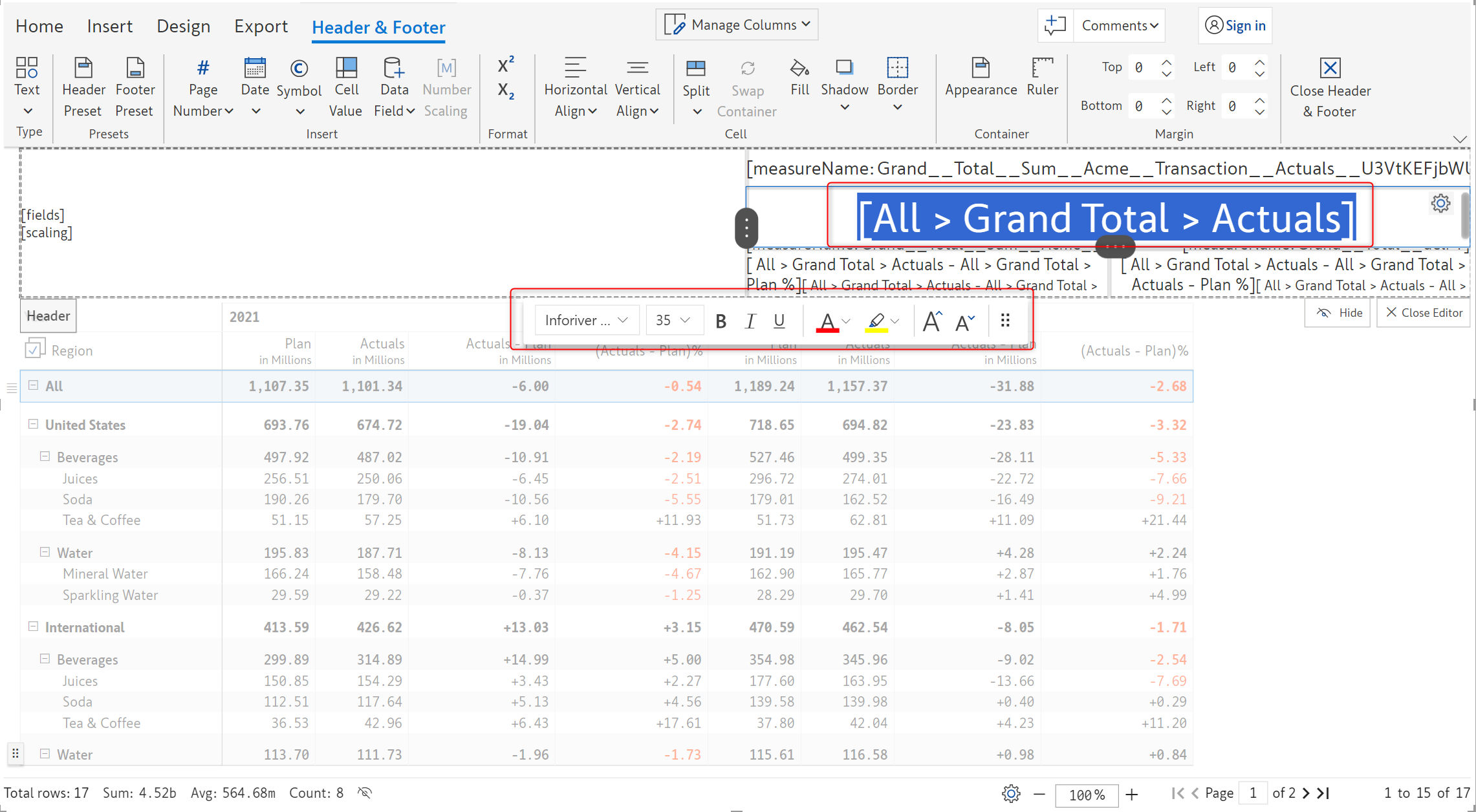
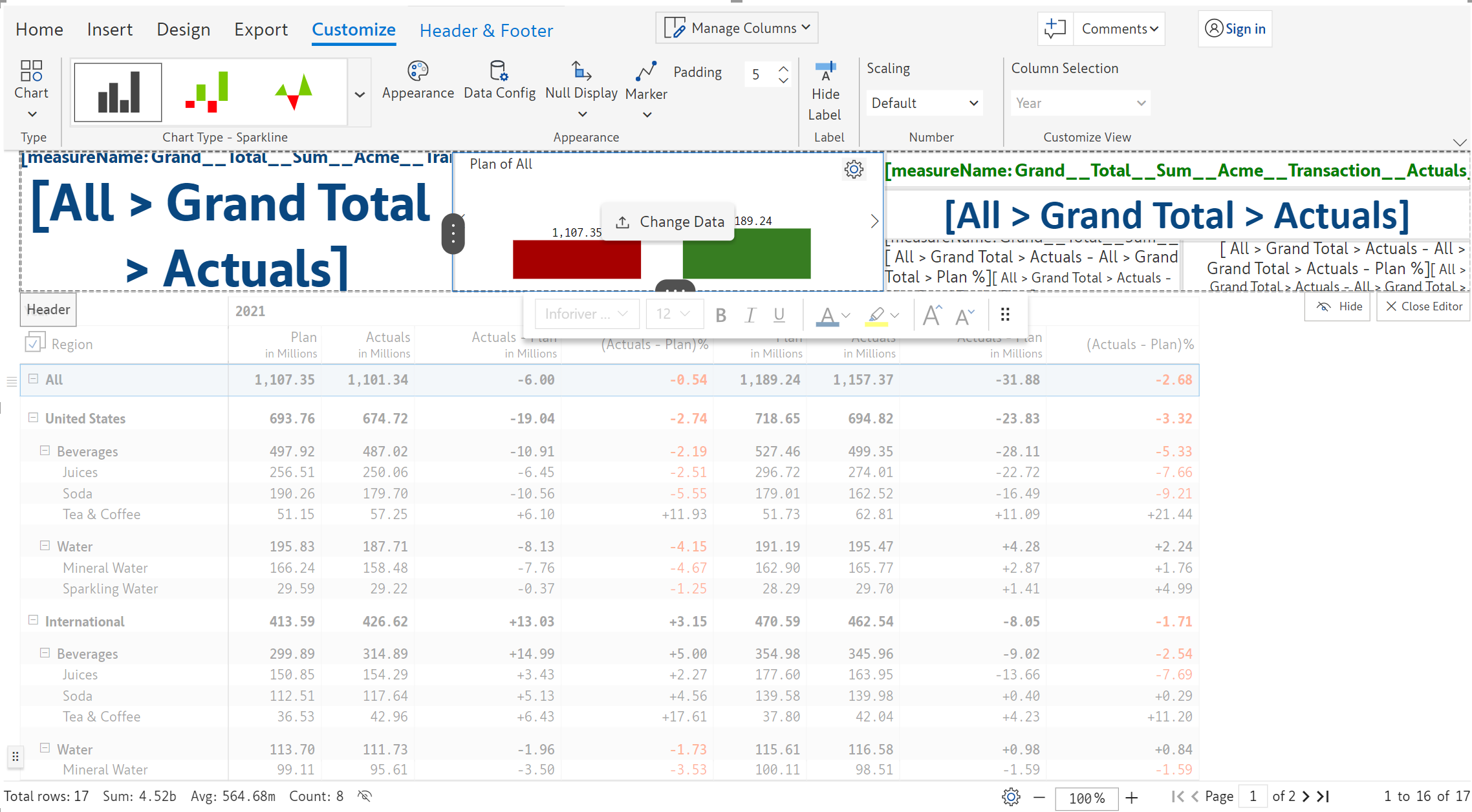
We can now select each element in the KPI preset and apply a custom style from the floating toolbar. Note that the floating toolbar will appear only when selecting the element.

<figure><img src="https://content.gitbook.com/content/sB9HAei8v4FfKkH9M4gw/blobs/u3TJe1sHZIDgSIIpRxem/image.png" alt=""><figcaption><p>Styling KPI card elements</p></figcaption></figure>

Notice how the font and color have been updated for each element in the KPI card.

<figure><img src="https://content.gitbook.com/content/sB9HAei8v4FfKkH9M4gw/blobs/erW9Um4QgUuWSwyq17m8/image.png" alt=""><figcaption><p>Ungrouping KPI presets</p></figcaption></figure>

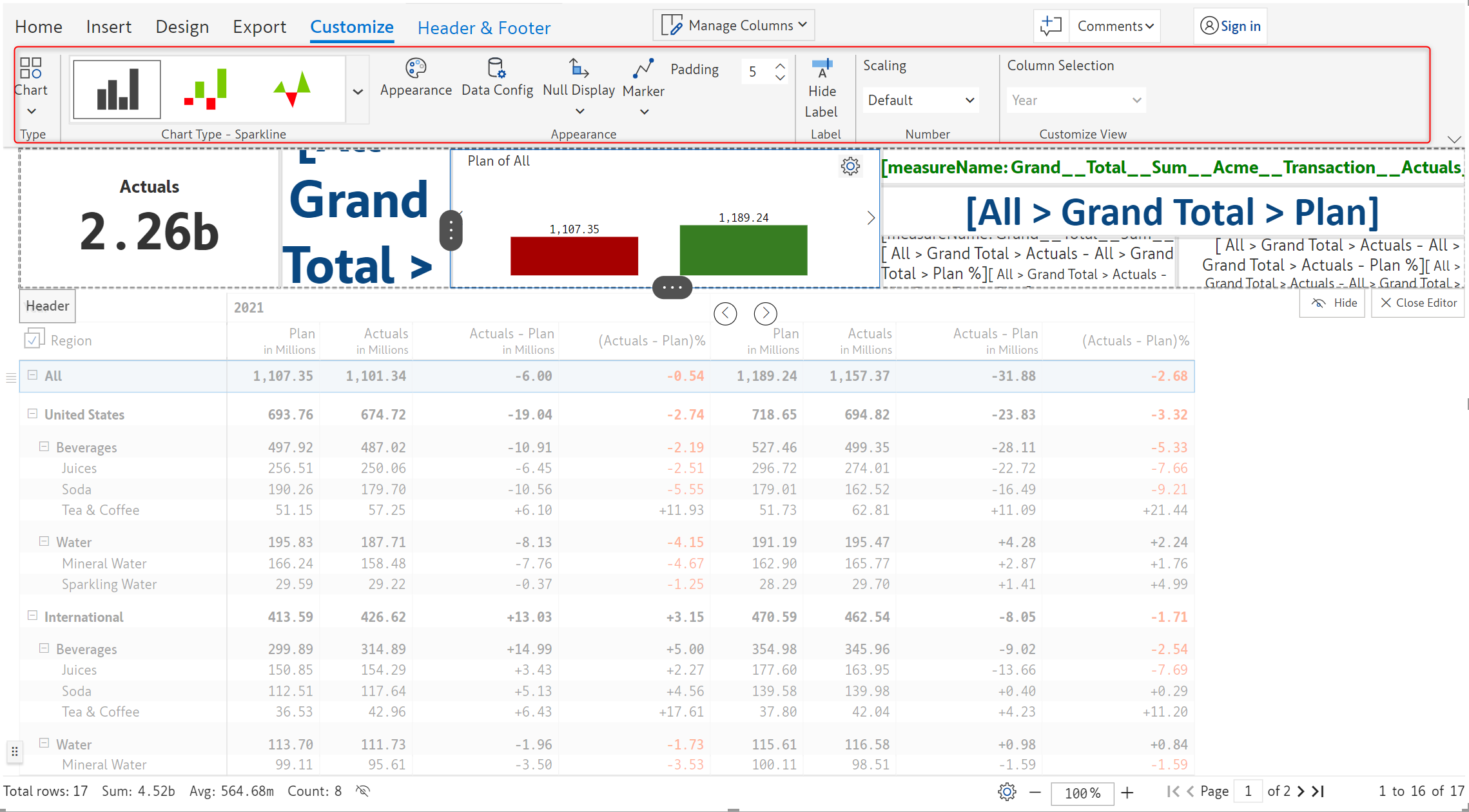
The toolbar for customizing charts is loaded when the chart element is selected.

<figure><img src="https://content.gitbook.com/content/sB9HAei8v4FfKkH9M4gw/blobs/Oq8VTG0EPvZC67pmlS6z/image.png" alt=""><figcaption><p>Chart styling</p></figcaption></figure>

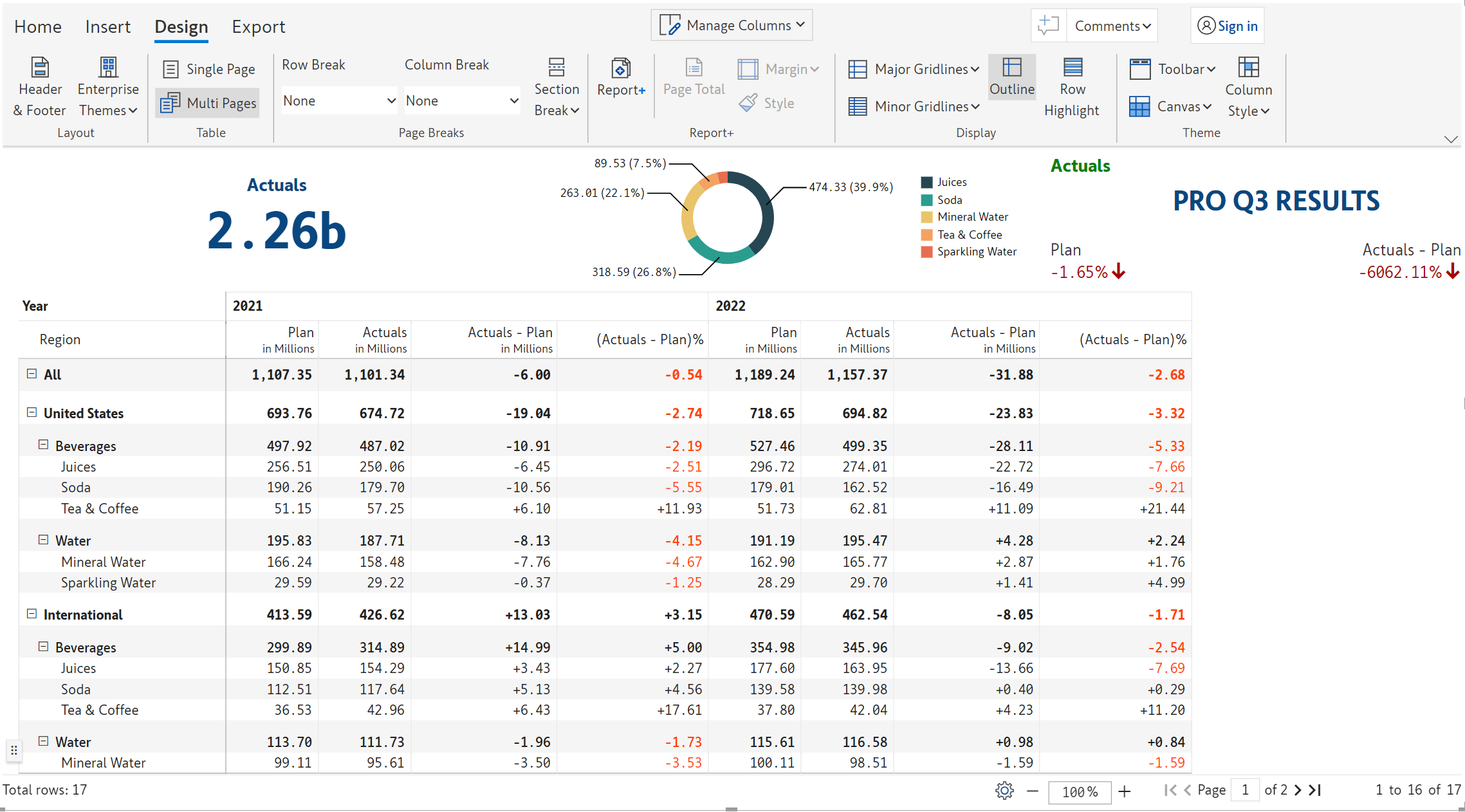
Styling has been applied to each element.

<figure><img src="https://content.gitbook.com/content/sB9HAei8v4FfKkH9M4gw/blobs/ykykCMVgSRcqWB2fX54T/image.png" alt=""><figcaption></figcaption></figure>

You have successfully learned to add KPI cards using presets as well as from scratch.&#x20;

In the next section, we'll be covering advanced report layouts using the [Report+](https://docs.inforiver.com/premium-table/working-with-premium-table/7.-paginated-reporting/report-layouts-report+) feature.