# Export to PDF & Excel

Premium Table allows you to export the table/matrix as either PDF or Excel. The industry-leading export capability delivers the following:

* Export with formatting, category, or value structur,e and notes ​
* Export table/matrix along with scaled number formatting​
* Export calculated rows, columns, and edited cells​
* ​End-users in the Reading view can customize export options​​
* ​Export to Excel with Expand/Collapse capability
* Export to multiple Excel worksheets based on category ​
* ​Pagination & page-break support for Export to PDF

You can find the export option in the **Export** ribbon. There are two sections: **Export to PDF** and **Export to Excel**. Let's look at them one by one.

<figure><img src="https://2428652681-files.gitbook.io/~/files/v0/b/gitbook-x-prod.appspot.com/o/spaces%2FsB9HAei8v4FfKkH9M4gw%2Fuploads%2FLpHA6wuBxKzduTQMJ1B8%2Fimage.png?alt=media&#x26;token=7459729d-aadc-41a9-8f2f-b22c8606f4aa" alt=""><figcaption><p>Export options</p></figcaption></figure>

## 1. Export to PDF

The first step in exporting as a PDF file is to configure the page setup.&#x20;

### 1.1. Page Setup

The page setup section provides options to customize the content order, page size, orientation, margin, font, image/logo, comment settings, etc. Click on **Page Setup**. A side panel opens as shown.

<figure><img src="https://2428652681-files.gitbook.io/~/files/v0/b/gitbook-x-prod.appspot.com/o/spaces%2FsB9HAei8v4FfKkH9M4gw%2Fuploads%2FinHPTUpCDv3IkguLFfWI%2Fimage.png?alt=media&#x26;token=a473340f-427b-495f-bfeb-b407a786e9e0" alt=""><figcaption><p>Page setup</p></figcaption></figure>

* **Content Order:** When the number of rows/columns doesn't fit on a single page, you can define the order in which the rows/columns are exported using the **Content order** option.

Let's consider an example. Based on the page scaling, only 2 columns and 20 rows can be accommodated on a single page.&#x20;

When the '**Row first**' option is chosen, the remaining rows for the first 2 columns are displayed on the second page. The contents of each page are shown in the image below.

<figure><img src="https://2428652681-files.gitbook.io/~/files/v0/b/gitbook-x-prod.appspot.com/o/spaces%2FsB9HAei8v4FfKkH9M4gw%2Fuploads%2FtGbfeH4zmQStvGJQysrQ%2Fimage.png?alt=media&#x26;token=b6e3077e-7825-4578-8cb3-7356ee45ae74" alt=""><figcaption><p>Row first option</p></figcaption></figure>

When the '**Column first**' option is chosen, the remaining columns for the first 20 rows are displayed on the following 5 pages. The rest of the rows are exported from page 6 onwards. The contents on each page are shown in the image below.

<figure><img src="https://2428652681-files.gitbook.io/~/files/v0/b/gitbook-x-prod.appspot.com/o/spaces%2FsB9HAei8v4FfKkH9M4gw%2Fuploads%2FkjHYQucqBEkWCzNSNPsS%2Fimage.png?alt=media&#x26;token=6419b3aa-3746-4948-bdd2-e2a82aee2fde" alt=""><figcaption><p>Column first option</p></figcaption></figure>

The attached PDF files show the difference between the row and column first options.

{% file src="<https://2428652681-files.gitbook.io/~/files/v0/b/gitbook-x-prod.appspot.com/o/spaces%2FsB9HAei8v4FfKkH9M4gw%2Fuploads%2FpGmZiDGAlcycheRlC3og%2FRowFirstExport.pdf?alt=media&token=35249473-bcbb-46a8-9453-da9633609d91>" %}

{% file src="<https://2428652681-files.gitbook.io/~/files/v0/b/gitbook-x-prod.appspot.com/o/spaces%2FsB9HAei8v4FfKkH9M4gw%2Fuploads%2Fl5s8m7ed3IKvmSe09vc6%2FColumnFirstExport.pdf?alt=media&token=a363f6f9-c197-455c-891b-1549869748fd>" %}

* **Page size:**  Select the '**Page size**' from the drop-down - Available sizes are Letter, A3, A4, A5, Tabloid, and Legal.
* **Orientation:** Select either Landscape or Portrait as page orientation.
* **Scaling:**  Scale the page manually by percentages or automatically scale to fit all columns in a single page using this option.
* **Margin:** Apply a narrow, normal, or wide margin as per your requirement.
* **Font:** Select a font style from the available options in the dropdown. Custom fonts can also be used when exporting.

{% hint style="info" %}
If the data is customized with different fonts, the font selected in this Settings panel will be used for PDF export.
{% endhint %}

* **Show header and footer:** You can show the header and footer either only on the first page or on every page.
* **Add image/logo to the first page:** You can create a cover page for your report using this toggle. Select a custom image to use as the cover page.

<figure><img src="https://2428652681-files.gitbook.io/~/files/v0/b/gitbook-x-prod.appspot.com/o/spaces%2FsB9HAei8v4FfKkH9M4gw%2Fuploads%2F3qJbf8podb1ybvzdBT6r%2Fimage.png?alt=media&#x26;token=83884375-3368-466e-982c-e4324439ff44" alt=""><figcaption><p>Add a cover image for the report extract</p></figcaption></figure>

* **Use as background image:** If you want the image to fill the entire cover page, select this checkbox.

<figure><img src="https://2428652681-files.gitbook.io/~/files/v0/b/gitbook-x-prod.appspot.com/o/spaces%2FsB9HAei8v4FfKkH9M4gw%2Fuploads%2FMWGdni6rxc8VF42ov3qO%2Fimage.png?alt=media&#x26;token=a5471df8-0131-4765-9a24-ec9d5f096294" alt=""><figcaption><p>The image fills the cover page</p></figcaption></figure>

* **Margin and alignment:** The logo can also be aligned using the margin settings as well as the horizontal and vertical alignment options, instead of filling the entire cover page.

{% hint style="info" %}
The **Use as background image** checkbox should be disabled to customize margins and alignment.
{% endhint %}

<figure><img src="https://2428652681-files.gitbook.io/~/files/v0/b/gitbook-x-prod.appspot.com/o/spaces%2FsB9HAei8v4FfKkH9M4gw%2Fuploads%2FplJqrogCdb1BW26TtOBK%2Fimage.png?alt=media&#x26;token=018473de-d1d3-40d5-8d32-2fe492947029" alt=""><figcaption><p>Margin and alignment for cover image</p></figcaption></figure>

* **Export with conditional formatting**

When you've applied conditional formatting in your report, you can decide whether to retain the formatting in your exports. Select the conditional formatting rules that you need to export.

<figure><img src="https://2428652681-files.gitbook.io/~/files/v0/b/gitbook-x-prod.appspot.com/o/spaces%2FsB9HAei8v4FfKkH9M4gw%2Fuploads%2FapPH0g8qTL8A43jymM6I%2Fimage.png?alt=media&#x26;token=33258440-8cbe-4f5c-aa53-6300898bd35a" alt=""><figcaption><p>Exporting conditional formatting </p></figcaption></figure>

Notice how the data bars in the Margin measure and the flag icons in the Projections measure haven't been exported to the PDF file since we deselected those 2 rules.

<figure><img src="https://2428652681-files.gitbook.io/~/files/v0/b/gitbook-x-prod.appspot.com/o/spaces%2FsB9HAei8v4FfKkH9M4gw%2Fuploads%2FHOvxQEbeejL78LQ6RSBD%2Fimage.png?alt=media&#x26;token=06be55e3-5a3f-40c9-b0e9-9639a7ce941b" alt=""><figcaption><p>PDF export of selected conditional formatting rules</p></figcaption></figure>

* **Include footnotes:** You can select this option to export the footnotes along with the table/matrix.

<figure><img src="https://2428652681-files.gitbook.io/~/files/v0/b/gitbook-x-prod.appspot.com/o/spaces%2FsB9HAei8v4FfKkH9M4gw%2Fuploads%2FH5yuxgLvY0PGLPl9v4zF%2Fimage.png?alt=media&#x26;token=2873e920-23b8-4b95-b112-8455323d6a01" alt=""><figcaption></figcaption></figure>

* **Include Global/Locale variable:** Select this option to include global and local variable selections/inputs in the exported PDF.

<figure><img src="https://2428652681-files.gitbook.io/~/files/v0/b/gitbook-x-prod.appspot.com/o/spaces%2FsB9HAei8v4FfKkH9M4gw%2Fuploads%2FT2DcsdCVgsGux9zNER8h%2Fimage.png?alt=media&#x26;token=f4104d3c-e9df-4954-a52d-613abecefbfb" alt=""><figcaption><p>Global and local variables</p></figcaption></figure>

* **Decimal Precision:** Set a custom decimal precision for the export.
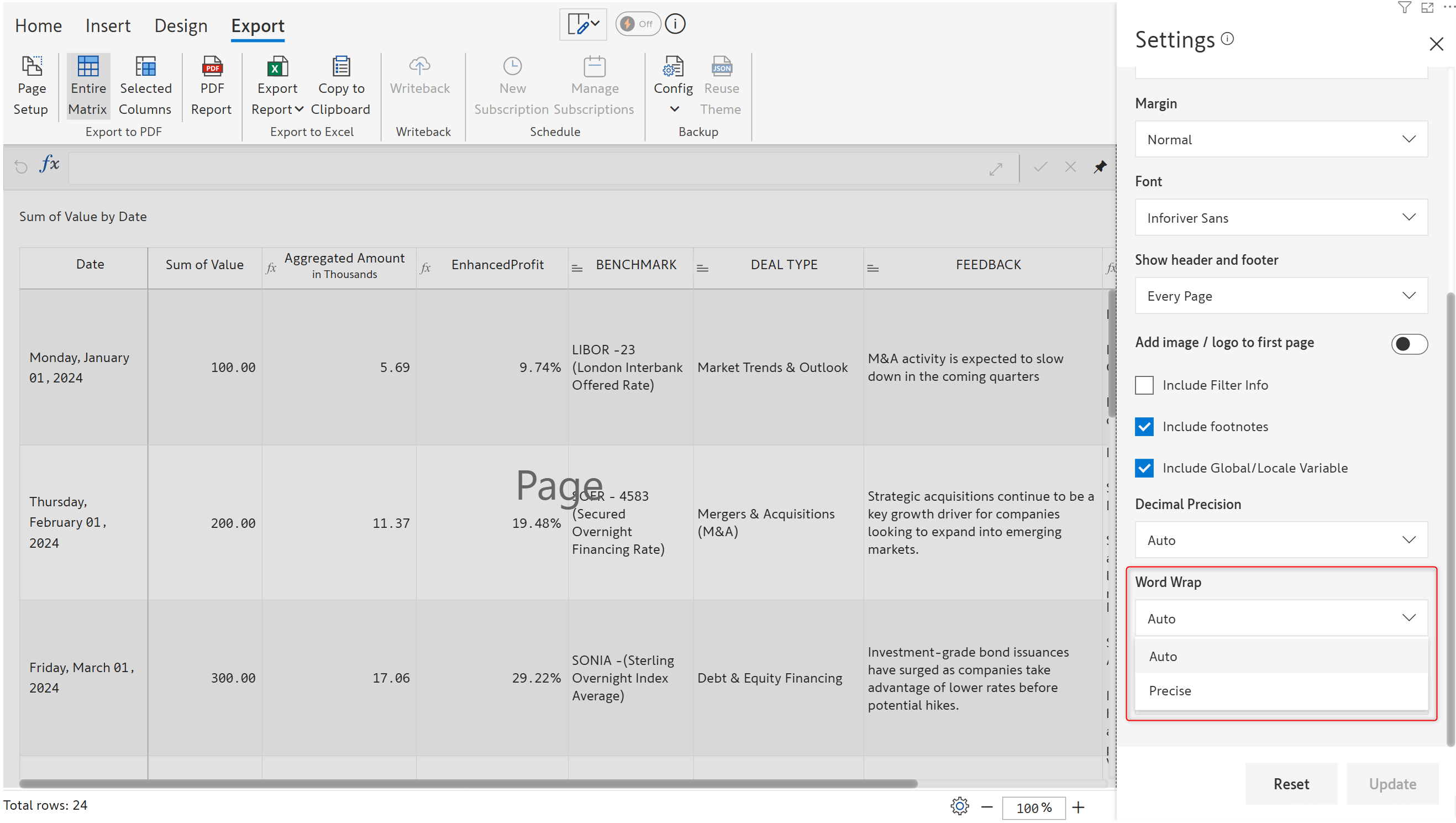
* **Word Wrap:** The **'Word Wrap'** options are specifically intended for reports that are formatted using **table functions**.&#x20;

<figure><img src="https://content.gitbook.com/content/sB9HAei8v4FfKkH9M4gw/blobs/rm2LRy3HujaBINbCgMUz/image.png" alt=""><figcaption><p>Word wrap options</p></figcaption></figure>

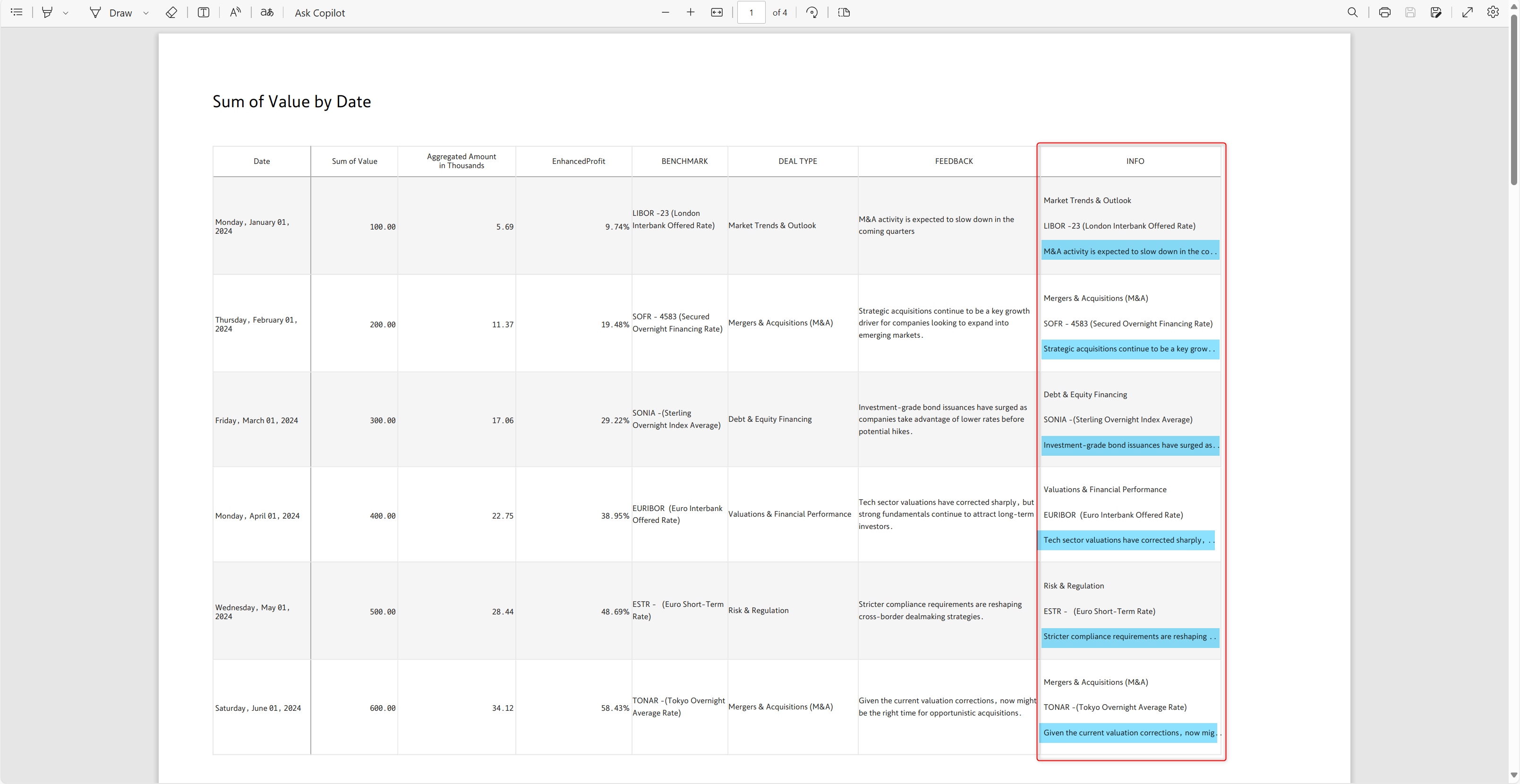
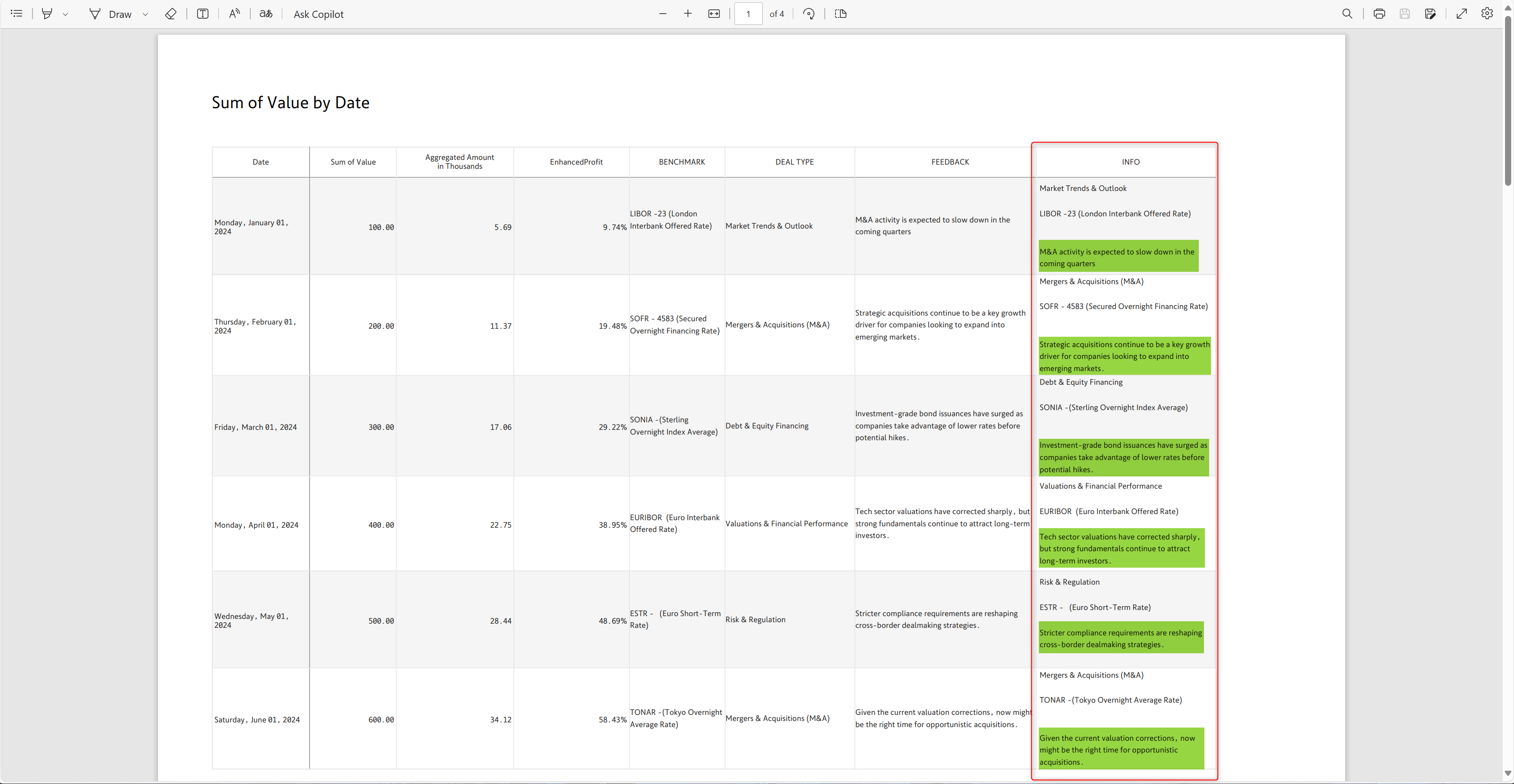
The '**Precise'** option enables word wrapping, ensuring that overflowing rows are wrapped onto the next line and fully visible in the PDF export. In contrast, the '**Auto'** option does not apply word wrapping, which may result in truncated data. The highlighted text in the screenshots depicts the difference between Auto and Precise word wrapping.

<div><figure><img src="https://content.gitbook.com/content/sB9HAei8v4FfKkH9M4gw/blobs/E0ZBJr4lHFxPpd7uedtE/image.png" alt=""><figcaption><p>Auto word wrap</p></figcaption></figure> <figure><img src="https://content.gitbook.com/content/sB9HAei8v4FfKkH9M4gw/blobs/Zq0lvzOqjWujf99pPreq/2025-04-18_09h45_34.png" alt=""><figcaption><p>Precise word wrap</p></figcaption></figure></div>

* **Footnote position:** You can set the footnote position as,

**Last Page:** Footnotes get printed on the last page.

**Dynamic:** Based on the available space, footnotes get printed either on the same page where they are added or on the last page.

Finally, click **Update** to save your page setup preferences, or click on 'Reset' to reset all your selections to defaults.&#x20;

### 1.2. Exporting

Once the page setup is complete, you need to decide whether to export the entire matrix or just select specific columns.&#x20;

#### Entire matrix

1. You can export all the rows and columns by clicking **Entire Matrix**.&#x20;
2. Click on **PDF Report** to export the file in PDF format.

<figure><img src="https://2428652681-files.gitbook.io/~/files/v0/b/gitbook-x-prod.appspot.com/o/spaces%2FsB9HAei8v4FfKkH9M4gw%2Fuploads%2FEYwhqT7PmMKPiq6fmkgi%2Fimage.png?alt=media&#x26;token=a13aba81-b819-4f06-87e7-9cb728f9eabb" alt=""><figcaption><p>Export the entire matrix to a PDF file</p></figcaption></figure>

3. A pop-up appears as shown. The PDF file can be saved to the computer.

<figure><img src="https://2428652681-files.gitbook.io/~/files/v0/b/gitbook-x-prod.appspot.com/o/spaces%2FsB9HAei8v4FfKkH9M4gw%2Fuploads%2FrOFvl3TBJLskdgcTiJjK%2Fimage.png?alt=media&#x26;token=e9c9ec08-985a-49ee-8c4e-8c49dd5b1467" alt=""><figcaption></figcaption></figure>

4. The entire matrix gets exported as shown.

<figure><img src="https://2428652681-files.gitbook.io/~/files/v0/b/gitbook-x-prod.appspot.com/o/spaces%2FsB9HAei8v4FfKkH9M4gw%2Fuploads%2FxzEvPcB7G0371joloDc2%2Fimage.png?alt=media&#x26;token=6d466718-87d4-4c43-af46-72f0e6cfa37b" alt=""><figcaption><p>PDF export of the entire matrix</p></figcaption></figure>

#### Selected columns

If you do not want to expose all the fields in your report, click **Selected Columns,** as highlighted in the image below.

<figure><img src="https://2428652681-files.gitbook.io/~/files/v0/b/gitbook-x-prod.appspot.com/o/spaces%2FsB9HAei8v4FfKkH9M4gw%2Fuploads%2FZg9lTsPJgic2xrTLgTxM%2Fimage.png?alt=media&#x26;token=06d57aaa-c2ab-4492-92f2-f3c2077bb575" alt=""><figcaption><p>Selecting specific columns to expose</p></figcaption></figure>

The selected columns are downloaded as shown.

<figure><img src="https://2428652681-files.gitbook.io/~/files/v0/b/gitbook-x-prod.appspot.com/o/spaces%2FsB9HAei8v4FfKkH9M4gw%2Fuploads%2F66mV1WIiKyQTSaxN2EWD%2Fimage.png?alt=media&#x26;token=0e234f24-28e5-4d2a-97f7-18ed8a97e2fe" alt=""><figcaption><p>Exporting selected columns</p></figcaption></figure>

{% hint style="info" %}
Export to PDF does not support image columns. It does allow chart exports.
{% endhint %}

## 2. Export to Excel

### 2.1. Excel header settings

You can customize report headers in Excel exports. Click the expand icon highlighted in the image to open the header settings.

<figure><img src="https://2428652681-files.gitbook.io/~/files/v0/b/gitbook-x-prod.appspot.com/o/spaces%2FsB9HAei8v4FfKkH9M4gw%2Fuploads%2Fsejs1J6TiorLhWRuT9z5%2Fimage.png?alt=media&#x26;token=57efdca6-3e98-4fc8-930f-f3173e10f74a" alt=""><figcaption><p>Open header settings</p></figcaption></figure>

Premium table provides extended support for exporting header elements such as dates and symbols. From the header settings UI, you can quickly select the lines of the header that you want exported to an Excel file.

<figure><img src="https://2428652681-files.gitbook.io/~/files/v0/b/gitbook-x-prod.appspot.com/o/spaces%2FsB9HAei8v4FfKkH9M4gw%2Fuploads%2FRnAehTJZIwKBPDIDKQ26%2Fimage.png?alt=media&#x26;token=e81ceb18-dbe8-4f7c-a731-92a34b8cea60" alt=""><figcaption><p>Exporting symbols and dates in the header</p></figcaption></figure>

If your reports use charts or images in the header and footer, Inforiver enables you to export them as an image to an Excel file.

<figure><img src="https://2428652681-files.gitbook.io/~/files/v0/b/gitbook-x-prod.appspot.com/o/spaces%2FsB9HAei8v4FfKkH9M4gw%2Fuploads%2FAZr6qvf64Gt9SimYfrRC%2Fimage.png?alt=media&#x26;token=cbaf0455-7f45-411c-ac6d-2838d200ffcb" alt=""><figcaption><p>Header export as an image</p></figcaption></figure>

### 2.2. Exporting

Click the **Export Report** button to download your report to an Excel file.

<figure><img src="https://2428652681-files.gitbook.io/~/files/v0/b/gitbook-x-prod.appspot.com/o/spaces%2FsB9HAei8v4FfKkH9M4gw%2Fuploads%2Fy0nRJSncNjRxgmWb0g3E%2Fimage.png?alt=media&#x26;token=b743e145-3163-455c-8030-4c23a6805544" alt=""><figcaption><p>Exporting to Excel</p></figcaption></figure>

## 3. Copy to clipboard

You can copy the data in your report, including calculated rows/columns, and notes (if there are any). The copied data can be easily pasted into an Excel sheet.&#x20;

{% hint style="info" %}
The keyboard shortcut for the copy to clipboard option is **'Ctrl+C+L'**
{% endhint %}

<figure><img src="https://2428652681-files.gitbook.io/~/files/v0/b/gitbook-x-prod.appspot.com/o/spaces%2FsB9HAei8v4FfKkH9M4gw%2Fuploads%2FhASR5pmSzXlO5hlzIzGQ%2Fimage.png?alt=media&#x26;token=a78abc12-97fa-4c51-a33c-d303aebe5cb6" alt=""><figcaption><p>Copy to clipboard option</p></figcaption></figure>

The data has been copied and pasted into an Excel sheet, and it is displayed as shown.

<figure><img src="https://2428652681-files.gitbook.io/~/files/v0/b/gitbook-x-prod.appspot.com/o/spaces%2FsB9HAei8v4FfKkH9M4gw%2Fuploads%2FTdM9Ls6wJqLY8Sua2hE9%2Fimage.png?alt=media&#x26;token=b3b2a88a-0f4e-462e-9e82-dbcbc17c87aa" alt=""><figcaption><p>Data copied from clipboard</p></figcaption></figure>