> For the complete documentation index, see [llms.txt](https://docs.inforiver.com/llms.txt). Markdown versions of documentation pages are available by appending `.md` to page URLs; this page is available as [Markdown](https://docs.inforiver.com/super-filter/features/10.-display-settings/v.other-options.md).
# v.Other Options
### 1. **Select All:**
Adds a **"Select All"** option at the top of the category list, allowing users to quickly select or deselect all items at once.
### **2. Select All Label:**
Allows users to customize the label text for the "Select All" option using a text box, making it more relevant to their use case.
### 3. Clear Search:
Automatically clears the search input once an item is selected from the results, ensuring a smoother search experience without needing manual input removal.
### **4. Keyboard Accessibility:**
Enables **keyboard navigation** within the visual, making it easier to use for individuals with motor disabilities and improving overall accessibility.
### 5. Image Data:
To display images as selection options in the filter, add image data to the category field and enable the **Image Data** option in the **Display Settings**. The visual also supports Base64-encoded images.
### **6. Hierarchy Collapse Default:**
Allows users to set the default collapsed or expanded state for hierarchical data in the facet filter, improving data organization and navigation.
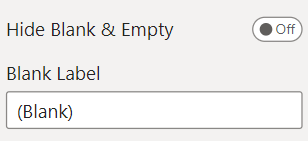
### 7. Hide Blank & Empty:
When enabled, this option hides any blank or null values from appearing in the filter selections.
### 8. Blank Label:
Similar to **Blank Label but** specifically replaces **empty strings** (`""`) with a **custom-defined value**, ensuring better data presentation in the filter.
* Locate the option to **Hide Blank & Empty** in the Format Pane.
* If **Hide Blank & Empty** is disabled, **Blank Label** option becomes available. A **Text Box** is provided to manually enter the desired value.
* The value entered in the text box for respective labels will replace any blank or null values in the filter.
Image 4: Hide blank and empty in format pane
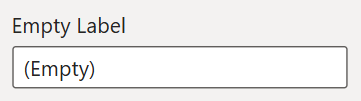
### 9. Empty Label:
The **Blank Label** option allows users to replace empty string with custom text or values.
* Locate the option to **Hide Blank & Empty** in the Format Pane.
* If **Hide Blank & Empty** is disabled, **Empty Label** option becomes available. A **Text Box** is provided to manually enter the desired value.
* The value entered in the text box for respective labels will replace any empty strings in the filter.
Image 5: Empty Label option in format pane
### **10. Theme:**
Allows users to switch between **light and dark** themes for the visual, providing better adaptability to different UI preferences.
### **11. Limit Data Rows:**
Set the maximum number of rows displayed in the visual. Use the dropdown menu to select from options: *6000, 8000, 10000, 12000*, or *Limitless*.
### **12. Global Font Family:**
Select your preferred font style for the visual. Use the dropdown menu to choose from a variety of options.
### **13. Row Spacing:**
Adjusts the vertical spacing between rows in facet and hierarchy filters, improving readability and layout customization.
### 14. **Background Color:**
Customize the overall background color of the visual by selecting a color from the dropdown menu.
### 15. Selector Icon Background color:
Let's users change the background color of the filter selection icon, improving UI customization and contrast.
### 16. **Search Tag Background:**
Customize the background color of search tags by selecting a color from the dropdown menu.
### **17. Search Tag Color:**
Choose the text color for search tags using the dropdown menu for better readability and design consistency.
### 18. Show Border:
Enables or disables the border around the Super Filter visual, offering flexibility in styling the report layout.
### 19. Show Canvas Message:
Controls the display of the canvas prompt message when display settings are off. Disabling it helps avoid unnecessary UI clutter.
### 20. Row Padding:
Row padding controls the vertical spacing between rows when they are hovered over in a visual.
### 21. RTL:
When Enabled supports **Right-to-Left (RTL) languages** in the visual, such as:
* Arabic
* Hebrew
* Persian
* Urdu
---
# Agent Instructions
This documentation is published with GitBook. GitBook is the documentation platform designed so that both humans and AI agents can read, navigate, and reason over technical content effectively. Learn more at gitbook.com.
## Querying This Documentation
If you need additional information that is not directly available in this page, you can query the documentation by asking a question.
Perform an HTTP GET request on the following URL with the `ask` and `goal` query parameters:
```
GET https://docs.inforiver.com/super-filter/features/10.-display-settings/v.other-options.md?ask=&goal=
```
`ask` is the immediate question: it should be specific, self-contained, and written in natural language.
`goal` is what the user is ultimately trying to achieve, the reason they need the answer. Sharing it helps GitBook give you a better, more relevant answer. A goal is most helpful when it describes the outcome the user wants rather than restating the question. For example, with `ask=how do I create an API token`, a goal like `automate deployments from our CI pipeline` lets GitBook tailor the answer to that use case.
The response will contain a direct answer to the question and relevant excerpts and sources from the documentation.
Use this mechanism when the answer is not explicitly present in the current page, you need clarification or additional context, or you want to retrieve related documentation sections.