> For the complete documentation index, see [llms.txt](https://docs.inforiver.com/llms.txt). Markdown versions of documentation pages are available by appending `.md` to page URLs; this page is available as [Markdown](https://docs.inforiver.com/working-with-inforiver/18.-variables/variable-bookmarks.md).
# Variable bookmarks
You can save the options chosen/set for the variables in a report and assign a name - similar to a bookmark. This feature enables you to switch between different configurations without having to setup each variable repeatedly.
Let's look at how to bookmark variable settings.
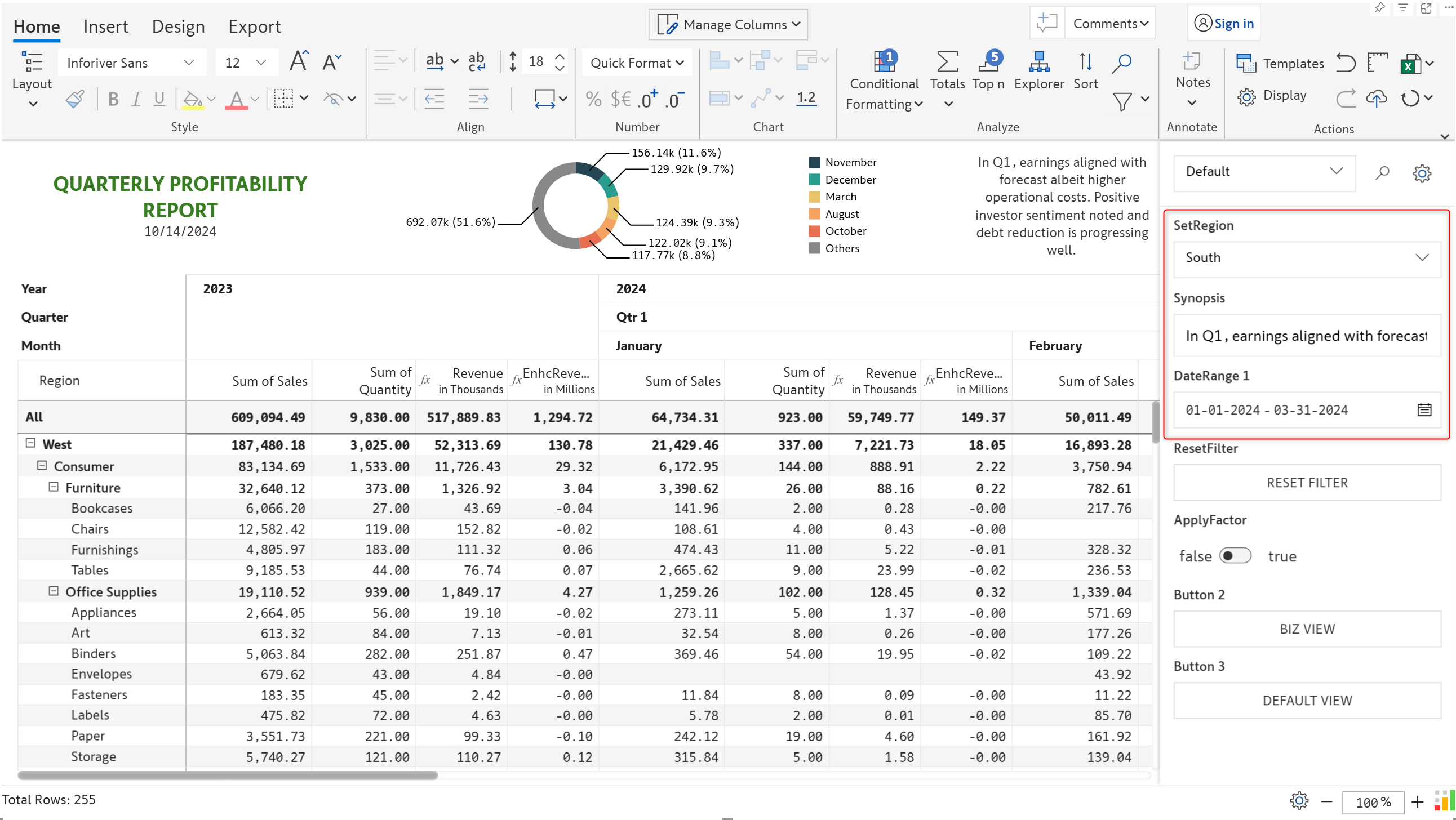
**STEP 1:** Assign values to each of the variables.
Assign variable values
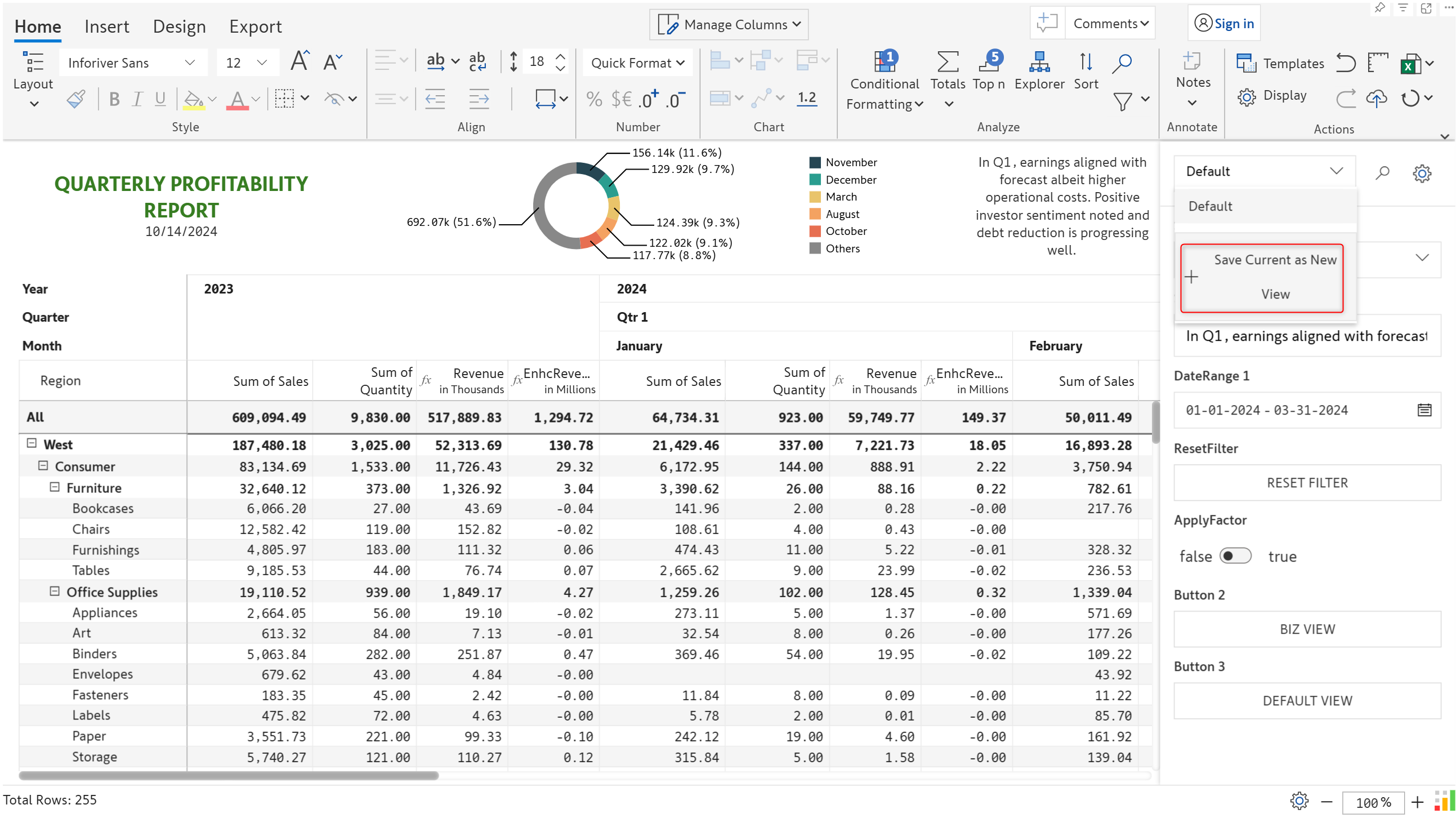
**STEP 2:** Click the **Save Current as New View** option.
Save variable config option
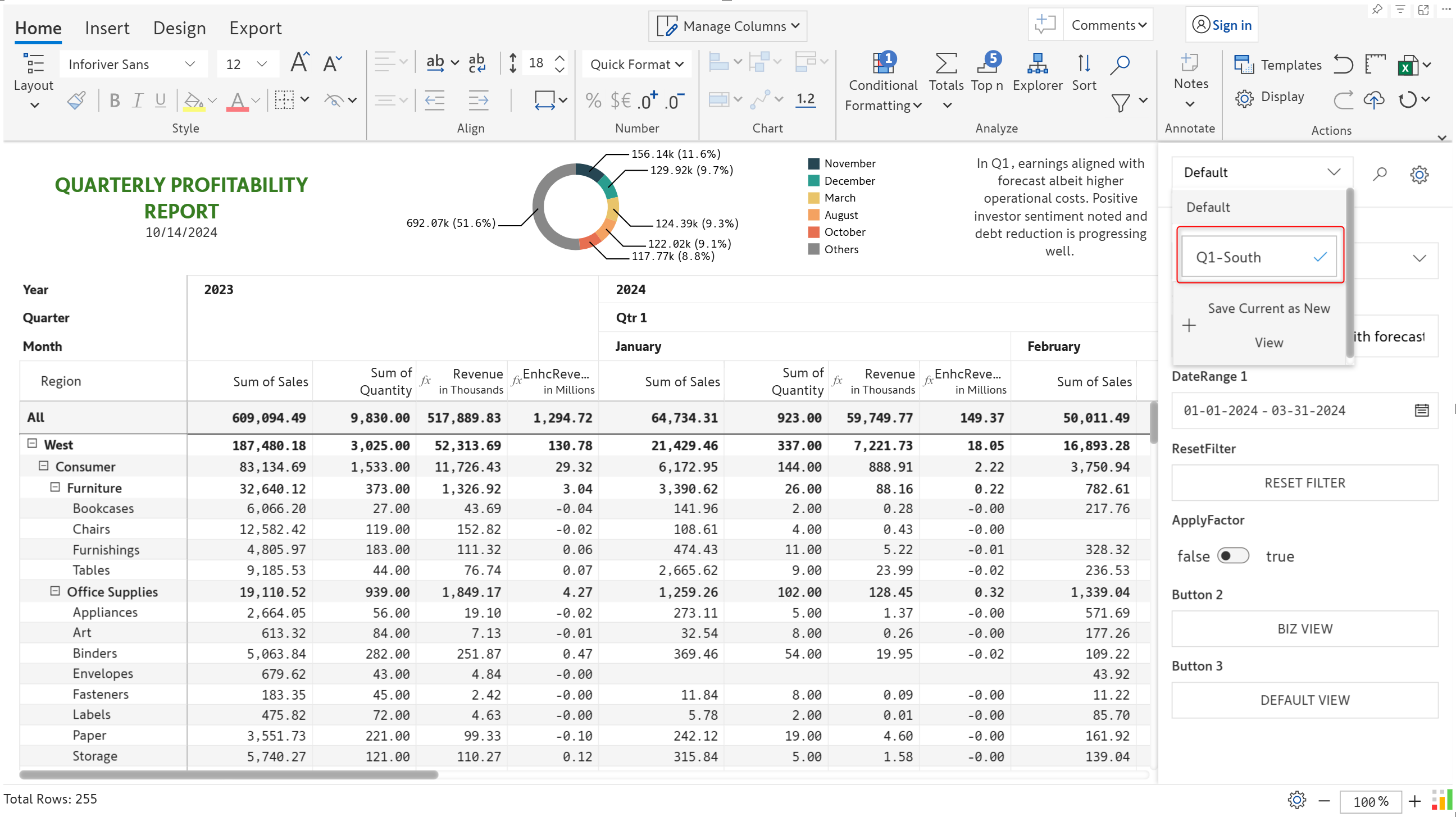
**STEP 3:** Enter a name to identify the bookmark.
---
# Agent Instructions
This documentation is published with GitBook. GitBook is the documentation platform designed so that both humans and AI agents can read, navigate, and reason over technical content effectively. Learn more at gitbook.com.
## Querying This Documentation
If you need additional information that is not directly available in this page, you can query the documentation dynamically by asking a question.
Perform an HTTP GET request on the current page URL with the `ask` query parameter, and the optional `goal` query parameter:
```
GET https://docs.inforiver.com/working-with-inforiver/18.-variables/variable-bookmarks.md?ask=&goal=
```
`ask` is the immediate question: it should be specific, self-contained, and written in natural language.
`goal` is optional and describes the broader end goal you are ultimately trying to accomplish on behalf of the user. GitBook uses it to tailor the answer towards what is most useful for that goal.
The response will contain a direct answer to the question and relevant excerpts and sources from the documentation.
Use this mechanism when the answer is not explicitly present in the current page, you need clarification or additional context, or you want to retrieve related documentation sections.