# Distribution rules

### Why are distribution rules important in reports?

{% hint style="success" %}
Distribution rules determine how totals are split between regions, time periods, departments, or products.

When distribution rules are defined:

* The same logic is applied every time, ensuring consistency
* Different reports reconcile to the same totals
* Resources are utlized optimally
  {% endhint %}

### Step-by-step guide to allocating values

#### 1. Equally allocate

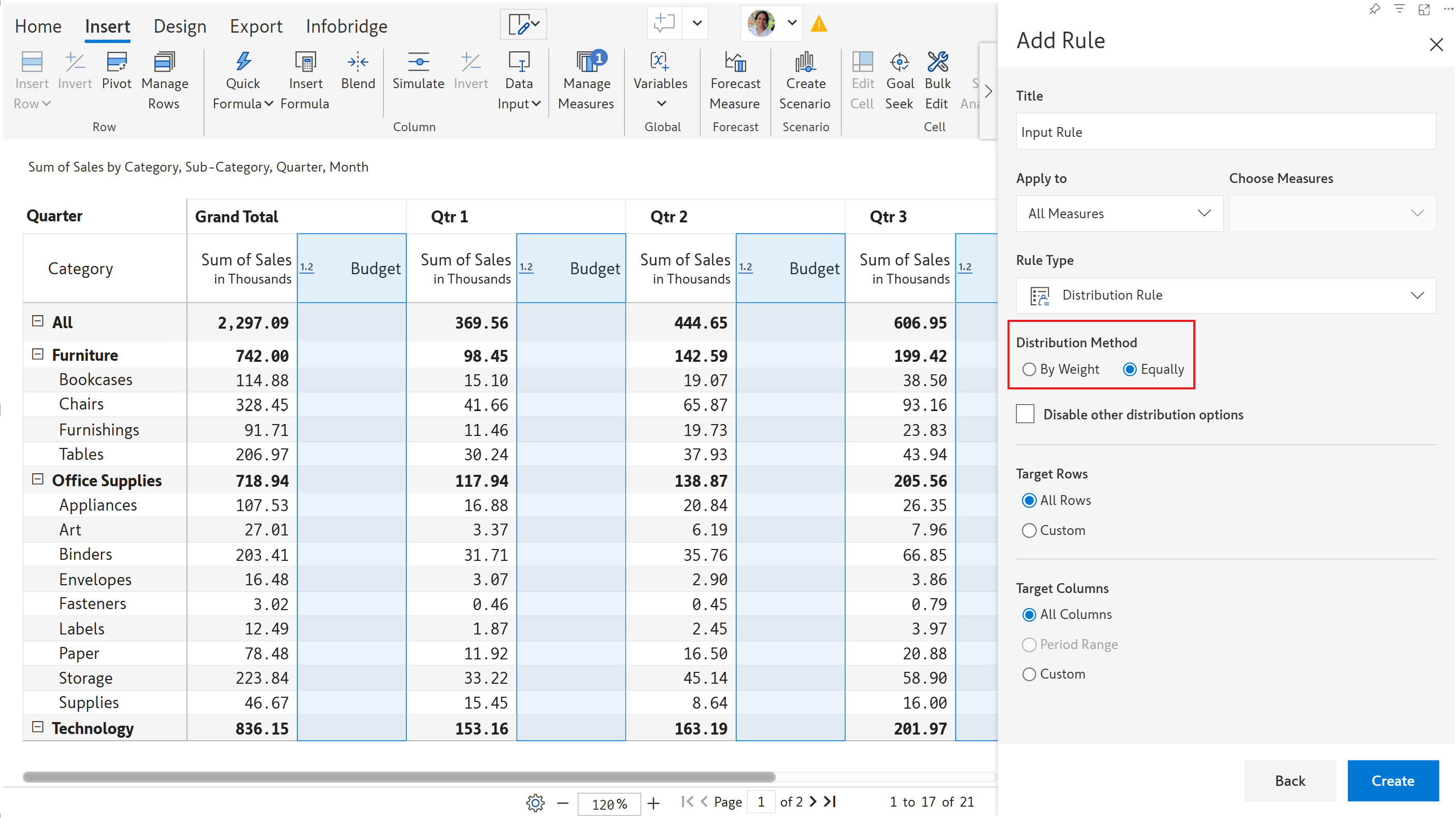
Let's create a rule to allocate budgets equally across all product lines and quarters.

**STEP 1:** Select **Equally** as the **Distribution Method**.

<figure><img src="/files/1LT0I86akVj03kS8etpV" alt=""><figcaption><p>Select the distribution method</p></figcaption></figure>

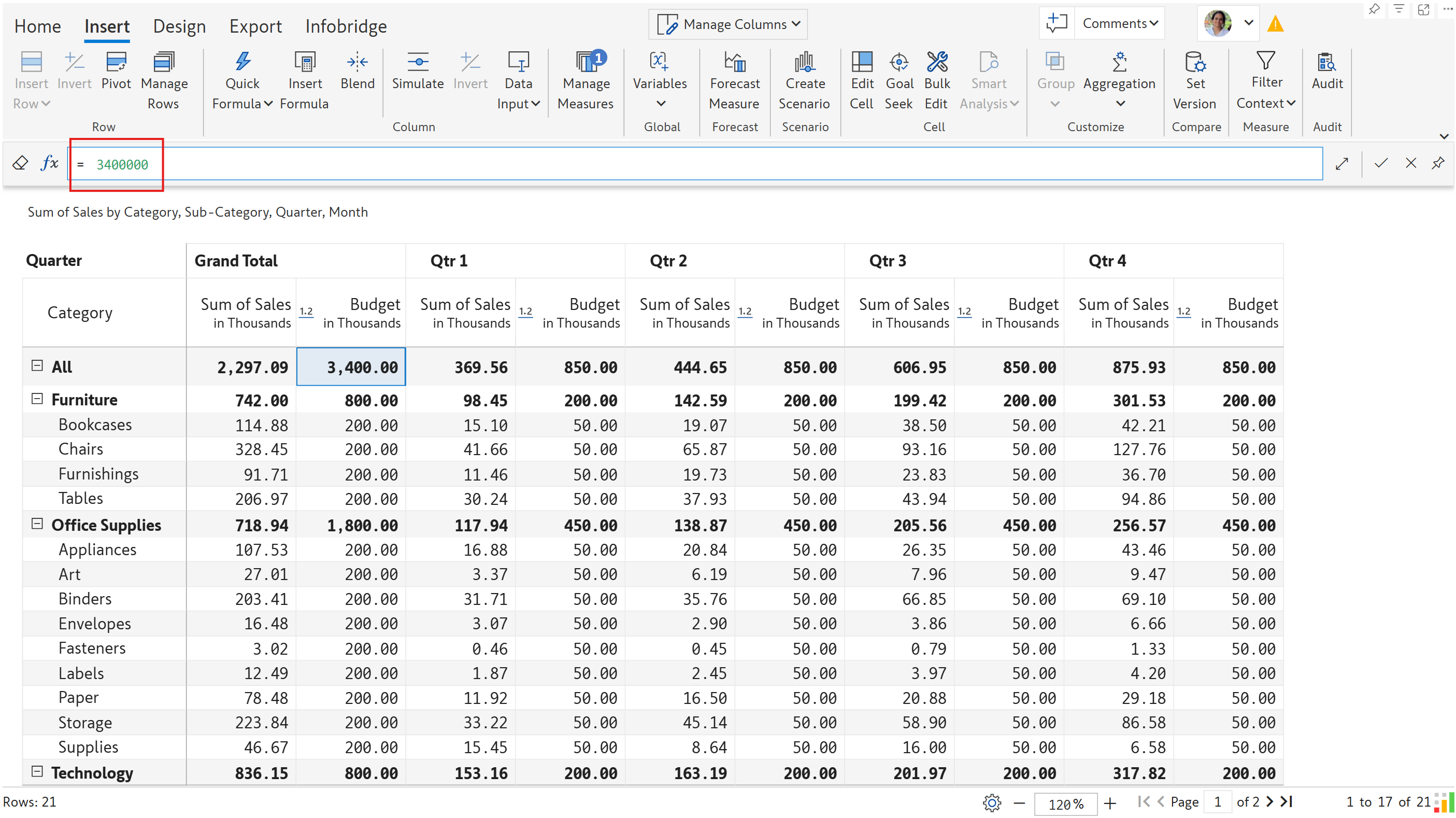
**STEP 2:** Enter the budget in the grand total cell. Notice how the budget is allocated equally across row and column dimension categories.

<figure><img src="/files/lBkb1c7wA3En2LA8Np04" alt=""><figcaption><p>The values entered are allocated equally across the report</p></figcaption></figure>

#### 2. Allocating values by weighted measures

Let's consider a real-world example where we need to allocate discounts based on sales. The higher the sales, the higher the discounts should be.&#x20;

**STEP 1:** Select **By Weight** as the **Distribution Method**.

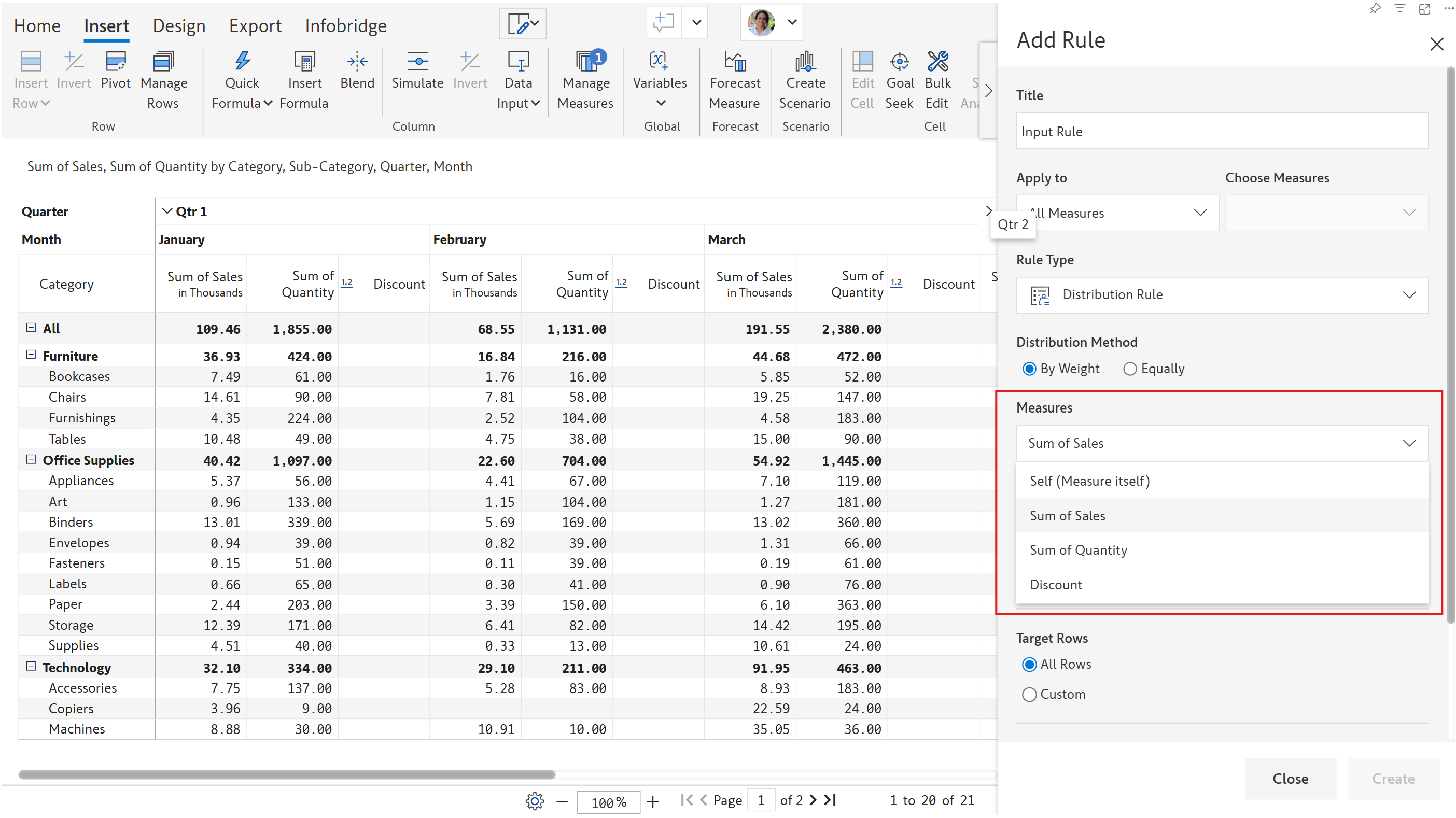
**STEP 2:** Select the measure to drive the weights. In this case, sales.

<figure><img src="/files/v2wWlPeMUDO4VIoIZkBS" alt=""><figcaption></figcaption></figure>

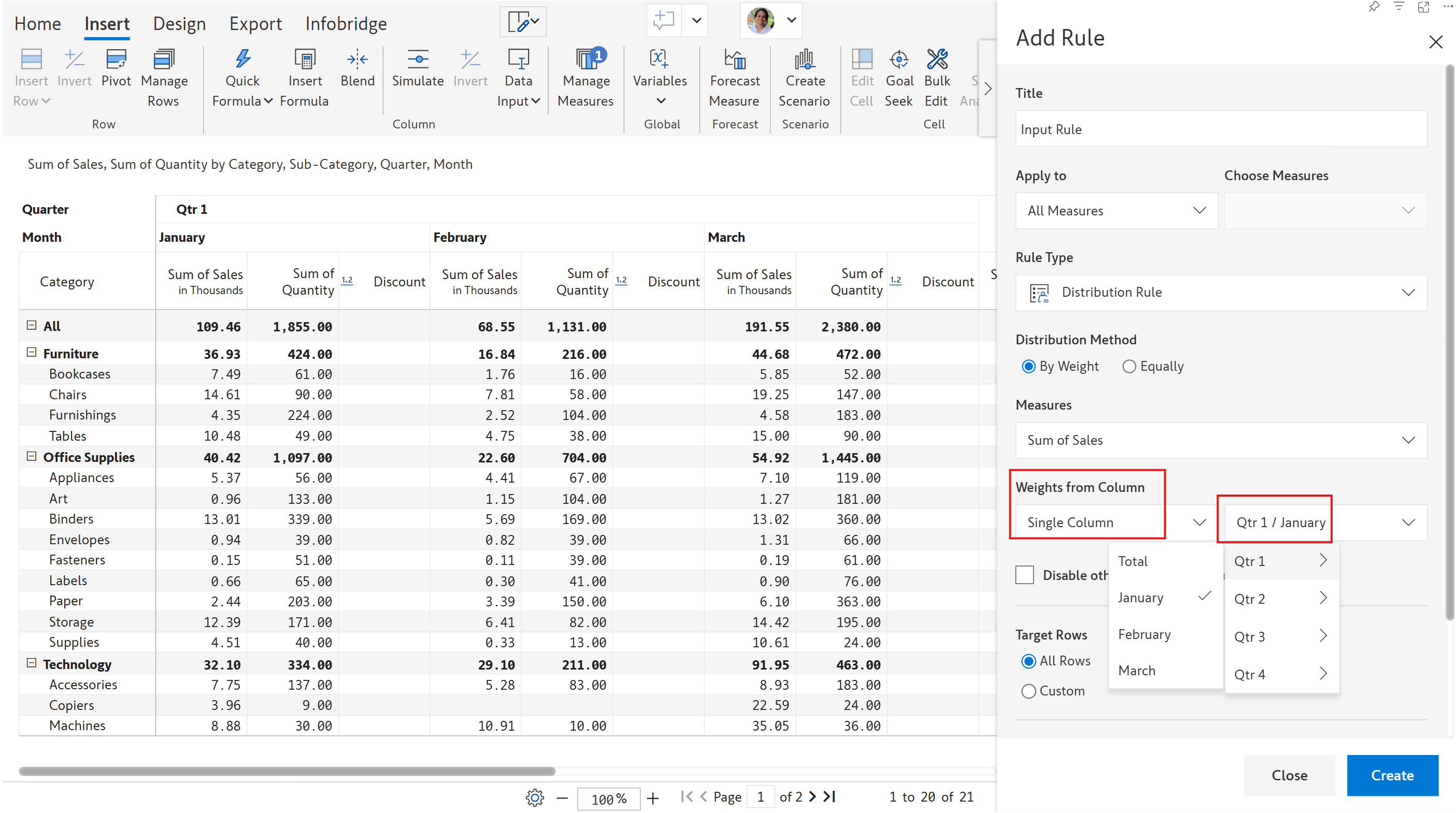
**STEP 3:** Select the column dimension to drive the weights. For demonstration purposes, we'll choose **Single Column** and select the Qtr1 > January option. Click Create.

<figure><img src="/files/VSVKnU1oHxgrP9Nx744k" alt=""><figcaption><p>Select the column dimension to drive the weights</p></figcaption></figure>

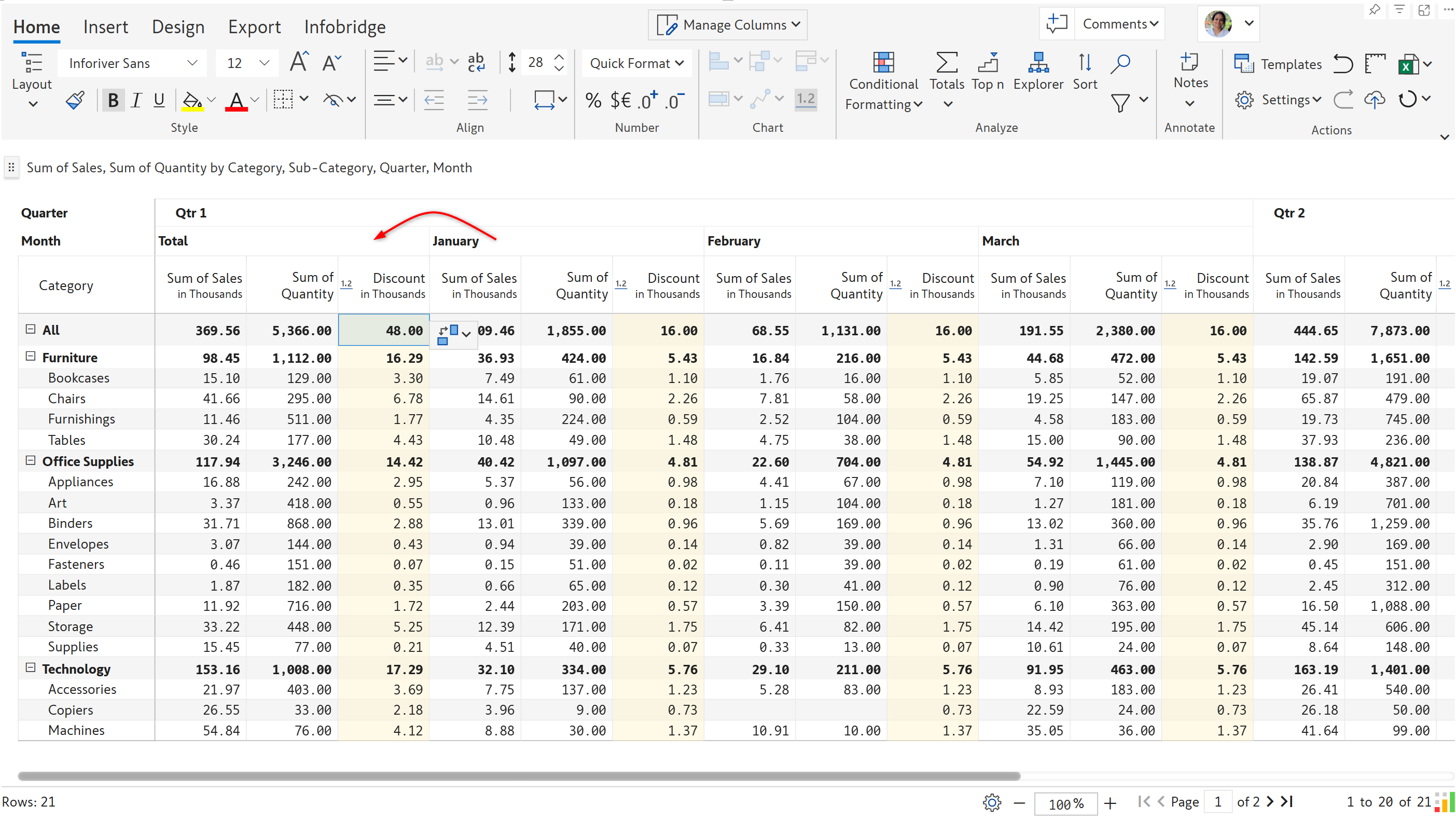
**STEP 4:** Let's enable the column subtotals and enter a value of 48k as the discount. You'll see that Inforiver automatically distributes the 48k based on the January Sales, i.e., the product categories with higher sales get higher discounts and vice versa.

<figure><img src="/files/7B0bgCKvEyXg9ZWaJcOQ" alt=""><figcaption><p>Data input value is ditributed based on the configured dimension and measure</p></figcaption></figure>

### Configuration options for allocating data

#### 1. Column range

In the example we looked at earlier, we distributed the discounts based on a single dimension value -  the sales in January. We can also distribute based on a range of column dimensions.

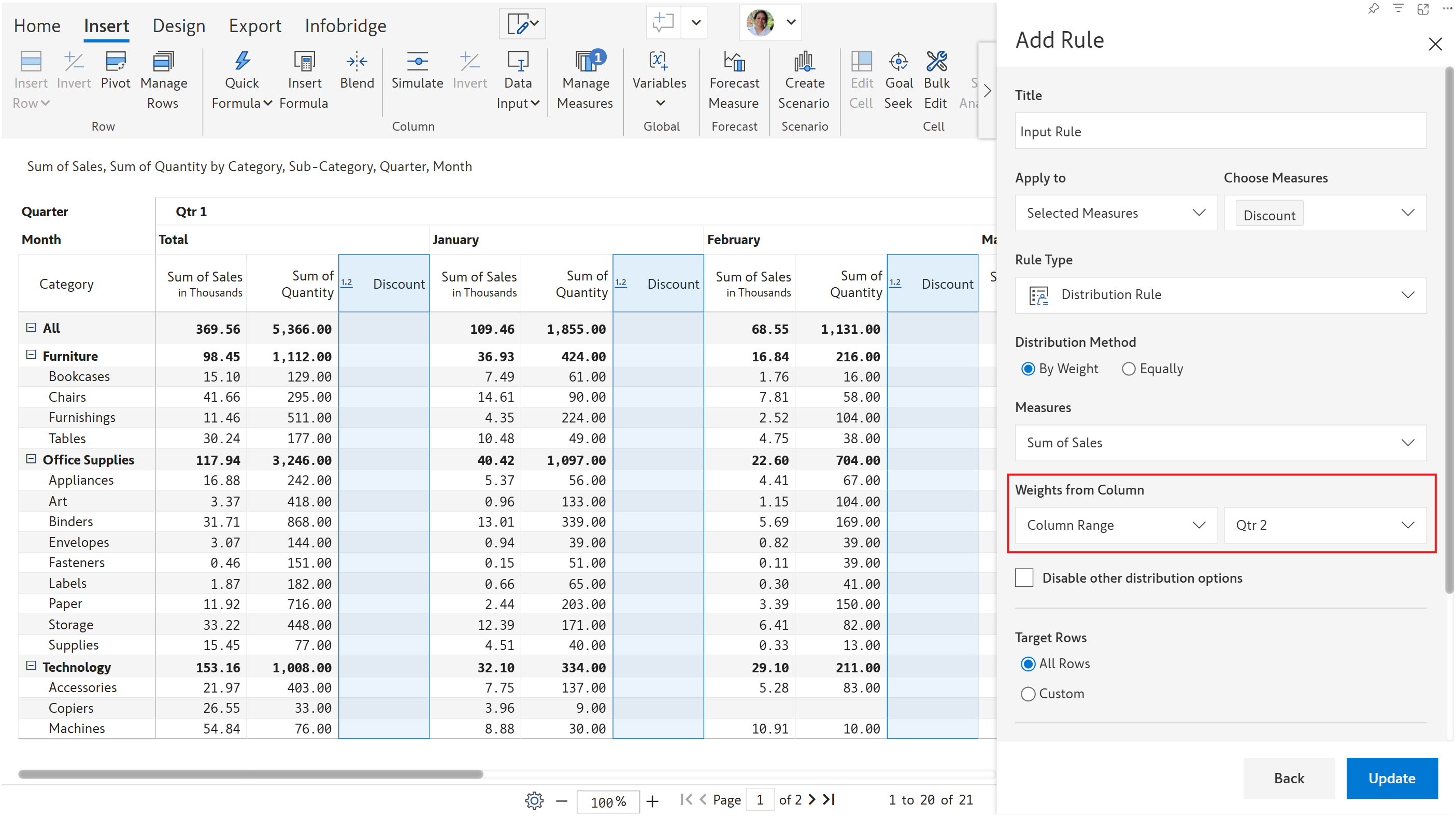
Let's allocate discounts based on the sales in Q2. Select **Column Range** and 'Q2' in the **Weights from Column** section.

<figure><img src="/files/Jqg61pTJxF1tGn3DcaqZ" alt=""><figcaption><p>Allocating values based on a column range</p></figcaption></figure>

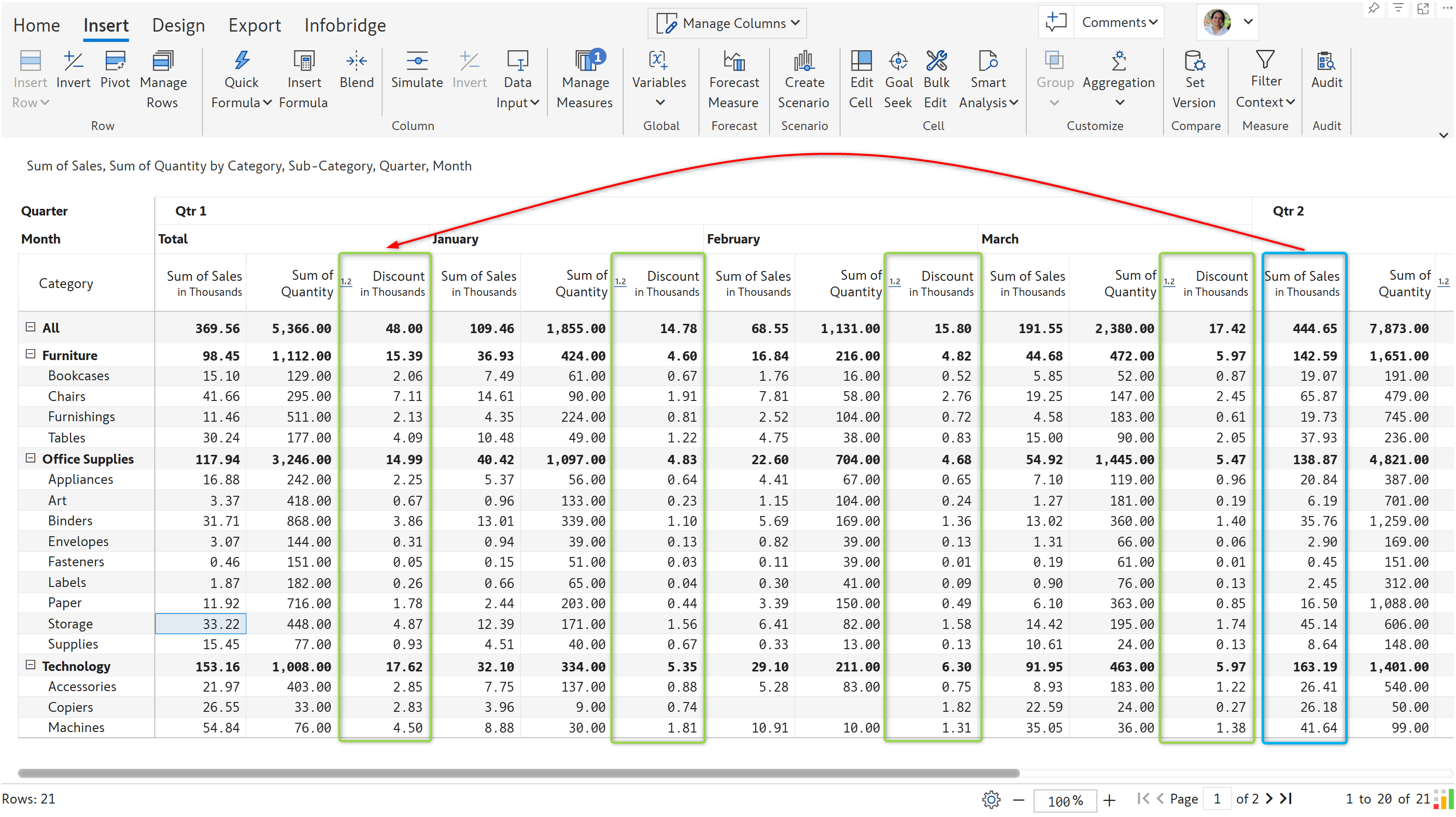
The discounts are allocated based on the sales for quarter 2, as shown in the image.

<figure><img src="/files/73TtVFK12qvY5vakucws" alt=""><figcaption><p>Values are allocated based on a range of columns</p></figcaption></figure>

#### 2. Disable other distribution options

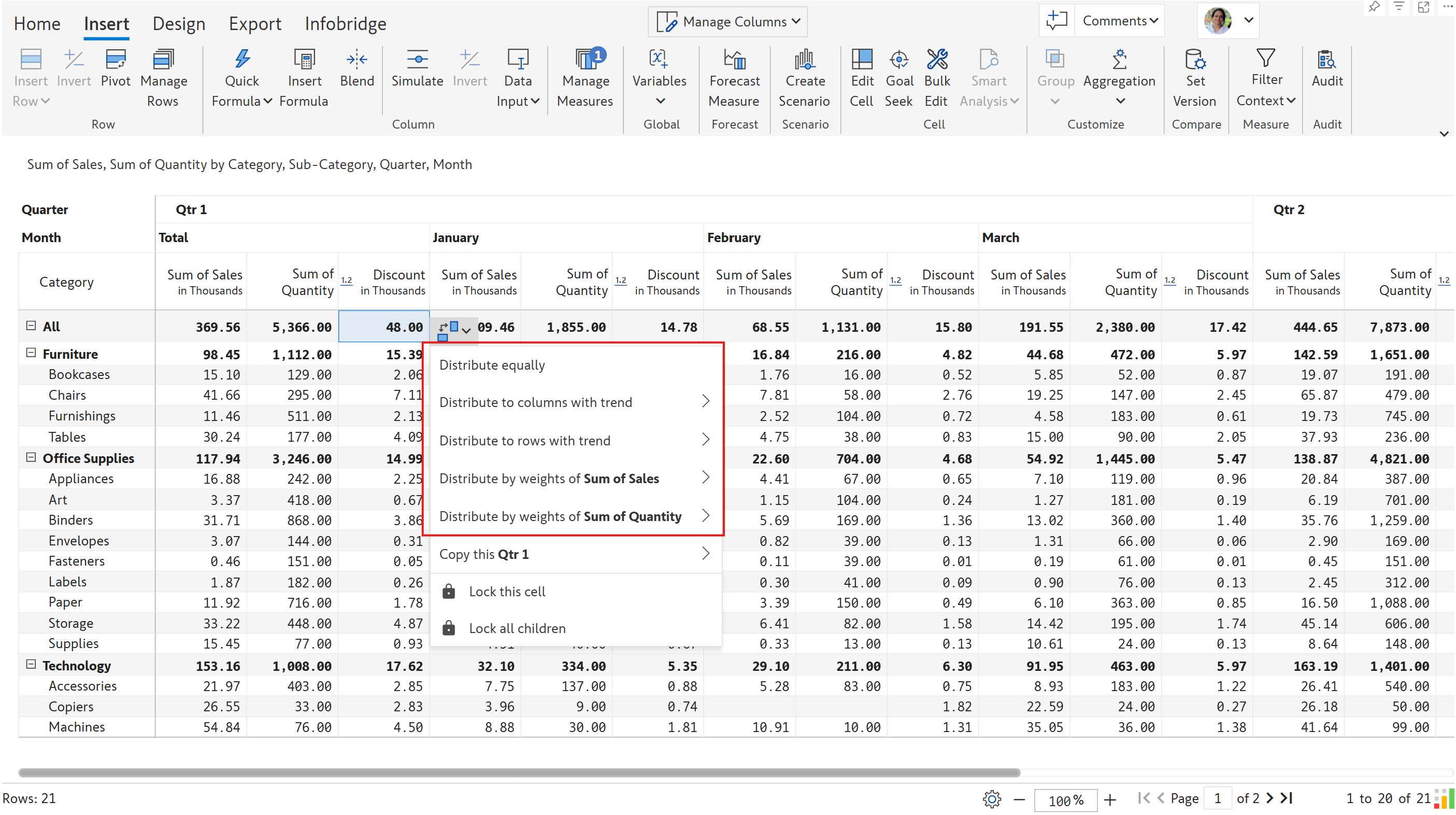
You can configure distribution from the context menu as well. These will override any distribution rules that have been set up.&#x20;

<figure><img src="/files/zC2SnpJbArnrIA7Eh2lu" alt=""><figcaption><p>Distributing values from the context menu</p></figcaption></figure>

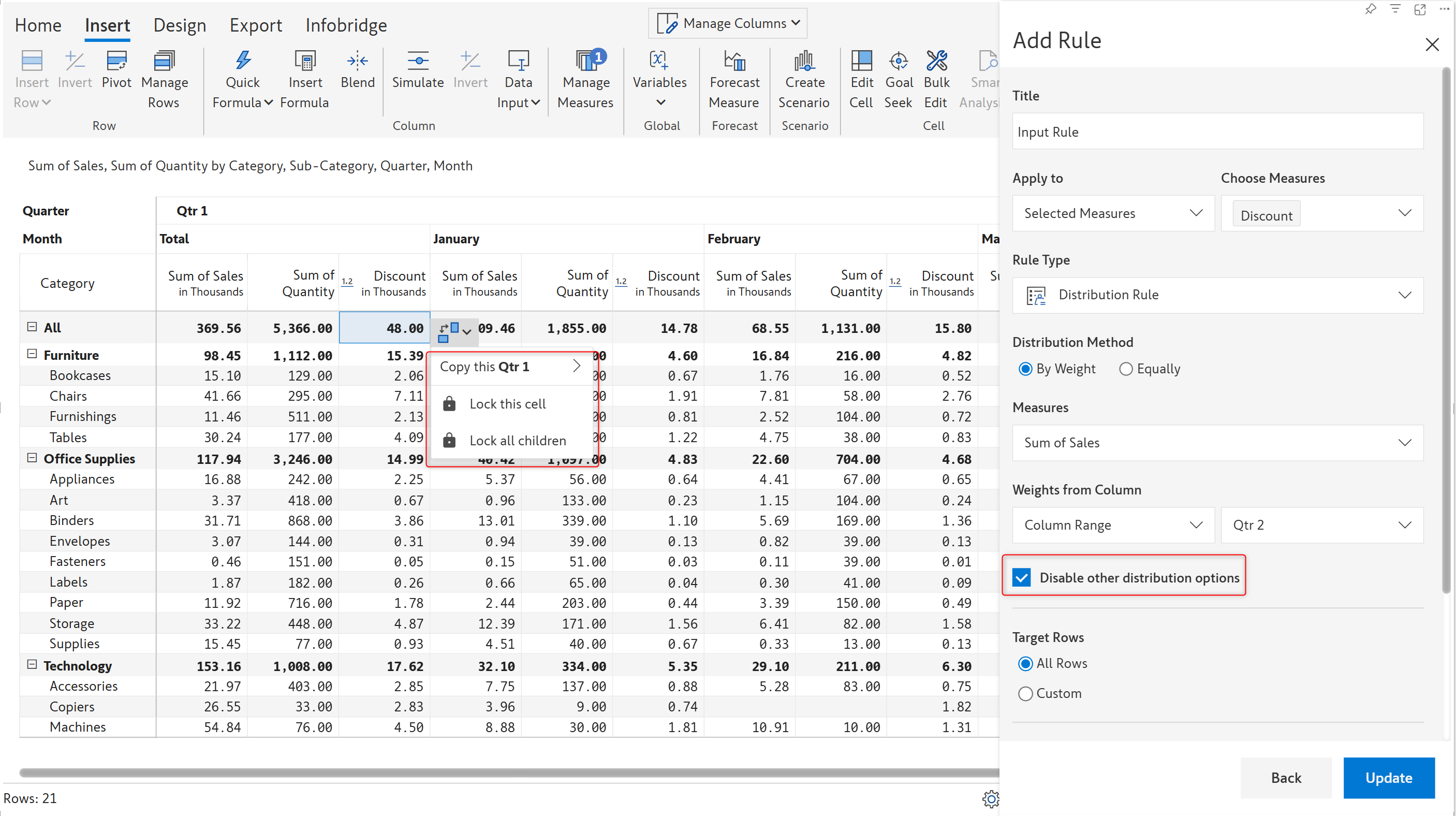
To give precedence to distribution rules, select the **Disable other distribution options** checkbo&#x78;**.** The allocation options will be removed from the context menu.

<figure><img src="/files/xr5ds0po3cFMO53Xyz7m" alt=""><figcaption><p>Disabling distribution from the context menu</p></figcaption></figure>


---

# Agent Instructions: Querying This Documentation

If you need additional information that is not directly available in this page, you can query the documentation dynamically by asking a question.

Perform an HTTP GET request on the current page URL with the `ask` query parameter:

```
GET https://docs.inforiver.com/working-with-inforiver/4.-adding-business-logic-and-formulae/data-validation-rules/distribution-rules.md?ask=<question>
```

The question should be specific, self-contained, and written in natural language.
The response will contain a direct answer to the question and relevant excerpts and sources from the documentation.

Use this mechanism when the answer is not explicitly present in the current page, you need clarification or additional context, or you want to retrieve related documentation sections.