# Calculated rows (Reporting Matrix)

Let us take this example, where we have sales data by category and subcategory. Let's insert a row for Specialty Beverages, which is calculated as the minimum of the other subcategories in Beverages across quarters.

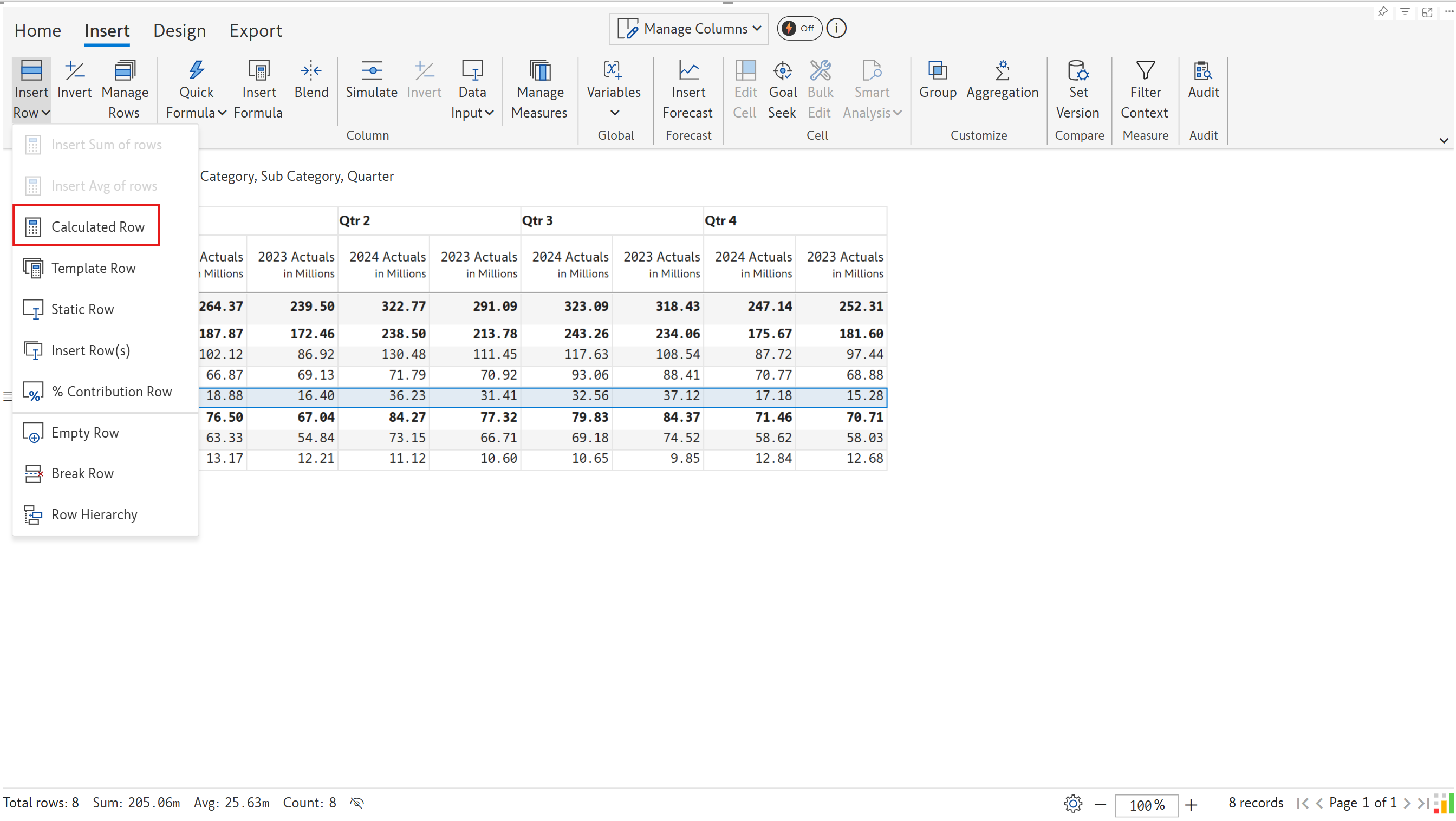
Select the Tea & Coffee row above which we need to insert the row. In the Insert tab, click on the **Insert Row** dropdown.&#x20;

Select the **Calculated Row** option.

<figure><img src="/files/pnVWIvBbLiSltfKZf7ZO" alt=""><figcaption><p>Select Calculated Row option in Reporting Matrix</p></figcaption></figure>

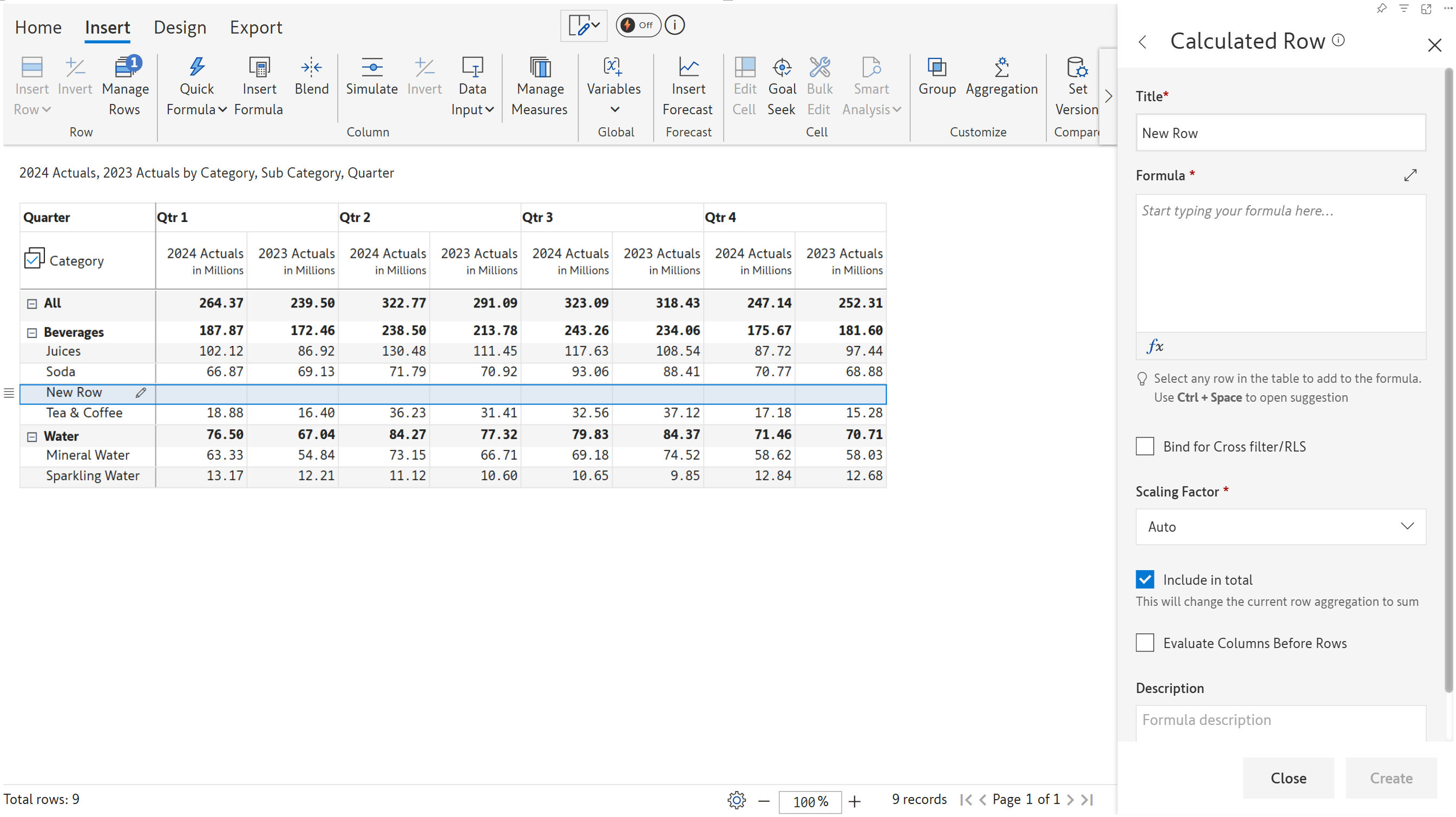
A blank row gets inserted, and a side panel opens up as shown.

<figure><img src="/files/Agl447pG9AJEn0yZ1RFx" alt=""><figcaption><p>Creating a calculated row</p></figcaption></figure>

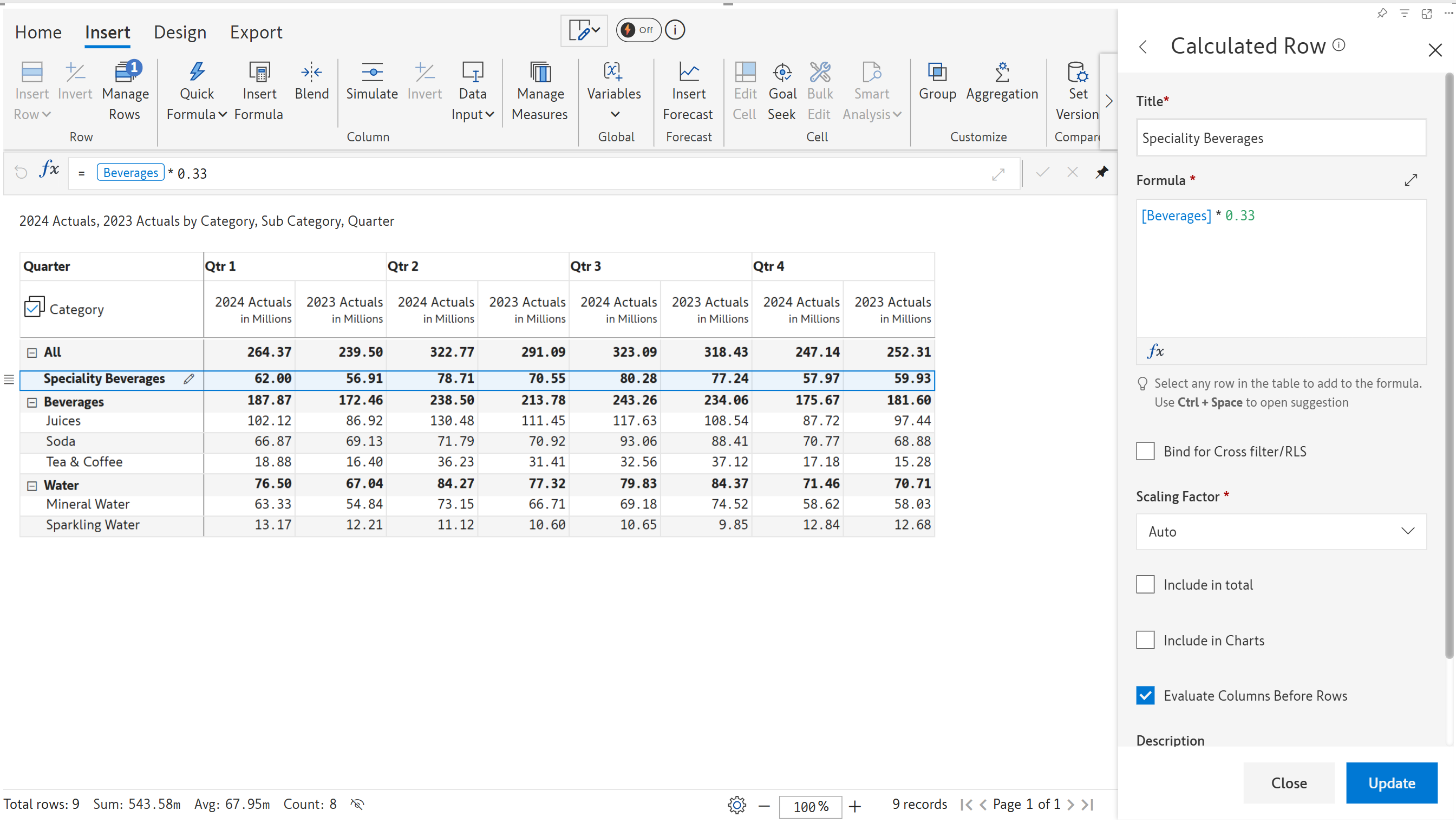
You can also create parent rows as calculated rows.&#x20;

<figure><img src="/files/iHmnuQY1H2OoX9bbB6FV" alt=""><figcaption><p>Parent row created using a formula</p></figcaption></figure>

Let's look at the configurations applicable to calculated rows.

### 1. Formula editor

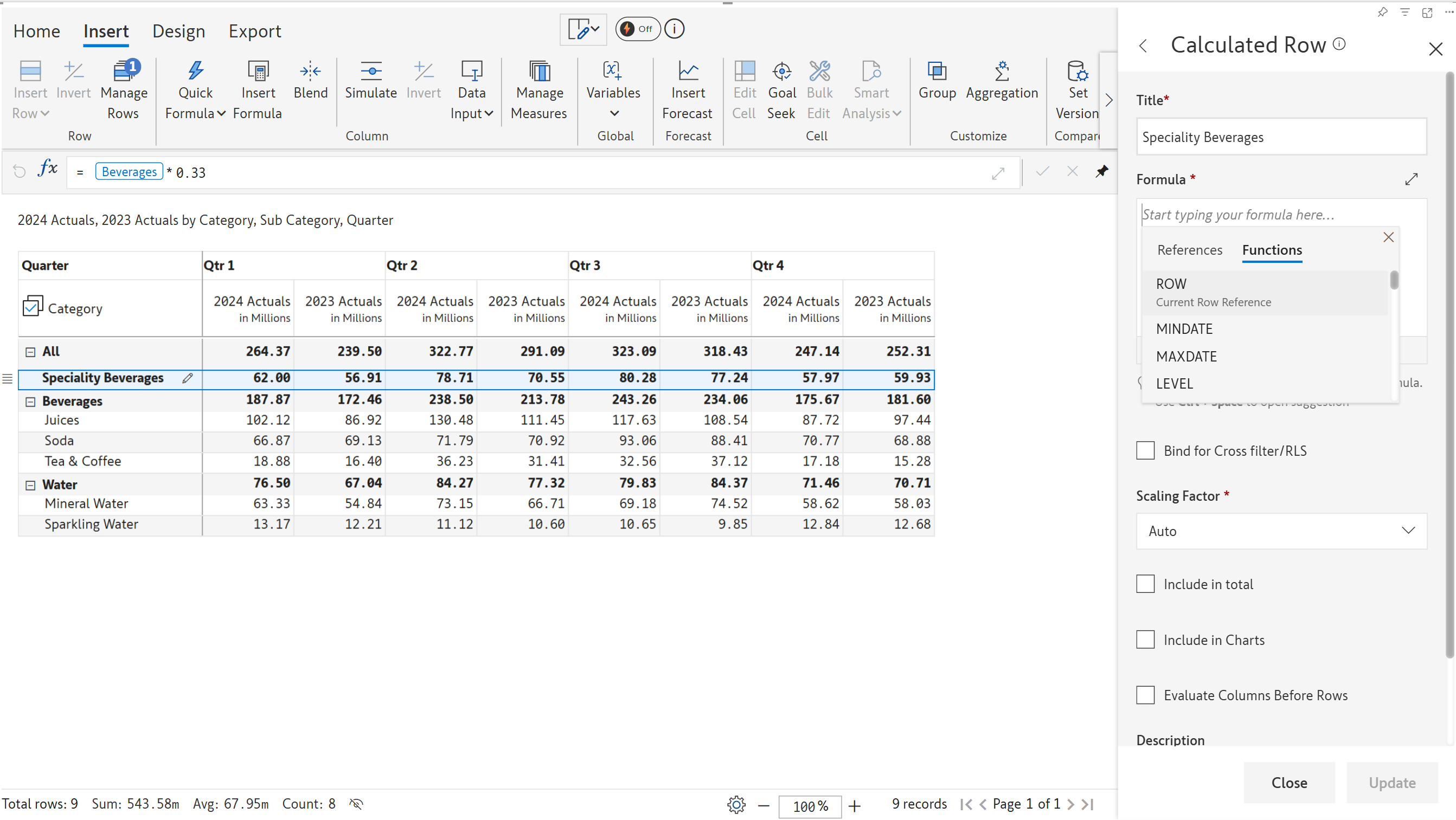
1.1. Rename the title and click on the formula editor. You can see a list of available functions in the Functions tab.

<figure><img src="/files/JvmflD3yrpDJuEF5HrfM" alt=""><figcaption><p>Built-in formulas</p></figcaption></figure>

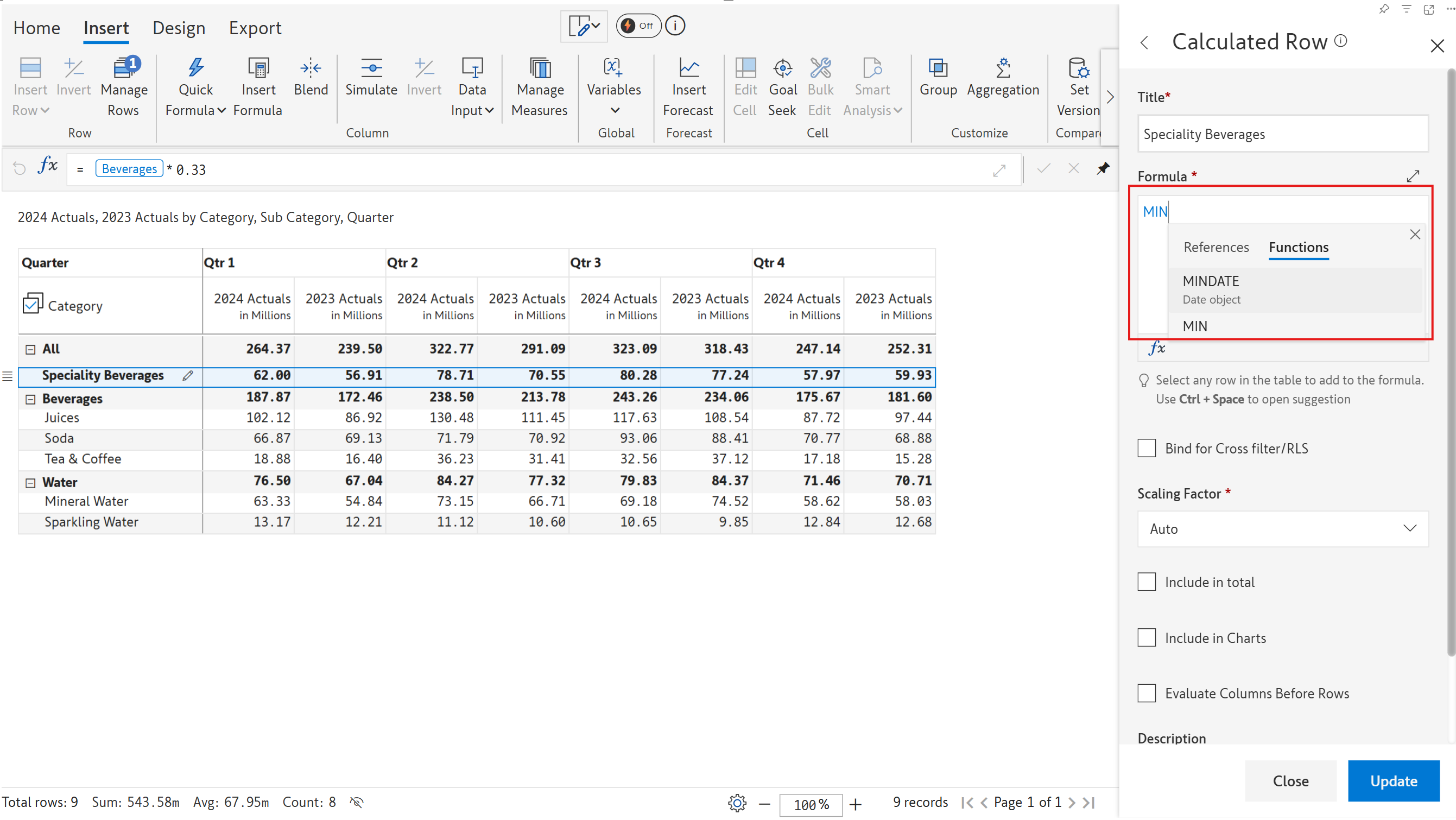
1.2. As you start typing, Inforiver's IntelliSense narrows down the list of functions to match the entered text. Click on MIN.

<figure><img src="/files/8Uv64fStFEARIuKIAJT5" alt=""><figcaption><p>Select a function</p></figcaption></figure>

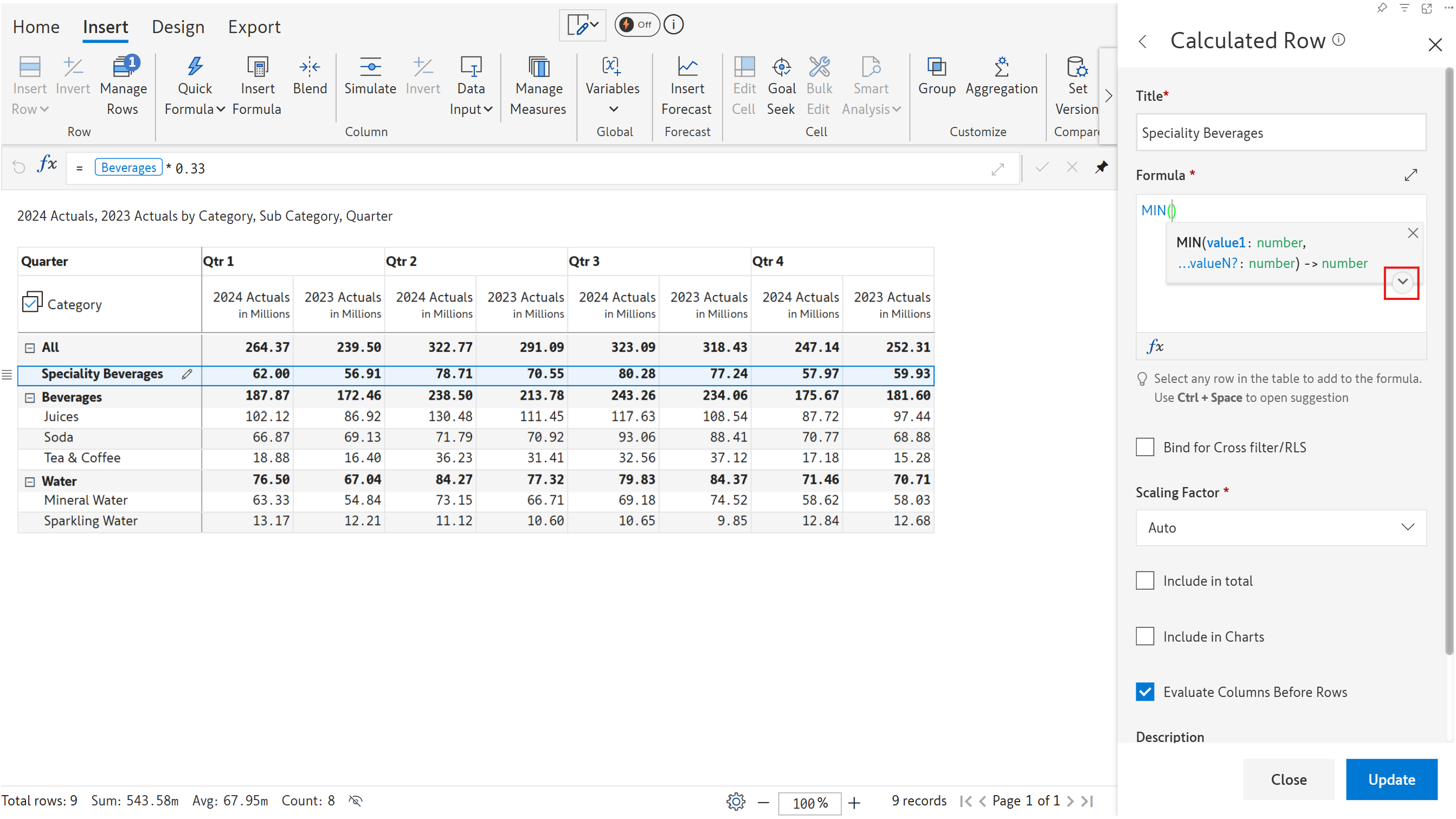
1.3. Inforiver displays the syntax for the function. Click on the arrow highlighted.

<figure><img src="/files/5EDCE6m6K77ERiqmmYDk" alt=""><figcaption><p>Formula syntax</p></figcaption></figure>

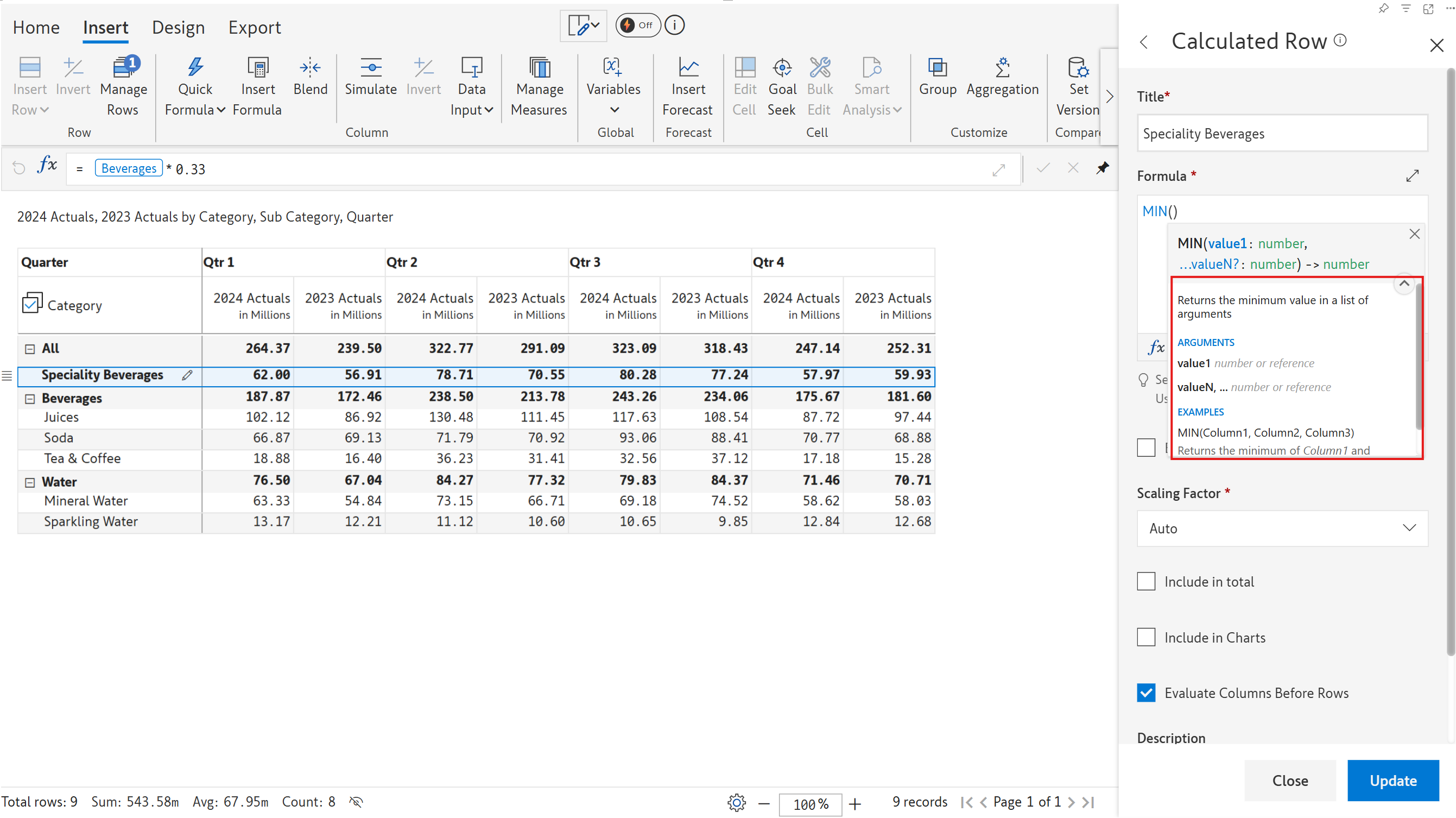
1.4. Inforiver displays a description of the function and a detailed explanation of the arguments with examples.

<figure><img src="/files/BKdPIP3TLyJ4YamwRTta" alt=""><figcaption><p>Formula description and examples</p></figcaption></figure>

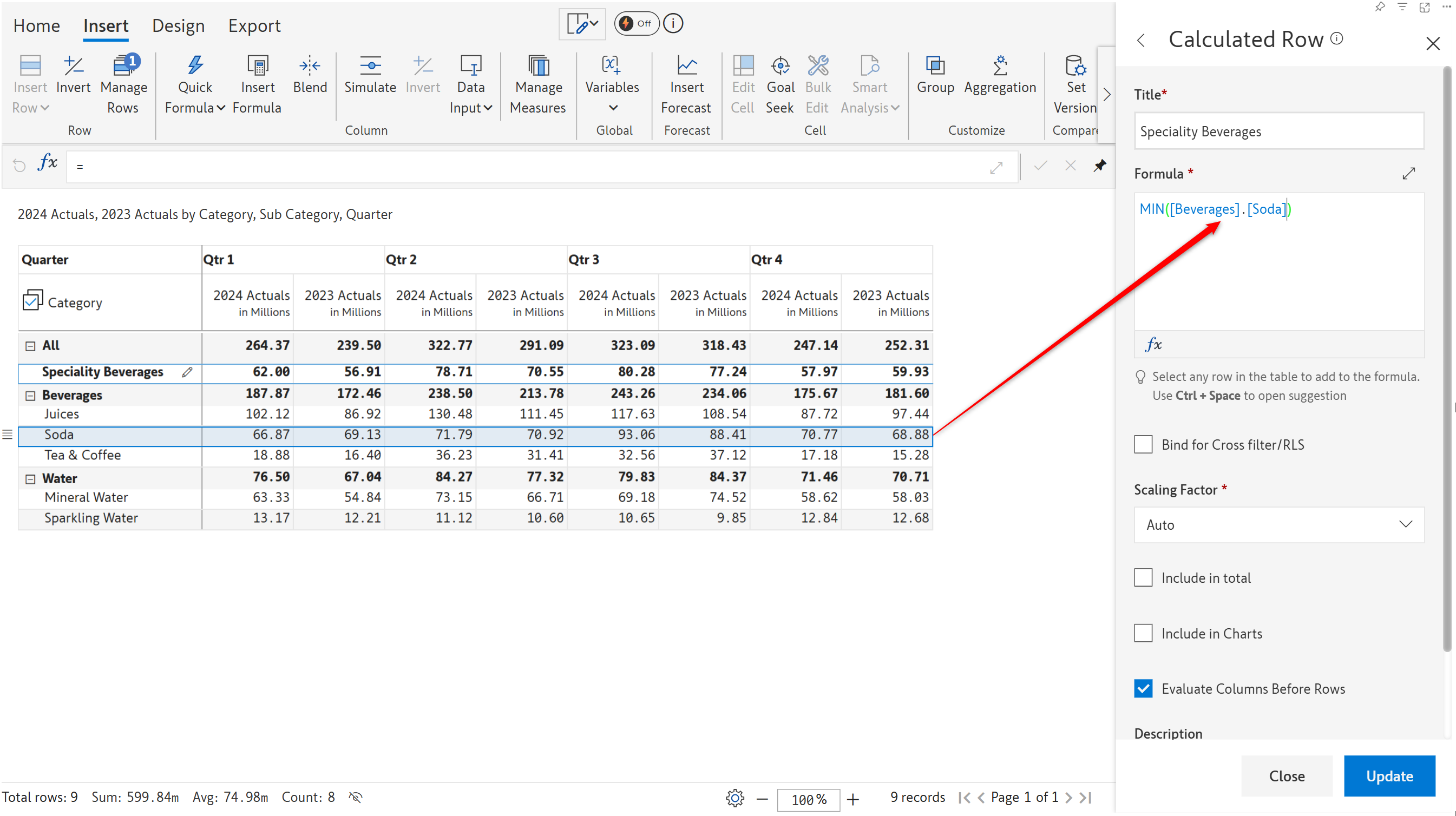
1.5. To insert a reference to a particular row, click on the row when the cursor is placed in the formula editor.&#x20;

<figure><img src="/files/7ZW7u5s7t1OXJ58dP3L9" alt=""><figcaption></figcaption></figure>

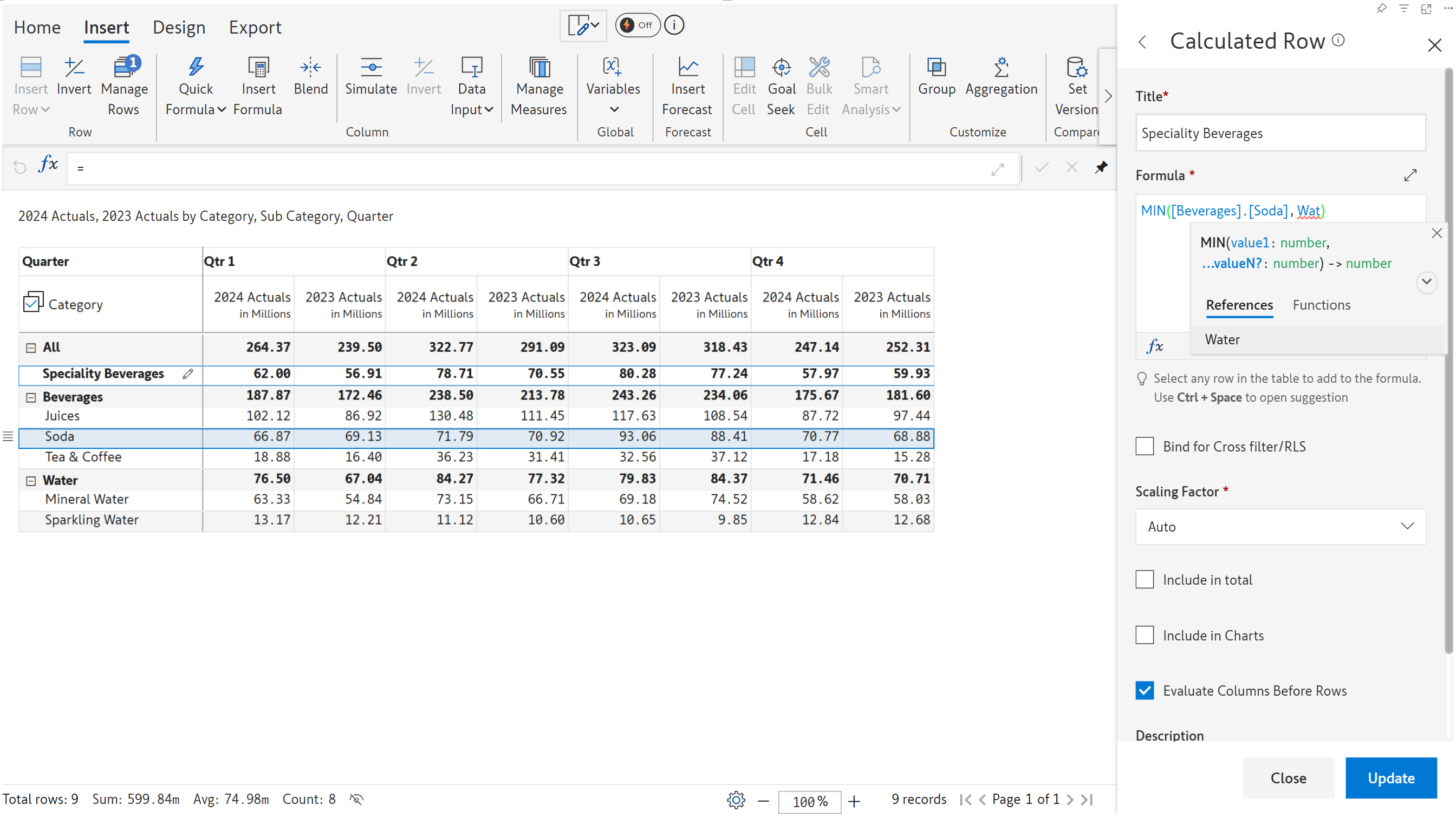
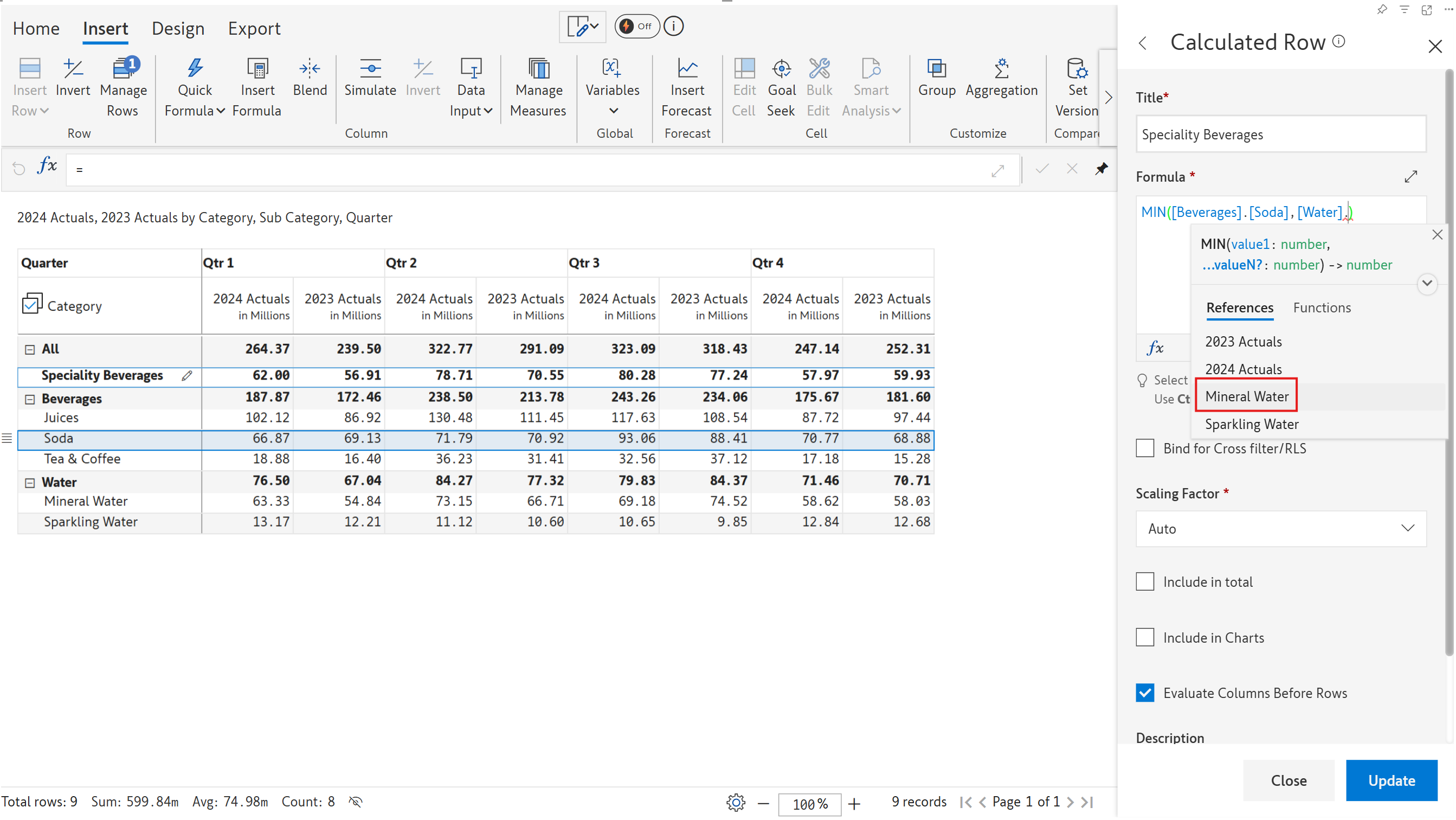
1.6. The other way is to use the References tab. To access a child row, e.g., *Mineral Water*, you need to type 'Water.Mineral Water'. As you start typing, the references get narrowed down. Select 'Water'.

<figure><img src="/files/xawfRPPJQFcSbukjXG3y" alt=""><figcaption><p>Select the parent category, i.e., Water</p></figcaption></figure>

Select 'Mineral Water' from the dropdown.

<figure><img src="/files/e8ihhbJumInyUZGiA8Tr" alt=""><figcaption><p>Referencing child records</p></figcaption></figure>

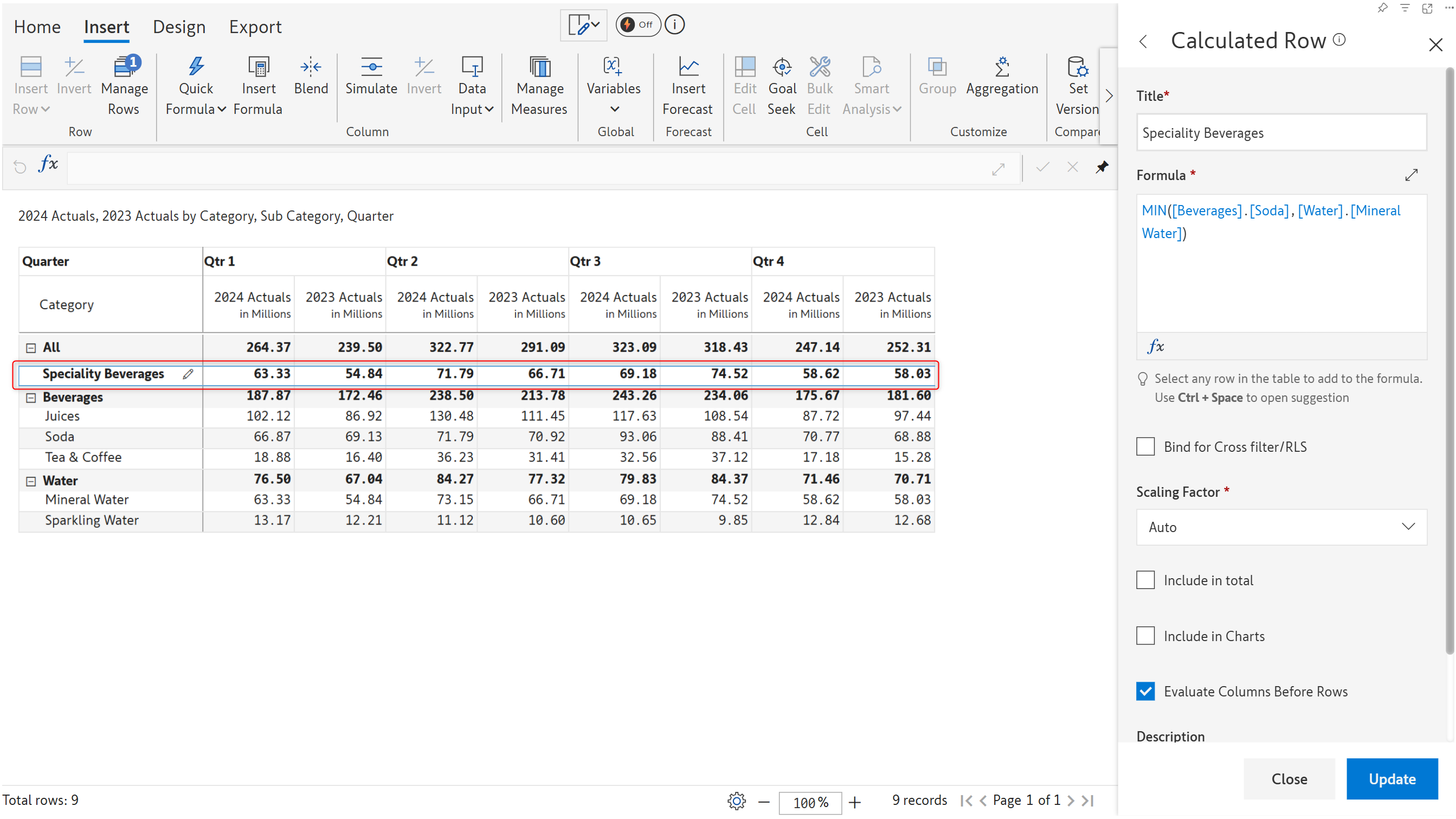
1.7. The calculated row gets created as shown.

<figure><img src="/files/KCrFEGaKqdJO97rQcr3d" alt=""><figcaption><p>Calculated row created</p></figcaption></figure>

{% hint style="info" %}
To see the underlying logic for calculated data, click on the cell to preview the formulae applied in the formula bar.
{% endhint %}

#### Inserting aggregated rows

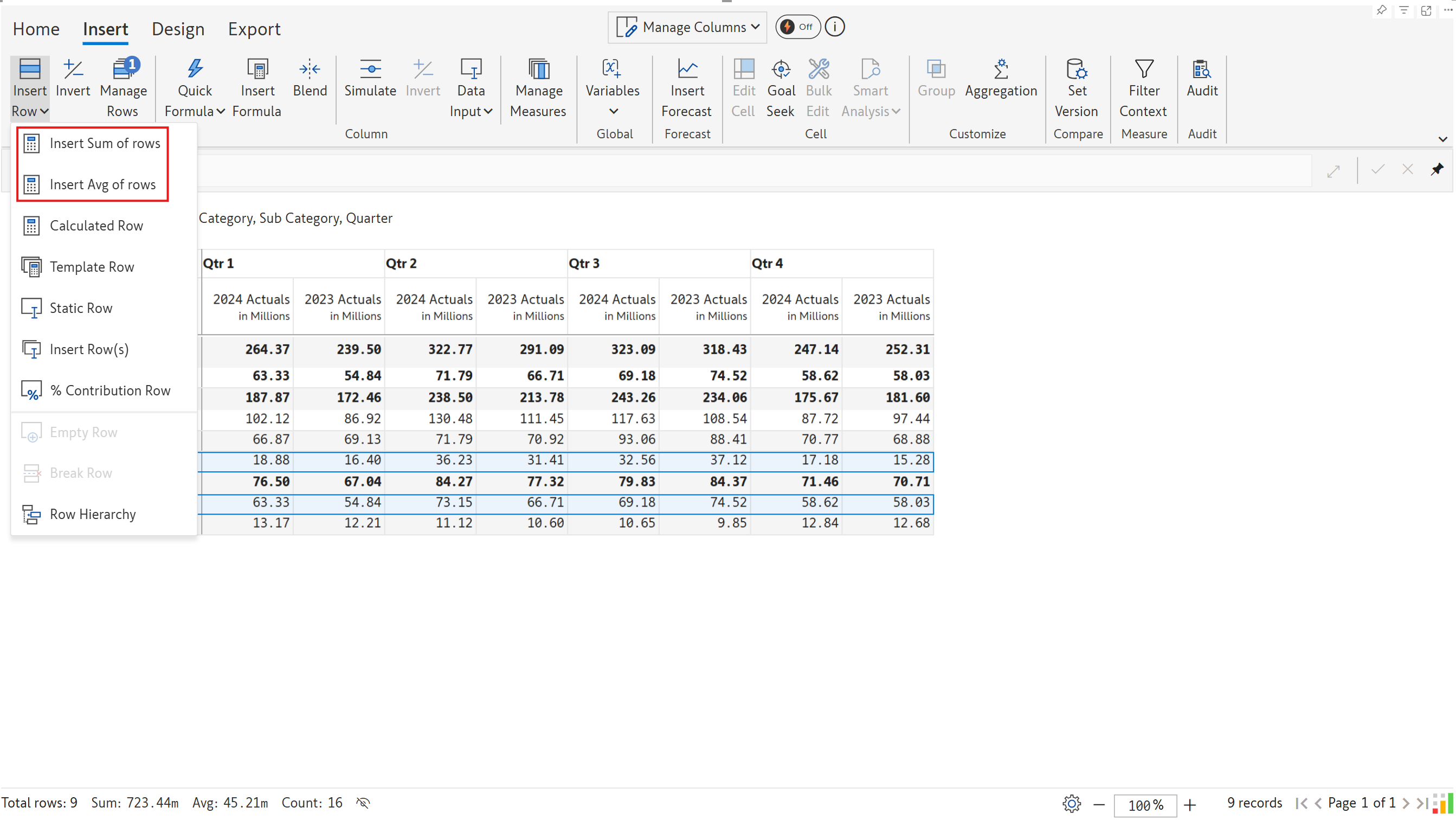
While you can use the [SUM](/formula-syntax/math-functions/sum.md) and [AVERAGE](/formula-syntax/math-functions/average.md) functions to calculate the sum and average of rows, respectively, you can also use the **Aggregation** option from the 'Insert Row' menu.

Select the rows to aggregate. You'll notice that the **Insert Sum of rows** and **Insert Avg of rows** options are now enabled in the dropdown.

<figure><img src="/files/b807Gh7sF2CEyObuQW5x" alt=""><figcaption><p>Inserting SUM and AVG functions</p></figcaption></figure>

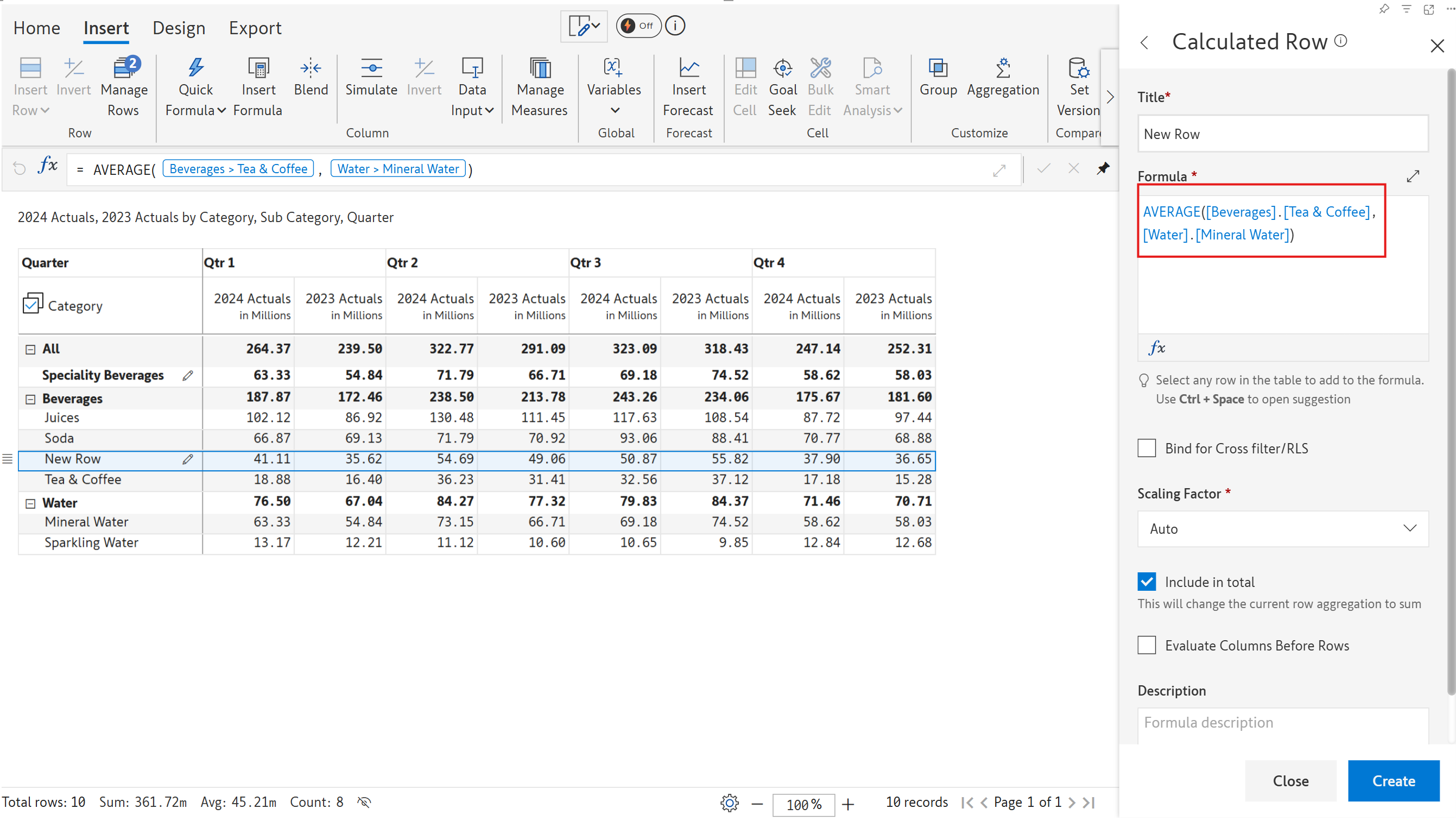
Enter a name for the row and click Create.

<figure><img src="/files/1sErBczmoPy3Xrl1ZMOV" alt=""><figcaption><p>Inserting aggregated rows</p></figcaption></figure>

#### Debugging formulas

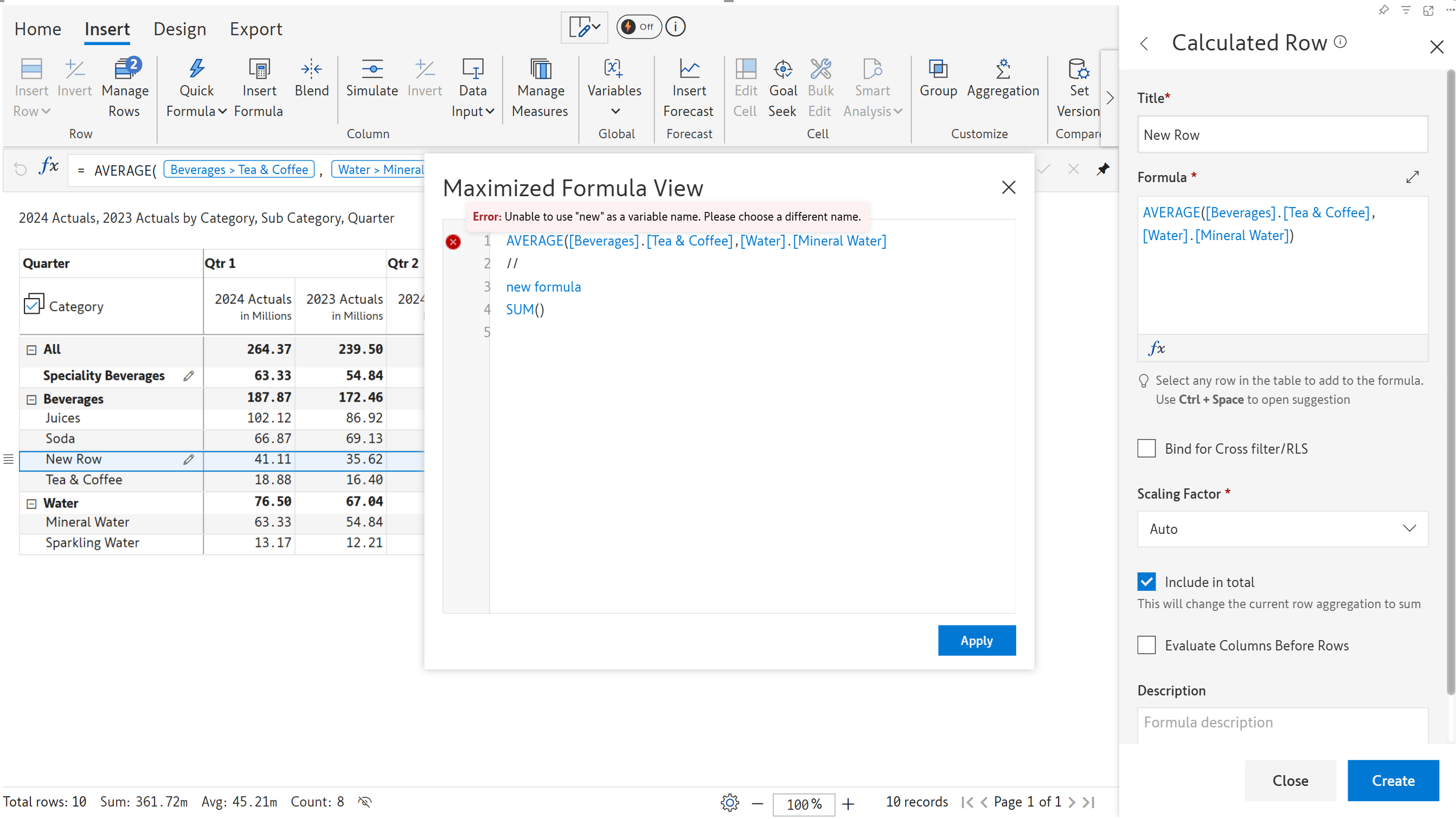
Any errors in the formula can be easily located with clear and concise error messages. In the maximized formula editor view, you will also notice line numbers, allowing you to quickly locate and fix errors.

<figure><img src="/files/cQ1B4krgMSqNlAPW22Qj" alt=""><figcaption><p>Fixing formula errors</p></figcaption></figure>

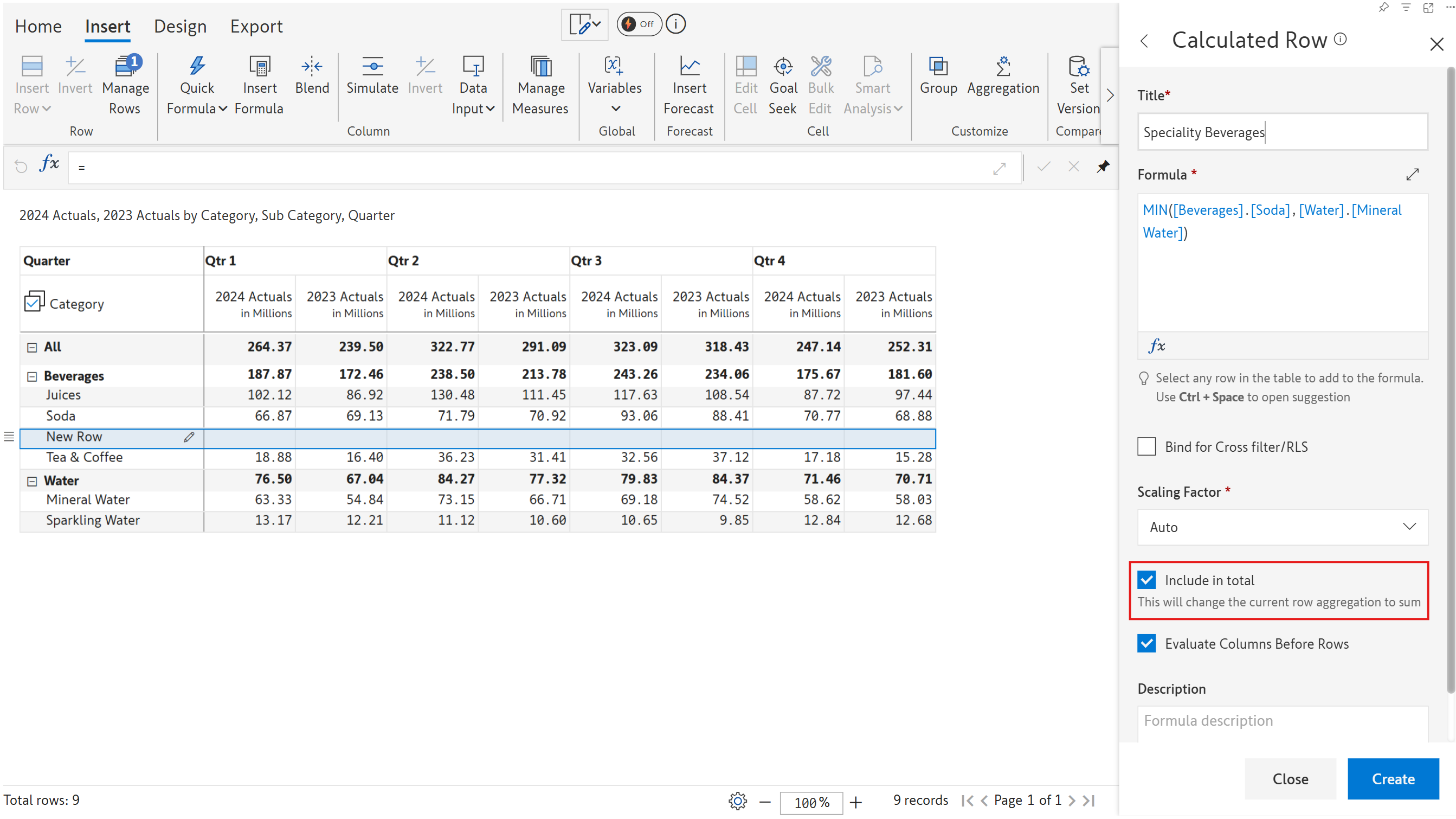
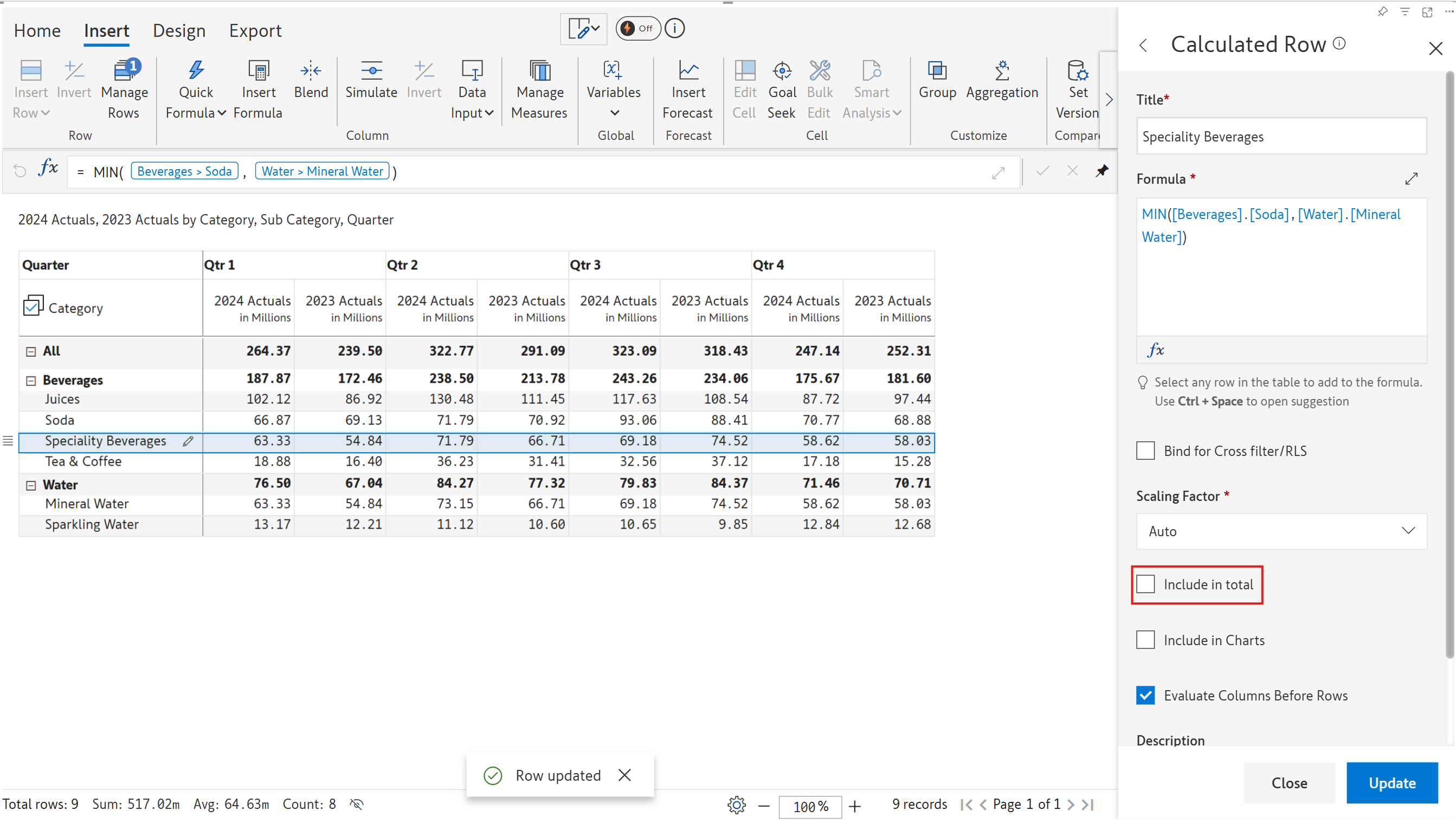
### 2. Include in total

2.1. Check the **Include in total** checkbox if we need the *Specialty Beverages* value to be included in the *Beverages* total and the grand total. Click Create.&#x20;

<figure><img src="/files/M5Xk8jg7Oz6l4y9q0Inr" alt=""><figcaption><p>Including an inserted row in the total</p></figcaption></figure>

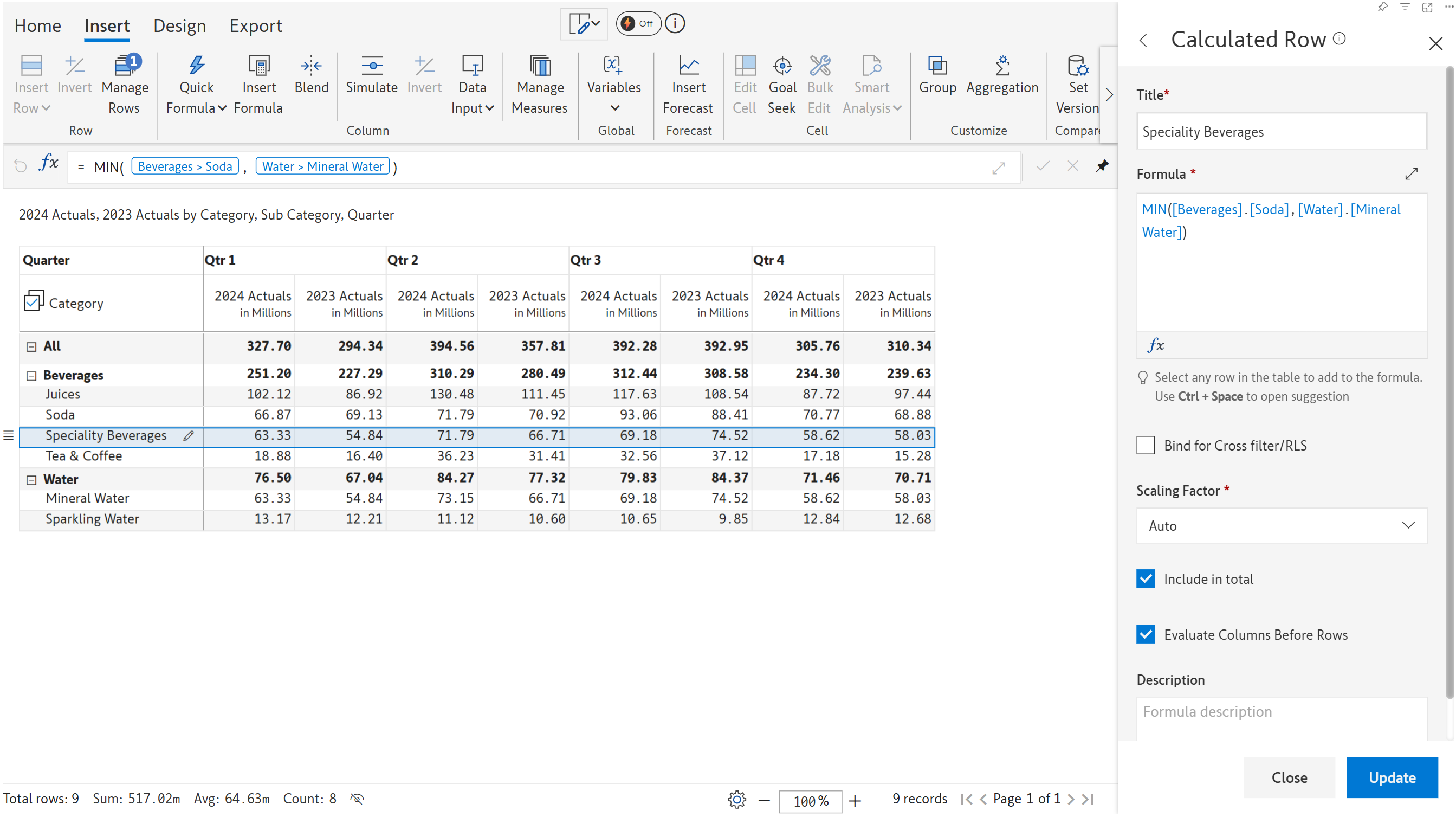
2.2. The row is renamed, and the values are populated. There is also a formula bar at the top, which shows the underlying formula.&#x20;

Note that the grand total has been updated to 327m from 264m.

<figure><img src="/files/2REiWeiWHzxtnzHNk1aq" alt=""><figcaption><p>Row inserted and totals updated</p></figcaption></figure>

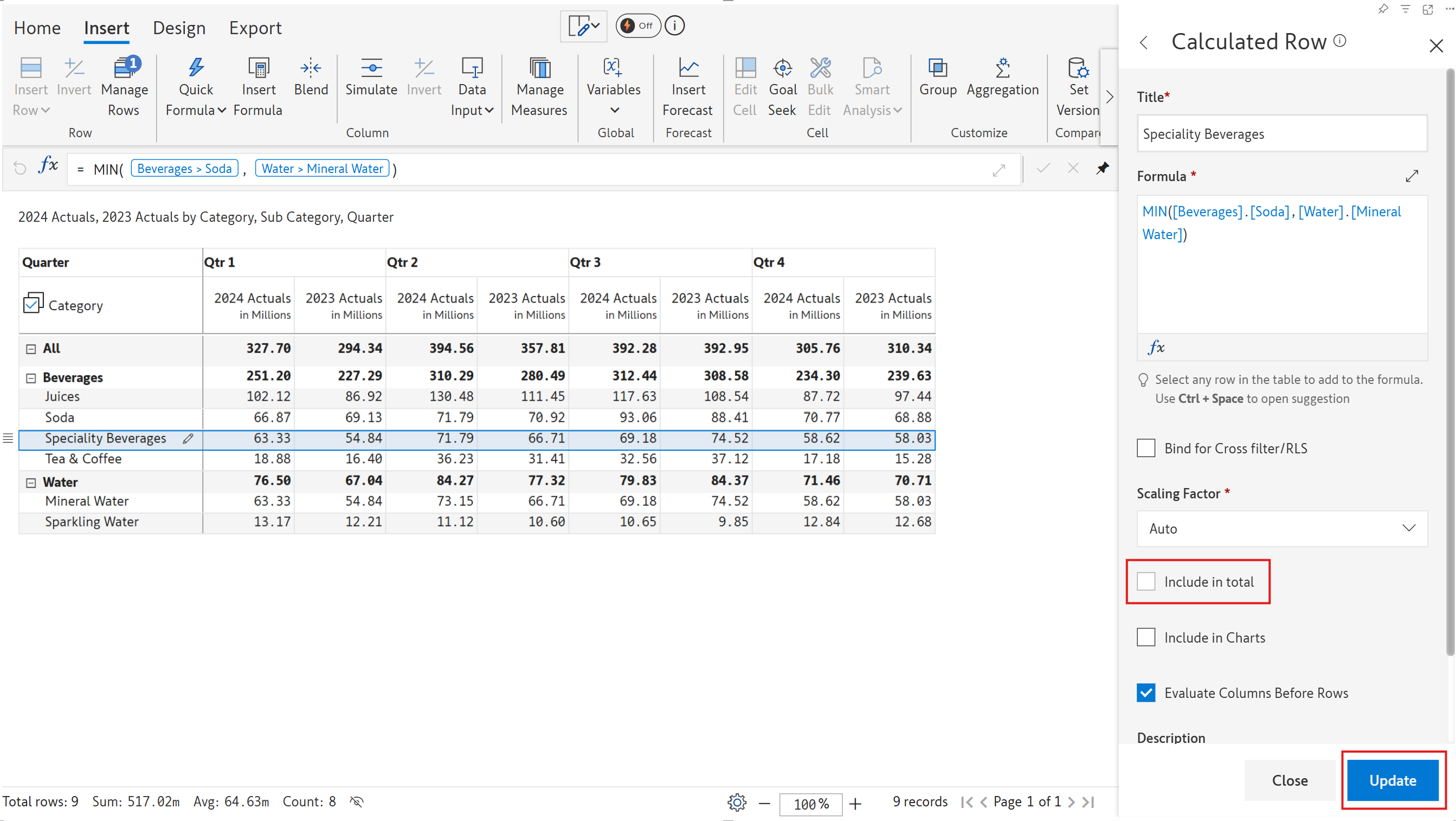
2.3. Let's uncheck the **Include in total** checkbox and click Update.

<figure><img src="/files/7TDtqTYdlvlgNlM57NKc" alt=""><figcaption><p>Excluding the new row from totals</p></figcaption></figure>

2.4. You can see that the grand total has now reverted back to the original value of 264m.

<figure><img src="/files/80Ub2f1pdr8sS4nsJ2Td" alt=""><figcaption><p>Speciality beverages is not included in the total</p></figcaption></figure>

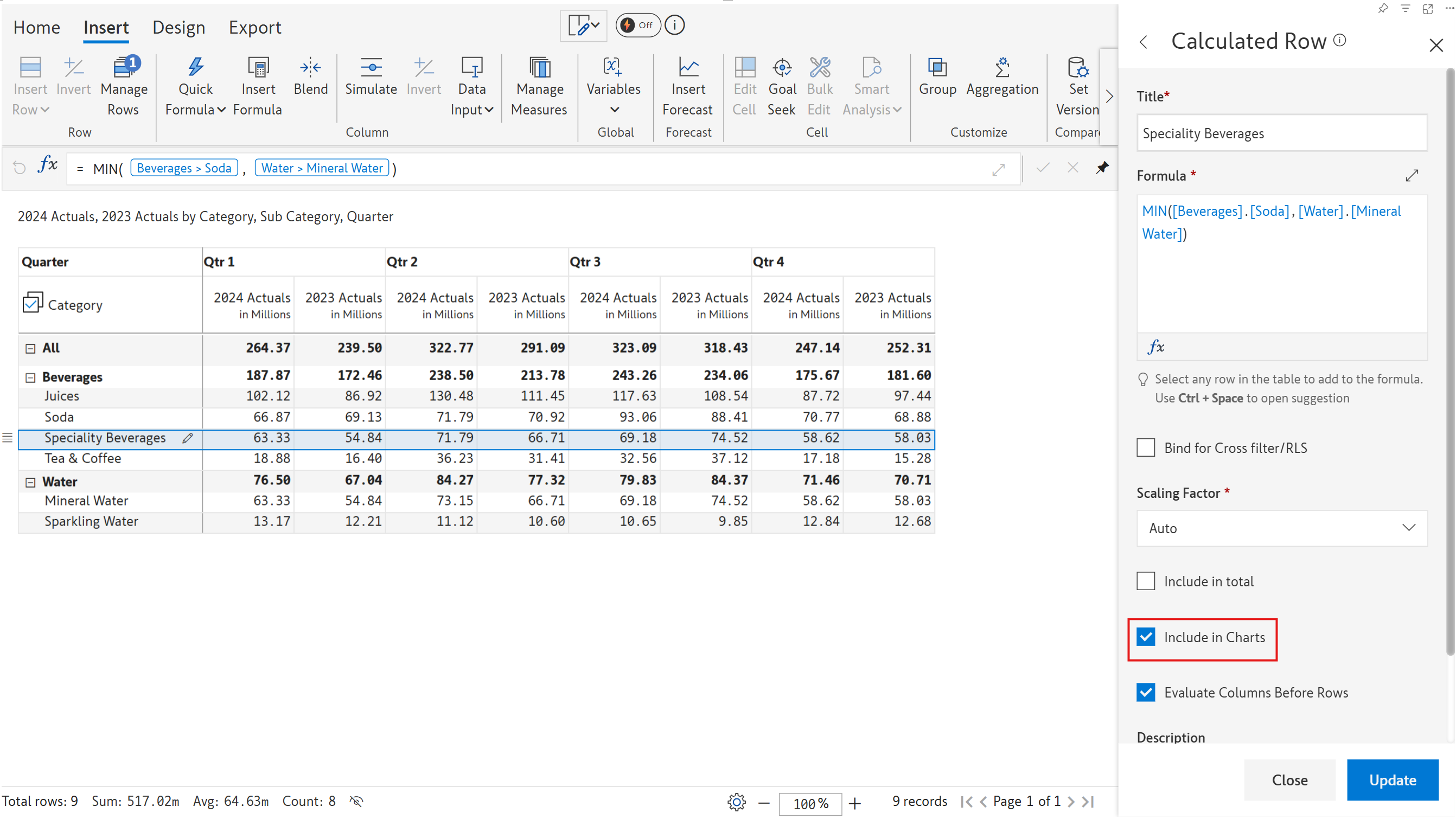
### 3. Include in charts

3.1. Check the **Include in charts** option and click Update.

{% hint style="info" %}
The 'Include in charts' checkbox is enabled only when the 'Include in total' option is unchecked.
{% endhint %}

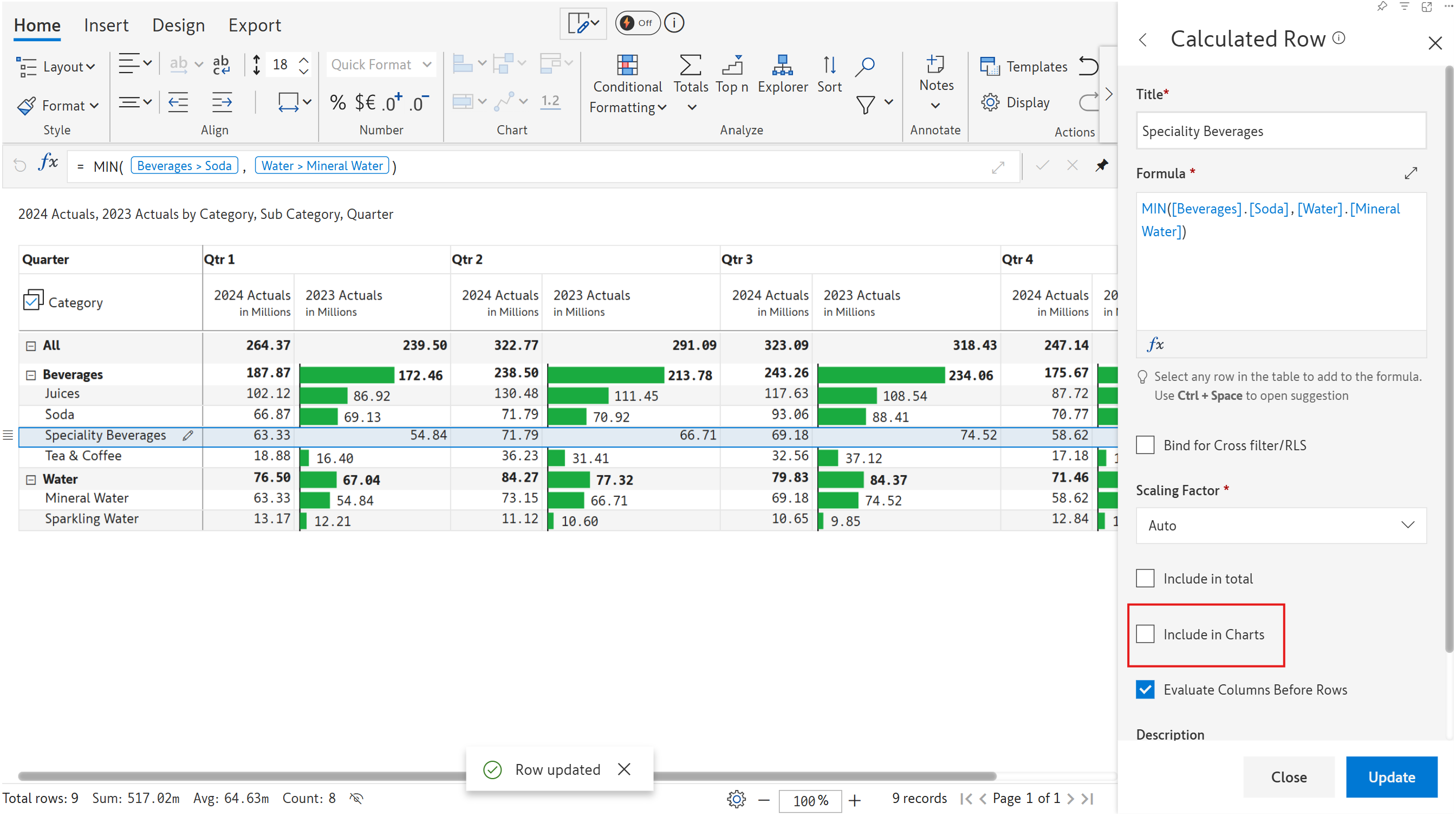
<figure><img src="/files/8RfzxNvghOhVPyRaS22v" alt=""><figcaption><p>Include in charts option</p></figcaption></figure>

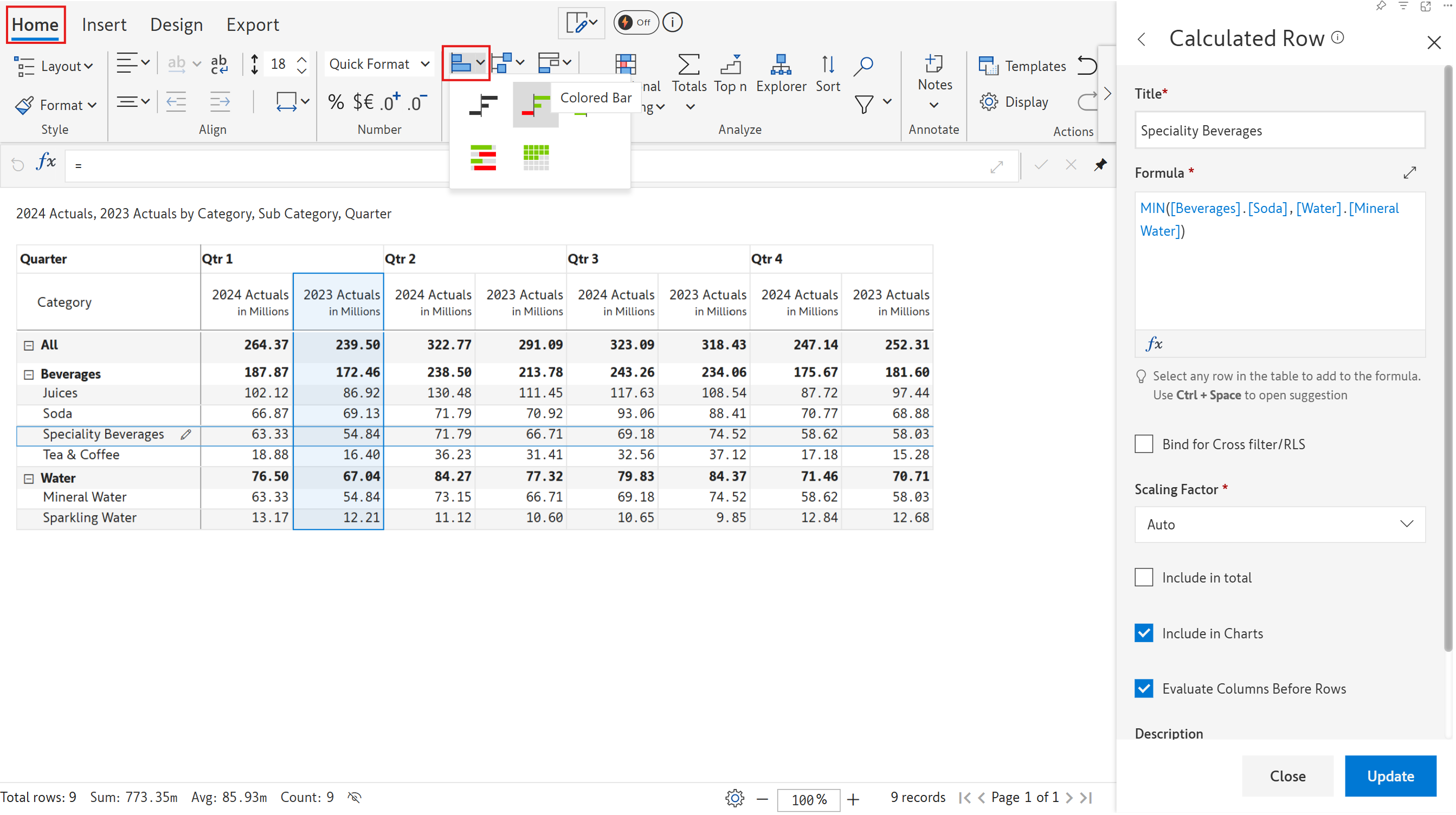
3.2. Let's now add a bar chart to the 2023Actuals measure. Click on the column and select the highlighted bar chart from the Home tab.

<figure><img src="/files/YflK5NVjzf0Sn6WcYPW6" alt=""><figcaption><p>Inserting a bar chart</p></figcaption></figure>

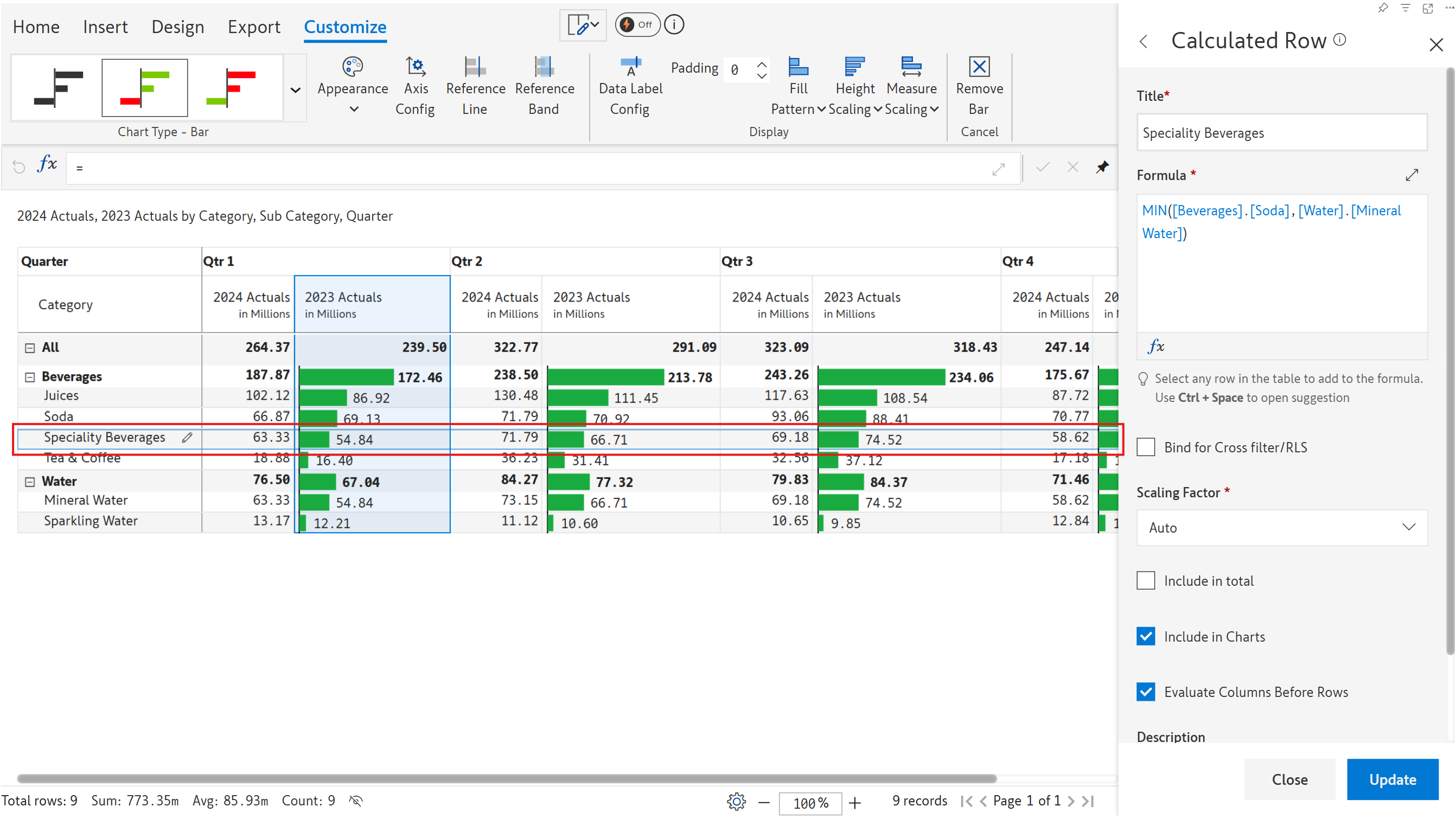
3.3. Notice that the Specialty Beverages row is also visualized using the bar chart.

<figure><img src="/files/3qB2r09FzktNa5AdDJFh" alt=""><figcaption><p>Speciality Beverages is also visualized</p></figcaption></figure>

3.4. When you uncheck the **Include in charts** option and click Update, you can see that the calculated row is no longer shown in the charts.

<figure><img src="/files/6nOAq0BGIfLIvOyrVD8S" alt=""><figcaption><p>The calculated row is not rendered in the chart</p></figcaption></figure>

### 4. Evaluate column before rows

When inserting calculated rows, in some cases, you might want the total to be the sum of the child columns, whereas in other cases, it needs to follow the defined formula. This behavior can be configured using the **Evaluate column before rows** option.&#x20;

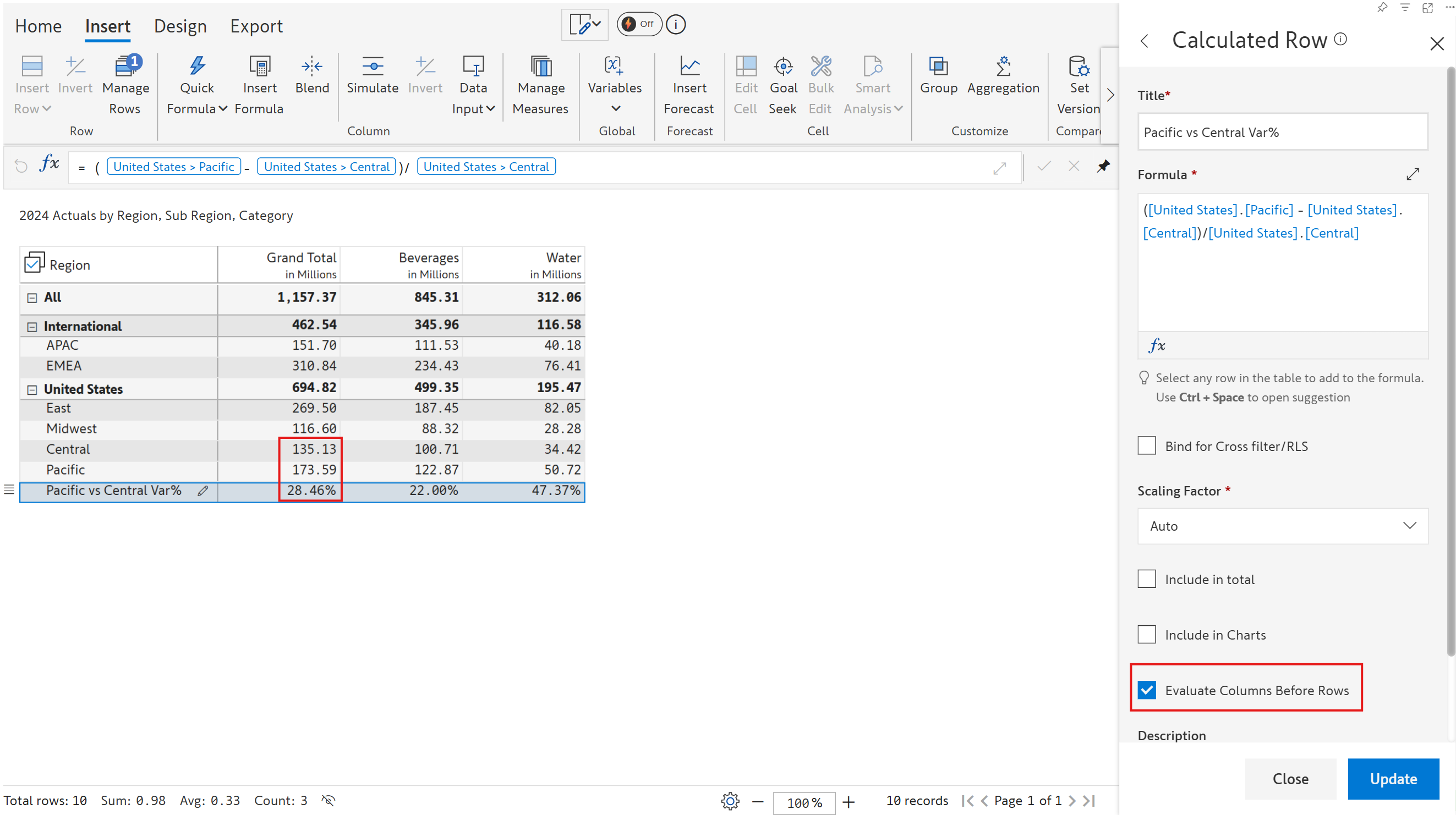
Let's consider an example where we are inserting the relative variance between two rows. In the image below, with **Evaluate columns before rows** enabled, you can see that the variance for the grand total is calculated based on the grand total values of Pacific and Central.

<figure><img src="/files/FjRi6Y5sdqAfdZEFBVt5" alt=""><figcaption></figcaption></figure>

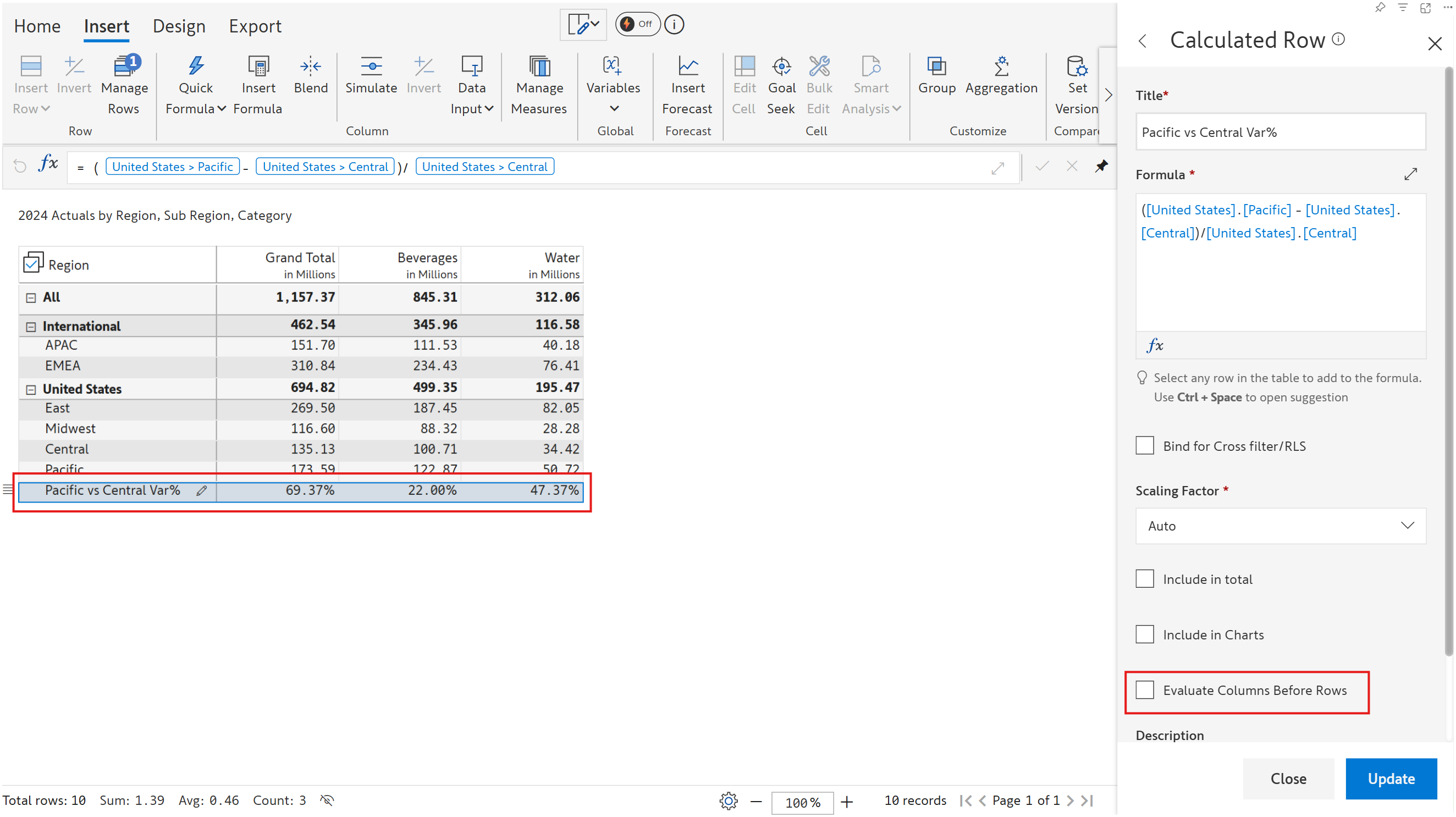
When **Evaluate columns before rows is disabled**, the grand total variance is calculated as the sum of the Beverages and Water columns, which is not the expected behavior.

<figure><img src="/files/8wKfJSg4KlTupYfGgOBg" alt=""><figcaption><p>Total value is the sum of columns</p></figcaption></figure>

### 5. Custom scaling

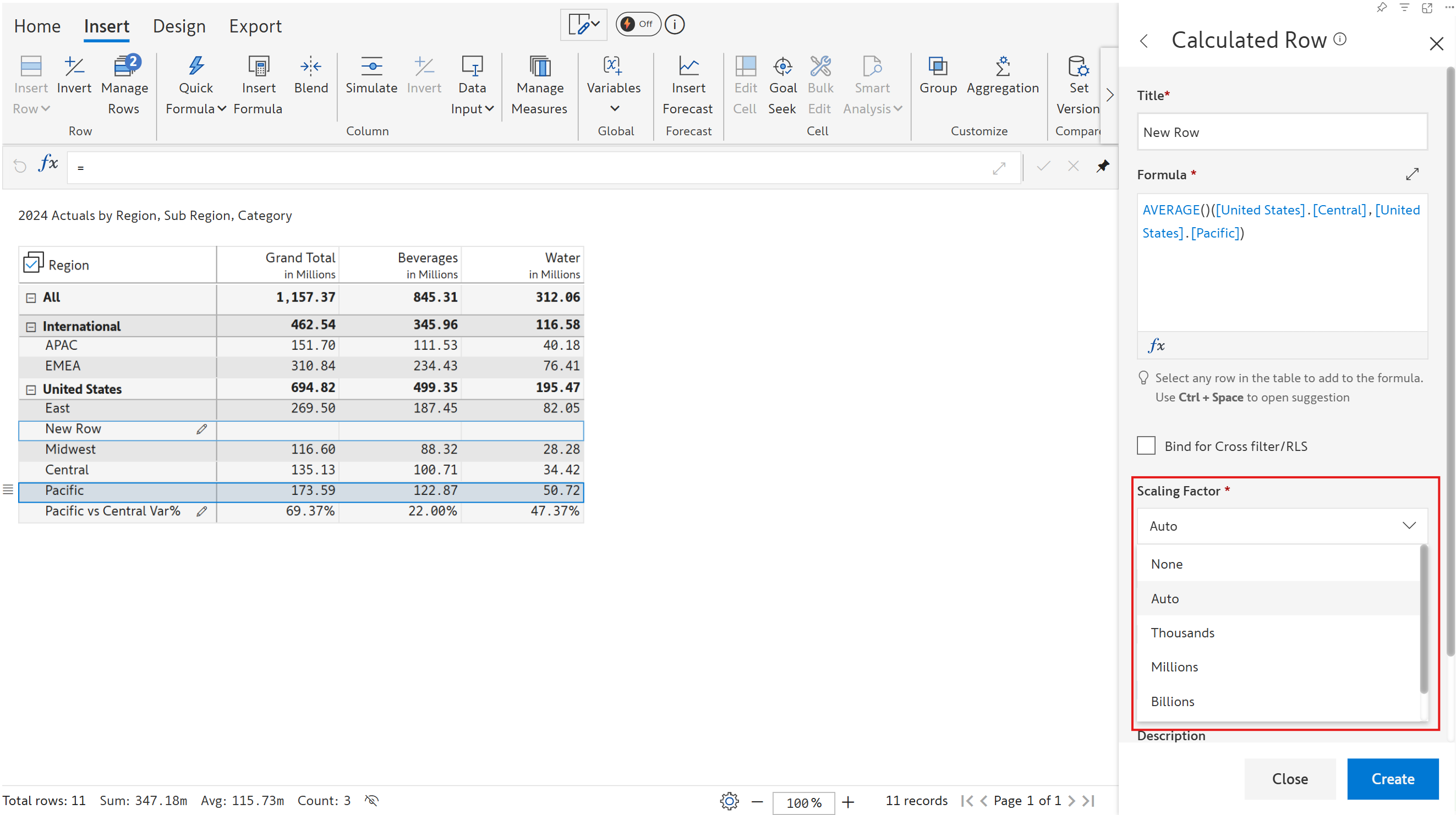
In certain cases, the values in calculated rows may not conform to the number scaling set at the report level. You can apply a custom scaling factor based on the nature of the calculation applied.

<figure><img src="/files/hVdjIDcyU0MnlvlJCdIC" alt=""><figcaption><p>Scaling factor</p></figcaption></figure>

### 6. Bind for Cross filter/RLS

You can enable the Bind for Cross filter/RLS option to ensure that cross-filter selections and RLS settings apply to calculated/manual input rows that reference other rows. For example, a manager handling 'Canada' accounts should only be able to access 'Canada' data. If this option is not enabled, he can view a manually inserted row that references data from other regions(child rows) or an inserted region that is manually created at the visual level(parent rows).&#x20;

You can bind inserted rows by selecting a reference row or a dimension category.&#x20;

{% hint style="danger" %}
The images in this section are from Writeback Matrix to show different user views. The functionality is the same.
{% endhint %}

#### **Binding by selecting a row**&#x20;

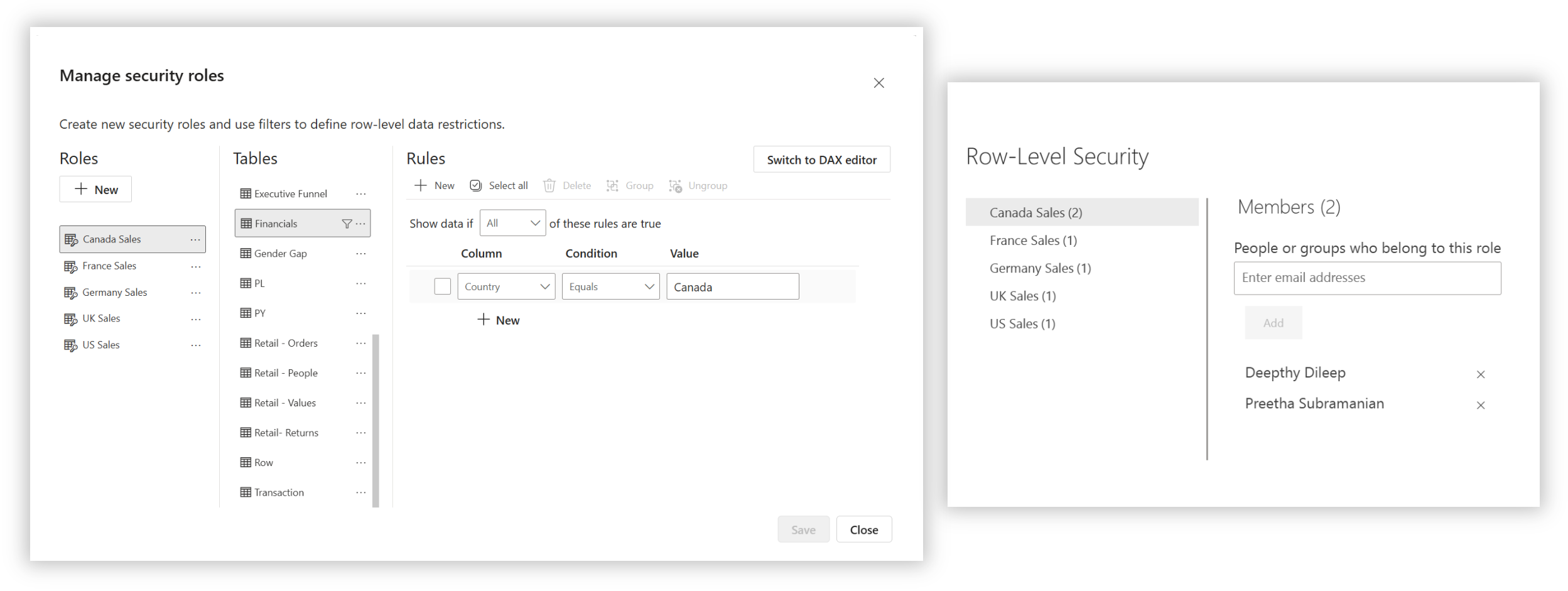
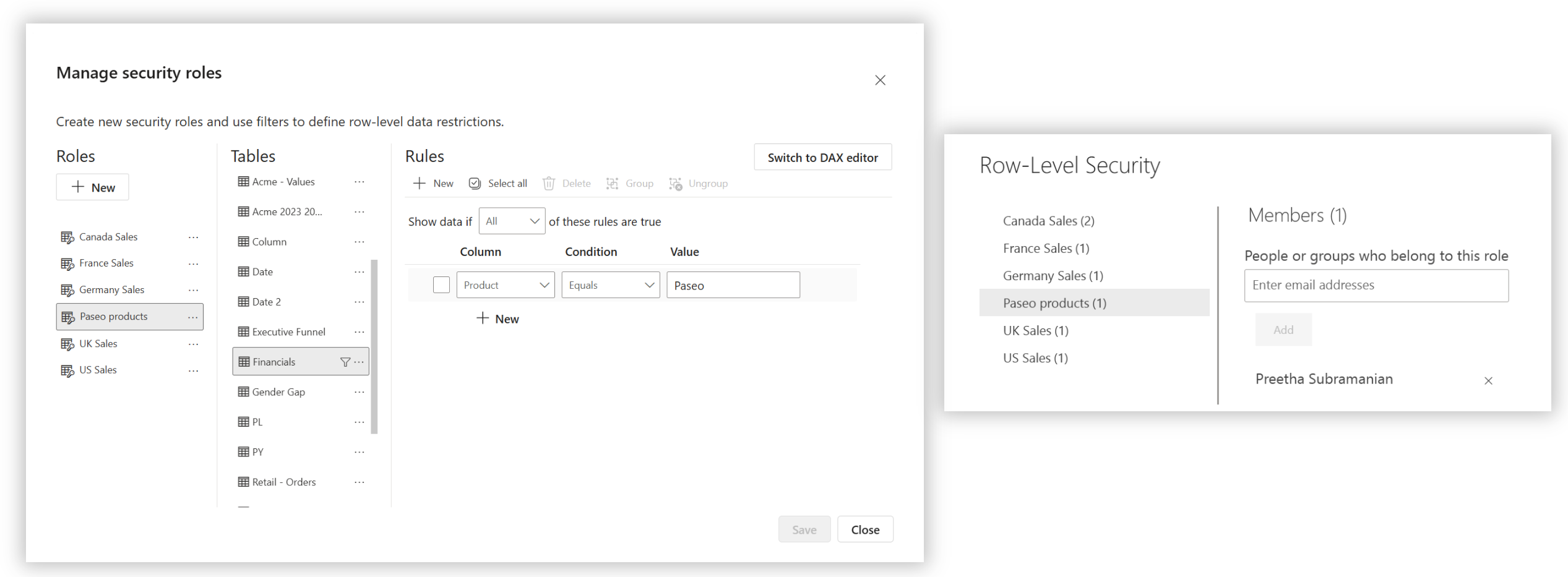
Let's consider these RLS rules defined based on regions:

<figure><img src="/files/g8GAmYjBRPpWfr87K969" alt=""><figcaption><p>RLS rules defined in Power BI</p></figcaption></figure>

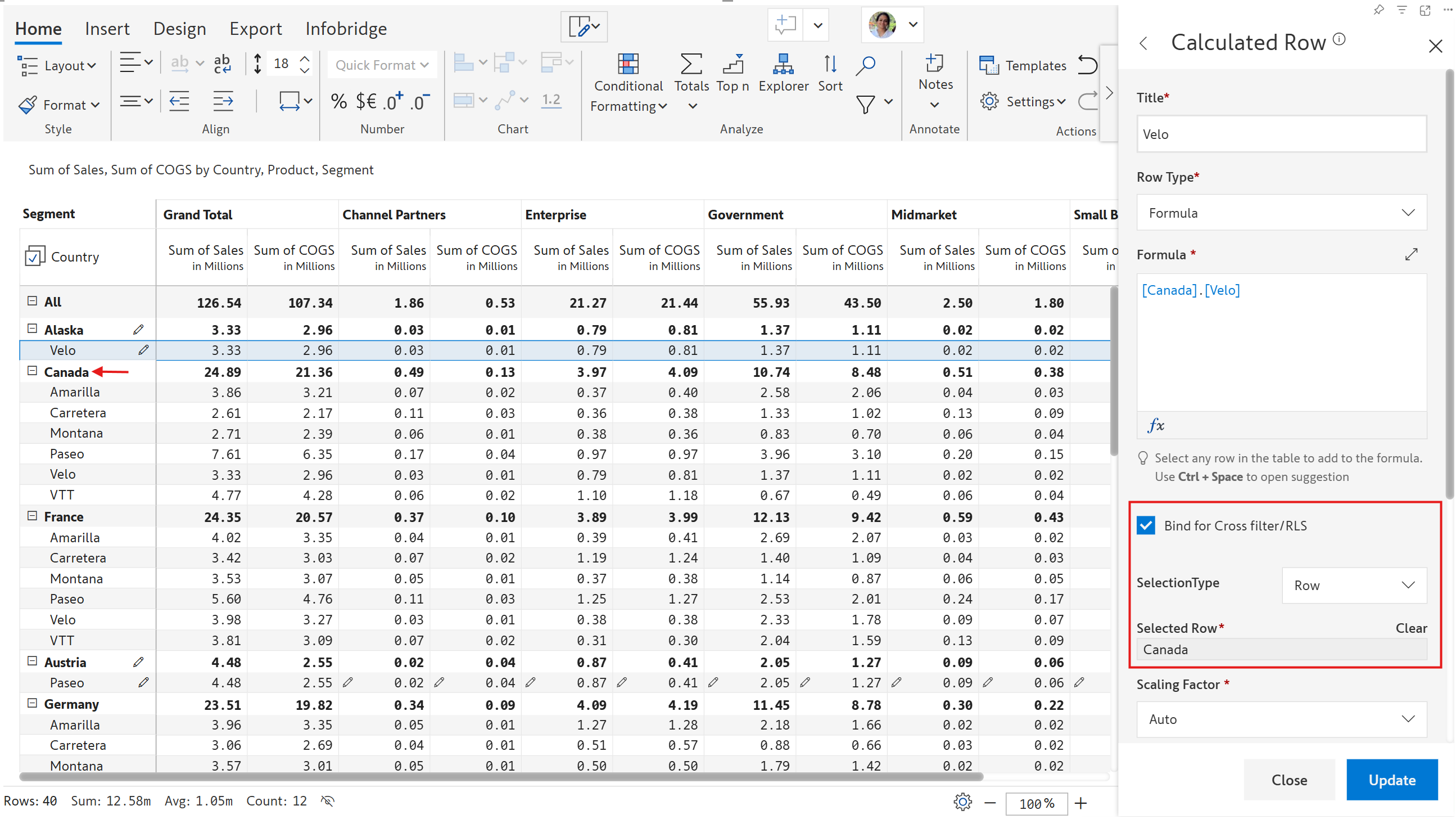
To select a particular reference row, choose *Row* from the **SelectionType** dropdown. The Alaska>Velo hierarchy references the Canada row in the example below.  Click the Canada row to reference it in the Selected Row field. Only users with access to 'Canada' data will be able to view the Alaska level.

<figure><img src="/files/6vB3FiUqWxd9YYU5taT4" alt=""><figcaption><p>Bind by row config</p></figcaption></figure>

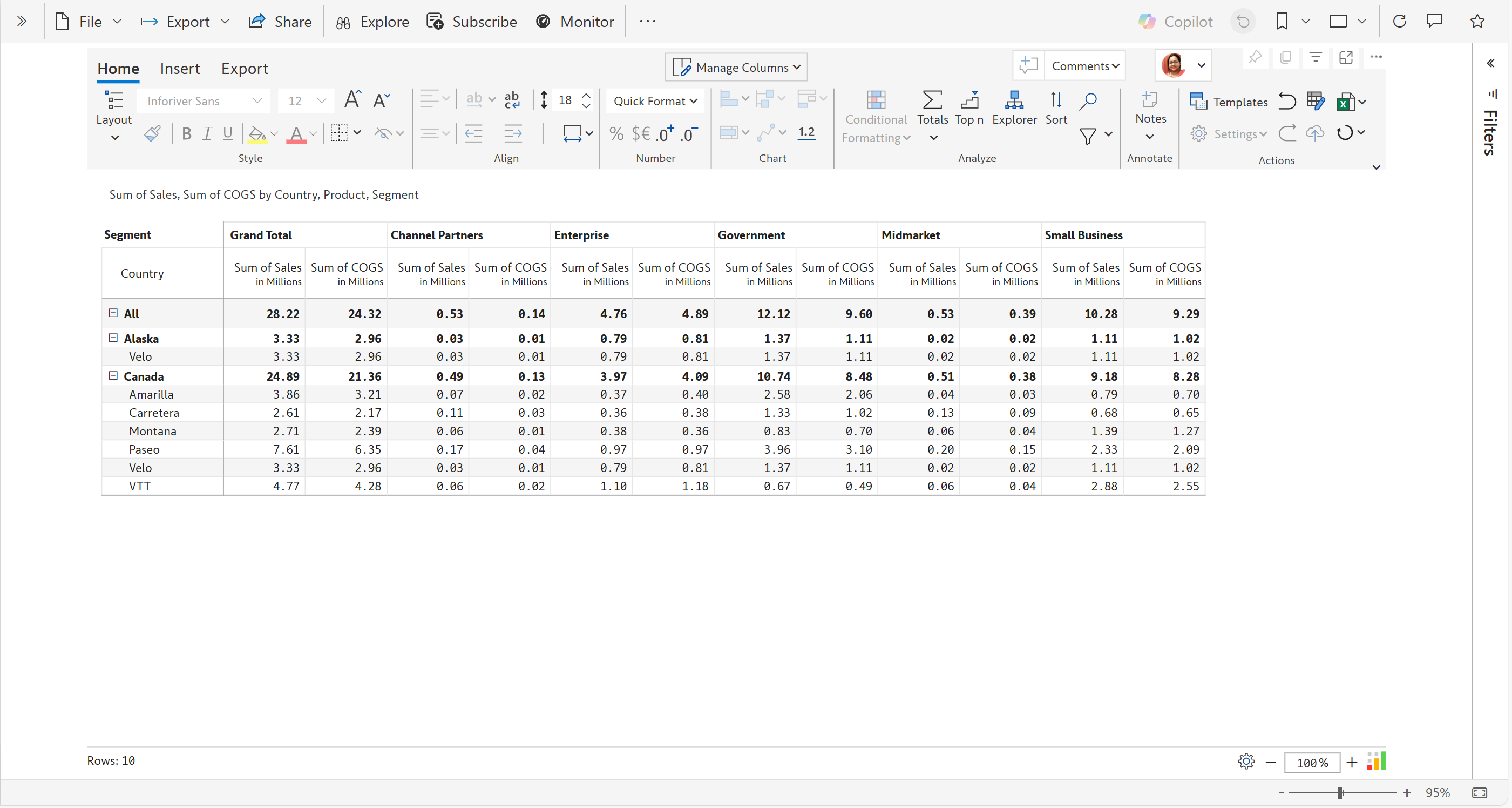
The Alaska hierarchy is displayed only for users with RLS access to Canada data.

<figure><img src="/files/uEurjzhALv4BwgD1XiWs" alt=""><figcaption><p>Users with Canada access can see the inserted row</p></figcaption></figure>

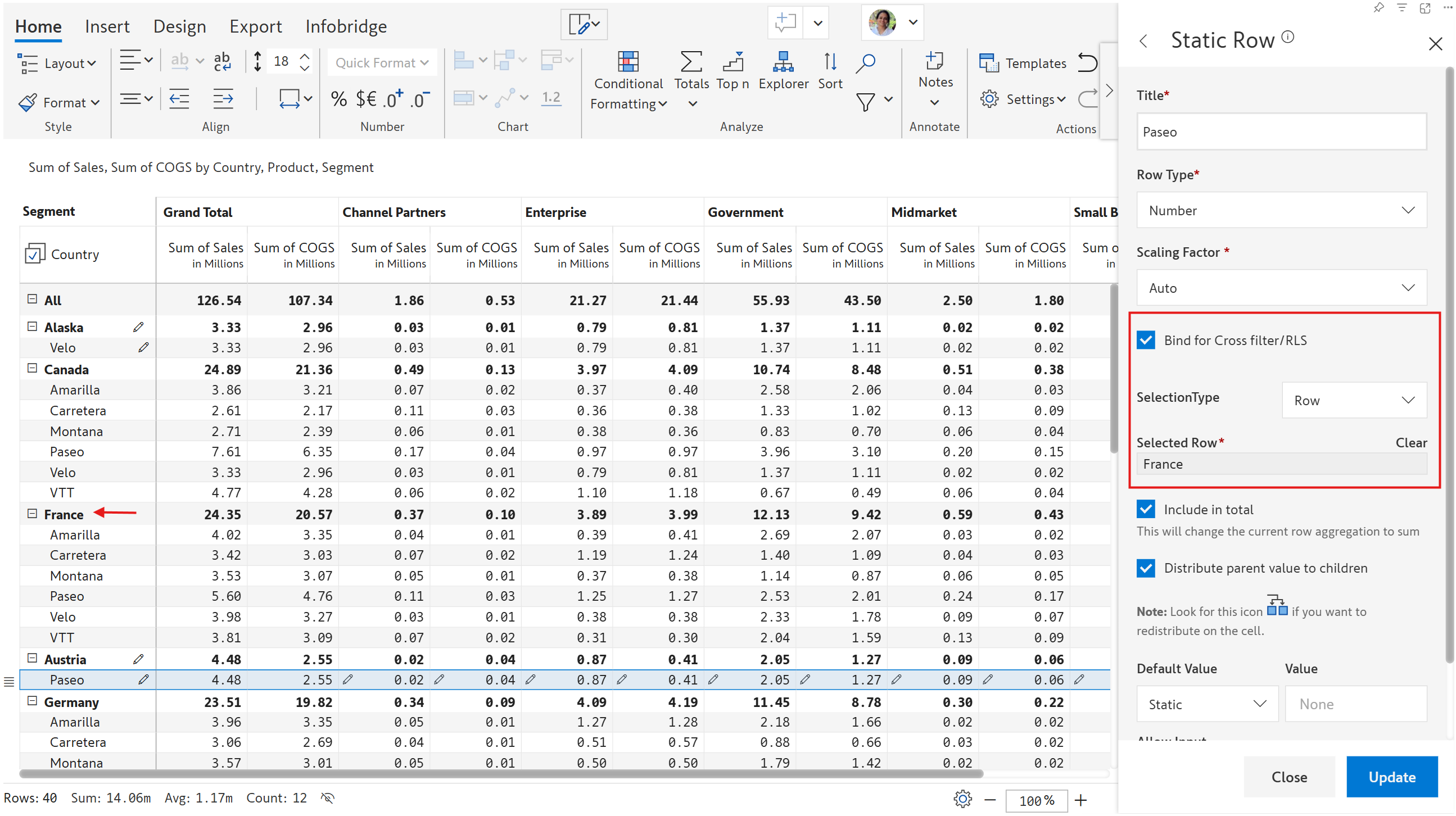
Similarly, a user with access to 'France' data will be able to see the Austria level but not the Alaska level.

<figure><img src="/files/pWyfO5q7xtWoCWwncrRS" alt=""><figcaption><p>Binding the inserted row to France data </p></figcaption></figure>
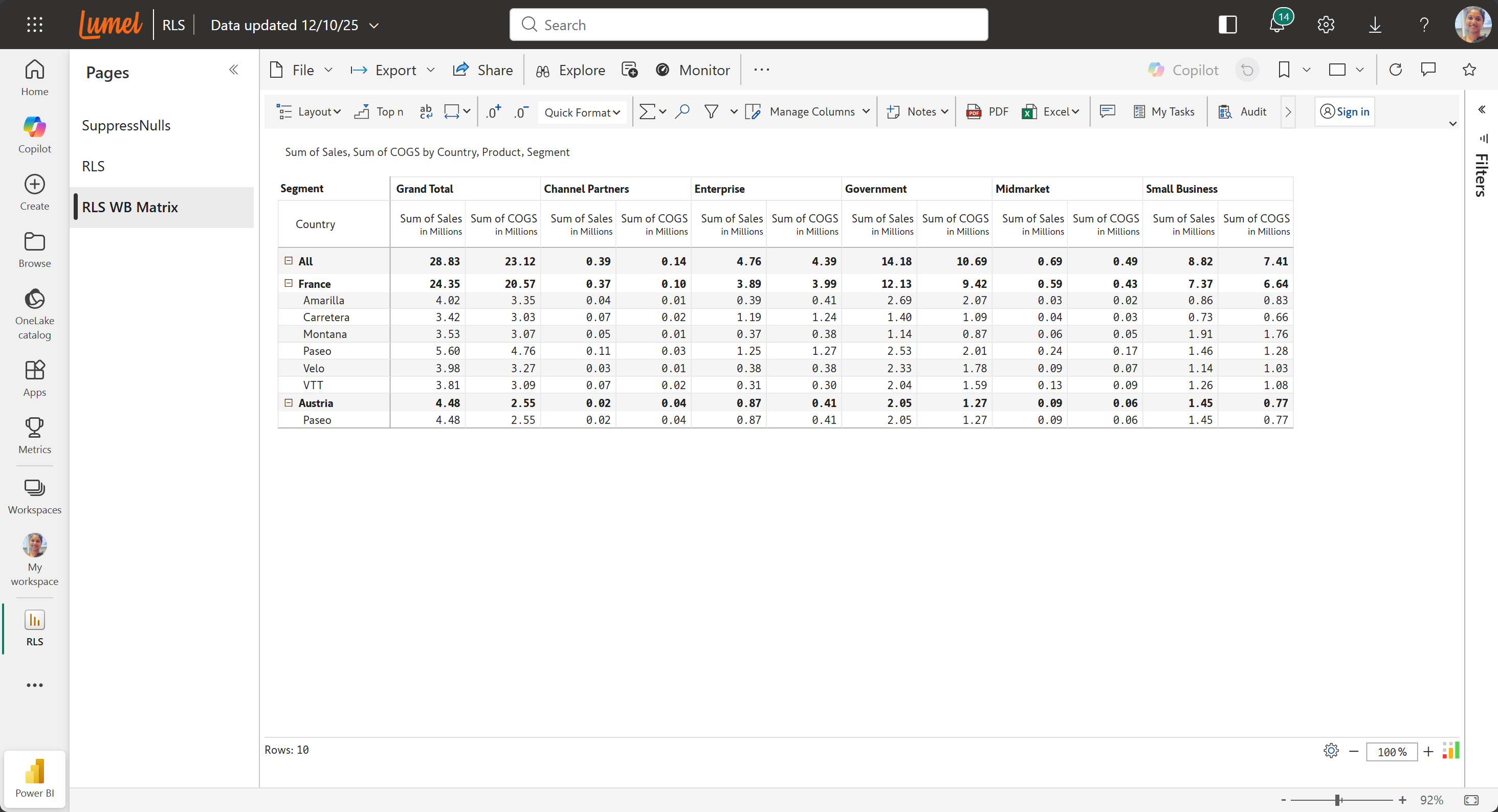
The user can view Austria and France:

<figure><img src="/files/Pg9noTes90zmGhxrMfOg" alt=""><figcaption><p>User can view the rows bound to the France row</p></figcaption></figure>

#### **Dimension category**&#x20;

RLS rule defined for product access:

<figure><img src="/files/CsqA6tkodeSwi61u7ejC" alt=""><figcaption><p>RLS rule for accessing the Paseo product</p></figcaption></figure>

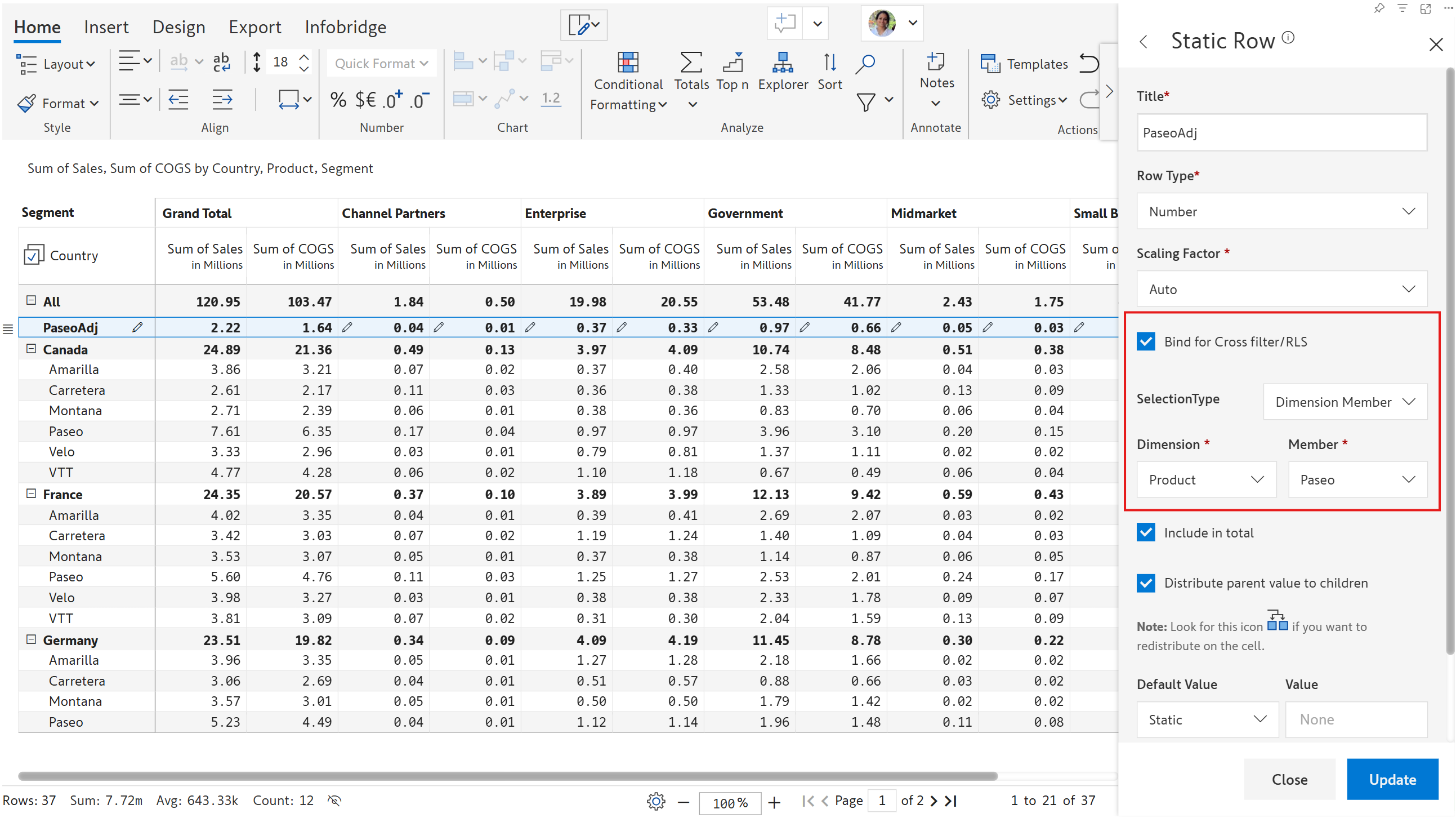
To bind the inserted row to a particular dimension category, choose *Dimension member* from the **SelectionType** dropdown. In the example below, the Paseo adjustment row references the Paseo product.&#x20;

<figure><img src="/files/pr2GBLURwNCQ3dTN2xZp" alt=""><figcaption><p>Config for binding to a dimension</p></figcaption></figure>

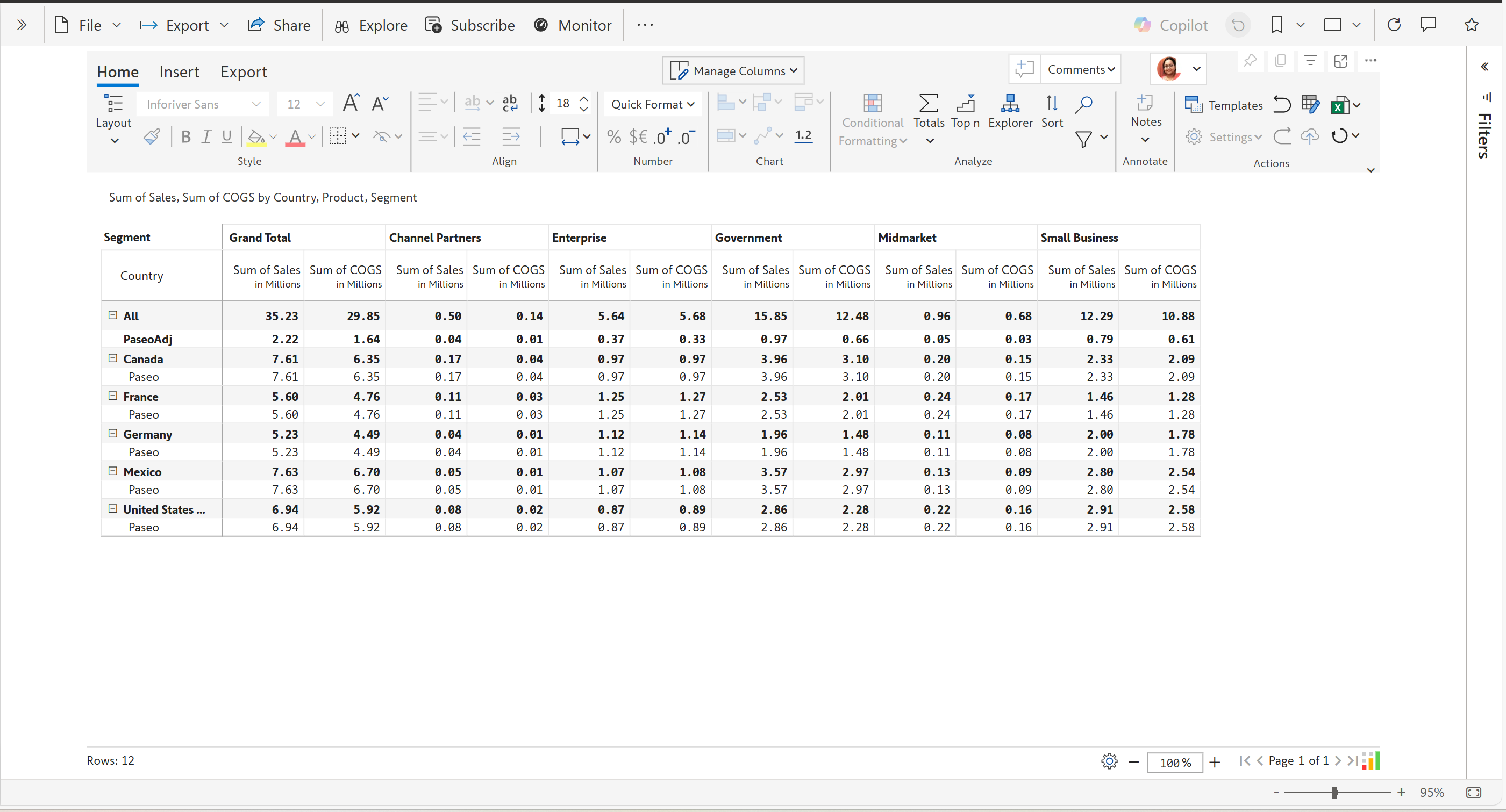
Notice how the adjustment row is displayed for users with access to Paseo products.

<figure><img src="/files/84WT51DfEIaS7k04vffn" alt=""><figcaption><p>PaseoAdj row is visible to users with access to the Paseo product</p></figcaption></figure>

#### Resources

[Insert Formulas, Columns and Aggregation](https://www.youtube.com/watch?v=hjPAbuYJUSc)

[Visual calculations using Inforiver](https://inforiver.com/webinars/visual-level-formula-calculations-powerbi/)

[Implement SUM measure totals in Power BI (without using DAX)](https://inforiver.com/blog/general/sum-measure-totals-powerbi-no-dax/)

[Excel-like MoM, QoQ, YoY % Calculations in Rows in Power BI](https://inforiver.com/blog/general/excel-like-mom-qoq-yoy-calculations-power-bi/)


---

# Agent Instructions: Querying This Documentation

If you need additional information that is not directly available in this page, you can query the documentation dynamically by asking a question.

Perform an HTTP GET request on the current page URL with the `ask` query parameter:

```
GET https://docs.inforiver.com/working-with-inforiver/4.-adding-business-logic-and-formulae/insert-calculated-rows/calculated-rows-reporting-matrix.md?ask=<question>
```

The question should be specific, self-contained, and written in natural language.
The response will contain a direct answer to the question and relevant excerpts and sources from the documentation.

Use this mechanism when the answer is not explicitly present in the current page, you need clarification or additional context, or you want to retrieve related documentation sections.