# Bar charts

Bar charts are commonly used to display and compare data. These are used to show the distribution of data within a set of categories or groups.&#x20;

### 1. Adding the bar chart

Let's start with an example below where we'll visualize the magnitude of sales of the categories using a **solid bar chart.**

**Step 1:** We have added 'SubCategory' in the **Rows** field, and 'Sales', 'Margin', 'Margin %', and 'Total Customers' in the **Values (AC)** field in the visualization pane.

<figure><img src="/files/gdLYdAjuSrxghPTadDin" alt=""><figcaption><p>Data mapping</p></figcaption></figure>

**Step 2:** Select the column for which you want to insert the bar chart. In the following image, the 'Sales' column has been selected.

The chart options get enabled. From the **Bar chart** drop-down, select the **Solid bar chart**.&#x20;

<figure><img src="/files/JnoXqSUE5bmsPxUub4k9" alt=""><figcaption><p>Column and chart type selection</p></figcaption></figure>

**Step 3:** The solid bar chart gets inserted as shown below.&#x20;

<figure><img src="/files/0a2icpw5EmMUqxY8BglY" alt=""><figcaption><p>Inserting a bar chart</p></figcaption></figure>

You can see the **Customize** tab in the toolbar with the following chart customization options.

### 2. Customization options

Inserting a bar chart will open up the following configuration options.

### 2.1. Chart type&#x20;

Here you can change your current chart type.

Inforiver offers five variants of bar charts: **Solid bar, Colored bar, Invert-colored bar, Range bar** and **Square Area bar.**

<figure><img src="/files/UzFNLcbwDDXKIbMEnTj5" alt=""><figcaption><p>Solid bar</p></figcaption></figure>

<figure><img src="/files/YrmPpPfq7I1sBEQllpzs" alt=""><figcaption><p>Colored bar</p></figcaption></figure>

<figure><img src="/files/Ij6x1r2f1DowHZpqmriE" alt=""><figcaption><p>Invert Colored bar</p></figcaption></figure>

A **range bar chart** shows the minimum and maximum values of a data point as a bar highlighting the range rather than a single value.

<figure><img src="/files/qcV5SfcsyuFJxp4DwOgO" alt=""><figcaption><p>Range bar</p></figcaption></figure>

A **square area bar chart** represents values using squares whose area and color reflect the data, making differences easy to compare.

<figure><img src="/files/SUQGH3uN7I6qlISoua4j" alt=""><figcaption><p>Square Area bar</p></figcaption></figure>

### 2.2. Axis config&#x20;

This option lets you configure the axis for the chart. Clicking on the **Axis Config** option will open up the **Axis modal** in which you can configure the following properties:

* **Axis direction** - From this drop-down, you can set the direction of the axis to either 'Left to Right' or 'Right to Left'.
* **Row level Scaling** - Using this drop-down you can set the scaling option to 'Universal' or 'By level'.
* **Show Y Axis** - Enable this check box if you want to display an axis on the Y coordinate.
* **Show X Axis** - Enable this check box if you want to display an axis on the X coordinate.
* **Hide ticks** - With this option, you can either show/hide tick intervals.

<figure><img src="/files/pUeSDYa7EzilcOy230WA" alt=""><figcaption><p> Axis config options</p></figcaption></figure>

### 2.3. Reference line&#x20;

Reference lines are horizontal or vertical lines that are added to a chart to indicate a specific value or threshold. Using this option, you can add a reference line for values such as average, median or set a custom value.

Clicking on this option will open up a **Reference line** modal to the right of the report.&#x20;

<figure><img src="/files/XEv0gPB2ejaeJZisWdvu" alt=""><figcaption><p>Reference line option</p></figcaption></figure>

Click on the **Add New Line** button in the modal. This will open up a toolbar as shown below.

<figure><img src="/files/mrQ5AIZsaj4wWg0qndTn" alt=""><figcaption><p>Reference line toolbar</p></figcaption></figure>

You can customize the following options in the reference line modal:

**a) Value display -** This option has two dropdowns.&#x20;

From the first drop-down, you can select the data metric for which you want to display the reference line.&#x20;

And the second drop-down lets you select the value at which the reference line needs to be inserted. You can select from the following values:

1. **Average -** Inserts a reference line at the average value of the data metric
2. **Median - Inserts** a reference line for the median value of the data metric
3. **Standard deviation -** Inserts a reference line for the standard deviation of the data metric
4. **Mid value -** Inserts a reference line at the mid value of the data metric
5. **Constant -** If you select this option, an additional 'Static value' field becomes available. Using this option, you can set the static/constant value at which you want to insert the reference line.

<figure><img src="/files/v23d3cDqrSqM4VTNFF8n" alt=""><figcaption><p>Reference line constant option</p></figcaption></figure>

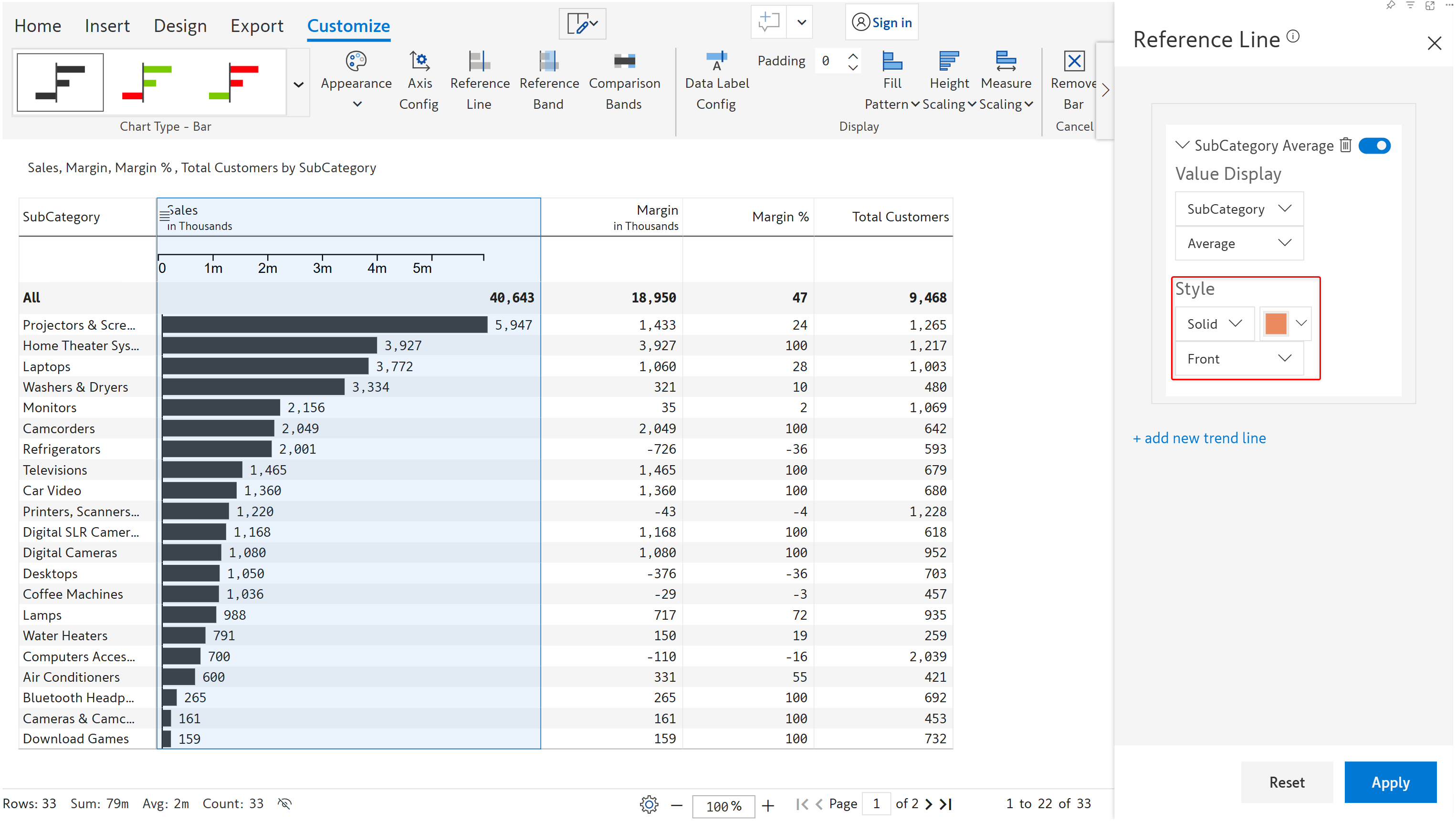
**b) Style -** This option has three dropdowns.&#x20;

From the first drop-down, you can choose the style of the reference line. You can choose from any of the following options: **Dotted***,* **Dashed***,* **Solid***,* **Long Dashed***,* or **Double Solid**.&#x20;

From the second drop-down, you can select the color of the reference line.&#x20;

And from the third drop-down, you can choose the position of the reference line. It has the following two options: *Front* - positions the reference line in front of data values, and *Back* - positions the reference line to the back of the data values.

<figure><img src="/files/UD3PYBv3NUFH1JcTXMQg" alt=""><figcaption><p>Reference line style options</p></figcaption></figure>

After choosing all the customizations, click on 'Apply' to insert a reference line with chosen customization options.

<figure><img src="/files/XmfFtpxBKHysjTkXdzBm" alt=""><figcaption><p>Reference line applied</p></figcaption></figure>

**Add more than one reference line** - To add more than one reference line, you can click on the 'add new trend line' link at the bottom of the toolbar in the reference line modal.

<figure><img src="/files/kBxVil2dwNXC6Y8fVNNh" alt=""><figcaption><p>Add new trend line</p></figcaption></figure>

**Delete a reference line** - To delete an existing reference line, click on the trash can/delete icon.

<figure><img src="/files/FAF8j7aX3aNqF00oUCq3" alt=""><figcaption><p>Delete reference line</p></figcaption></figure>

**Disable a reference line** - To disable an existing reference line, click on the toggle switch button.

<figure><img src="/files/YlTcXtWzo1qURdfFl0JH" alt=""><figcaption><p>Disable a reference line</p></figcaption></figure>

### 2.4. Reference band

Reference bands are similar to reference lines, but they are represented as a shaded area between two lines. They are used to indicate a range of values.&#x20;

Clicking on this option will open up a **Reference Band** modal.

<figure><img src="/files/G0JvQY5ZsSGgb4HAgC0s" alt=""><figcaption><p>Reference band options</p></figcaption></figure>

From this modal, you can customize the following options

**a) Value Display -** This option has two dropdowns.&#x20;

From the first drop-down, you can select the data metric for which you want to display the reference band.&#x20;

And the second drop-down lets you select the ending value of the reference band. You can select from the following options:

1. **Average -** The average value of the data metric is set as the ending value of the reference band
2. **Median -** The median value of the data metric is set as the ending value of the reference band
3. **Standard deviation -** The standard deviation of the data metric is set as the ending value of the reference band
4. **Mid value -**&#x54;he mid value of the data metric is set as the ending value of the reference band
5. **Constant -** If you select this option, an additional 'Static Value' field becomes available. Using this option, you can set the static/constant value which is set as the ending value of the reference band.

<figure><img src="/files/jexM9Q4lnj10r20nwDiV" alt=""><figcaption><p>Reference band value display</p></figcaption></figure>

**b) Start From -** Using this drop-down, you can select the starting value of the reference band. It has the following options:&#x20;

1. **Min** - The minimum value of the data metric becomes the starting value of the reference band
2. **Zero** - Zero becomes the starting value of the reference band

<figure><img src="/files/h3fJIt0euFFzC2eqmTd8" alt=""><figcaption><p>Reference band start from options</p></figcaption></figure>

&#x20;&#x33;**.  Constant** - If you select this option, a new input field becomes available where you can select the constant value which becomes the starting value of the reference band.

<figure><img src="/files/pvxUbSOmvW3IRjD3YFwT" alt=""><figcaption><p>Reference band constant option</p></figcaption></figure>

**c) Line Style -** The line style option allows you to set the style and color of the lines that get displayed at the starting and ending value of the reference band.&#x20;

From the first drop-down, you can choose the style of the lines. You can choose from the following options: **Dotted**, **Dashed**, **Solid**, **Long Dashed**, and **Double Solid**.&#x20;

And, from the second drop-down, you can select the color of the lines.

<figure><img src="/files/eHor8rkTCZOz7xpnXQlm" alt=""><figcaption><p>Reference band line style options</p></figcaption></figure>

**d) Background color** - This color picker lets you choose the color for the shaded area in the reference band.

**Delete reference band** - To delete an inserted reference band, click on the 'Delete' button at the bottom of the 'Reference Band' modal.

<figure><img src="/files/kZd0CdeTLvzRGqOlYEMV" alt=""><figcaption><p>Delete a reference band</p></figcaption></figure>

### 2.5.Comparison band

In case of **Solid Bar**, the comparison band indicates the state of the measure depending on which band it resides in. They provide a performance rating to the value being measured where each color represents a different state.

<figure><img src="/files/Ao8xgjQI4rk2OFGAhf7C" alt=""><figcaption><p>Comparison band options</p></figcaption></figure>

You can add comparison bands by clicking on the 'Comparison band&#x73;**'** icon. The following properties are available:

* **Compared series** - This drop-down lets you configure the range of comparison bands as values or percentages.
* **Dynamic** - If you enable this checkbox, then the comparison band range will be added based on individual scaling.

<figure><img src="/files/CaXlpsoZWtslyBoflUi1" alt=""><figcaption><p>Dynamic option</p></figcaption></figure>

* **Number of bands** - Here you can set the number of bands required.
* **Flip** - Enable this toggle to reverse the color order.

<figure><img src="/files/7t9e78na9qlfLHKOzujj" alt=""><figcaption><p>Flip option</p></figcaption></figure>

### 2.6. Data label config&#x20;

This option lets you configure the properties related to the data label. You can configure the following properties:

* **Data label -** This checkbox lets you show/hide data labels. Note that other options become available only if this option is enabled.
* **Bar overlap** - By enabling this option, you can overlap the data labels over the bar. By default, this option is not enabled, and the data labels are displayed next to the corresponding bar.
* **Data label flip** - With this option, you can reverse/flip the positions of the data labels. By default, the labels are placed to the right of the bar. By enabling this option, you can flip/reverse their position to the left with respect to the bars.

<figure><img src="/files/FWc2h3kZ1xKLVhqzCbmo" alt=""><figcaption><p>Data label flip</p></figcaption></figure>

* **Show label** - In this drop-down, you can select the format of the data label. You can display the data values as just **Value (numbers)**, as **Percentage**, or as **Both**.
* **Percentage scaling** - This drop-down gets enabled only if you have chosen 'Percentage' or 'Both' as the data format in the show label drop-down and when the chart contains hierarchical levels. Using this option, you can configure the scaling of the percentage data label. The available scaling options are
  1. **Universal - This** is the default option, and it indicates the percentage contribution of the value to the grand total.
  2. **By level -** Whereas 'By level' indicates the percentage contribution of the value to its parent level or category.

<figure><img src="/files/zFducjJsPZkLMJtfpxya" alt=""><figcaption><p>Percentage scaling options</p></figcaption></figure>

{% hint style="info" %}
Bar Overlap and Data Label Flip are not applicable for Square Area Bar
{% endhint %}

### 2.7. Padding&#x20;

You can configure the inner padding (the space between the bar and the top/bottom border of a cell) with this option. Increasing the padding value will increase the spacing.

<figure><img src="/files/4GbxJH76K2QcoBdFq5OR" alt=""><figcaption><p>Padding option</p></figcaption></figure>

### 2.8. Fill pattern&#x20;

You can customize the fill pattern to any of these IBCS notations: **Solid***,* **Outlined***,* or **Hatched**.

<figure><img src="/files/SsrxZ6z4ULoZbvHMiJs3" alt=""><figcaption><p>Fill pattern options</p></figcaption></figure>

{% hint style="info" %}
Fill Pattern is not applicable for Square Area Bar
{% endhint %}

### 2.9. Appearance

Appearance lets you define properties such as the bar color, axis color, data label color, etc.

{% hint style="info" %}
Some of these properties/options may or may not be available depending on the inserted chart type and variant.
{% endhint %}

**Colors**

The following options can be accessed by clicking on the **Colors** option.&#x20;

<figure><img src="/files/E0c8C8LIwL2dphVvFDBg" alt=""><figcaption><p>Appearance colors option</p></figcaption></figure>

**a) Positive color** - Using this option you can customize the positive color of the bar/marker

**b) Negative color** - Using this option you can customize the negative color of the bar/marker

**c) Axis color** - This option lets you set the axis color of the chart

**d) Data label color** - This option lets you set the color of the data labels in the chart

**e) Bar color** - This option is available only for solid bar charts and will let you customize the color of the bar

<figure><img src="/files/fdCZ4J1VMZZaUe6GcLte" alt=""><figcaption><p>Appearance Modal</p></figcaption></figure>

**f) Gradient** - In case of **Solid bar** enabling this option will allow you to set a gradient color to your bar chart. If you enable this option, the Min and Max color options become available using which you can set the color for the min value and the max value.

<figure><img src="/files/fcz2eaxF6iKuzSSjH1zi" alt=""><figcaption><p>Gradient option</p></figcaption></figure>

### 2.10. Break Bar

In the case of a **Range bar** chart, this option lets you break the range bar into segments based on the given breaks.

<figure><img src="/files/0SRCez1subnYXc3EJZKS" alt=""><figcaption><p>Break bar option</p></figcaption></figure>

When you use the **Break Bar** option, the **Breaks** option is automatically enabled.

You can use the arrows in the **Breaks** option to increase or decrease the number of breaks.

### 2.11. Grid Display

In the case of a **Square Area bar** chart, this option lets you change the number of grids to 5x5 or 10x10.

<figure><img src="/files/YMREzIhyp6oizJFlrfwW" alt=""><figcaption><p>Grid display option</p></figcaption></figure>

### 2.12. Height Scaling

This option lets you customize the height scaling(width) of the bars in the bar chart. By default, **Individual Scaling** is applied.

**a) Individual** - Using this option you can set the height scaling based on each row.

<figure><img src="/files/c0ujPWnSZfJah0v6A1IB" alt=""><figcaption><p>Individual Height scaling</p></figcaption></figure>

**b) Universal** - Using this option you can set height scaling based on the parent level.

<figure><img src="/files/A5shra6UtWUimyawGDlG" alt=""><figcaption><p>Universal Height scaling</p></figcaption></figure>

### 2.13. Measure Scaling

This option lets you select the measure scaling of the chart. By default, **Universal** **Scaling** is applied.

**a) Universal** - In this option the scaling of the chart is fixed based on the consolidated min and max values from all the measures.

For reference the consolidated min value is '13.05' and max value is '778.51' from all the measures, therefore the scaling of the chart is fixed based on these values.

<figure><img src="/files/bVBYCOn9lEeG6LWQQAWg" alt=""><figcaption><p>Universal Measure scaling</p></figcaption></figure>

**b) Individual** - In this option the scaling of each individual measure is fixed based on their own Min and Max values.

<figure><img src="/files/CK5oRV57zItWVZER8pU2" alt=""><figcaption><p>Individual Measure scaling</p></figcaption></figure>


---

# Agent Instructions: Querying This Documentation

If you need additional information that is not directly available in this page, you can query the documentation dynamically by asking a question.

Perform an HTTP GET request on the current page URL with the `ask` query parameter:

```
GET https://docs.inforiver.com/working-with-inforiver/6.-working-with-charts/bar-charts.md?ask=<question>
```

The question should be specific, self-contained, and written in natural language.
The response will contain a direct answer to the question and relevant excerpts and sources from the documentation.

Use this mechanism when the answer is not explicitly present in the current page, you need clarification or additional context, or you want to retrieve related documentation sections.