> For the complete documentation index, see [llms.txt](https://docs.inforiver.com/llms.txt). Markdown versions of documentation pages are available by appending `.md` to page URLs; this page is available as [Markdown](https://docs.inforiver.com/working-with-inforiver/7.-planning-budgeting-and-forecasting/forecasting-writeback-matrix/common-scenarios/forecast-using-a-blank-template.md).
# Forecast using a Blank Template
A common requirement for organizations is to forecast using a blank template in Power BI, just as we would do with Microsoft Excel. Data may be entered by a single individual, or by many individuals across the organization.
Let us explore how we can set this up quickly in Power BI using Inforiver.
In our case, ACME Inc. wants to create sales forecasts for all four quarters of the year 2024 for each geography. These are the steps involved.
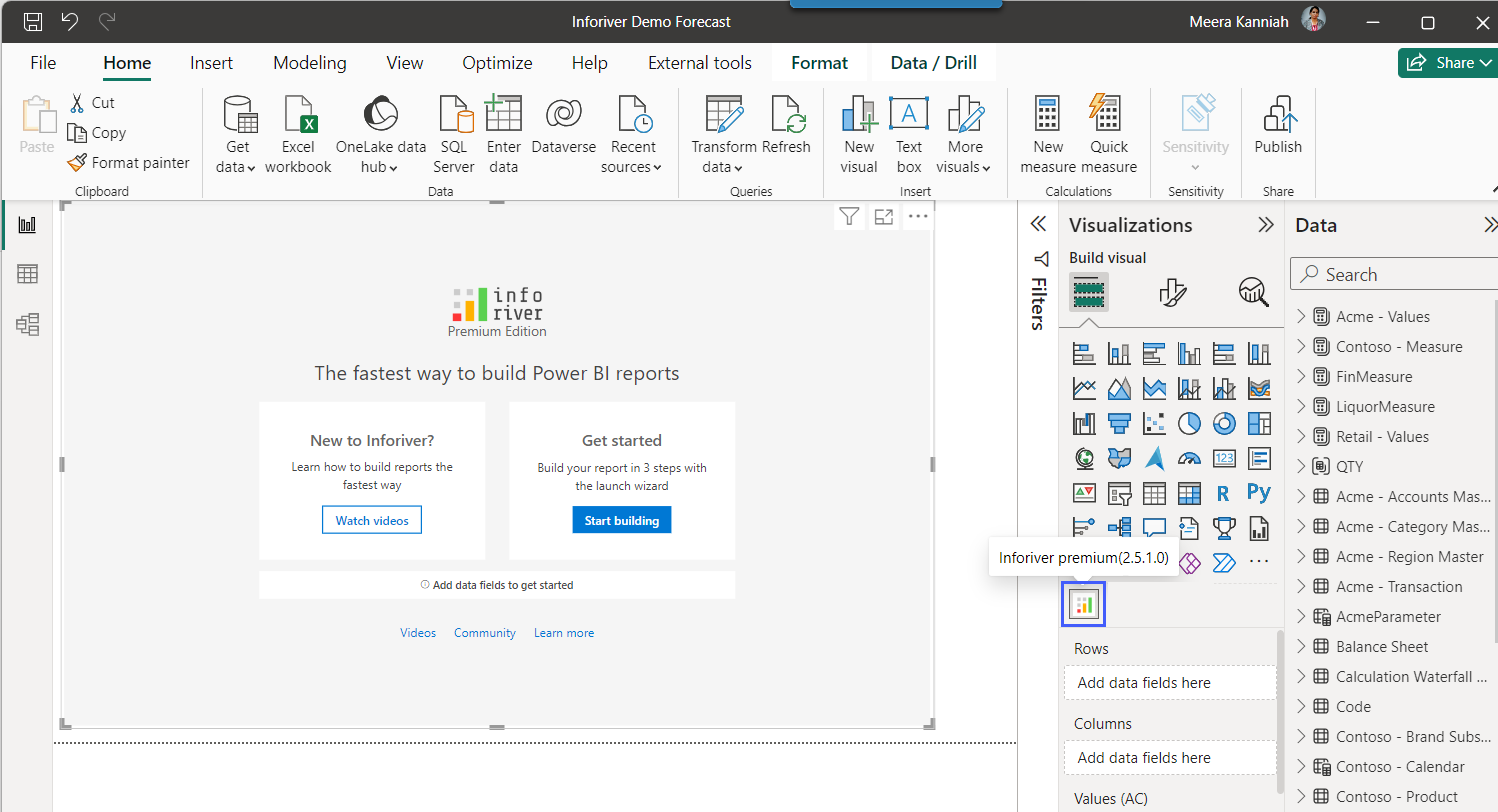
1. Launch Inforiver Matrix visual.
Launch Inforiver
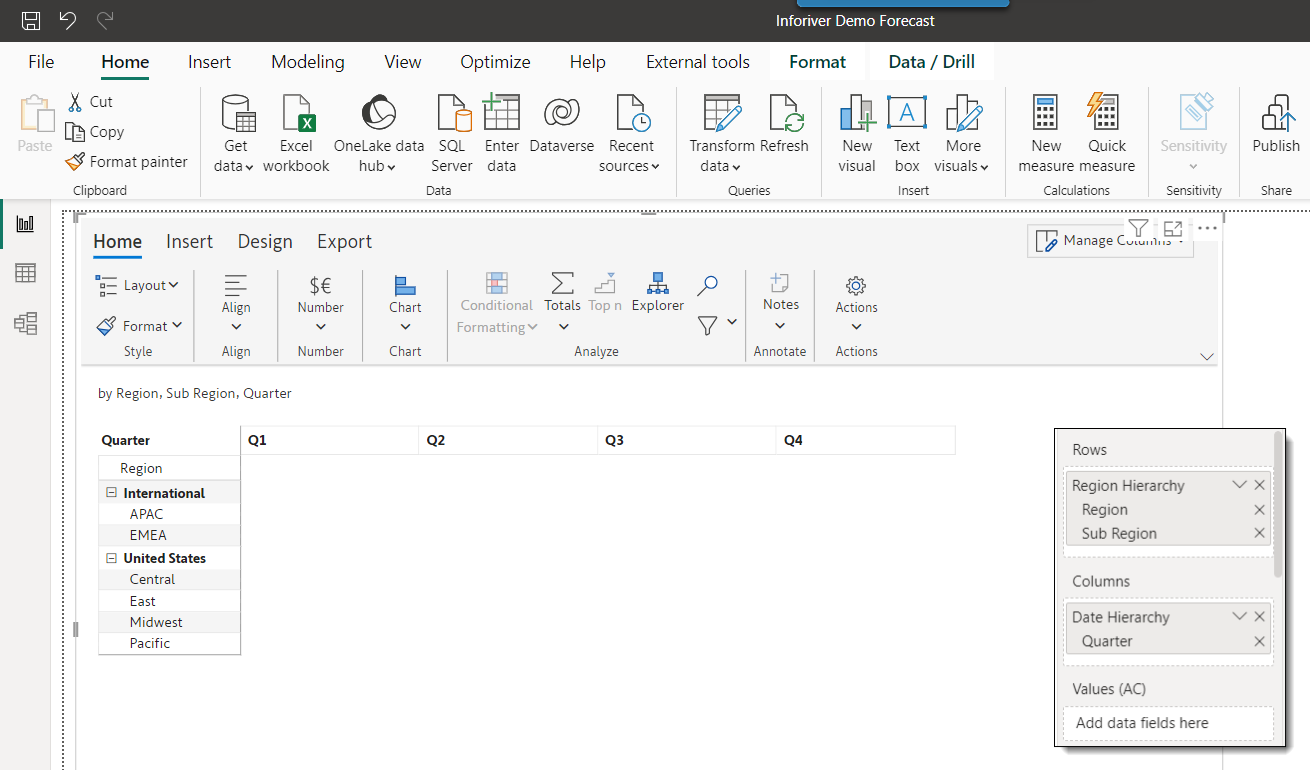
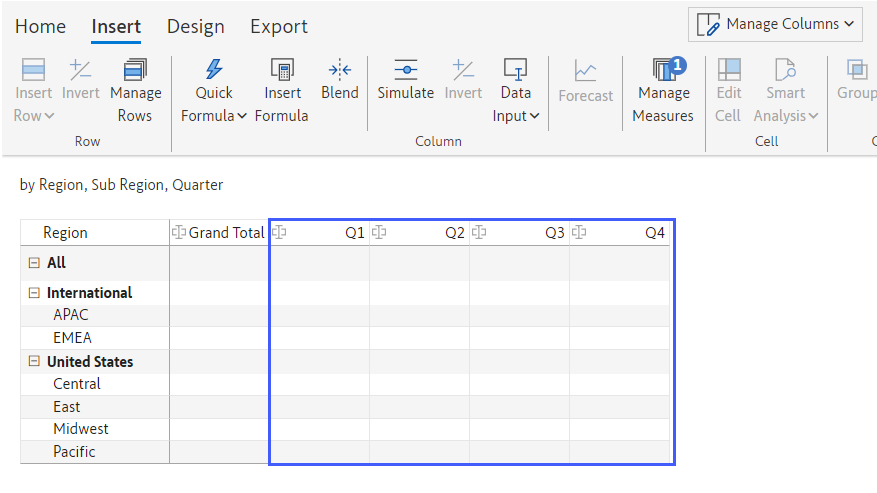
2. Assign *Region* & *Sub Region* categories to rows and *Quarters* to columns. You will have a blank table structure.
Create a blank report
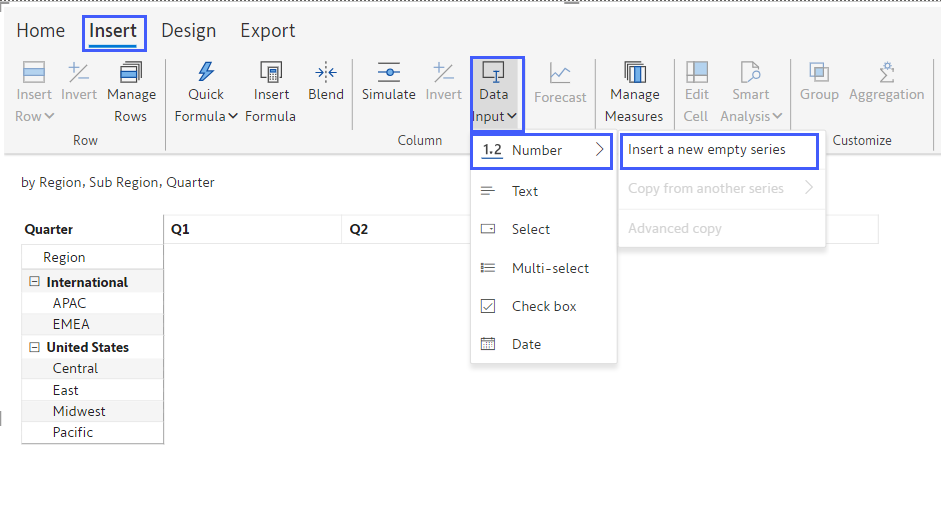
3. We will now create a data input field (a forecast measure) so that users can type in their values. To do this, click on **Insert -> Data Input -> Number** (since it is a numeric field type) **-> Insert a new empty series.**
Create Data Input fields
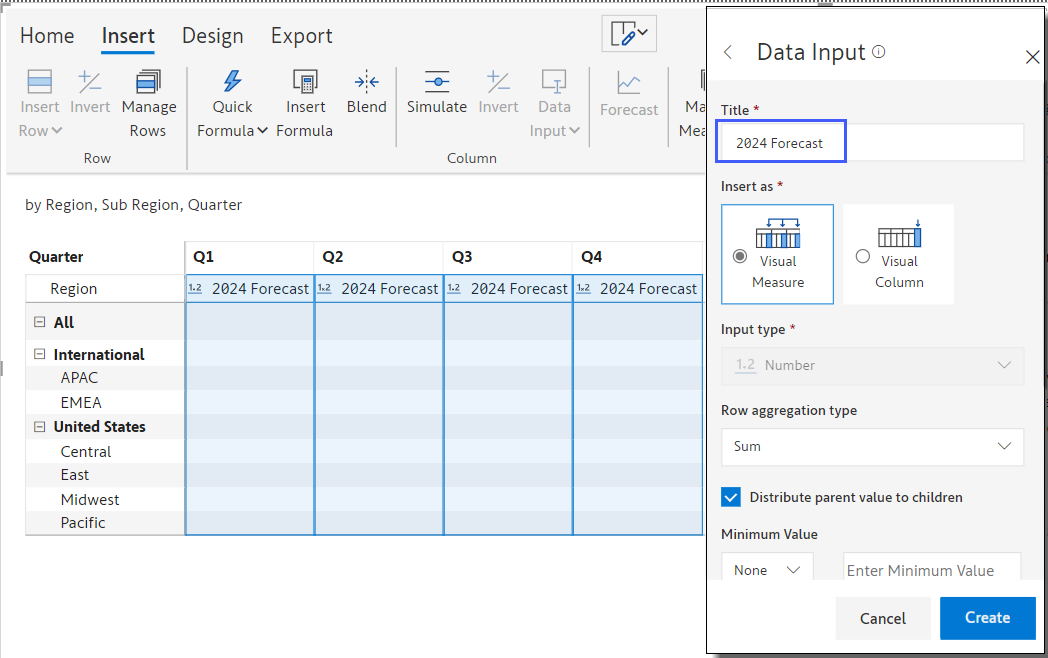
4. Name the column *2024 Forecast* and click on **Create**.
Name the forecast columns
5. You will get a blank template with four columns. You can also add additional fields of other types (text, multi-select, date, etc.) using the same Data Input menu shown earlier.
Blank Template with 4 forecast columns
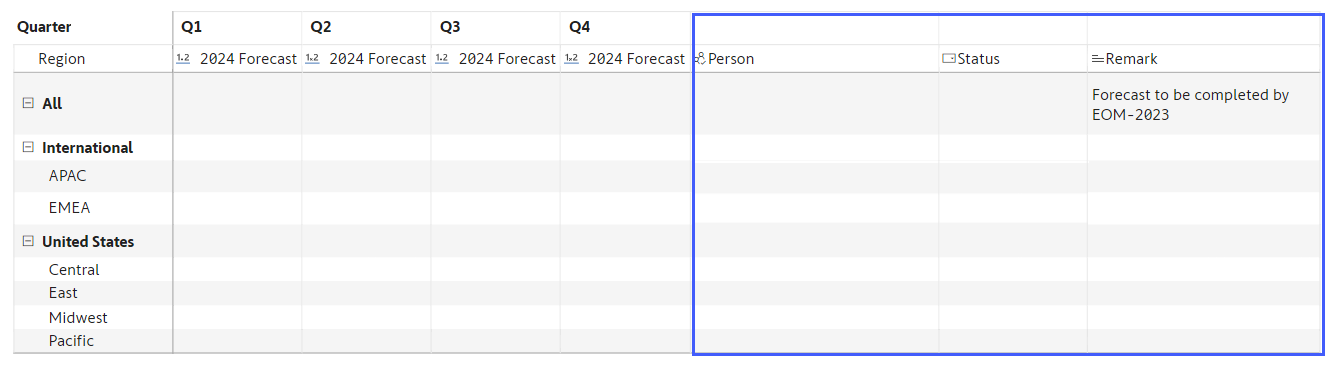
6. Let us go ahead & add these fields:
* a 'Person' column for inputting users' names from the organization. The list of names comes from the Office365 directory.
* a 'Status' text drop-down field, and
* a 'Remark' column for entering multi-line comments.
Add other fields
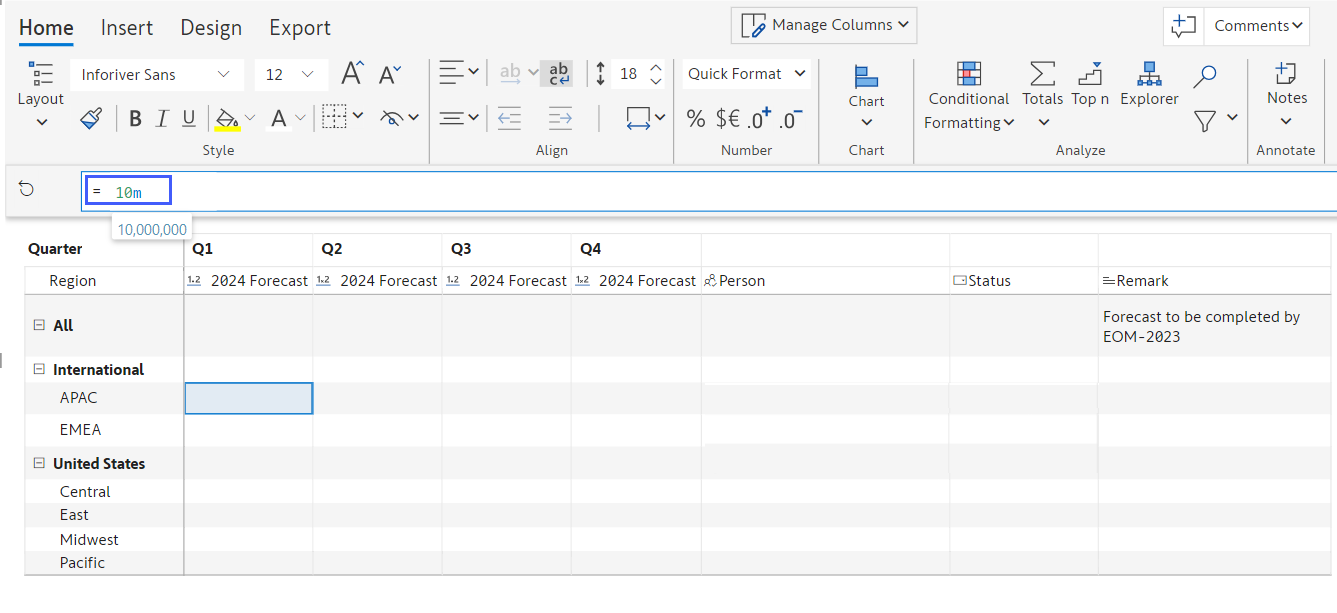
7. Let us start entering our forecasts now. Double-click the value for *Q1* for the *APAC* region. A formula bar appears above the table. Type in ‘10m’ in the formula bar.
Enter forecast values
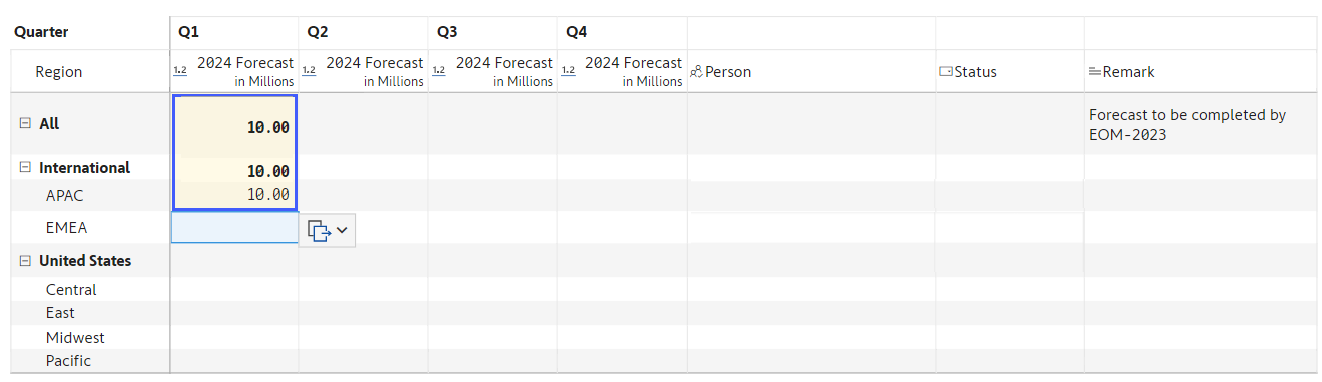
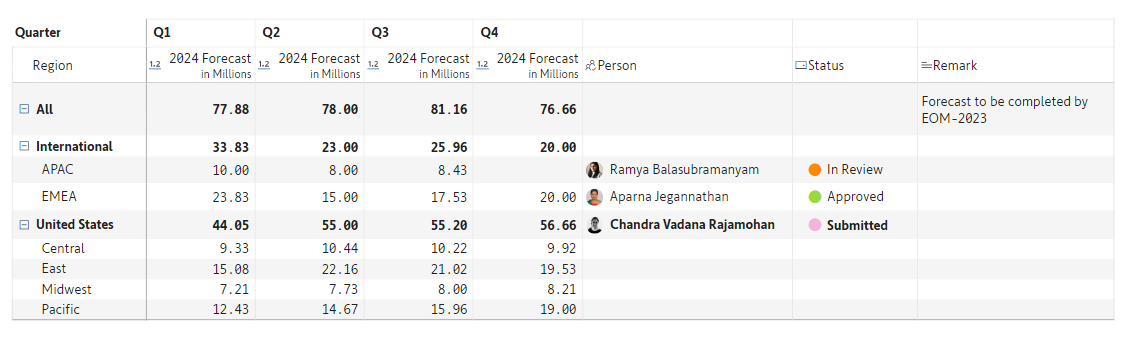
8. Press Enter, and the *APAC* values automatically roll up to the *International* region and *All* (company-level total). This makes hierarchical budgeting easier without having to write formulas at each parent level.
Automatic roll-up to the top levels
9. Similarly, you can go ahead by filling out values for the other granular regions. Assign the people & status fields to each row.
Assign people and status
Just like we entered the values, other users in the organization also can enter the values for their respective regions.
This is how a sales forecast can be done using Inforiver with a blank template in Power BI. In the [next section](/working-with-inforiver/7.-planning-budgeting-and-forecasting/forecasting-writeback-matrix/common-scenarios/forecast-using-existing-data.md), we'll learn to forecast using the existing data.
---
# Agent Instructions
This documentation is published with GitBook. GitBook is the documentation platform designed so that both humans and AI agents can read, navigate, and reason over technical content effectively. Learn more at gitbook.com.
## Querying This Documentation
If you need additional information that is not directly available in this page, you can query the documentation by asking a question.
Perform an HTTP GET request on the following URL with the `ask` and `goal` query parameters:
```
GET https://docs.inforiver.com/working-with-inforiver/7.-planning-budgeting-and-forecasting/forecasting-writeback-matrix/common-scenarios/forecast-using-a-blank-template.md?ask=&goal=
```
`ask` is the immediate question: it should be specific, self-contained, and written in natural language.
`goal` is what the user is ultimately trying to achieve, the reason they need the answer. Sharing it helps GitBook give you a better, more relevant answer. A goal is most helpful when it describes the outcome the user wants rather than restating the question. For example, with `ask=how do I create an API token`, a goal like `automate deployments from our CI pipeline` lets GitBook tailor the answer to that use case.
The response will contain a direct answer to the question and relevant excerpts and sources from the documentation.
Use this mechanism when the answer is not explicitly present in the current page, you need clarification or additional context, or you want to retrieve related documentation sections.