Migrating to Azure Managed Redis

1. Overview

We are migrating from Azure Cache for Redis to Azure Managed Redis due to the planned retirement and limited future support of the existing Azure Cache for Redis service, along with the need for a more secure, scalable, and enterprise-ready caching platform.

This migration ensures:

  • Platform continuity beyond the current service’s expiration timeline

  • Improved security posture, including stronger network isolation and identity integration

  • Higher availability and resilience, supporting business-critical workloads

By migrating proactively, we reduce the risk of forced upgrades, service disruption, or unsupported configurations, while positioning our caching layer on a modern, fully managed, and future-proof platform.

2. Deployment Steps

We are creating a new Azure Managed Redis instance.

a) Basics

circle-info

NOTE: If you are using a delta template to update to Azure Managed Redis, proceed to Step 4 for the dissociation process.

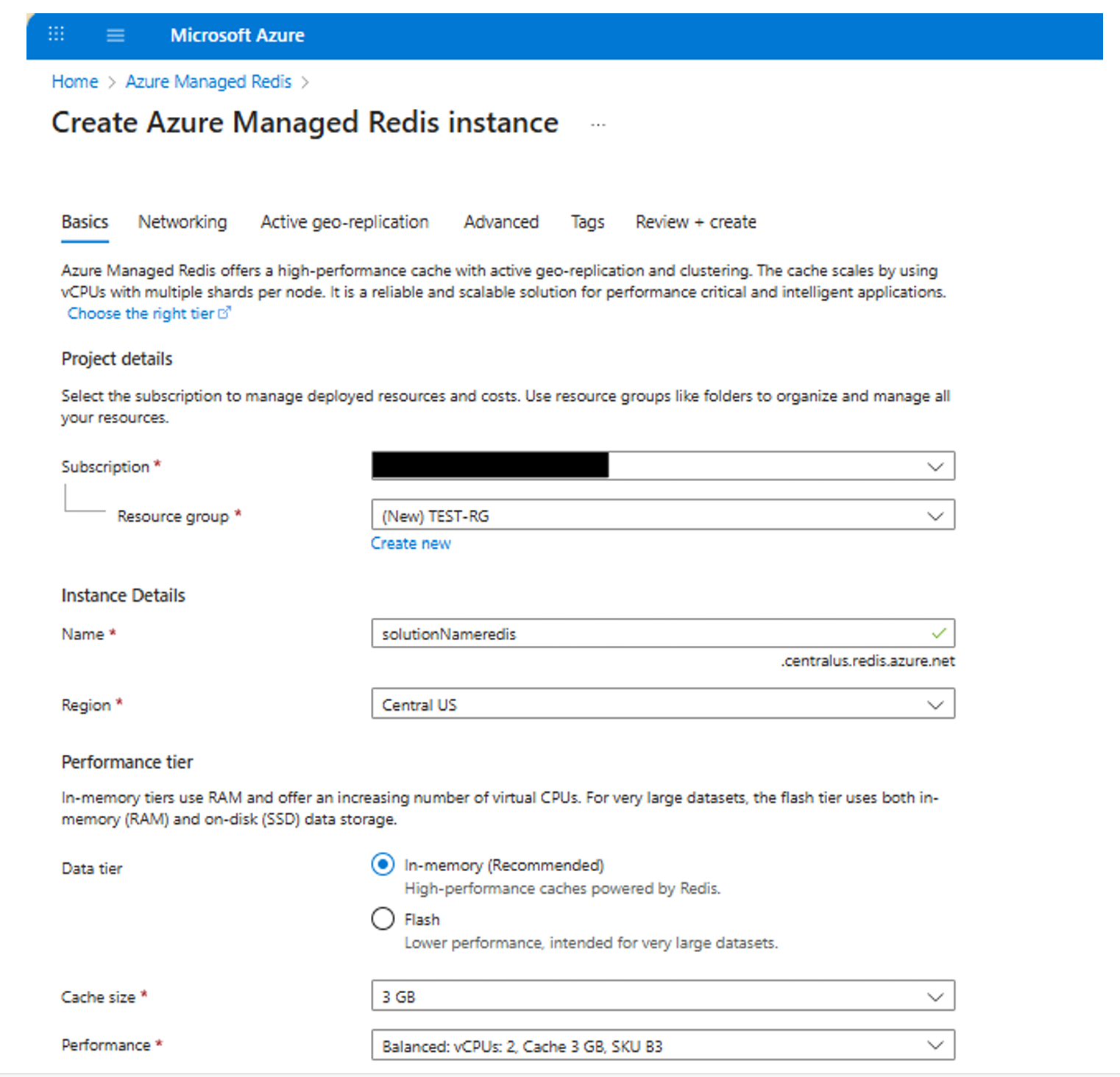
Create Azure Managed Redis Instance
  • Subscription: Select the subscription under which the Redis instance will be created and managed.

  • Resource Group: Select an existing resource group where Inforiver is deployed.

  • Name: Enter a name for the Redis instance following the naming convention: <solutionName>redis

  • Region: Select the Azure region where Inforiver is deployed.

  • Data Tier: In-memory (High-performance caching using RAM).

  • Cache Size: 3 GB.

b) Networking

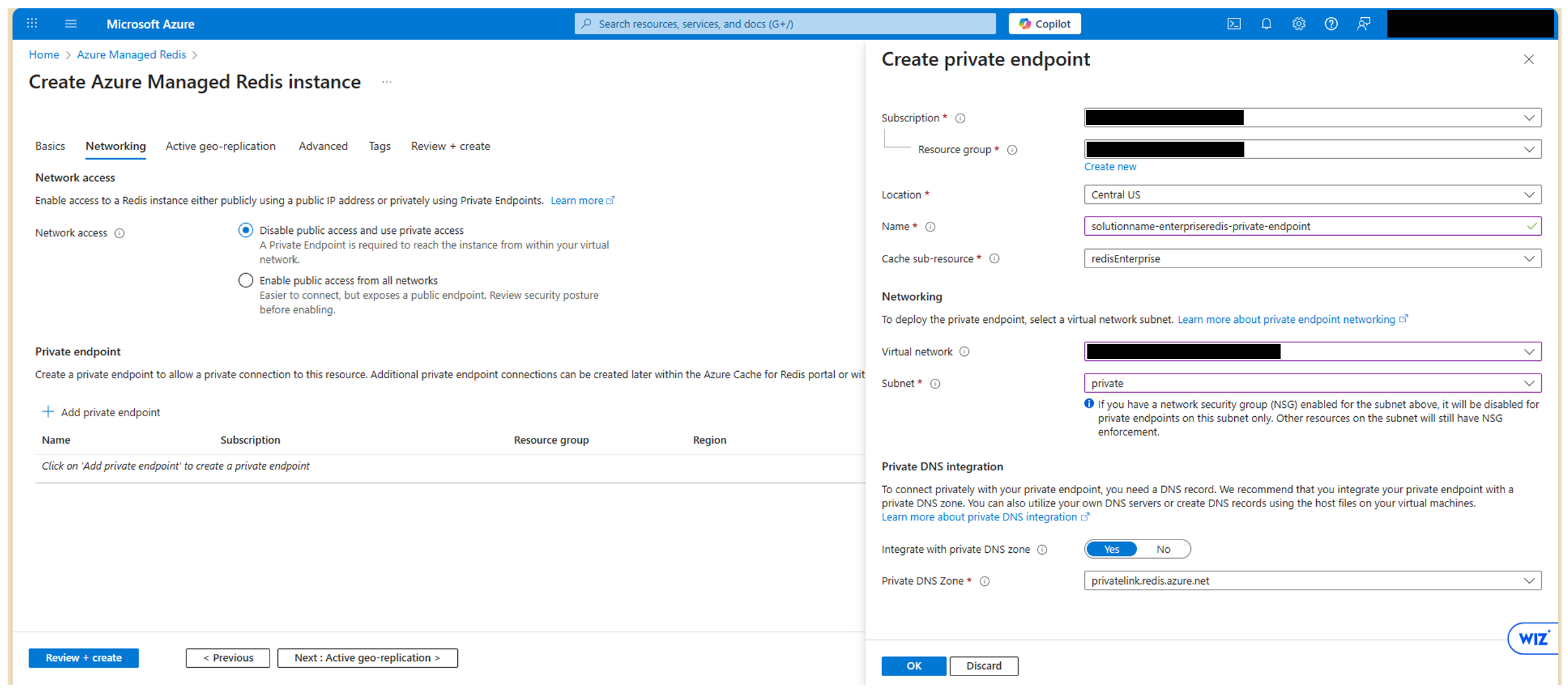
For existing private DNS zone

Configure networking to integrate with the existing private DNS zone.

For existing private DNS zone

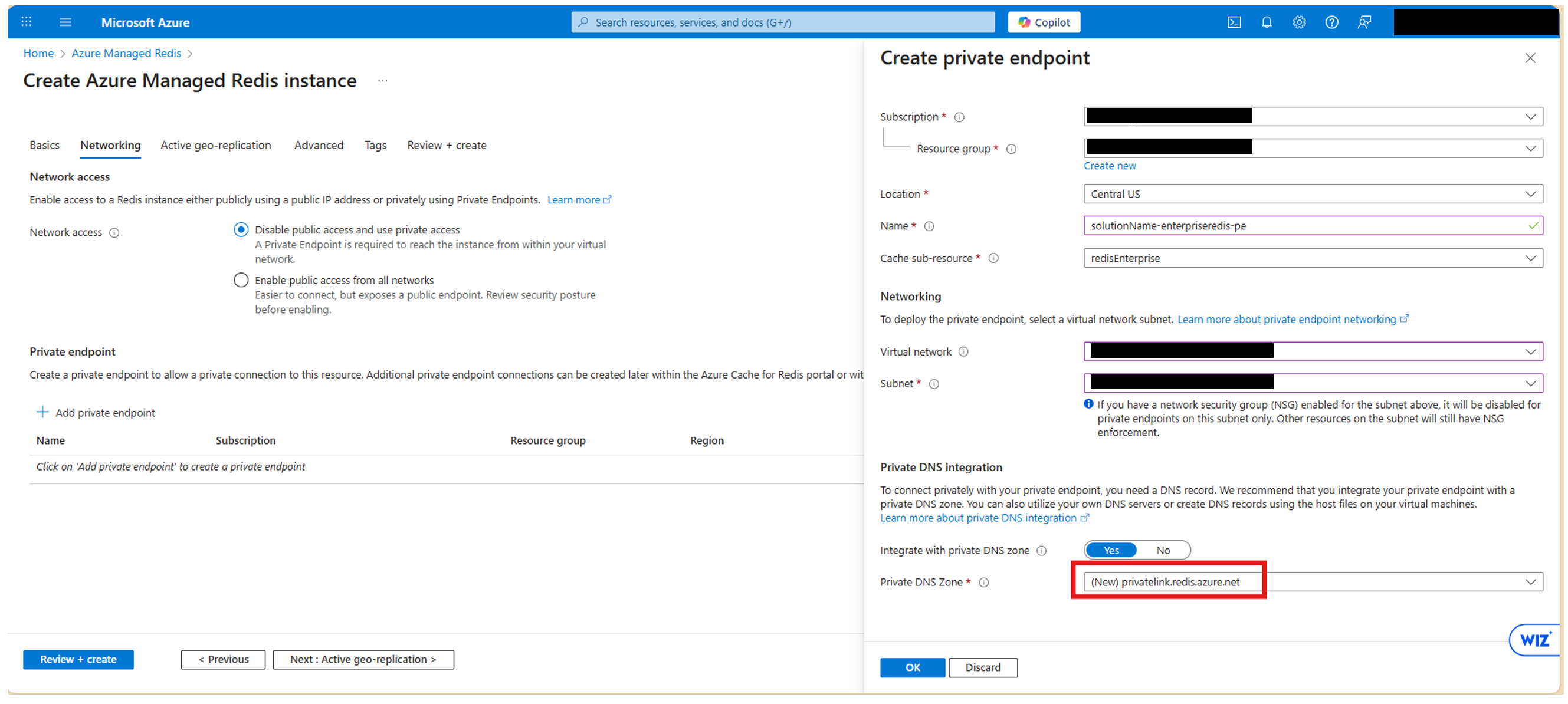
For creation of a new private DNS zone

For creation of new private DNS zone
  1. Under Network access, select Disable public access and use private access (This ensures the Redis instance is accessible only through private networking).

  2. Click on Add private endpoint. Enter Subscription, Resource group, and Location details.

  3. Enter the name for the private endpoint using the naming convention: <solutionName>-enterpriseredis-private-endpoint

  4. Choose the appropriate Virtual Network (VNet) and private subnet.

  5. Private DNS integration:

    • If you already have an existing private DNS zone, choose Yes for Private DNS integration and choose your existing Azure private DNS from the dropdown menu.

    • If you don’t have an existing private DNS zone, choosing Yes for Private DNS integration automatically creates a new Azure private DNS for you.

c) Advanced

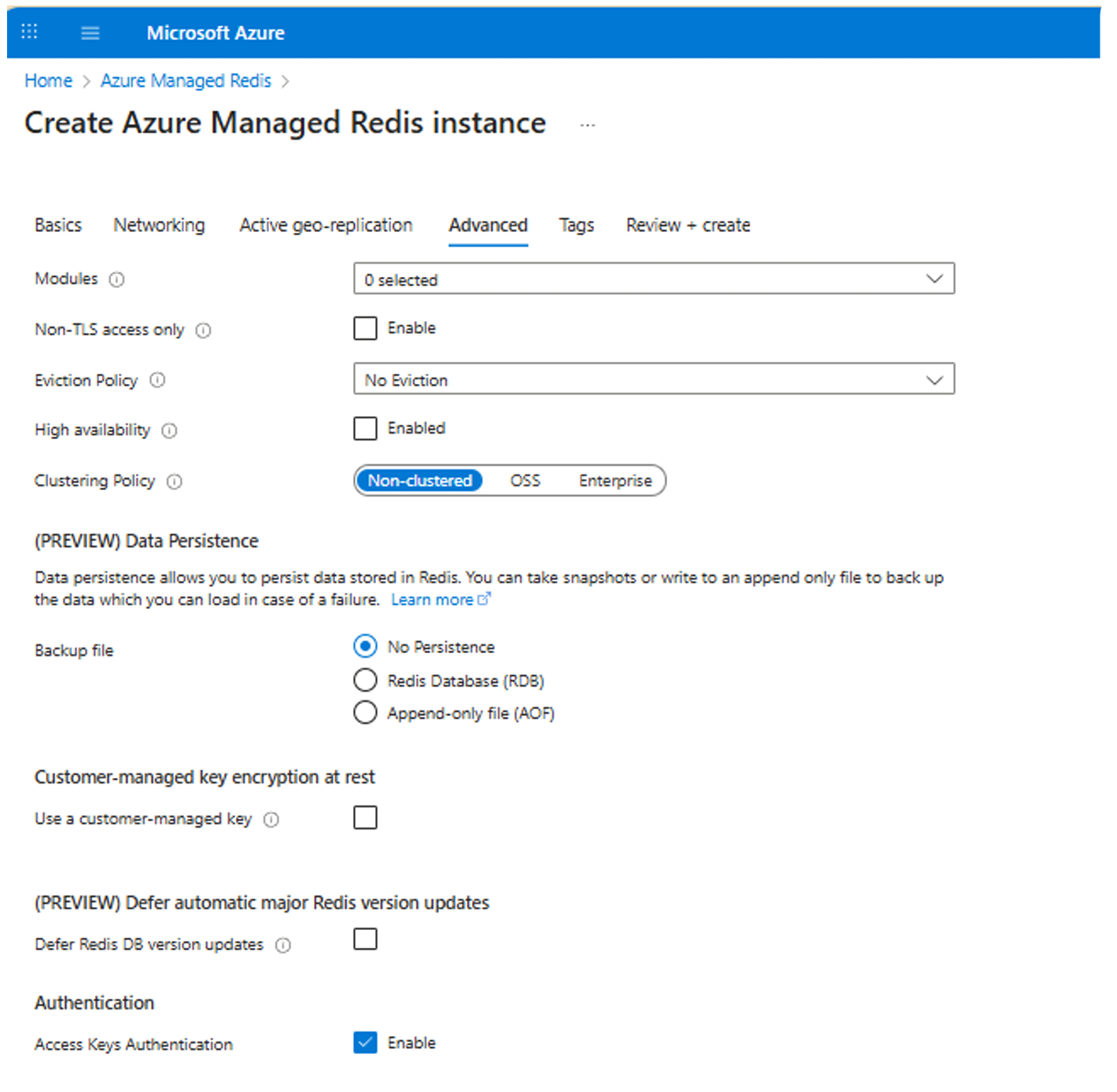
Create Azure Managed Redis Instance
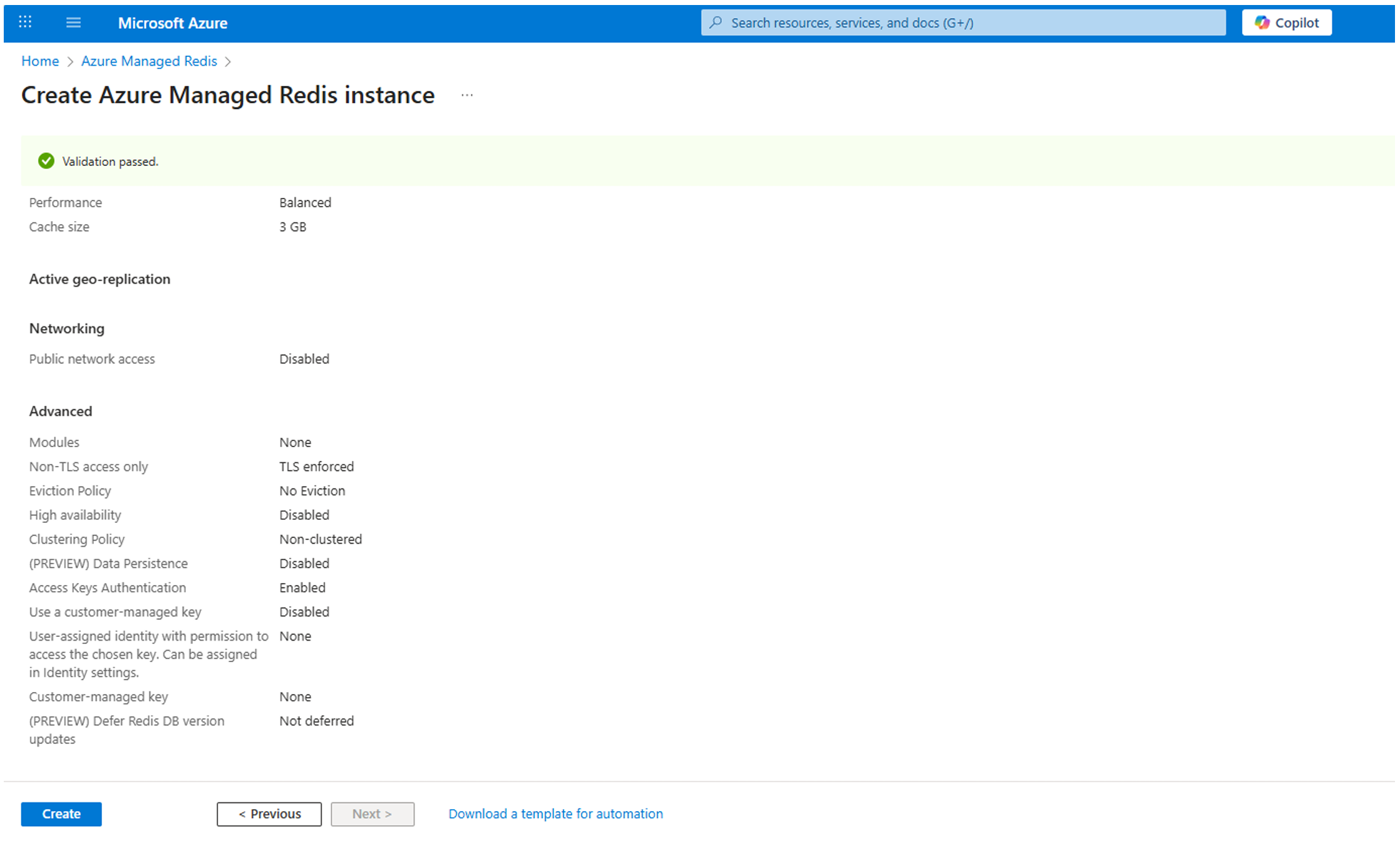
  • Non-TLS access only: Disable it.

  • Eviction Policy: No Eviction.

  • High availability: Disable it.

  • Clustering Policy: Non-clustered.

  • Data Persistence: No Persistence.

  • Access Keys Authentication: Enable it.

d) Review and Validation

Review
  • Review the resource configuration.

  • Select Create to provision the Azure Managed Redis instance.

3. Change Environment Variables in App Service

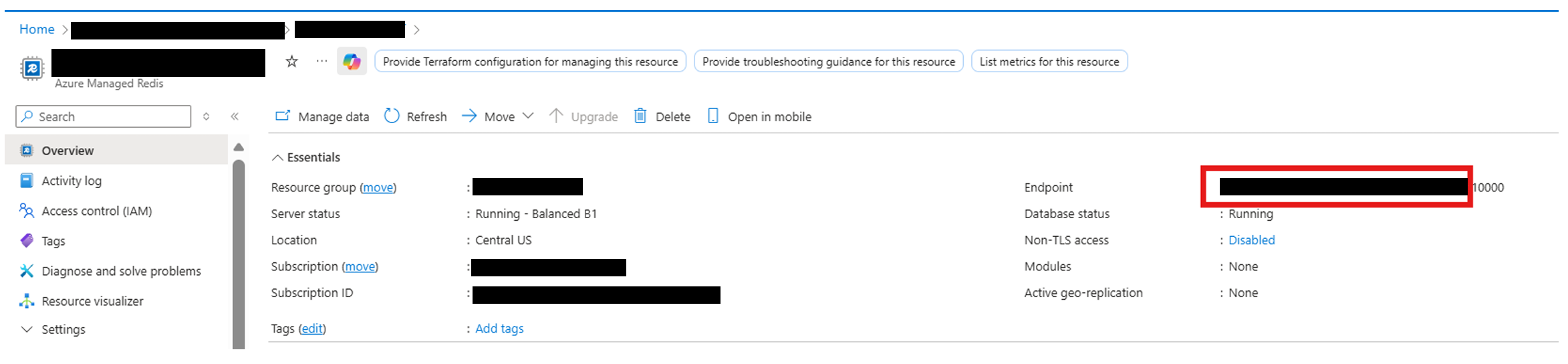
Copy the highlighted hostname without the port for REDIS_HOST
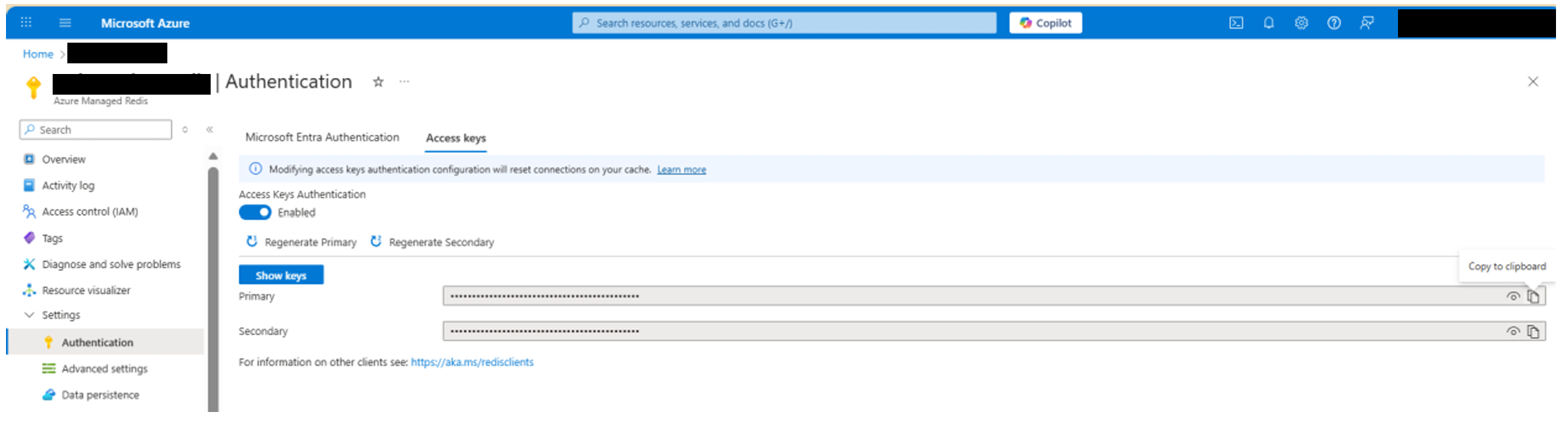
Copy the primary key for REDIS_PASSWORD
Update the application environment variables as follows:

  • Copy the hostname (without port) and set: REDIS_HOST: <redishost>

  • Use the following port: REDIS_PORT: 10000

  • Copy the primary access key and set: REDIS_PASSWORD: <primarykey>

4. Dissociation Steps

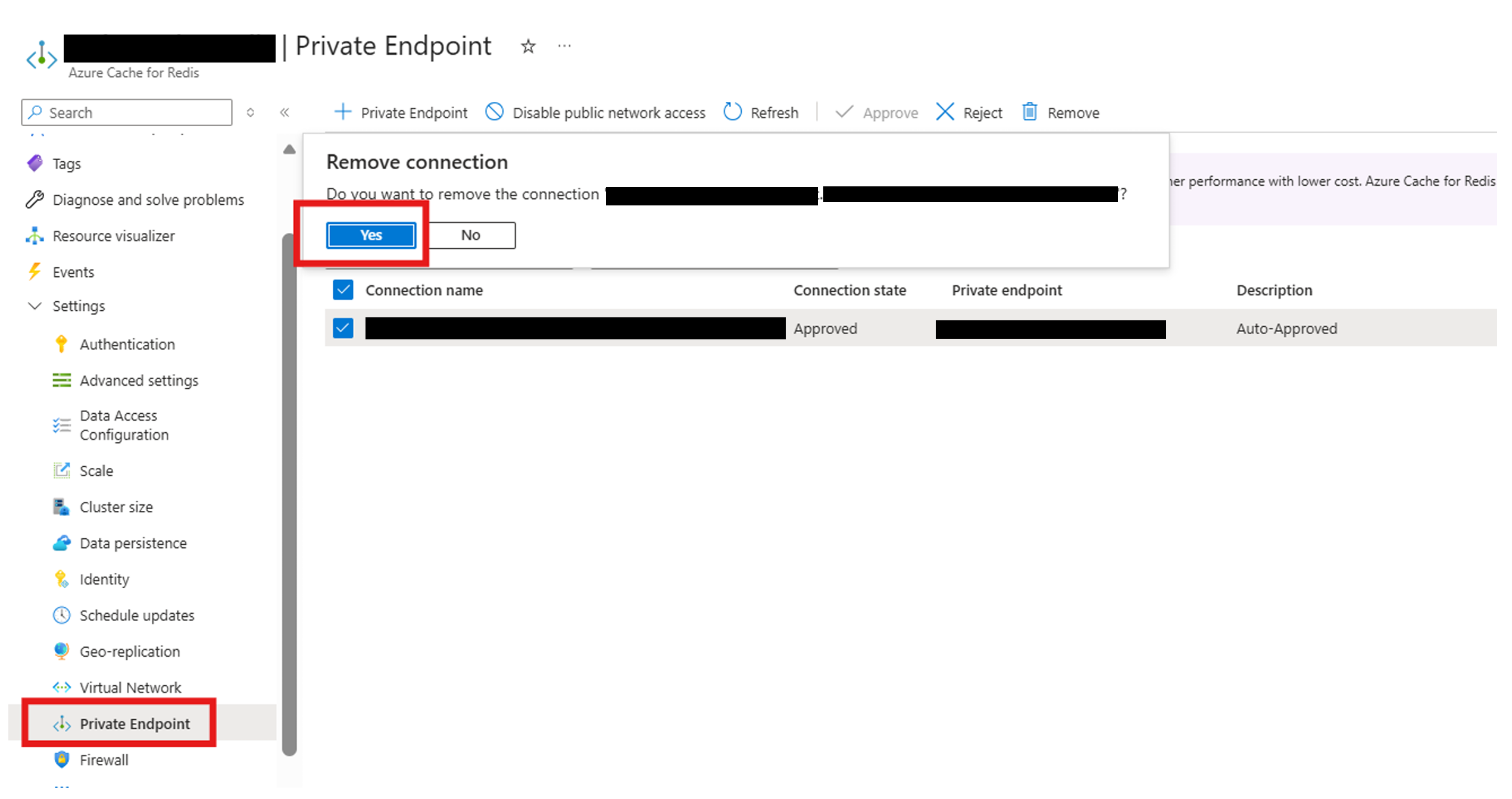
  • After validating application connectivity using the new Azure Managed Redis endpoint, start with deleting the private endpoint connection from the legacy Azure Cache for Redis.

Remove connection
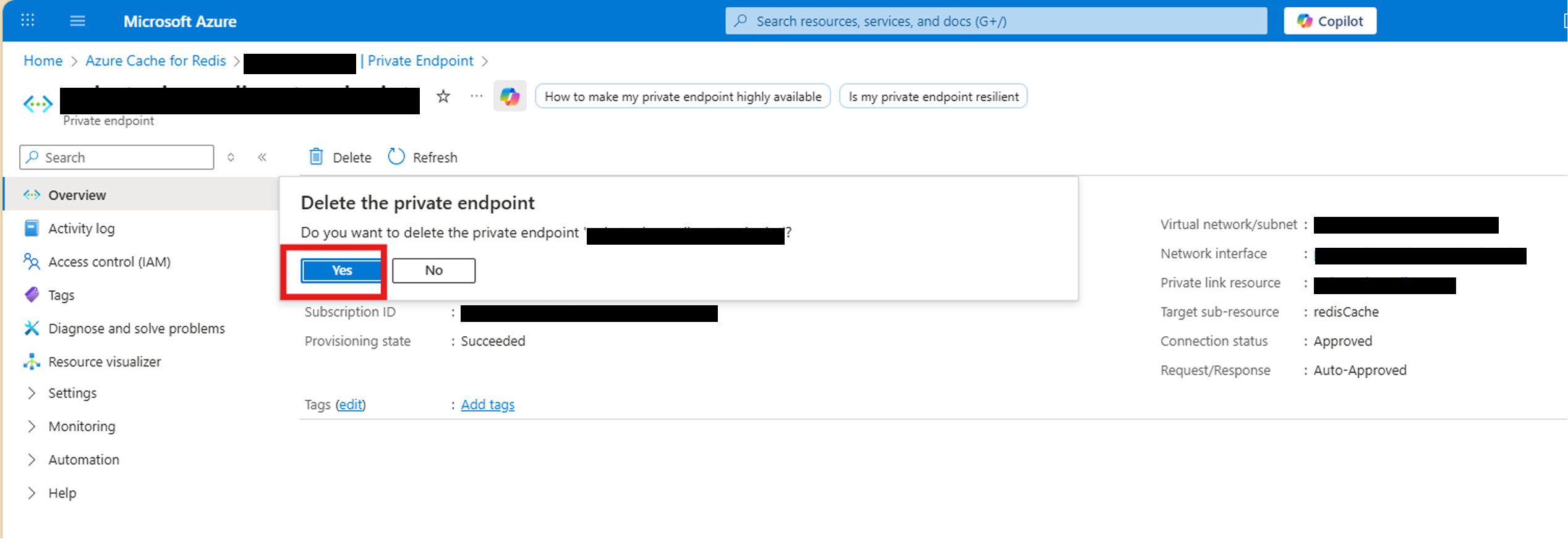
  • Identify the private endpoint associated with the legacy Azure Cache for Redis and delete it.

Delete the private endpoint
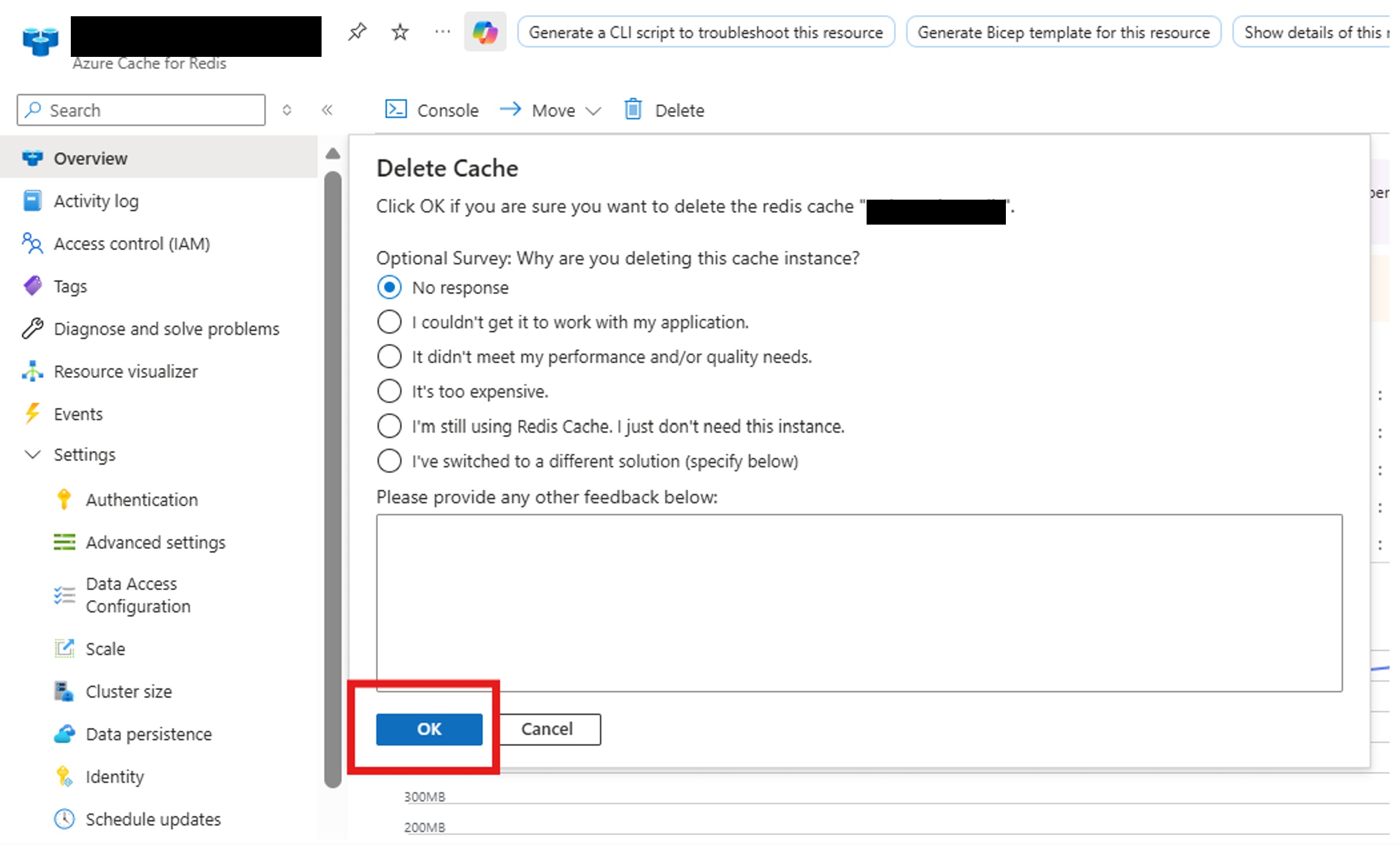
  • Delete the legacy Azure Cache for Redis resource after successful migration and validation.

  • Confirm that the resource is fully decommissioned and no longer accessible.

Last updated

Was this helpful?