Number settings

Under the Numbers section in Display settings, you can use the following options for formatting numbers in your reports:

1. Semantic format

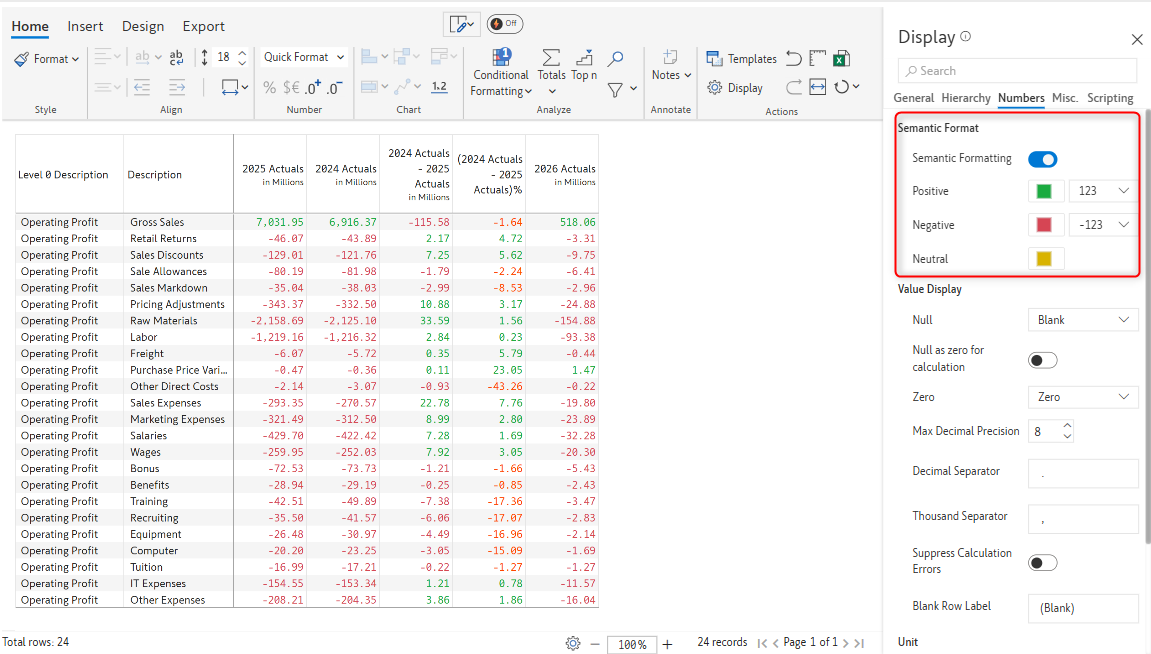
Semantic formatting allows you to highlight or emphasize positive and negative values.

When you enable the toggle, you will be able to customize the color for positive, negative, and neutral values. You can also choose the format for displaying the positive and negative values from the drop-down.

Semantic formatting

2. Value display

This section provides options for null and zero display, decimal and thousand separators, and more.

2.1. Show (-ve) sign

This option lets you display negative numbers within parentheses, as shown in the image.

circle-info

The 'Show (-ve) sign' checkbox is enabled only when the 'Semantic formatting' toggle is turned off.

Show -ve sign

2.2. Null

You can replace null values using blank, zero, hyphen, or enter custom text.

When Custom is selected from the drop-down, the Null text option is enabled - you can provide the desired text to replace nulls (a maximum of six characters).

In the image, the hyphen is used to represent null values.

Null replacement options

2.3 Null as zero for calculation

Reports often contain null cells that may be used in calculated columns. In the report below, the Absolute Variance (2026) field is calculated using the 2026 Actuals and 2026 Plans measures, which contain null values. As a result, the Absolute Variance measure also includes null data.

Report with null values

When calculations involve measures that contain null values, you can replace the nulls with zeroes by enabling the Null as zero for calculation toggle.

Nulls replaced with zeroes

2.4 Zero

Similar to null values, you can display a zero value using blank, zero, hyphen, or enter custom text.

When Custom is selected from the drop-down, the Zero text option is enabled - you can provide the desired text to replace zeroes(a maximum of six characters).

In this example, we've used ZERO to replace 0's in the Budget field.

Nulls replaced with custom texts

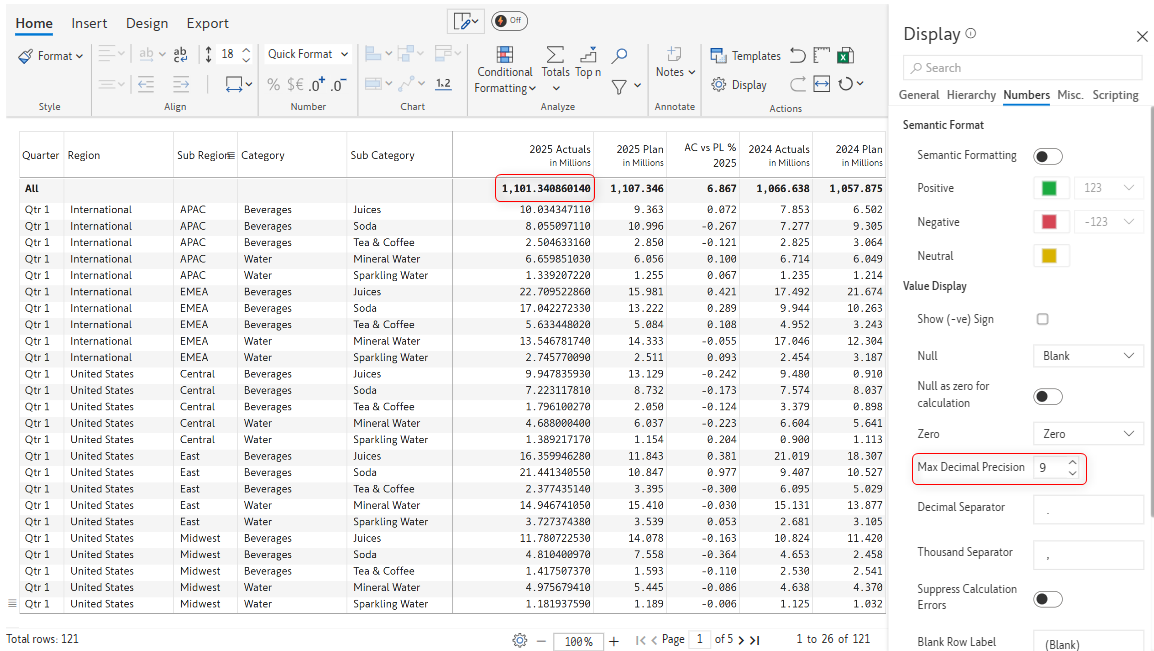
2.5 Max decimal precision

You can set the maximum number of digits to display after the decimal point.

Decimal precision

2.6 Decimal separator

You can insert the desired decimal separator in this field. By default, the dot (.) is used.

Decimal separator

2.7 Thousand separator

You can insert the desired thousand separator in this field. By default comma (,) is used.

Thousand separator

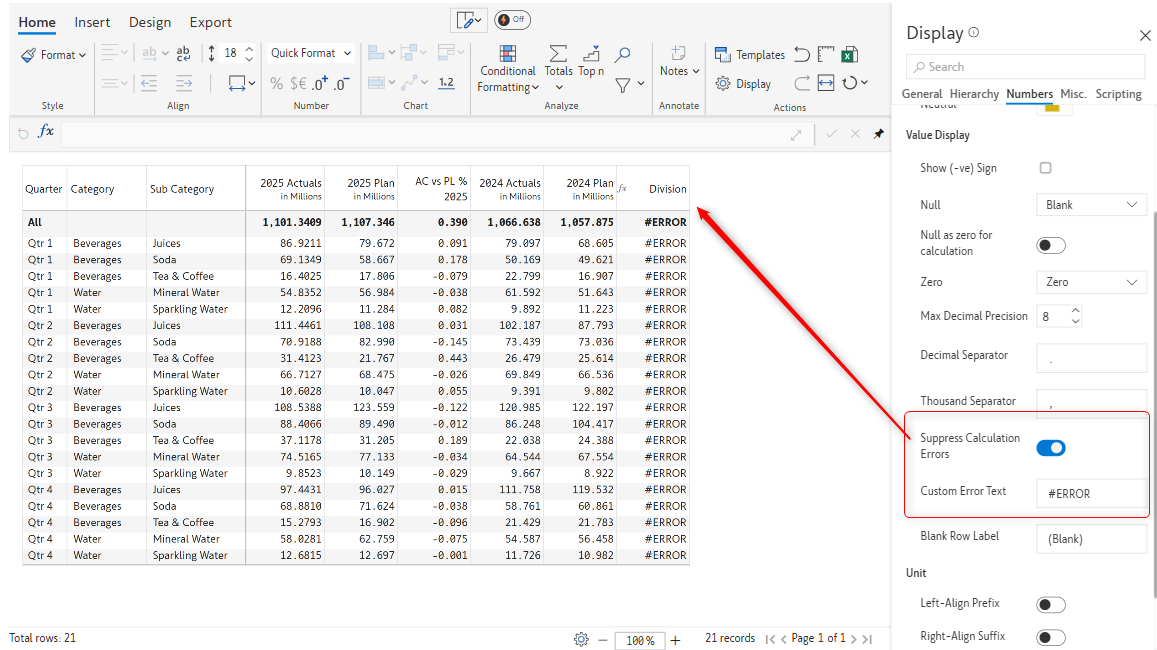
2.8 Suppress calculation errors

When a calculation error occurs during data processing, the error message is suppressed and handled to prevent disruption in report rendering. This option can be used to hide calculation errors. You can also define custom error text that will be displayed in case of calculation errors.

Suppress calculation errors

2.9 Blank row label

By default, blank rows are identified as '(Blank)'. This can be customized by entering the desired text in the Blank Row Label textbox.

In this example, blank sub categories have been replaced with 'NO Data'.

Blank row label

3. Unit

Specify the labels for scaling units and left-align prefixes.

3.1 Left-align prefix

By default, the prefix is displayed just before the number. The image below indicates how the prefixes are displayed when the left-align prefix option. is disabled

Left align prefix option disabled

On enabling the left-align prefix option, the prefix is aligned to the left of the cell.

Left align prefix option enabled

3.2 Right-align suffix

Similar to the left-align prefix option, you can align the suffix to the right side of a cell.

Right align suffix

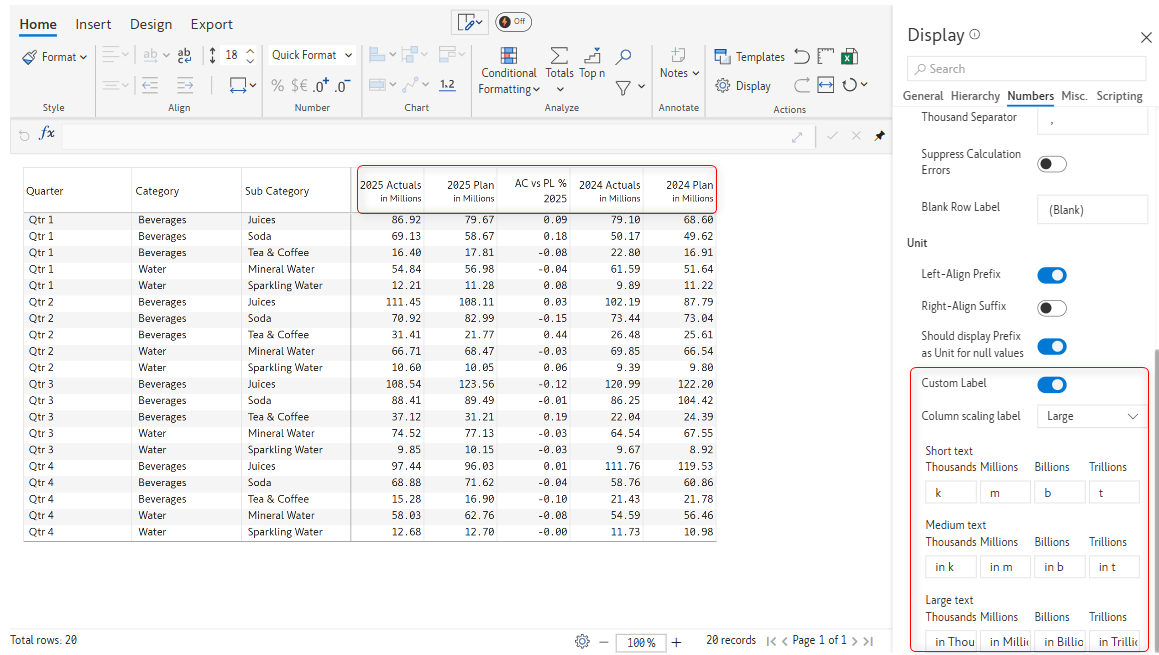
3.3 Custom label

This option lets you customize the scaling labels. When you enable the toggle, additional options are displayed. Select 'Short', 'Medium', or 'Large' from the Column scaling label dropdown. The default settings are shown in the image.

Custom scaling

The customized 'Medium' column scaling label is shown.

Medium scaling

FAQs

Q1: Do number settings affect data accuracy or calculations?

No. Number settings only change how values are displayed in the visual. They do not modify the underlying data, calculations, or measures, ensuring your reports remain accurate and reliable.

Q2: Can I control rounding and decimal precision?

Yes. You can specify how many decimal places to display and control rounding behavior to ensure KPIs are shown with the right level of accuracy.

Last updated

Was this helpful?