SETVALUE

The SETVALUE formula can be used to assign a value to a data input field. It can be used to set up approval workflows in Power BI.

Syntax

SETVALUE(measure, value, row, column)

Arguments

measure - The value will be assigned to the field specified in this parameter. Required.

value - The value to be assigned. Required.

row - Use the ROW identifier to reference the current row or pass the row category. Optional.

columns - Use the COLUMN identifier to reference the current column or pass the column category. Optional.

Example

SETVALUE([Status], 'Approved')
//Assigns 'Approved' to the Status field

SETVALUE([Status], 'Approved', ROW.LEAVES, COLUMN.LEAVES)
//Assigns 'Approved' to the leaf rows and leaf columns

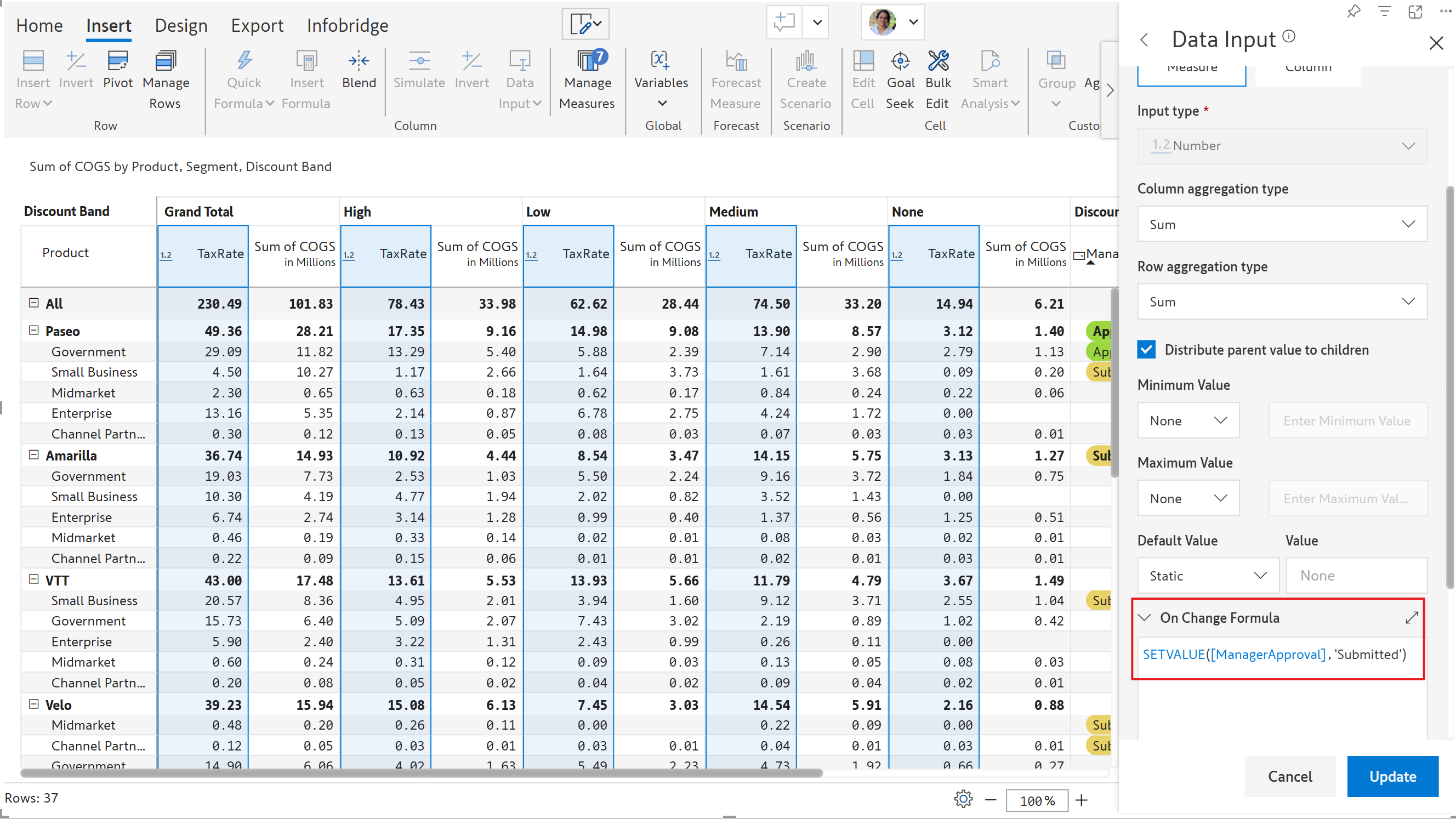
Data input dropdowns have an On Change Formula section where you can specify the actions to be triggered when a user selects an option. In this example, the ManagerApproval dropdown is set to 'Submitted' when the tax rate is changed:

Setting the dropdown value when the data input is changed
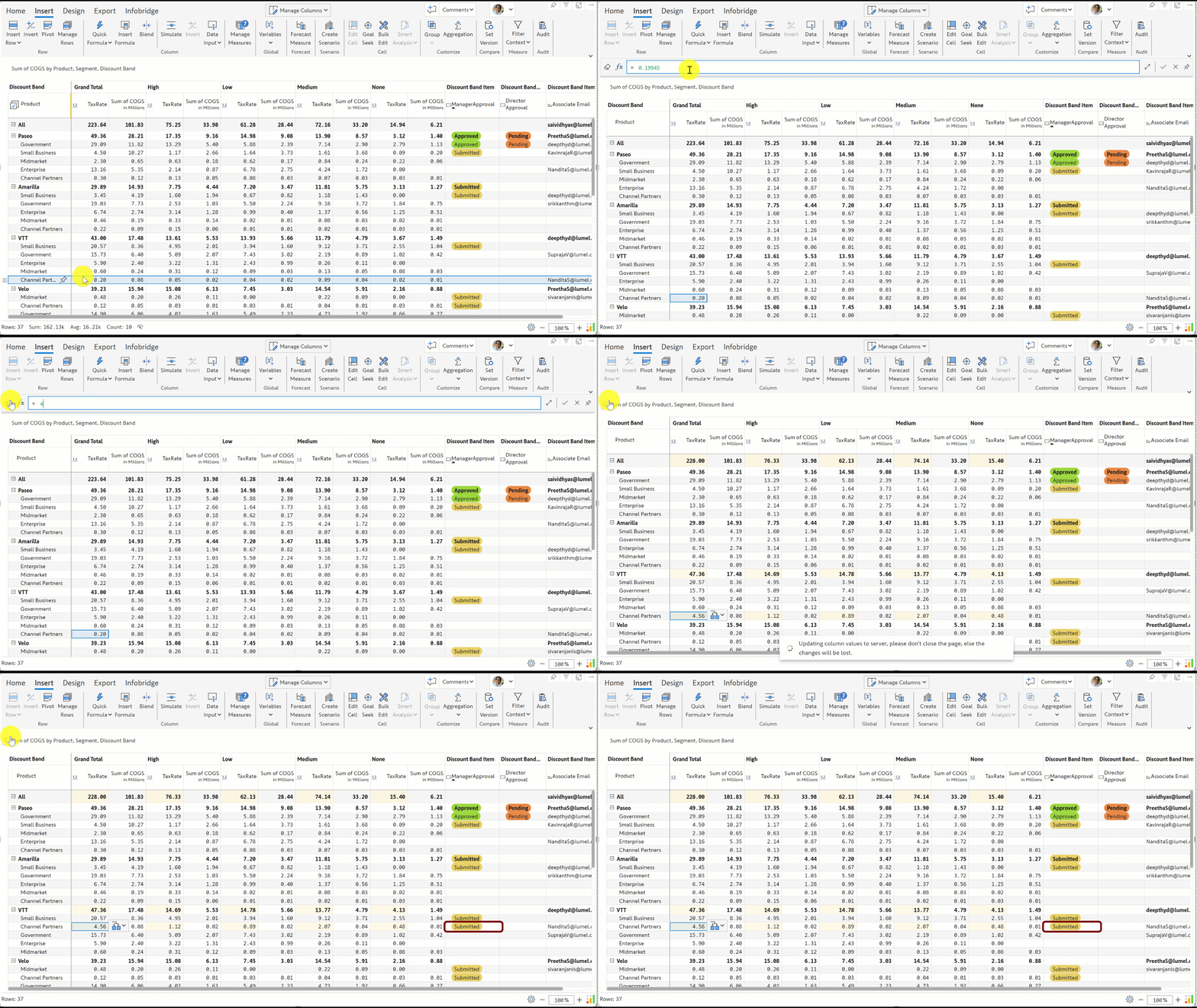
The ManagerApproval automatically changes to 'Submitted' when the TaxRate field is changed.

The approval dropdown is automatically updated when the data input field is changed.
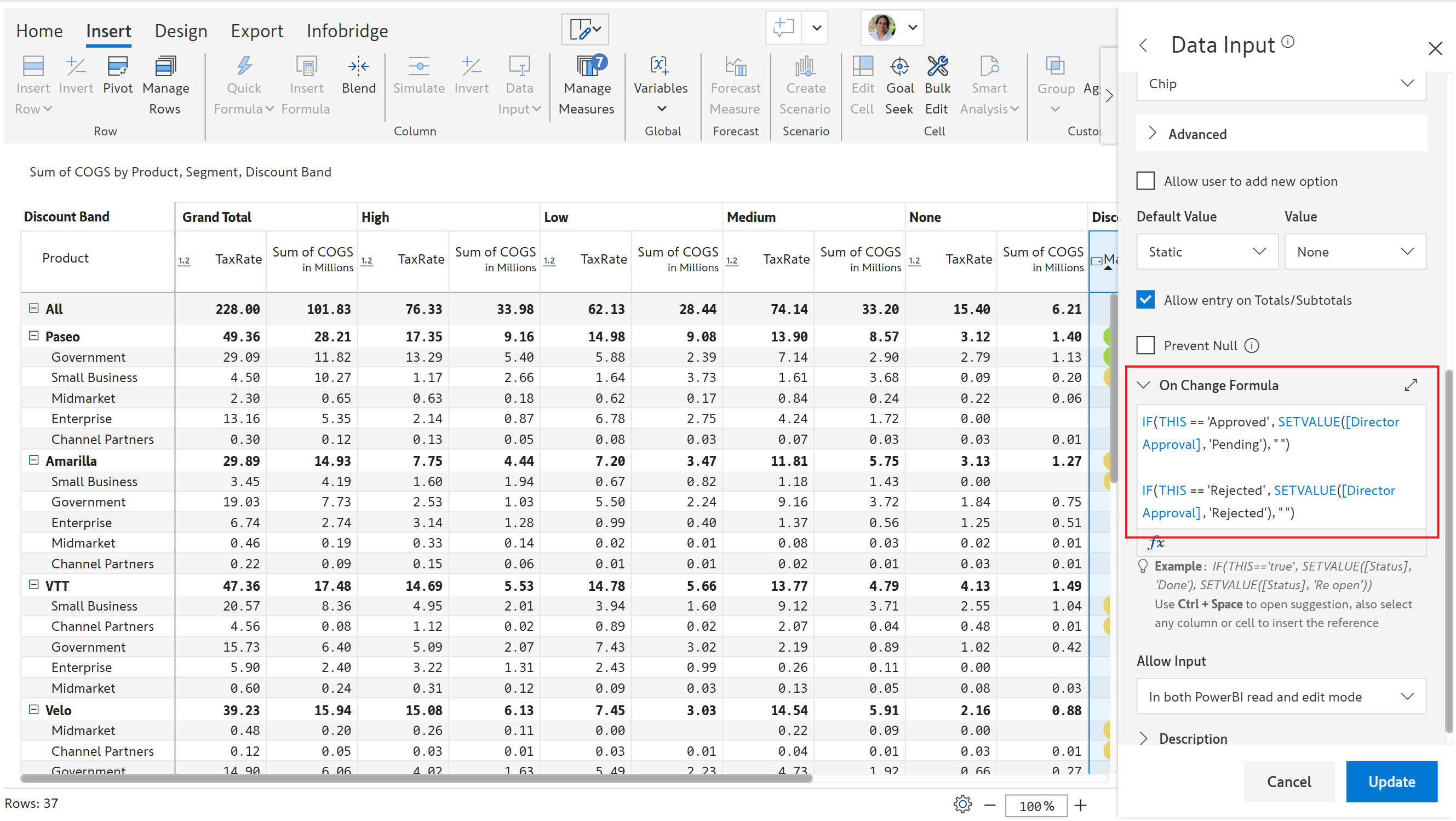
Similarly, we can set up approval workflows by changing the DirectorApproval to 'Pending' when the manager approves. If the change is rejected by the manager, the status is automatically set to 'Rejected' in the DirectorApproval dropdown.

Using SETVALUE to create approval workflows
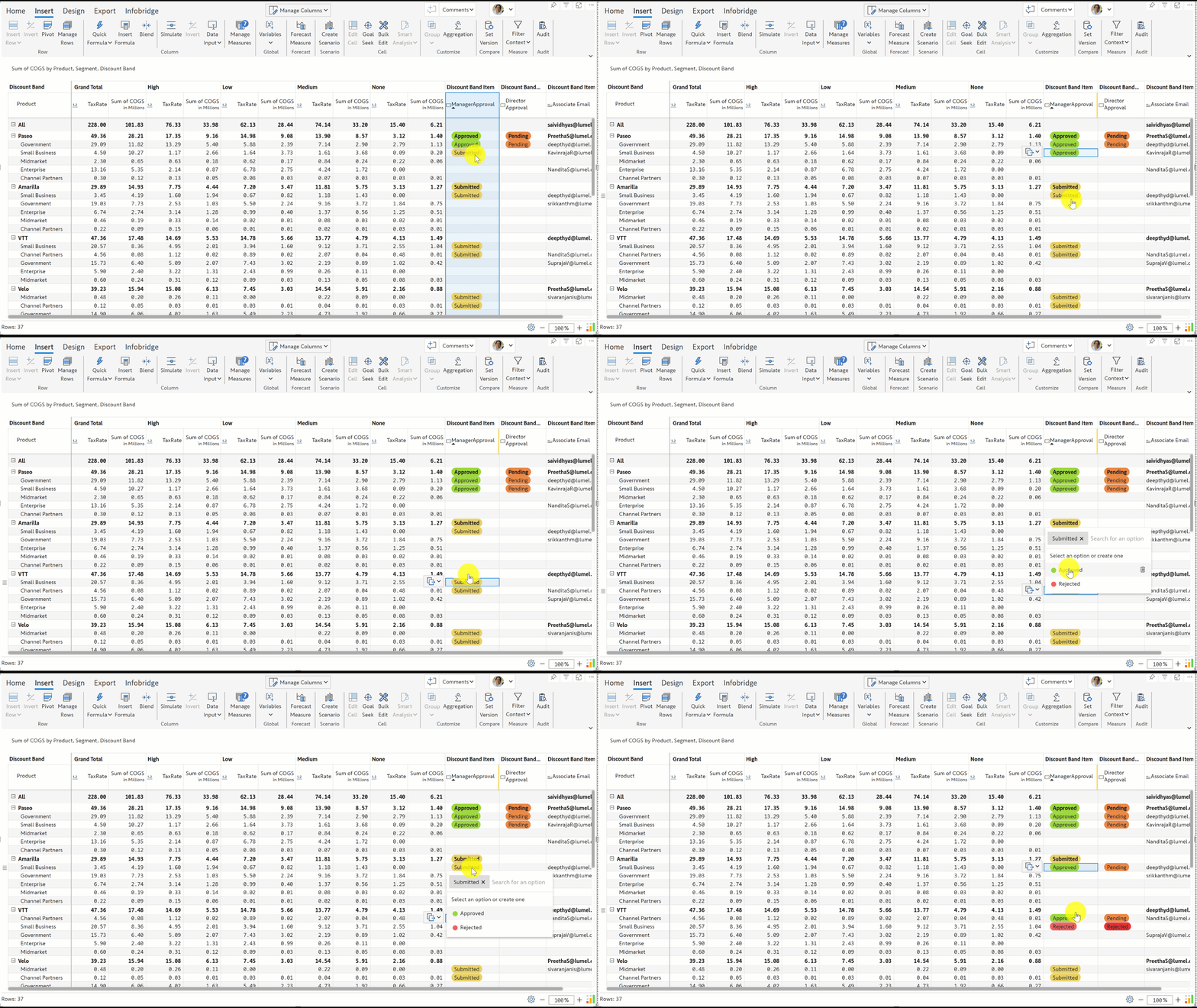
The animation below shows a sample approval workflow:

Approval workflow created using SETVALUE

Last updated

Was this helpful?