> For the complete documentation index, see [llms.txt](https://docs.inforiver.com/llms.txt). Markdown versions of documentation pages are available by appending `.md` to page URLs; this page is available as [Markdown](https://docs.inforiver.com/~/changes/mS6jwvARNLHpKqBa4cT9/admin-console/settings/writeback.md).
# Writeback
## 1. Connections
With connection settings, the administrator can view, manage, and configure all the available writeback connections.
This page lists all the writeback destination connections. Inforiver provides comprehensive filters and search bars to access your connections quickly.
* The *search bar* narrows down the list based on the full/partial connection name that is keyed in.
* The *Connection Type* filter can be used to view all the connections to a particular type of destination.
* The *Updated By* filter can be used to search for connections that a particular user has updated.
Connections
### i) Add a new connection
To add a new connection, click the 'Add new connection' button to open the *Create Connection* modal.
Add New Connection
In the *Create Connection* modal, you can select the required writeback destination. Click Continue to open the *Add Connection* page.
Select writeback destination
On the 'Add connection' page, enter all your connection-related details.
Enter the connection name and click 'Save connection' to complete the connection creation process.
Save connection
The created connection will be listed on the Connections page.
Connection created
### ii) Edit/Delete connection
You can edit the available connections using the edit icon(pencil) available on the top right corner of each connection.
Edit connection
Clicking the pencil icon will open the 'Edit connection' page where you can edit or make changes to the connection.
make changes to connection
To delete any created connection, click on the 'Trash' icon on the top-right corner of the connection.
Delete connection
This will open up a 'Confirmation' modal. Click 'Confirm' to permanently delete the connection.
Confirm deletion
## 2. Settings
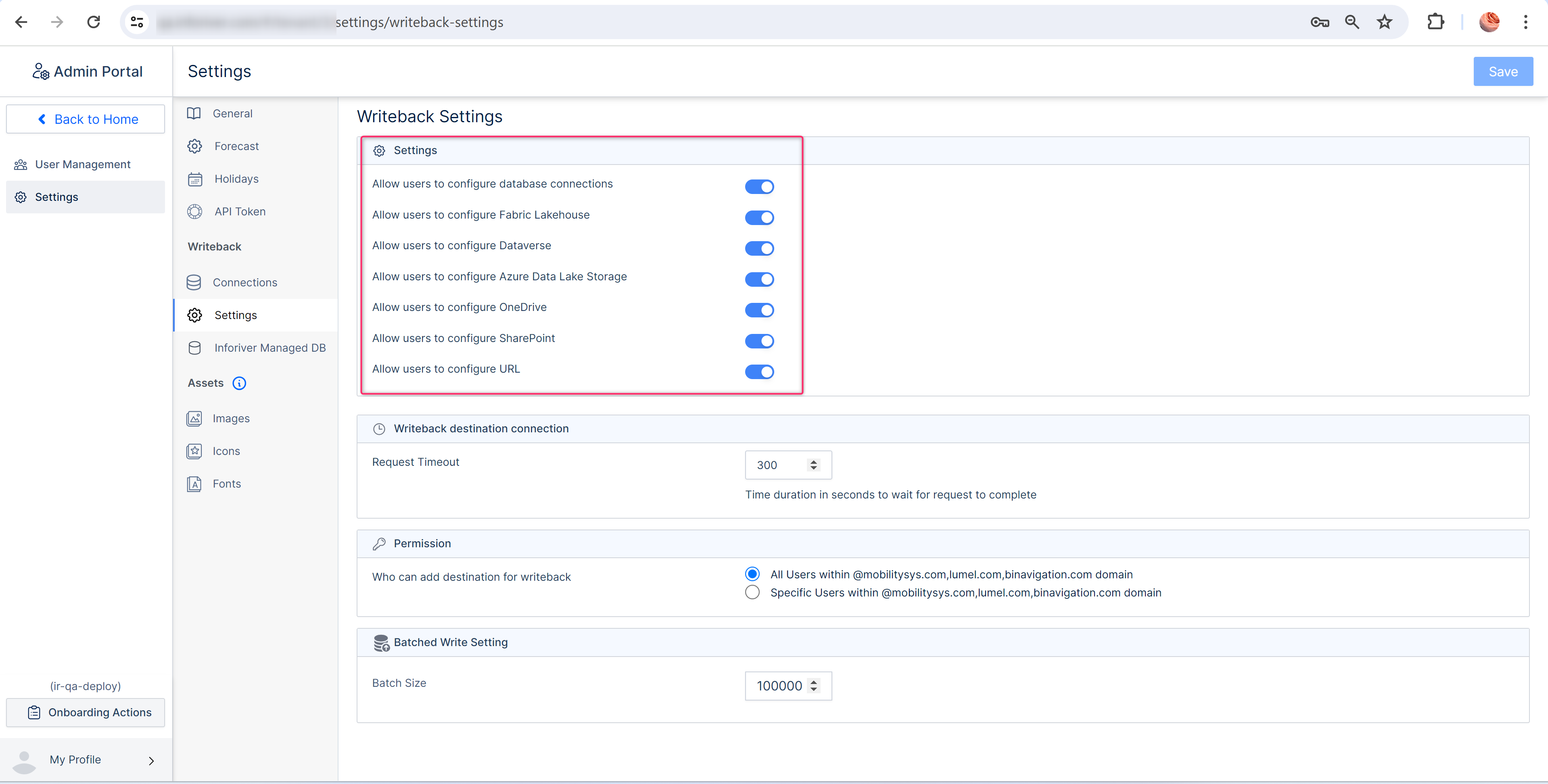
The writeback settings let admins configure various access settings for the users. The admin can configure the following settings:
Allowed Destination Types
#### **Settings**
#### **i) Allow users to configure database connections**
By enabling this option you can allow users to configure their own DB connections. Disabling this option will let the users use the admin-configured DB.
#### **ii) Allow users to configure OneDrive**
Enabling this option will allow users to configure the OneDrive writeback destination.
#### **iii) Allow users to configure SharePoint**
Enabling this option will allow users to configure the SharePoint writeback destination.
#### **iv) Allow users to configure URL**
Enabling this option will allow users to configure the URL.
In this section, we have covered the writeback settings. Navigate to the next chapter to learn more about the [managed DB settings](/~/changes/mS6jwvARNLHpKqBa4cT9/admin-console/settings/managed-db.md).
---
# Agent Instructions
This documentation is published with GitBook. GitBook is the documentation platform designed so that both humans and AI agents can read, navigate, and reason over technical content effectively. Learn more at gitbook.com.
## Querying This Documentation
If you need additional information that is not directly available in this page, you can query the documentation dynamically by asking a question.
Perform an HTTP GET request on the current page URL with the `ask` query parameter, and the optional `goal` query parameter:
```
GET https://docs.inforiver.com/~/changes/mS6jwvARNLHpKqBa4cT9/admin-console/settings/writeback.md?ask=&goal=
```
`ask` is the immediate question: it should be specific, self-contained, and written in natural language.
`goal` is optional and describes the broader end goal you are ultimately trying to accomplish on behalf of the user. GitBook uses it to tailor the answer towards what is most useful for that goal.
The response will contain a direct answer to the question and relevant excerpts and sources from the documentation.
Use this mechanism when the answer is not explicitly present in the current page, you need clarification or additional context, or you want to retrieve related documentation sections.