Blend measures

Learn how to use Blend Measures to combine multiple KPIs into a single, compact view—enabling quick comparison and clearer insights in your Power BI reports using Inforiver.

Inforiver allows you to blend two measures in a single column along with formatting, including conditional formatting.

Why Blend Measures?

circle-check

Step-by-step guide to blending measures

Let's blend the Sales and Margin % columns into a single column.

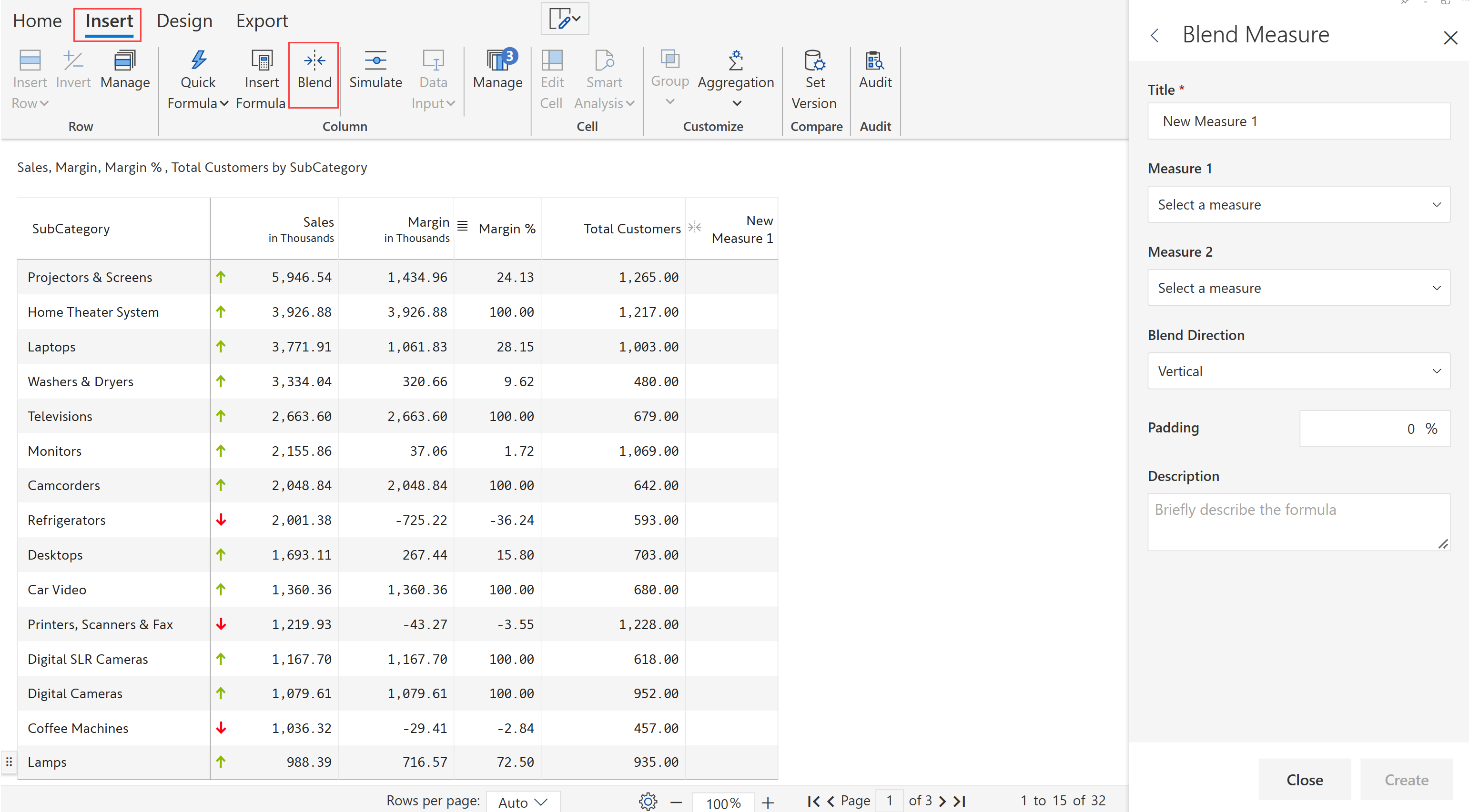
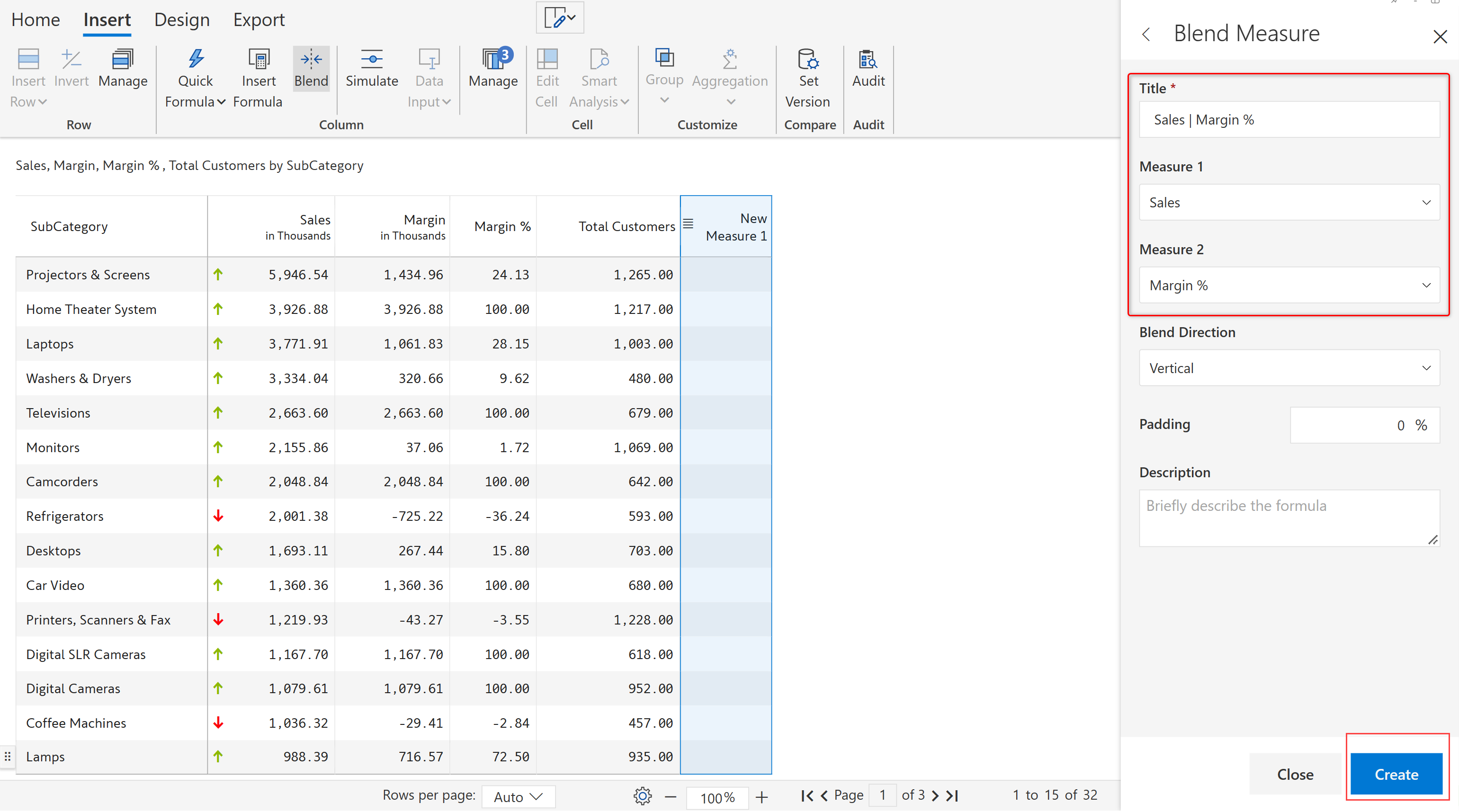
STEP 1: In the Insert tab, click on the Blend option in the Column section. A blank measure gets inserted, and the Blend measure side panel opens.

Blend

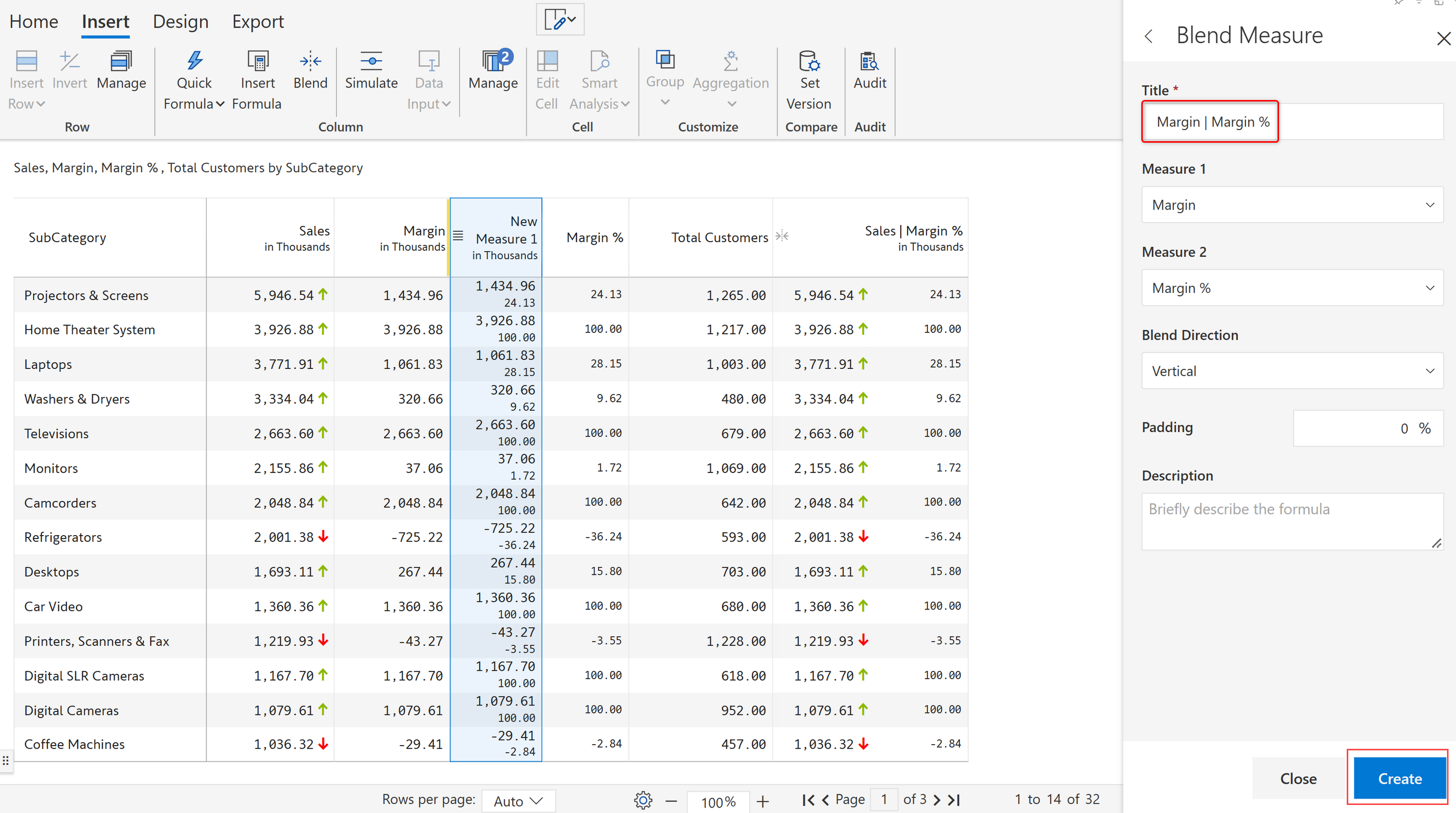
STEP 2: Enter the title and select the measures as shown from the dropdown. Click Create.

Blend measure panel

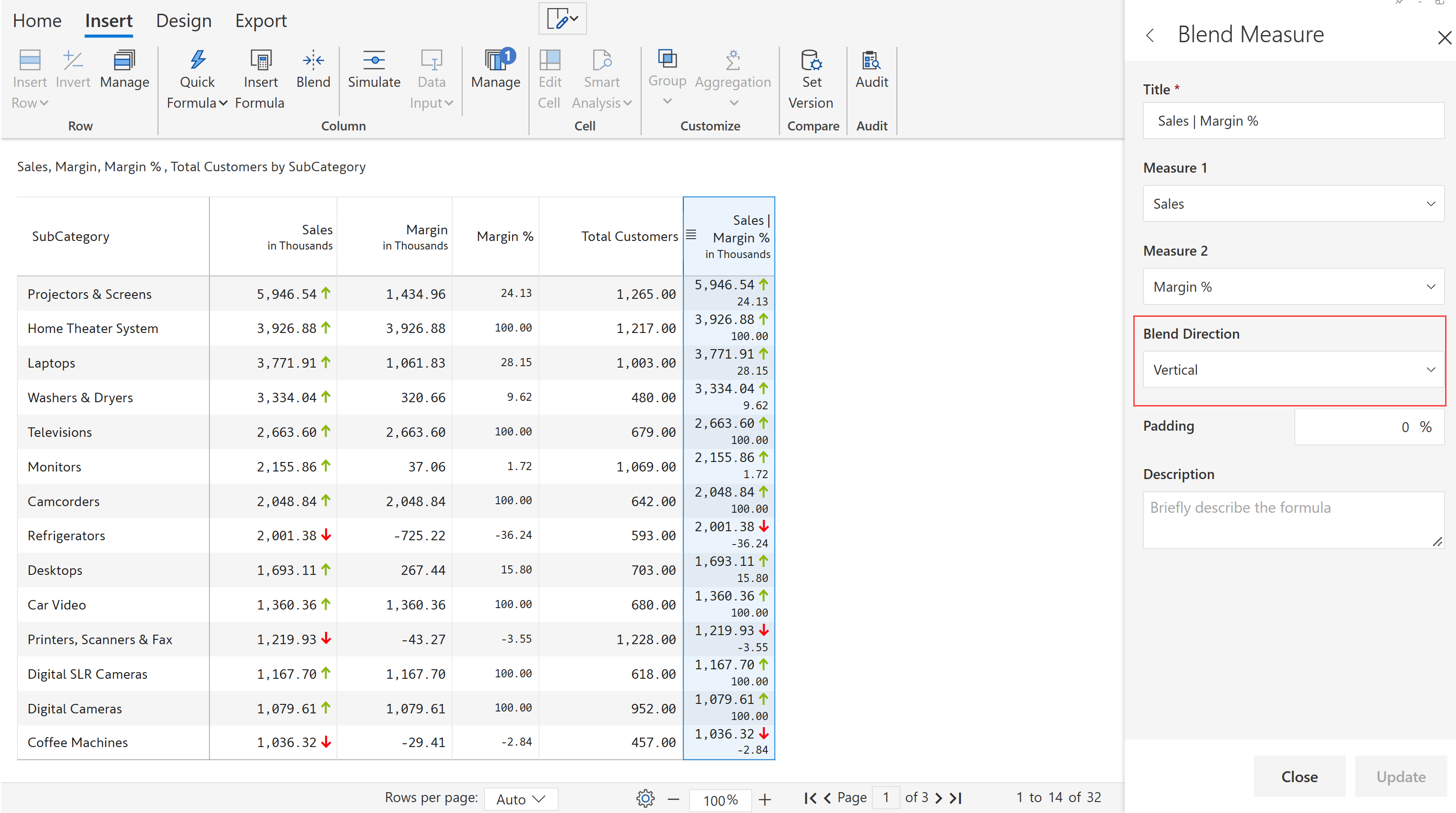
STEP 3: The columns are blended to create a single column. Note that Margin % is displayed below Sales. This is because we have used the default Vertical as the blend direction.

Blend measures vertically

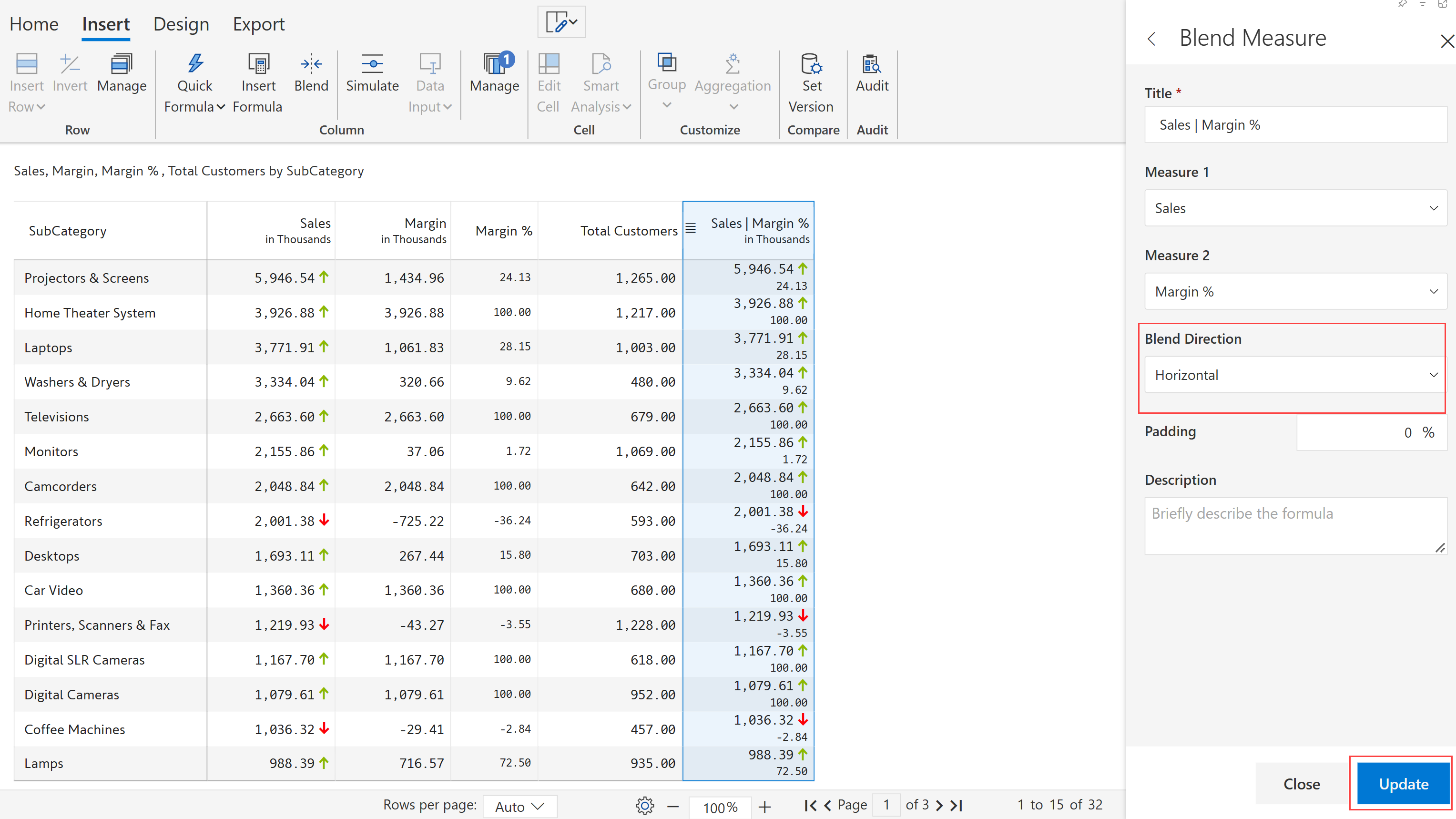
STEP 4: If you want to display in a horizontal orientation, change the Blend direction to Horizontal and click Update.

Blend measures horizontally

STEP 5: The horizontal blending is shown.

Horizontal blending

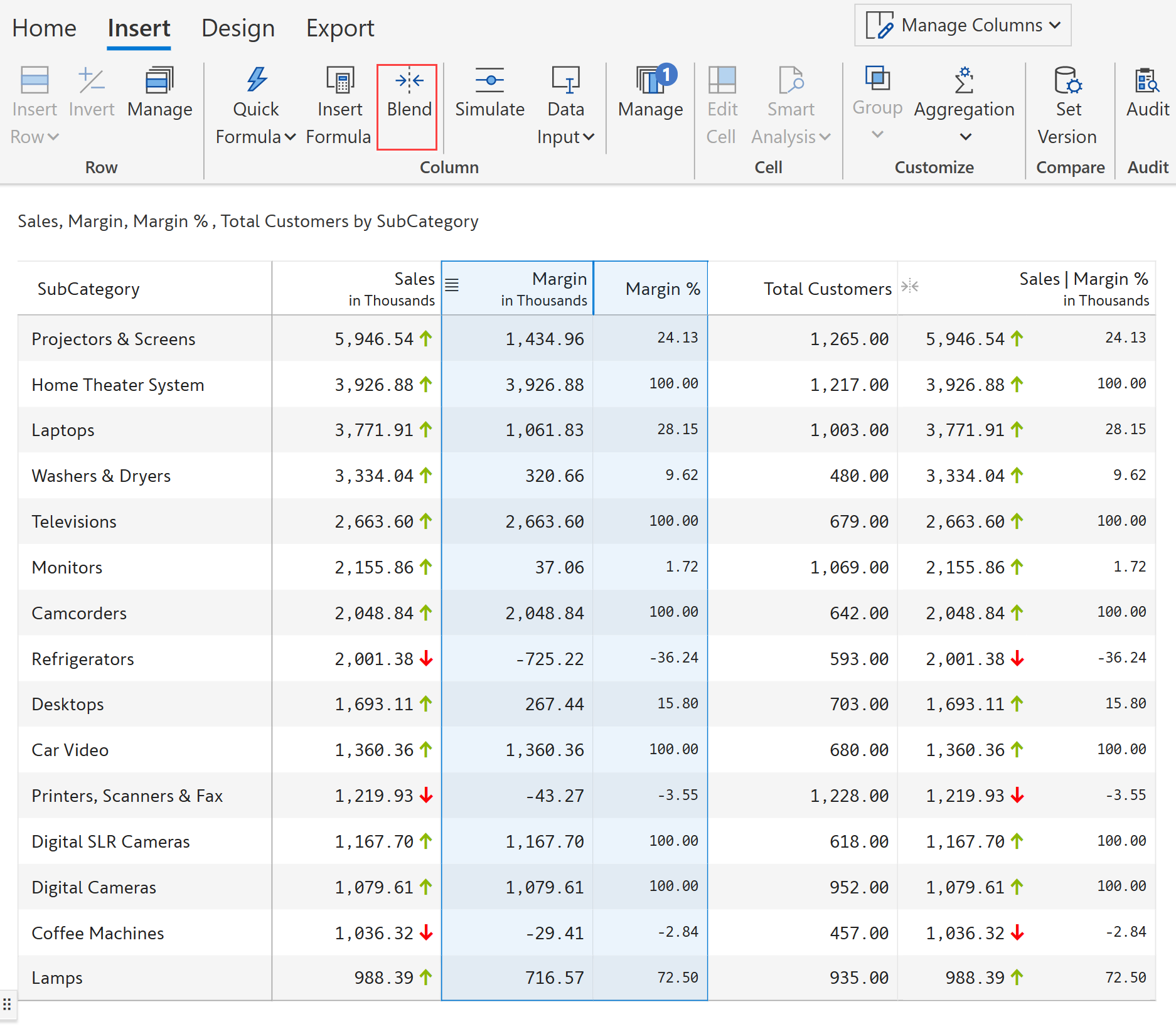
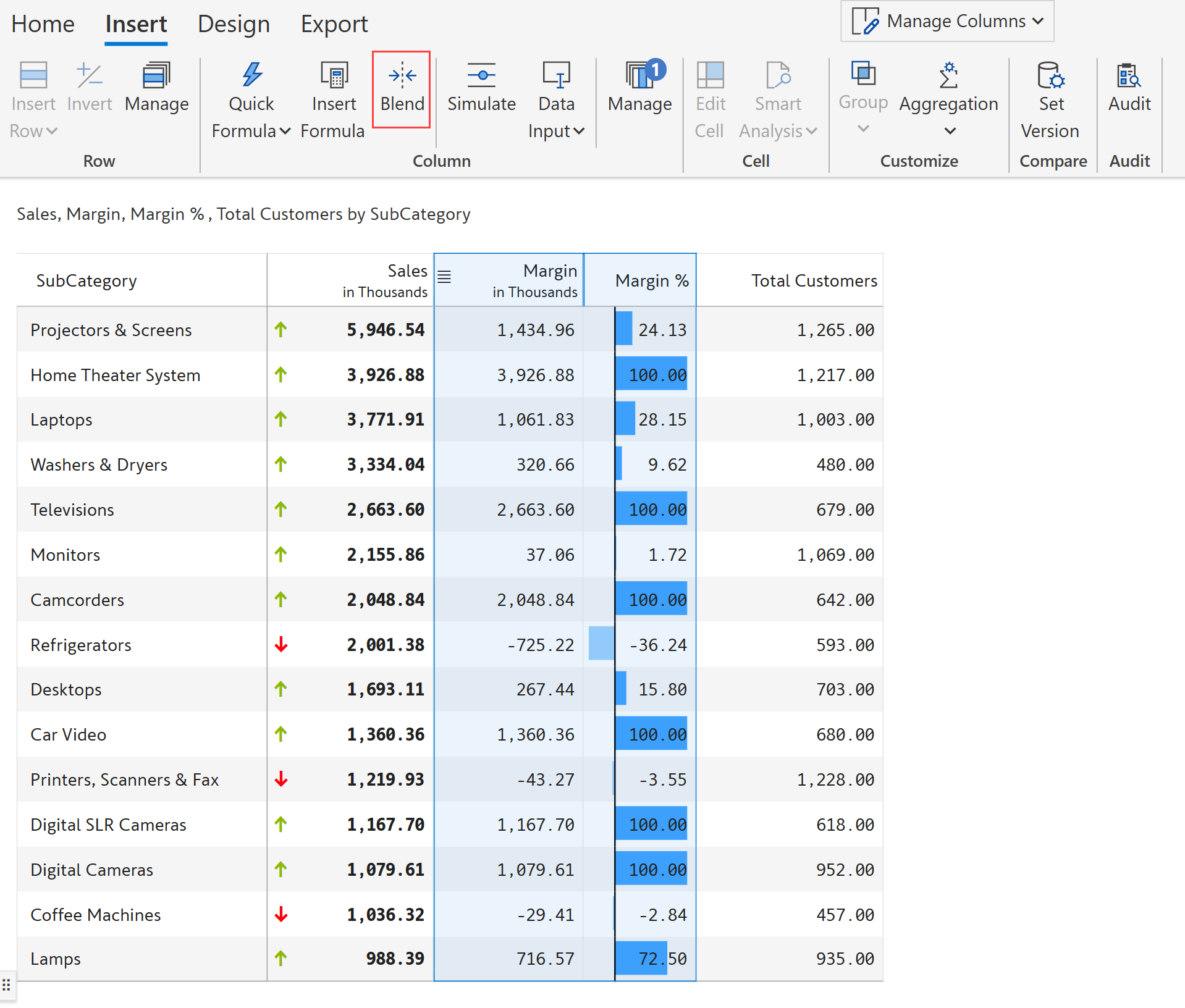
Another way to blend the columns is by selecting the columns to be combined and clicking the Blend option from the Insert tab. For example, let's blend the Margin and Margin% columns into a single column.

STEP 1: Select the columns and click Blend.

Blend by selecting columns

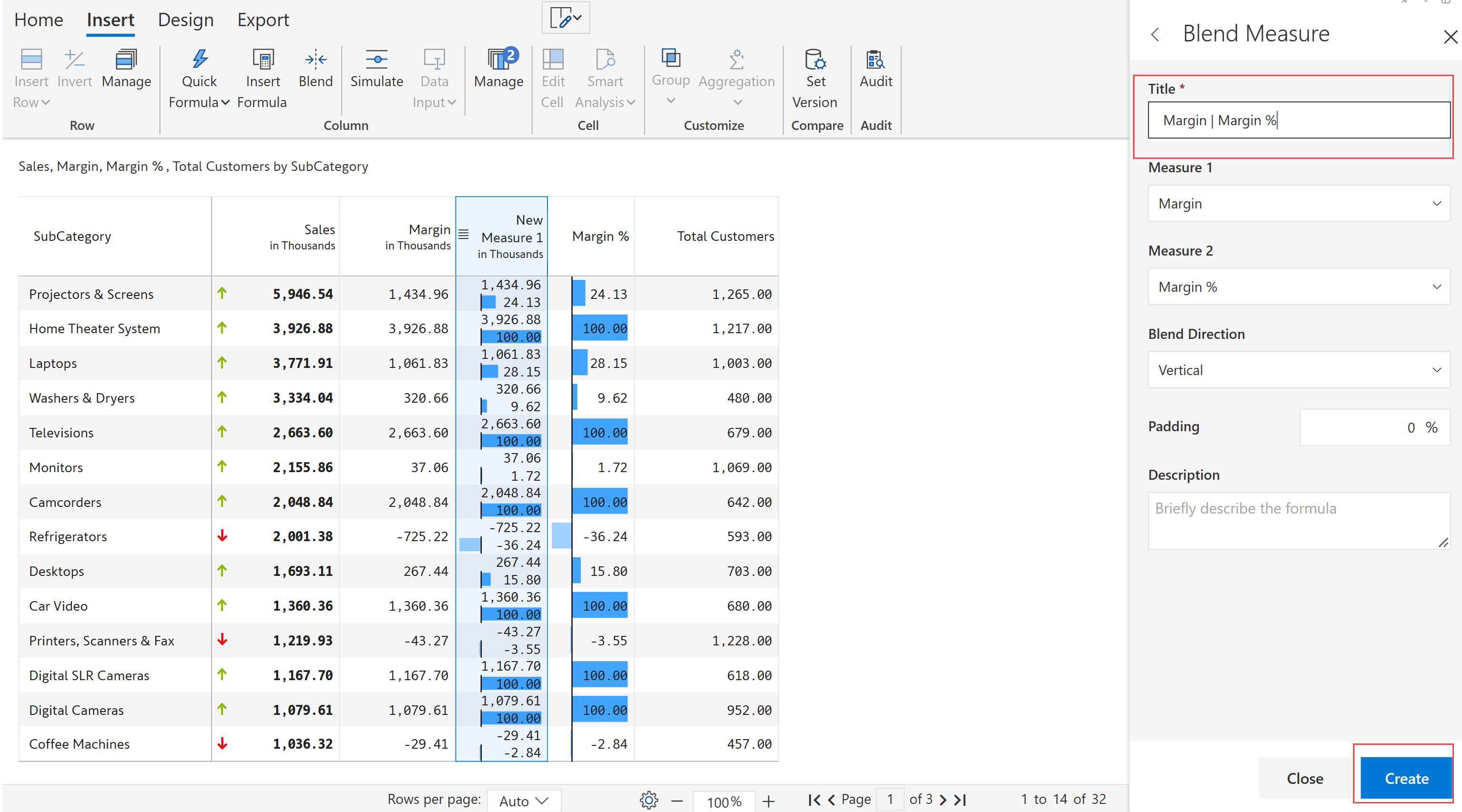
STEP 2: The Blend measure side panel opens;enter the title, and click Create.

Blend measure panel

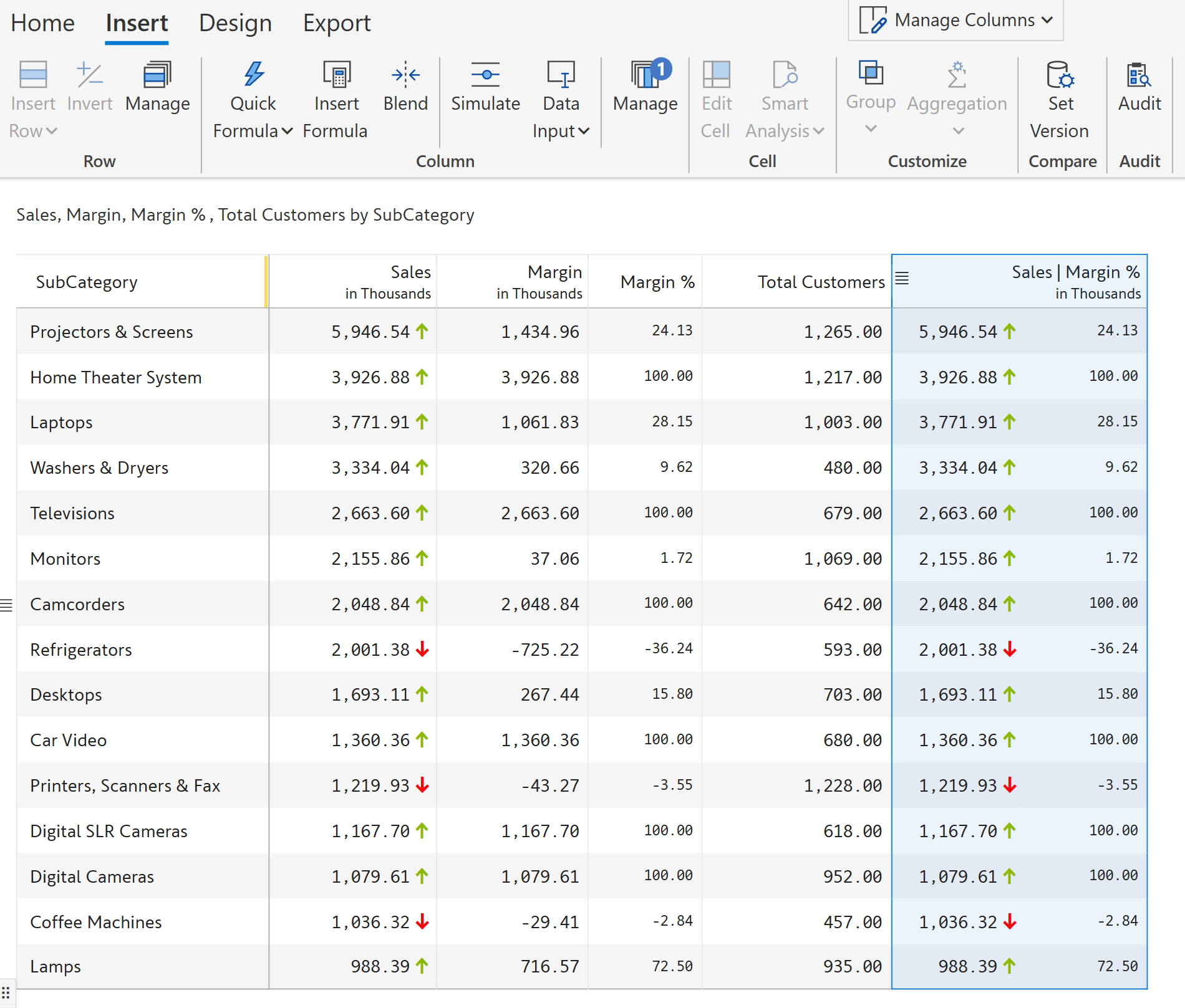
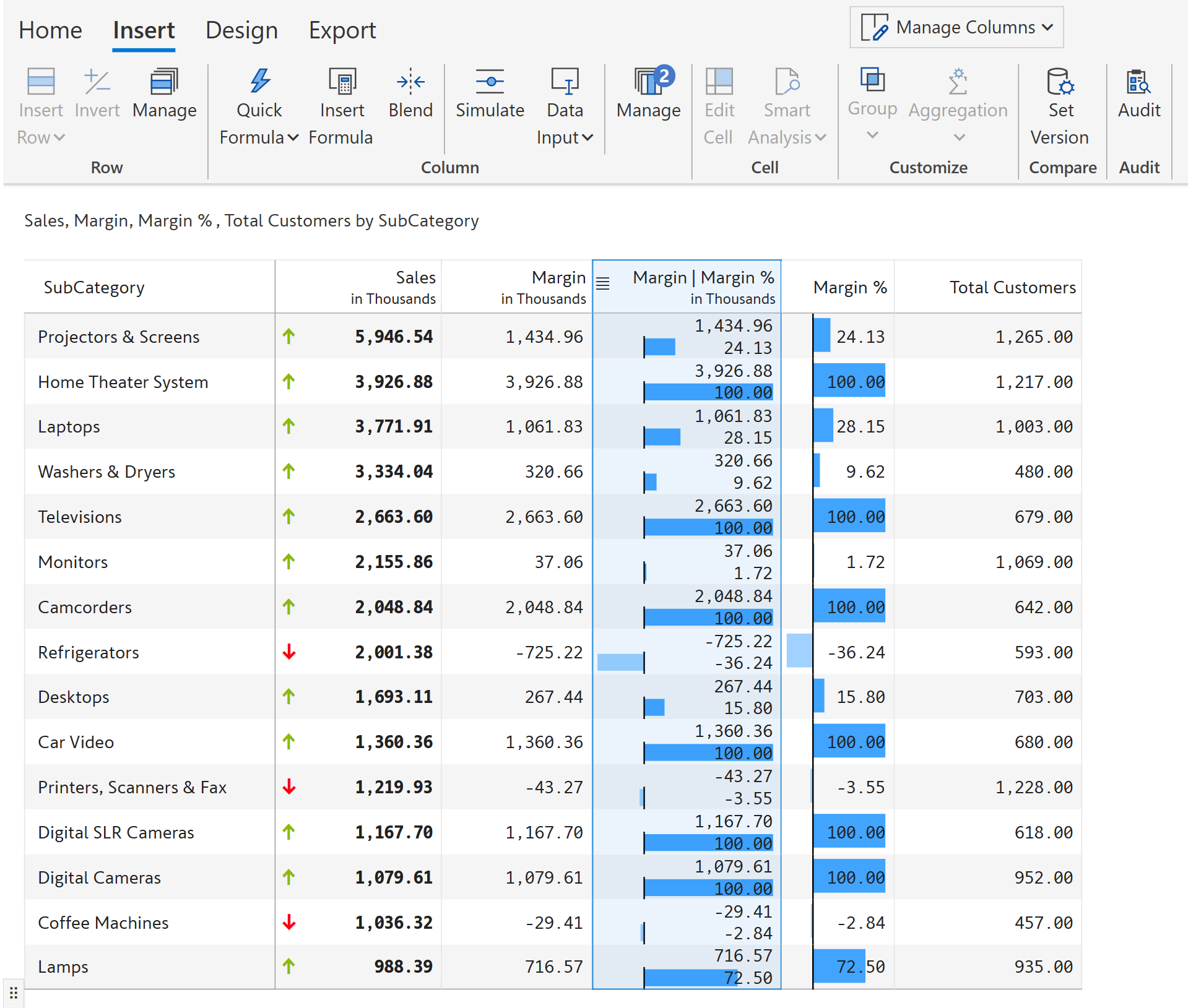
STEP 3: The columns are blended into a single column.

Blended column

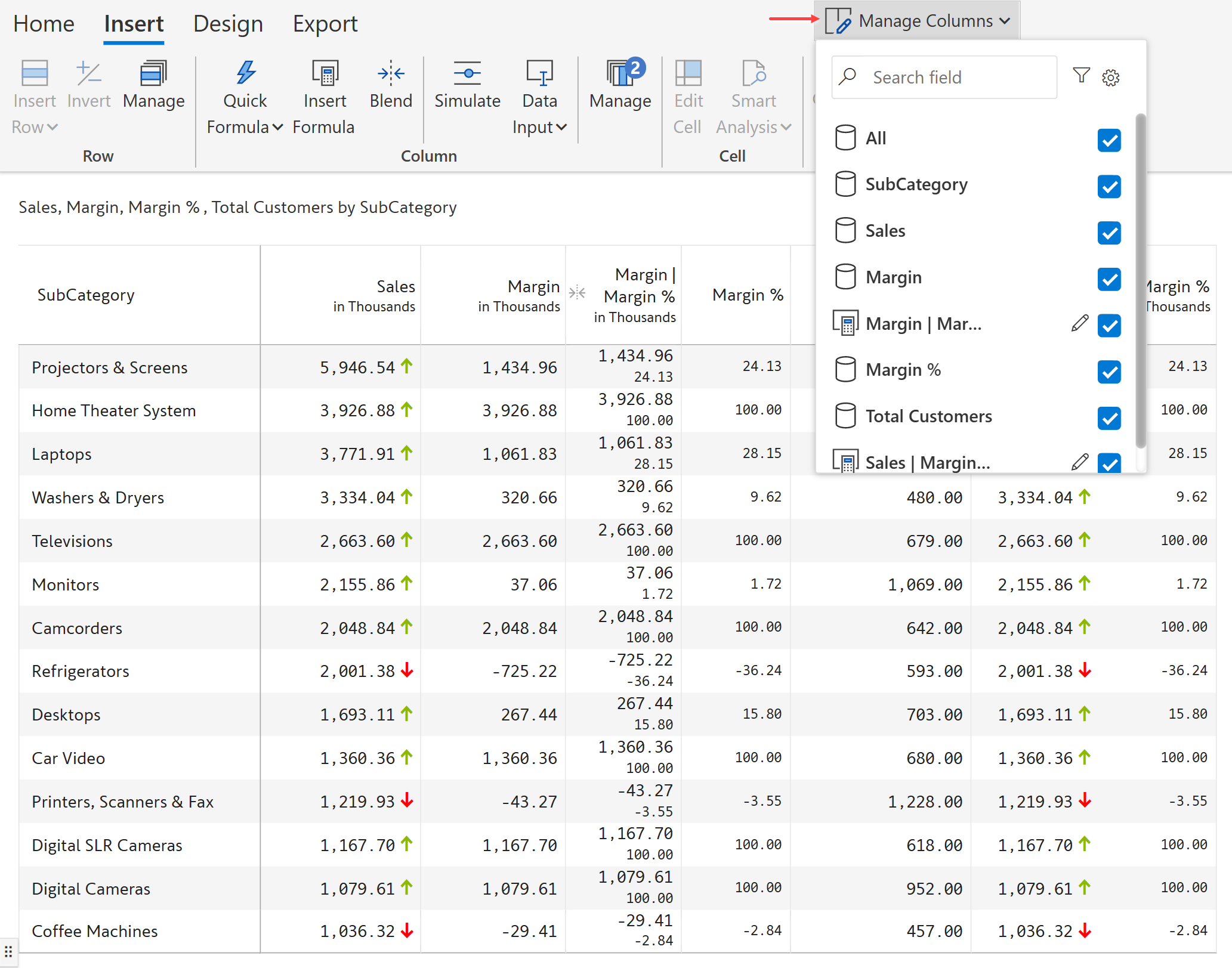
STEP 4: If you want to view only the blended columns, click on Manage Columns from the toolbar. A list showing the row and column headers and measures is displayed.

Manage columns

STEP 5: Unselect the original source columns that you want to hide in the visual. You can now see only the blended columns.

Hiding source columns
circle-info

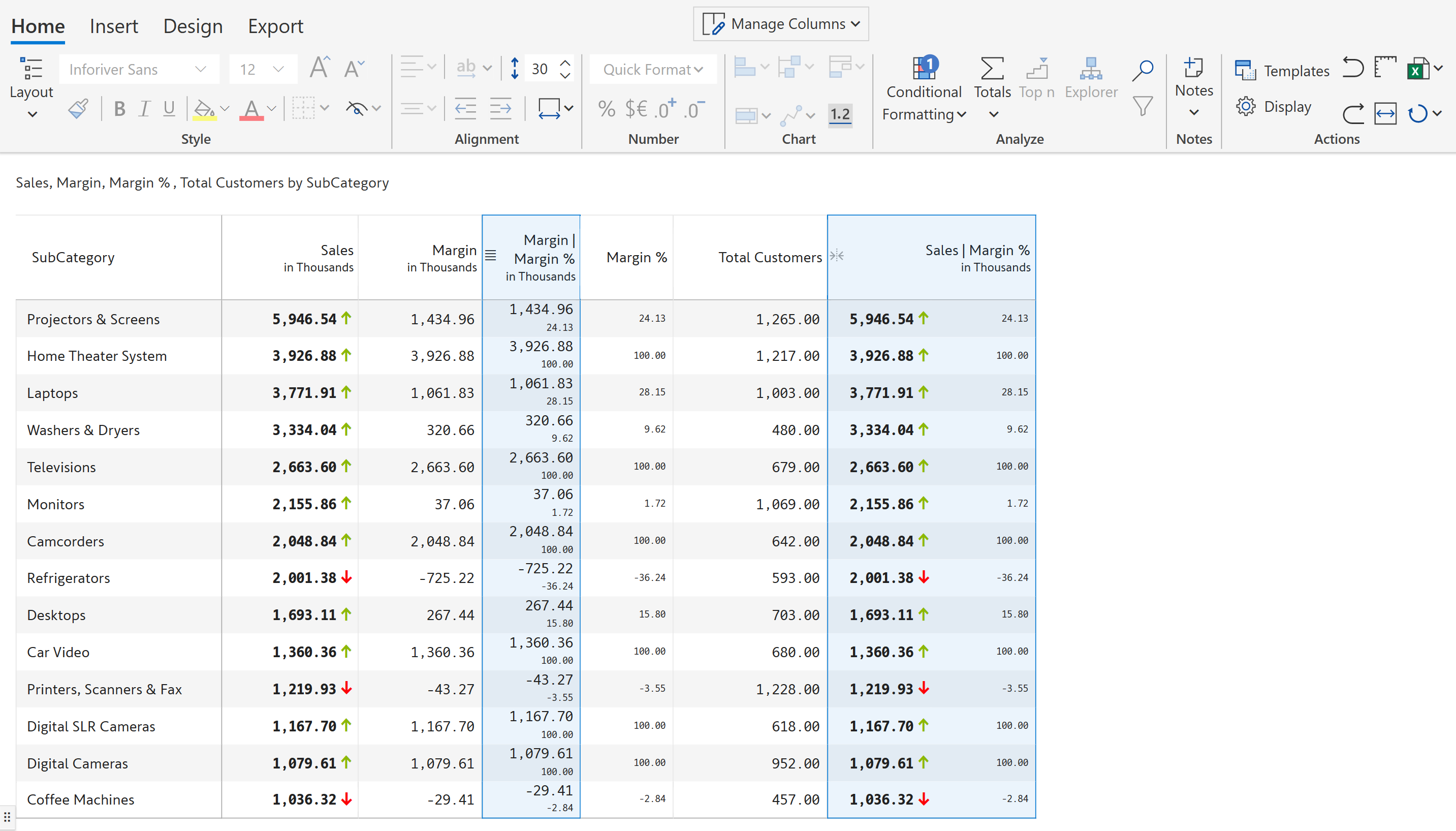
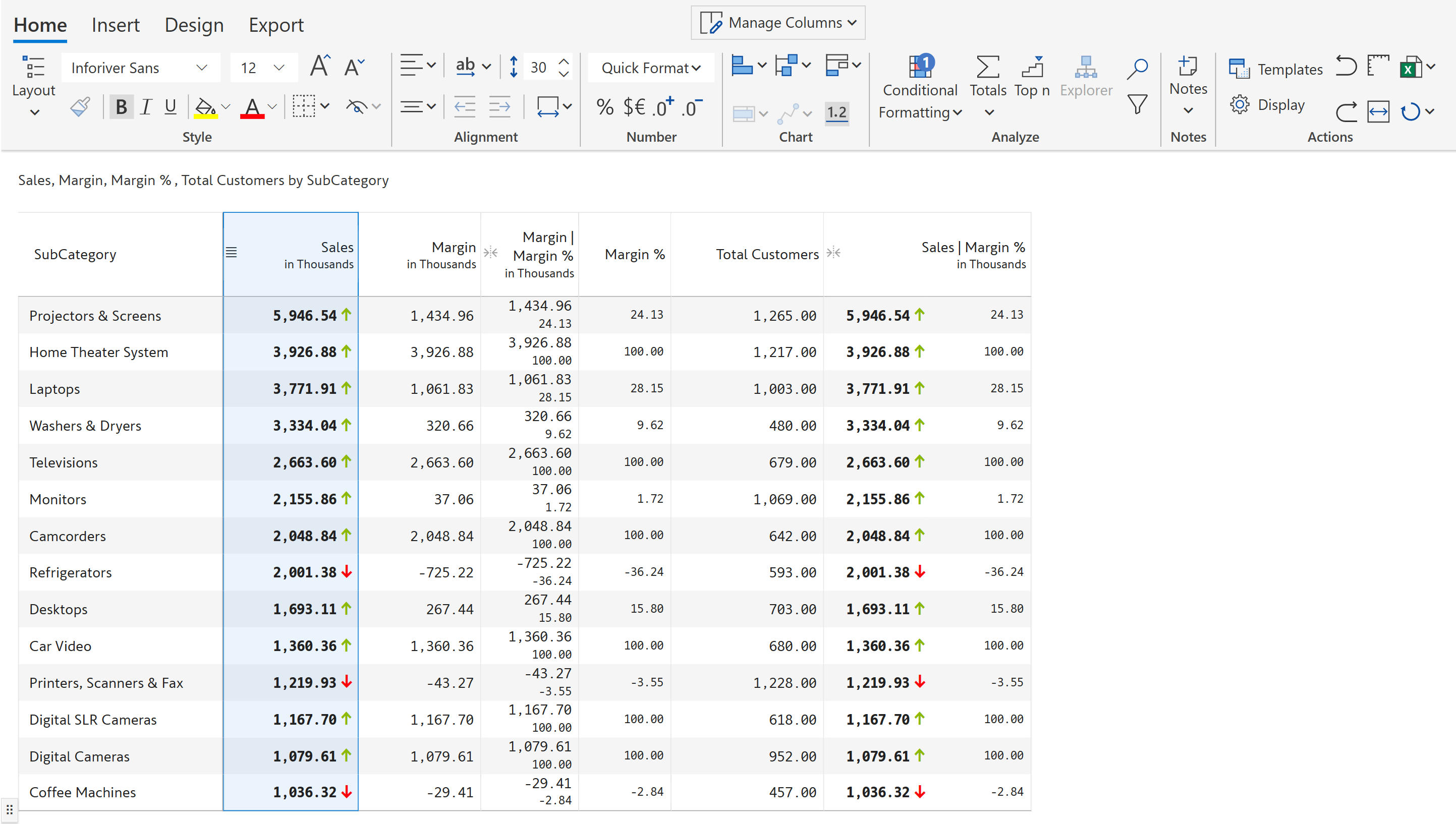
When two columns are blended, the formatting of the source columns, including conditional formatting, is retained in the new merged column.

Example 1:

Consider an example where the font style and size are changed in the source columns.

STEP 1: Let's change the font style to bold for the Sales column. You can see that the same style has been copied to the Sales values of the merged column (Sales| Margin %).

Blend font style

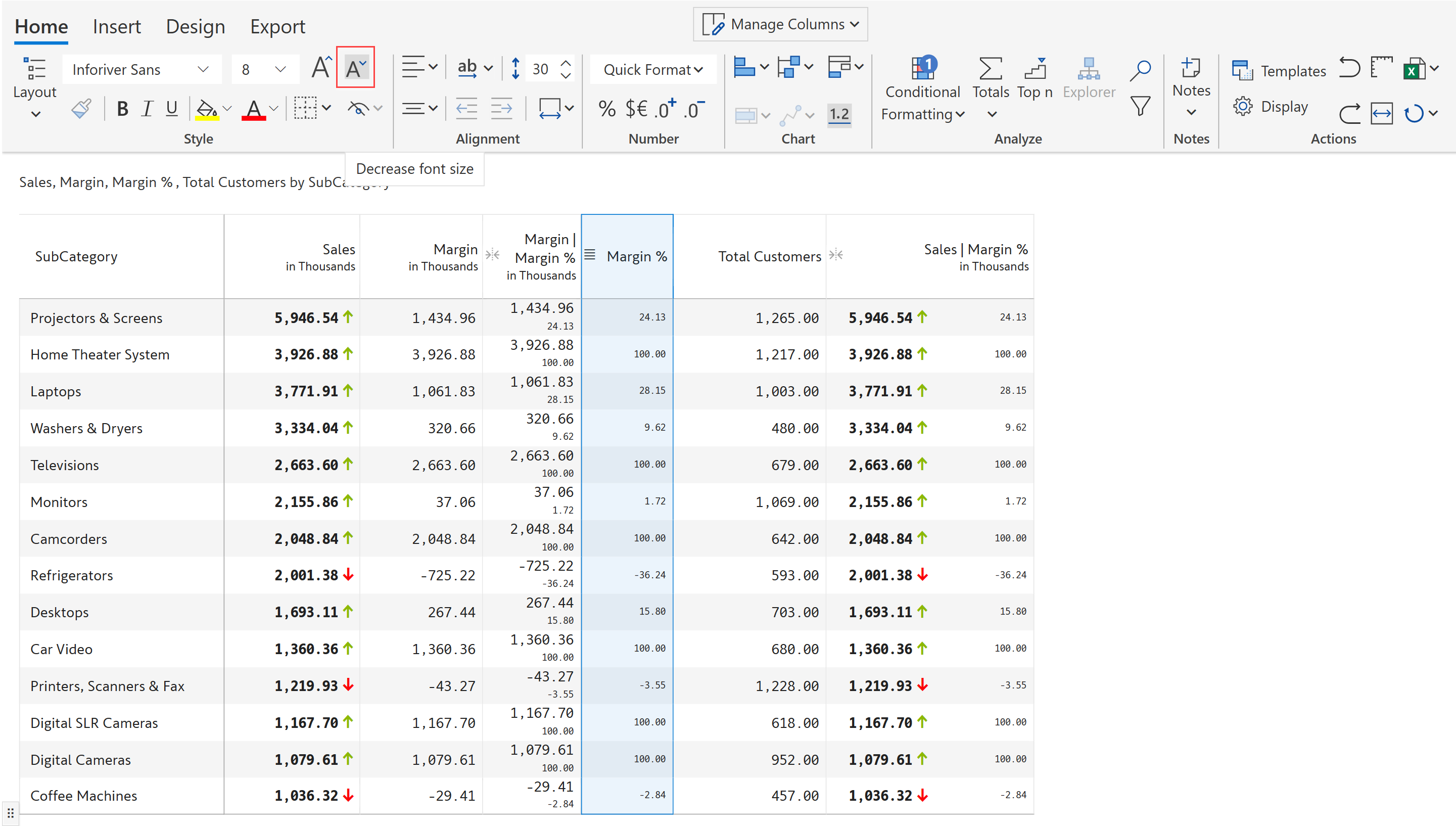
STEP 2: Let's keep the Sales as it is and reduce the font size of the Margin % column.

Formatting font size

STEP 3: You can see that the values in the merged columns reflect the change.

Blend font size

Example 2:

Consider the example below, where conditional formatting is applied to the Sales column.

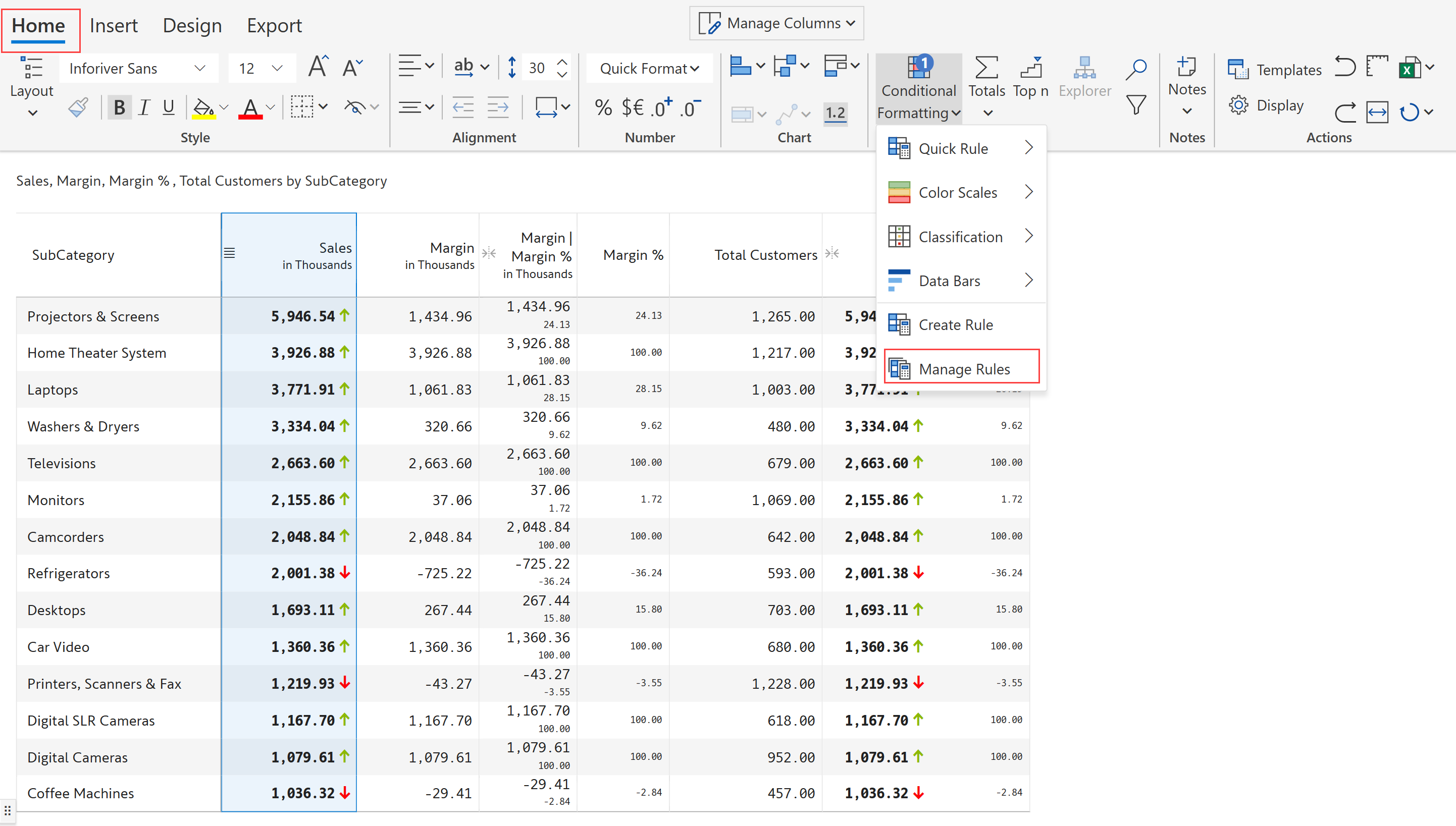
STEP 1: To view the conditional formatting rule, in the Home tab, click on the Conditional formatting drop-down and select Manage rules.

Manage rules

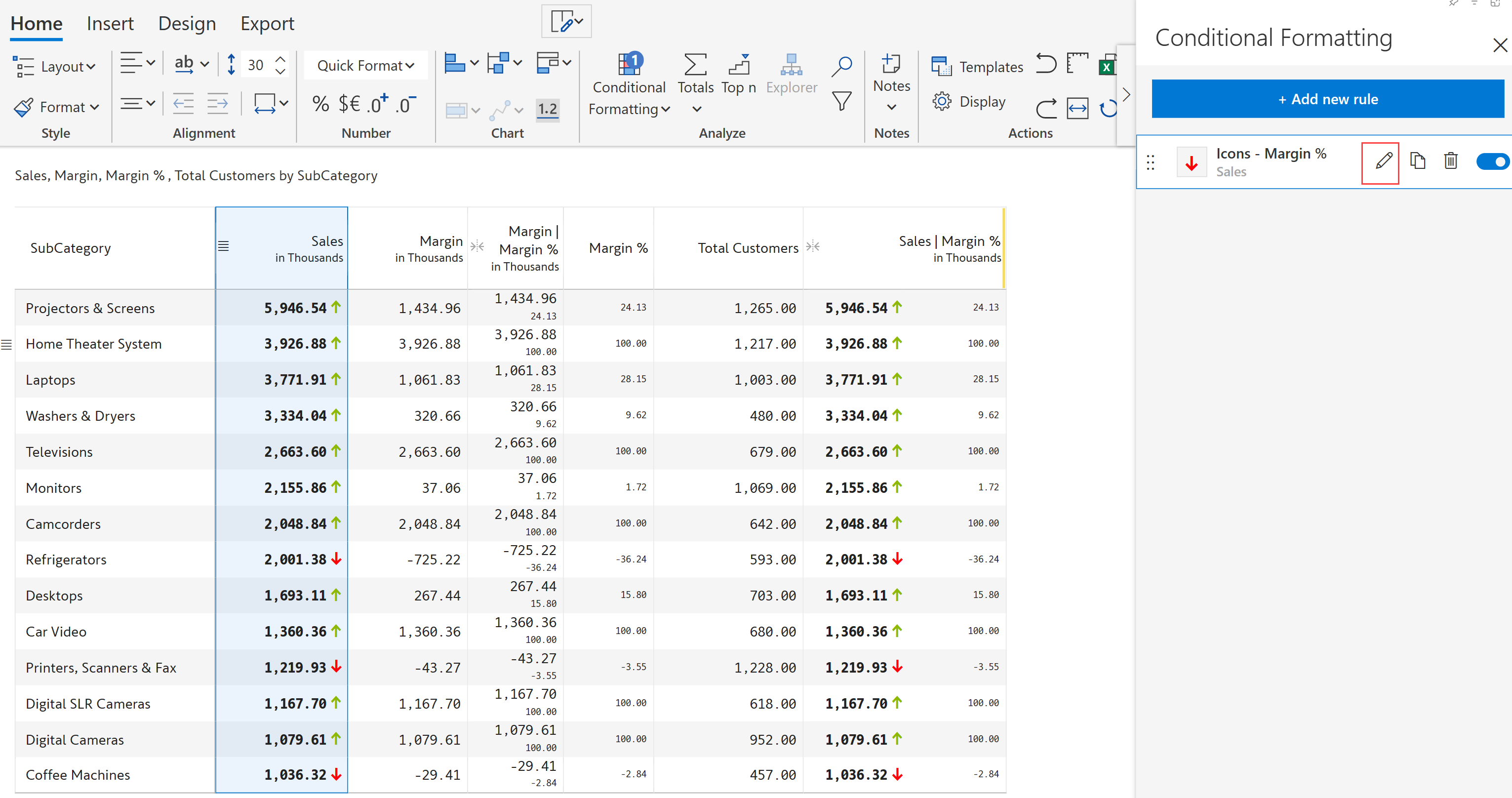
STEP 2: A side panel opens, showing a list of all the rules. Click on the Edit icon next to the rule Icons - Margin %.

Conditional formatting panel

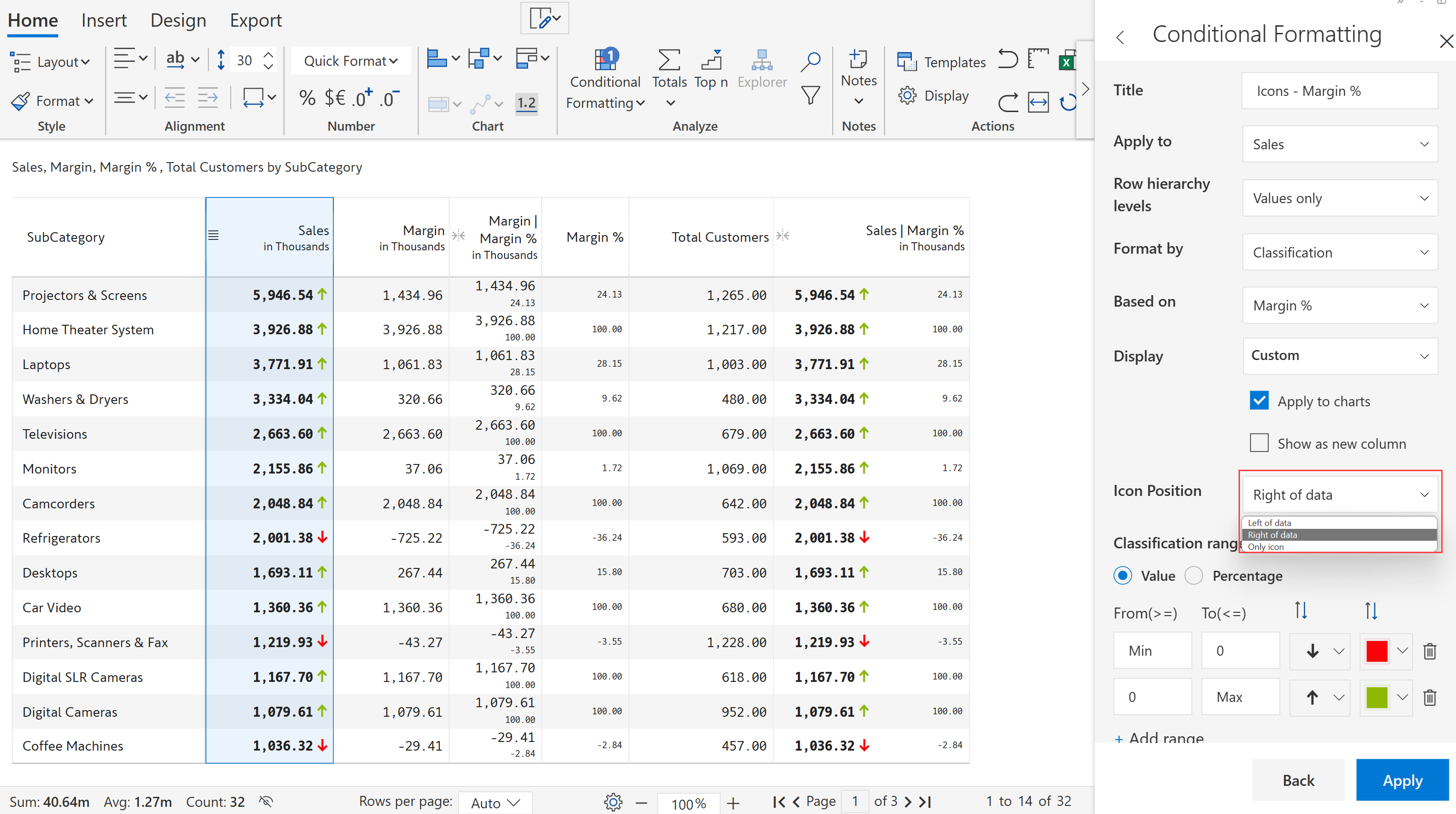
STEP 3: Let's try changing the icon position and see what happens to the source and merged columns.

Icon position

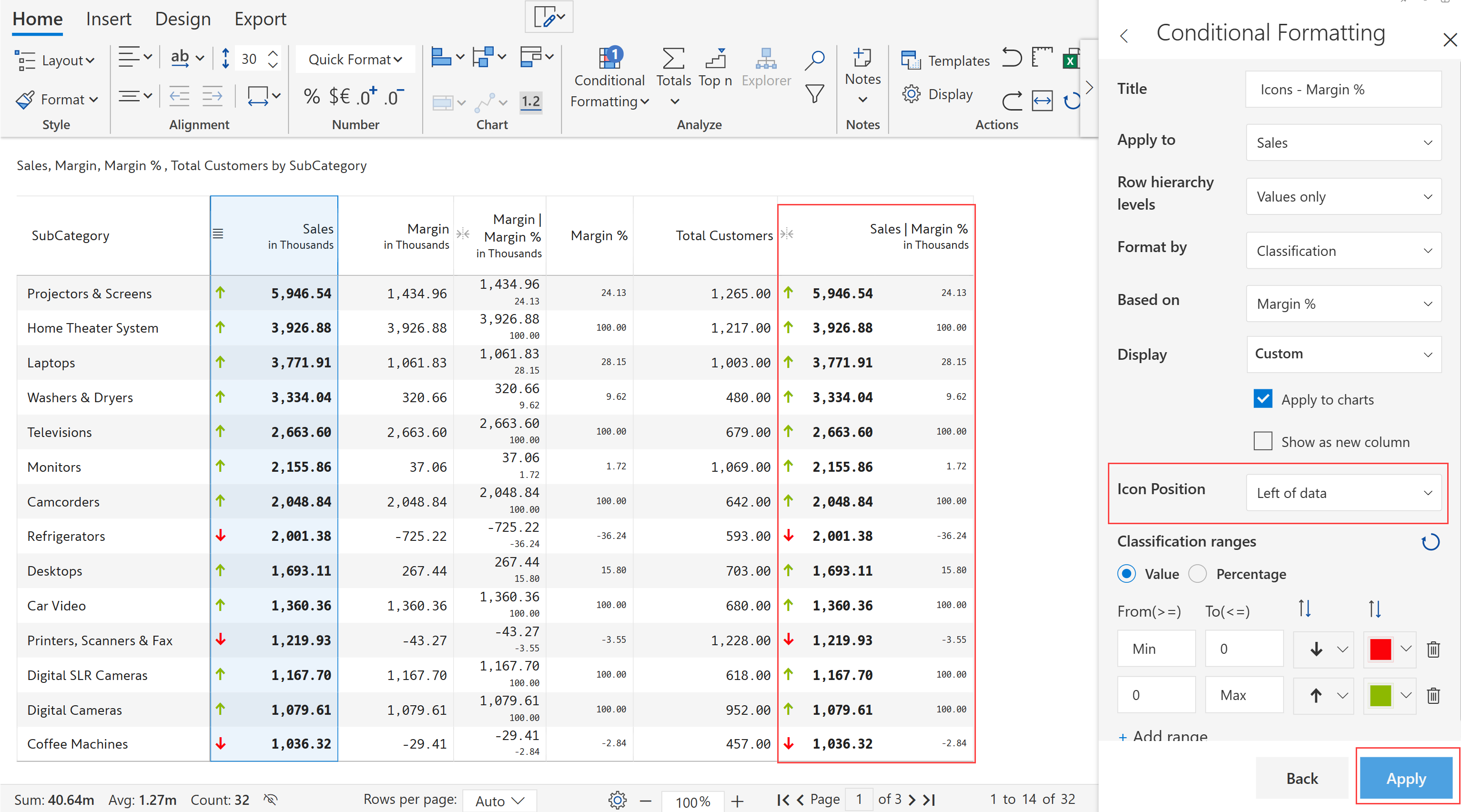
STEP 4: When you change the icon position from Right of data to Left of data and select Apply, you can see that the icons in both columns shift over.

Blend conditional formatting

Example 3:

Let's see how to blend the two measures in a single column with data bars. Follow the steps shown below:

STEP 1: Select the columns and click Blend.

Data bars

STEP 2: The Blend measure side panel opens, enter the title, and click Create.

Blend measure panel

STEP 3: You can see the two values along with the data bars in a single column.

Blended data bars

FAQs

Q1: How are blend measures configured in Inforiver Table?

Blend measures are configured by selecting two or more existing measures and defining a blend layout (vertical or horizontal). The feature operates at the visual layer, combining rendered measure values into a single display cell without altering the underlying data model or measure definitions.

Q2: How do blend measures respond to filters, slicers, and interactions?

Blend measures are fully responsive to Power BI interactions. Any change in filters, slicers, drill actions, or cross-highlighting triggers recalculation of the source measures, and the blended output updates in real time to reflect the current evaluation context

Q3: Do blend measures modify calculations or aggregation logic?

No. Blend measures do not introduce new calculations or aggregation rules. Each measure retains its original DAX logic, aggregation behavior, and evaluation context. Blending is applied only after measure results are computed.

Q4: Does using blend measures impact performance or refresh?

No. Blend measures do not affect dataset refresh, query execution, or model performance. Since blending is a presentation-only operation applied post-calculation, it has a negligible impact on rendering performance.

Q5: Are blend measures compatible with conditional formatting and other features?

Yes. Blend measures can be used alongside conditional formatting, classification, icons, and other visual-level formatting features. Each individual measure within a blend continues to support its respective formatting rules.

Last updated

Was this helpful?