Action dots
Learn how to use Action Dots to visually represent performance for faster, more efficient analysis in Power BI with Inforiver.
Why Action dots?
Color-coded dots in conditional formatting provide an at-a-glance view of performance. Each dot changes color automatically based on value thresholds, making it easy to identify high, medium, or low values in your data. This visual approach helps users quickly spot trends, outliers, and key metrics without scanning through numbers.
In this section, we'll explore conditional formatting with action dots. You can either create a new rule, as shown her,e or edit the action dots inserted using the one-click option explained here.
Refer to the Create Rule section to get started. Once the rule is created and you can see the Conditional Formatting side panel, follow the steps below.
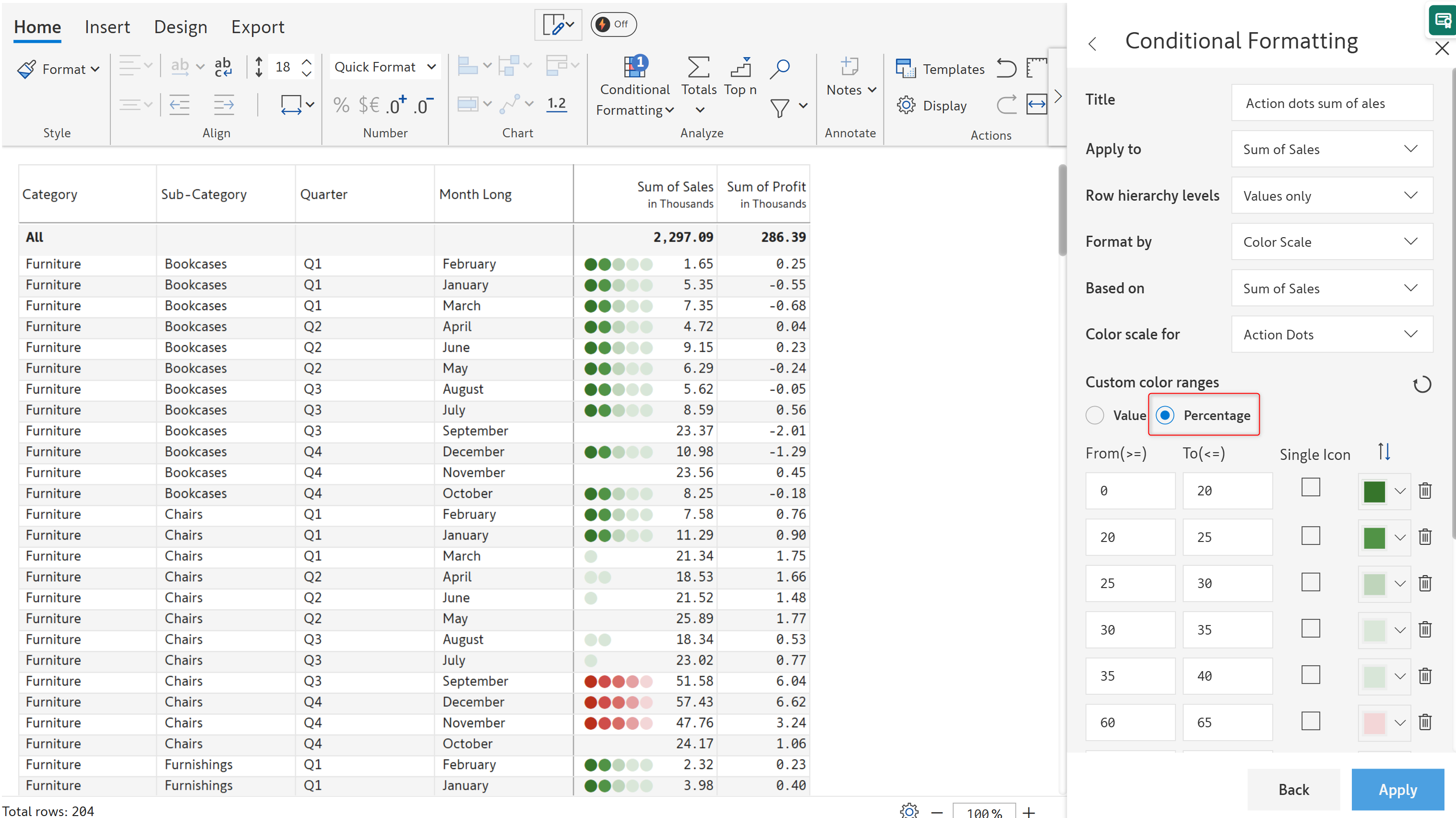
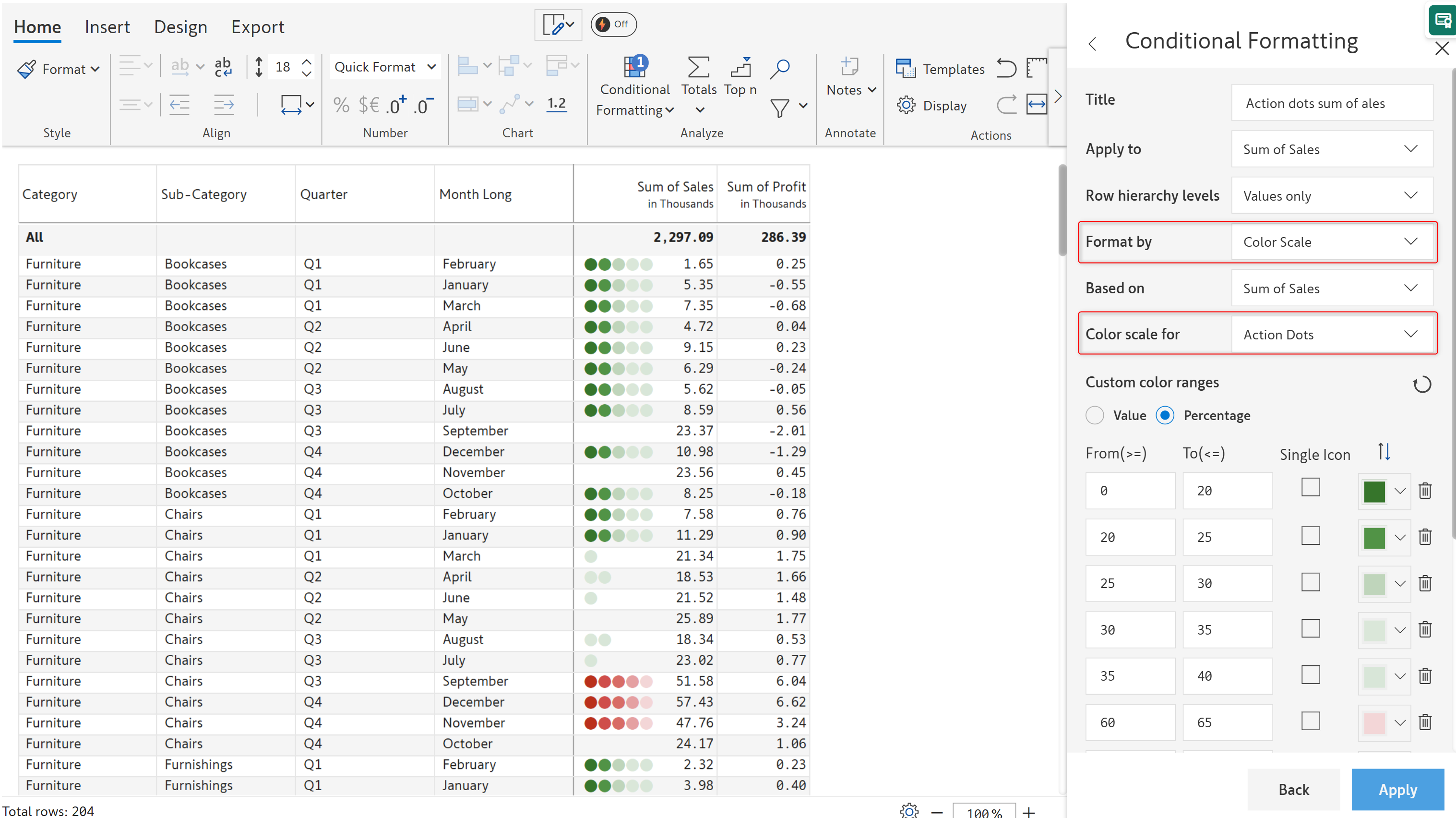
Select Action Dots in the Color scale for dropdown. Format by should be set to Color Scale.

We've already covered some of the options in the Color Scales section. Let's look at the customization options specific to action dots.
1. Custom color ranges
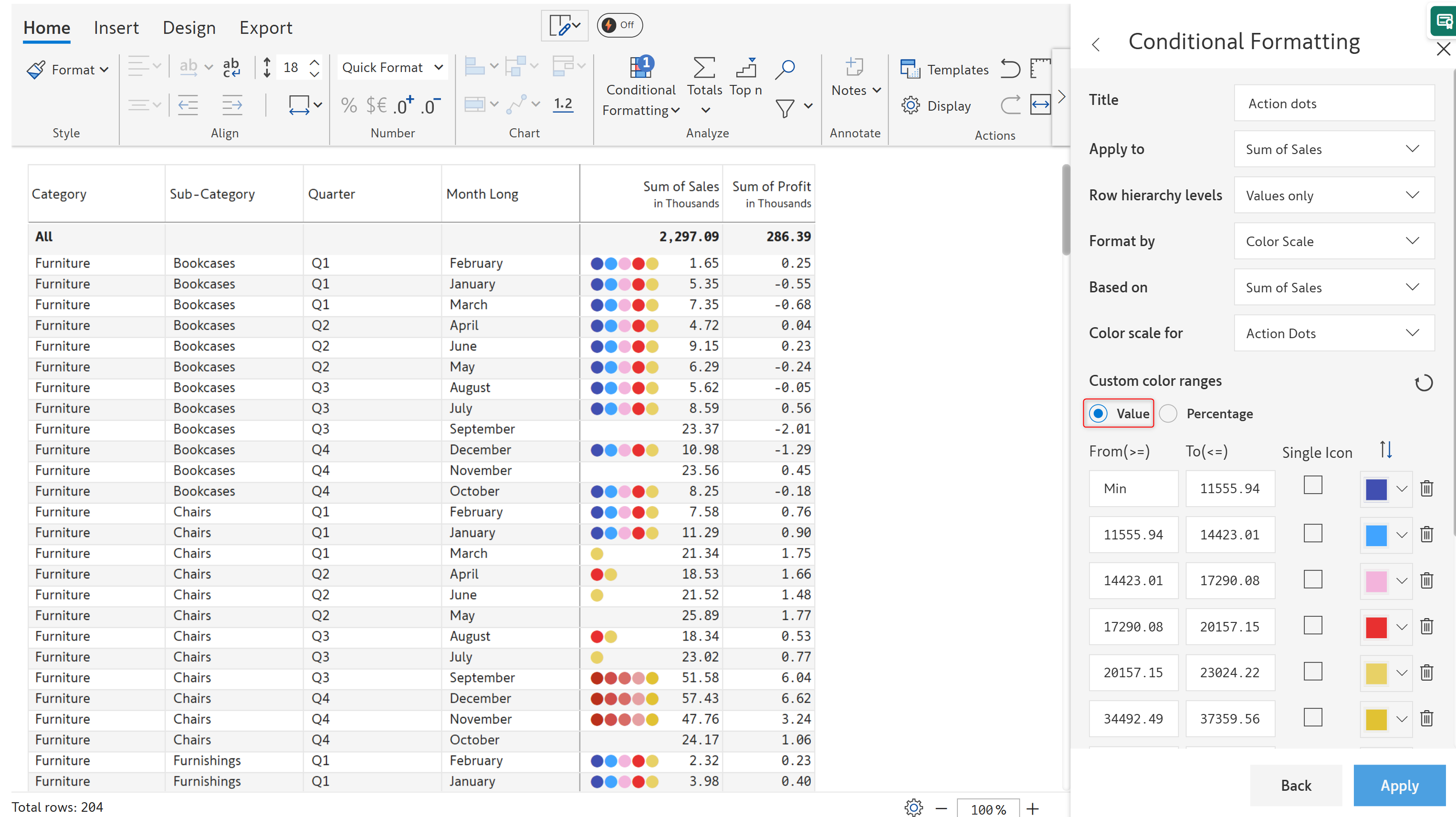
You can create custom color schemes based on percentages or actual values. Click the
icon to reverse the color order. Click
to restore default values. Click the Add Range option to add additional ranges. Use the
icon to remove a particular range.


2. Single icon
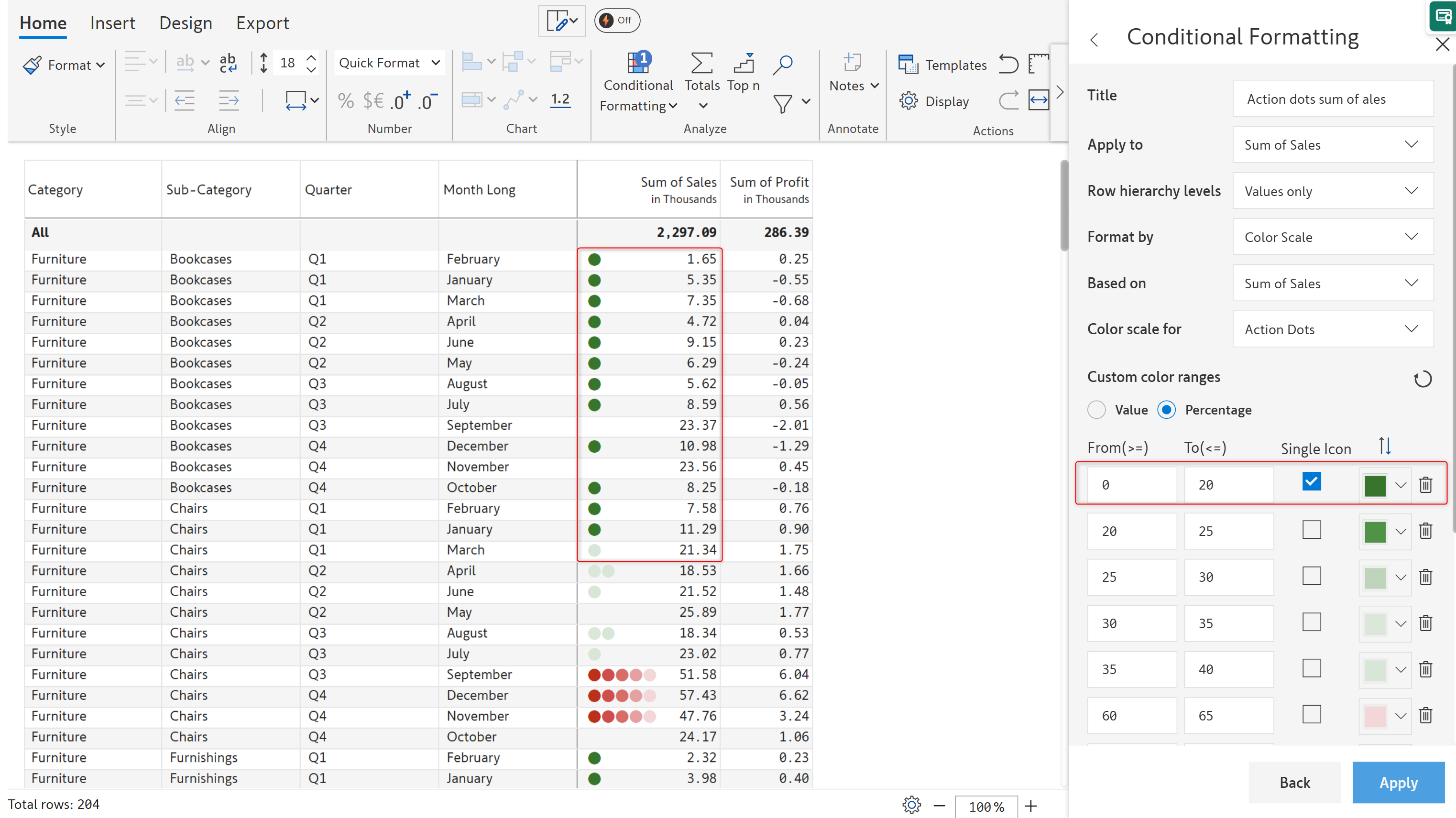
You can choose to display only one dot for a range of values by selecting this option. Notice how only one action dot is rendered in the categories highlighted when the Single Icon option is enabled.


3. Hide value
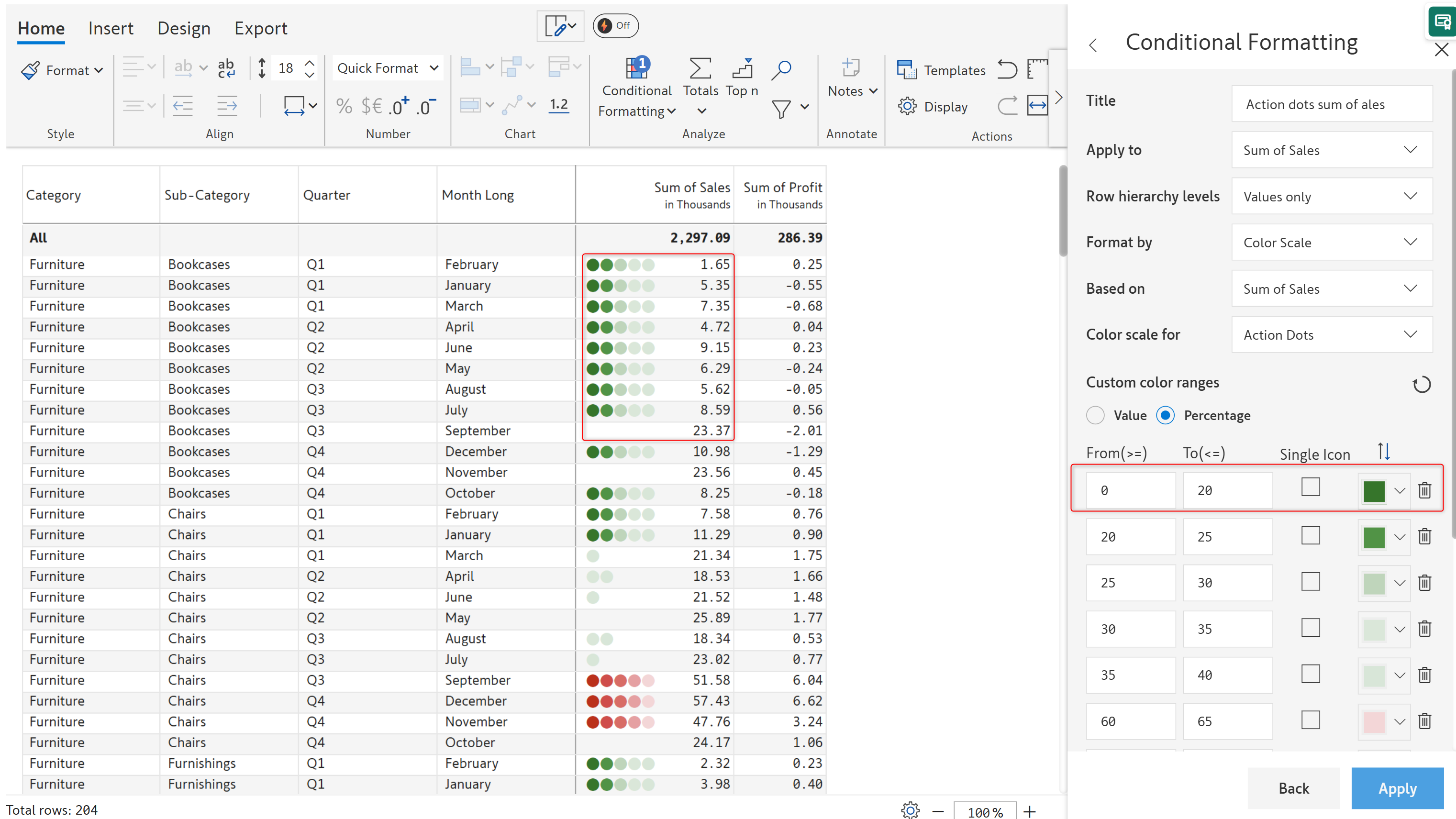
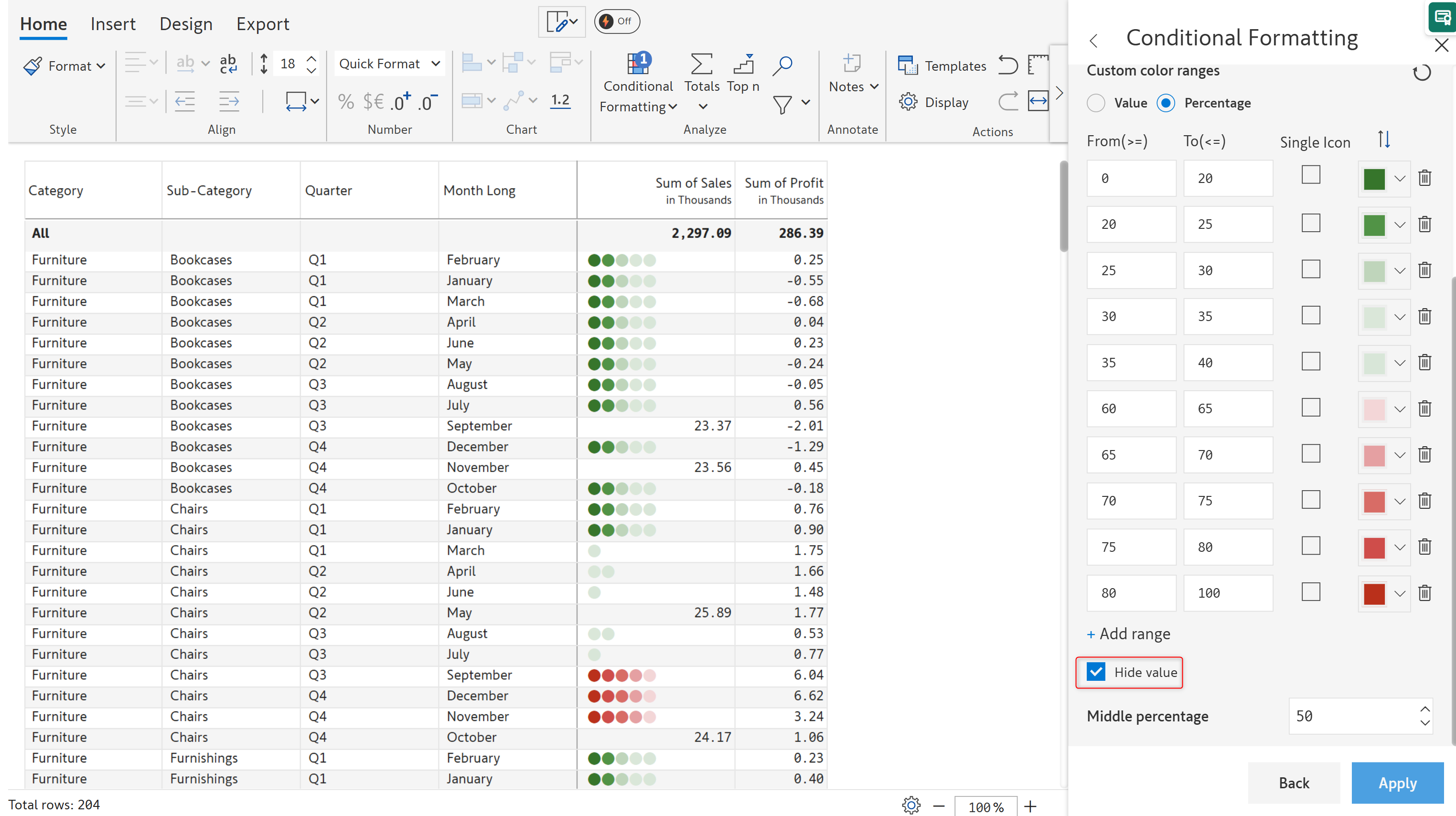
Check the Hide Value checkbox to see only the action dots - the values are hidden.

4. Middle percentage
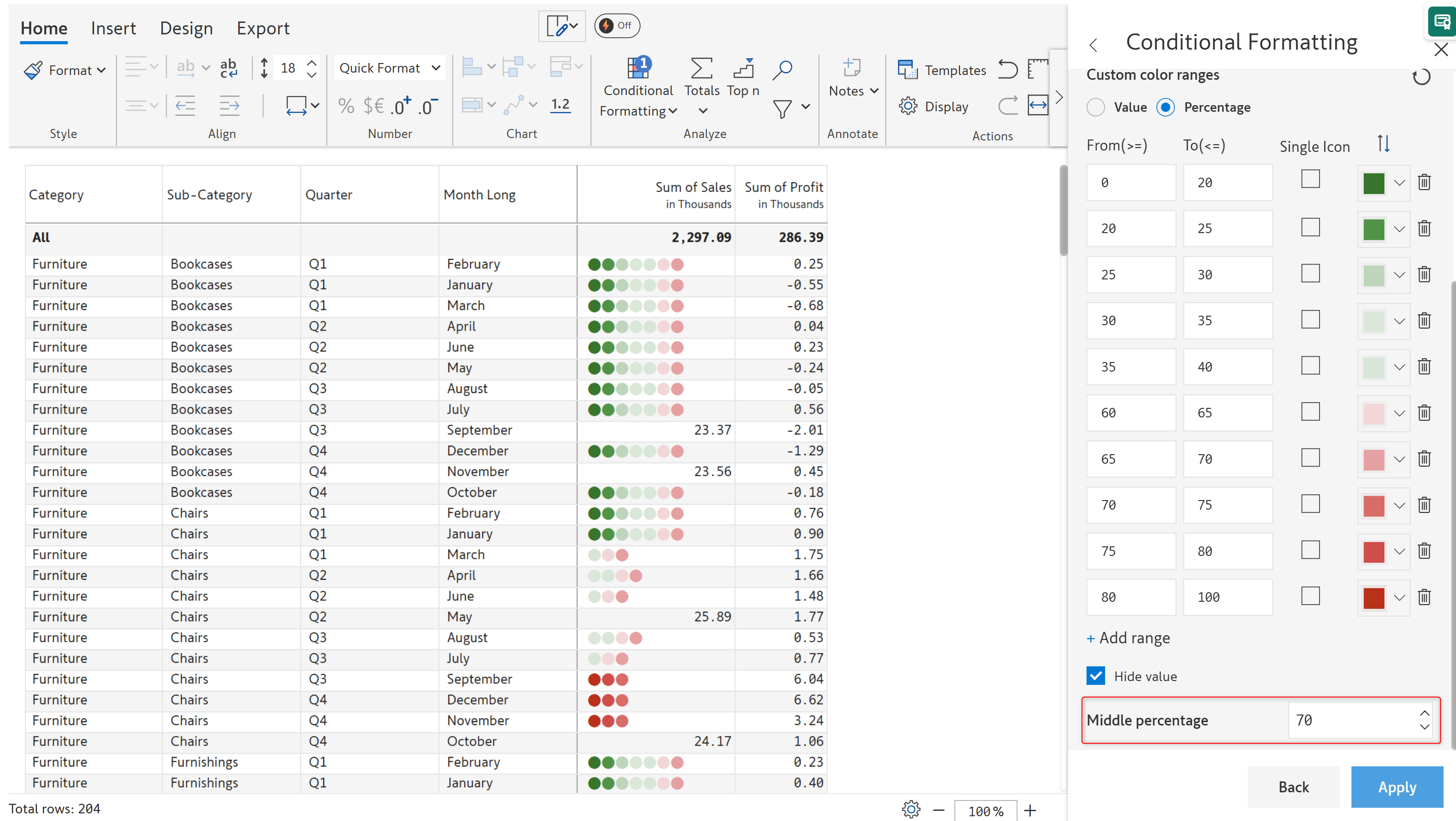
The number of action dots rendered for a particular range will change based on the middle value. We've set the middle percentage to 70 - notice how we have more green dots and fewer red dots.

FAQ'S
Q1: Can I customize the thresholds and colors for Action Dots? Yes. You can define custom value thresholds for Action Dots and assign specific colors for high, medium, and low values. This allows you to align the dots with your business KPIs, targets, and branding requirements.
Q2: Do Action Dots update automatically when data changes? Yes. Action Dots are fully dynamic. When the underlying data changes, the dot colors automatically adjust based on the configured thresholds, ensuring your performance indicators are always accurate and up to date.
Q3: Can Action Dots be displayed alongside values or in separate columns? Action Dots can be shown inline with numeric values or in a separate column, depending on your layout preference. This flexibility helps you balance visual clarity with data density in your reports.
Q4: Do Action Dots impact report performance or data refresh? No. Action Dots are a visual formatting feature and do not affect data refresh, calculations, or report performance. They are optimized to render efficiently within Power BI visuals.
Q5: When should I use Action Dots instead of icons or text indicators? Action Dots are ideal when you need a clean, minimal, and at-a-glance performance indicator. They work especially well for dense tables and dashboards where quick trend detection and visual scanning are more important than detailed labels or symbols.
Last updated
Was this helpful?