> For the complete documentation index, see [llms.txt](https://docs.inforiver.com/llms.txt). Markdown versions of documentation pages are available by appending `.md` to page URLs; this page is available as [Markdown](https://docs.inforiver.com/premium-table/working-with-premium-table/5.-conditional-formatting/rules-if-conditions/field-value.md).
# Field Value
Learn how to use field value–based conditional formatting to dynamically format your Power BI reports using Inforiver.
#### What is Field value?
{% hint style="success" %}
Field Value in Inforiver is a conditional formatting feature that lets you drive formatting rules based on values from another field or measure. Instead of hard-coding colors, icons, or text, formatting is controlled dynamically by underlying data.
In real-world reporting, business logic often changes based on calculations or KPIs. With Inforiver Table, you can use field values to apply colors, icons, data bars, or text formatting directly from measures ensuring consistency, flexibility, and data-driven visuals across your reports.
{% endhint %}
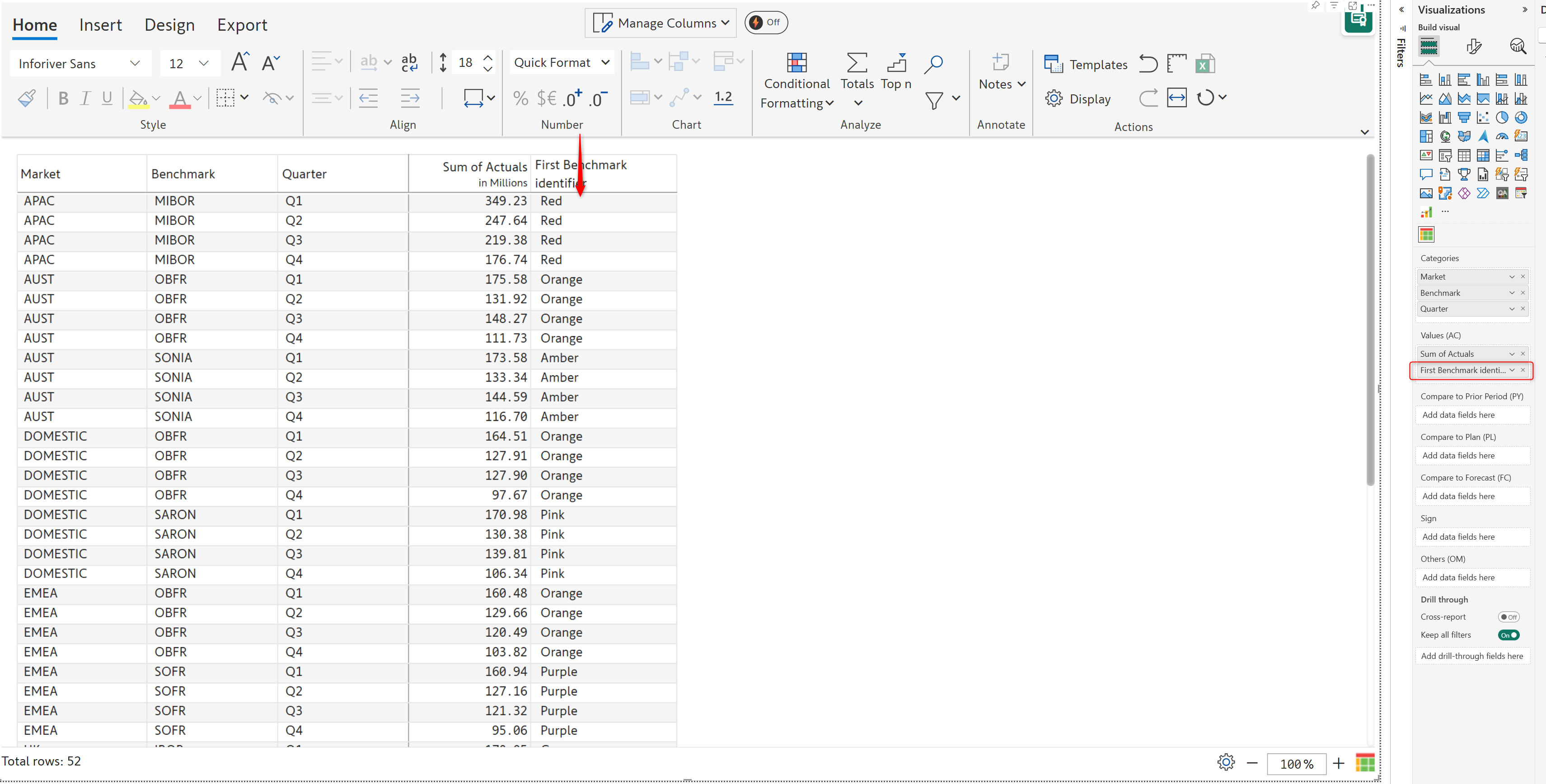
You can assign fields from your dataset and apply conditional formatting based on the specified color. Let's consider a benchmark dataset - each benchmark is represented by a designated color, which is part of the source data
Dataset with colors assigned
Let’s look at how to set up conditional formatting based on a field from your data source.
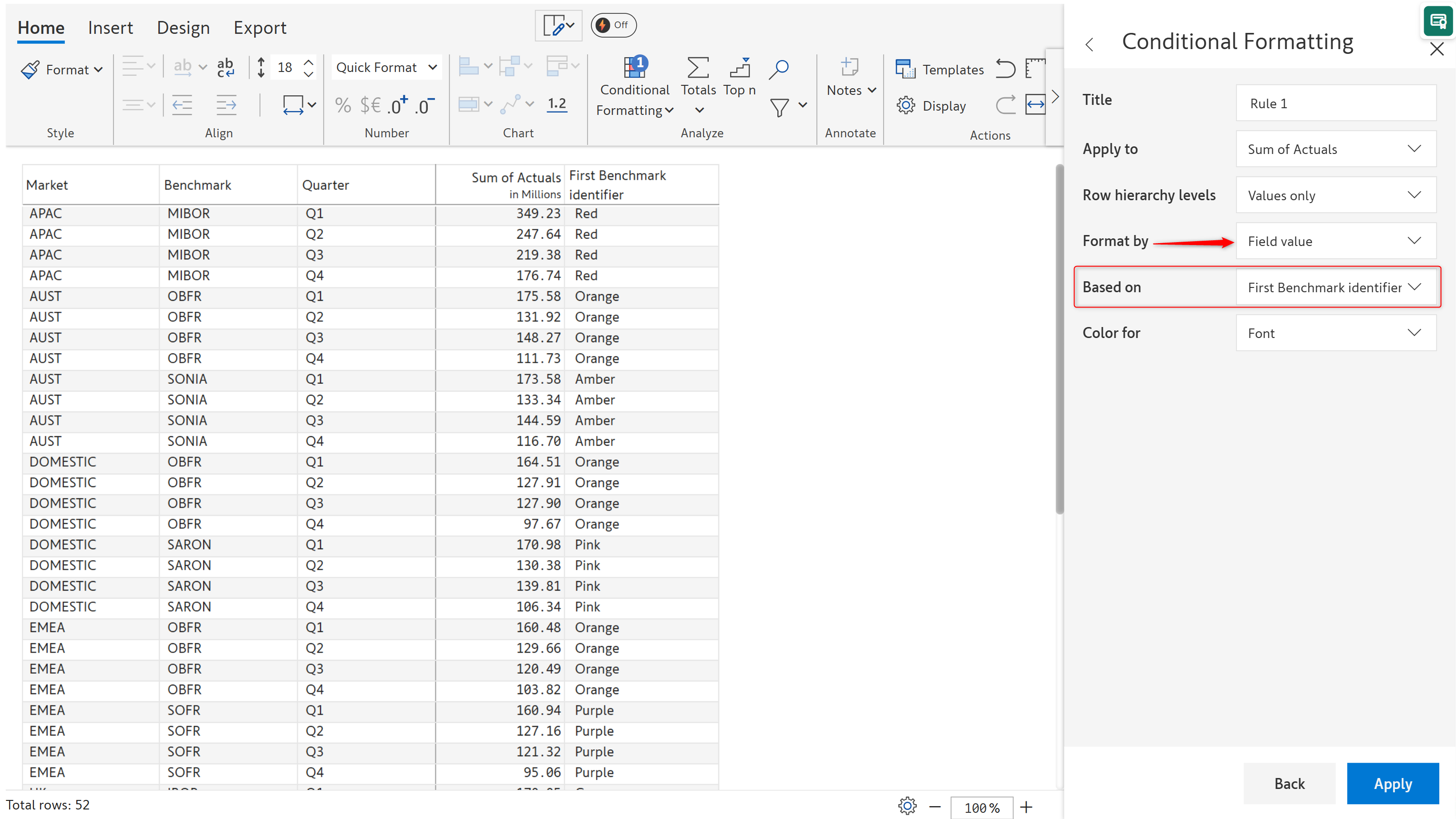
Assign the text column containing the color scheme to the Premium Table visual. You’ll see a **Field value** option in the **Format by** dropdown.
Select the text field that will be used to assign colors from the **Based on** dropdown.
Select the field that will be used to drive the color scheme
#### **1. Format font color**
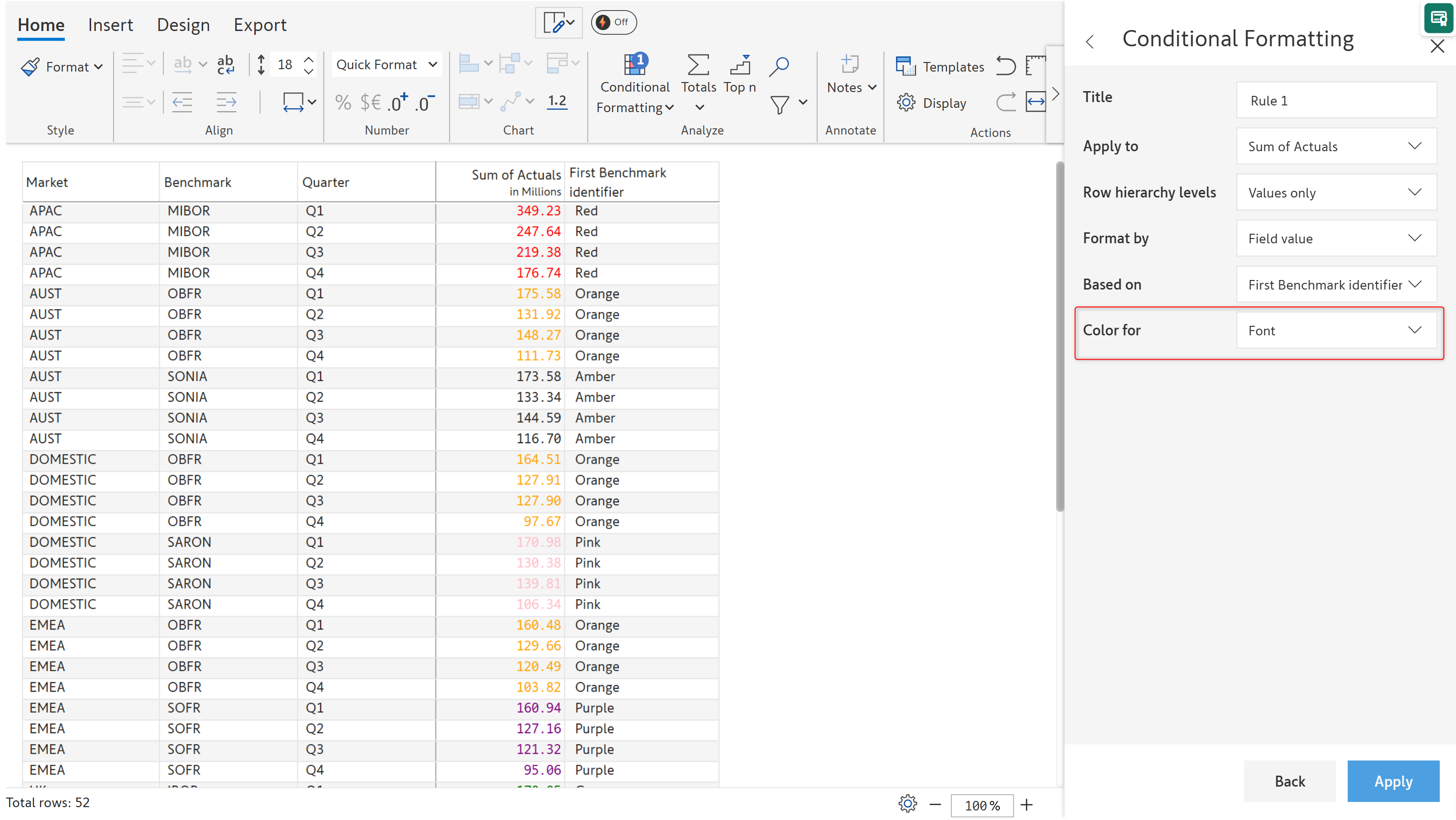
The font color for the Actuals measure is changed based on the *Benchmark identifier* text field. To apply conditional formatting on the font color, select the **Font** option from the **Color for** dropdown.
Set the font color from the data source
#### **2. Format background color**
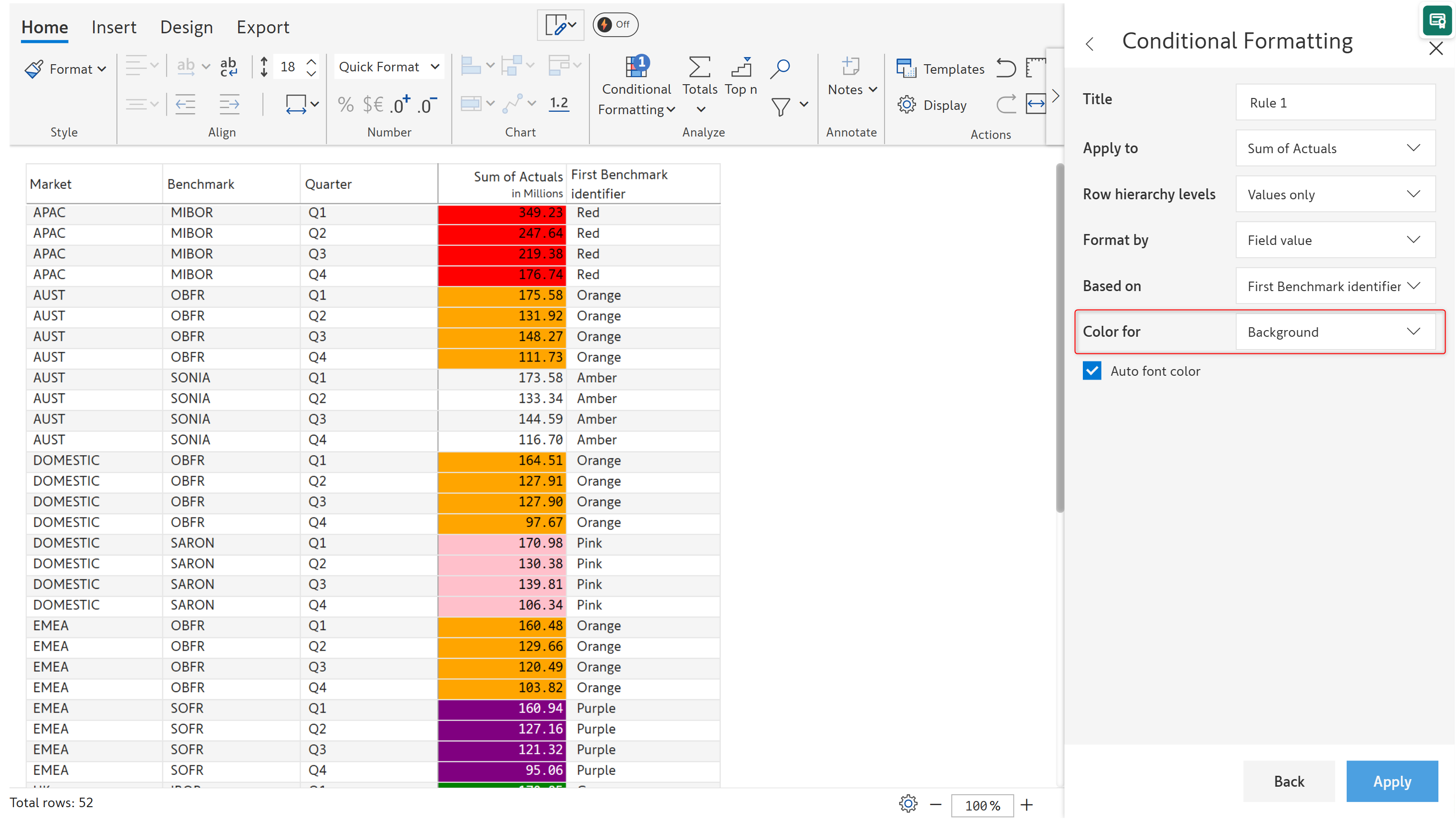
To change the cell background color, select **Background** from the **Color for** dropdown.
Apply cell background color from a source field
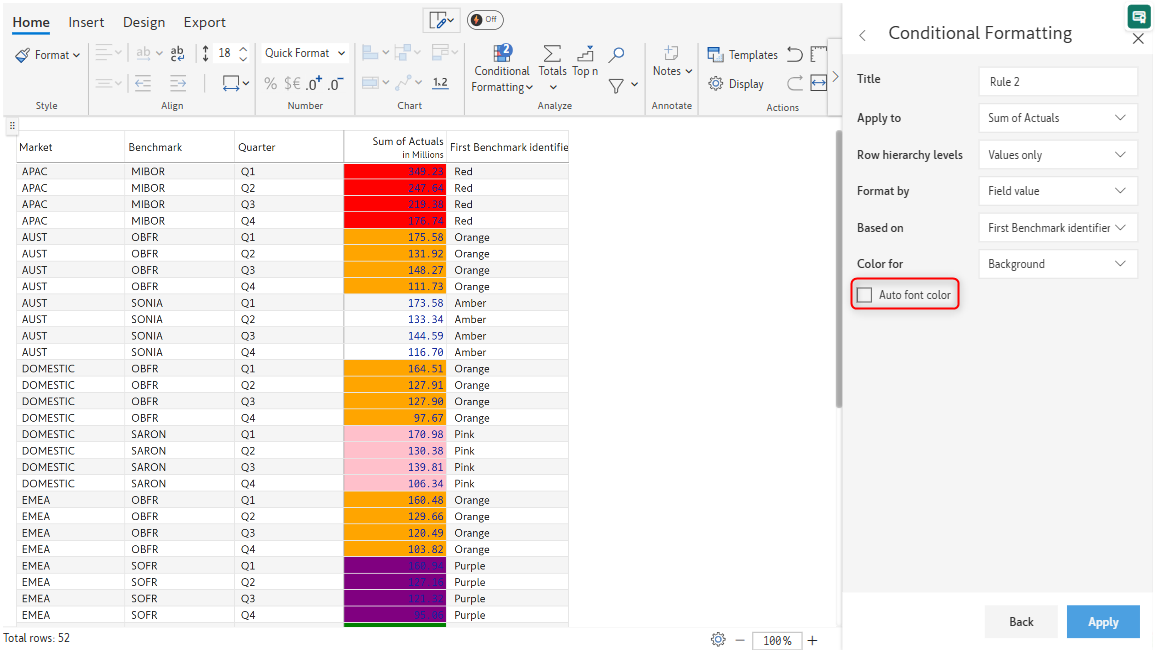
#### **3. Using auto font color**
When the **Auto Font Color** option is checked, Inforiver assigns a font color that will have maximum visibility against the background color.
Uncheck this option to assign a custom font color from the **Format** menu.
Custom font color
#### FAQs
**Q1: How does Field Value handle dynamic data changes?**\
Field value formatting in Inforiver is fully dynamic. When the underlying field or measure changes, the formatting updates automatically. This ensures your visuals always reflect the latest business logic and data conditions in real time.
---
# Agent Instructions
This documentation is published with GitBook. GitBook is the documentation platform designed so that both humans and AI agents can read, navigate, and reason over technical content effectively. Learn more at gitbook.com.
## Querying This Documentation
If you need additional information that is not directly available in this page, you can query the documentation by asking a question.
Perform an HTTP GET request on the following URL with the `ask` and `goal` query parameters:
```
GET https://docs.inforiver.com/premium-table/working-with-premium-table/5.-conditional-formatting/rules-if-conditions/field-value.md?ask=&goal=
```
`ask` is the immediate question: it should be specific, self-contained, and written in natural language.
`goal` is what the user is ultimately trying to achieve, the reason they need the answer. Sharing it helps GitBook give you a better, more relevant answer. A goal is most helpful when it describes the outcome the user wants rather than restating the question. For example, with `ask=how do I create an API token`, a goal like `automate deployments from our CI pipeline` lets GitBook tailor the answer to that use case.
The response will contain a direct answer to the question and relevant excerpts and sources from the documentation.
Use this mechanism when the answer is not explicitly present in the current page, you need clarification or additional context, or you want to retrieve related documentation sections.