Data validation rules
Ensure accurate Power BI reporting by setting up validation rules for manually entered numeric data using Inforiver Writeback Matrix.
Why are data validation rules important?
In a shared environment where multiple users edit data within the same Power BI reports, data validation is essential for preserving data integrity. Validation rules help prevent manual data entry errors and ensure consistent reporting.
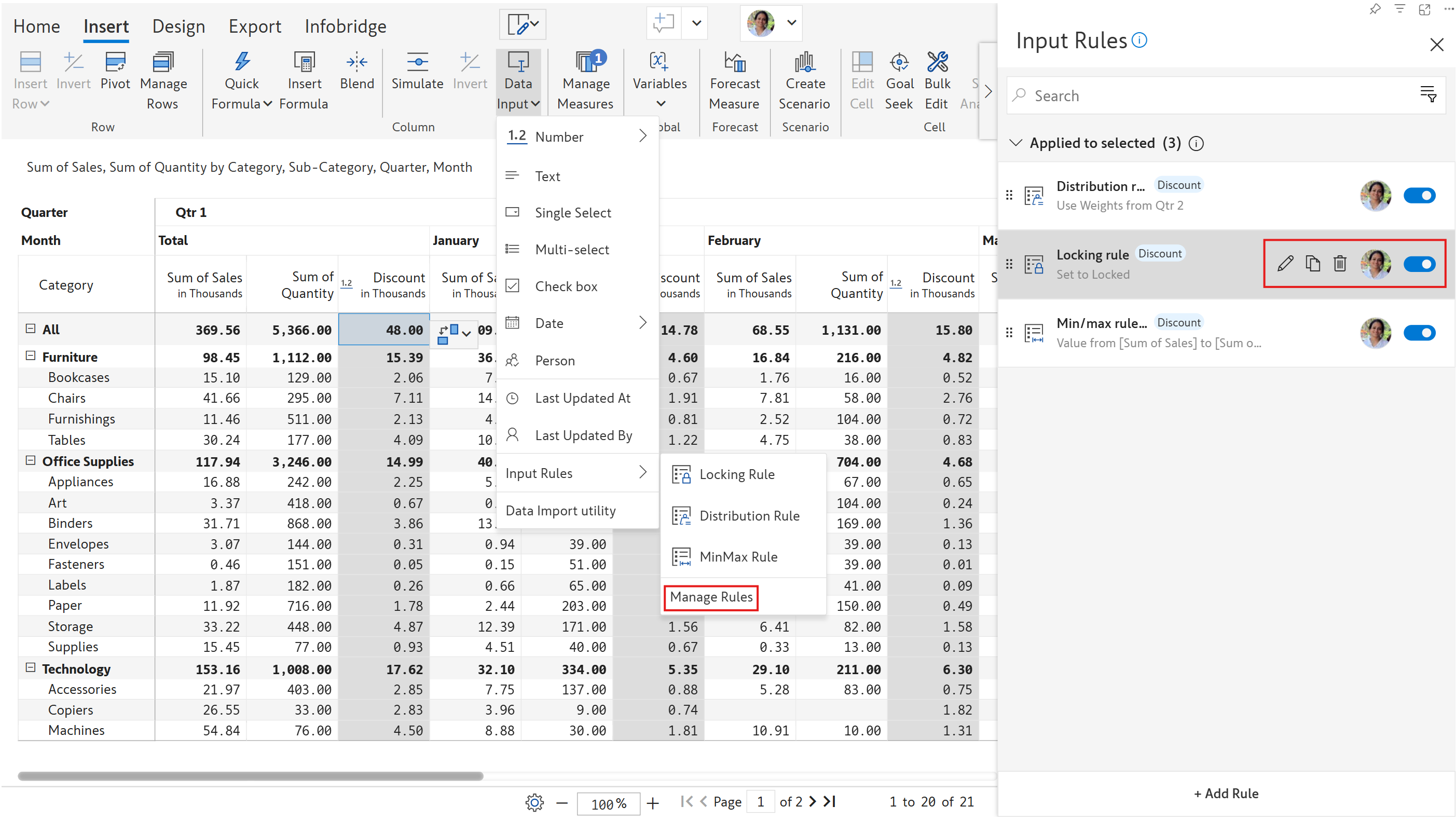
You can set up 3 types of data validation rules in Inforiver:
Locking rule: Locks the selected measure or column for editing. Learn more about Locking Rules.
Distribution rule: Select how to distribute entered values among child rows in a hierarchy.
Min/Max rule: Set the minimum and maximum values that can be entered.
General configuration options for rules
You can select the data input measures and columns to apply the rules to. You can also apply rules to specific rows or column dimension categories.
To demonstrate these options, we've chosen locking rules. The functionality is the same for distribution and min/max rules.
1. Apply to
Select the measures or data input columns to apply the rule.
All Measures: Locks all the data input measures in the report.
Selected Measures: Choose the measures that should be locked for editing. Select the measures from the Choose Measures dropdown.
All Visual Columns: Locks all the data input columns in the report.
Selected Visual Columns: Choose the data input columns that should be locked. Select the columns from the Choose Measures dropdown.


2. Choose Measures
Select specific data input measures or columns that should be made read-only fields.


3. Target rows
In typical business reporting, it’s often necessary to apply data input rules to specific row categories. The rule can be applied to all the rows, or you also have the flexibility to select specific row categories that should be made read-only.
Select the All Rows radio button to lock the entire field.

To lock specific row categories, select the Custom radio button and click Configure. Select the categories to lock in the Configure Custom Row Filter window.


You can also use the Filter option to apply conditions based on which rows will be locked for editing.

2.4. Target columns
Apply rules to specific columns
Data validation rules are applied to all columns by default. However, an actual business report may require that rules be applied only to certain columns. For example, locking rules need to be enabled on columns that are audited or approved.
Select the Custom option and click on Configure to select the column dimension categories to lock. Based on our selection, the Interest field is locked for the APAC and East regions, but the Central region is open for editing.


Apply rules for a specific time period
When you have a date dimension in your columns, you can choose to apply rules for a defined time range. For example, in a planning use case, approved historical budgets will be locked for editing; however, budgets for future time periods will be editable.
In this example, we've locked the budget for the previous year (2024) and the first quarter of the current year (Q1 2025). Users can edit the budget for the rest of 2025.

2.5. Apply to children
Apply rules automatically to child rows when the parent row is selected.
To demonstrate this for row hierarchies, we've selected the 'Discounts' and 'Sales Allowances' categories and selected the Custom option in the Target Rows section.

Notice how all the child categories under the Discounts hierarchy level are locked, although we only selected the 'Sales Allowances' and 'Discounts' rows.

Similarly, for a date hierarchy in the columns, we've selected Qtr 1 2026 and February 2026 in the column selection window.

The entire forecast for Qtr 1, including January and March, is closed as the Apply to children option is selected.

Last updated
Was this helpful?