Min/max rule

Set up min/max rules in your Inforiver Power BI reports to reflect financial constraints such as budget caps, approved ranges, or regulatory thresholds.

Why do we need min/max rules in reports?

circle-check

In this section, we'll look at how to configure min/max rules. Inforiver Writeback Matrix supports 3 types of rules:

  • Static values: Enter the minimum and maximum values that can be entered.

  • Measure-based: The range is calculated based on the minimum and maximum values in the selected measure.

  • Variable-driven: Min/max values can be controlled by variables.

Types of min/max rules

1. Step-by-step guide to setting up static min/max rules

In this example, the interest and rebate rates are percentages. We'll look at how to enforce a numeric range rule for these fields.

STEP 1: Choose the Selected Measures from the Apply to dropdown and select the Interest Rate and Rebate Rate options from the Choose Measures dropdown.

STEP 2: Select the Static option from the Minimum Value and Maximum Value section.

Apply the rule to selected measures and choose the static option
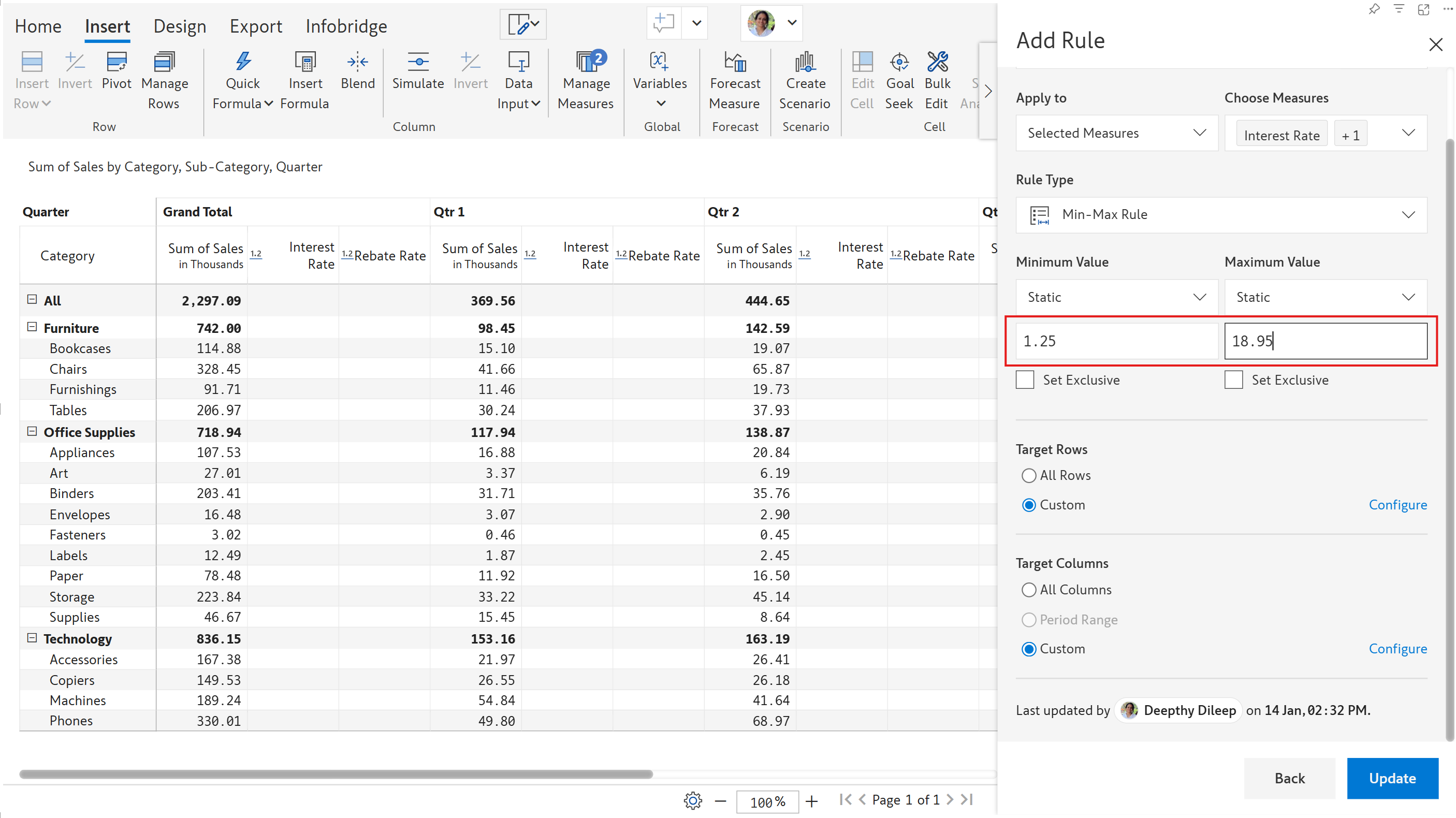
STEP 3: Enter the values that will define the upper and lower bounds of the acceptable range. We have set the lower limit to 1.25 and the upper limit to 18.95.

Assign the upper and lower limits

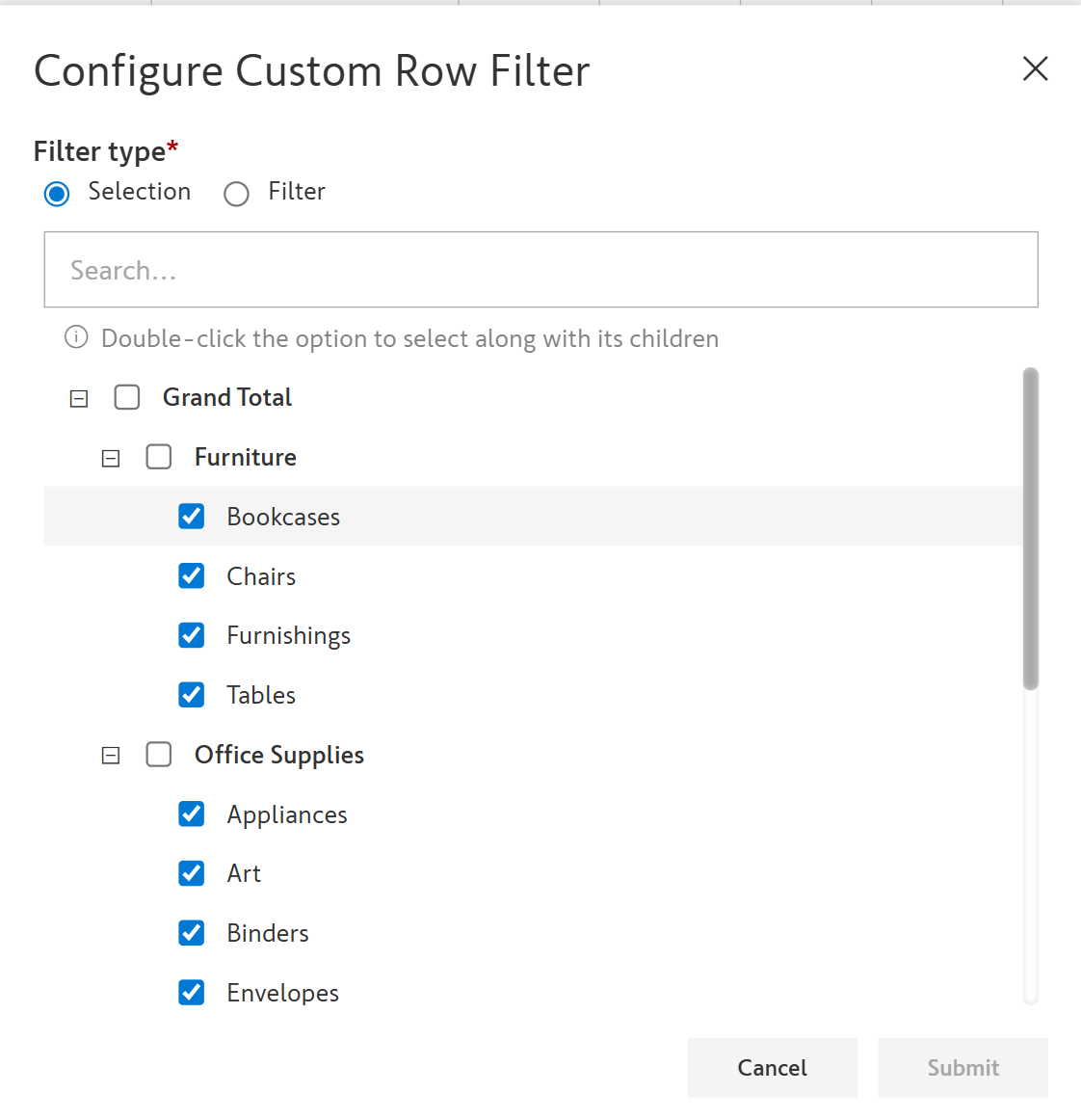
STEP 4: Select the Custom option and select the target rows and columns the rules should be applied to. We've selected only the child rows and excluded the total and grand total rows and columns.

Row selection to exclude totals
Column selection to exclude totals
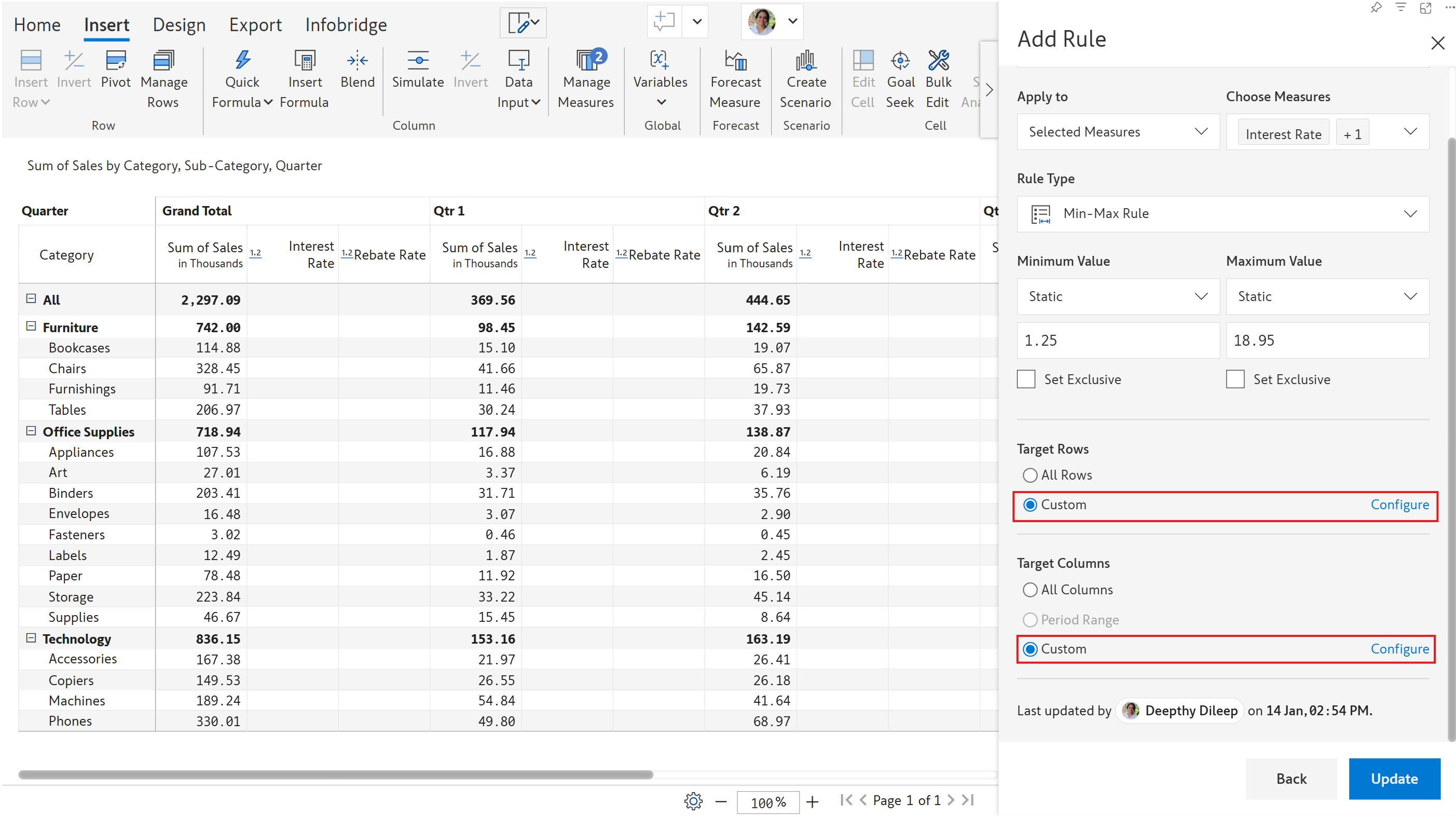
Apply rules to specific rows and columns
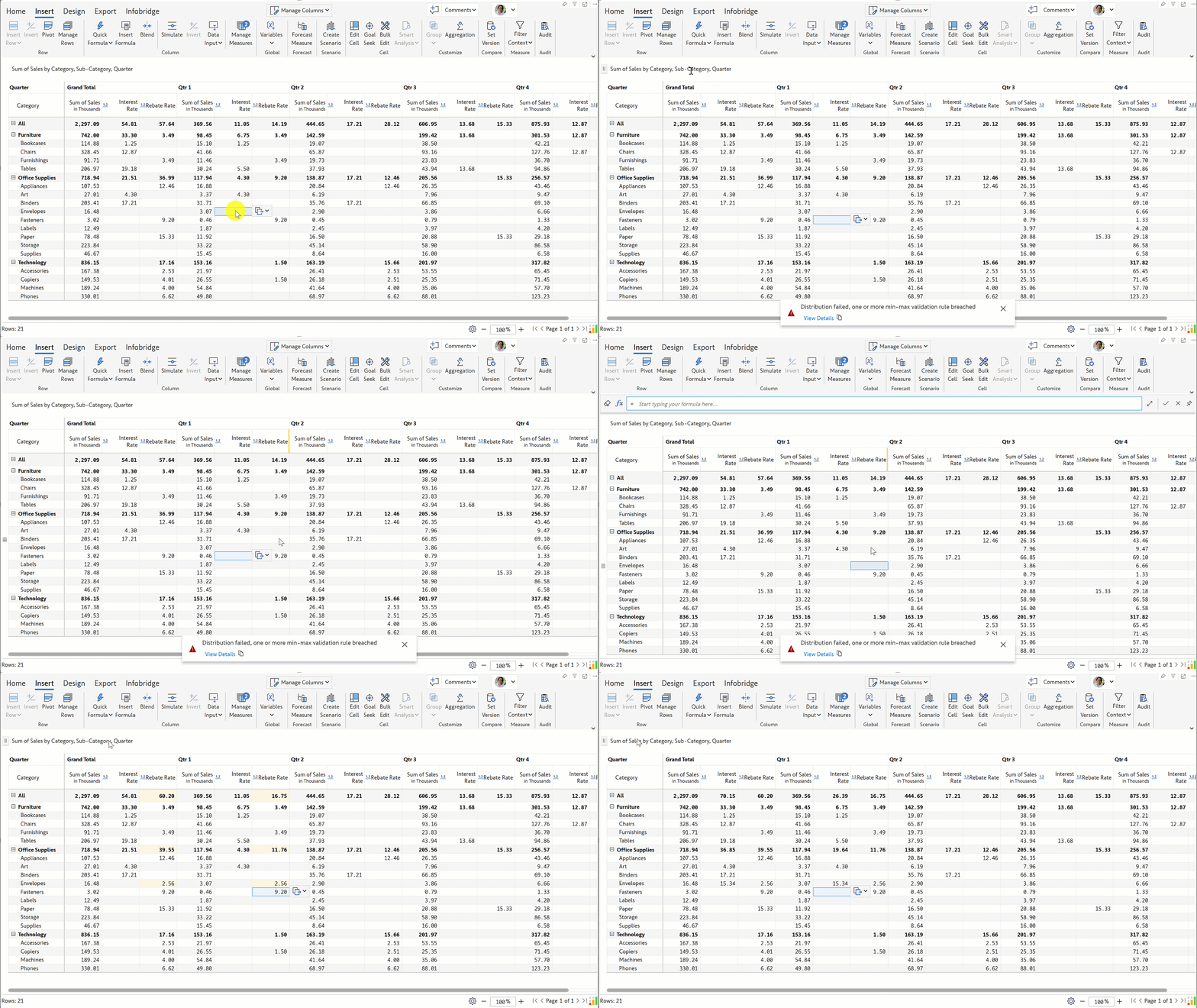
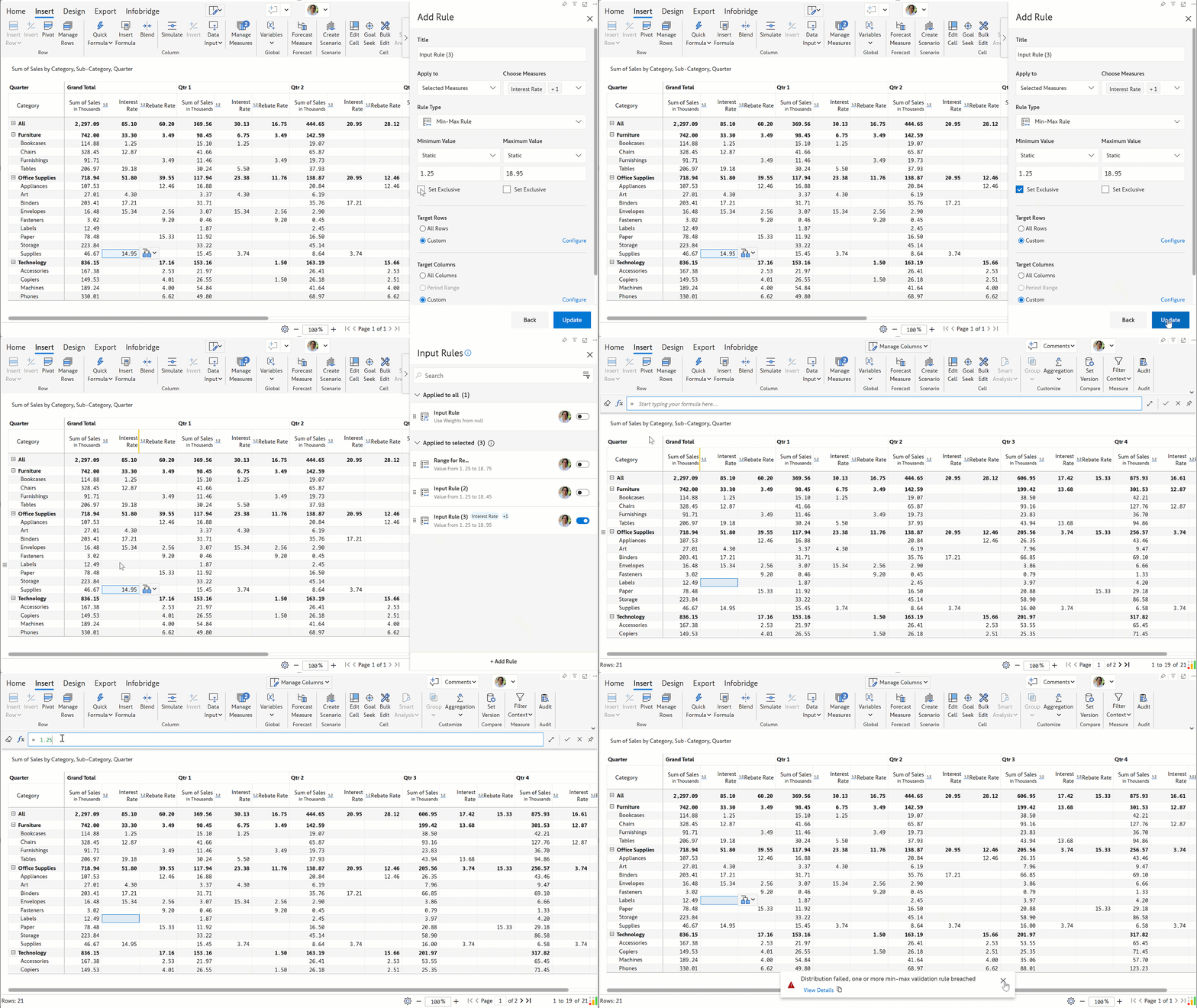
Notice how values outside the defined range are not accepted.

Inforiver throws an error when values outside the defined range are entered

2. Configuration options for min/max rules

Basic configurations are covered in the Data validation rules section. The options specific to mix/max rules are covered in this section.

2.1. Set exclusive

Use Set Exclusive to exclude boundary values, ensuring the minimum is greater than and the maximum is less than the specified limits - for example, when the minimum value must be greater than (but not equal to) the lower limit, and the maximum value must be less than (but not equal to) the upper limit.

In the animation, notice how the visual does not accept 1.25 although it is the lower bound. This is because the Set Exclusive option has been enabled.

Error when entering the lower bound value when set exclusive is enabled

2.2. Mimimum/Maximum value

In the first section, we used static values to set the upper and lower limits. You can also use measures from your report as the min/max values.

Another option is to control the minimum and maximum values with variables.

Last updated

Was this helpful?