Locking rule

Set up rules to regulate editing values and lock targeted rows and columns in your reports.

Why do we need to lock data in reports?

circle-check

In this section, we'll look at how to configure locking rules.

1. Step-by-step guide to setting up field locking rules

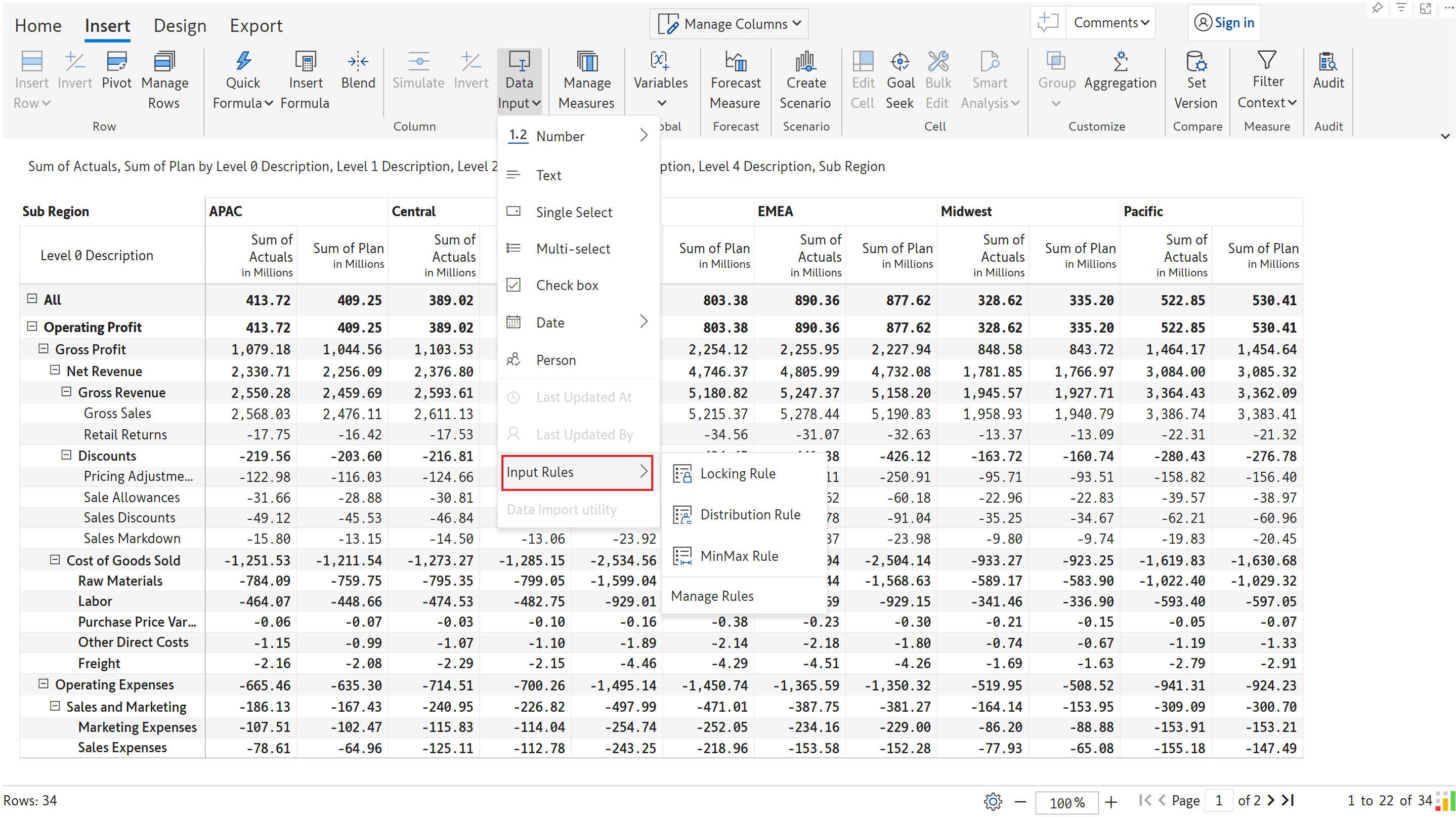
STEP 1: Navigate to the Insert ribbon > Data Input > Input Rules section and select the type of rule to set up. You can select locking, distribution, or min/max rule types.

Creating an input rule

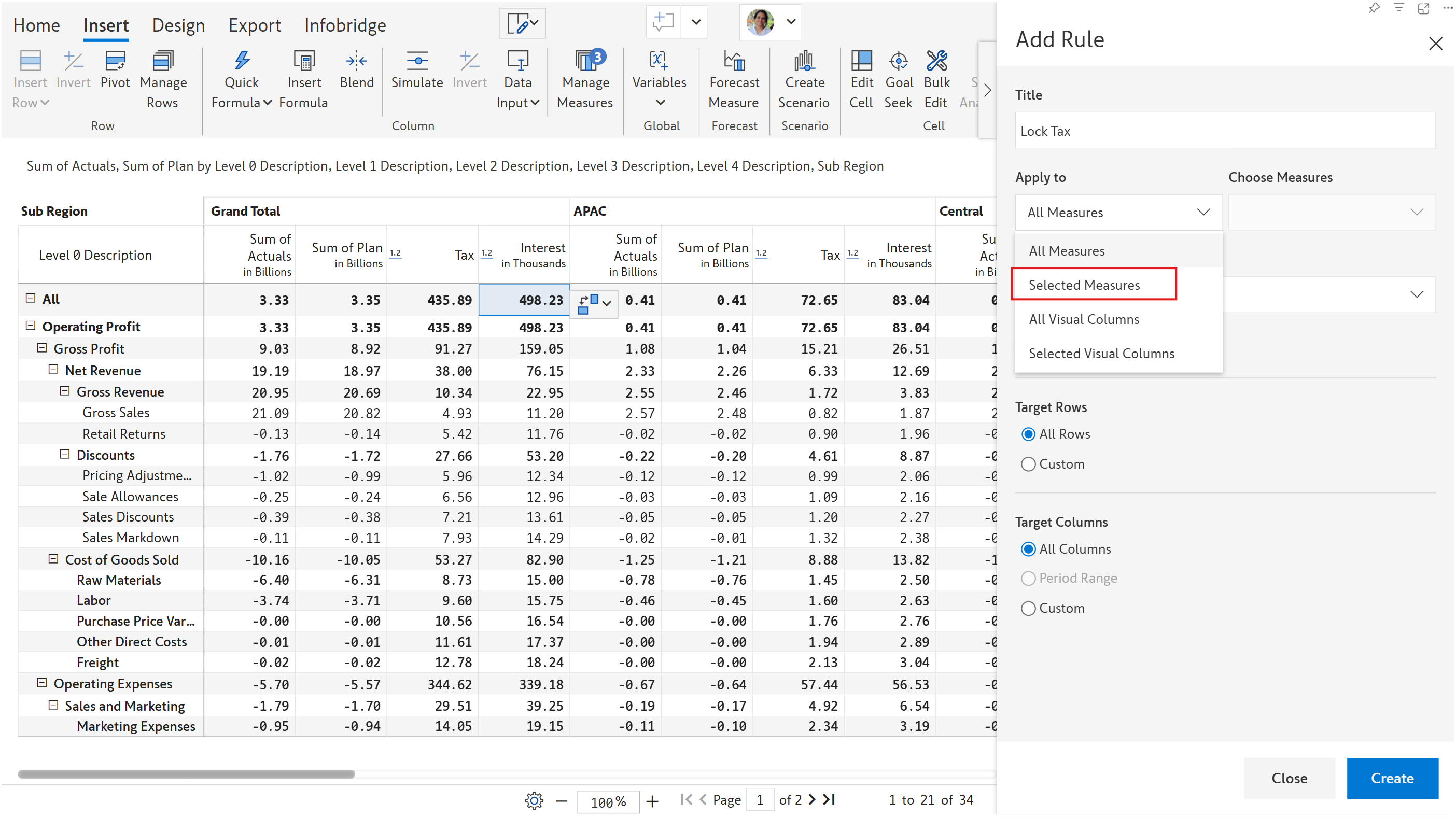
STEP 2: Let's select Locking Rule for demonstration purposes. In the Add Rule side pane, we'll change the title to Lock Tax.

In the Apply to dropdown, let's choose the Selected Measures option.

Assign a title and choose the Selected Measures option from the Apply to drodown.
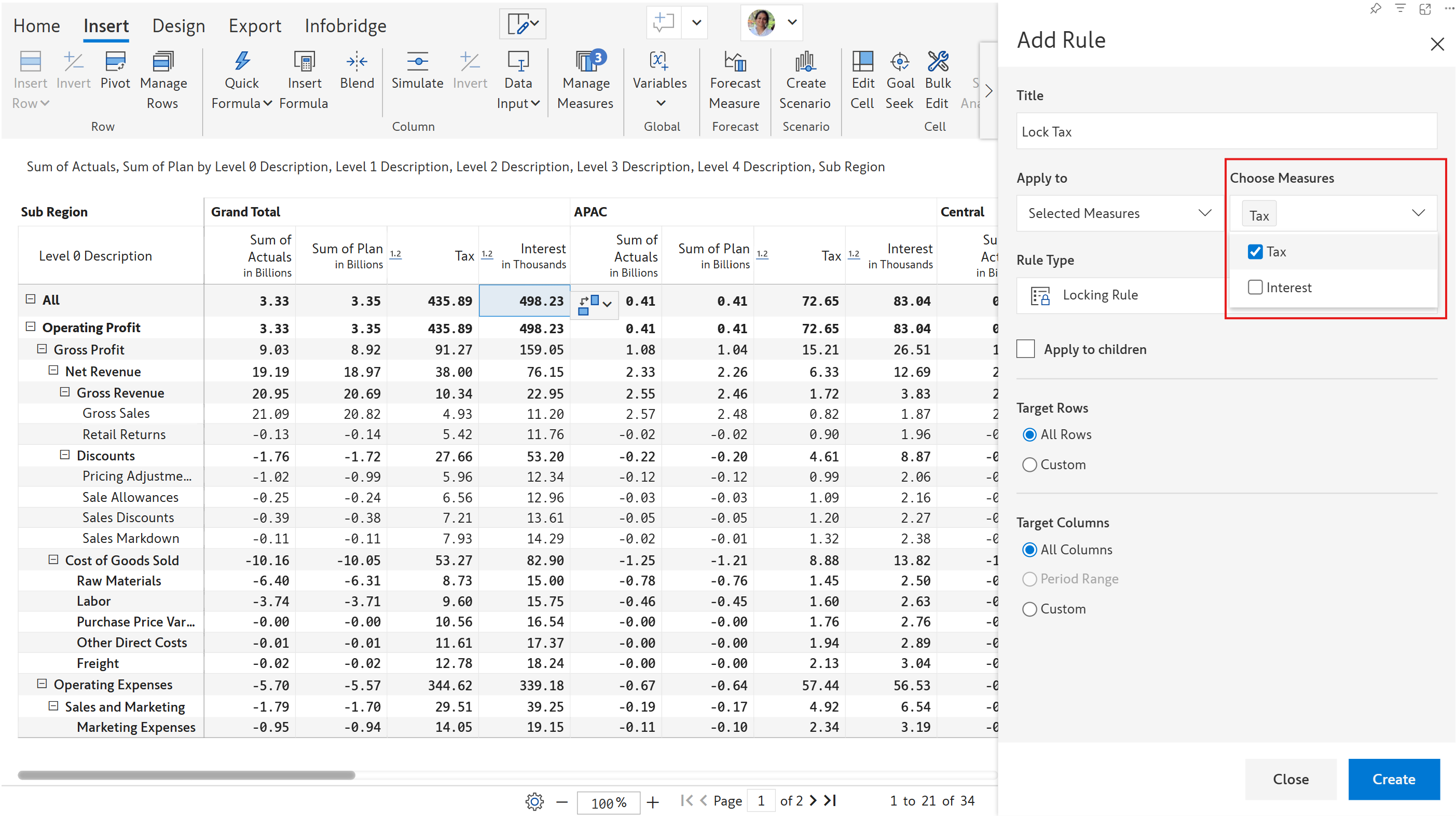
STEP 3: Let's select Tax from the Choose Measures dropdown.

Select the Tax measure from the choose measures dropdown
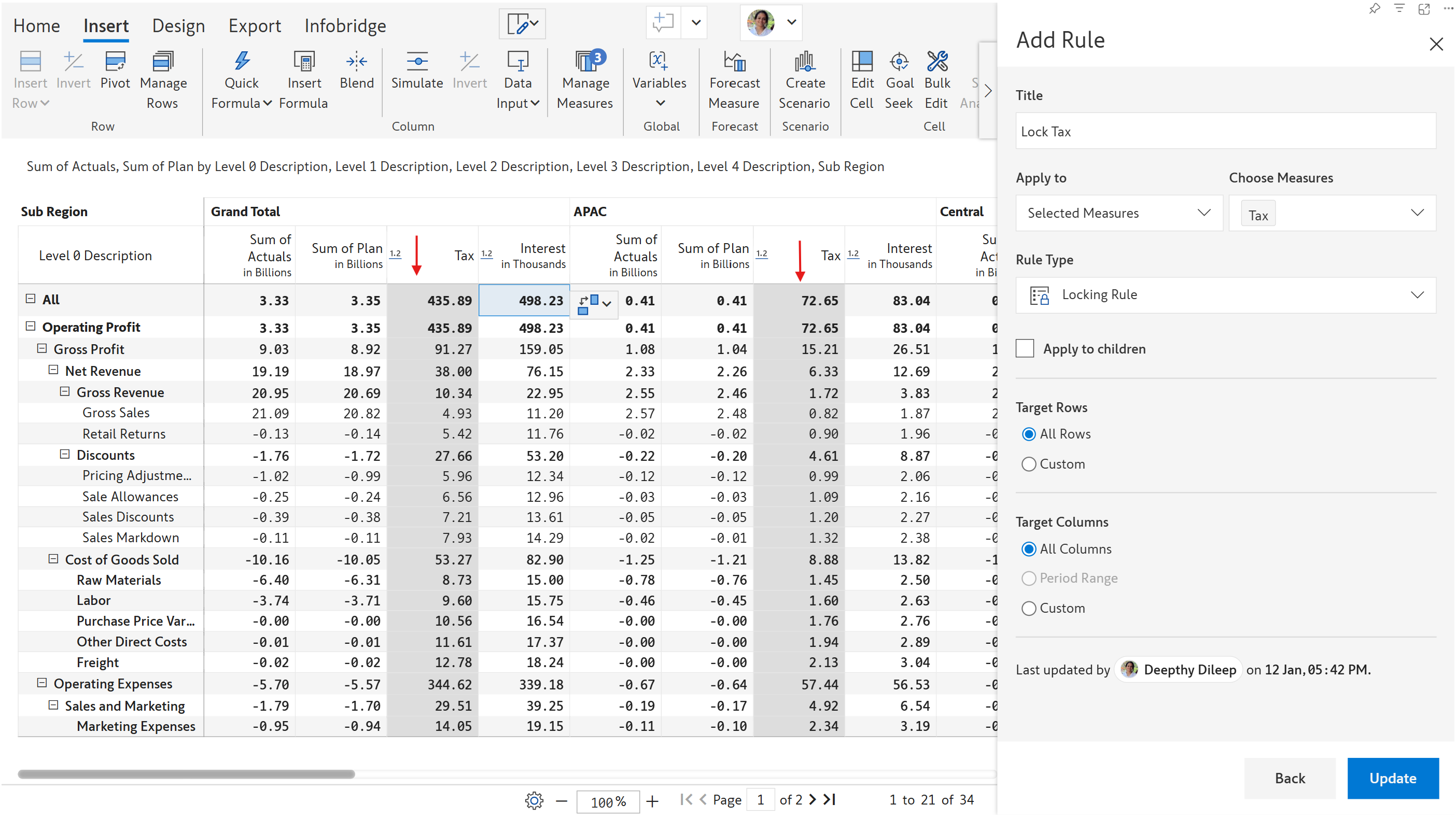
We'll keep the default settings for the other options and click Create. Notice how all the Tax measures are locked for editing.

2. Configuration options for locking rules

Basic configurations are covered in the Data validation rules section. The options specific to locking rules are covered in this section.

2.1. Lock open forecast periods

If you've created a forecast in Inforiver, future time ranges will be open for editing, and forecasts for closed periods or past dates cannot be edited. Learn more about forecasting.

In this use case, we've created a forecast for 2026. When the forecast is created, edits are automatically disabled on the forecast measure until 2025 - which is the closed period.

Open forecasts are editable by default

Select the Open Period option to disable editing on open forecasts or future time frames as well. Notice how the 2026 forecast columns are greyed out and cannot be modified.

Disable editing on open forecasts

Last updated

Was this helpful?