# Cell, header & value formatting

Change the font color, style, size, and text alignment in a cell, or apply formatting effects in Premium Table - these are available in the Home ribbon of the toolbar in the **Style** and **Align** sections.

<figure><img src="https://2428652681-files.gitbook.io/~/files/v0/b/gitbook-x-prod.appspot.com/o/spaces%2FsB9HAei8v4FfKkH9M4gw%2Fuploads%2F2RZBopWJArgIj6TSnOlz%2Fimage.png?alt=media&#x26;token=1c16ce67-46cd-4915-9b04-5c56144e63c8" alt=""><figcaption></figcaption></figure>

## 1. Style options

#### 1.1. Font style and size

The default font is [Inforiver Sans](https://inforiver.com/blog/general/best-fonts-financial-reporting/), which has been specifically designed for use in financial and tabular reports. But you can change to a different font from the dropdown menu and change the default size.

<figure><img src="https://2428652681-files.gitbook.io/~/files/v0/b/gitbook-x-prod.appspot.com/o/spaces%2FsB9HAei8v4FfKkH9M4gw%2Fuploads%2F65IyP7bq5L5azC2FHaNd%2Fimage.png?alt=media&#x26;token=c73d1de0-33e5-4c90-807b-b77c2d203497" alt=""><figcaption><p>Font style and size</p></figcaption></figure>

#### 1.2. Increase/decrease font size&#x20;

Font size can also be changed by using the Increase/Decrease font size options.

<figure><img src="https://2428652681-files.gitbook.io/~/files/v0/b/gitbook-x-prod.appspot.com/o/spaces%2FsB9HAei8v4FfKkH9M4gw%2Fuploads%2F7VKPlDuI1ycbbGWnf7sy%2Fimage.png?alt=media&#x26;token=860ce243-6f7d-47d8-ad84-bba61f9e07d9" alt=""><figcaption><p>Increase/Decrease font size</p></figcaption></figure>

#### 1.3. Font formatting style&#x20;

Bold, Italic, and Underline styles can be applied.

<figure><img src="https://2428652681-files.gitbook.io/~/files/v0/b/gitbook-x-prod.appspot.com/o/spaces%2FsB9HAei8v4FfKkH9M4gw%2Fuploads%2FaN8suWvVFHY9YHBOmsLs%2Fimage.png?alt=media&#x26;token=e130b7a5-e102-4476-9748-b9ef5c5c2e73" alt=""><figcaption><p>Bold/Italic/Underline option</p></figcaption></figure>

#### 1.4. Font/background color

You can use the fill color option to apply background color to an entire column or column or even an individual cell. Use the font color option to change the foreground color or the font color of the data values, row or column headings, and subheadings.

<figure><img src="https://2428652681-files.gitbook.io/~/files/v0/b/gitbook-x-prod.appspot.com/o/spaces%2FsB9HAei8v4FfKkH9M4gw%2Fuploads%2F0jFdB26CKoHamWaL7Eyt%2Fimage.png?alt=media&#x26;token=54200448-954e-4966-acc2-d471a4f2f08a" alt=""><figcaption><p>Background and font color</p></figcaption></figure>

#### 1.5. Format painter

You can copy cell formatting using the **Format Painter** option, just like Excel.&#x20;

<div><figure><img src="https://2428652681-files.gitbook.io/~/files/v0/b/gitbook-x-prod.appspot.com/o/spaces%2FsB9HAei8v4FfKkH9M4gw%2Fuploads%2FFd2efCp6DwYH1X0AI6u6%2Fimage.png?alt=media&#x26;token=e1da24e6-fec5-4358-9679-add3f902b9f7" alt=""><figcaption><p>Format painter option</p></figcaption></figure> <figure><img src="https://2428652681-files.gitbook.io/~/files/v0/b/gitbook-x-prod.appspot.com/o/spaces%2FsB9HAei8v4FfKkH9M4gw%2Fuploads%2FQyA65XPtuFnViBqMnSoT%2F2025-06-16_15h50_32.png?alt=media&#x26;token=1f74ee84-4bc7-4a5b-8481-ceb51dddb1ec" alt=""><figcaption><p>Formatting replicated across multiple cells</p></figcaption></figure></div>

#### 1.6 Borders

Premium Table provides several predefined border styles, and they can be applied at a cell/row/column level. If the predefined cell borders do not meet your needs, you can create a custom border by clicking on the 'Custom' option.

<figure><img src="https://2428652681-files.gitbook.io/~/files/v0/b/gitbook-x-prod.appspot.com/o/spaces%2FsB9HAei8v4FfKkH9M4gw%2Fuploads%2FXkYktNBqo4gVICGi9aLY%2Fimage.png?alt=media&#x26;token=b2e6f058-465c-4af0-a625-6e4da2e83423" alt=""><figcaption><p>Border options</p></figcaption></figure>

* To remove custom borders, click on 'Reset' or select the 'No borders' option (the 1st icon).
* To remove the predefined borders, click on the 'No borders' option (the 1st icon).

## 2. Alignment options

#### 2.1. Horizontal/vertical alignment&#x20;

Horizontal alignment can be formatted using the align left, right, and center options. For vertical alignment, the options are align top, bottom, and middle.

<figure><img src="https://2428652681-files.gitbook.io/~/files/v0/b/gitbook-x-prod.appspot.com/o/spaces%2FsB9HAei8v4FfKkH9M4gw%2Fuploads%2FPvVLq7RGSTWMNLH7QLsX%2Fimage.png?alt=media&#x26;token=2f7c28c6-33f2-44e6-9eb3-c58da18d57dd" alt=""><figcaption><p>Horizontal and vertical alignment</p></figcaption></figure>

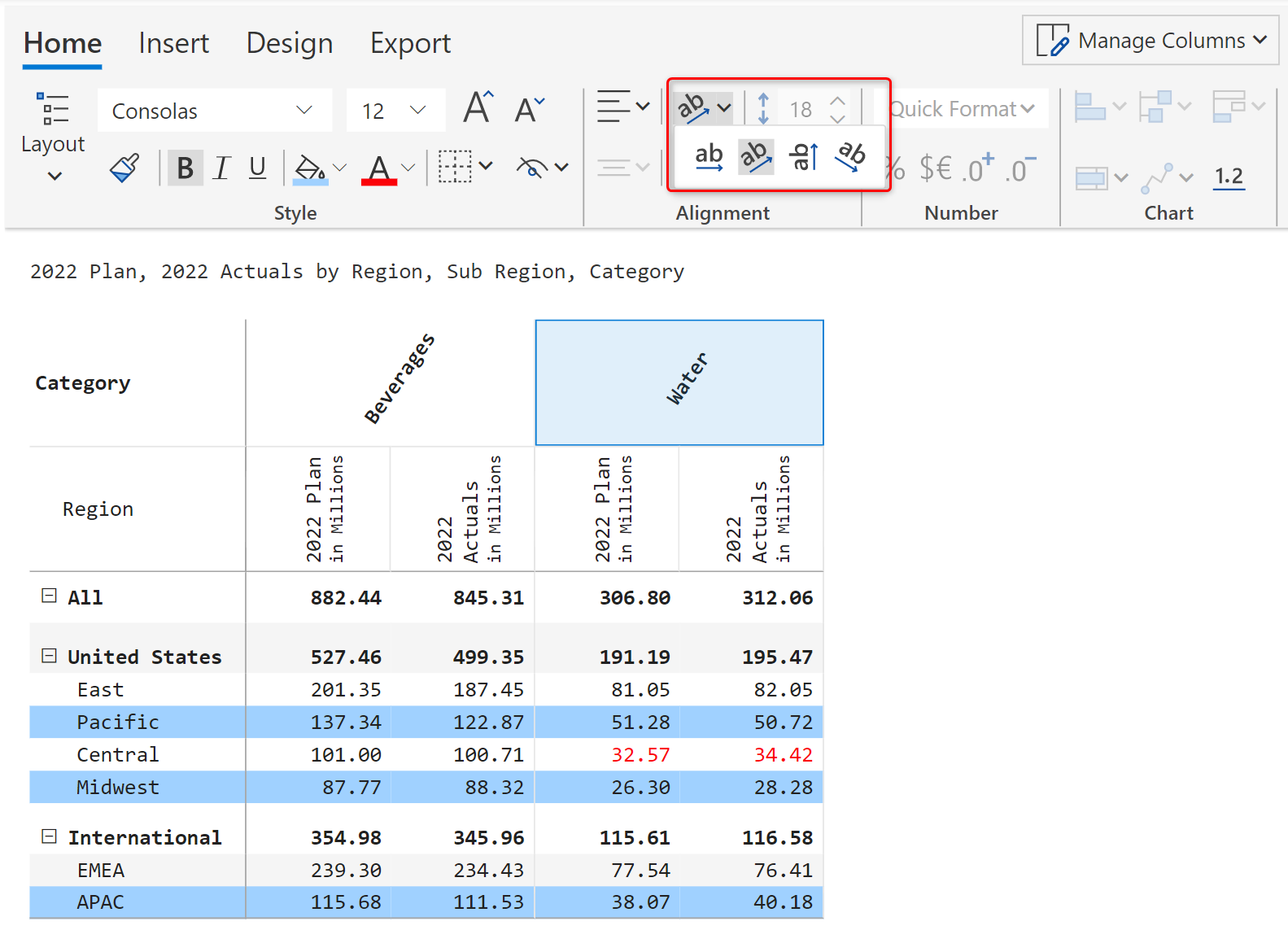
#### 2.2. Header orientation&#x20;

Column and measure header orientations can be changed using the highlighted options. This is very helpful when you have a lot of columns in your report.

<figure><img src="https://content.gitbook.com/content/sB9HAei8v4FfKkH9M4gw/blobs/qmiJVzK66N8rF6St6nsg/2.4.2.3%20header%20orientation.png" alt=""><figcaption><p>Header orientation options</p></figcaption></figure>

#### 2.3. Increase/decrease indent&#x20;

Use the indentation icon from the toolbar to indent specific values. This feature makes creating financial statements a breeze.

#### 2.4. Row height&#x20;

You can increase or decrease row size manually. This is especially useful when inserting inline charts.&#x20;

<figure><img src="https://2428652681-files.gitbook.io/~/files/v0/b/gitbook-x-prod.appspot.com/o/spaces%2FsB9HAei8v4FfKkH9M4gw%2Fuploads%2FMBpEbJ4kjAeCtvO2WRrr%2Fimage.png?alt=media&#x26;token=442cb6e6-bb7a-4834-9c6a-7948a88a41d6" alt=""><figcaption><p>Row height</p></figcaption></figure>

#### 2.5 Word wrap

If your measure headers are very long, you can enable the word wrap option to ensure that the entire header is displayed.

<figure><img src="https://2428652681-files.gitbook.io/~/files/v0/b/gitbook-x-prod.appspot.com/o/spaces%2FsB9HAei8v4FfKkH9M4gw%2Fuploads%2FGjrk2wA1XYt9rYyxejxg%2Fimage.png?alt=media&#x26;token=cfd479f5-21d9-48df-b2b4-e37f11c0bb8f" alt=""><figcaption><p>Word wrap</p></figcaption></figure>

**2.6. Fit Content**

You can choose the fit mode that is best suited for your data.

<div><figure><img src="https://2428652681-files.gitbook.io/~/files/v0/b/gitbook-x-prod.appspot.com/o/spaces%2FsB9HAei8v4FfKkH9M4gw%2Fuploads%2FHENyu1ASC5rQd2F0N8l5%2Fimage.png?alt=media&#x26;token=01a53814-dc81-4c90-b176-77ca926ca1cb" alt=""><figcaption><p>Fit to header</p></figcaption></figure> <figure><img src="https://2428652681-files.gitbook.io/~/files/v0/b/gitbook-x-prod.appspot.com/o/spaces%2FsB9HAei8v4FfKkH9M4gw%2Fuploads%2FJvAxO4O2TxDB0Gzbb8kI%2F2025-06-16_16h17_08.png?alt=media&#x26;token=05e32efb-362c-4b35-955a-1ad446e8c141" alt=""><figcaption><p>Fit to Content</p></figcaption></figure> <figure><img src="https://2428652681-files.gitbook.io/~/files/v0/b/gitbook-x-prod.appspot.com/o/spaces%2FsB9HAei8v4FfKkH9M4gw%2Fuploads%2FZnAlsEYDRg4rfG53XaYv%2F2025-06-16_16h21_00.png?alt=media&#x26;token=78c8543d-de7f-4e98-b12e-9867a9e09c61" alt=""><figcaption><p>Best fit</p></figcaption></figure></div>

Use the 'Manual Column Width' option to open Column Settings and manually enter the width for each column.

Enable to **Lock Size** toggle to prevent changes to the width of the columns in your report.

## 3. Auto-format for column dimensions

Select the header only, without selecting the measure values with the **Select Header** option in the column gripper.

<figure><img src="https://2428652681-files.gitbook.io/~/files/v0/b/gitbook-x-prod.appspot.com/o/spaces%2FsB9HAei8v4FfKkH9M4gw%2Fuploads%2FcOJN6iTLk542g8rI0ZUR%2Fimage.png?alt=media&#x26;token=a329e7ee-4a5a-481a-84ac-490b92a114d8" alt=""><figcaption><p>Select header option</p></figcaption></figure>

This feature comes in handy when you need to apply formatting to a specific measure header.

<figure><img src="https://2428652681-files.gitbook.io/~/files/v0/b/gitbook-x-prod.appspot.com/o/spaces%2FsB9HAei8v4FfKkH9M4gw%2Fuploads%2FtZzIQIXKDBsnsa18AW8m%2Fimage.png?alt=media&#x26;token=1a6838d1-696f-4929-ba4f-9beb6ec700af" alt=""><figcaption><p>Formatting the header</p></figcaption></figure>

In the next section, we'll see how to handle [totals & subtotals](https://docs.inforiver.com/premium-table/working-with-premium-table/2.-displaying-information/basic-formatting/row-totals).

#### Resources

[Best Fonts for Financial Reporting](https://inforiver.com/blog/general/best-fonts-financial-reporting/)