# Invert sign

In the case of financial reports such as the P\&L statement, data for expense or deduction items are often shown as positive numbers. This is especially true when the income and expense values come from different tables. However, the report might need to be updated with the negative sign operator for two main purposes.

(a) for performing aggregations, say for naturally aggregating revenue & expense accounts to calculate profit, or

(b) to display +/- signs in the table to indicate which accounts are added vs. deducted.

This can be easily achieved using the 'Invert' option in Inforiver.&#x20;

### 1. Row/cell level

You can invert cells or rows and display the negative signs at a cell level. You can also define whether the negative signs should influence the total or not.&#x20;

Let’s invert the Computers > Laptops row.

1.1. Select the row. Click the **Invert** option from the Row section of the Insert ribbon.

<figure><img src="https://2428652681-files.gitbook.io/~/files/v0/b/gitbook-x-prod.appspot.com/o/spaces%2FsB9HAei8v4FfKkH9M4gw%2Fuploads%2F5FTPsnSMW3dmS5HnbUUg%2Fimage.png?alt=media&#x26;token=18b86c70-5b30-431a-8205-9dd10d56b1c5" alt=""><figcaption><p>Invert row option</p></figcaption></figure>

1.2. Notice how the measure values are inverted for that row. The grand total row is also updated accordingly.

<figure><img src="https://2428652681-files.gitbook.io/~/files/v0/b/gitbook-x-prod.appspot.com/o/spaces%2FsB9HAei8v4FfKkH9M4gw%2Fuploads%2FzUA9HitlrrEQUqcTFCGk%2Fimage.png?alt=media&#x26;token=246d6ad2-07e3-43ac-8380-973438343608" alt=""><figcaption><p>Inverted row</p></figcaption></figure>

1.3. If you do not want the sign inversion to impact the totals, turn off the **Influence Total** toggle in the Display -> Numbers settings.

<figure><img src="https://2428652681-files.gitbook.io/~/files/v0/b/gitbook-x-prod.appspot.com/o/spaces%2FsB9HAei8v4FfKkH9M4gw%2Fuploads%2F9UqY3aeQR7ozxEQTQe2Q%2Fimage.png?alt=media&#x26;token=a0a90091-27b1-46e1-943b-a033e7bc52fa" alt=""><figcaption><p>Influence total option</p></figcaption></figure>

1.4.  Click Invert again with the respective row selected to reset to the default value. A pop-up opens with a notification message. Click Apply to reset and restore the original values.

<figure><img src="https://2428652681-files.gitbook.io/~/files/v0/b/gitbook-x-prod.appspot.com/o/spaces%2FsB9HAei8v4FfKkH9M4gw%2Fuploads%2Fuzel64u0OmYiqiwbGKUF%2Fimage.png?alt=media&#x26;token=84b86bd0-668a-4a34-8233-c3a5fc1674c3" alt=""><figcaption><p>Restoring inverted rows to original value</p></figcaption></figure>

1.5. Note that the signage of calculated rows cannot be changed. The invert option is disabled for the calculated row '4k Monitor'.

<figure><img src="https://2428652681-files.gitbook.io/~/files/v0/b/gitbook-x-prod.appspot.com/o/spaces%2FsB9HAei8v4FfKkH9M4gw%2Fuploads%2FxDKYb2hmTD3VP3KnhQL0%2Fimage.png?alt=media&#x26;token=3c0a8a20-e80e-4012-8db3-1333d7ff6ffb" alt=""><figcaption><p>Invert option cannot be applied to calculated rows</p></figcaption></figure>

1.6. Enable the **Highlight inverted rows** toggle from Display settings > Numbers tab to spotlight rows that were inverted manually at the visual level.

<figure><img src="https://2428652681-files.gitbook.io/~/files/v0/b/gitbook-x-prod.appspot.com/o/spaces%2FsB9HAei8v4FfKkH9M4gw%2Fuploads%2FZl01B4XJZxWI9htjMDi4%2Fimage.png?alt=media&#x26;token=e70812ac-4e74-4cf5-9f8d-491ea377069d" alt=""><figcaption><p>Highlight inverted rows</p></figcaption></figure>

1.7. Inverting cells is just like inverting rows - select the cells that need to be inverted and click the **Invert** button.

<div><figure><img src="https://2428652681-files.gitbook.io/~/files/v0/b/gitbook-x-prod.appspot.com/o/spaces%2FsB9HAei8v4FfKkH9M4gw%2Fuploads%2FGGkbEy2Gi0XSh713v5GB%2Fimage.png?alt=media&#x26;token=51a853ed-d715-4971-8301-bbc0196b2629" alt=""><figcaption><p>Inverting cells</p></figcaption></figure> <figure><img src="https://2428652681-files.gitbook.io/~/files/v0/b/gitbook-x-prod.appspot.com/o/spaces%2FsB9HAei8v4FfKkH9M4gw%2Fuploads%2FgRqyMTDPBjcFQMUibCtO%2F2025-06-25_10h21_48.png?alt=media&#x26;token=71dfbccc-1562-46cc-b63d-c508894e4c5f" alt=""><figcaption><p>Inverted cells</p></figcaption></figure></div>

1.8. Enable the **Highlight inverted cells** toggle from Display settings > Numbers tab to spotlight cells that were inverted manually at the visual level.

<figure><img src="https://2428652681-files.gitbook.io/~/files/v0/b/gitbook-x-prod.appspot.com/o/spaces%2FsB9HAei8v4FfKkH9M4gw%2Fuploads%2F4oTG19UYMHwl6YKcqqen%2Fimage.png?alt=media&#x26;token=439afa07-598d-48f9-93d9-5cc9e38bf6ce" alt=""><figcaption><p>Highlight inverted cells</p></figcaption></figure>

### 2. Measure level

2.1.  Create a new signed measure

This feature is a single-click solution to creating signed measures. To invert a particular measure, select it and click on the **Invert** button in the **Column** section of the Insert ribbon. This opens the Formula Measure side pane.

<figure><img src="https://2428652681-files.gitbook.io/~/files/v0/b/gitbook-x-prod.appspot.com/o/spaces%2FsB9HAei8v4FfKkH9M4gw%2Fuploads%2FAyQMAKfhRDZv1Pkw2C7t%2Fimage.png?alt=media&#x26;token=cc911ad1-9d5c-45ac-aa7b-f931057ffd08" alt=""><figcaption></figcaption></figure>

Click Create to insert the new calculated measure in the report.

<figure><img src="https://2428652681-files.gitbook.io/~/files/v0/b/gitbook-x-prod.appspot.com/o/spaces%2FsB9HAei8v4FfKkH9M4gw%2Fuploads%2FL3ALUWiW6NcwZDnYRlhB%2Fimage.png?alt=media&#x26;token=ea61134d-c933-468b-90cf-d95774d78626" alt=""><figcaption><p>Inverting measures</p></figcaption></figure>

### 3. Sign from a source dataset

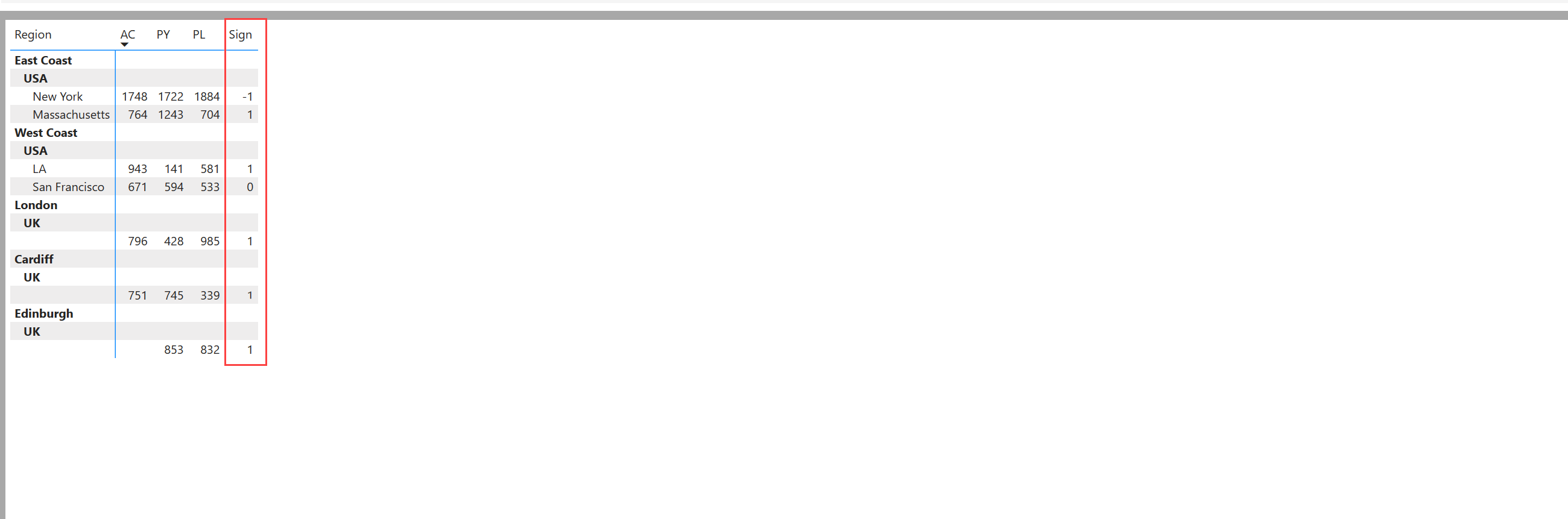
Instead of defining positive and negative signs at the report level, you can use the sign conventions from your data source tables. To do this, create a column that assigns values -1, +1, and 0 for negative, positive, and totals respectively. A sample table is shown below.

<figure><img src="https://content.gitbook.com/content/sB9HAei8v4FfKkH9M4gw/blobs/N5mkhHxIfcLsggAi06gs/Sign%20table1.png" alt=""><figcaption><p>Sign table</p></figcaption></figure>

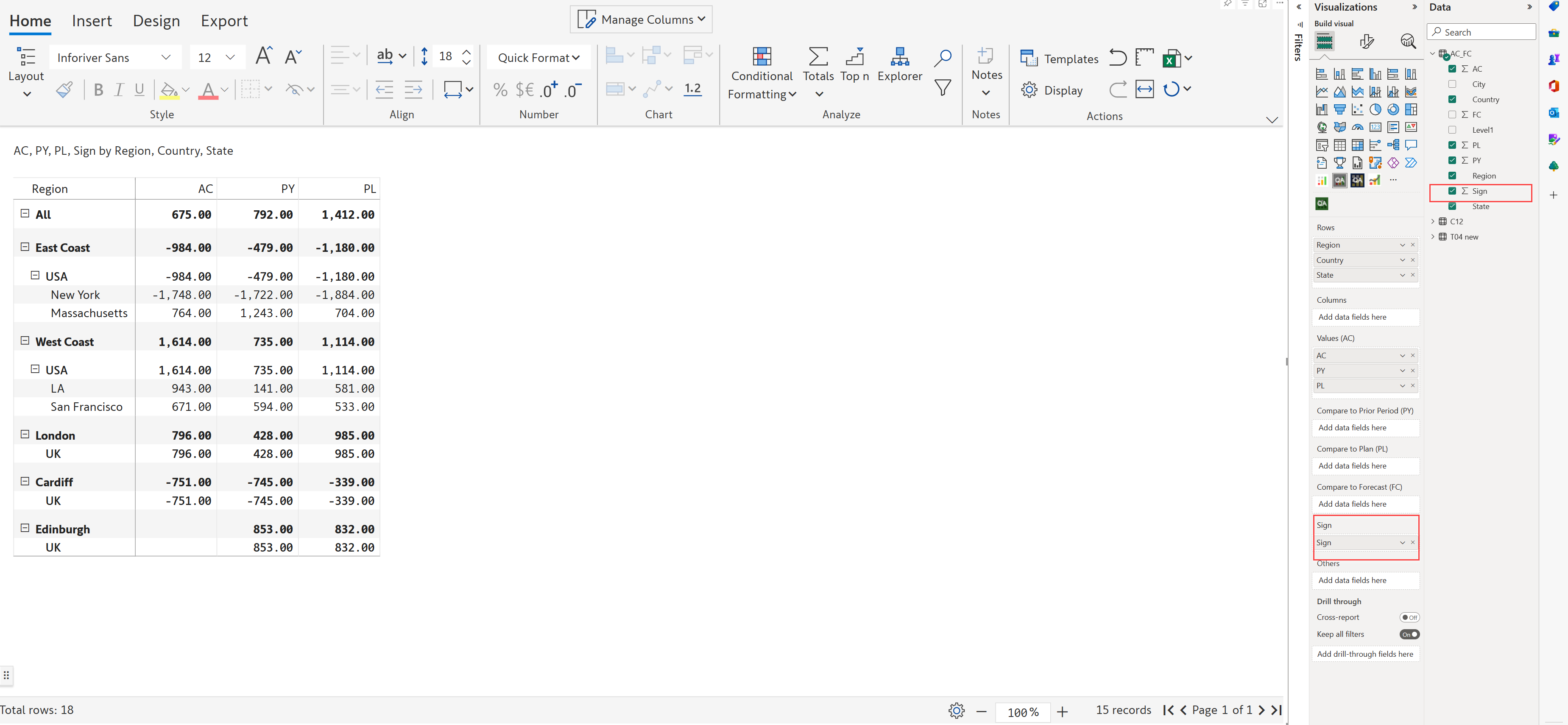
a) Add this sign column in the 'Sign' field. You can see the change in the values in the below image and also the calculation of subtotals and totals.

<figure><img src="https://content.gitbook.com/content/sB9HAei8v4FfKkH9M4gw/blobs/laZhlCPo6QoUkoCvipTU/sign%20measure.png" alt=""><figcaption><p>Sign measure</p></figcaption></figure>

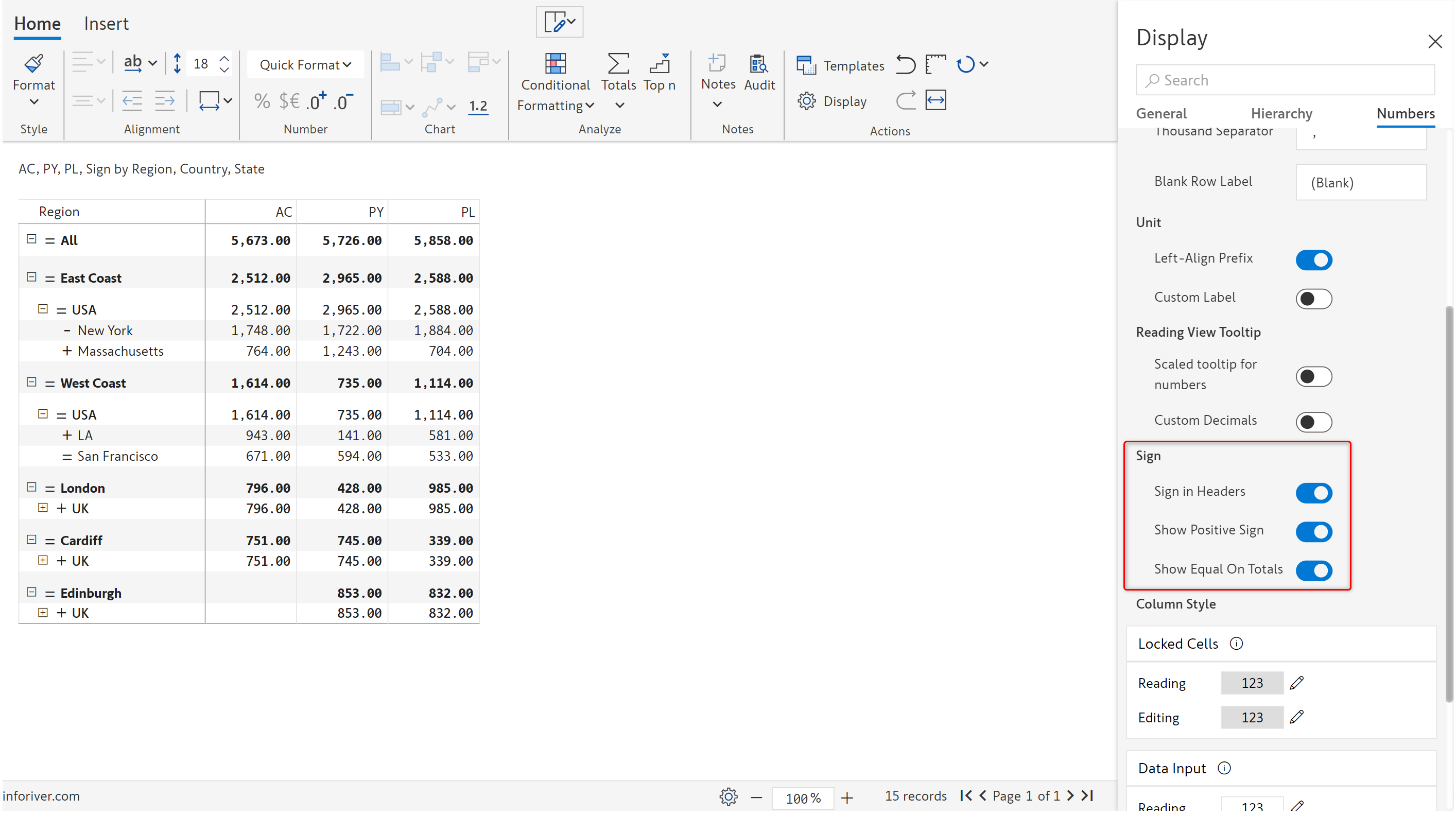
b) On enabling the 'Sign in header' option, you can see the positive, negative, and total rows with the signs in the header.

<figure><img src="https://content.gitbook.com/content/sB9HAei8v4FfKkH9M4gw/blobs/2aTVv5rGuQesXgcs6T9q/invert%20sign.png" alt=""><figcaption><p>Sign in headers</p></figcaption></figure>

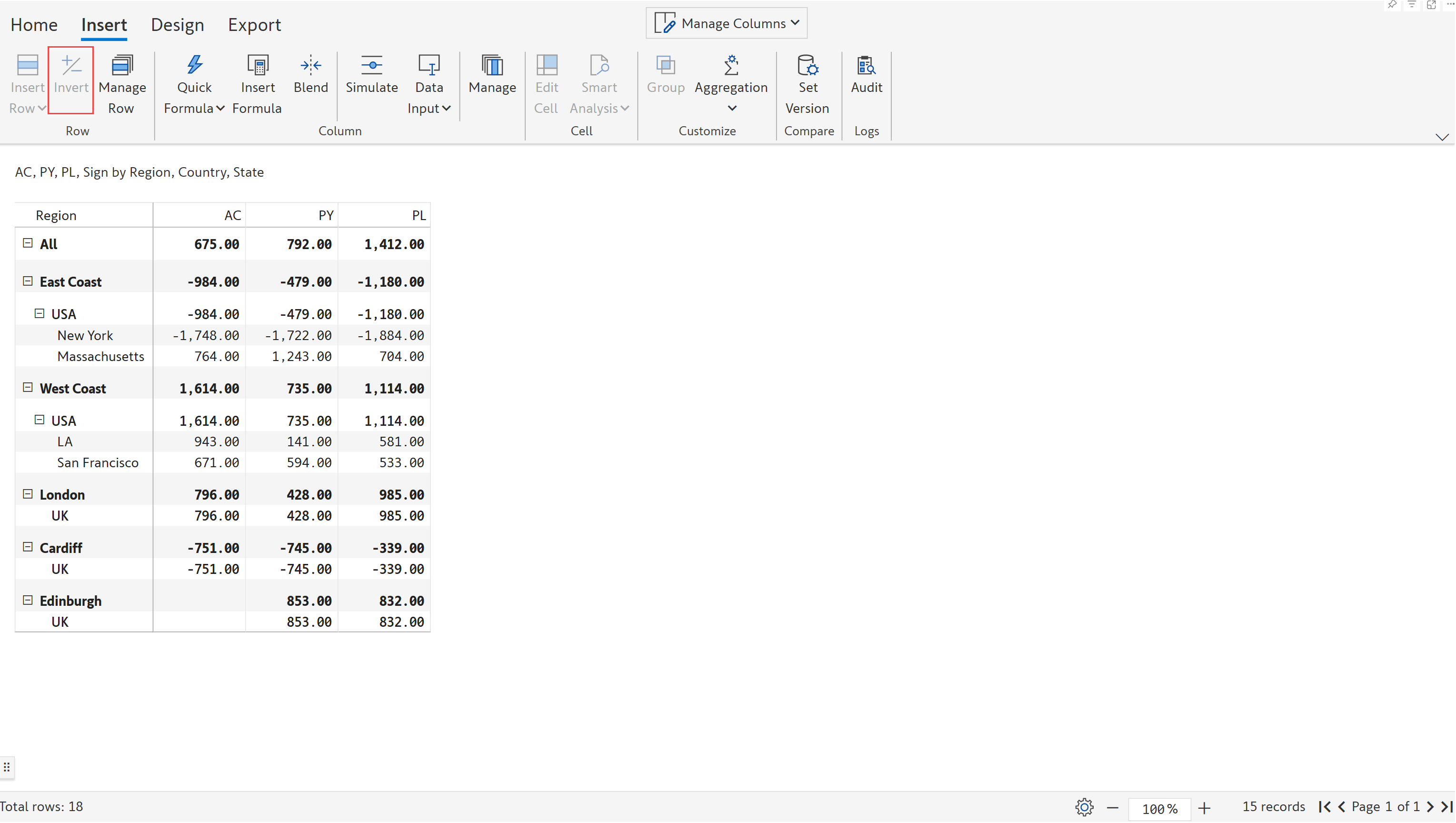
c) The 'Invert' option is disabled when the sign column is added.

<figure><img src="https://content.gitbook.com/content/sB9HAei8v4FfKkH9M4gw/blobs/smqfYlrCsRwbhbLEZBlJ/Invert%20disabled.png" alt=""><figcaption><p>Invert disabled</p></figcaption></figure>