# Insert calculated columns

In Premium Table, you can insert a new calculated row, column/measure at the visual level in your Power BI table without writing DAX. The rows and columns that are created can also be formatted, rearranged, and used for subsequent calculations.

The Excel-like formula engine supports 50+ functions (logical, boolean, math functions, and more). The formula editor provides syntax, examples and features such as autocomplete, multi-line support and more to help users create and troubleshoot formulas.

{% hint style="info" %}
Refer to [formula syntax](https://docs.inforiver.com/premium-table/formula-syntax) for a detailed list of functions, operators, and identifiers that can be used for calculations.
{% endhint %}

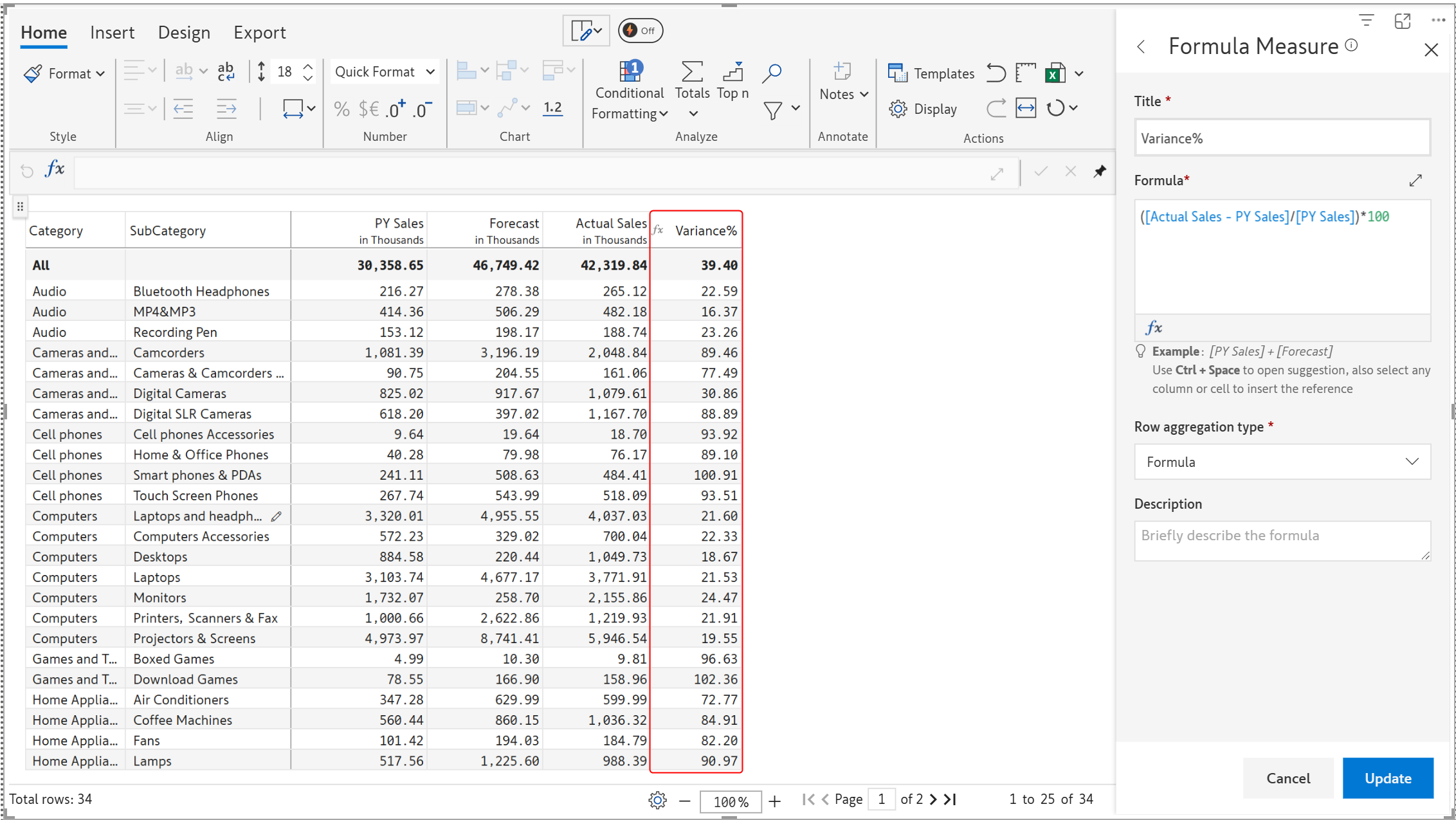
Let us take this example, where we have sales data for the previous year and the current year. We will now try to insert a column that calculates the percentage variance using the formula ((Actual sales - PY Sales) / PY Sales) \* 100.

<figure><img src="https://2428652681-files.gitbook.io/~/files/v0/b/gitbook-x-prod.appspot.com/o/spaces%2FsB9HAei8v4FfKkH9M4gw%2Fuploads%2FjBMltfsAOGI8KX0hSrnM%2Fimage.png?alt=media&#x26;token=22a0c59e-dbdd-4ce7-a492-3e2694c0342d" alt=""><figcaption><p>Sales - current year and previous year</p></figcaption></figure>

1. To insert a formula column, select **Insert Formula** from the **Insert** tab. A side panel opens on the right.

<figure><img src="https://2428652681-files.gitbook.io/~/files/v0/b/gitbook-x-prod.appspot.com/o/spaces%2FsB9HAei8v4FfKkH9M4gw%2Fuploads%2FrkAKT7QY6xBBrECHkcrS%2Fimage.png?alt=media&#x26;token=377fc5b9-09c1-4d06-b24d-77f0e9c1ff3f" alt=""><figcaption><p>New formula column</p></figcaption></figure>

2. Once you place the cursor inside the formula editor, you will see a context assistant pop up. You can access other references or functions through this context assistant.

<figure><img src="https://2428652681-files.gitbook.io/~/files/v0/b/gitbook-x-prod.appspot.com/o/spaces%2FsB9HAei8v4FfKkH9M4gw%2Fuploads%2F0xXIEpUnyM6781tF6hSP%2Fimage.png?alt=media&#x26;token=6501d5f5-c5f9-4196-9f00-6edd14f682b7" alt=""><figcaption><p>List of references</p></figcaption></figure>

<figure><img src="https://2428652681-files.gitbook.io/~/files/v0/b/gitbook-x-prod.appspot.com/o/spaces%2FsB9HAei8v4FfKkH9M4gw%2Fuploads%2F3CSkGvr0d300SVFvb5Xd%2Fimage.png?alt=media&#x26;token=5aad40f8-c4d1-410a-885a-103a3aa59f72" alt=""><figcaption><p>List of functions</p></figcaption></figure>

3. Let us go ahead and start typing in values. As you key in a formula, the *References* and the *Functions* list automatically refresh to show a narrower set of options.&#x20;

<figure><img src="https://2428652681-files.gitbook.io/~/files/v0/b/gitbook-x-prod.appspot.com/o/spaces%2FsB9HAei8v4FfKkH9M4gw%2Fuploads%2FGTWM0Loj54k5ihUKJ1SY%2Fimage.png?alt=media&#x26;token=3d8fd7e9-9412-4fb9-8ff1-50e518fb51f5" alt=""><figcaption><p>results</p></figcaption></figure>

{% hint style="info" %}
You can directly select a column from the table to insert its reference in the formula editor.
{% endhint %}

4. We will go ahead and complete the formula as shown below. The rectangular parentheses in the formula indicate that these are not normal text but references to measures.

<figure><img src="https://2428652681-files.gitbook.io/~/files/v0/b/gitbook-x-prod.appspot.com/o/spaces%2FsB9HAei8v4FfKkH9M4gw%2Fuploads%2FDolp7JD3qdBWoRuQ3JHA%2Fimage.png?alt=media&#x26;token=0b6f2f29-8330-410d-b5ba-472eefc45f64" alt=""><figcaption><p>Formula entered</p></figcaption></figure>

5. Give the calculated column an appropriate name, say 'Variance %', and click on **Create**.

<figure><img src="https://2428652681-files.gitbook.io/~/files/v0/b/gitbook-x-prod.appspot.com/o/spaces%2FsB9HAei8v4FfKkH9M4gw%2Fuploads%2FRn0yQPufHpd80Sdb6v0T%2Fimage.png?alt=media&#x26;token=69246148-5794-4fcf-a34d-9260312d3bbc" alt=""><figcaption><p>Creating a calculated column</p></figcaption></figure>

6. You would have now inserted a calculated column in your report.

<figure><img src="https://2428652681-files.gitbook.io/~/files/v0/b/gitbook-x-prod.appspot.com/o/spaces%2FsB9HAei8v4FfKkH9M4gw%2Fuploads%2FIMhm020dO0OVnL1nTR0S%2Fimage.png?alt=media&#x26;token=dbe85690-dc25-46d8-9bcc-2ee1e2c963a2" alt=""><figcaption><p>Calculated column inserted</p></figcaption></figure>

Alternatively, you can calculate absolute variance as shown below, then convert and format the results into percentages.

<figure><img src="https://2428652681-files.gitbook.io/~/files/v0/b/gitbook-x-prod.appspot.com/o/spaces%2FsB9HAei8v4FfKkH9M4gw%2Fuploads%2F86MvS8r15uEG2f6Sp3ir%2Fimage.png?alt=media&#x26;token=6b493a80-6bbb-47c0-9d57-5b1b8730d811" alt=""><figcaption><p>Absolute variance</p></figcaption></figure>

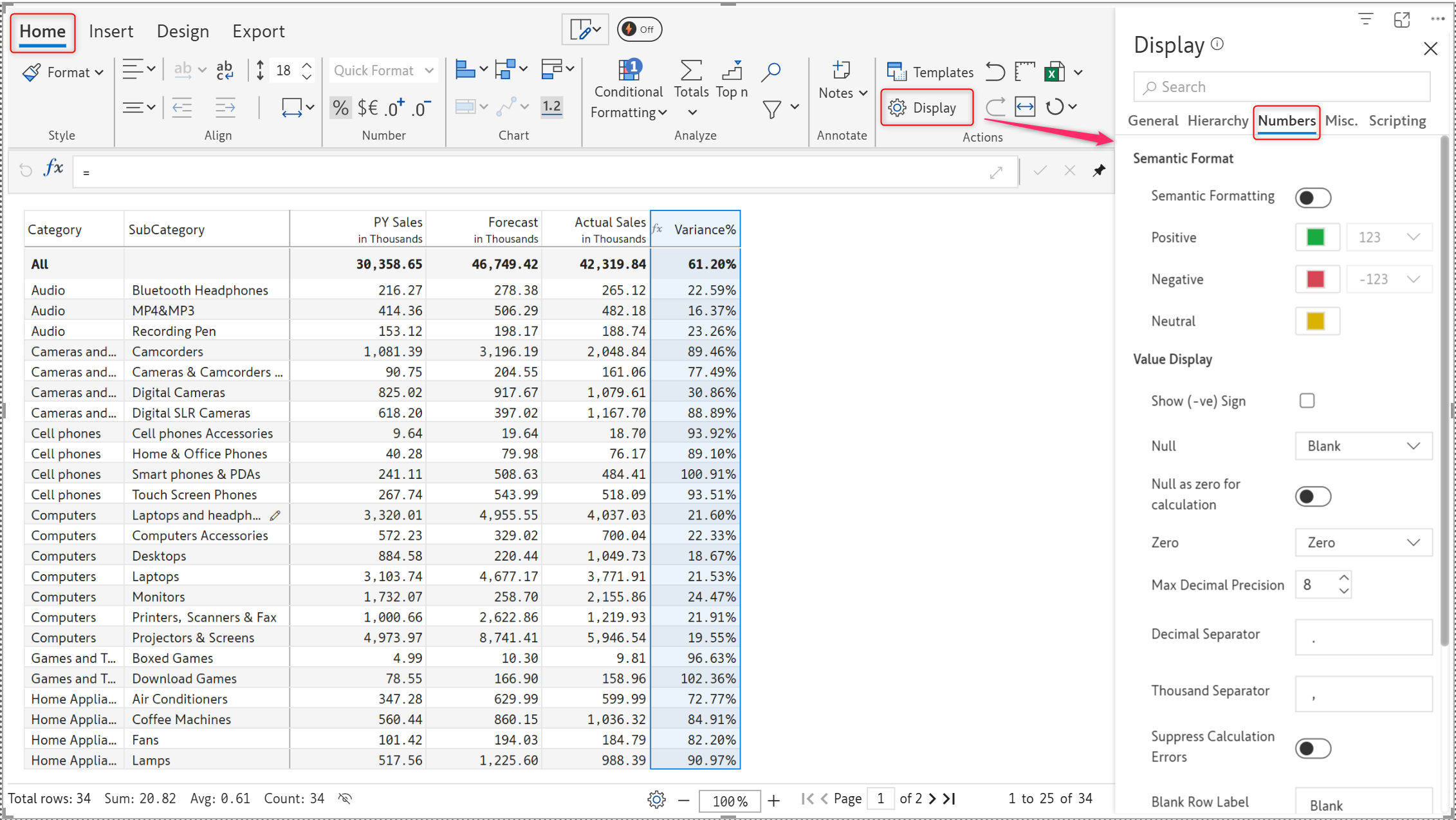
* To convert the values to a percentage format, select the column and click on the % icon from the 'Home' tab.&#x20;

<figure><img src="https://2428652681-files.gitbook.io/~/files/v0/b/gitbook-x-prod.appspot.com/o/spaces%2FsB9HAei8v4FfKkH9M4gw%2Fuploads%2Fikh99otW4sCHsGMQHN9q%2Fimage.png?alt=media&#x26;token=68eba811-10cf-4787-b0c4-db20c8ccf9c2" alt=""><figcaption><p>Results in percentages</p></figcaption></figure>

We have successfully inserted a calculated column at the visual level in our Power BI table report.

We have used the default '[Row aggregation type](https://docs.inforiver.com/premium-table/working-with-premium-table/insert-manual-input-columns/insert-manual-input-columns#i-row-aggregation-type)' which is 'Formula'. This property is covered in detail in the Number column section.

### Handling 'divide by zero' error messages

There are two ways to deal with the Div/0! calculation errors.&#x20;

**i) Display settings -> Suppress calculation errors**

In the 'Home' tab, click on 'Display' settings. In the side panel, go to the 'Numbers' tab.&#x20;

<figure><img src="https://2428652681-files.gitbook.io/~/files/v0/b/gitbook-x-prod.appspot.com/o/spaces%2FsB9HAei8v4FfKkH9M4gw%2Fuploads%2FrWejbYQe21Lc16Fhnepp%2Fimage.png?alt=media&#x26;token=8ba4190c-10f1-40f2-87db-22b2af06b3cf" alt=""><figcaption><p>Display settings</p></figcaption></figure>

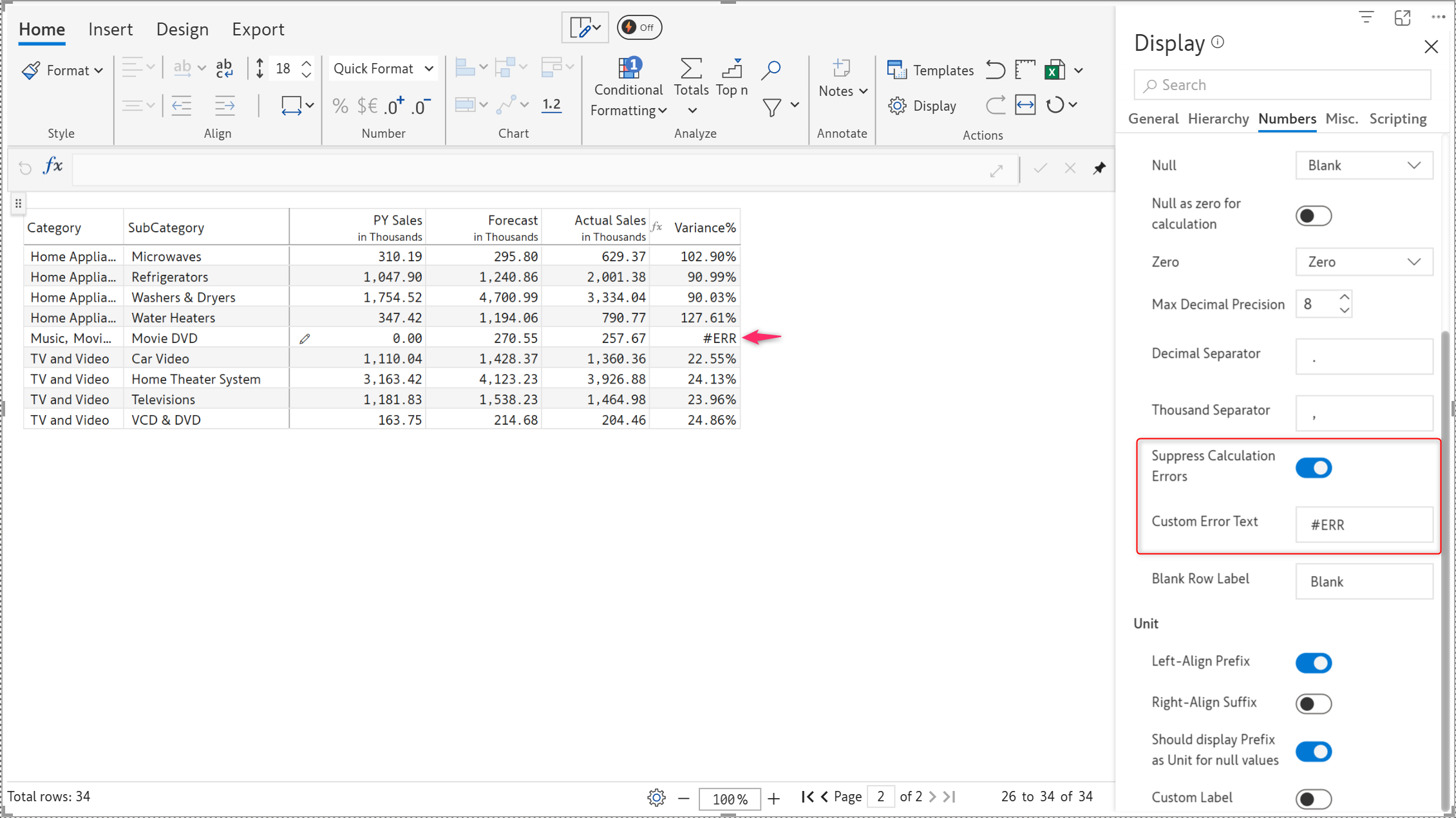
Turn on the 'Suppress calculation errors' toggle. You can see a new field called 'Custom Error Text'.

<figure><img src="https://2428652681-files.gitbook.io/~/files/v0/b/gitbook-x-prod.appspot.com/o/spaces%2FsB9HAei8v4FfKkH9M4gw%2Fuploads%2FgaTd1DibJEzZ3ZaERADf%2Fimage.png?alt=media&#x26;token=fae542e9-4080-452e-bbba-bfd58414a5a1" alt=""><figcaption><p>Suppress calculation errors</p></figcaption></figure>

You can define a custom text such as "N.A." or "0" or leave it blank. In the below image, we have entered 0. You can see the changes in the rows.&#x20;

<figure><img src="https://2428652681-files.gitbook.io/~/files/v0/b/gitbook-x-prod.appspot.com/o/spaces%2FsB9HAei8v4FfKkH9M4gw%2Fuploads%2F8zlb8MJJ0Wqnd57VIHHB%2Fimage.png?alt=media&#x26;token=f0622fc1-07ae-4333-b32c-cc14603e870d" alt=""><figcaption><p>Define custom error text</p></figcaption></figure>

**ii) Using IFNA function**

Another way to handle calculation errors is by using the IFNA function. When an expression results in an error, you can replace it with a value as shown below.&#x20;

<figure><img src="https://2428652681-files.gitbook.io/~/files/v0/b/gitbook-x-prod.appspot.com/o/spaces%2FsB9HAei8v4FfKkH9M4gw%2Fuploads%2F2ufh2Gl2UZqk71VE5zA3%2Fimage.png?alt=media&#x26;token=17a19dc0-fb7f-41c2-96ac-5e1e9b240585" alt=""><figcaption><p>Using IFNA function</p></figcaption></figure>

**iii) Using the IF function**

Another indirect approach would be to use IF/nested IF statements to define the value when the expression results in an error.

<figure><img src="https://2428652681-files.gitbook.io/~/files/v0/b/gitbook-x-prod.appspot.com/o/spaces%2FsB9HAei8v4FfKkH9M4gw%2Fuploads%2FDrtSB6akpsZrWxlBv04U%2Fimage.png?alt=media&#x26;token=a39593d9-8eff-411a-9d01-ae25e7de842a" alt=""><figcaption><p>Using IF function</p></figcaption></figure>